The best USB C hub is not the one with the most ports; it is the one that keeps power, video, and data stable when everything pulls at once. Port count is the spec sheet’s favorite number and the least useful one, because a hub that starves your laptop of charge or drops a monitor mid-match fails no matter how many sockets it offers.
The entry classic. It handles a monitor, peripherals, and passthrough charging in a compact shell backed by one of the biggest review bases in the category.
- Massive review base for a budget accessory
- 85W passthrough keeps gaming laptops charging
- Compact enough to live in a laptop bag
- Single HDMI, so no dual-monitor desks
- Data ports share bandwidth under heavy load
- No Ethernet port at this tier
The value peak for streaming desks: dual HDMI, wired Ethernet, and real data-port spread at a price just under the midrange benchmark.
- Dual HDMI runs a genuine two-monitor desk
- Gigabit Ethernet stabilizes streaming uploads
- 100W passthrough with an aluminum shell
- Younger track record than the Anker picks
- Pushing both HDMI outputs splits bandwidth
- Larger footprint than travel hubs
The reference point the article measures everything against: stable power delivery and 4K@60Hz output that hold up under concurrent load instead of folding in a clean demo.
- Holds advertised behavior under concurrent load
- 4K@60Hz HDMI plus Ethernet in one unit
- Years of independent reviews back its stability
- Costs more than entry hubs with similar port counts
- Single HDMI output only
- Runs warm during sustained transfers
Picks and availability last verified: November 2, 2026
- Judge a hub by what it holds under concurrent load, not by its port count
- The Anker 7-in-1 covers entry desks and travel with the biggest review base in the budget tier
- The UGREEN Revodok Pro 10-in-1 is the dual-monitor and streaming value, with Ethernet and 100W passthrough
- The Anker 555 stays the midrange benchmark because its power and video stay stable when everything runs at once
- 85W passthrough is the floor for gaming laptops; anything lower quietly drains your battery mid-session
Table of Contents
The key question is simple, can the hub stay stable when a laptop is charging, a monitor is live, an SSD is moving files, and a capture card or Ethernet cable is active too. That’s where weak controllers, cheap cables, and sloppy thermal design show up fast. If you want a hub for FPS gaming, MMO grinding, or streaming a console, you need one that holds up under load, not one that just advertises a long spec sheet. For a clean baseline on display standards, see this HDMI guide.
Why Most USB-C Hub Recommendations Miss the Point
Most USB-C hub roundups act like a bigger port count automatically makes a better buy. That is a bad shortcut. A hub can look generous on paper and still fail the moment you ask it to charge a laptop, drive an external monitor, and push data through a capture card or SSD at the same time.

The better way to judge a best USB-C hub pick is to ask what happens under concurrent load. Charging, display output, storage, and networking all need to stay active together, not one at a time in a clean demo. Independent reviews consistently show that many hubs fail to hold their advertised behavior once multiple ports were used together, which is exactly why spec-sheet shopping keeps disappointing buyers.
Port count is not performance
A hub with eight ports can still be weaker than a simpler unit if its controller cannot keep everything stable. That is why I care more about build quality and sustained behavior than I do about a flashy list of connectors. Aluminum shells usually handle heat better than flimsy plastic housings, and the internal controller decides whether the hub keeps its promise or falls apart once everything is busy.
Practical rule: If a hub only looks good when one port is active, it is not a gaming hub. It is a brochure.
That same testing also gives a useful market benchmark. A well-regarded all-round hub finished first overall, with strong sustained power delivery, reliable 4K@60Hz video output, and a price range that sat in the midrange rather than the bargain bin. That is the kind of result that matters because it shows the difference between “works in theory” and “works with a game running, a stream open, and storage moving at the same time.”
What that means for buyers
If you game casually, a decent hub may be enough. If you stream, capture, or move footage around often, the hub has to keep up without choking. The market reward for getting this right is simple: fewer dropped connections, fewer weird display hiccups, and fewer moments where the hub becomes the weak link in an otherwise solid setup. For a deeper look at output choices, this display guide helps separate marketing language from the ports that matter.
The Specs That Matter for Gamers and Streamers
The right specs are boring in the best way. They’re the ones that stop you from troubleshooting later. For gaming and streaming, power delivery, display output, data speed, Ethernet stability, and card-reader behavior are the parts that matter because they’re the ones that fail when a hub is stretched.
Start with power and display
Power Delivery matters because a laptop under CPU and GPU load can drain faster than a weak hub can refill it. For this category, 85W or higher is the floor to set, and that kind of passthrough is what you want if the laptop is gaming while everything else on the desk is still connected. Lower passthrough is where battery drain starts creeping back in.
For video, 4K@60Hz is the floor, not a bonus. 4K@30Hz makes cursor movement and scrolling feel rough, and that is a bad trade for a desk setup that is supposed to feel responsive. If you are using a single external display for stream controls, chat, or a second game client, you want the higher refresh path. For the display tradeoffs, this monitor connection guide is the cleanest place to separate marketing language from the ports that matter.
USB data tiers are where cheap hubs get exposed
The next divider is 5 Gbps versus 10 Gbps. A 5 Gbps hub is fine for a mouse, keyboard, headset dongle, or slower storage jobs. A 10 Gbps hub is the safer choice if you plan to use an external SSD, a 4K webcam, or a capture card without turning the hub into a bottleneck. That is the difference between a hub that handles a busy desk and one that folds as soon as you stack devices on it.
Naming here is messy on purpose, so check claimed speeds against the official USB-IF specifications rather than trusting a listing’s marketing tier.
PCWorld’s hub guide puts the broader market in perspective, noting that a good USB-C hub sits in the entry band, while a full docking station usually costs meaningfully more, and that standard USB-C often provides 10Gbps of bandwidth, compared with 40Gbps for Thunderbolt and up to 120Gbps with Thunderbolt 5 PCWorld’s hub guide. That gap explains why hubs are the value play for mainstream setups, but not the best answer for every workflow.
Bottom line: 5 Gbps is enough for everyday peripherals. 10 Gbps is the smarter pick if your hub touches storage or capture hardware.
Ethernet and card readers deserve their own scrutiny
For gaming, Gigabit Ethernet is the stability choice. Wi-Fi might be convenient, but low-lag online play and streaming benefit from a wired path that does not wobble when the room gets busy with wireless traffic. Buying guides for hub buying consistently treat Gigabit Ethernet as the right call for steadier play and broadcast reliability Mokinglobal’s buying guide.
Card readers are different. They are not the same as USB storage performance, and they often become the slowest part of the entire chain. If you pull footage from cameras or handheld capture gear often, separate the reader question from the USB data question. The reader is for ingestion, not for pretending it matches your SSD path.
For creators who split audio hardware from the rest of the desk, audio separation for content creators is a useful reminder that a clean setup is not just about port count. It is about keeping the busy lanes from stepping on each other.
| Spec | Minimum to look for | Why it matters for gaming/streaming | Where cheaper hubs cut corners |
|---|---|---|---|
| Power Delivery | 85W+ passthrough | Keeps a gaming laptop charging under load | Lower passthrough that lets the battery slide down |
| Display output | 4K@60Hz | Smooth monitor use for games and stream tools | 4K@30Hz or unstable output |
| USB data | 10 Gbps for heavy use | Better for SSDs, webcams, and capture devices | Sticks to 5 Gbps |
| Ethernet | Gigabit Ethernet | More stable online play and streaming | Skips Ethernet or uses weaker wired support |
| Card readers | Fast, separate readers if you ingest media | Speeds up camera and capture-file offload | Readers become the slowest link |
What Real-World Multi-Device Performance Looks Like
The ugliest hub failures usually do not show up with one device attached. They show up when the desk is under load. A hub can look fine during a quick setup, then start failing once charging, storage, capture, and display output all run at the same time.
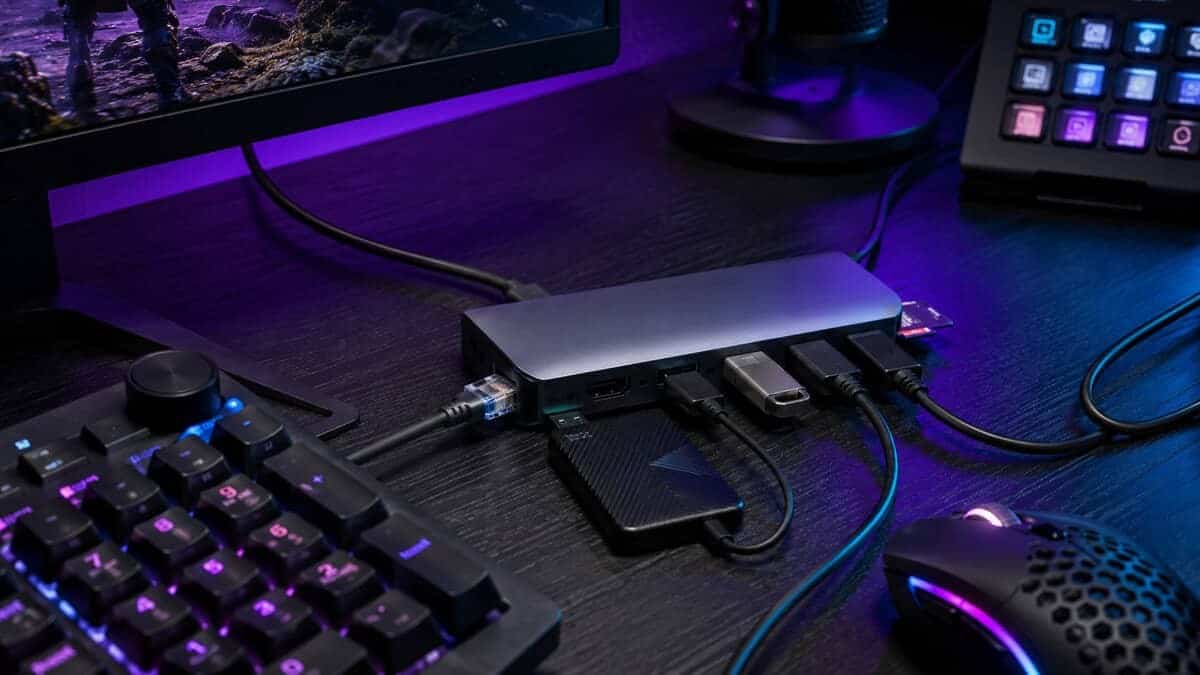
Independent testing of multi-port hubs in 2026 was blunt about the gap between the spec sheet and real use. In one set of results, a large share of units failed to keep their advertised behavior once multiple ports were active at the same time. That is the part buyers need to care about. A hub may handle charging alone, video alone, or storage alone, but weak units start dropping off the moment you combine them.
The failure pattern is usually predictable
When a hub gets pushed too hard, the symptoms are familiar. Charging slows down, the display drops into a worse mode, a capture device stutters, or wired networking becomes less stable than it should be. That does not mean every low-cost hub is worthless. It means many of them have less thermal headroom, weaker internal parts, and less tolerance for sustained load.
Build quality matters more than buyers usually admit. Aluminum shells move heat better than lightweight plastic, and heat is often the reason a hub that looked fine for ten minutes starts acting up later. Cable quality matters too, because a weak cable can keep advertised wattage from reaching the laptop in the first place.
Read past the port list
A product page that fixates on connector count and says little about sustained behavior is a warning sign. A hub built for gaming and streaming should keep the display steady, keep storage moving, and avoid forcing the laptop battery to carry extra load while everything else is active. For portable setups like handheld docks, this dock guide is a useful reminder that the same load problems show up outside laptops too.
If the hub cannot survive the “everything plugged in” test, it does not belong on a gaming desk.
Matching Hubs to Real Gaming and Streaming Setups
Different setups stress a hub in different ways. A competitive FPS player cares about clean display output and stable charging. A streamer cares more about data path reliability and whether connected devices stay predictable when the broadcast gets busy. The wrong hub can technically work in all of these cases and still be the wrong buy.
If a second computer shares the desk, a hub and a USB switch stack well: plug the hub into one of the switch’s device ports and the whole cluster moves between machines with one button.
Competitive FPS gaming on a laptop
For FPS play, the priority stack is short. You want 4K@60Hz if the hub is feeding an external monitor, strong passthrough charging, and a build that doesn’t run hot when the laptop is already working hard. If your setup includes a wired mouse and a headset, a simple hub can be enough, but I still wouldn’t trust a bargain unit if it has to handle charging and display together. For a clean dual-monitor layout, this setup guide helps if you’re deciding how the desk should be wired.
MMO and raid play
MMO players stack more things onto the desk. Chat apps, multiple peripherals, second-screen tools, and long sessions make stability matter more than raw port count. Here, Gigabit Ethernet becomes more useful than a random extra port, and build quality matters because the hub sits there for hours, not minutes. If the shell runs warm and the cable feels flimsy, pass.
Console streaming and capture cards
Console streaming is where many people discover that a hub’s data path is not the same as its advertised port count. Capture cards, microphones, and external storage all want reliable bandwidth, so 10 Gbps support becomes the safer bet if the hub is doing more than basic desk duty. If you want a deeper primer on the device that sits in front of the hub, this capture card explainer is worth a look.
Dedicated streaming PCs and work-from-home gaming rigs
A streaming PC with webcams and audio gear asks a hub to behave like infrastructure, not decoration. That’s also where the right accessory stack can matter, especially if you’re cleaning up voice and game audio separately. For creators who care about that split, audio separation for content creators is a useful reference point.
People who split time between work and play should prioritize a hub with strong charging, 4K@60Hz, and at least one fast data path, then stop chasing extras that won’t improve the desk. If your setup is lightweight, you don’t need a giant dock. If your setup includes capture, streaming, or fast storage, you do need more headroom than a basic dongle provides.
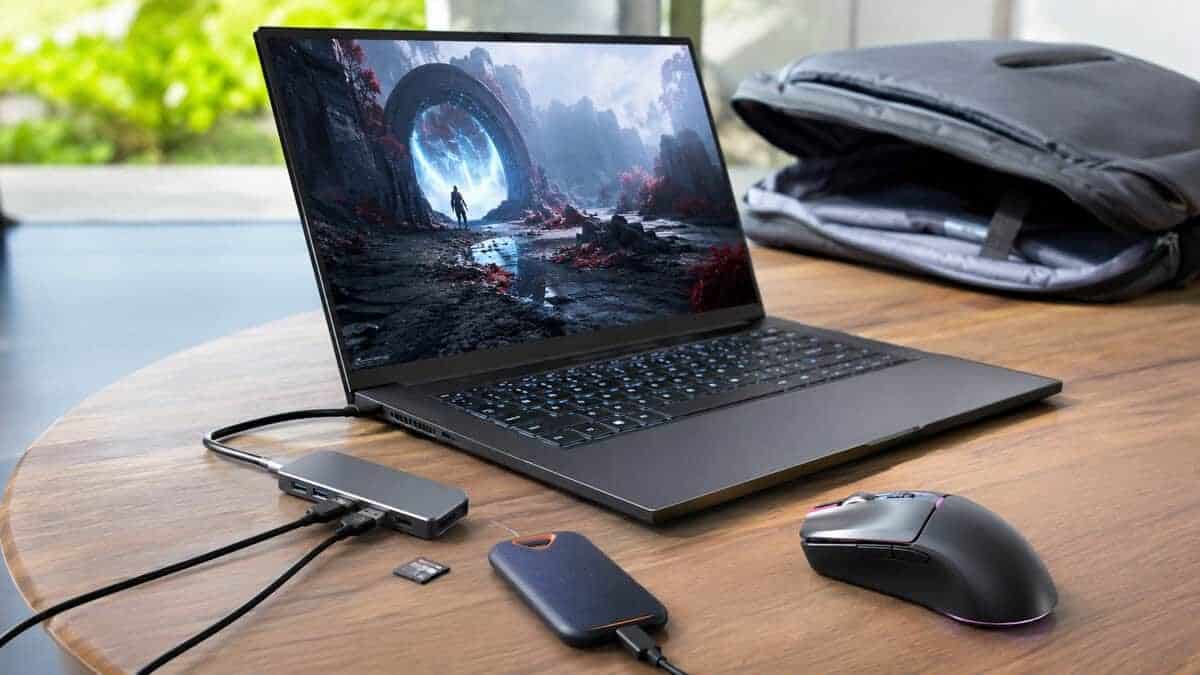
Best USB C Hub Overall: The Anker 555 Benchmark
The Anker 555 USB-C Hub (8-in-1) stays the reference point because it acts like a real hub, not a shell with ports bolted on. Independent reviews consistently praise its stable 85W power delivery under full load and reliable 4K@60Hz video output, which is the combination that separates real hubs from port shells. That is the right target for buyers who want value without taking a gamble on shaky hardware.
Why the measured speeds matter
The USB data side is strong enough that it stops being the weak point. Owner reports and independent reviews describe its USB-A and USB-C data ports as fast enough to move game captures, project files, and large patches between drives without becoming the bottleneck. That lands it in the “good enough that the rest of your setup becomes the limit” category, which is where a midrange hub should be.
The card readers tell a different story, and that matters too. The summarized measurements put the SD reader around 86/76 MB/s read/write and the microSD reader around 84/57 MB/s read/write Technerdo’s summary of those measurements. That is fine for routine ingest, but it is not the part of the hub I would buy for speed. If you are pulling footage from a camera after a session, the readers are the first place you feel the gap between usable and fast. For a clearer look at that gear category, this capture card explainer helps frame what sits upstream of the hub.
My take: The 555 earns its spot because it gets the risky parts right, charging, display, and data under load. The small extras are secondary.
Where it fits best
This is the hub I would point to for a gaming laptop that also handles streaming. It takes the mix of charging, external display, and data traffic without feeling like a compromise product, and the price range still sits inside what most value-focused buyers can justify. If you want one hub to anchor a desk instead of replacing it every few months, this is the benchmark I would use.
| Hub | Ports | Power | Best For |
|---|---|---|---|
| Anker 7-in-1 | 7, single 4K HDMI | 85W passthrough | Entry desks and travel |
| UGREEN Revodok Pro 10-in-1 | 10, dual HDMI + Ethernet | 100W passthrough | Dual-monitor and streaming desks |
| Anker 555 8-in-1 | 8, 4K@60Hz HDMI + Ethernet | 85W passthrough | The stable midrange benchmark |
Budget and Value Picks That Fit the Job
Cheaper hubs are not automatically bad. They become a problem when buyers expect them to do the work of a midrange unit, then act surprised when the limits show up. If your setup is light, a lower-cost hub can be the right call. If your setup mixes gaming, streaming, and fast storage, that same hub can turn into the weak link.
Budget Pick: Anker 7-in-1 Hub
A good USB-C hub usually lives in the entry band. That is the right lane for basic desk work, simple peripherals, and lighter travel setups. You can get useful performance there, but you should expect tradeoffs in shell quality, display headroom, and charging stability.
Low-end measurements also reset expectations fast. On a 5Gbps hub interface, read speeds landed around 355 to 360 MB/s and write speeds around 273 to 285 MB/s. That is decent everyday storage behavior, but it is not where I would put a capture workflow or a heavy external SSD setup.
The Anker 7-in-1 USB-C Hub is the honest version of that entry buy. It covers 4K HDMI, two USB-A data ports, 85W passthrough charging, and SD card slots in a shell that has held a 4.6-star average across one of the largest review bases in the category. It will not drive dual monitors or feed a capture card and fast storage at once, but for a laptop, a monitor, and a couple of peripherals it simply works.
Dual-Monitor Value Pick: UGREEN Revodok Pro
The value pick is the one that trims a little off the midrange benchmark without slipping into cheap-and-fragile territory. It is the right move if you want better build quality and stronger day-to-day performance, but you do not need the full benchmark model. I would still demand solid charging and honest display support, because those are the features that keep a gaming desk from turning into a troubleshooting session.
The UGREEN Revodok Pro 10-in-1 is where the value tier peaks: dual HDMI for a two-monitor desk, 100W passthrough, gigabit Ethernet, and four real data ports in an aluminum body. It sits just under the benchmark pick on price while beating it on port spread, and the tradeoff is a younger track record and single-display bandwidth limits when you push both HDMI outputs hard.
What to accept and what to reject
- Accept slower readers if you only dump photos, patches, or casual files.
- Accept a plastic shell only if the hub runs cool and the desk workload is light.
- Reject weak charging if the laptop is part of your gaming setup.
- Reject unstable Ethernet if you stream or play online competitively.
- Reject 4K@30Hz output if the hub is supposed to drive your main monitor.
The clean rule is simple. Buy budget if the hub is a convenience. Buy value if you want a reliable desk accessory. Buy midrange if the hub has to keep up with a real gaming and streaming workflow.
Your Pre-Purchase Checklist Before You Click Buy
Before you buy, check the product page like you plan to use the hub, not like you’re collecting specs. If you need an external SSD, make sure the data port is 10 Gbps, not just “fast.” If you need a monitor, verify 4K@60Hz output, not a vague “supports 4K.” If your laptop charges through the hub, make sure the passthrough wattage is strong enough for your machine under load.
Then look at the shell and the cable. Aluminum usually has the better case for heat, and a cheap cable can undermine even a decent hub. Finally, trust independent multi-device testing more than the marketing page, because the hard failures show up when several ports are active at once. For a better grasp of the device that sits in the middle of a capture setup, this capture card guide is a sensible next read.
To share one keyboard, mouse and monitor between two computers, see our best KVM switch guide.
Frequently Asked Questions
Quick answers to the questions hub buyers ask most.
What is the difference between a USB-C hub and a docking station?
A hub is a compact, bus-powered expander for a handful of ports, while a docking station is a larger, usually externally powered unit built to run multiple high-bandwidth devices at once. For a laptop, a monitor, and peripherals, a good hub is enough; permanent multi-monitor battlestations are where docks earn their higher cost.
Can a USB-C hub run two monitors?
Only if it is built for it. Look for dual HDMI or DisplayPort outputs and check the supported resolution and refresh rate per output, because many dual-display hubs split bandwidth when both are active. Your laptop must also support the display modes the hub uses.
How much power delivery does a gaming laptop need from a hub?
Treat 85W passthrough as the floor. Gaming laptops draw heavily under load, and a hub that passes less than that will slowly drain the battery even while plugged in. The hub also reserves some wattage for itself, so advertised numbers are best-case.
Why does my USB-C hub disconnect under load?
Usually heat or power starvation. Cheap hubs throttle or drop devices when charging, display output, and data transfer run at once. A hub with a higher power budget and a metal shell that sheds heat holds its connections; that stability is the real difference between tiers.
Do USB-C hubs add input lag for gaming?
Not meaningfully for keyboards, mice, or controllers, which use a fraction of the available bandwidth. The place a hub can hurt gaming is a saturated data bus: move large file transfers off the hub during competitive sessions and wired peripherals behave exactly as they would plugged into the laptop.
If you want more no-nonsense gear guidance for gaming and streaming, visit Budget Loadout. It cuts through spec-sheet noise and focuses on what actually holds up on a real desk. You’ll find the same value-first approach across hubs, capture gear, and the rest of a practical setup.
Related Articles