Buy the wrong USB switch and you will find out the first time you press the button mid-match: the keyboard drops for two seconds, the headset re-enumerates with a pop, and the work laptop that was supposed to share the desk quietly has the mouse now. The best USB switch is the one that moves a keyboard, a mouse, and a headset between two computers in a single press without any of that, and most of the ones that do it well cost less than a game.
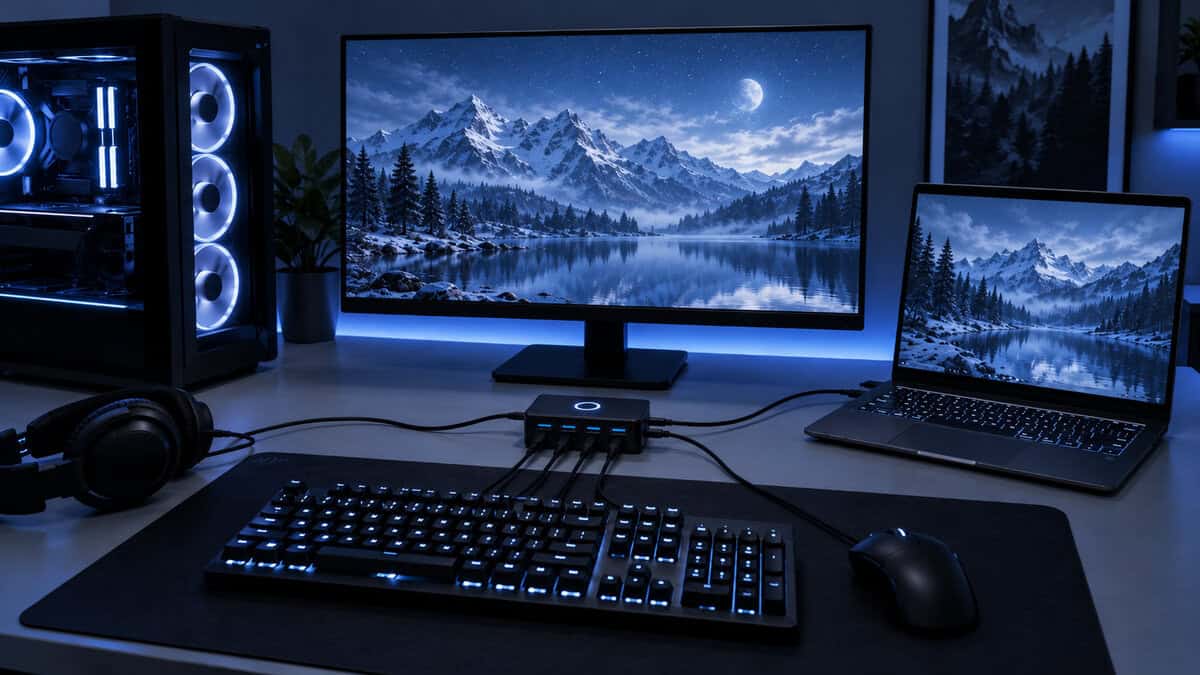
This guide is built around what goes wrong with cheap switches, because that is where the money is saved or wasted. Three picks, chosen for a desk with a gaming PC and a laptop, and sorted by how many computers and devices they juggle and whether they carry USB 3.0 speed or only the USB 2.0 that keyboards need.
The default two-PC switch for a reason. Four USB 3.0 ports carry a keyboard, mouse, headset, and a webcam or drive at full speed, one button flips all of them between a PC and a laptop, and the USB-C power input keeps a hungry device from browning out. It is the pick almost every reader should stop at.
- USB 3.0 on all four ports, so a webcam or external drive is not throttled behind the switch
- Optional USB-C power input solves the dropout problem cheap switches have with power-hungry devices
- The largest review pool in the category, with both host cables in the box
- Two computers only; a third machine means a bigger switch
- Devices briefly disconnect during the swap, as on every switch of this type
- The included host cables are short, so a laptop across the desk may need longer ones
The same one-button layout at the lowest price in the category, on USB 2.0 ports. That is all a keyboard, mouse, or wired headset ever uses, which makes this the honest choice for a desk that only needs input devices shared and nothing that moves big files.
- Cheapest way to share a keyboard, mouse, and headset between two computers
- USB 2.0 is all input devices use, so nothing is lost for that job
- Ten thousand plus reviews on a design that has been on sale for years
- USB 2.0 ports throttle a webcam, capture card, or external drive to a crawl
- Micro-USB power input rather than USB-C
- No room to grow if you later add a USB 3.0 device to the shared set
For the desk with a gaming PC, a work laptop, a console-capture machine, and a spare, this shares four USB 3.0 devices across four hosts with a remote selector you can leave by the keyboard. It is built like network gear and priced like it, which is the tradeoff.
- Four hosts and four USB 3.0 devices, the most flexible layout in this guide
- Remote port selector means the switch itself can live behind the desk
- Over-current protection and a metal chassis for a switch that stays plugged in for years
- Several times the price of the two-computer picks, hard to justify for a PC and a laptop
- Larger footprint and an external power brick
- Overkill for a desk that will never see a third machine
Picks and availability last verified: October 19, 2026
- A USB switch moves your keyboard, mouse, and headset between computers with one button. It does not move the monitor; that job belongs to a KVM.
- USB 2.0 is enough for input devices. Buy USB 3.0 the moment a webcam, capture card, mic interface, or external drive joins the shared set.
- Most cheap-switch failures are power failures. A switch with a dedicated power input fixes dropouts that a longer cable never will.
- Every switch of this type disconnects devices for a moment on the swap. Plan for it, and keep the game PC’s dongles plugged in directly.
- Two computers is the sweet spot. A four-by-four switch is worth it only when a third machine is real, not hypothetical.
Table of Contents
What a USB Switch Fixes and What It Does Not
A USB switch is a box with one button. Your keyboard, mouse, headset, and whatever else you plug into it connect to one computer at a time, and the button decides which. That is the whole product, and it solves a specific problem: a gaming PC and a work laptop on the same desk, and no desire to own two of everything or to swap cables by hand every evening.
What it does not do is move your monitor. When you press the button, the screen keeps showing whichever computer it was already showing. If you have two monitors, or one monitor with two inputs and a quick input button, that is fine and the switch is all you need. If you want the display to follow the keyboard automatically, you are shopping for a KVM instead, and our best KVM switch guide covers the ones that handle high refresh rates without choking them.
Switch vs KVM vs Hub
The three get confused constantly, so here is the split. A hub turns one port into several on one computer. A USB switch points a set of devices at one of two or more computers. A KVM does that and switches the video too. The prices climb in that order, and so does the number of things that can go wrong, which is why a USB switch is often the smarter buy for a desk where the monitor problem is already solved.
If your monitor already has two inputs, you are one cheap box away from a two-computer desk.
A hub and a switch also stack well. Plug a hub into one of the switch’s device ports and a whole cluster of low-power gadgets moves together. Our USB-C hub guide is the place to start if the laptop side of your desk is short on ports in the first place.
Best USB Switch Picks for Two-PC Desks
Two of the three picks share a design and a maker, because this category is one brand and a handful of enterprise gear. The right one for you comes down to whether anything you share needs USB 3.0, and whether a third computer is real or imagined.
UGREEN USB 3.0 Switch: The One Most Desks Need
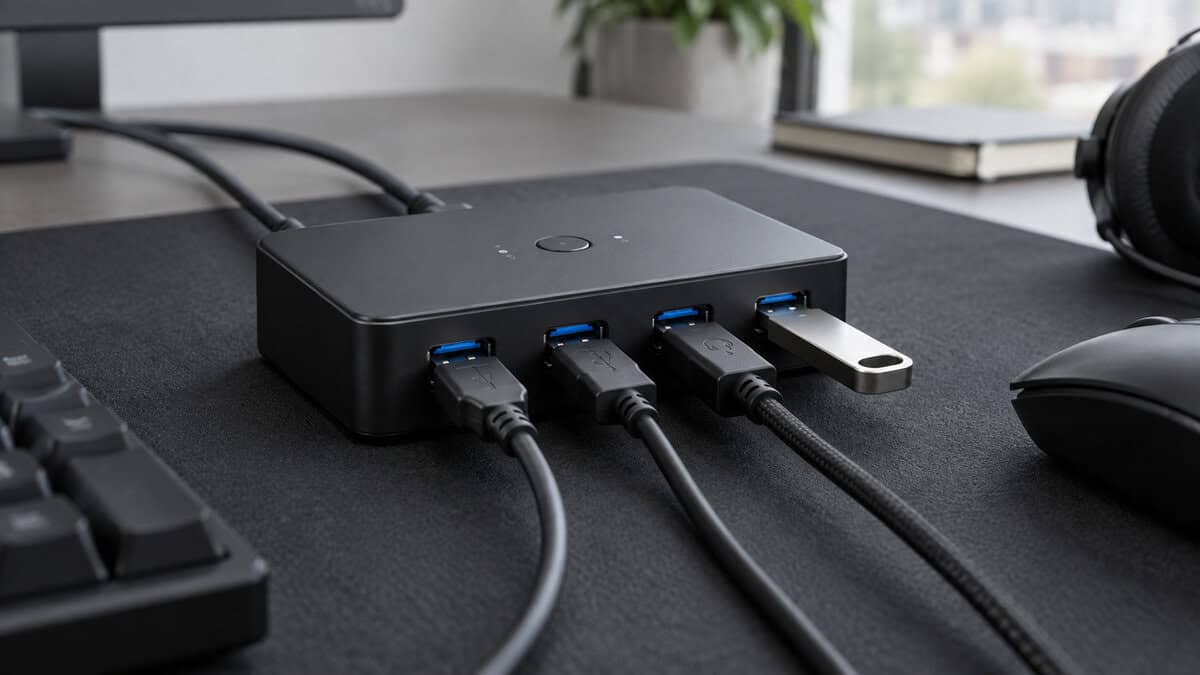
The UGREEN USB 3.0 Switch 2-in-4-out is the switch you will find under most two-computer desks, and it earns that. Two host ports, four USB 3.0 device ports, one button, and an LED that tells you which computer currently owns the keyboard. Both host cables come in the box, so it works the moment you unpack it.
The two details that separate it from the bargain-bin clones are the USB 3.0 ports and the USB-C power input. The first means a webcam, a capture card, or an external SSD runs at full speed on whichever computer has it. The second means a power-hungry device such as an RGB keyboard or a bus-powered drive gets its own supply instead of browning out and vanishing every few minutes, which is the most common complaint about switches at half this price.
The power port is the feature you do not think you need until your keyboard starts disappearing.
The limits are the ones every two-host switch shares. Devices disconnect for a moment during the swap, a third computer needs a different product, and the included cables are on the short side for a laptop parked at the far end of a wide desk. None of those are reasons to pick something else. For a PC and a laptop with a shared keyboard, mouse, and headset, this is the answer.
UGREEN USB 2.0 Switch: Input Devices for Less
The UGREEN USB 2.0 Switch 2-in-4-out is the same idea with USB 2.0 ports and a lower price, and it is the right buy more often than the spec sheet suggests. A keyboard, a mouse, a wired headset, and a controller receiver together use a tiny fraction of USB 2.0’s bandwidth. If those are the only things you share, USB 3.0 buys you nothing.
It has the same one-button layout and LED, a micro-USB port for optional power, and a review pool larger than most gaming peripherals. It is the version to buy for a desk where the second computer is a work laptop that only ever needs the keyboard and mouse.
The catch is permanent. The moment you add a webcam, a capture card, a mic interface, or an external drive to the shared set, USB 2.0 becomes the bottleneck and you are buying the USB 3.0 model anyway. Be honest about what the desk will look like in a year before you save the difference.
StarTech 4×4 USB 3.0 Switch: When Two Hosts Is Not Enough
The StarTech 4×4 USB 3.0 Sharing Switch is the pick for a desk that has outgrown two computers: a gaming PC, a work laptop, a capture or streaming machine, and one more. Four hosts, four USB 3.0 device ports, and a wired remote selector so the box itself can disappear behind the desk while the button sits by the keyboard. It works with Windows, macOS, and Linux without drivers.
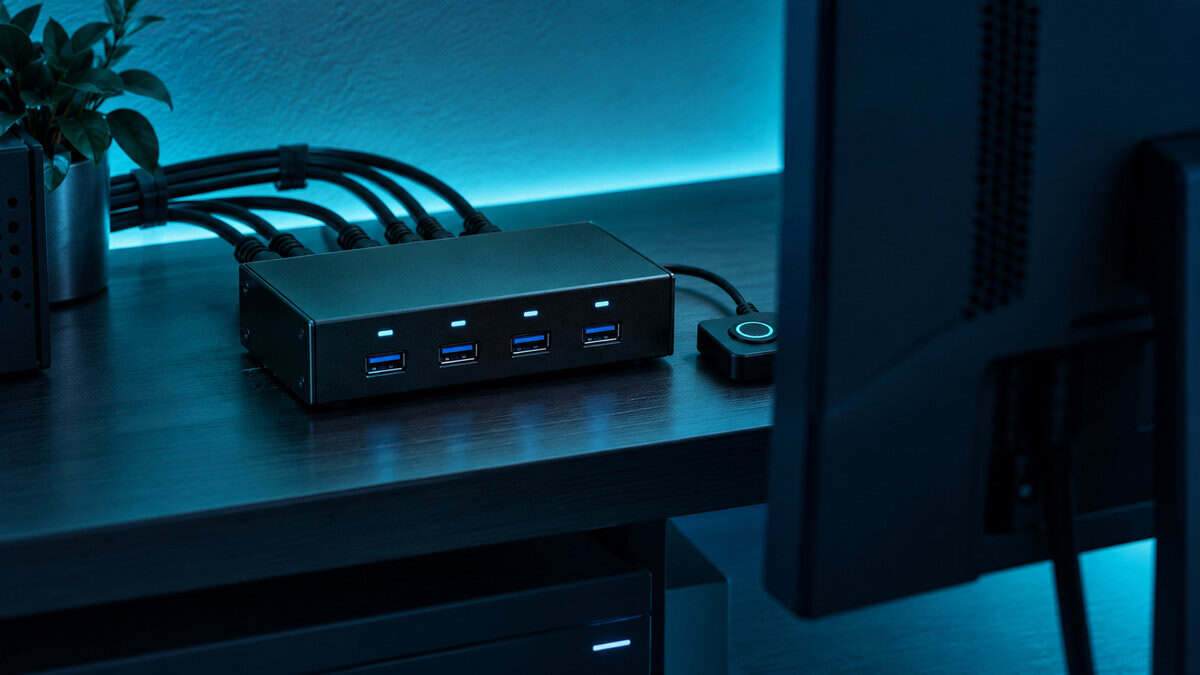
It is built the way network hardware is built, with a metal chassis, over-current protection on the ports, and hot-plug support, and it is priced the same way. That is the honest tradeoff. For a two-computer desk it is several times the money for capacity you will never use, which is why it is third here and not first.
If four hosts is real for you, the alternatives are thin. The TRENDnet TK-U404 covers the same four-by-four layout for less with a smaller review pool, and the Tripp Lite 4-Port USB 3.0 Switch shares only a single device across four computers, which suits a printer more than a gaming desk.
One more shape exists that none of the picks cover: two computers sharing a single device. The Tripp Lite 2-Port USB 3.0 Switch does exactly that for a printer, a scanner, or an external drive that both machines need and nothing else. For a gaming desk it is the wrong tool, because a keyboard and a mouse alone already need two ports, but it is the right one for a shared drive next to a desk that has its input devices sorted.
The USB 3.0 Catch
Every switch listing leads with a speed, and most buyers pick the faster one on instinct. The instinct is only half right. What matters is not the number on the box but which of your devices will ever notice it.
What Input Devices Actually Use
A keyboard reports a handful of bytes per keypress. A gaming mouse at its highest polling rate is still a trickle next to USB 2.0’s ceiling. A wired headset streams a modest audio feed in each direction. Put all three behind a USB 2.0 switch and none of them slows down, drops polling, or adds latency you can feel. This is why the cheaper pick exists and why it is not a compromise for the job it is sold for.
Where USB 3.0 Earns Its Price
Cameras, capture cards, mic interfaces, and storage are different. A 1080p webcam or a capture card pushes a video stream that USB 2.0 can only carry compressed or at a lower frame rate. A bus-powered SSD behind a USB 2.0 switch transfers at a fraction of its rated speed. USB-IF’s own USB 3.2 overview lays out the 5, 10, and 20Gbps tiers; a 5Gbps switch is the floor for any of those devices, and it is what both USB 3.0 picks here run.
Buy USB 3.0 for the camera and the drive. The keyboard will never know the difference.
If you want to go past 5Gbps, the UGREEN 2-in-7-out USB 3.2 Switch runs seven device ports at 10Gbps and adds USB-C on both the host and device sides. It costs more than twice the USB 3.0 pick, and it only pays off if you are moving large files across the switch regularly. For a keyboard, mouse, headset, and webcam, it is speed you paid for and never see.
Where Cheap Switches Fail
The one-star reviews on USB switches repeat four stories. All four are avoidable, and knowing them before you buy is worth more than any spec.
The Dropout Problem Is a Power Problem
The most common failure is a device that randomly disconnects: the keyboard goes dead for a second, the mouse cursor freezes, a drive unmounts mid-copy. It reads like a bad switch. It is almost always power. The switch draws from the host computer’s port, and four devices plus an RGB keyboard can pull more than that port wants to give, especially on a laptop.
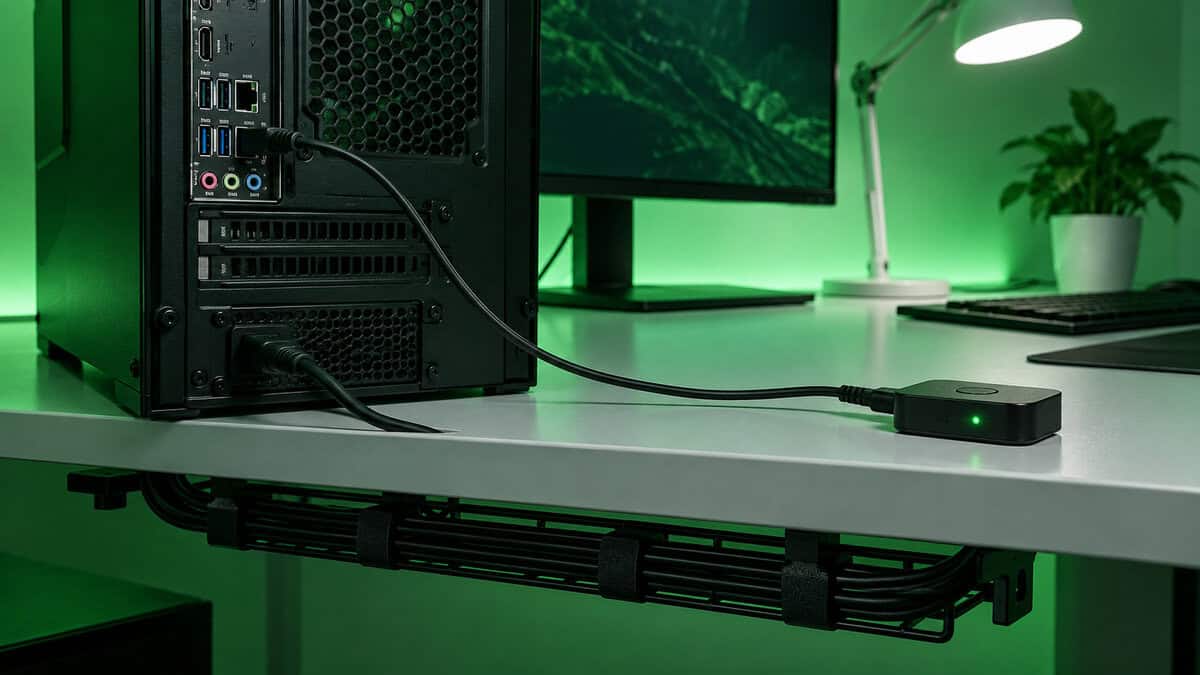
The fix is the dedicated power input, which is why both UGREEN picks have one and why it is the first thing to use if anything flickers. A phone charger into that port ends the problem on most desks. Switches without a power input, which includes many of the cheapest listings, have no fix at all.
The Swap Delay and Dongles
Every switch of this type physically disconnects the devices from one host and connects them to the other, and the new host has to recognize them again. That takes a moment, and on the first swap after a boot it can take longer. It is normal. What is not normal is doing it during a match, so treat the button as something you press between sessions, not between rounds.
Wireless dongles deserve their own rule. A mouse or headset receiver behind a switch re-pairs on every swap, which can add a beat of lag or a burst of static, and a few receivers refuse to wake at all until unplugged. If a wireless device belongs to the gaming PC alone, plug its receiver straight into that PC and leave the switch for the shared gear.
Keyboards That Vanish at Boot
Some motherboards do not initialize a switched keyboard early enough to get into the BIOS, and a few sleep-and-wake cycles can leave the switch pointed at a computer that is off. Neither is a defect in the switch. Keep a spare wired keyboard in a drawer for the rare BIOS visit, and press the button once after waking a machine that has been asleep for a while. If the desk rearranges often, a switch with a remote selector, like the StarTech, is easier to live with than one whose button ends up behind a monitor.
Three Switches Side by Side
The decision in one place: how many machines, how many devices, and whether you need the speed.
| Pick | Computers | Device ports | USB spec | Power input | Best for |
|---|---|---|---|---|---|
| UGREEN USB 3.0 Switch 2-in-4-out | 2 | 4 | USB 3.0, 5Gbps | USB-C, optional | A PC and a laptop sharing input devices plus a webcam or drive |
| UGREEN USB 2.0 Switch 2-in-4-out | 2 | 4 | USB 2.0, 480Mbps | Micro-USB, optional | Keyboard, mouse, and headset only, at the lowest price |
| StarTech 4×4 USB 3.0 Sharing Switch | 4 | 4 | USB 3.0, 5Gbps | External brick | Three or four machines on one desk |
If you are stuck between the two UGREENs, list what will be plugged into the shared ports a year from now. A camera or a drive on that list means USB 3.0. Nothing but input devices means the cheaper one, with no regret.
Setting Up a Switch Without Surprises
A USB switch takes five minutes to install and a few small decisions to install well. Get these right the first time and you will not think about the box again.
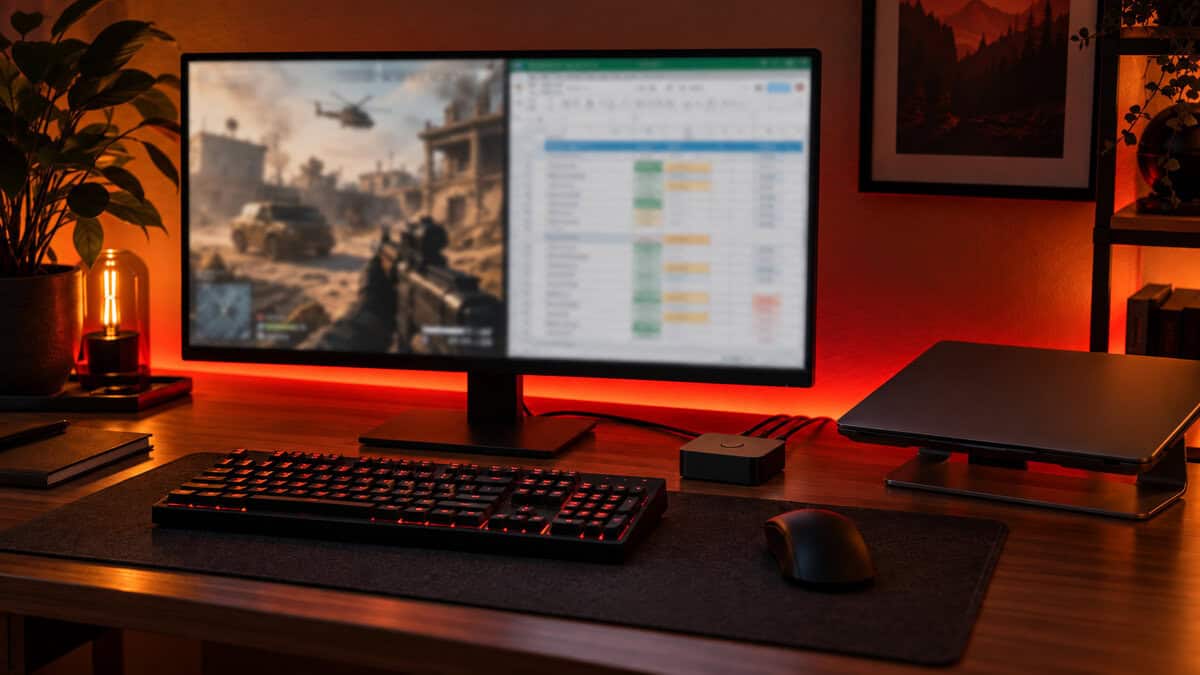
Put the switch where the button is reachable without looking, ideally just past the keyboard on the side the laptop lives. Measure the host cable runs before you buy longer ones; the included cables reach a tower under the desk and a laptop beside the monitor, and not much further. Use a port on the back of the PC rather than a front-panel one, which is often shared with other headers and drops power under load. And plug the power input in from the start rather than waiting for a dropout to prompt it.
Check the laptop side before you order. All three picks use USB-A host cables, and a thin laptop with only USB-C ports needs a small USB-C to USB-A adapter or a hub on that end. It is a five-dollar problem, but it is the one that leaves the switch sitting in its box on the first evening. The switch itself does not care which side is the laptop; either host port works for either machine.
Shared gear goes through the switch. Gaming-only gear plugs straight into the gaming PC.
Decide which devices are truly shared. The keyboard, mouse, and a wired headset usually are. A wireless mouse receiver, a controller dongle, and a USB DAC that only the gaming PC uses should bypass the switch entirely, both to avoid the re-pair on every swap and to keep the game PC’s audio chain stable.
If your desk is short on cable room for all of that, our desk accessories guide covers the cable management that keeps a two-computer setup tidy, and the L-shaped desk guide is where to look if two machines simply do not fit on one straight run. For anyone building the whole desk from nothing, the beginner gaming setup guide shows where a switch fits in the order of purchases.
Finally, the monitor. If it has two inputs, connect one to each computer and learn the input button on the monitor’s menu. That single habit, plus the switch, turns a PC and a laptop into a desk that feels like one machine, at a fraction of the cost of a KVM that can keep up with a high-refresh panel. StarTech’s own explainer on what a KVM switch is is the place to go when the monitor button stops being enough.
Frequently Asked Questions
The questions that come up most when adding a second computer to a gaming desk.
What is the difference between a USB switch and a KVM switch?
A USB switch moves your keyboard, mouse, and other USB devices between computers with one button. A KVM does the same and also switches the monitor. If your monitor has two inputs and its own input button, a USB switch does the job for a fraction of the cost. If you want the screen to follow the keyboard automatically, you need a KVM.
Do I need a USB 3.0 switch for a keyboard and mouse?
No. Keyboards, mice, controllers, and wired headsets use a tiny fraction of USB 2.0 bandwidth, so a USB 2.0 switch handles them without any added latency. USB 3.0 matters when you share a webcam, a capture card, a mic interface, or an external drive, all of which are throttled behind USB 2.0 ports.
Why does my keyboard disconnect when using a USB switch?
Usually power, not the switch. Four devices drawing from one host port can exceed what that port supplies, especially on a laptop. Plug a charger into the switch’s power input, use a rear port on the PC rather than a front-panel one, and keep power-hungry gear like RGB keyboards on the powered switch rather than an unpowered clone.
Does a USB switch add input lag for gaming?
Not in normal use. The switch passes signals straight through, and a keyboard or mouse behind it polls at its full rate. The only delay is during the swap itself, when devices disconnect from one computer and reconnect to the other, which is why you press the button between sessions rather than mid-match.
Should I put a wireless mouse dongle through a USB switch?
Only if both computers need that mouse. A receiver behind a switch re-pairs on every swap, which can add a moment of lag or a burst of static, and some receivers need to be unplugged to wake. If the wireless mouse belongs to the gaming PC alone, plug its dongle straight into the PC and share the wired gear through the switch.
Looking for more budget gaming gear? Check out Budget Loadout for the latest reviews and recommendations.
Related Articles