The best KVM switch for most gaming desks is the UGREEN 8K KVM Switch, which shares up to three monitors plus one keyboard and mouse between two PCs. A good gaming KVM does that while your screen keeps its full refresh rate and your mouse keeps its side buttons. Cheap switches can fail one of those two tests.
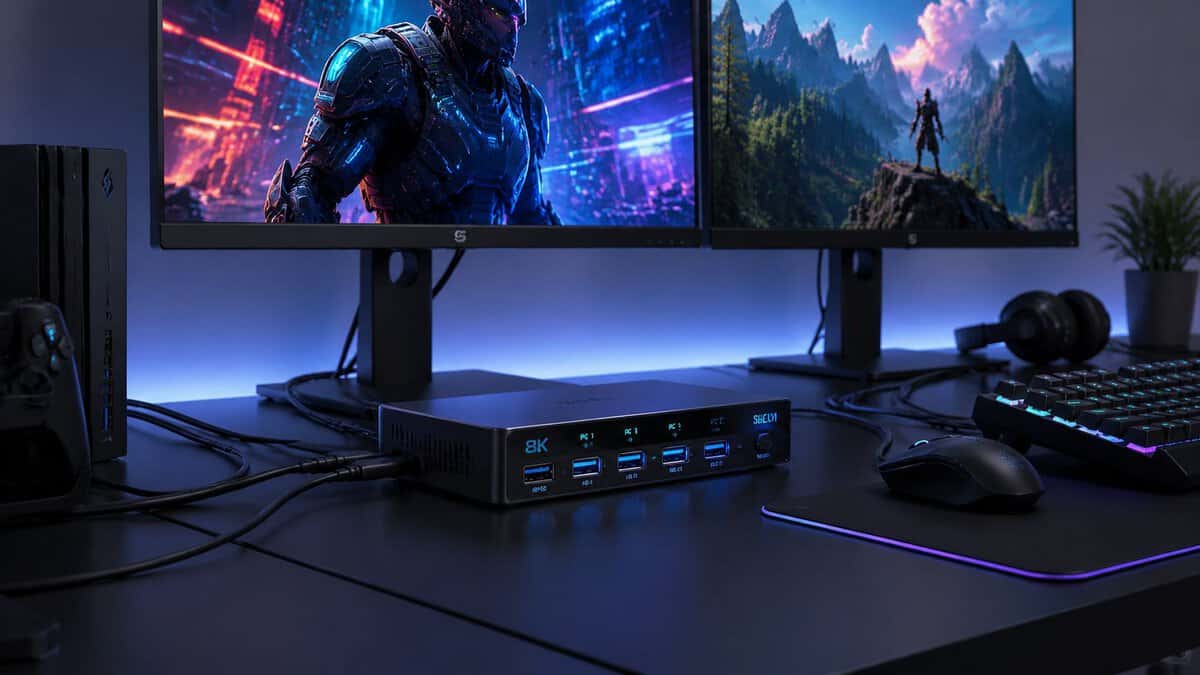
The three picks below cover three common gaming desks. The first is a gaming PC sharing up to three screens with a second PC. The second is a two-screen high-refresh setup switched from the keyboard or mouse. The third is a gaming tower sharing the desk with a work laptop.
The best all-round gaming KVM for most desks. UGREEN rates it for 4K at 240Hz and it drives one to three screens from two PCs. The display cables come in the box.
- Rated for 4K at 240Hz
- Runs one, two or three screens
- Four USB 3.0 ports and cables included
- UGREEN lists no EDID emulation
- Three screens need three outputs on each PC
- A full three-screen setup needs a lot of cables
The pick for two high-refresh screens when you want to switch from the keyboard or mouse. CKLau lists DisplayPort 1.4 at 4K and 144Hz. A hotkey toggle stops special gaming keyboards and mice from triggering switches by accident.
- Two DisplayPort 1.4 screens at 4K and 144Hz
- Hotkey toggle for gaming keyboards and mice
- Metal housing with audio and mic jacks
- No EDID emulation so windows can shuffle
- Lists 144Hz as its top rate at 4K and 2K
- One spare USB 3.0 port for extras
The pick for a desk that is part gaming rig and part work laptop. It shares two monitors and your peripherals between both machines and charges the laptop over USB-C.
- Dock and KVM in one box
- Charges a USB-C laptop at up to 65W
- Gigabit Ethernet, five USB-A ports and EDID support
- AV Access lists 4K at 60Hz, not high refresh
- Dock features go unused with two towers
- Costs more than a plain KVM switch
Picks and availability last verified: November 9, 2026
- Match the KVM to your fastest monitor. A switch rated below your screen’s refresh rate at its resolution caps it after every switch.
- DisplayPort KVMs are the safer choice for high-refresh PC monitors. HDMI models suit desks that mix a PC and a console.
- Gaming mice and custom keyboards work best on a switch that passes USB through instead of emulating a basic keyboard and mouse.
- EDID emulation keeps your window layout in place when you switch. UGREEN lists none for its 8K switch and CKLau says the CKL-622DP-4 lacks it.
- Buy for the desk you own. A one-screen switch for two PCs usually costs less than a two-screen switch or a laptop dock.
Table of Contents
The Best KVM Switches for Gaming at a Glance
The UGREEN 8K KVM switch is the best pick for most gaming desks. The CKLau CKL-622DP-4 suits two high-refresh screens when you want hotkey and mouse switching. The AV Access iDock P10 is the pick when one of your two machines is a work laptop.
| Pick | Best for | Screens and PCs | Top listed refresh | Extras | Skip it if |
|---|---|---|---|---|---|
| UGREEN 8K KVM Switch | Most gaming desks | Up to 3 screens, 2 PCs | 4K at 240Hz | 4 USB 3.0 ports, desk controller | You need EDID emulation |
| CKLau CKL-622DP-4 | Two fast screens with hotkey switching | 2 screens, 2 PCs | 4K at 144Hz (240Hz at 3840 x 1080) | Audio and mic jacks, wired remote | Your 1440p or 4K monitor runs above 144Hz |
| AV Access iDock P10 | A gaming PC plus a work laptop | 2 screens, 2 PCs | 4K at 60Hz | 65W USB-C charging, Gigabit Ethernet | Both machines are desktop towers |
Start with the last column and rule out any pick that doesn’t fit the desk you already own.
Picks for Each Kind of Gaming Desk
The right KVM switch depends on how many screens and computers your gaming desk runs and each pick below fits one of those setups.
UGREEN 8K KVM Switch for One to Three Screens
The UGREEN 8K KVM Switch is the best KVM switch for most gaming desks because it keeps a high-refresh monitor at full speed. UGREEN rates it for 4K at 240Hz and 8K at 60Hz. It connects two PCs to up to three monitors through two DisplayPort outputs and one HDMI output.
The UGREEN box adds four USB 3.0 ports for a keyboard, mouse, headset and drive. The display and USB cables come in the box with a power adapter. A desk controller lets you switch without reaching for the box.
Size the KVM for the screens you own today and ignore the 8K number on the box.
To run all three screens, each PC needs three video outputs of its own. UGREEN lists no EDID emulation so Windows may move a few windows after a switch. Planning even more screens? Our 4-monitor setup guide covers the mounts and ports.
CKLau CKL-622DP-4 for Two High-Refresh Screens and Hotkey Switching
The CKLau CKL-622DP-4 is the pick for two high-refresh monitors on two PCs when you want to switch from the keyboard or mouse. CKLau lists DisplayPort 1.4 at 4K and 144Hz and at 2K and 144Hz. It also lists 3840 x 1080 at 240Hz for a super-ultrawide panel.
The CKL-622DP-4 plays well with gaming peripherals. Its hotkey on/off toggle stops special gaming keyboards and mice from firing switch commands by accident. You can switch with keyboard hotkeys, mouse hotkeys, the push button or a wired remote. CKLau quotes two to three seconds per switch and the metal box adds separate speaker and mic jacks.
The CKL-622DP-4 gives up two things against pricier switches. It has no EDID emulation and CKLau warns that desktop icons and windows may move after a switch. It also lists 144Hz as its top rate at 4K and 2K so a 240Hz 1440p panel would run slower through it.
AV Access iDock P10 for a Gaming PC and a Work Laptop
The AV Access iDock P10 is the pick for a desk shared by a gaming tower and a work laptop. It switches two monitors and your peripherals between both machines and doubles as a USB-C dock. The laptop gets up to 65W of charging, Gigabit Ethernet and five USB-A ports over USB-C.
The iDock P10 also lists EDID support, which helps your screens keep their layout between machines. It is slower on refresh rate, though. AV Access lists 4K at 60Hz for its HDMI and DisplayPort outputs. That suits a work screen and slower games better than a 240Hz shooter panel.
When the TESmart Dual-Monitor KVM Is Worth the Extra
The TESmart DKS402-M24 is worth its much higher price only if you need four PCs or EDID emulation on two high-refresh DisplayPort screens. TESmart lists DisplayPort 1.4 at 4K and 144Hz, EDID emulation and a built-in Gigabit network switch shared by all four computers.
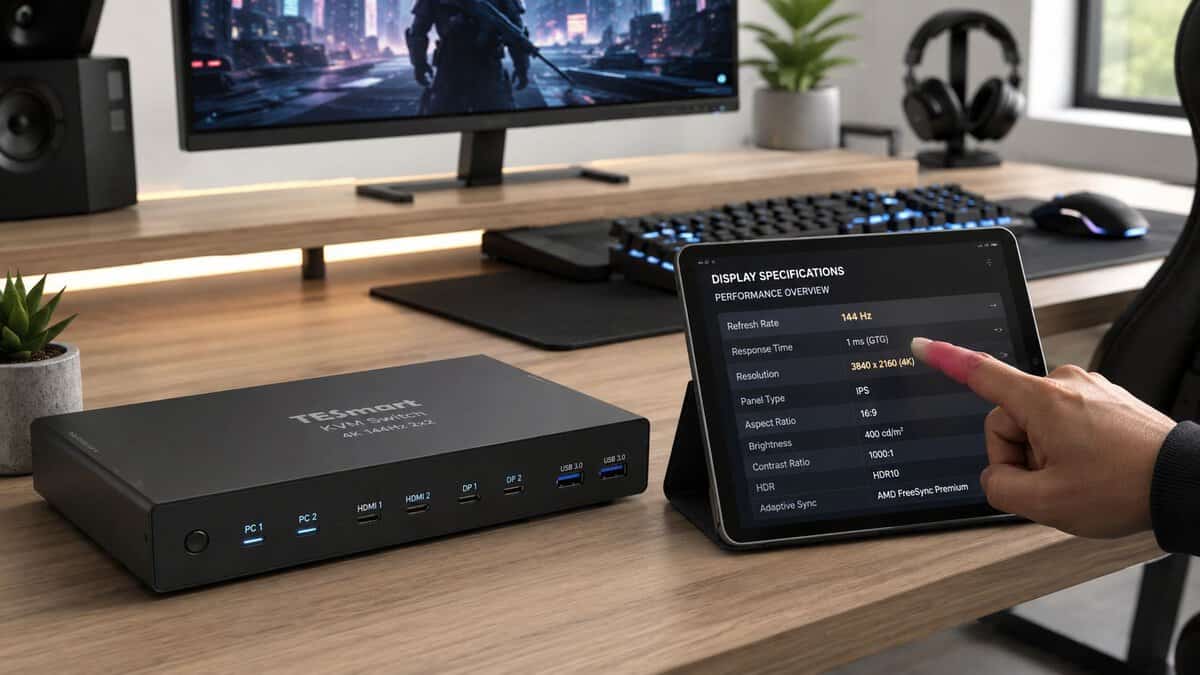
The DKS402-M24 also has a passthrough mode for advanced peripherals. You can switch by IR remote, hotkey or mouse wheel. For a two-PC desk it is more box than most players need and it costs far more than the UGREEN pick.
Do KVM Switches Add Input Lag?
A KVM switch can add input lag and the USB side is the first place to look on a gaming desk. Corsair’s guide to KVM switches for gaming warns that an affordable switch can add system latency and is not recommended because input delay will increase. How much of that delay you feel comes down to how the switch handles your mouse and keyboard.
USB Emulation vs Passthrough for Gaming Mice
USB passthrough is the better mode for a gaming mouse. Emulation makes the switch pretend to be a basic keyboard and mouse that each PC thinks is always connected, which keeps office machines happy during a switch. It can also reduce a gaming mouse to generic input so side buttons, onboard profiles and software features stop working.
USB passthrough connects your devices to the active PC directly, as if the switch were not there. The TESmart DKS402-M24 offers a passthrough mode for advanced peripherals and an emulation mode for everything else. The CKL-622DP-4’s hotkey toggle solves a related problem by keeping gaming keyboards from firing switch commands. UGREEN, CKLau and AV Access do not say which USB mode their keyboard and mouse ports use so check your mouse’s side buttons and software right after setup.
If your mouse feels worse through the KVM than plugged straight into the PC, the KVM is the problem.
What a Bad KVM Feels Like in a Match
A bad KVM shows up as small, inconsistent problems while the mouse still works.
- In shooters, aim feels slightly late, flicks feel mushy or click timing feels uneven.
- In MMOs, modifier keys, side buttons or software macros stop behaving reliably.
- On a streaming desk, cameras, microphones and control pads reconnect badly or vanish after a switch.
If any of these show up, plug the mouse straight into the PC for one session and compare. Our guide on how to fix input lag covers the rest of the chain, from mouse polling to display settings.
Will a KVM Switch Keep 144Hz and 240Hz?
A KVM switch keeps 144Hz or 240Hz only if its rating matches your monitor at the same resolution. A switch rated for 4K at 60Hz holds a 4K 144Hz monitor at 60Hz after every switch. Look for the refresh rate listed at your resolution and skip past the 8K headline on the box.
DisplayPort 1.4 carries up to 32.4 Gbps over four lanes, according to VESA’s DisplayPort overview. That headroom makes DisplayPort the safer link for high-refresh gaming screens.
DisplayPort vs HDMI on a Gaming KVM
DisplayPort is the better KVM connection for a high-refresh PC monitor and HDMI is the better fit for a console or TV. Some gaming monitors reach their top refresh rate only over DisplayPort so check the spec sheet. An HDMI KVM makes sense on a desk that mixes a PC and a console. Our DisplayPort vs HDMI for gaming guide explains where each connection wins.
Adaptive Sync and EDID After a Switch
Adaptive sync and EDID are two features that can break quietly after a switch. A KVM can show the right resolution and still drop FreeSync or G-SYNC, which brings tearing back whenever the frame rate dips. After the first switch, check that adaptive sync is still on in your GPU software.
EDID is the data a monitor sends to describe itself. A switch with EDID emulation keeps feeding that data to the idle PC so it never thinks the monitor was unplugged. Without it, windows and icons can move after a switch. The TESmart DKS402-M24 lists EDID emulation and the iDock P10 lists EDID support. UGREEN does not list it for the 8K pick and CKLau says the CKL-622DP-4 lacks it.
Dual-Monitor KVM Setups
A dual-monitor KVM setup works best when you size the switch for your fastest screen and treat the second one as a utility display. Your main gaming panel sets the refresh rate the switch must carry. The second screen for Discord, OBS or a browser rarely needs the same speed.
Plan the Ports Before You Buy
A dual-monitor KVM needs one video output per screen from each PC. A two-screen switch needs two outputs on both computers and the UGREEN pick needs three per PC for three screens. Laptops often need a dock or adapter to reach two outputs. The iDock P10 handles that over USB-C, as long as the laptop’s USB-C port carries video.
KVM Setup Checklist
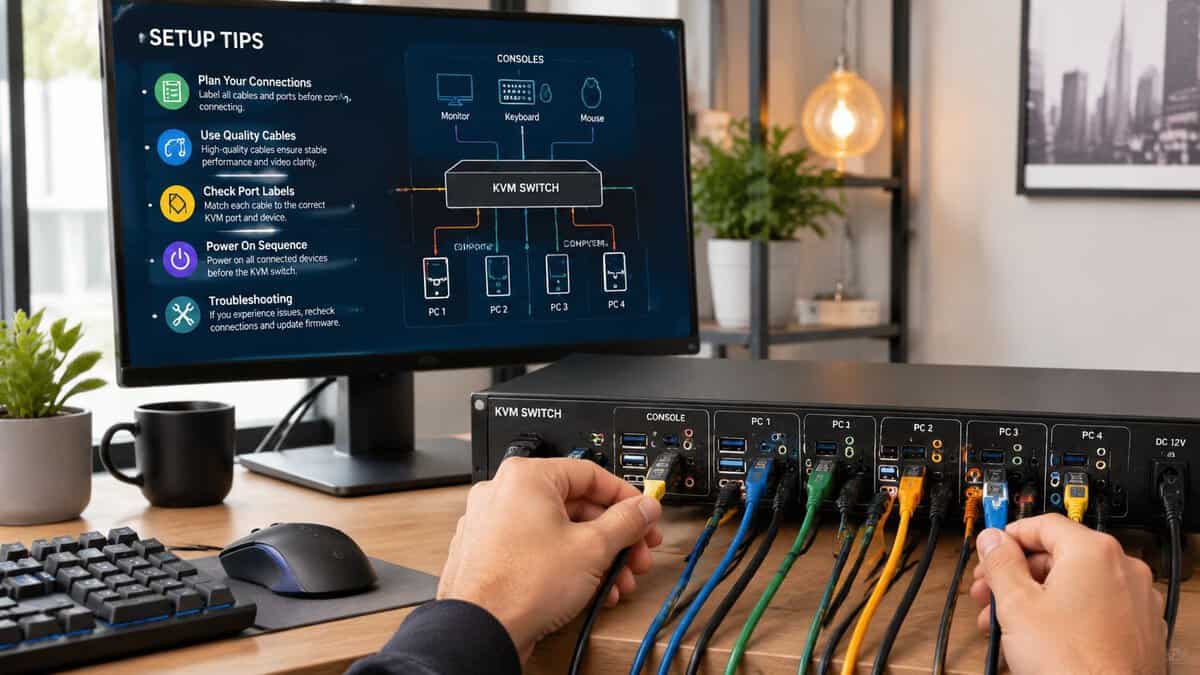
Run through these checks before you blame the switch itself.
- Power the switch with its own adapter if it came with one.
- Test the mouse right away on the keyboard and mouse ports, side buttons included.
- Use the shortest display cables that reach since long or weak cables can cause flicker.
- Set refresh rate and adaptive sync on both PCs after the first switch.
- Add one device at a time if something drops out so you can find the culprit.
Our guide to setting up dual monitors covers stands, scaling and display order once the KVM is in place.
A KVM Switch on a Streaming Desk
A KVM switch on a streaming desk works best when the stream PC and the gaming PC share screens but not every USB device. Cameras, microphones and capture gear can lose their settings when a switch makes them disconnect and reconnect. Plug those straight into the PC that runs the stream and put only the keyboard, mouse and screens on the KVM.
A second monitor can also stay wired straight to the stream PC instead of the KVM. That keeps chat and OBS in view while the main panel follows the switch. The UGREEN 8K pick’s third output gives a streaming desk room for a dedicated chat screen as well.
Is a KVM Switch Worth It for Gaming?
A KVM switch is worth it for gaming when you move between two computers every day and want one keyboard, mouse and set of screens for both. It removes the cable swap and the reach behind the desk. If you switch once a week, a cheaper route works fine.
Each cheaper route gives something up. A USB switch moves only the keyboard and mouse so you change monitor inputs by hand. Software that shares one keyboard and mouse across PCs suits office work but is not built for fast games.
A single-monitor desk can usually spend less than a multi-screen pick. The UGREEN single-monitor DisplayPort KVM is rated for 4K at 240Hz with four USB 3.0 ports. UGREEN notes it has no EDID emulation, which matters less with one screen.
A KVM earns its spot on a desk where you switch between two PCs every day.
Frequently Asked Questions
Quick answers to common questions before buying a KVM switch.
What is the best budget KVM switch for gaming?
The best budget KVM switch for gaming is the UGREEN 8K KVM switch. It sits in the same price range as the CKLau pick, but UGREEN rates it for 4K at 240Hz and it drives up to three screens from two PCs. A one-monitor desk can spend less still with a single-screen DisplayPort switch such as the UGREEN one-monitor model.
Does a KVM switch add input lag?
A KVM switch can add input lag and USB emulation is the first thing to check. Emulated ports show each PC a basic keyboard and mouse, which can blunt a gaming mouse. Corsair warns that affordable switches can add latency. Use a passthrough port when the switch has one, or compare the mouse plugged straight into the PC.
Do KVM switches support 144Hz?
Yes, some KVM switches support 144Hz, but only at the resolutions their maker lists. The CKLau CKL-622DP-4 lists 4K at 144Hz and the UGREEN 8K pick is rated for 4K at 240Hz. The iDock P10 lists 4K at 60Hz so check the refresh rate at your monitor’s resolution before you buy.
Can one KVM switch run two monitors at high refresh?
Yes, one KVM switch can run two monitors at high refresh if it has two DisplayPort outputs rated for your mode. The CKLau CKL-622DP-4 lists two screens at 4K and 144Hz, while the UGREEN 8K pick adds a third output. Each PC needs one video output per screen so check your graphics card’s ports first.
Will a KVM switch keep FreeSync or G-SYNC working?
A KVM switch keeps FreeSync or G-SYNC working only if it passes adaptive sync through cleanly. Listings that name VRR or adaptive sync support are the safer bet. After the first switch, check that adaptive sync is still on in your GPU software and on the monitor. If it keeps turning off, the switch is the likely cause.
Looking for more budget gaming gear? Check out Budget Loadout for the latest reviews and recommendations.
Related Articles