If you want to learn how to set up dual monitors the right way, you’re probably here because one monitor isn’t cutting it anymore. You’ve got your game full screen, Discord buried behind it, maybe OBS open somewhere, and every time you alt-tab you miss something important. That setup works for a while. Then it starts wasting time and getting in the way.
A second screen fixes a lot of that, but the part most guides skip is the reality of budget setups. Plenty of people aren’t buying two matching displays at the same time. They’re reusing an older office monitor, pairing different sizes, mixing refresh rates, and trying to make it all behave. That’s normal. It can work well if you set it up correctly.

- Start with your GPU’s outputs: what ports it has decides every cable and adapter decision below it.
- DisplayPort beats HDMI for high-refresh dual-monitor gaming; save HDMI for TVs and consoles.
- Don’t rely on cheap USB or DisplayLink adapters for gaming: signal and latency issues will cost you frames.
- In Windows, set your primary monitor explicitly so games launch on the correct screen; scaling mismatches cause most weird cursor issues.
Table of Contents
Why a Second Monitor Is a Gamer’s Best Upgrade
Trying to game, chat, browse, and monitor a stream on one display turns simple tasks into constant window switching. That’s why dual monitors tend to feel like a practical upgrade, not a luxury. Microsoft’s guide to dual-monitor setups makes the everyday case for a second screen, and the research puts numbers on it. Plugable’s summary of multi-monitor research cites Jon Peddie Research’s average 42% productivity boost with multiple monitors, a Wichita State University and Dell study that found users 18% more efficient, and a University of Utah analysis that recorded 33% fewer errors with dual screens.
For gaming, that translates cleanly. In an FPS, your main display stays locked on the match while the second handles Discord or patch notes. In an MMO, the extra screen is useful for raid guides, maps, and inventory planning. For streaming, it’s even more obvious. One screen runs the game, the other handles chat, alerts, and your scene controls. If you’re still building your setup, this pairs well with a basic streaming plan like this guide on how to start streaming on Twitch.
Practical rule: If you regularly alt-tab during a match, a second monitor is solving a real problem, not creating a new hobby project.
There’s also the desk side of it. A dual-monitor setup only feels good when the space supports it. If your current desk is cramped or the monitor stands eat half the surface, it helps to look at a few gamer desk ideas for ultimate setups before you start buying cables and mounts.
The value case is simple. A second monitor improves comfort, reduces clutter on your main screen, and makes routine tasks faster. That’s true whether you’re a student with a mixed-use PC, a work-from-home gamer, or someone building a first streaming rig without wasting money on parts that don’t change the experience.
Matching Your Ports Cables and Adapters
A lot of dual-monitor problems start before Windows loads. The wrong cable, the wrong port, or a bad adapter can leave you chasing a software fix for a hardware mistake.
Start at the GPU not the monitor
Check the back of your graphics card first. If you’re using a desktop with a dedicated GPU, plug both monitors into the GPU, not the motherboard video outputs. On a budget build, that usually means some mix of HDMI and DisplayPort. If you’re on integrated graphics, inspect the motherboard outputs and confirm both displays are supported at the same time.
The next check is simple. Look at the inputs on each monitor and write down what you have. Don’t assume two ports that look similar will behave the same way under load. For gaming, cable quality and connector type matter more than fancy packaging.
If you want a deeper breakdown of signal standards and refresh-rate tradeoffs, this comparison of DisplayPort vs HDMI for gaming is worth reading before you order anything.
Display Connector Comparison for Gamers
| Connector | Max Common Resolution/Refresh | Best For | Key Trade-off |
|---|---|---|---|
| DisplayPort | High refresh gaming and multi-monitor use | Primary gaming monitor, adaptive sync support, cleaner PC-focused setups | Less common on TVs and some older budget displays |
| HDMI | Common on almost everything | Console use, simple audio passthrough, mixed PC and media setups | Can be more limiting depending on port version and adapter chain |
| HDMI to DisplayPort adapter path | Basic display compatibility in specific cases | Reusing an older screen when you have no better option | Often the weak link for higher refresh rates and reliability |
| DisplayPort to DisplayPort | Strong all-around pick for PC users | High refresh gaming, daisy-chain capable setups on supported hardware | Both monitor and GPU need the right ports |
When adapters are fine and when they are the problem
A basic adapter is fine when your second monitor is just handling chat, a browser, Spotify, or OBS docks. It’s not the right choice when you expect it to carry a high-refresh gaming signal cleanly. That’s where people lose hours.
Good budget advice is boring advice. Buy the direct cable your ports support whenever possible. A certified DisplayPort cable is usually the safer pick for a gaming monitor. HDMI is still perfectly usable, especially if your monitor only offers HDMI, but avoid stacking adapters on top of extension cables and expecting flawless behavior.
Cheap adapters are acceptable for convenience. They’re a bad foundation for a main gaming display.
Build quality matters here too. A thick connector housing, a snug fit, and decent strain relief are worth paying for because cables get bent, moved, and reused across upgrades. The cable that worked on day one but blacks out every time you touch your desk isn’t saving money.
Configuring Displays in Windows and macOS
Once everything is connected, the software setup is what makes the rig feel right. This is the part that decides whether your cursor moves naturally, whether games open on the correct screen, and whether the second display helps or hurts performance.
Windows setup that avoids the usual mistakes
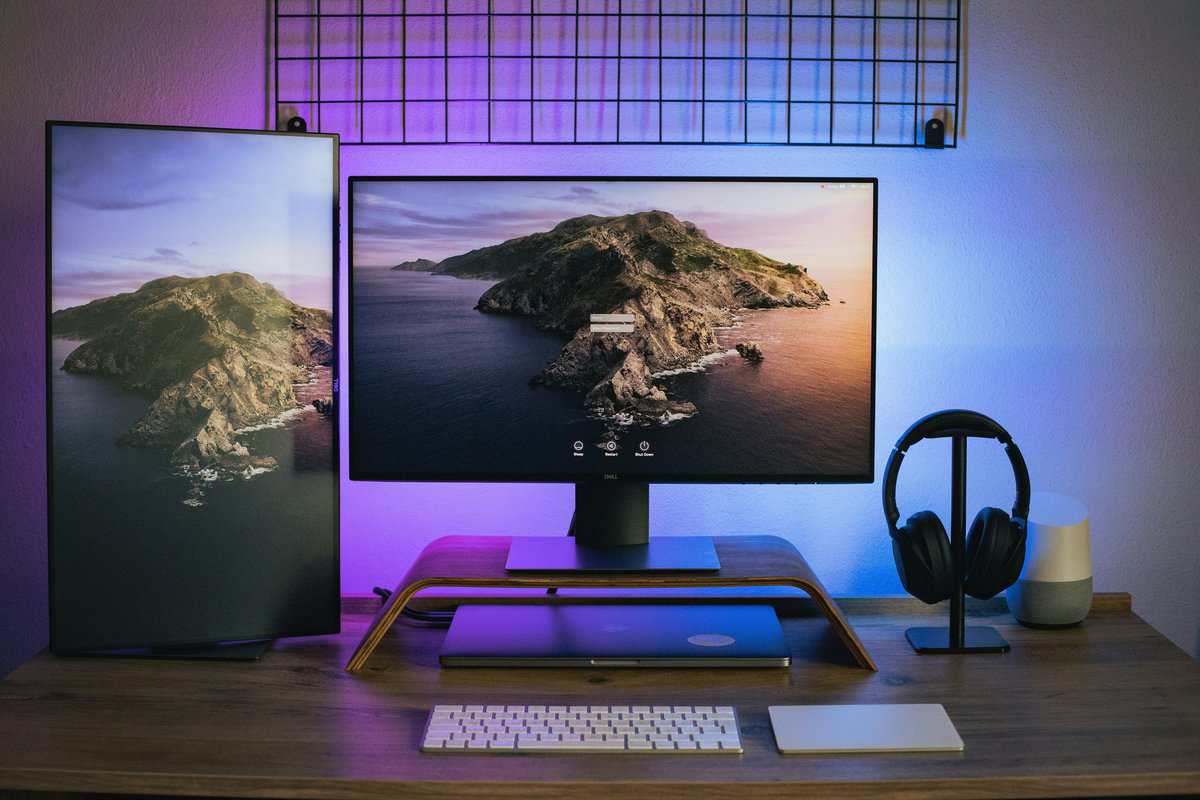
The fastest way to learn how to set up dual monitors on Windows is to get the basics right before you tune anything else. On Windows, update your GPU drivers before anything else. According to the setup guidance cited in this walkthrough, updating drivers first helps Windows detect both screens reliably, and using Extend displays instead of Duplicate matters because duplication can cost you gaming FPS.
Use this order:
- Power the PC off first. Connect both monitors securely.
- Boot into Windows. Right-click the desktop and open Display settings.
- Click Identify. Windows will put numbers on the screens.
- Drag the monitor icons so they match your real desk layout.
- Choose Extend these displays. Don’t use Duplicate for gaming.
- Set your primary display. Pick the screen where you want your taskbar, desktop icons, and most games to launch.
- Check each monitor’s native resolution and refresh rate. Go into Advanced display if needed.
- Adjust scaling per screen so text looks normal, especially if one monitor is sharper or physically larger.
The dragging step matters more than people think. If the left screen is physically lower than the right one, reflect that in Display settings. If you don’t, the cursor feels like it catches on an invisible edge.
Match the software layout to the physical layout. Most “my mouse feels weird” complaints come from those two not lining up.
For a quick visual reference, this walkthrough shows the menu flow clearly:
macOS setup for a clean extended desktop
On macOS, open System Settings, then Displays. You should see both screens appear as separate panels. From there:
- Arrange displays by dragging them into the right positions.
- Disable mirroring if it’s turned on. Mirroring is the macOS version of duplicating.
- Choose the main display by moving the menu bar to the screen you want as primary.
- Set each display to its proper resolution and use scaling only when text is too small.
Mac setups tend to be cleaner during first detection, but mixed monitors can still behave oddly if one is much higher resolution than the other. Keep the main gaming or work display as the primary panel and use the secondary for supporting tasks.
Final settings worth checking before you game
Before launching anything, do a quick pass through a few practical checks:
- Open a browser on the second screen and confirm it stays there after you close and reopen it.
- Launch your game and make sure it opens on the main display.
- Test refresh rate on the gaming monitor.
- Move the cursor between screens at the top, center, and bottom to catch alignment issues.
If one display looks soft, blurry, or oddly scaled, don’t start tweaking game settings yet. Fix the desktop behavior first. A clean extended desktop is the base for everything else.
Ergonomics and Mounting for Gamers
A dual-monitor setup that hurts your neck isn’t finished. Good positioning matters just as much as cable choice, especially if you play long sessions or work on the same desk during the day.
Position the primary monitor for the game not the desk
Put the main monitor directly in front of you. That’s the one your body should line up with. Your keyboard, mouse, and chair should all center on that screen first.
The secondary monitor belongs off to the side at a gentle inward angle. Keep it close enough that reading chat or Discord feels quick, but not so close that it steals your focus during a match. This matters most in FPS games where you want your head still and your eyes returning to the same spot every time.
If your monitors are different heights, align the top edges or at least get them visually close. That reduces the awkward up-and-down eye movement that cheap stands often create.
Why a monitor arm is usually worth it
Stock stands are often the weakest part of a budget monitor. They wobble, they take up desk depth, and they rarely give enough height adjustment. A basic VESA arm fixes all three problems.
Models like the Amazon Basics arm or a VIVO single-monitor arm are useful because they free desk space and let you line up mismatched screens more precisely. Build quality matters here. Look for metal joints, a stable clamp, and smooth tension adjustment. A flimsy arm sags over time, which gets annoying fast.
If you’re comparing options, this guide to the best monitor arm covers the practical differences between cheaper and sturdier mounts without turning it into a desk-aesthetic contest.
The monitor arm isn’t about looks. It’s about getting the screens to the right height and keeping them there.
A solid mount is one of those upgrades that keeps paying off across multiple monitor changes. That makes it good value, especially if your setup evolves a piece at a time.
Advanced Setups for Streaming and Productivity
Once the basic layout works, there are a few upgrades that make a dual-monitor rig feel more intentional. These are the things that help streamers, MMO players, and anyone juggling multiple apps at once.
When daisy chaining makes sense
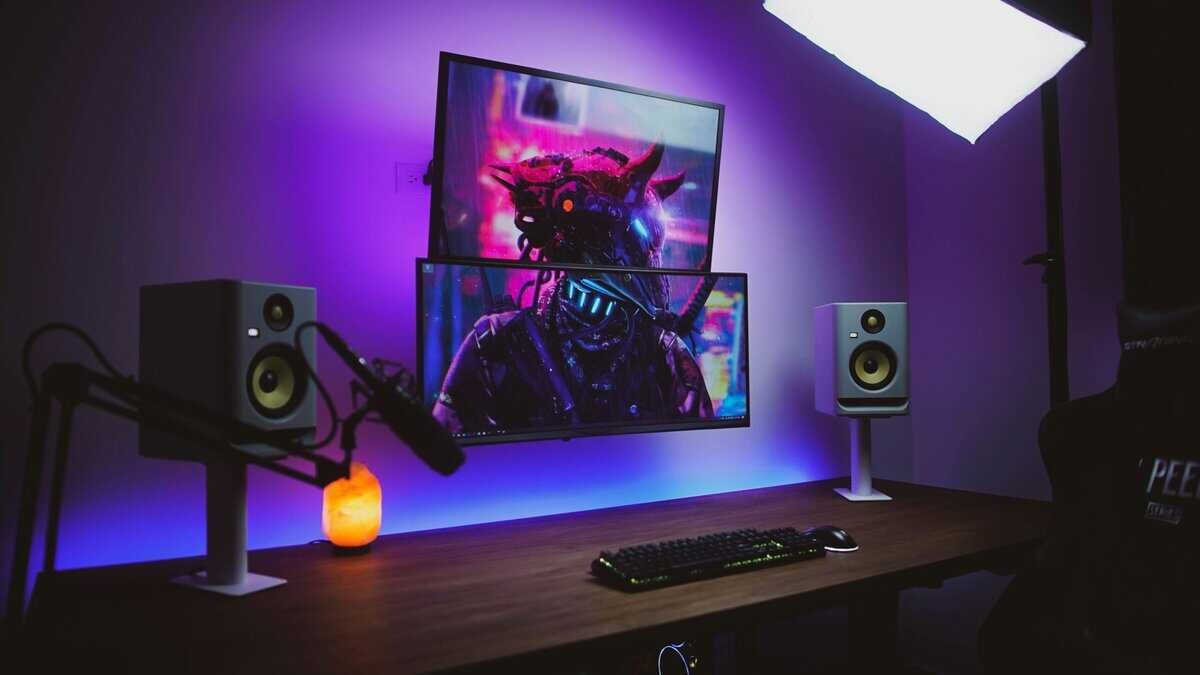
If your GPU and monitors support DisplayPort MST, daisy chaining can clean up a desk fast. According to this reference on DisplayPort daisy-chaining, the method is supported by most modern budget GPUs and monitors with DP 1.2+ ports, reduces cable clutter, and can cut latency by up to 12ms compared to using an external USB-C hub.
That makes it useful for compact desks, small form factor PCs, and laptops with limited display outputs. It also cuts down on the usual mess behind the monitor stands. The catch is compatibility. Both the GPU and monitor chain need to support the feature properly, and this is not something to fake with random adapters.
Why streamers like a vertical second monitor
A vertical monitor is one of the few setup trends that earns the space it takes up. Chat reads better. OBS docks stack more naturally. Long pages, docs, and moderation tools become easier to scan.
That’s especially helpful if your second screen isn’t a high-end panel. A basic IPS office display can still do great work in portrait mode. If you stream regularly, pairing that layout with sensible OBS settings for streaming is a better use of money than overspending on a flashy second monitor.
For comfort, portrait layouts can also encourage longer reading sessions, so it’s worth taking steps to reduce eye strain from computer usage if your second monitor is handling chat, docs, or browser-heavy tasks all day.
Audio routing without confusion
Two monitors don’t automatically mean two separate sound zones. Windows sees audio devices, not “left monitor audio” and “right monitor audio” in a simple visual way. The cleanest setup is usually:
- Game audio to your headset
- Browser or music to speakers
- Monitor speakers disabled unless you use them
In Windows, open Volume Mixer and assign app outputs individually when needed. That lets you keep game sound private while YouTube, Spotify, or a stream preview goes somewhere else. For streamers, this also makes it easier to avoid audio feedback and accidental desktop capture problems.
The durable setup is the simple setup. Fewer adapters, fewer odd audio paths, fewer mystery problems later.
Troubleshooting Mismatched Monitors and Common Issues
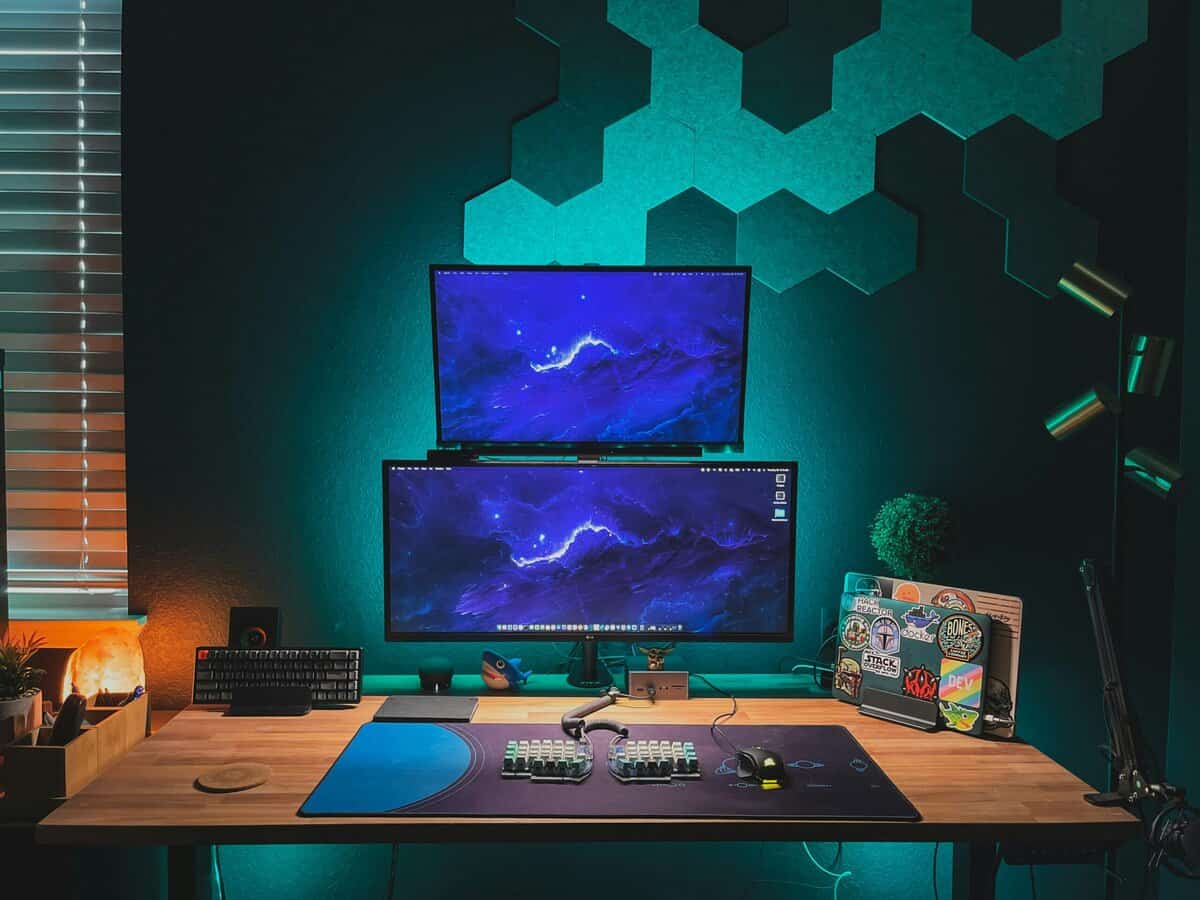
Budget dual-monitor setups are rarely symmetrical. One monitor is older. One is larger. One has better color, the other has a better stand. That doesn’t mean the setup is wrong. It means you need to tune it instead of expecting plug-and-play perfection.
You do not need two identical monitors
A lot of people assume dual monitors only work well if both screens match. In practice, mixed setups are common. Mismatched monitor sizes and resolutions come up constantly in PC building support threads, and a common fix is using GPU control panel scaling because Windows scaling can introduce input lag or performance issues in some games, as noted in this summary.
That’s a budget path. You might have a fast 1080p gaming panel as the main display and an older 1440p or office screen for everything else. That’s a sensible setup.
Fixes for scaling cursor movement and wrong screen launches
If text looks right on one screen and wrong on the other, start with native resolution on both monitors. Then adjust scaling per display. If Windows scaling creates weird behavior in games, open NVIDIA Control Panel or AMD software and test GPU-side scaling options instead.
Use this checklist:
- Cursor catches on the edge: Reopen Display settings and line up the monitors more accurately.
- Game opens on the wrong screen: Set the gaming monitor as primary first. If a windowed app still opens elsewhere, use Shift + Windows key + Arrow to move it.
- Text is too small on one display: Increase scaling only on that monitor, not both.
- Game performance feels off: Run the game only on the main display, not stretched across mismatched screens.
- Colors look different: Use the better panel for gaming or content work, and treat the other as utility space.
Mixed monitors work fine when each screen has a clear job. Problems start when people try to force both displays to behave like the same product.
What works well for mixed use cases
For FPS gaming, keep the high-refresh panel as the primary and push everything static to the second monitor. For MMOs, the secondary screen is useful for maps, guides, and chat clients. For streaming, the second display becomes a control panel.
If you’re still deciding what kind of secondary panel makes sense, it helps to understand the practical panel tradeoffs in IPS vs VA for gaming. You don’t need your second screen to match your primary. You need it to suit the task.
Frequently Asked Questions
Do both monitors need to be the same brand or model?
No. You can mix brands and sizes freely. What matters is matching resolution for each screen’s role and handling scaling in Windows so the cursor feels natural across them. Mismatched refresh rates are fine for productivity but can cause weird pacing in games that span both screens.
Will dual monitors hurt my gaming FPS?
Usually no. Modern GPUs handle two monitors without meaningful FPS loss as long as only one is running a demanding game. Issues appear when you push video, a stream encode, and a game simultaneously on the same GPU.
Can I use a laptop as my second monitor for gaming?
Not effectively for gaming. Software solutions like Spacedesk or Duet add noticeable latency. For anything real-time, use a physical second monitor via HDMI, DisplayPort, or USB-C DisplayPort Alt Mode.
If you’re building a value-focused gaming or streaming setup, Budget Loadout has practical guides on monitor arms, streaming settings, display choices, and other parts that affect everyday use more than spec-sheet bragging rights.
Related Articles