What graphics card is going to feed it? That one question settles more of the best budget gaming monitor decision than any spec on the box, because a monitor can only show the frames the card delivers. Buy 1440p for a card that struggles at 1080p and you have paid for pixels you will turn off in the settings menu. Buy a 1080p panel for a card with real headroom and you have left performance on the table.
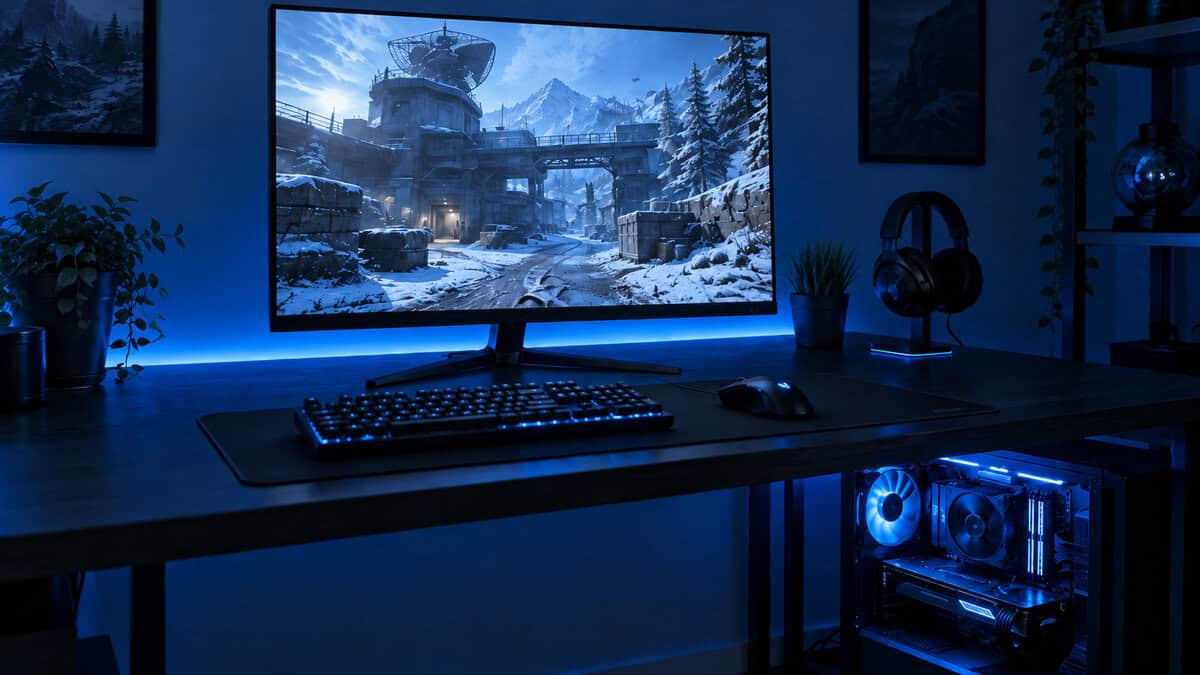
So this guide starts with the card and works outward. Three screens, one for each tier of GPU, then which specs are worth paying for at this end of the market and which ones the budget brands quietly leave out.
The default first gaming monitor for an entry-level card. A 165Hz VA panel at 1080p is exactly the resolution and refresh a budget GPU can actually drive, and it has more owner reviews behind it than the rest of this guide combined.
- 165Hz at 1080p matches what an entry card can push in competitive games
- VA panel delivers deeper blacks than the IPS screens at this price
- By far the largest review pool of any pick here
- VA response is slower than Fast IPS, so dark-scene smearing is possible
- Tilt-only stand with no height adjustment
- Slightly lower refresh ceiling than the two 27-inch picks
1440p at 180Hz for what a 1080p screen cost two years ago. For any mid-range card this is the sweet spot: sharper than 1080p on a 27-inch panel, fast enough for shooters, and IPS color that does not wash out at an angle.
- 1440p and 180Hz together at a price that used to buy one or the other
- IPS panel with 99 percent sRGB coverage for color that holds up off-axis
- Two HDMI 2.0 inputs plus DisplayPort 1.4 for a PC and a console
- HDR10 support is nominal on a panel without local dimming
- Tilt-only stand, so a monitor arm is worth budgeting for
- Needs a mid-range card to actually reach high frame rates at 1440p
The one budget monitor where the HDR badge means something. A mini-LED backlight with real local dimming puts bright highlights next to genuinely dark shadows, and the 180Hz 1440p panel underneath is as fast as the Acer. The stand adjusts for height, which nothing else here does.
- Mini-LED local dimming delivers real HDR contrast at a budget price
- 180Hz 1440p with a height-adjustable stand, rare at this tier
- Bright enough for a sunlit room where the IPS picks look flat
- VA panel shows some blooming around bright objects on dark backgrounds
- The most expensive pick here, and a card with headroom is needed to justify it
- Local dimming needs a few settings tweaks to look its best in SDR
- Pick the resolution your graphics card can actually drive at high frame rates. An entry card wants 1080p, a mid-range card wants 1440p, and a card with headroom can afford HDR or 240Hz on top.
- Refresh rate is the spec that changes how a game feels. Treat 144Hz as the floor for a gaming monitor and 165Hz or 180Hz as the budget sweet spot.
- IPS gives better color and viewing angles, VA gives deeper blacks. Both are fine at this price. Ignore panels that are neither.
- Most HDR badges on budget monitors mean nothing. Real HDR needs local dimming, and only the mini-LED pick here has it.
- Budget screens save money on the stand, the speakers, and the ports. Budget for a monitor arm if height adjustment matters to you.
Table of Contents
The Question That Picks Your Monitor
A monitor does not make frames. It displays them. That sounds obvious until you see how many people buy a 1440p 180Hz screen for a card that manages 1080p at sixty, then wonder why the game looks the same. The card sets the ceiling. The monitor either meets it or wastes money above it, and at the budget end there is no money to waste.
The cheapest way to find your ceiling is to open a game you play, set the resolution you are thinking about, and read the frame counter. If a 1080p screen is showing you well over 100 frames, you are ready for 1440p. If it is showing you 60, a faster 1080p panel is the upgrade, not a sharper one. Our under-300 monitor guide takes the same approach one tier up.
What the Best Budget Gaming Monitor Actually Needs
Four things, and only four. A resolution the card can drive. A refresh rate high enough that the extra frames the card makes are shown rather than dropped. A panel type that suits the games you play. And adaptive sync, so the two devices agree on timing and the picture stops tearing. Everything else on the spec sheet is either marketing or a nice-to-have, and the section on what budget monitors quietly cut covers which is which.
Buy the monitor your graphics card deserves, not the one the box says you deserve.
The Three Picks by GPU Tier
Three screens, three tiers of card. The first is for an entry-level GPU that lives at 1080p. The second is for a mid-range card that can hold high frame rates at 1440p. The third is for a card with headroom to spare, where the extra money buys real HDR instead of more pixels.
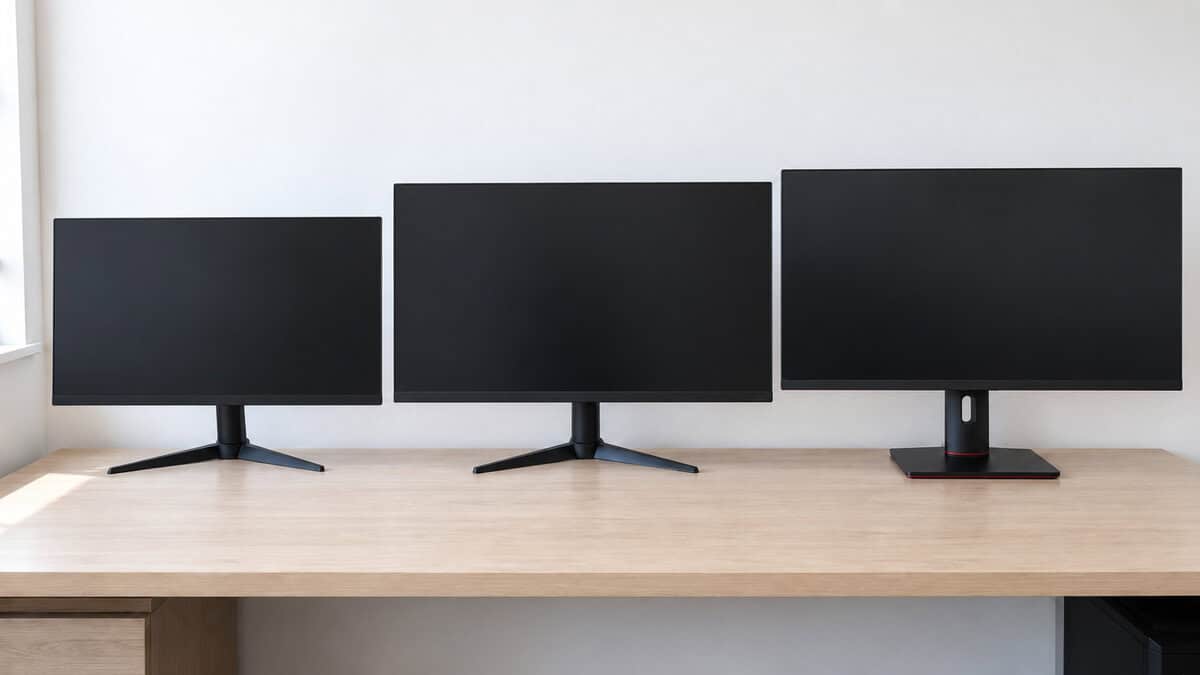
Acer Nitro KG241Y: The 1080p Starting Point
The Acer Nitro KG241Y Sbiip is the monitor an entry-level card was built for. It is a 23.8-inch 1080p VA panel at 165Hz with a 1ms VRB response mode and FreeSync Premium, and it has more owner reviews than every other screen in this guide put together. A card that struggles at 1440p will hold triple-digit frame rates on this panel in most competitive games, and 165Hz is enough to show all of them.
The VA panel is the interesting choice. It gives deeper blacks and stronger contrast than the IPS screens at this price, which suits darker single-player games and late-night sessions. The cost is response time: VA panels are slower to change from dark to light, so fast movement across shadowed areas can leave a faint smear. For most players it is invisible. For a competitive shooter specialist it is the reason to look at an IPS panel instead, and the 24-inch gaming monitor guide has the faster options. The stand tilts and does nothing else.
Acer Nitro KG271U N3: 1440p for a Mid-Range Card
The Acer Nitro KG271U N3 is the pick for the card that has outgrown 1080p. It is a 27-inch 1440p IPS panel at 180Hz, with 1ms VRB, FreeSync Premium, 99 percent sRGB coverage, and two HDMI 2.0 inputs alongside DisplayPort 1.4. On a 27-inch screen the jump from 1080p to 1440p is the difference between visible pixels and none, and this panel delivers it at what a plain 1080p screen cost not long ago.
1440p at 180Hz used to be a choice between the two. Now it is one line on a budget spec sheet.
It is the best overall pick because it fits the widest band of cards. A mid-range GPU holds high frame rates here in competitive titles and comfortable ones in heavier games, and the IPS panel keeps color consistent for anyone who also works on the screen. What you give up is a real stand, since it only tilts, and any meaningful HDR. The HDR10 badge is present, but without local dimming it changes little. The Samsung Odyssey G5 G51F is the closest rival, a 27-inch 1440p 180Hz panel at the same money with a smaller review pool, and worth a look if the Acer is out of stock.
AOC Q27G3XMN: Real HDR for a Card With Headroom
The AOC Q27G3XMN is the step-up that is actually a step up. It matches the Acer’s 27-inch 1440p 180Hz core, then adds a mini-LED backlight with local dimming and an HDR1000 rating, which means bright highlights can sit next to genuinely dark shadows on the same frame. On most budget monitors HDR is a toggle that makes the image grey. On this one it is the reason to buy it.
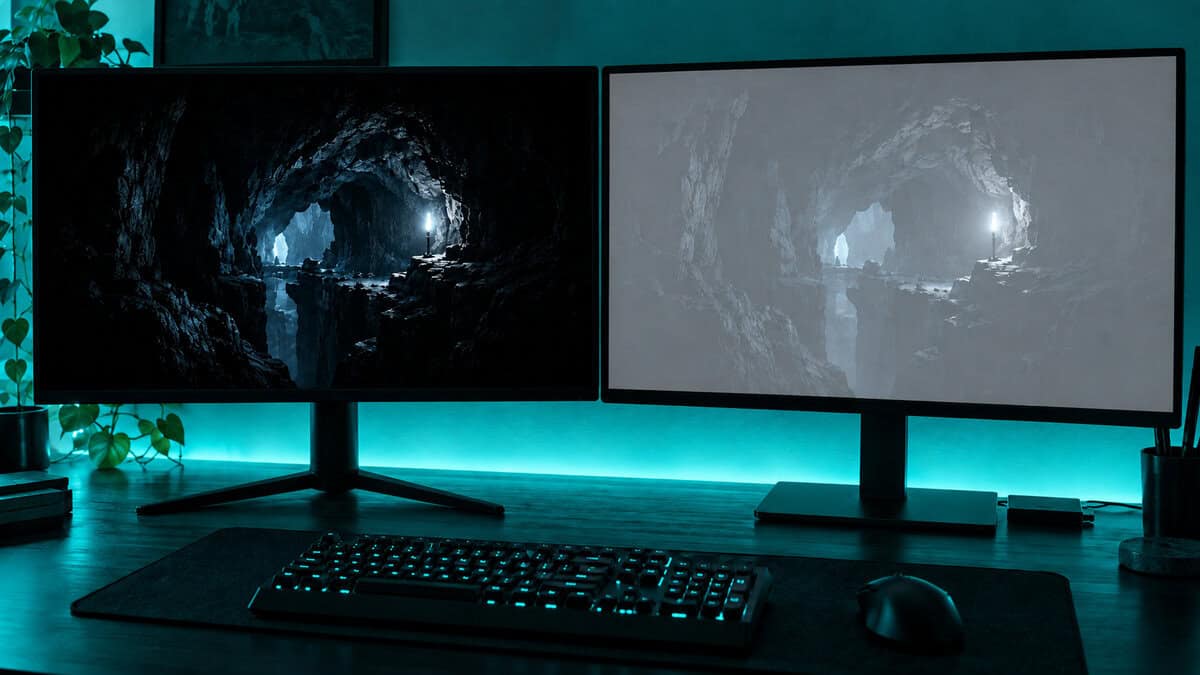
It also gets the stand the other two lack, with height adjustment, and it is bright enough for a room with a window behind you. The tradeoffs are VA-panel tradeoffs: some blooming around a bright cursor on a black background, and a response that trails Fast IPS by a hair. The local dimming also wants a few minutes in the menu for SDR use. If HDR is not something your games use, the Alienware AW2725DM is the SDR alternative at this tier, a 27-inch 1440p 180Hz Fast IPS with a better stand than the Acer and no dimming zones to think about.
Match the Screen to the Card
Three tiers of card, three different right answers. Find yours by the frame counter, not by the model number on the box.
Entry Card: 1080p and as Much Refresh as You Can Get
If your card runs 1080p between 60 and 120 frames in the games you play, resolution is not your bottleneck and a 1440p screen will make things worse, not better. Every frame becomes harder to render and the counter drops. The upgrade that shows up on screen is refresh rate: a 165Hz panel displays every frame the card makes and stops the tearing that a 60Hz screen shows whenever the two fall out of step. The KG241Y is the pick. The AOC 24G51F2 is the Fast IPS alternative for anyone who plays shooters above all else, a 24-inch 1080p 180Hz panel with a newer, thinner review history.
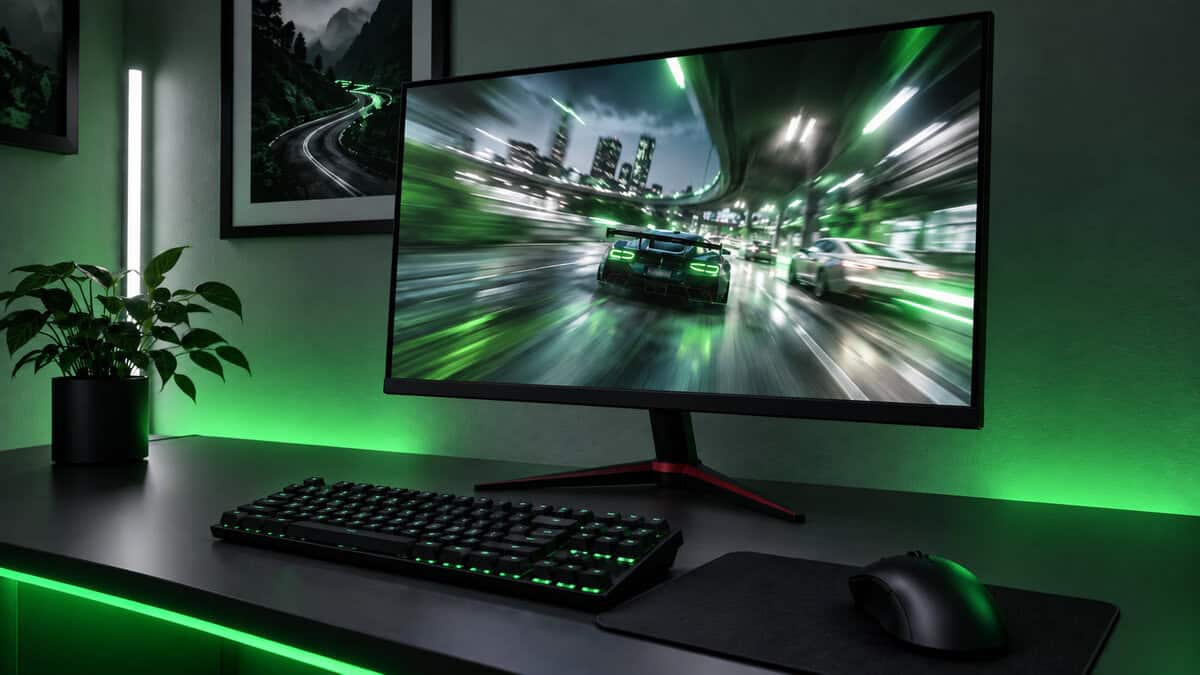
Sit close on a 24-inch panel and 1080p is sharp enough. Sit far or go to 27 inches and the pixels start to show, which is the argument for holding at 24 inches until the card can do more. Do not spend the difference on a bigger 1080p screen. Spend it on the card.
Mid-Range Card: 1440p Is the Whole Point
Once a card holds well over 100 frames at 1080p, it is wasting its headroom on a resolution the eye has already maxed out at 27 inches. Moving to 1440p costs frames, but a mid-range card has frames to give, and the trade buys a visibly sharper image at the same screen size. This is the tier where the KG271U N3 lives, and it is the tier most players upgrading from a first monitor land in.
A mid-range card at 1080p is a sports car in a school zone.
The Gigabyte GS27QA is the other 27-inch 1440p 180Hz IPS panel in this price band worth knowing about, though its review pool is a fraction of the Acer’s. If you want a curve at this tier instead, the curved gaming monitor guide covers where a 1500R panel helps and where it does not.
Card With Headroom: Spend on Contrast or Speed Not Pixels
A card that holds 1440p at high frame rates has two ways to spend the surplus, and neither of them is 4K. Four times the pixels of 1080p costs too many frames at this budget and our budget 4K monitor guide exists for the people who want it anyway. The better spend is contrast, which is the Q27G3XMN’s mini-LED HDR, or speed, which means a 240Hz 1080p panel like the Dell SE2426HG for competitive players who would rather have frames than pixels.
Which of the two depends on the games. Story-driven and open-world titles reward contrast, and HDR done properly changes how they look more than any resolution bump does. Competitive shooters reward speed, and a 240Hz panel at 1080p lets a strong card show its full frame rate. Pick the one your library leans toward. Buying both is the next budget tier, not this one.
Refresh Rate and Panel Type Before Anything Else
With the resolution settled by the card, two specs decide how a budget monitor actually feels in play. Both are printed on every listing, and both get buried under HDR badges and response-time claims that matter less.
Why 144Hz Is the Floor and 180Hz Is the Sweet Spot
Refresh rate is how many times a second the screen can draw a new frame. At 60Hz a card making 120 frames shows half of them. At 144Hz almost every frame a budget card makes gets displayed, and the difference in motion clarity between 60 and 144 is the single biggest upgrade a gaming monitor offers. From 144 to 180 the gain is real but smaller, and from 180 to 240 it is mostly a competitive-shooter concern. All three picks here sit in the 165 to 180 band, which is where the price-per-hertz curve is kindest. Blur Busters’ motion artifacts primer is the clearest explanation of why the frames you cannot see still matter.
Adaptive sync is the other half of the same feature. It lets the monitor wait for the card instead of drawing on a fixed schedule, which removes tearing whenever the frame rate dips below the refresh rate, and on a budget card it dips often. All three picks support it. AMD’s FreeSync setup guide covers turning it on, and most current Nvidia cards run the same panels through their own compatible mode.
IPS vs VA at This Price
Two of the picks are VA and one is IPS, and that is deliberate. IPS gives more accurate color, wider viewing angles, and faster pixel response, which is why the KG271U N3 takes the overall slot. VA gives contrast that IPS cannot match at any budget price, with blacks that read as black rather than dark grey, which is why the KG241Y and the mini-LED AOC use it. The old rule that VA is too slow for gaming is out of date on current panels. The honest version is that VA can smear in dark scenes and IPS can glow in the corners, and our IPS vs VA for gaming guide goes through which games expose which flaw.
Every panel type has a weakness. The trick is buying the one whose weakness your games never show.
What Budget Monitors Quietly Cut
A budget monitor hits its price by leaving things out, and the listing is not going to tell you which ones. The good news is that most of the cuts are in places that do not affect the picture.
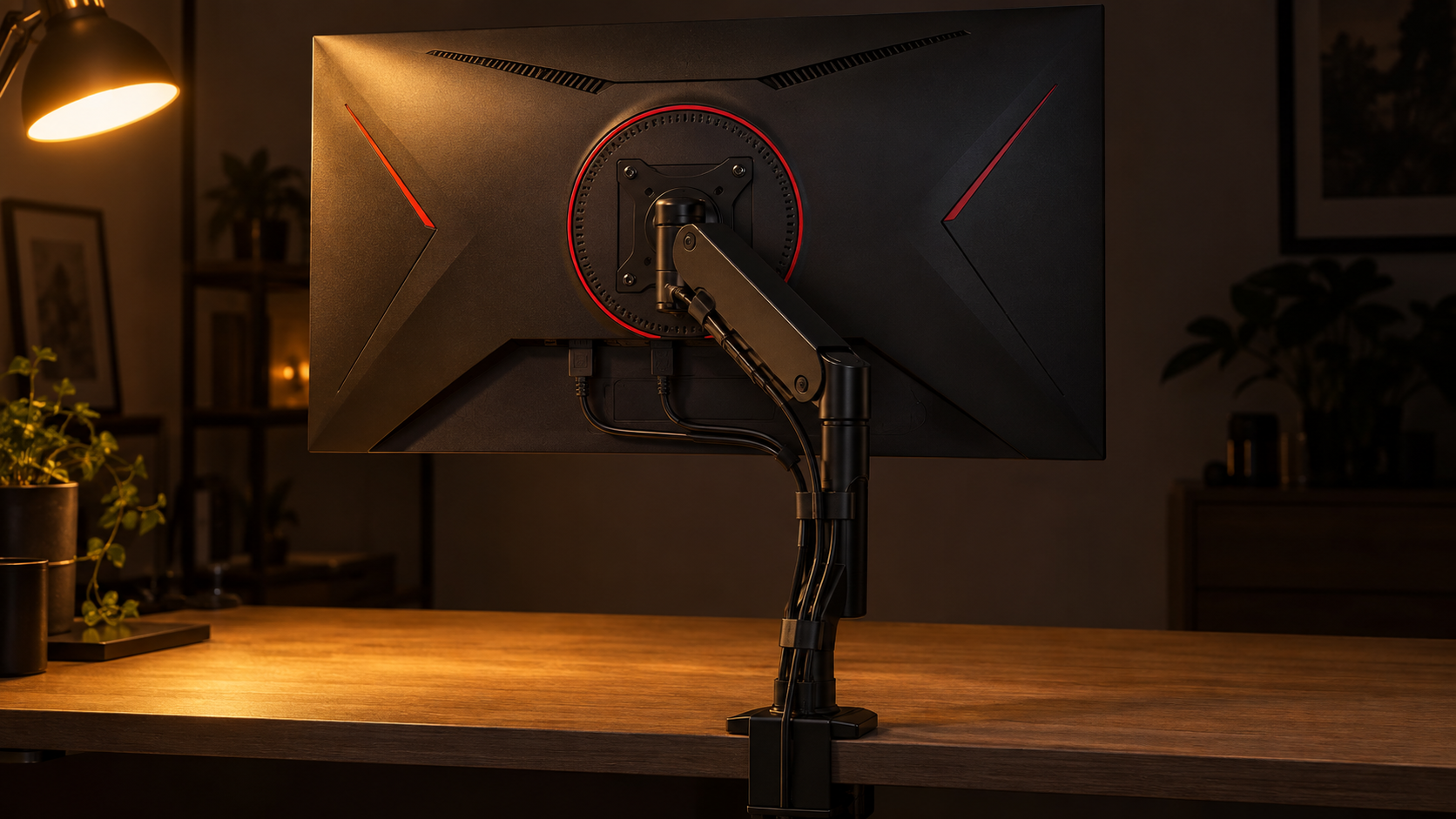
The stand is the first casualty. Two of the three picks tilt and do nothing else, so the screen sits at whatever height the desk puts it. A monitor arm fixes that for less than the difference between a tilt stand and a full one, and it frees the desk underneath. Speakers are the second cut, and when they are present they are worse than any headset. Ports get trimmed to the minimum: expect two HDMI and one DisplayPort, no USB hub, and no USB-C. That is enough for a PC and a console, and nothing here needs more.
The cut that matters is the HDR badge. HDR10 on a budget panel means the monitor accepts an HDR signal, not that it can display one, because without local dimming it cannot make part of the screen darker than the rest. Two of the picks here carry that badge and it changes nothing about how to use them. The Q27G3XMN’s mini-LED backlight is the exception, and it is why that screen costs more. Treat every other HDR claim at this price as a line on a spec sheet rather than a feature. The Sceptre 24-inch curved is a good example of the pattern: a competent, very cheap 1080p panel that is honest about being one.
The Three Screens Side by Side
One line per pick. If you are between two, the resolution column is the card’s decision and the panel column is yours.
| Pick | Size | Resolution | Refresh | Panel | Stand | Best for |
|---|---|---|---|---|---|---|
| Acer Nitro KG241Y Sbiip | 23.8 inch | 1920 x 1080 | 165Hz | VA | Tilt | Entry-level cards |
| Acer Nitro KG271U N3 | 27 inch | 2560 x 1440 | 180Hz | IPS | Tilt | Mid-range cards |
| AOC Q27G3XMN | 27 inch | 2560 x 1440 | 180Hz | Fast VA mini-LED | Height adjustable | Cards with headroom and HDR games |
Acer shows up often at this price, and our best Acer monitor guide covers its range in more depth.
Frequently Asked Questions
The questions that come up most when matching a cheap monitor to the card that has to drive it.
Is 1080p or 1440p better for a budget gaming monitor?
It depends on the graphics card. If the card holds well over 100 frames at 1080p in your games, a 27-inch 1440p screen like the Acer Nitro KG271U N3 is the upgrade that shows. If it sits between 60 and 120 at 1080p, a faster 1080p panel like the Acer Nitro KG241Y is the better buy, because 1440p would cost frames the card cannot spare.
Is 165Hz enough for gaming?
Yes for almost everyone. The jump from 60Hz to 144Hz is the biggest motion-clarity upgrade a monitor offers, 165Hz and 180Hz are small steps beyond it, and 240Hz mainly matters to competitive shooter players with a card strong enough to make that many frames. A budget card rarely exceeds 165 frames in modern games anyway.
Is VA or IPS better for a cheap gaming monitor?
Both work at this price. IPS gives more accurate color, wider viewing angles, and slightly faster response, so it suits competitive play and mixed work. VA gives much deeper blacks and stronger contrast, so it suits darker single-player games. VA can smear a little in dark scenes and IPS can glow in the corners. Pick the one whose weakness your games do not show.
Does HDR matter on a budget gaming monitor?
Usually not. An HDR10 badge on a cheap panel means it accepts an HDR signal, not that it can display real contrast, because it has no local dimming. The exception is a mini-LED monitor like the AOC Q27G3XMN, which dims parts of the backlight independently and delivers HDR that actually looks different from SDR.
Do I need a monitor arm for a budget gaming monitor?
Not need, but it is the best-value accessory for one. Most budget monitors ship with a tilt-only stand, so the screen sits at the desk’s height whether that suits you or not. A basic arm adds height, swivel, and pivot for less than the price gap to a monitor with a full stand, and it clears the desk underneath.
Looking for more budget gaming gear? Check out Budget Loadout for the latest reviews and recommendations.
Related Articles