The most common advice about buying the best gaming monitor under $300 is outdated. It still assumes this part of the market is mostly about damage control. Buy something cheap, accept weak contrast, accept basic motion handling, accept a stand that feels like an afterthought, and move on.
That used to be fair advice. It isn’t anymore.
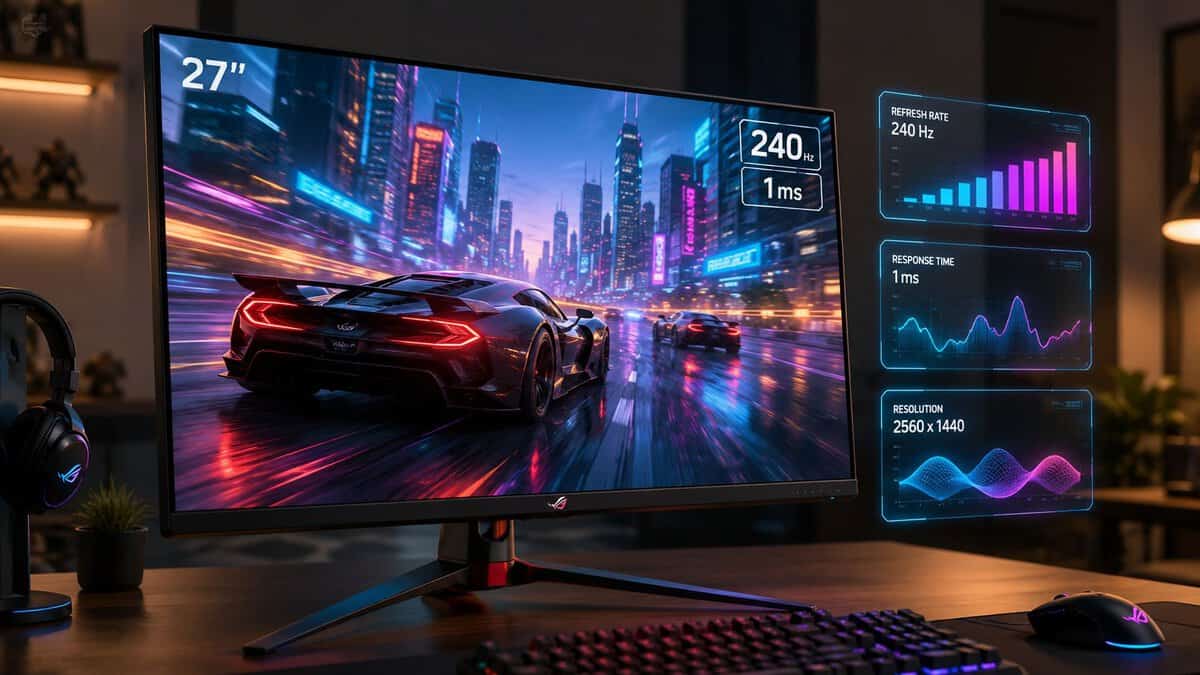
A budget gaming monitor now has to be judged by a different standard. The question isn’t whether you can get something usable. The question is which trade-off hurts you least for the way you play. Some buyers need the fastest motion they can get for ranked shooters. Others want sharper 1440p image quality for long RPG sessions. Some need one display that can game at night, handle MMO UI during the day, and sit next to a mic arm and streaming gear without wobbling every time the desk moves.
- Mini-LED contrast embarrasses this price tier
- Sharp 1440p detail at 180Hz
- Real HDR1000 highlight punch
- 3-year zero-bright-dot warranty
- VA motion trails a fast IPS slightly
- Single HDMI 2.0 port limits console duty
- Stand adjustment is basic
- Crisp SS IPS motion for competitive FPS
- 200Hz with OC headroom to 210Hz
- USB-C KVM for two-device desks
- Height and tilt adjustable stand
- IPS contrast is shallower in dark scenes
- No meaningful HDR at this tier
- Less cinematic than the Mini-LED pick
- 200Hz IPS at a true budget price
- Up to 0.5ms response for esports
- Easy for midrange GPUs to drive
- FreeSync Premium for tear-free play
- 1080p shows less detail at distance
- Basic tilt-only stand
- No USB hub or extras
- $300 now buys monitor tech that cost twice as much two years ago — Mini-LED, 200Hz IPS, and 1440p are all on the table.
- Best overall: the AOC Q27G3XMN’s Mini-LED contrast and HDR1000 are unmatched at this tier for rich, immersive gaming.
- Competitive FPS players should weigh the Gigabyte M27Q2 — cleaner Super Speed IPS motion at 200Hz plus a USB-C KVM.
- On a midrange GPU, the 24-inch Acer Nitro KG241Y at 1080p 200Hz keeps frame rates high instead of starving a 1440p panel.
- Match resolution to your GPU first — the right panel type for your games matters more than chasing the biggest spec number.
Table of Contents
Your $300 Buys More Monitor Than Ever Before
A $300 monitor budget used to mean picking one strength and living with two obvious weaknesses. That is no longer how this part of the market works.
At this price, the decision is which compromise fits your games. You can now get 1440p with high refresh, stronger contrast than old budget panels, and in a few standout cases even Mini-LED style HDR behavior that used to sit far above this tier. The catch is that you still rarely get everything at once. The fastest panels can look flatter in dark games. The punchiest VA options can show more smearing in motion. Cheap stands, weak HDR on paper, and limited console bandwidth are still common problems.
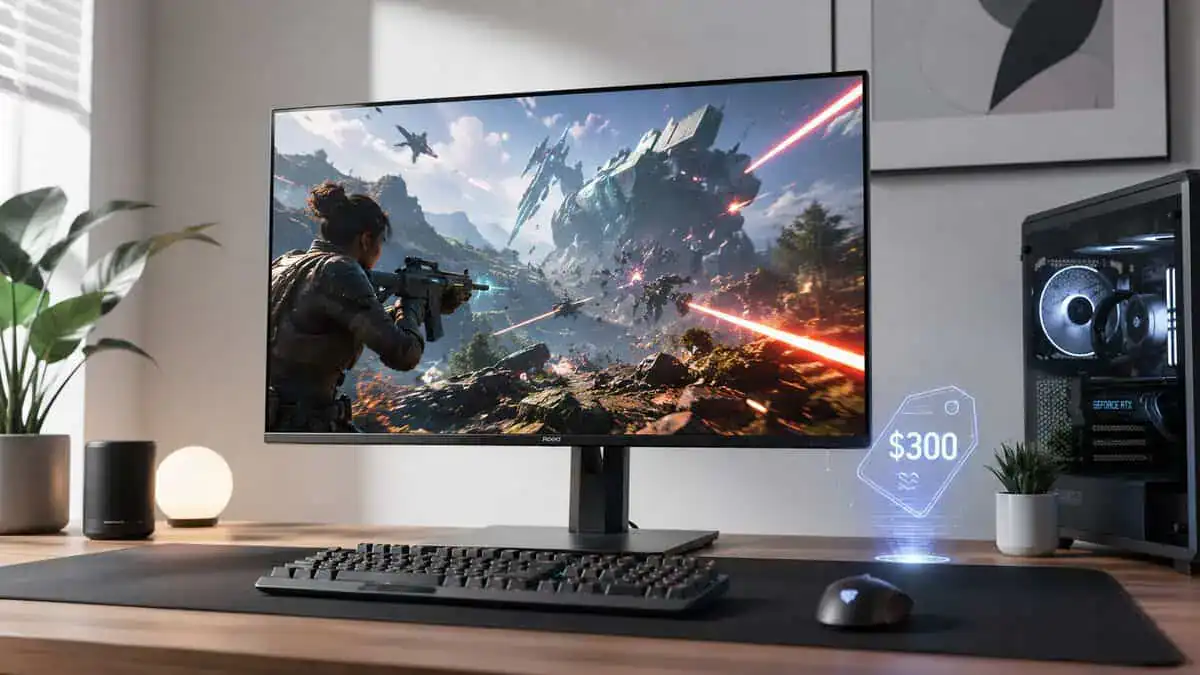
That shift matters more in real use than on a spec sheet. A good budget upgrade now buys sharper desktop clarity, cleaner motion in shooters, and much better contrast in slower single-player games than many older entry-level displays ever managed. I have tested enough low-cost screens to say this plainly. The gap between a bad $250 monitor and a good $300 one is often bigger than the gap between a good $300 monitor and a far pricier model.
Budget now means selective, not low-end.
The smart buy under $300 depends on what you tolerate. FPS players should care more about motion clarity, input response, and whether overdrive stays usable across variable refresh. RPG and horror players get more value from contrast and black performance, even if pixel response is less clean in fast pans. If the monitor also handles work, Discord, or a console, stand quality, text clarity, USB placement, and HDMI behavior matter more than another advertised response-time claim.
If you want a broader baseline before narrowing the field, this budget gaming monitor guide for value-focused buyers covers the wider entry-level range. Inside the $300 bracket, though, the good news is simple. You are no longer shopping for something merely acceptable. You are choosing between several good monitor types, each with a different compromise profile.
The Best Gaming Monitors Under $300: A Quick Look
Some readers just want the short list. Fair enough. These are the budget monitor profiles that make the most sense if you care about value instead of chasing the absolute cheapest panel available.
Top Gaming Monitors Under $300 At a Glance
| Model | Size & Resolution | Refresh Rate | Panel Type | Key Feature | Best For |
|---|---|---|---|---|---|
| AOC Q27G3XMN | 27-inch 1440p | High refresh rate | VA | Mini-LED local dimming | Mixed gaming, RPGs, general all-around value |
| Gigabyte M27Q2 | 27-inch 1440p | High refresh rate | IPS | Cleaner motion feel and wider viewing angles | Competitive FPS, bright rooms, dual-use desk setups |
| Acer Nitro KG241Y | 24-inch 1080p | Higher refresh focus | IPS | Prioritizes frame rate over image sharpness | Esports-first buyers on weaker hardware |
The one model that consistently stands out is the AOC Q27G3XMN. It gets recommended so often for one reason. It doesn’t just win on one line of the spec sheet. It gives you a rare mix of sharp resolution, strong contrast, credible HDR performance for the money, and gaming-focused speed.
That doesn’t mean it’s the right pick for everyone. If you mostly grind shooters and care more about the cleanest motion possible than black depth or HDR impact, a fast IPS alternative may fit better. If your system struggles at 1440p, a high-refresh 1080p screen can still be the smarter buy.
What separates the smart picks
At this price, I’d screen out monitors that fail in one of these areas:
Motion handling: If the panel looks smeary in dark scenes or soft during quick camera pans, the refresh rate alone won’t save it.
Build quality: A shaky stand, bad tilt range, or weak plastics make daily use worse than most buyers expect.
Use-case fit: A monitor built around contrast and HDR won’t always be the best ranked-play choice, and a speed-first screen can look flat in story-heavy games.
That’s why a quick list only gets you halfway there. The better question is which flaws are acceptable for your games and your desk.
Key Monitor Specs That Actually Matter On a Budget
Budget monitor shopping gets simpler once you stop chasing every spec on the box. At $300, a few specs decide whether a monitor feels fast, sharp, and worth keeping. The rest are often marketing.
Resolution and refresh rate
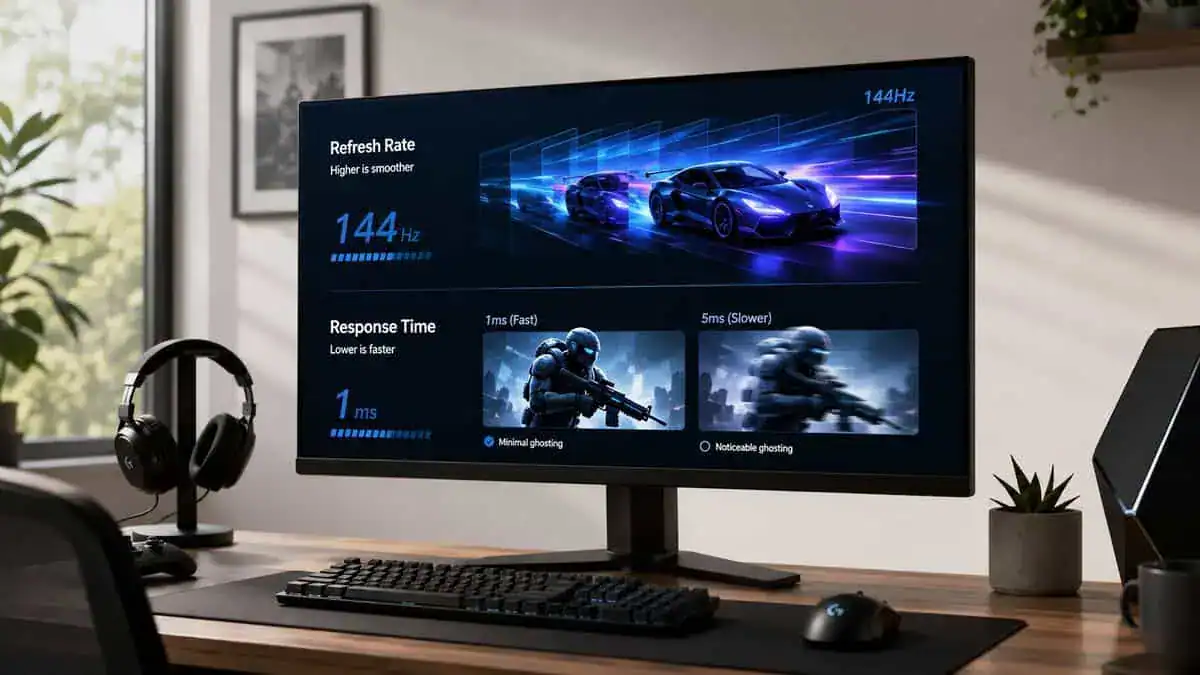
Start with the two specs that shape the whole experience. Resolution decides how sharp the image looks and how much desktop space you get. Refresh rate decides how clean motion feels.
For a lot of buyers, 27-inch 1440p is the smart target. It looks noticeably sharper than 1080p at normal desk distance, and the extra space helps outside games too. UI-heavy RPGs, MMOs, strategy games, Discord, browser tabs, and streaming controls all benefit from that added room.
Refresh rate matters more for some players than resolution. If you play shooters, fighters, or anything built around fast camera movement, high refresh should be near the top of your list. If you have not spent much time comparing them side by side, this 60Hz vs 144Hz comparison for gaming monitors shows why refresh rate changes how aiming and tracking feel.
The trade-off is simple. Driving 1440p at high refresh takes more GPU power. If your system struggles to stay smooth, a faster 1080p monitor can be the better buy than a sharper 1440p screen you cannot feed properly.
Panel type and what each one costs you
Panel type still matters, but not in the lazy way many buying guides frame it. At this price, panel type is really a shortcut for the compromise you are accepting.
VA panels usually give you stronger contrast, deeper blacks, and a better sense of depth in darker games. That is a real advantage in RPGs, horror games, and anything with lots of shadow detail. The downside is motion. Some budget VA panels still show dark-level smearing, and sensitive players will spot it quickly in fast pans or nighttime scenes.
IPS panels usually handle motion more cleanly and keep colors looking consistent across the screen. They fit competitive games better and tend to look cleaner in bright rooms. The sacrifice is black depth. In darker single-player games, the image can look grayish compared with a good VA.
Mini-LED changes the usual budget conversation a bit. A few sub-$300 monitors now offer local dimming that used to sit much higher up the price ladder. That does not mean every cheap HDR monitor is suddenly great. It does mean budget buyers can finally get real gains in contrast and highlight impact if they pick carefully.
Response time claims and HDR reality
Response time numbers on product pages are often the least useful spec in the list. A claimed 1ms or 0.5ms figure tells you almost nothing by itself. What matters is whether the monitor stays clear during real gameplay without heavy ghosting, inverse ghosting, or ugly overdrive artifacts.
That is why refresh rate and response time cannot be judged separately. A monitor can advertise a high refresh rate and still look messy in motion if pixel transitions are poorly tuned. For FPS players, this matters more than a wide color gamut or a flashy HDR badge.
HDR is another area where the budget tier used to be full of fake upgrades. Many low-cost monitors still treat HDR as a menu feature rather than a visible improvement. The better budget options now break that pattern with higher brightness and local dimming, which makes HDR more than a checkbox. For story-driven games, that can be worth accepting a little more weight, a thicker chassis, or a less polished stand.
Sync support, ports, and daily usability
Adaptive sync helps most if your frame rate moves around instead of staying locked. It will not fix poor motion handling, but it can reduce tearing and make uneven performance less distracting.
Then there is the hardware you deal with every day:
Stand design: Height adjustment and decent tilt matter more than decorative extras.
Ports: Check HDMI and DisplayPort support for your actual setup, especially if you are switching between console, PC, or shared-use environments.
On-screen menu and controls: Bad menus waste time if you switch inputs, tweak overdrive, or change picture modes often.
VRR and console support: Console players should confirm refresh support over HDMI, not just DisplayPort, because some budget monitors look better on a PC spec sheet than they do in a living setup.
A good budget gaming monitor is not the one with the longest feature list. It is the one whose weaknesses line up with the games you play.
In-Depth Monitor Reviews and Comparisons
At $300, the mistake is chasing a monitor that looks good in a spec table instead of one whose compromises fit the games you play. The best picks in this range are not perfect. They are clear about what they do well and what they give up.
AOC Q27G3XMN
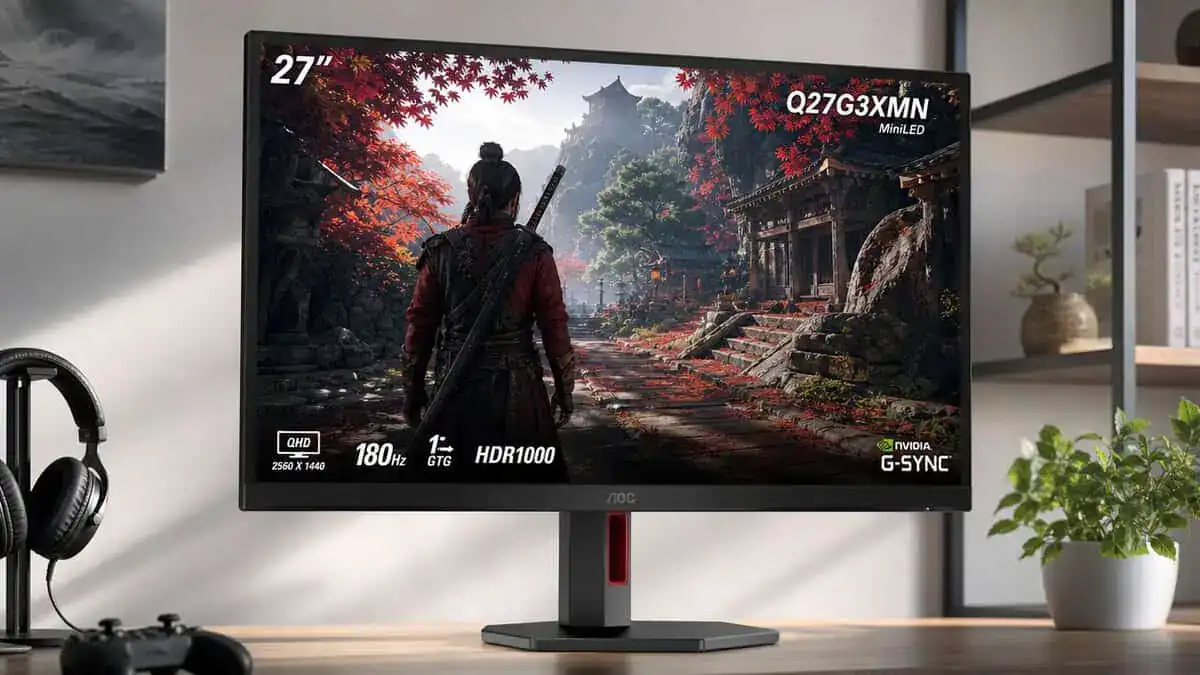
If you want one monitor under $300 for the most use cases, the AOC Q27G3XMN is the one I would start with. A 27-inch 1440p panel with Mini-LED local dimming is still unusual at this price, and that changes the usual budget math.
The appeal is straightforward. Most sub-$300 displays still force a harder choice between speed and image depth. The Q27G3XMN does not erase that trade-off, but it softens it enough to make sense for players who split time between competitive games and slower, more cinematic ones.
I like it most for mixed libraries.
A shooter player who only cares about motion purity can still find cleaner-feeling IPS options. But for anyone who jumps from a ranked match to an RPG, then watches video or works on the same screen, this model makes fewer painful compromises than most budget panels.
The Q27G3XMN is the rare budget monitor that feels chosen for actual use, not for a checklist.
Where it wins
Contrast is the main reason to buy it. Dark scenes look deeper, highlights have more punch, and HDR has a better chance of looking like a visible upgrade instead of a menu toggle you forget about after a week.
Resolution helps too. At 27 inches, 1440p is a better fit than 1080p for desktop use, and games with dense interfaces benefit from the extra sharpness. Strategy titles, MMOs, and open-world games all look cleaner here than they do on a cheaper high-refresh 1080p panel.
It also gets the all-day stuff mostly right. A stable stand, usable on-screen controls, and decent overall tuning matter more than flashy styling in this bracket.
What you give up
The compromise is familiar. VA panels can still look softer in fast transitions than the better IPS alternatives, especially if you are sensitive to dark-level smearing or you play twitch shooters for hours every night.
That does not make it a bad gaming monitor. It means the value depends on your game mix. For broad use, the richer image is worth it. For strict esports use, speed-first IPS still has an edge.
Fast IPS Alternative: Gigabyte M27Q2
Some buyers should skip the Mini-LED conversation and buy a fast IPS panel like the Gigabyte M27Q2 instead. That group is easy to identify. They notice blur, overshoot, and target clarity before they notice black depth.
That usually means competitive FPS players.
A good budget IPS monitor gives up contrast to get cleaner motion behavior and better viewing angles. In bright rooms, that trade can make even more sense because the weaker blacks are less obvious during daytime use. If you mainly play shooters, battle royale games, or anything built around fast camera movement, IPS is often the safer buy under $300.
The M27Q2 is what speed-first looks like when nobody cut the corners you actually feel.
Where it wins
Motion is the headline. The M27Q2’s 27-inch Super Speed IPS panel runs 1440p at 200Hz (OC 210Hz), and fast pans, flicks, and tracking shots stay clean in exactly the situations where budget VA panels start to smear.
The extras are unusually practical too. A built-in USB-C KVM lets one keyboard and mouse drive two devices — a real perk for work-and-play desks — and the height-adjustable stand beats the tilt-only stands common at this price.
What you give up
The downside is just as real. HDR performance is usually weaker, dark scenes look flatter, and the picture can feel less dramatic in single-player games. You are paying for responsiveness first.
If most of your screen time goes to cinematic single-player games, the Mini-LED AOC above will look richer for the same money. The M27Q2 is the pick when speed and versatility come first.
High-Refresh 1080p Pick: Acer Nitro KG241Y
This category still deserves a place, especially for people with midrange hardware or older GPUs. A good 1080p high-refresh monitor like the Acer Nitro KG241Y can be the smarter purchase if your system cannot maintain strong 1440p frame rates in the games you play.
For esports, 1080p is often the practical choice anyway. It is easier to drive, easier to keep within a VRR range that feels good, and usually cheaper without dropping refresh rate.
The catch is product quality. A lot of low-cost 1080p monitors hit the headline spec and cut corners everywhere else, especially stand quality, menu design, and panel tuning. Buying a weak 1080p model just because it advertises a high refresh rate is how people end up replacing a monitor a year later.
The KG241Y hits the headline spec without the corner-cutting that usually comes with it.
Where it wins
Speed per dollar is the whole story. The KG241Y X1biip pairs a 24-inch IPS panel at 200Hz with up to 0.5ms response and FreeSync Premium, so motion stays clean and tear-free in the esports titles this class of monitor is built for.
It’s also easy to drive. At 1080p, a midrange GPU can actually deliver the frame rates that make a 200Hz panel worth owning — which is the entire argument for staying at this resolution in the first place.
What you give up
Sharpness is the trade. 1080p at 24 inches looks clean at normal desk distance, but fine detail at long range and dense interfaces won’t match the 1440p picks above.
The stand is also basic — tilt only, no height adjustment — and there are no extras like USB ports. The money went into the panel, which is the right call at this price, but it’s worth knowing before you buy.
What each type gets right
The AOC-style option is the best fit for players who want one screen for everything and care about contrast, HDR, and 1440p detail enough to accept some VA limitations in motion handling.
A fast IPS option fits players who treat competitive games as the priority and would rather sacrifice image richness than deal with any softness in fast movement.
A strong 1080p high-refresh model still makes sense for budget-conscious esports players, smaller desks, and systems where frame rate headroom matters more than extra pixels.
If you are also comparing brand-specific options, this guide to the best ASUS monitors for gaming and everyday use is a useful reference point for how different feature sets stack up in real setups.
Matching a Monitor to Your Primary Games
Buying by genre works better than buying by spec sheet. At under $300, every monitor gives you something and takes something away. The smart pick is the one that gives up the least for the games you frequently play.
Competitive FPS
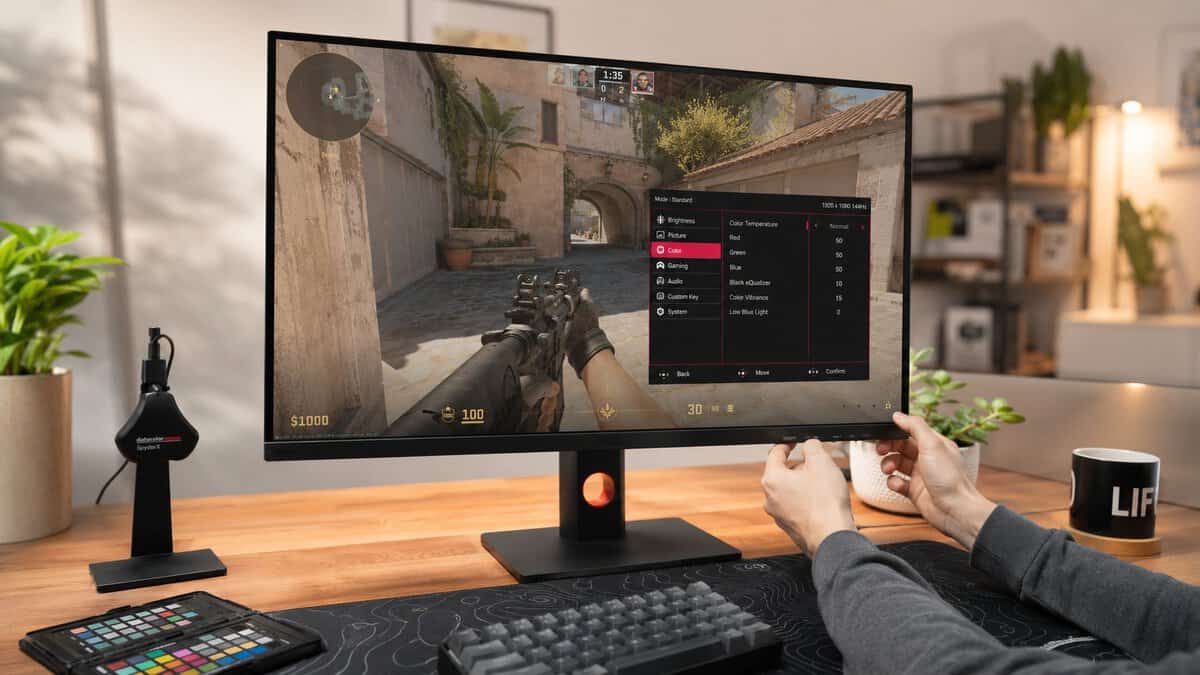
For shooters, motion quality comes first. That means refresh rate, pixel response tuning, and how clean the image stays while flicking or tracking targets. Deep blacks and flashy HDR matter a lot less if enemies smear during fast movement.
A fast IPS panel is usually the safer choice here. You give up some contrast, but you get cleaner motion and fewer dark-level trails. For ranked FPS play, that trade is usually worth it. If that is your main use case, this budget monitor for Valorant guide gets into the details that matter more than headline specs.
I would also keep expectations realistic at this price. Some budget monitors advertise aggressive response modes that look good on the box and add visible overshoot in actual games. A slightly slower setting that looks clean is often the better choice.
RPG and adventure games
Story-heavy games reward a different set of strengths. Better contrast, stronger HDR, and higher pixel density do more for immersion than shaving a small amount off motion blur.
That is why the newer 1440p VA and Mini-LED options are interesting under $300. A few years ago, local dimming and convincing HDR were mostly premium features. Now you can get a monitor that makes fantasy worlds, horror games, and cinematic single-player titles look far richer than a basic fast IPS panel, even if motion handling is not as sharp.
For this kind of player, I would accept some VA motion softness in exchange for better black depth and punchier highlights. If you spend more time exploring worlds than snapping to heads, that is usually the right compromise.
MMOs, strategy, and streaming
These players usually benefit most from 1440p itself. Extra desktop space helps every day. UI elements fit better, text looks cleaner, and it is easier to keep chat, maps, inventory, or stream controls visible without the screen feeling cramped.
I would prioritize three things here:
1440p resolution: It improves text clarity and gives crowded interfaces more breathing room.
A decent stand or VESA support: MMO and streaming desks tend to get busy fast.
Balanced tuning: You want a monitor with no major weakness, not one extreme strength and two annoying flaws.
If you split time across games, avoid buying a specialist panel unless one genre clearly dominates your hours. A balanced monitor usually holds up better over time.
Long sessions add up, too. If you spend evenings raiding, grinding, and watching a second screen, building in ways to exercise while gaming can make your setup easier to live with than chasing one more spec-sheet win.
Essential Setup Tips for Maximum Performance
A lot of buyers spend good money on a monitor and then leave performance on the table. The panel is only half the purchase. Setup finishes the job.
Do these first
Set the correct refresh rate: After connecting the display, check your operating system and make sure it’s running at the panel’s intended refresh rate. Plenty of people never change it from the default.
Enable adaptive sync: Turn it on in the monitor menu if needed, then confirm your graphics settings are using it correctly.
Use the right cable: If your monitor and system support a higher refresh path over one connector, use that path. A good monitor can feel disappointing when the cable choice is wrong.
Tune for your real use
Most factory settings are meant to look acceptable on a showroom floor, not on your desk. Lower overly harsh sharpening, test different overdrive modes, and don’t assume the most aggressive response setting is the best one. Often it adds visible artifacts.
If you feel delay or strange responsiveness after setup, this input lag troubleshooting guide is a practical place to start.
Don’t ignore comfort
Long sessions make ergonomics matter. Set the top of the display at a comfortable height, keep brightness appropriate for your room, and adjust seating before blaming the panel for eye strain or fatigue.
A monitor can be fast, sharp, and well-priced, then still feel bad because it’s set up poorly.
Frequently Asked Budget Monitor Questions
Are curved monitors under $300 worth it?
Sometimes, but only if the curve serves the screen size and your seating position. On a typical desk-sized monitor, curve alone shouldn’t decide the purchase. I’d treat it as a bonus, not a priority. Panel quality, stand stability, and motion handling matter more.
Can you use these monitors with a console?
Usually yes, but console value depends on supported refresh rates, available ports, and whether the monitor fits your preferred play style. For desk use, many gamers still get more value from a sharp high-refresh monitor than from chasing TV-like features they won’t fully use.
Is G-Sync Compatible the same as native G-Sync?
No. In practical terms, though, many buyers in this price range should care more about whether adaptive sync works cleanly than about branding. A stable implementation matters more than the label on the box.
How important is the stand?
More important than people think. A weak stand makes the screen wobble when you type, move your mouse hard, or adjust cables. If you stream, use a boom arm, or have a lightweight desk, this gets annoying fast. Build quality at the base of the monitor affects daily comfort more than flashy styling ever will.
Should you choose 1080p or 1440p?
At this budget, 1440p is the better long-term buy if your system can support it well. Choose 1080p when your priority is competitive play, easier frame rates, or a smaller screen where pixel density stays acceptable.
If you want practical, hype-free gear advice beyond monitors, Budget Loadout is a strong resource for building a gaming or streaming setup that makes sense for your budget. It’s especially useful when you care more about real-world value, durability, and smart trade-offs than flashy marketing.
Related Articles