Optimizing your OBS settings for streaming is a balancing act between your PC’s hardware and your internet’s upload speed. For most budget-conscious streamers, the optimal setup is 720p resolution at 60 frames per second, using the NVENC encoder to minimize performance impact on your game.
This configuration delivers a stable, high-quality viewing experience without requiring a high-end PC.
- For most budget streamers, 720p at 60fps using the NVENC encoder delivers stable quality without taxing your gaming performance
- NVENC (NVIDIA GPU encoding) is almost always the better choice over x264 (CPU encoding) for single-PC streaming setups
- A bitrate of 4,500-6,000 kbps is the sweet spot for Twitch — higher isn’t always better if your upload speed can’t sustain it
- Setting your audio sample rate to 48kHz and using noise suppression filters in OBS dramatically improves voice clarity
- Test your stream with Twitch Inspector or a private stream before going live — it catches encoding issues, dropped frames, and audio sync problems early
Table of Contents
Your Starting Point for a Stable Stream
Before adjusting every dropdown menu, the goal is to establish a reliable baseline. You need settings that look good to your viewers while keeping your game playable, especially if you’re not working with a top-of-the-line PC.
This means focusing on the three most important settings: your encoder, resolution/FPS, and bitrate.
For a typical value-oriented build, like a modern Ryzen 5 CPU paired with an entry-level NVIDIA GPU, the strategy is to offload as much work as possible from the processor. Your graphics card is the most important component for your stream’s performance.
A Dependable Baseline for Budget Builds
Starting with 720p at 60 FPS with a 3,500–5,000 kbps bitrate is the key to a smooth stream on budget hardware. This setup works well for fast-paced games where fluid motion is more important to viewers than pixel-perfect clarity.
Your audience will consistently choose a crisp, stutter-free 720p stream over a choppy 1080p feed. Twitch’s standard bitrate cap is 6,000 kbps for most streamers, though Enhanced Broadcasting beta users are seeing higher limits (up to 7,500 kbps for 1080p). For new streamers without Enhanced Broadcasting, 6,000 kbps is your ceiling, making 720p60 a much safer bet.
Key Takeaway: Your initial goal is stability, not perfection. A stream that never drops frames at 720p is far more professional and watchable than a 1080p stream that constantly buffers. Start with conservative settings, test them, and then increase quality if your hardware can handle it.
Quick Start OBS Settings for Budget Streamers
This table provides the essential starting points for a reliable stream on a budget PC. Consider this your foundation for a solid first broadcast.
| Setting | Recommended Value | Reasoning |
|---|---|---|
| Encoder | NVIDIA NVENC H.264 (or NVENC AV1 for YouTube) | Offloads encoding to the GPU, freeing up your CPU. Use H.264 for Twitch; use AV1 or HEVC for YouTube if your GPU supports it. |
| Resolution | 1280×720 (720p) | Offers good visual quality without demanding significant bitrate or hardware power. |
| Framerate (FPS) | 60 | Delivers the smooth motion critical for action-packed games like FPS or MMOs. |
| Bitrate | 4500 kbps | A functional sweet spot that balances visual quality and stability for a 720p60 stream on most internet connections. |
With this foundation, your first stream will be stable from the moment you hit “Go Live.” You can find more details in our complete streaming setup for beginners guide.
Choosing Your Encoder: NVENC vs. x264 Explained
The encoder is the engine of your stream. It’s the component of OBS Studio that compresses your gameplay into a video format that platforms like Twitch or YouTube can use. This single setting has the largest impact on your PC’s performance while you’re live.
When you open OBS, the decision comes down to two main options: x264 (CPU encoding) and NVENC (GPU encoding).
For a streamer working with a budget, this isn’t much of a choice. If you use your CPU for encoding with x264, you’re forcing it to perform two demanding jobs at once: running your game and encoding your stream in real-time. This commonly leads to in-game stutter, lag, and dropped frames, especially in CPU-heavy games like Final Fantasy XIV or Valorant.
Why NVENC Is Almost Always the Right Answer
Modern NVIDIA graphics cards include a dedicated encoding chip called NVENC. This hardware has one job: to handle your stream. It works independently from the rest of your GPU, which frees up your CPU to focus entirely on running the game.
This separation of tasks provides a significant performance advantage for any PC that doesn’t have a high-end processor with many cores.
For the majority of streamers, especially those on a budget, NVENC is the logical choice. It can reduce CPU usage by 70-90%, freeing up critical resources needed for smooth, high-framerate gameplay. This performance gain is why NVENC adoption has grown significantly, it directly translates to more stable, watchable streams.
You’ll make this critical selection in your OBS Output settings.
In the “Encoder” dropdown, you should select NVIDIA NVENC H.264.
If you have an AMD card, its equivalent is AMF/VCE. It works on the same principle, and while NVENC generally produces slightly better quality at similar bitrates, AMD’s encoder has improved significantly with recent RDNA cards. Intel users also have QuickSync as a hardware encoding option, which works well on modern integrated graphics.
One more thing worth knowing: H.264 is the standard codec for Twitch, but if you’re streaming to YouTube, you have better options. YouTube supports HEVC and AV1, which are newer, more efficient codecs that deliver noticeably better image quality at the same bitrate. If you have an RTX 40 or 50 series GPU, select NVENC AV1 when streaming to YouTube. For older RTX cards, NVENC HEVC is still a step up from H.264. There’s no downside to using these on YouTube, and the quality difference is real.
A solid GPU is crucial here, and you can see our top recommendations in the guide to the best budget graphics card for streaming.
Twitch Enhanced Broadcasting: The Shortcut for RTX Owners
If you own an NVIDIA RTX GPU, there’s a feature that can skip most of the manual setup in this guide. Twitch Enhanced Broadcasting is a collaboration between Twitch, NVIDIA, and OBS that automatically configures your encoder settings based on your hardware and upload speed.
Here’s why it matters for budget streamers: instead of choosing between one resolution and hoping your viewers can handle it, Enhanced Broadcasting lets your GPU encode multiple quality versions of your stream at the same time. Your best viewer gets crisp 1080p while someone on mobile gets a smooth 480p feed, all without Twitch needing to do the transcoding on their end.
To enable it, update to the latest version of OBS, go to your Twitch Dashboard, and opt into the Enhanced Broadcasting beta. Once enabled, OBS will automatically handle your resolution, bitrate, and encoding parameters. It takes the guesswork out of everything we cover in the next few sections.
The manual settings below are still worth understanding, especially if you’re on an AMD card, an older NVIDIA GPU, or streaming to a platform other than Twitch. But if you have an RTX card and stream on Twitch, try Enhanced Broadcasting first. It’s the fastest path to a stable, high-quality stream.
Finding the Right Balance: Bitrate, Resolution, and FPS
Bitrate, resolution, and framerate are interconnected. If one is misconfigured, you end up with a pixelated or choppy stream. These three OBS settings depend on your internet upload speed and the type of game you’re playing.
Your bitrate is the amount of data you send to Twitch or YouTube every second, measured in kilobits per second (kbps). More data means a cleaner image, but setting it too high is a primary cause of stream failure.
Before you touch a single setting, run an internet speed test. The only number that matters is your upload speed. A reliable rule is to set your bitrate to no more than 75% of your total upload. If your test shows an upload of 8 Mbps (or 8,000 kbps), your maximum bitrate should be 6,000 kbps. This buffer is critical for maintaining stream stability.
Match Your Settings to Your Game
Bitrate directly impacts resolution and framerate. Sending a full 1080p 60fps stream is data-intensive. If you try to force it through a low bitrate, like 3,000 kbps, OBS will have to compress the video so aggressively that fast movement in an FPS game will become a blocky, unwatchable mess.
The key is to prioritize what matters for your content.
Use case (FPS Gaming): For high-motion games like Apex Legends or Call of Duty, smooth motion is critical. Viewers prefer fluid 60fps gameplay at a slightly lower resolution over a high-resolution slideshow.
Use case (MMO/Strategy): For slower-paced MMOs or strategy games, visual detail is more important. Here, you can use a lower framerate to push a higher resolution, like 1080p at 30fps.
A common mistake is assuming 1080p is the only acceptable option. A crisp 936p or a clean 720p stream running at 60fps with an adequate bitrate will always look better during intense action than a starved 1080p stream. Your viewers will appreciate the stability.
Bitrate and Resolution Settings for Common Scenarios
This table provides practical starting points for your OBS settings for streaming, based on internet speed and game type. These are tested configurations that prioritize the viewer experience.
| Upload Speed | Game Type | Recommended Resolution/FPS | Recommended Bitrate (kbps) |
|---|---|---|---|
| 8 Mbps+ | Fast-Paced FPS (Warzone, Valorant) | 1664×936 @ 60 FPS | 6000 |
| 8 Mbps+ | MMO / RPG (Final Fantasy XIV, WoW) | 1920×1080 @ 30 FPS | 5500 |
| 5 Mbps | Fast-Paced FPS (Warzone, Valorant) | 1280×720 @ 60 FPS | 4500 |
| 5 Mbps | Slower Games / Just Chatting | 1920×1080 @ 30 FPS | 4000 |
These settings represent a strategic trade-off. For fast games, we sacrifice some resolution to guarantee smooth 60fps motion. For slower games, we prioritize visual fidelity with 1080p. Always start with a stable preset and adjust from there once you’ve confirmed your stream can handle it.
Configuring Audio for Clear Communication
You can have the smoothest video on the platform, but if your audio is crackly or distorted, viewers will leave. Bad audio is the fastest way to kill a stream. This is a non-negotiable step in dialing in your obs settings for streaming, but you don’t need expensive gear to sound good.
Your command center for sound is the Audio Mixer dock in OBS. This is where you’ll find volume sliders for your microphone, game, and music. A reliable rule is to keep your voice consistently peaking in the yellow zone (around -15dB to -10dB) and the game audio hovering in the green (around -25dB). This ensures your voice is clear and present over everything else.
Essential Audio Filters for Budget Mics
This is where you can significantly improve your audio quality. OBS has built-in audio filters that can make a basic USB mic sound clean and professional, provided it has decent build quality and durability. It’s a matter of adding a few simple effects to your microphone source.
Find your mic in the Audio Mixer, right-click it, and select “Filters.”
Here are the three filters every streamer should use:
Noise Suppression: This is your first line of defense against background sounds like PC fans or an air conditioner. The RNNoise option is effective for how little CPU it uses.
Compressor: A compressor evens out your volume, making quiet parts louder and loud parts quieter. This gives your voice a consistent, professional broadcast sound.
Limiter: This is your safety net. A limiter prevents sudden loud noises, like a jump scare or dropping something, from distorting the audio and damaging your viewers’ ears. Set the threshold to about -3dB to catch any unexpected peaks.
If you want more hands-on control, learning how an audio mixer for PC works will open up more possibilities.
Key Advanced Tweaks for Stream Stability
Once your core settings are in place, it’s time to adjust a few advanced options. These tweaks can improve stream stability and are often overlooked by new streamers.
First on the list is Rate Control. You’ll see options like VBR (Variable Bitrate), but for live streaming, you should always set this to CBR (Constant Bitrate).
CBR is the industry standard because it sends data at a steady, predictable pace, which is what platforms like Twitch and YouTube are designed to receive. This consistency is your best defense against connection issues and viewer-side buffering.
Fine-Tuning Your Encoder Settings
Next, refine how your encoder works by adjusting the preset and keyframe interval.
Keyframe Interval: For Twitch, this must be set to 2 seconds. This change ensures your stream is fully compatible with their network, preventing errors and providing a smoother viewer experience.
Preset: This setting tells your encoder how hard to work. In OBS, NVIDIA presets use a P1 through P7 scale, where higher numbers mean better quality but more encoder load. For most budget and mid-range systems, P5 (Slow) or P6 (Slower) hits the sweet spot between visual quality and stability. Avoid P7 (Slowest) unless you have a high-end GPU with headroom to spare. If you’re dropping frames, step down to P4 (Medium).
Pro Tip: Never go live without testing first. The best tool for this is the Twitch Inspector. To use it, add /bandwidthtest to the end of your stream key in OBS and start streaming. Let it run for 5-10 minutes while you’re playing your game. The inspector will provide a clear report on your stream’s stability and flag any issues before your viewers see them.
Nailing these small but critical OBS settings for streaming ensures your broadcast is not just high-quality, but also technically sound and dependable.
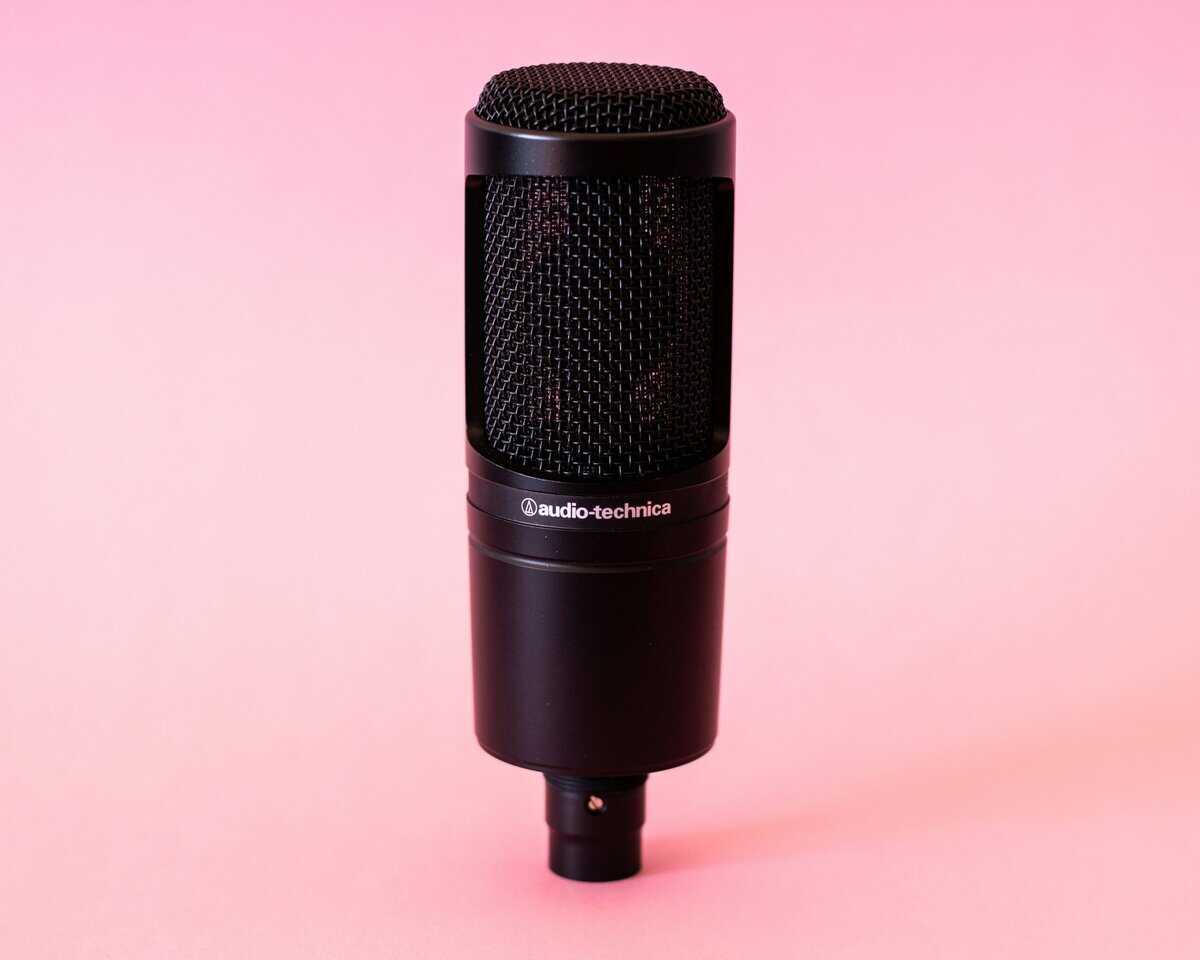
Settings can only do so much with a weak microphone, and our best budget streaming mic guide covers the affordable upgrades.
Got Questions About Your OBS Setup? We’ve Got Answers.
Even with optimized OBS settings, issues can occur mid-stream. Let’s address the most common problems new streamers face with straightforward fixes.
Why Is My Stream a Laggy, Stuttering Mess?
A choppy stream is almost always a resource problem, either your PC is struggling or your internet can’t keep up. The first place to check is the OBS stats dock. If you don’t see it, go to View > Docks > Stats. This window tells you what’s wrong.
Rendering Lag: If you see “Frames missed due to rendering lag,” your GPU is overloaded. Your game is using all available resources. The quickest fix is to cap your in-game FPS to something stable, like 60, so your GPU has some capacity to handle the stream.
Encoding Lag: Seeing “Frames missed due to encoding lag” means your encoder is overloaded. If you’re using the x264 (CPU) encoder, switch to your graphics card’s encoder (NVENC). If you’re already on NVENC, turn down your in-game graphics settings.
Dropped Frames (Network): If the stats show no rendering or encoding lag but you’re dropping frames, it’s your internet connection. Your bitrate is too high for your upload speed. Run a speed test and set your bitrate to about 75% of your consistent upload speed.
Before changing your OBS settings, check your game. A stuttering stream is often a symptom of your game running at 100% CPU or GPU usage. Lowering in-game settings first is the most effective troubleshooting step.
Can I Actually Stream with Slow Internet?
You can, but you have to be realistic. Your upload speed is the limiting factor. If you’re working with a lower upload speed, in the 3-5 Mbps range, you can’t push a stable 1080p stream.
The practical solution is to aim for 720p at 30 FPS. With a stable bitrate of around 2500 kbps, this can look clean and, more importantly, will be smooth for your viewers. Always use your GPU’s hardware encoder (NVENC for NVIDIA, AMF for AMD, or QuickSync for Intel) to reduce CPU load, and stick to a Constant Bitrate (CBR) for a predictable output. With a slower connection, a buffer-free experience is more important than raw resolution.
At Budget Loadout, we believe a high-quality stream doesn’t require a high-end budget. Check out our guides for more honest reviews and value-focused recommendations at Budget Loadout.
Related Articles