Hunting for the best Steam Deck dock usually starts in the same spot most Steam Deck owners hit sooner or later. Handheld mode is great, but once you want to play on a TV, plug in Ethernet, connect a controller, or use a keyboard and mouse for an MMO, the dock search gets messy fast.
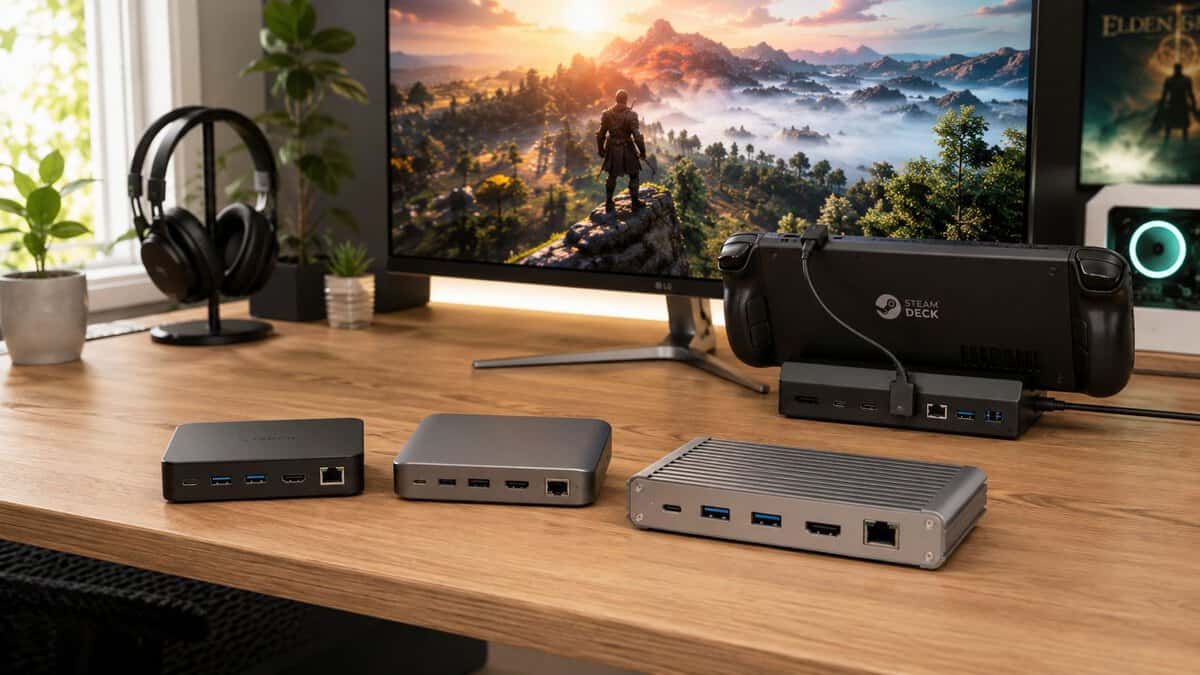
The problem isn’t lack of options. It’s that too many docks look the same on a spec sheet until one starts flickering on your monitor, drops charging under load, or turns into a cable juggling act after a few months. If you care about value, the best Steam Deck dock isn’t the cheapest box with an HDMI port. It’s the one that keeps power delivery stable, holds up physically, and doesn’t force compromises you’ll regret later.
- HDMI 2.1 with 4K at 120Hz output
- 100W PD pass-through with Gigabit Ethernet
- Works with Steam Deck, ROG Ally, and Legion Go
- Stand is fixed rather than adjustable
- No SD card slot
- Plain design without extras
- Adjustable stand fits any handheld properly
- Stable 100W charging for daily docking
- Highest-rated dock among our picks
- HDMI tops out at 4K 60Hz
- No USB-C data port
- No SD card reader
- HDMI and DisplayPort with 4K at 120Hz
- Twelve ports including SD/TF and 3.5mm audio
- Turns a docked Deck into a real desk setup
- Costs more than twice the value pick
- Modest user rating for the tier
- Overkill for simple TV play
- The UGREEN Steam Deck Dock is the value pick: HDMI 2.1, 100W pass-through, and Gigabit Ethernet for less than the big names.
- The Baseus 6-in-1 is the everyday all-rounder, with an adjustable stand and the most consistent charging behavior of the field.
- Power users should step up to the JSAUX RGB 12-in-1 for DisplayPort, SD card slots, and a true desk-station layout.
- Power delivery quality matters more than port count; a dock that charges reliably under load beats one with extra headline specs.
- Match video output to your screen: 4K at 60Hz covers TV play, while high-refresh monitors need HDMI 2.1 or DisplayPort.
Table of Contents
Why Your Steam Deck Needs the Right Dock
A Steam Deck dock does more than put your handheld on a desk. It becomes the bridge between the Deck and everything else in your setup: your display, storage, controller, wired internet, headset, and charger. When that bridge is solid, docked play feels simple. When it isn’t, every session starts with troubleshooting.
That matters more than people admit. A weak dock can cause charging instability, flaky display handshakes, random disconnects from storage, and lag spikes if you’re relying on bad wireless conditions instead of wired Ethernet. Those aren’t minor annoyances if you play shooters on a monitor, grind MMOs with a keyboard and mouse, or stream from a desk setup.
What usually goes wrong
Most bad dock purchases come from shopping by price alone. A low-cost model can look fine for casual TV output, then start showing its limits once you add more than one accessory or use it daily.
Common problems include:
- Unstable charging: The Deck charges inconsistently, or the battery still drains during longer sessions.
- Display issues: External monitors flicker, fail to detect properly, or fall back to lower refresh rates than expected.
- Peripheral bottlenecks: External storage loads slowly, controllers disconnect, or keyboard and mouse input feels less reliable than it should.
- Durability concerns: Loose ports, hot plastic shells, and weak cable strain relief tend to show up long before the rest of your setup needs replacing.
Practical rule: Buy for the setup you’ll still be using months from now, not the one you tested for ten minutes on day one.
The value-first approach is simple. Pay for the specs that affect stability, display output, and long-term durability. Skip the fluff. If you only want couch gaming on a single screen, you can spend less. If you want FPS gaming on a monitor, MMO play with multiple peripherals, or a compact streaming station, the dock quality starts to matter a lot more.
Understanding Steam Deck Dock Specifications
A Steam Deck dock can look great on a spec sheet and still be a headache after six months on a desk. The weak point is usually not the extra USB port count. It is power delivery stability, heat, and how well the dock holds up to constant plugging and unplugging.
Power delivery decides whether a dock feels reliable
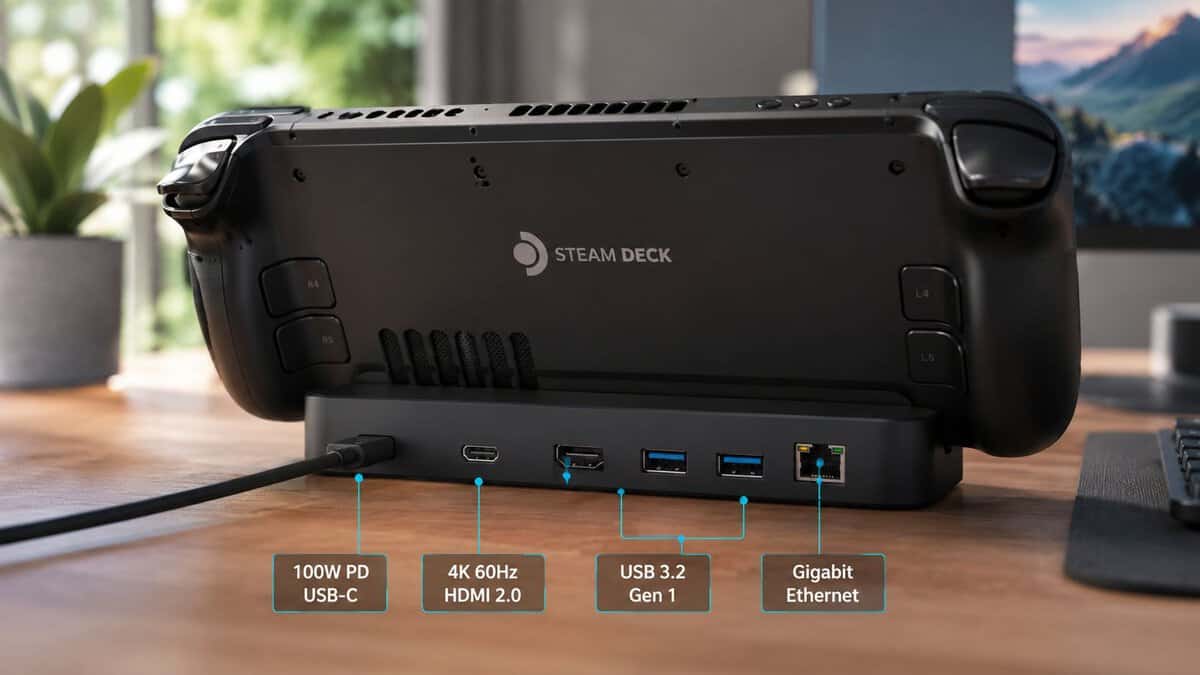
For daily docked play, I check the PD input rating before anything else. A dock with 100W PD pass-through usually gives the charger and dock enough headroom to run the Deck, feed attached accessories, and avoid the annoying behavior that shows up on cheaper hardware, such as slow charging, battery drain during play, or random reconnects from USB devices.
The Steam Deck itself does not pull anywhere near that full figure by itself. The extra headroom matters because docks waste some power internally, and every attached device adds a little more load. External SSDs, Ethernet, wireless dongles, capture gear, and high-resolution display output all increase the chance that a borderline dock starts acting unstable.
Port count is easy to oversell. Power design is harder to market, but it matters more over time.
If you want to compare real-world port layouts on a high-power hub, you can explore DigiDevice connectivity solutions. Focus less on the total number of ports and more on whether the dock gives you the right mix without crowding everything together.
Video output matters only if your screen can use it
Display specs are where dock listings get noisy fast. A lot of buyers see HDMI 2.1 and assume it is automatically better value. It is only better if your monitor or TV, your refresh-rate target, and the dock’s implementation all line up.
For many setups, HDMI 2.0 or DisplayPort 1.4 is enough. This accommodates the common goal of 4K at 60Hz on a TV or monitor. HDMI 2.1 starts to matter if you are pairing the Deck with a higher-refresh external display and you care about pushing beyond standard 60Hz limits. If you need a clearer breakdown, this guide on HDMI 2.0 vs 2.1 for gaming explains the trade-offs well.
Paying extra for a headline display standard you will never use is wasted money. Paying extra for stable output on the display you already own usually is not.
USB speed changes how useful external storage feels
USB speed is easy to ignore until you start installing or loading games from an external drive. For a keyboard, mouse, controller receiver, or basic accessories, standard USB 3 speeds are fine. For external SSD use, higher-speed USB ports make a clear difference in transfers, game installs, and large file moves.
That does not mean every buyer needs the fastest dock available. If your dock’s main job is TV play with one controller plugged in, chasing top-end USB specs is fluff. If you want a desk setup that behaves more like a small PC, faster data ports are worth paying for.
Ethernet falls into the same category. It is a practical upgrade, not a flashy one. Wired networking gives more predictable downloads, better consistency in online games, and fewer problems than questionable Wi-Fi at the far end of a room.
Build quality decides whether the dock still earns its place next year
I put build quality ahead of extra features once the basics are covered. A dock with fewer ports and a better chassis is usually the smarter buy than a cheap model that runs hot, wobbles on the desk, or develops loose connections after regular use.
Check these details before buying:
- Housing material: Metal usually handles heat better than thin plastic.
- Cable strain relief: Fixed USB-C leads often fail here first.
- Port spacing: Tight layouts become annoying once you add wider flash drives or wireless receivers.
- Connector fit: Loose USB ports and sloppy HDMI fit tend to get worse, not better.
- Cradle design: A good stand should support the Deck securely, even if you use a slim case.
A durable dock is rarely the cheapest option. It is often the cheapest one to live with long term.
The Best Steam Deck Docks for Every Budget in 2026
A dock usually gets judged on ports and price in the first five minutes. The problems show up six months later, after repeated heat cycles, daily charging, and constant plugging and unplugging. That is why I put power delivery stability and physical durability ahead of flashy feature lists in this category.
A Steam Deck dock is not hard to buy. A Steam Deck dock that still charges cleanly, holds a stable display signal, and does not develop loose ports after regular use is harder to find.
2026 Steam Deck Dock Recommendations
| Model | Price Tier | Power Delivery | Max Display Output | USB Speed | Ethernet | Best For |
|---|---|---|---|---|---|---|
| UGREEN Steam Deck Dock | Budget value | 100W PD pass-through | 4K at 120Hz over HDMI 2.1 | USB-A and USB-C 3.0 | Gigabit included | TV play, light desk use, buyers who want the basics done properly |
| Baseus 6-in-1 Docking Station | Mid-range all-rounder | 100W PD with stable everyday charging | 4K at 60Hz | Three USB-A 3.0 ports | Gigabit included | Buyers who want reliable daily use and an adjustable fit for any handheld |
| JSAUX RGB 12-in-1 | Premium power user | Built for heavier desk setups with more attached gear | 4K at 120Hz over HDMI or DisplayPort | USB-C and USB-A 3.2 plus SD/TF slots | Gigabit included | Monitor users, stream setups, and buyers who will keep the dock on a desk full-time |
Best Value Dock: UGREEN Steam Deck Dock
The value tier is where buyers make the most expensive mistake. Chasing the absolute lowest price often gets you weaker strain relief, lighter port retention, and less consistent charging behavior under load.
The best budget option right now is the UGREEN Steam Deck Dock: a well-built 6-in-1 with a proper stand, Gigabit Ethernet, HDMI 2.1 output, and enough USB for a controller, keyboard, or storage drive. For this price range, stable 4K at 60Hz support and dependable pass-through charging matter more than an inflated port count. If your display choices are still confusing, this guide to DisplayPort vs HDMI for gaming helps clarify what matters for a desk setup. For storage inside the Deck itself, see our SD card for Steam Deck picks.
That is the smart place to save money. Buy fewer ports. Buy better basics.
The trade-off is straightforward. Budget docks are fine for single-screen gaming, light desktop mode, and couch play. They are less convincing as permanent workstation gear, especially if you plan to keep external storage, wired networking, and multiple USB devices connected every day.
Best Mid-Range All-Rounder: Baseus 6-in-1 Dock
The Baseus 6-in-1 Docking Station is the safe recommendation for buyers who care more about long-term behavior than spec-sheet theater. Its adjustable stand fits the Deck and other handhelds properly, and it makes the most sense for people who dock and undock often, share the Deck around the house, or want something that feels designed for the device instead of adapted to it.
You pay extra for predictability.
That matters more than many buyers expect. A dock that charges consistently, fits the Deck properly, and avoids random handshake issues with displays is often the better long-term purchase than a cheaper unit with a longer list of ports. I have tested plenty of docks that looked stronger on paper and felt worse after a few weeks of real use.
This tier is also where the balance improves. You get enough connectivity for a real desk setup without stepping into premium pricing that only pays off if your monitor and accessories can use the extra bandwidth.
The dock you keep using is usually the one that causes the fewest small annoyances.
Best Premium for Power Users: JSAUX RGB 12-in-1
Premium docks only make sense if your setup can use them. A high-refresh monitor, multiple permanent accessories, capture hardware, external SSDs, or a desk that doubles as a lightweight desktop station can justify the spend.
The reason to buy in this tier is not bragging rights. It is better sustained behavior, and the JSAUX RGB 12-in-1 dock is the pick that delivers it. Better cooling, firmer port construction, cleaner cable routing, and more stable power delivery matter more here than one extra headline spec. High-end docks also tend to hold up better if they stay plugged in all day and carry more of your setup through a single USB-C connection.
The compromise is easy to state. Premium docks are overkill for simple TV play. If you mostly park the Deck under a living-room screen and connect one controller, a good mid-range or budget dock will do the same job for less.
What to avoid in the budget tier
Skip the ultra-cheap end of the market if long-term value matters to you. Products in this category frequently exhibit weak USB-C leads, hot-running housings, and inconsistent PD negotiation. The dock may still work at first, but charging can become fussy over time, especially once you add accessories and longer sessions.
I look for three warning signs right away:
- Very light plastic construction with poor cable strain relief
- Vague power delivery wording that never clearly explains pass-through charging
- Port layouts that feel loose or cramped before you have even used them for a month
A slightly better dock usually costs less than replacing a bad one later.
Which buyer should spend more
Spend more if your dock is going to live on a desk and act like part of a full setup:
- You play on a monitor regularly: Stable output and better port quality matter more than novelty features.
- You use desktop mode often: Keyboard, mouse, storage, and charging load expose weak docks fast.
- You stream, record, or keep accessories attached: Power stability becomes a daily quality-of-life issue.
- You dock and undock constantly: Better fit and stronger construction pay off over time.
Spend less if your use is simple:
- Mostly TV gaming: A solid 4K at 60Hz dock covers the job.
- One or two accessories at a time: You do not need a large hub.
- Travel or portable play: A compact hub can be smarter than a bulky desktop dock.
For most buyers, the best choice is not the cheapest dock or the most expensive one. It is the model built well enough to stay reliable after the first wave of buyer’s remorse bargains starts failing.
Performance Deep Dive: Docks vs Hubs
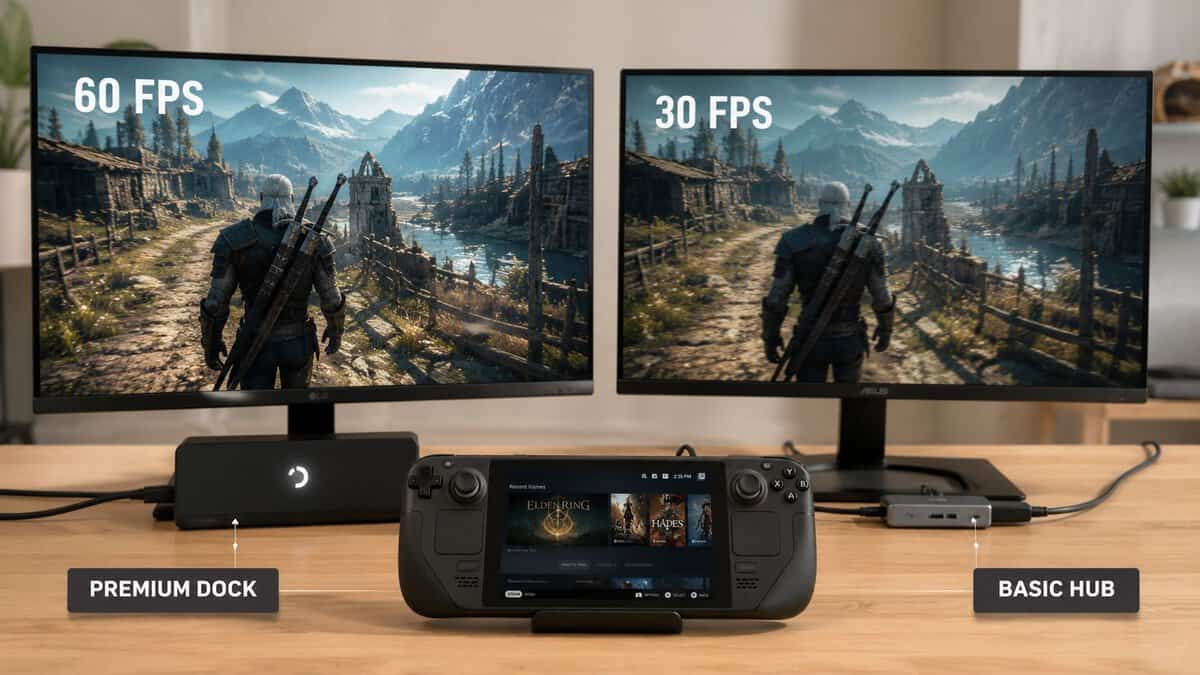
A Steam Deck dock changes the experience most once you start using the system like a small desktop for hours at a time. The frame rate still comes from the Deck itself, but the dock decides how stable the whole setup feels under load. That includes charging behavior, display consistency, accessory reliability, and how often you end up unplugging things to fix odd issues.
What actually changes when you dock
The Steam Deck is happiest at 800p on its own screen. Once you connect it to a TV or monitor, you are asking the hardware to do two jobs well at the same time. Render the game cleanly, and hold a stable external signal through the dock.
That is why docked performance needs to be judged in two parts. First, can the game run well at the resolution you want? Second, can the dock keep video, charging, and USB devices stable during a long session? Cheap hubs often look fine in short tests, then start showing the usual problems once you add a controller receiver, external drive, Ethernet, and pass-through power.
A good dock gives you access to higher refresh rate and higher resolution output if your display supports it. That does not mean every game will run well at those settings. Lighter games, older titles, and emulation usually scale much better than recent AAA releases. FSR can also help in some games, but it is not a magic fix for a weak dock or an unrealistic resolution target.
Where dedicated docks pull ahead
Generic USB-C hubs still have a place. If the job is occasional TV play with power and one controller, a decent hub can be enough and saves space in a bag.
Dedicated docks earn their higher price in a desk setup because they usually handle sustained use better:
- More stable power delivery: Better docks are less likely to flicker between charging states or misbehave when several USB devices are attached.
- Cleaner thermals and cable routing: A fixed stand reduces strain on the USB-C port and keeps the Deck positioned more predictably.
- More consistent display handshakes: This matters if you dock and undock often or switch between a monitor and TV.
- Better port spacing and retention: Loose USB ports and cramped layouts are common failure points on cheap hubs.
Power delivery is the part buyers skip past too fast. A dock can advertise high wattage pass-through and still do a poor job of holding voltage steady once the Deck, display output, storage, and peripherals are all active. In real use, that shows up as battery drain during play, random disconnects, or a dock that runs hot enough to become unreliable after a few months. I trust a boring dock with stable charging more than a feature-packed one with flaky PD behavior.
For more context on monitor connections, this guide on DisplayPort vs HDMI for gaming explains which standard matters for your display and which specs are just there to pad a product page.
Hubs are cheaper. Docks usually age better.
This is the long-term trade-off.
A hub is the value pick if you only connect occasionally and keep the accessory load light. A proper dock makes more sense if the Deck lives on your desk, stays plugged in for long sessions, or regularly handles Ethernet, storage, keyboard, mouse, headset, and display output all at once.
I have seen plenty of low-cost hubs work fine for a month and get temperamental later. Charging gets inconsistent. External drives start dropping. The video signal cuts out when the battery is low or a second USB device is attached. Those failures are rarely dramatic. They are just annoying enough to make the whole setup feel cheap.
For casual couch play, a hub is usually enough. For a permanent desk setup, a dock with stable power delivery and better build quality is the safer buy.
Which setup benefits from a better dock
A monitor-based setup benefits first. Higher refresh support matters, but stable video output matters more. If the display blanks during wake-from-sleep or loses signal whenever you reconnect power, the spec sheet stops mattering fast.
Desktop Mode users also gain more from a better dock because they stress every weak point at once. Keyboard, mouse, storage, Ethernet, and charging expose poor controllers and weak power handling quickly. The same goes for anyone recording gameplay or using external storage for large libraries.
If your setup is simple, save the money. If the dock is going to be plugged in every day, spend for reliability first and extra ports second. That is usually the better long-term deal.
Setting Up Your Dock for Peak Performance
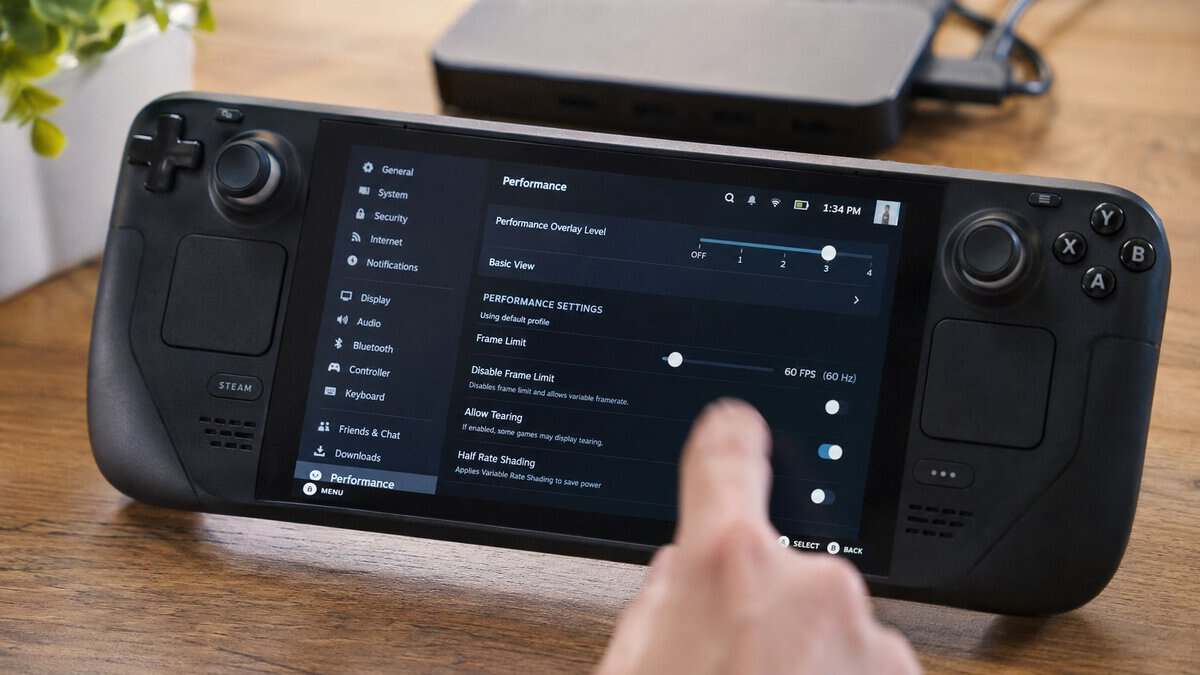
A lot of dock complaints come from setup mistakes, not bad hardware. The Steam Deck often won’t default to the best external resolution or refresh rate on its own. You have to tell it what you want.
Set the display correctly in Desktop Mode
The important step is using Desktop Mode. To do that, press and hold the power button, choose Switch to Desktop, then open System Settings > Display and Monitor. From there, manually set the resolution and refresh rate for your external display before launching games. That manual setup process is the key to getting the most from a docked monitor or TV, as noted in the earlier GamesRadar reference.
If you’re planning a multi-screen desk arrangement, this guide on how to set up dual monitors is a useful companion.
Setup order that avoids headaches
Use this connection order:
- Connect power to the dock first. The dock should already be receiving power before the Deck joins the chain.
- Connect your display next. Let the monitor or TV establish its signal path.
- Attach the Steam Deck last. This often reduces weird handshake behavior.
- Then add storage and accessories. It’s easier to isolate problems if the core display path works first.
Small setup choices that help
A few practical habits make docked use more reliable:
- Use the right charger: Don’t pair a good dock with a weak power brick.
- Keep cables short and tidy: Less strain on the USB-C connection helps with long-term durability.
- Match the game settings to the screen: If a title struggles at higher output resolutions, lower the in-game target and use FSR where available.
- Check full-screen behavior: Some games won’t behave properly with refresh changes unless they’re running full-screen.
The best docked experience usually comes from one minute in settings, not from buying the most expensive dock.
Troubleshooting Common Steam Deck Dock Problems
Even a good dock can misbehave if one part of the chain is off. Most issues come down to cables, power order, display settings, or output selection. Start simple.
No signal on the TV or monitor
Try these in order:
- Reseat every connection: Disconnect the Deck, HDMI cable, and power cable, then reconnect them firmly.
- Change the startup order: Power the dock first, turn on the display, then connect the Steam Deck.
- Check the display setting in Desktop Mode: If the Deck is outputting an unsupported resolution or refresh rate, the screen may stay blank.
Audio still comes from the Steam Deck
This is usually a settings issue.
- Select the external audio device manually: The Deck doesn’t always switch output the way you expect.
- Reconnect the HDMI cable: A fresh handshake can restore audio routing.
- Power cycle the dock: Shut everything down, wait a moment, then reconnect in the proper order.
Controller or input feels laggy
This can come from the wireless environment or the dock layout.
- Use wired Ethernet if you’re gaming online: That removes one major variable in competitive play.
- Move wireless receivers to a clearer port position: Crowded USB layouts can make dongles behave poorly.
- Test with fewer connected accessories: If the problem disappears, power or USB bandwidth may be the weak point.
For more dock-related setup and compatibility context across hybrid gaming hardware, this article on the Switch 2 dock is worth a look.
Battery drains while docked
If your battery is dropping during play, don’t ignore it.
- Check the charger first: A dock can’t pass through power it isn’t getting.
- Reduce peripheral load temporarily: Disconnect storage or extra USB devices and see if charging stabilizes.
- Inspect heat and port fit: A hot dock or loose USB-C connection often points to a hardware quality problem.
If those fixes don’t help, the dock itself may be the issue. That’s usually where long-term power delivery quality separates decent hardware from disposable hardware.
Do You Even Need a Dock Alternative
A full dock pays off if your Steam Deck lives on a desk or TV stand. If you only connect to a screen now and then, a simpler setup often makes more sense, and in some cases it lasts longer because there is less hardware in the chain to fail.
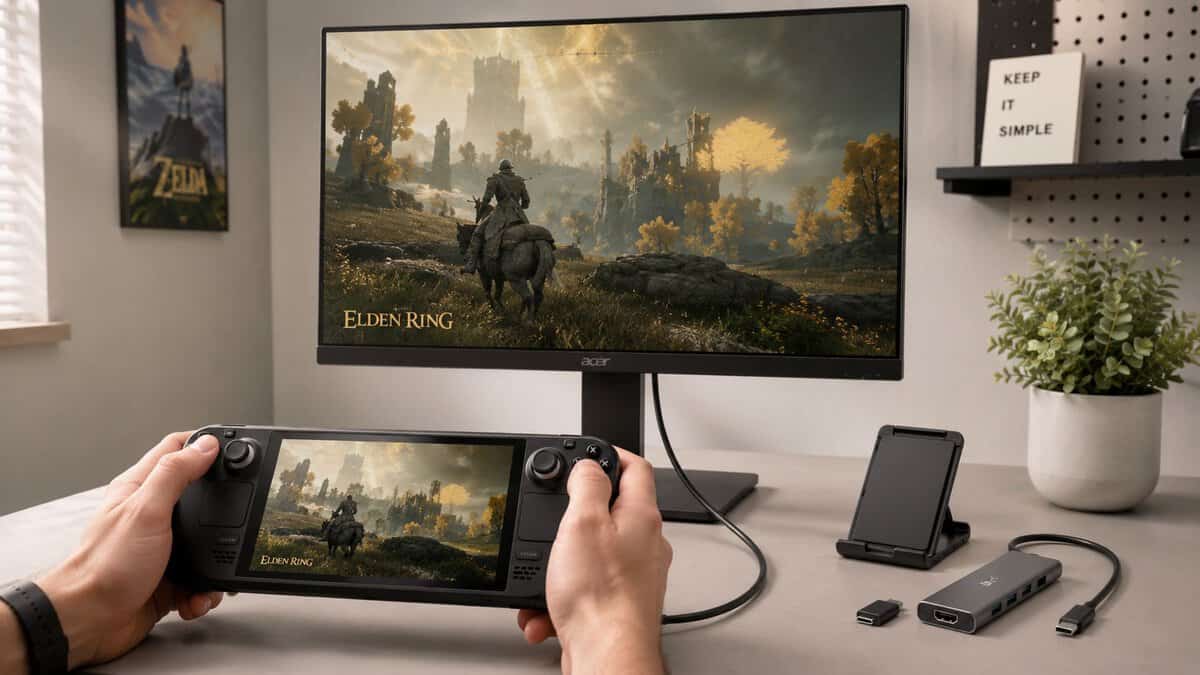
A quality USB-C hub is the obvious alternative. It covers the basics: video out, a couple of USB ports, and pass-through charging. The catch is power stability. Cheap hubs often look fine on a spec sheet, then run hot, loosen up at the USB-C plug, or start dropping display signal once you add storage, a controller receiver, and charging at the same time. If you go this route, buy for build quality and consistent power delivery first, not the longest port list for the lowest price.
There are three simpler options that work well, depending on how you use the Deck:
- USB-C to HDMI adapter: Best if you just want the Deck on a TV and do not care about extra USB ports.
- Stand plus compact hub: A better fit for travel or occasional desktop use, especially if you already own a charger and just need basic expansion.
- Local streaming to another screen: Useful if you want a bigger display without adding another powered accessory to your setup.
A compact setup also pairs well with a travel display. If that is your use case, this guide to the best portable monitor is a useful next step.
The trade-off is pretty simple. These alternatives save money, take up less space, and are easier to throw in a bag. A proper dock still wins on cable management, physical stability, and repeatable charging behavior over time. If you dock a few times a month, a good hub or adapter is enough. If the Deck spends hours connected to a monitor, Ethernet, and accessories, a real dock is usually the cheaper choice in the long run because it is less likely to become a flaky power problem six months later.
For a laptop rather than a handheld, our best USB-C hub guide covers the equivalent.
Frequently Asked Questions
Quick answers to the questions Steam Deck owners ask most about docks.
Do I need an official dock for the Steam Deck?
No. Any USB-C dock with power delivery pass-through and HDMI works with the Steam Deck, and well-built third-party docks like the UGREEN and Baseus picks in this guide cost far less than the official option while adding features like HDMI 2.1 or an adjustable stand.
Is a USB-C hub good enough instead of a dock?
A hub works for occasional TV sessions, but a dedicated dock ages better for a permanent setup. Docks hold the Deck upright, route power and video through one connection, and use sturdier port construction. If you dock daily, the dedicated design is worth the small difference in price.
Why does my Steam Deck lose battery while docked?
Usually the power chain, not the dock itself. Use the original 45W charger or stronger on the dock input, plug it into the dock rather than the Deck, and avoid low-wattage bricks. A dock with proper 100W pass-through, like all three picks here, keeps the Deck charging under load.
Can the Steam Deck actually output 4K at 120Hz?
The Deck can output high resolutions to a display through docks with HDMI 2.1 or DisplayPort, but demanding games will not run at 4K 120fps on Deck hardware. The higher ceiling still helps: your desktop feels smoother, lighter games can run at high refresh, and the dock will not bottleneck a future handheld.
Do Steam Deck docks work with the ROG Ally or Legion Go?
Most do. All three picks in this guide list compatibility with the ROG Ally and Legion Go alongside the Steam Deck, since they connect over standard USB-C. Check the stand width if your handheld wears a case, and prefer adjustable-stand designs like the Baseus for mixed-device households.
If you’re building out a handheld or desktop setup one smart upgrade at a time, Budget Loadout covers gear that improves your real setup without pushing you into overpriced picks.
Related Articles