You’re probably looking at streaming setups online and seeing a pile of expensive parts, dual PCs, capture hardware, studio lights, and desks full of gear. That’s enough to make anyone think the best streaming pc has to be overbuilt from day one.
It doesn’t.
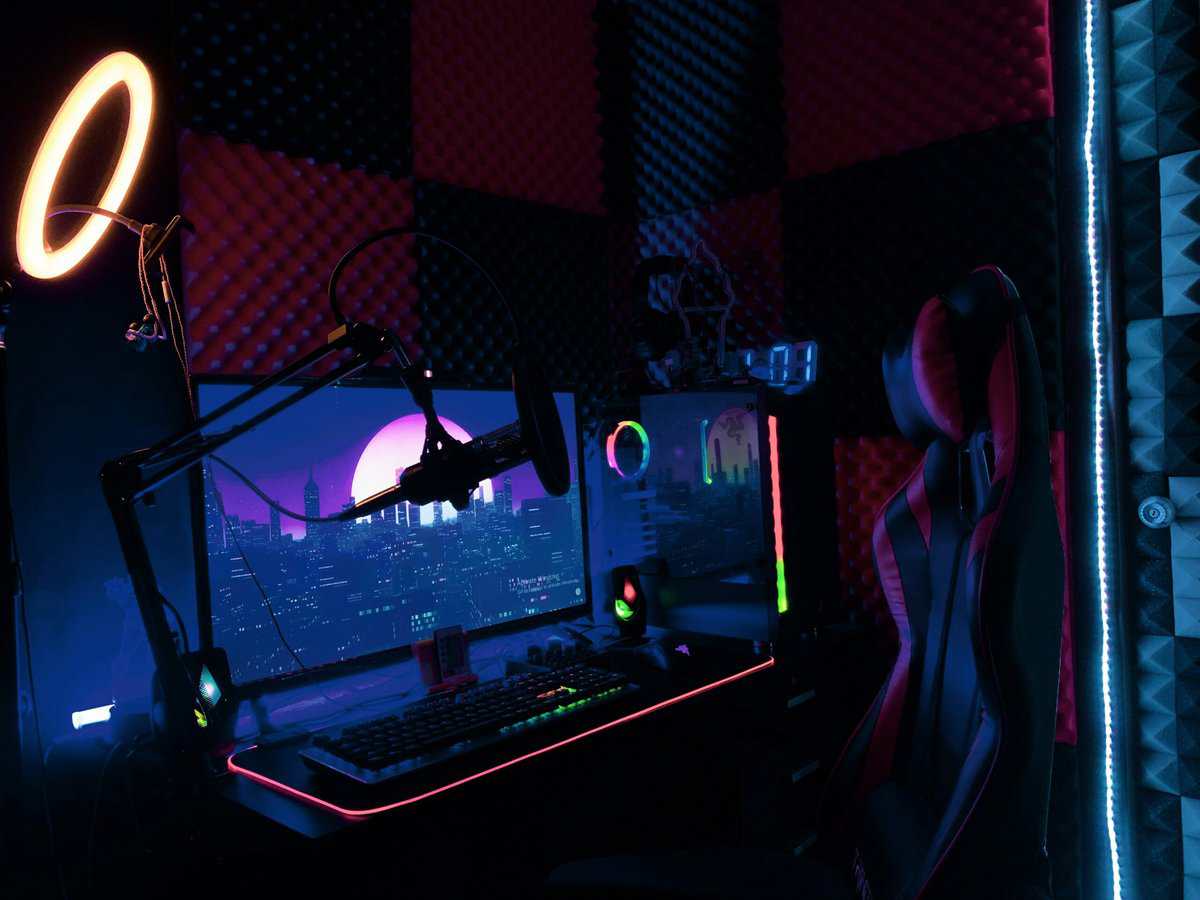
For most new streamers, the right move is a balanced single-PC build that plays games well, keeps OBS responsive, and doesn’t waste money on parts that won’t improve your stream. Modern hardware encoding changed the buying math. You no longer need to chase workstation-style CPUs just to go live with stable gameplay.
The bigger challenge is knowing where your money matters. A better encoder matters. More RAM matters. A fast SSD matters. Overspending on a flagship processor while cutting corners on the GPU, cooling, case airflow, or power supply usually doesn’t.
- Single-PC streaming with a modern GPU encoder beats dual-PC setups for 99% of new streamers: the in-game performance hit is minimal
- Best streaming PC value pick: Ryzen 5 9600X paired with an RTX 5060 and 32GB DDR5 handles competitive games plus OBS
- Performance step-up: Ryzen 9 9900X or Ryzen 7 9800X3D plus an RTX 5070 or RX 9070 XT covers heavier games and AAA streaming workloads
- Skip Intel 13th and 14th gen Core i7/i9 chips for a fresh 2026 build: AMD Ryzen 9000 series is the cleaner choice at the same price tier
- Audio matters more than your face cam: a solid USB mic like the HyperX SoloCast 2 outranks any beginner webcam upgrade for stream quality
Table of Contents
Early on, keep this framework in mind:
| Component | What actually matters for streaming | Common waste of money |
|---|---|---|
| CPU | Strong gaming performance plus enough cores for multitasking | Buying far more CPU than your encoder setup needs |
| GPU | Hardware encoding quality, gaming performance, enough VRAM | Treating the GPU as gaming-only and ignoring encoder quality |
| RAM | Enough headroom for game, OBS, browser tabs, chat, and background apps | Sticking to a bare-minimum memory setup |
| Storage | Fast NVMe drive for load times, recording, and general responsiveness | Pairing strong core parts with slow storage |
| PSU and case | Stable power, airflow, build quality, lower noise | Cheaping out on long-term reliability |
Building Your First Streaming PC Without Overspending
You price out a first streaming build, add a high-end CPU because it sounds safer, then start trimming the parts that keep the system stable. The case gets cheaper. The power supply drops a tier. RAM gets cut back. A few clicks later, the budget is gone and the stream quality is not much better.
That is how a lot of first builds go sideways.
For a single-PC setup, the goal is simple. Buy enough CPU for strong game performance and background tasks, then put the rest of the budget into the parts that improve the full streaming experience. That usually means a capable GPU with modern hardware encoding, 32GB of RAM, a fast NVMe SSD, and a case and power supply you will not regret six months from now.
For most new streamers, a dual-PC plan is overkill. Modern GPU encoding takes a lot of pressure off the processor, which is why one balanced machine makes more sense than splitting the budget across two weaker systems and adding extra gear. If you are still unsure whether you need external capture hardware, this breakdown of what a capture card is and who needs one helps clear that up.
A practical first build usually follows a few simple rules:
- Do not overspend on the CPU first: Past a certain point, extra processor budget gives you less return than a better GPU, more RAM, or quieter cooling.
- Treat the GPU as a stream part, not just a gaming part: Encoder quality and game performance both matter in a single-PC build.
- Start with 32GB of RAM if the budget allows: OBS, your game, browser tabs, chat tools, music apps, and plugins add up fast.
- Use NVMe storage from the start: The system feels better day to day, and local recordings are less of a headache.
- Leave room for basics that people skip: Airflow, cooler quality, and a dependable PSU affect noise, thermals, and long-term reliability.
Answer Three Questions Before You Buy
- What do you play most? Fast shooters punish a weak CPU and GPU pairing harder than slower games, and MMOs pile chat, browser tabs and add-ons onto the same system.
- What stream quality is realistic? A steady 720p stream beats a 1080p stream that drops frames. Aim for what your PC and upload speed hold smoothly.
- Will you record or edit locally too? Streaming plus local recording, browser sources and editing needs more headroom than streaming alone, mostly in RAM and storage.
Here is the trade-off I point out most often. Spending a little more on a better GPU or moving from 16GB to 32GB of RAM usually helps more than chasing a CPU tier that looks impressive on a spec sheet. On the other hand, saving a few dollars on a weak power supply or a cramped hotbox case is a mistake you keep paying for.
Build for the stream you plan to run this year. Not the fantasy setup you might build later. That approach keeps the budget under control and gives you a PC that plays well, streams cleanly, and leaves room for the upgrades that matter.
The Single vs Dual PC Streaming Decision
Many individuals shopping for a streaming setup ask the wrong first question. They ask, “How powerful does my PC need to be?” The smarter question is, “Do I need more than one PC?”
For most new streamers, the answer is no.
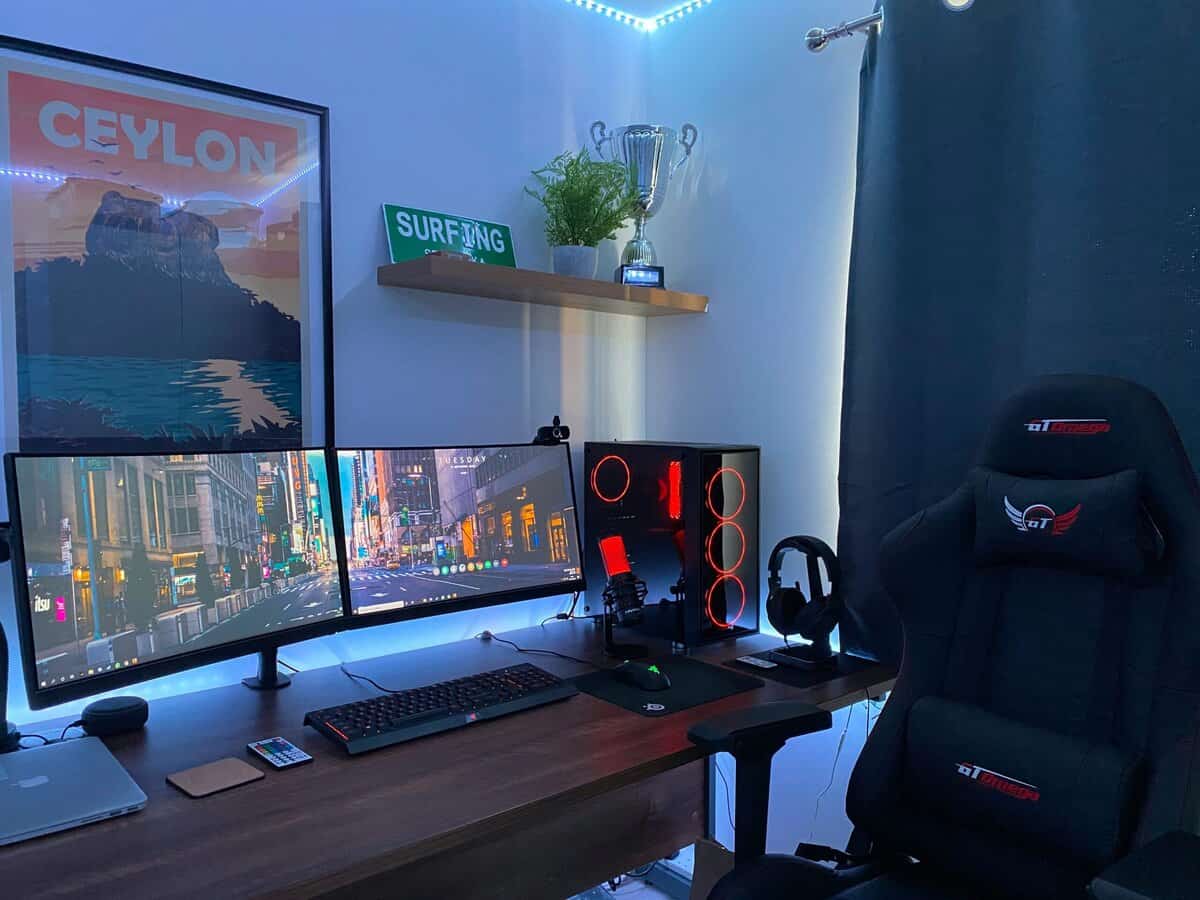
Why dual-PC setups became popular
Dual-PC streaming came from a real limitation. Older single-PC setups had a harder time gaming and encoding at the same time, so builders split the work across two systems. One machine played the game. The other handled the stream.
That made sense when CPU-based streaming took a heavier toll. It also made sense for highly specialized setups where someone wanted separate production control, isolated recording, or broadcast redundancy.
For many users, a dual-PC setup now adds cost, cable clutter, extra failure points, more heat, more noise, and more troubleshooting. It’s harder to build, harder to maintain, and easier to break in the middle of a live session.
Why single-PC is the value choice now
If your goal is performance per dollar, a single-PC build is the better path almost every time. Modern GPU encoders changed the equation, and that’s why spending more on one balanced system usually beats splitting the budget across two weaker ones.
A single-PC setup is especially strong if you:
- Play competitive FPS games: You want fewer moving parts and lower setup hassle.
- Stream MMOs or general variety content: Stability and multitasking matter more than turning your room into a mini production studio.
- Want cleaner cable management: Build quality includes how usable the whole setup feels over time.
- Need to keep noise down: Two systems mean more fans, more heat, and more chances your mic picks up background noise.
If your stream plan is “play games, talk to chat, run alerts, and stay stable,” a single-PC rig is usually the right answer.
When a second PC still makes sense
There are niche cases where dual-PC still earns its keep. High-level tournament production is one. Another is a creator who already owns a second machine and knows exactly why they need stream isolation.
Console streamers are a different case. They often don’t need a powerful gaming PC at all because the console handles the game. What they do need is good video handoff. A USB capture card such as the Elgato 4K X suits PS5 and Xbox setups, with HDMI 2.1 passthrough that keeps 4K HDR intact. If you’re not sure how that piece fits into the chain, this primer on what a capture card does is worth reading.
That’s the split. PC gamers usually want one strong machine. Console streamers usually want one practical stream PC plus the right capture setup.
Understanding Stream Encoding CPU vs GPU
A first-time streamer building one PC needs to answer one question early. Who should handle the stream encode, the CPU or the GPU? Get that right, and the rest of the parts list gets easier and cheaper.
Encoding is the step where your system compresses gameplay, audio, webcam, and overlays into a live video feed. In a single-PC setup, that workload has to share space with the game, OBS, chat tools, alerts, browser sources, and whatever else is open during a stream.
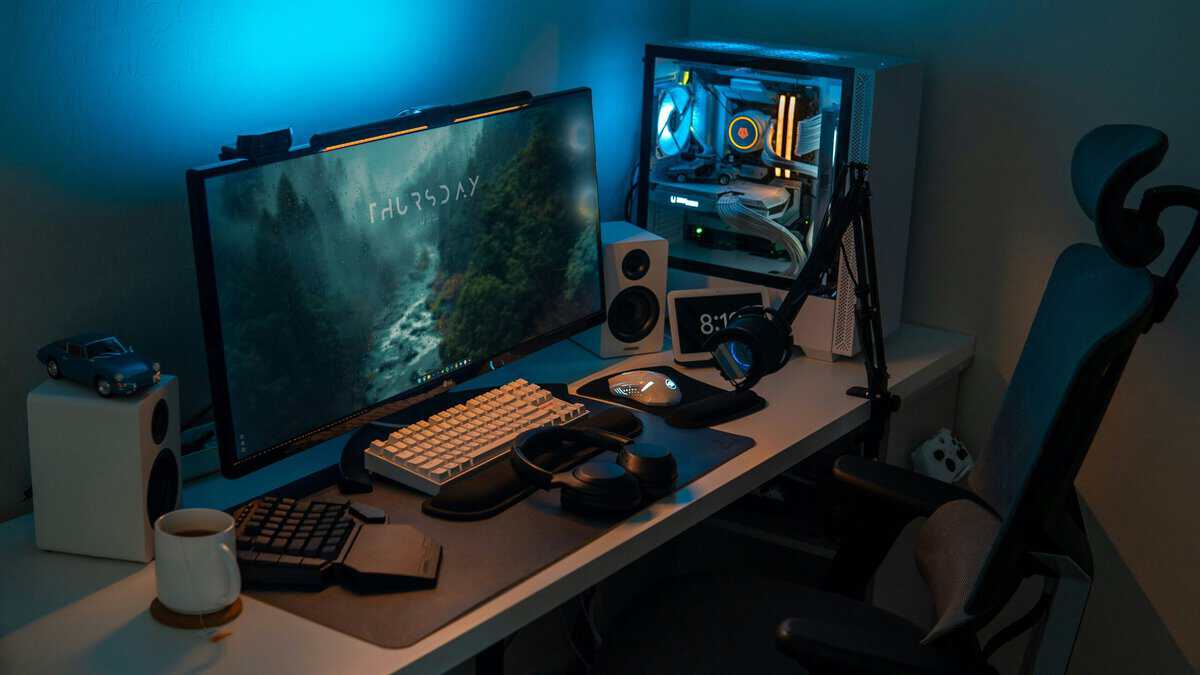
CPU encoding is rarely the smart budget choice
CPU encoding, usually through x264, uses processor resources to compress the stream. It can look good. The trade-off is load. On a gaming and streaming machine, the CPU is already busy handling game logic, background apps, voice chat, and scene changes in OBS.
That extra encoding load usually shows up as worse frame pacing, lower lows, and a system that feels less responsive under pressure. Fast shooters make this obvious, but long MMO sessions and busy sandbox games can expose it too.
I only recommend CPU encoding for a new builder if there is a clear reason for it. That usually means a very specific workflow, a game that barely touches the processor, or a builder who already understands the performance cost and is choosing it on purpose.
GPU encoding is why single-PC streaming makes sense now
Modern hardware encoding changed the math. A current GPU can render the game and handle stream encoding through dedicated hardware, which leaves more of the CPU free for the rest of the system. For most new streamers, that is the difference between a machine that feels strained and one that stays smooth for hours.
This is the part many people miss. Stream quality is not just about buying the biggest CPU you can afford. In a one-PC build, a good GPU encoder often gives a better end result per dollar because it protects in-game performance while still producing a clean stream.
That is why I usually tell budget-conscious builders to stop chasing extra CPU cores first and put that money into a better graphics card if the encoder is stronger. A small step up there often matters more than stretching from a good gaming CPU to an expensive one you will never fully use on stream.
What to buy for a single-PC streaming build
For those streaming and gaming on the same machine, hardware encoding is the right call.
Use this rule of thumb:
- Choose CPU encoding only if you have a specific reason and understand the performance hit
- Choose GPU encoding if you want better game performance while live
- Spend more on a modern GPU with a strong encoder before overspending on high core counts
- Build for stable frame pacing and stream consistency, not spec-sheet bragging rights
If you are comparing cards, this guide to AMD vs NVIDIA GPUs for streaming and gaming budgets is a useful place to sort out the encoder trade-offs.
Core Components That Define a Streaming PC
A streaming PC usually falls apart in boring ways. The game still launches, but OBS starts eating memory, browser sources pile up, Discord stays open, and the system that felt fine for gaming alone starts dropping frames or feeling sluggish after an hour. That is why part selection for a stream rig is less about chasing one headline spec and more about building a balanced machine that stays stable under load.
For a single-PC setup, four parts decide whether the build feels easy to live with or constantly a little strained. They are the CPU, GPU, RAM, and primary SSD. Get those right first. RGB, fancy case panels, and oversized coolers can wait.
CPU and GPU should be chosen together
The CPU still carries a lot of the day-to-day work. It handles game logic, background apps, scene changes, browser tabs, chat bots, and the general multitasking load that builds up during a live session. You do not need to overspend on a flagship chip for that. A current midrange CPU with strong gaming performance is usually the better buy for a first streaming build.
The GPU matters just as much, and in many single-PC builds it matters more. It runs the game and often handles hardware encoding too. That changes the budget math. Stepping up to a better graphics card is often smarter than stretching for a higher-tier CPU you will barely use.
Poor pairings are common. I see builders sink too much into the processor, then cut the GPU until game settings, frame pacing, and encoder headroom all suffer. The opposite mistake happens too. A strong GPU paired with too little memory or a bargain CPU can still feel rough once the stream setup gets busy.
Buy around the workload, not the spec sheet.
RAM and storage affect day-to-day stream stability
RAM is one of the easiest places to avoid future headaches. For a modern streaming PC, 32GB of DDR5 is the safe target. A 16GB system can still work, especially on a tight budget, but it leaves less room for OBS, a game, a browser full of tabs, music, chat tools, and background utilities. That is where random hitching and app slowdowns start showing up.
Storage matters in a less obvious way. A good Gen 4 NVMe SSD keeps the whole system snappy during installs, patching, game loads, asset access, and local recordings. It will not raise your stream bitrate or fix bad settings, but it does reduce the little delays that make a PC feel cheap. If money is tight, cut cosmetic extras before you cut the main drive.
Here is the practical breakdown:
- CPU: Affects game performance, multitasking headroom, and how well the system holds up during long sessions
- GPU: Affects in-game FPS, hardware encoder quality, and overall stream smoothness in a single-PC build
- RAM: Keeps OBS, the game, browser sources, and background apps from fighting over memory
- SSD: Improves boot time, load times, patching, file access, and local recording responsiveness
The supporting parts still matter
Cheap supporting parts cause a lot of first-build frustration. A weak cooler can mean higher noise and lower sustained clocks. A low-airflow case can trap heat and raise both CPU and GPU temperatures. A questionable power supply is not where to save money on a machine that may sit under load for hours at a time.
This is also where “budget” gets misunderstood. Budget-conscious does not mean buying the cheapest part in every category. It means knowing where lower cost has little downside and where it creates problems later. A plain case with strong airflow is a better choice than a flashy hotbox. A reliable midrange motherboard is fine. An oversized premium board usually is not money well spent for a first stream build.
If you are putting the system together yourself, this gaming PC build guide for first-time builders covers the assembly basics that prevent a lot of false alarms, especially airflow, cooler mounting, and cable mistakes that get blamed on the hardware.
Recommended Streaming PC Builds for 2026
There’s no need for an extensive list of parts. Instead, consider two practical objectives. One build should get them streaming without feeling compromised. The other should be the sweet spot if they want more headroom, better multitasking, and stronger 1440p gaming.
The table below keeps it practical.
2026 Streaming PC Build Comparison
| Component | Value Build | Performance Build |
|---|---|---|
| CPU | AMD Ryzen 5 9600X | AMD Ryzen 9 9900X or Ryzen 7 9800X3D |
| CPU Cooling | Quality tower air cooler | Strong air cooler or well-built liquid cooler |
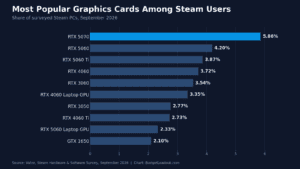
| GPU | NVIDIA RTX 5060 | RTX 5070 or RX 9070 XT |
| RAM | 32GB DDR5 | 32GB DDR5-6000 |
| Storage | 1TB or 2TB Gen4 NVMe SSD | 2TB Gen4 NVMe SSD |
| Motherboard | Reliable midrange board with good VRM cooling | Better-featured board with strong power delivery and I/O |
| PSU | 80+ Gold unit from a reputable platform | 80+ Gold PSU in the range commonly recommended for mainstream high-performance streaming systems |
| Case | Airflow-focused mid tower | Higher-airflow mid tower with better cable management and acoustic behavior |
| Best for | 1080p gaming and streaming | 1440p gaming while streaming at 1080p60 |
Value build for new streamers
This is the build I’d point most first-time streamers toward. A Ryzen 5 9600X paired with an RTX 5060 makes sense for players focused on games like competitive shooters, lighter esports titles, and MMOs with a streaming workload layered on top.
Why this works:
- The CPU is fast where it counts: You’re not paying for extra cores you may not use right away.
- The GPU gives you hardware encoding: That’s what protects in-game performance on a single-PC setup.
- 32GB of DDR5 keeps the system comfortable: This is one place I wouldn’t trim for a streaming machine.
- A Gen4 NVMe SSD keeps the whole build feeling sharp: Game loads, scene swaps, and general responsiveness all benefit.
This build is for the buyer who wants value, not the absolute floor. That means using a decent airflow case, a motherboard with competent cooling around the power delivery, and a power supply that won’t become the weakest link. Those parts don’t make flashy thumbnails, but they’re tied directly to durability and noise.
For practical use, this is a strong fit if you mostly play at 1080p and want a stream setup that behaves predictably. If you’re trying to squeeze every last visual setting in a demanding new release while live, this build will need more compromises than the one below.
Performance build for the long haul
For people who want the best streaming pc value in the upper midrange, the sweet spot is a stronger CPU plus a more capable GPU with a modern encoder. Current single-PC streaming guidance converges around a platform like AMD Ryzen 9 9900X or Ryzen 7 9800X3D, 32GB DDR5-6000, a 2TB Gen4 NVMe SSD, and an RTX 5070 or RX 9070 XT-class GPU with AV1 hardware encoding.
That combo gives you more room for heavier games, more background tasks, and less compromise when you’re balancing gameplay settings with stream quality.
What improves here:
- More CPU headroom: Better if you keep more tools open, edit content on the same machine, or play games that punish weaker processors.
- Stronger GPU class: Better suited for 1440p gaming while maintaining a clean live setup.
- 2TB storage as standard: Much easier to live with if you record locally, rotate large games, or keep a lot of media assets.
- More complete platform quality: This level of quality includes better motherboard features, stronger cooling, and generally better long-session behavior.
The performance build isn’t about buying excess. It’s about buying enough headroom that the PC still feels good after your stream setup gets more complicated.
Which build should you pick
Choose the value build if your main goal is getting started with stable 1080p gaming and streaming on one machine. Choose the performance build if you know you’ll push 1440p gaming, juggle more applications, or want a longer runway before your next major upgrade.
If you’d rather skip the assembly side and compare ready-made options, this guide to the best budget prebuilt gaming PCs is a useful starting point.
Essential Software and Encoder Settings
You can build a good single-PC streaming rig, then make it look bad in software in about five minutes. I see that more than failed hardware. New streamers chase overlays, crank settings past what their connection can hold, then wonder why the stream looks rough while the game feels worse.
Start with the encoder.
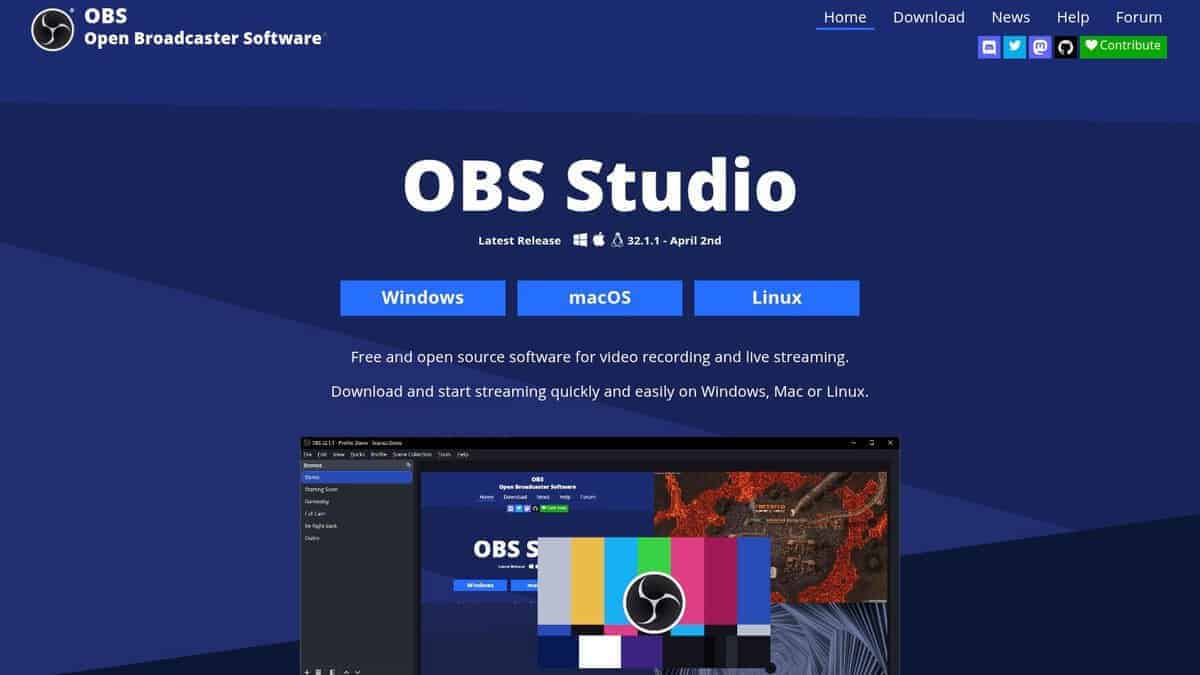
Start with the encoder before the overlays
For a single-PC setup, the smart default is your GPU’s hardware encoder. That choice is a big reason most first-time streamers do not need a second PC. Modern hardware encoding handles the stream load well enough that your money usually goes further on a better graphics card, more storage, or a quieter cooler than on a separate capture-and-encode box.
CPU encoding still has a place, but mostly for edge cases. If you are just trying to get clean gameplay and a stable stream from one machine, hardware encoding is the practical pick because it preserves more gaming performance and takes less tuning.
A setup flow that works (OBS’s own Quick Start Guide shows where these output settings live):
- Switch output mode to Advanced so the useful controls are visible.
- Choose the hardware encoder for your graphics card instead of software encoding.
- Set output resolution based on what your PC and internet can sustain during an actual stream, not a best-case test.
- Run a short private stream or local recording before touching scene effects, alerts, and browser sources.
Match your bitrate to your connection
A lot of beginners treat bitrate like a free image-quality upgrade. It is not. Your platform limit and upload stability decide how far you can push it, and unstable bitrate causes ugly results fast: dropped frames, buffering, and smeared motion in busy scenes.
For most new streamers, stable 1080p settings beat overly aggressive settings every time. If your upload speed only clears your target bitrate by a small margin, leave headroom. Other devices on the network, background sync, and random ISP dips can wreck a stream that looked fine in a speed test.
Use these rules:
- If your upload speed fluctuates: Lower bitrate first and retest.
- If you play fast shooters or racing games: Compression artifacts show up sooner, so realistic settings matter more.
- If you stream slower games or talking-heavy content: You can usually get away with less bitrate pressure.
- If frames are dropping: Check your network path and streaming settings before blaming the PC.
Stream quality usually falls apart from bad settings or weak upload overhead before it falls apart from a modern midrange streaming PC.
Keep the software stack lean
OBS should do the heavy lifting. Everything else needs to justify its resource use. Extra browser sources, RGB control apps, chat tools you never look at, motherboard utilities, cloud sync, and ten tabs open in the background all eat into the same system budget your game and stream need.
The point at which beginners waste performance-per-dollar is when they spend more on parts, then give those gains away with a bloated software setup.
If you want a practical baseline, this guide to OBS settings for streaming on a budget-minded setup covers the menu choices that affect stream quality and in-game performance. If you also make offline videos, clips, or tutorials, our free recording software roundup can help you sort out recording tools without installing a pile of unnecessary extras.
Keep the setup simple enough that you can troubleshoot it under pressure. That matters more than having every feature turned on.
Budget Peripherals That Improve Stream Quality
A lot of viewers will forgive average graphics quality before they forgive bad audio. That’s why your first peripheral upgrade should usually be a microphone, not a camera.
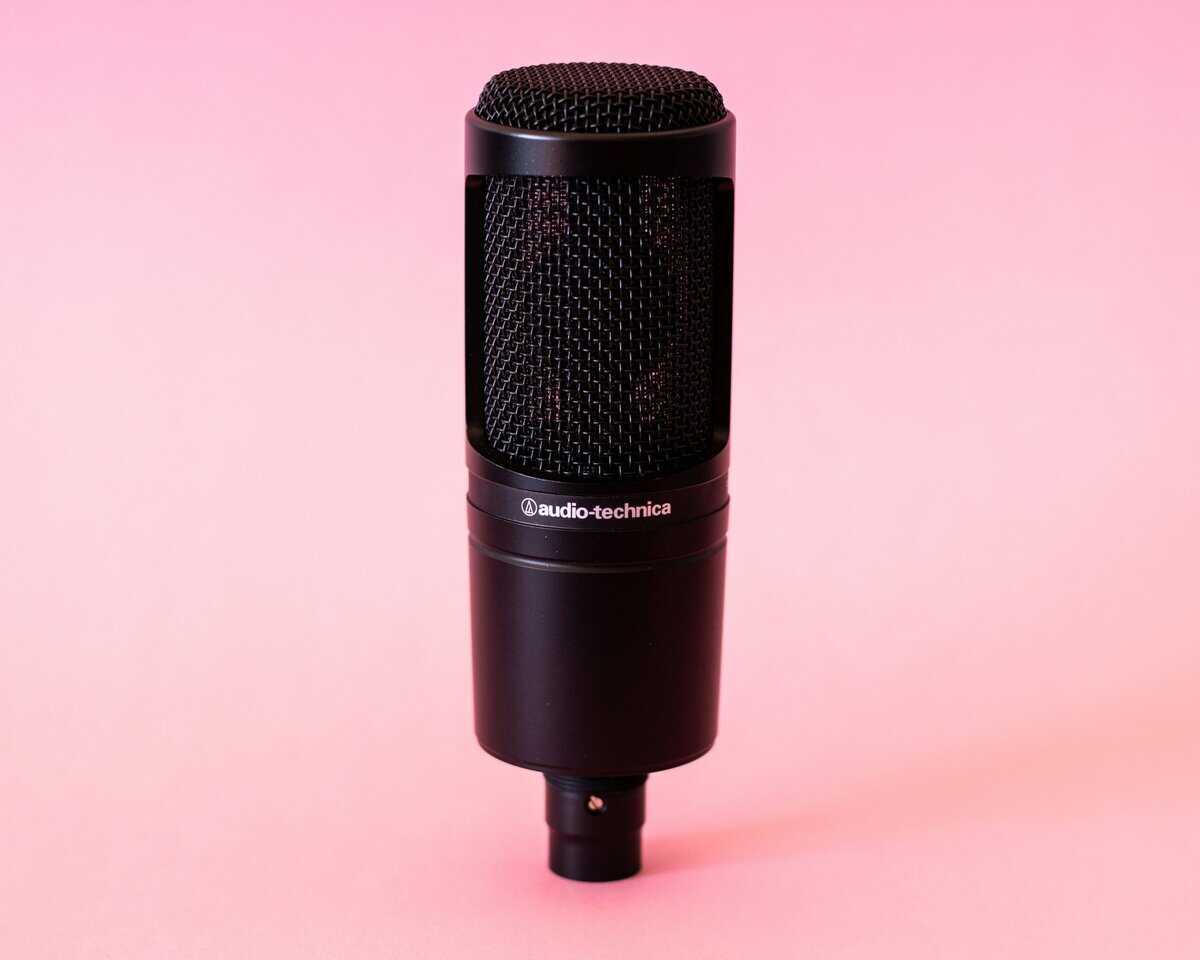
A decent USB mic like the HyperX SoloCast 2 does more for stream quality than most beginner webcam upgrades. Viewers listen to you the whole time. They only care about your face cam if the lighting and framing make it watchable in the first place.
Prioritize what viewers notice first
If you’re stretching your budget, this is the order I’d follow:
- Audio first: Clear voice pickup matters more than a sharper face cam.
- Lighting second: A basic key light can make a modest webcam look much better.
- Connection stability third: Wired Ethernet is one of the cheapest quality upgrades you can make.
- Comfort after that: A reliable mouse, keyboard, and chair matter because long streams punish bad gear.
Don’t ignore durability
Peripheral advice gets weirdly shallow online. People talk features and skip build quality. For a stream setup, durability matters because these items get handled constantly. A solid mic arm like the Elgato Wave Mic Arm LP avoids that. Cheap mic arms loosen, flimsy headset hinges crack, and unstable USB connections create random problems that look like software failures.
Buy the version that feels solid, even if it has fewer gimmicks.
Good stream quality is usually a stack of small smart choices, not one expensive purchase.
A wired Ethernet connection is the easiest win in the whole setup. It costs little or nothing if your router placement already allows it, and it solves a surprising number of stability complaints. If your stream drops, your viewers won’t care that your keyboard has premium switches.
Buying a Windows license for the build? See our Windows 11 Home vs Pro for gaming comparison first.
Frequently Asked Questions
Do I really need a separate streaming PC?
No. For almost every new streamer, a single well-built PC with a modern GPU encoder is the smarter buy. AV1 and NVENC hardware encoders on current GPUs offload streaming from the CPU, so the in-game performance hit is minimal. A dual-PC setup only starts to make sense for hardcore esports pros chasing every last frame, or content creators streaming AAA titles at 1440p+ ultra settings.
What is the best streaming PC for a beginner?
A Ryzen 5 9600X paired with an RTX 5060 and 32GB of DDR5 is the strongest value pick right now. It handles competitive shooters, esports titles, and most current games comfortably while letting the GPU’s hardware encoder do the streaming work without dropping your in-game frame rate.
GPU encoding vs CPU encoding: which is better for streaming?
GPU encoding wins for almost every modern setup. NVENC on NVIDIA cards and AMD’s VCN encoder give clean stream quality with near-zero in-game performance impact. CPU (x264) encoding can squeeze slightly better visual quality on the same bitrate, but it eats CPU cycles you need for the game itself. Unless you have a dual-PC setup, stick with GPU encoding.
How much RAM do I need for streaming?
32GB DDR5 is the sweet spot for streaming on a single PC. 16GB will technically work but feels tight once OBS, your game, Chrome with multiple tabs, Discord, and chat overlays are all open. The jump to 64GB rarely pays off for streamers: that money is better spent on a stronger GPU or faster storage.
Should I worry about Intel 14th gen CPUs for streaming?
Intel’s 13th and 14th gen Core i7/i9 chips had documented stability issues from sustained high voltages, and Intel released microcode patches in 2024. Even with the patches applied, many builders steer clear of those generations for new builds. AMD’s Ryzen 9000 series is the cleaner choice for a 2026 streaming PC at the same price tier.
If you’re building a setup and want fewer bad purchases, Budget Loadout is a good place to compare value-focused gear without the usual hype. The guides focus on core improvements to comfort, audio, control, and stream quality, so you can put your money where it matters most.
Related Articles