Buy the wrong microSD card for a Steam Deck and you pay twice: once for speed the slot cannot use, and again when a card that is too small forces you to uninstall a game every time you want a new one. Choosing an SD card for Steam Deck play is simpler than the packaging suggests. What matters is the A2 rating on the label and a capacity that fits how many games you keep installed.
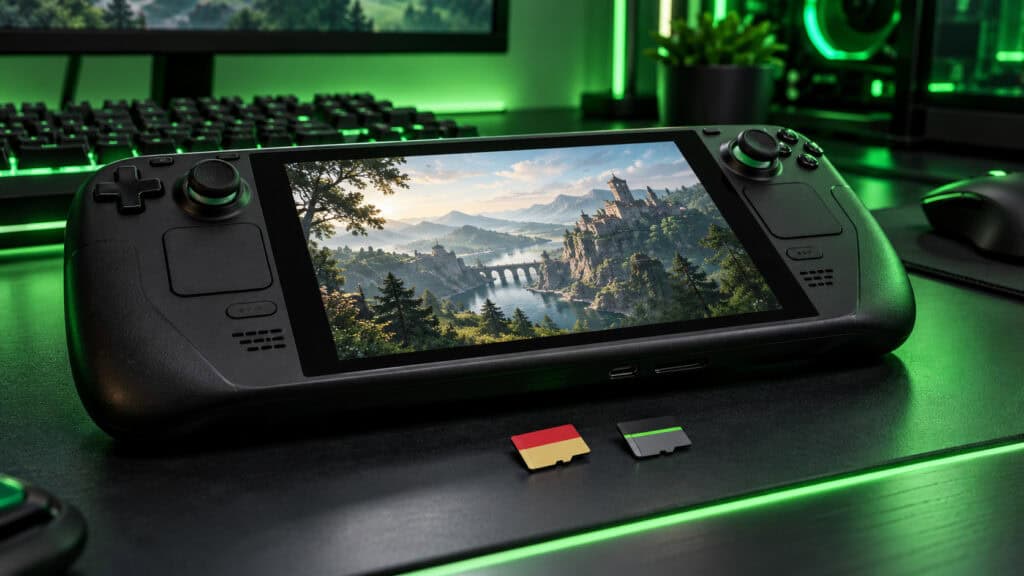
Card prices have climbed this year along with the rest of flash storage, which makes that second mistake more expensive than it used to be. The three cards below cover the sizes most Deck owners actually need, without paying for numbers the Deck ignores.
The dependable all-rounder. A2 performance keeps game loads snappy, 512GB holds a healthy rotation of big games, and SanDisk backs it with a lifetime limited warranty.
- A2 rating for faster game loads
- 512GB fits a real rotating library
- Lifetime limited warranty
- Top read speed is wasted on the Deck
- Costs more than the PNY
- Not the most GB for the money
The card that matches the Deck’s slot almost exactly. Its rated read speed sits right at the UHS-I ceiling, it carries the A2 rating, and it costs noticeably less than the big names.
- Rated speed matches the Deck’s slot
- A2 rating at a lower price
- Lifetime warranty from PNY
- Slower in a PC card reader
- Plain design and packaging
- Write speed trails the SanDisk
A full terabyte from the same line as our value pick. Its rated speed matches the Deck’s slot, it keeps the A2 rating and lifetime warranty, and it undercuts most 1TB cards.
- A full terabyte for a big library
- Rated speed matches the Deck’s slot
- Lifetime warranty from PNY
- Slower in a PC card reader
- Still a big spend for most
- Write speed trails pricier cards
- The Steam Deck’s card slot runs at UHS-I speeds, so read ratings far above that ceiling do nothing for your load times.
- The A2 rating matters more than the headline speed, because games lean on the small random reads that A2 guarantees.
- Size the card to your library: 512GB suits most players, and 1TB is for people who never want to uninstall anything.
- microSD Express cards cost more and fall back to the older speed in the Deck, so skip them for this console.
- SteamOS formats the card its own way, so a card cannot be shared with a Switch or read by a Windows PC without extra software.
Table of Contents
Three microSD Cards Side by Side
All three cards carry the A2 rating and a UHS-I interface that suits every Steam Deck model. They split on capacity, how much of their rated speed the Deck can use, and the warranty. Start with the Capacity column, since that is the decision you will feel every day. Two of the three are the same PNY line in different sizes, because it lines up so closely with what the Deck can use.
| Card | Capacity | App Class | Speed Class | Rated Read | Rated Write | Warranty | Lists Steam Deck | Best For |
|---|---|---|---|---|---|---|---|---|
| SanDisk Extreme 512GB | 512GB | A2 | U3 / V30 | Up to 245MB/s | Up to 170MB/s | Lifetime limited | No | Most Deck owners |
| PNY PRO Elite 512GB | 512GB | A2 | U3 / V30 | Up to 100MB/s | Up to 90MB/s | Lifetime | No | The tightest budget |
| PNY PRO Elite 1TB | 1TB | A2 | U3 / V30 | Up to 100MB/s | Up to 90MB/s | Lifetime | No | Big libraries |
Every rated read speed in that table sits at or above what the Deck’s slot can deliver, so on the console they perform far closer to each other than the numbers suggest. The real differences are capacity and warranty.
The Picks in Order
Each card wins a different kind of Deck owner: the one who wants the safe pick, the one watching every dollar, and the one with a backlog that never ends.
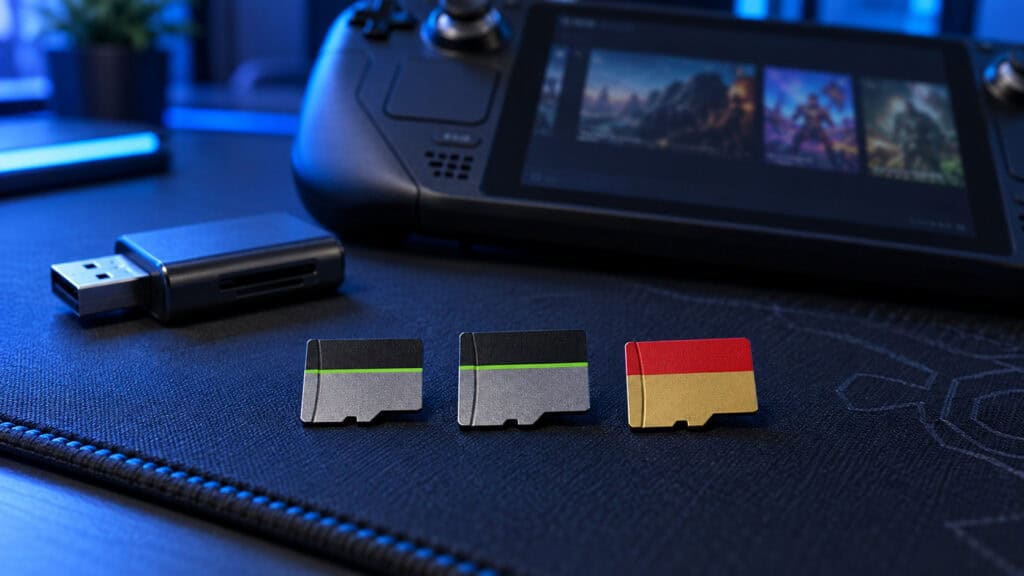
SanDisk Extreme 512GB microSD
The SanDisk Extreme 512GB microSD is the card to buy if you want to stop thinking about storage. It carries the A2 app performance rating, the U3 and V30 speed classes, and a lifetime limited warranty, which covers the card for far longer than you will own the Deck.
The headline read rating of up to 245MB/s is more than the Deck can use, and that is fine. The number reflects a card built with margin to spare, and in a fast PC card reader it makes moving files on and off the card quicker.
It is the card you buy once and forget is even there.
SanDisk also rates the Extreme line as temperature proof, waterproof and shock proof, which suits a card that rides inside a console tossed into bags and carried through airports.
The tradeoff is price. The PNY delivers the same A2 behavior inside the Deck for less, and the PNY 1TB gives you far more storage per dollar. You are paying for the name, the warranty and the extra headroom outside the console.
If 512GB feels like more than you need, the SanDisk Extreme 256GB is the same card at half the capacity, and the step-down section below covers who it suits.
PNY PRO Elite 512GB microSD
The PNY PRO Elite 512GB microSD is the value pick because it matches the Deck almost exactly. Its rated read speed of up to 100MB/s sits right at the UHS-I ceiling, so the console gets nearly everything the card can give, and you do not pay for speed the slot ignores.
It carries the same A2 rating as the SanDisk, the U3 and V30 speed classes, and PNY backs it with a lifetime warranty. Inside the Deck, loading a game from this card feels much like loading from the SanDisk.
Where it trails is outside the console. In a fast card reader on a PC, the SanDisk moves files quicker, and its write speed of up to 90MB/s is lower. If the card lives in the Deck and never comes out, none of that matters.
Paying for speed the slot cannot use is the easiest money to save on a Deck.
The Amazon Basics 512GB microSD is a fair alternative with the same A2 rating and a similar rated speed, if the PNY is out of stock.
PNY PRO Elite 1TB microSD
The PNY PRO Elite 1TB microSD is for players who never want to uninstall a game again. A full terabyte holds a serious library, and it is the same card as our value pick at twice the capacity.
That means the same strengths carry over: the A2 rating, a rated read speed of up to 100MB/s that sits right at the Deck’s UHS-I ceiling, and a lifetime warranty. Inside the console it behaves like the 512GB version, only with room for far more games.
It costs less than most name-brand 1TB cards, which matters more at this capacity than at any other. The same caveat applies as with the 512GB PNY: in a fast PC card reader, pricier cards move files quicker.
If you want a card built and branded for handhelds, the Lexar Play Blue 1TB lists Steam Deck support and carries a five-year limited warranty, though it has fewer owner reviews and costs more. The SanDisk Extreme 1TB has a long track record and a lifetime limited warranty, at a noticeably higher price for the same capacity.
A terabyte card is still a big purchase this year. Read the sizing section before you commit, because a 512GB card plus a little storage discipline covers most people.
Size the Card to Your Library
Capacity is the one choice you cannot undo without buying another card. The right size depends less on the Deck and more on how you play.
A Handful of Big Games
If you play one or two big games at a time and finish them before moving on, a 256GB card is enough. Big modern games take a large share of that space, but a short rotation fits, and the Deck’s own SSD holds a few more.
This is also the cheapest way in while card prices are high. The SanDisk Extreme 256GB keeps the A2 rating and the lifetime limited warranty at a much lower price than the 512GB version.
A Rotating Backlog
Most Deck owners land here: a few big games in progress, a stack of indie games, and some older favorites they return to. A 512GB card holds that kind of library comfortably, and you only uninstall something when a big new release arrives.
This is why both the SanDisk and the PNY are 512GB. It is the size where a card stops being a chore to manage.
A 512GB card is the point where storage stops being something you think about.
Keep Everything Installed
If you buy games in sales and want every one of them ready to play on a flight, 1TB is the answer. It also suits families sharing one Deck, where several players each want their own games installed.
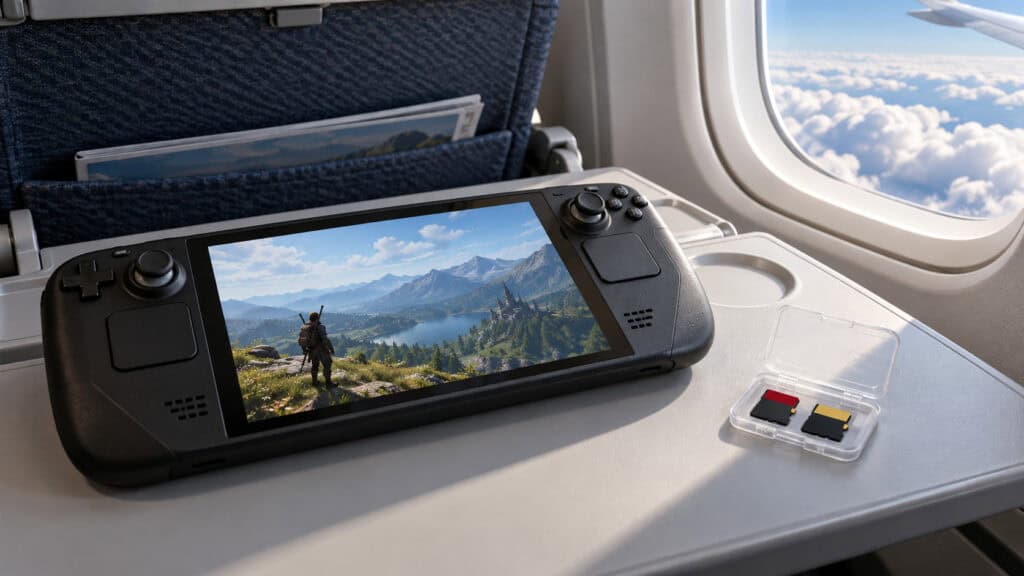
The PNY 1TB covers this for less than most name-brand terabyte cards. The math only works if you would actually fill it; a half-empty terabyte card is money that could have gone toward a game.
Where the Internal SSD Fits In
The card works alongside the Deck’s own drive, not instead of it. Valve’s current Steam Deck OLED models ship with a 512GB or 1TB SSD, while older and cheaper models came with less, and the card size that makes sense depends on which one you own.
A Deck with a small internal drive leans on the card for almost everything, so a 512GB or 1TB card earns its keep. A Deck with a large internal drive only needs the card for overflow, and a 256GB or 512GB SD card for Steam Deck backlog storage is plenty.
What the Deck’s Slot Actually Uses
Card packaging leads with read speed, and on a Steam Deck that number is mostly marketing. Two things matter more: the bus the slot runs on and the A2 rating.
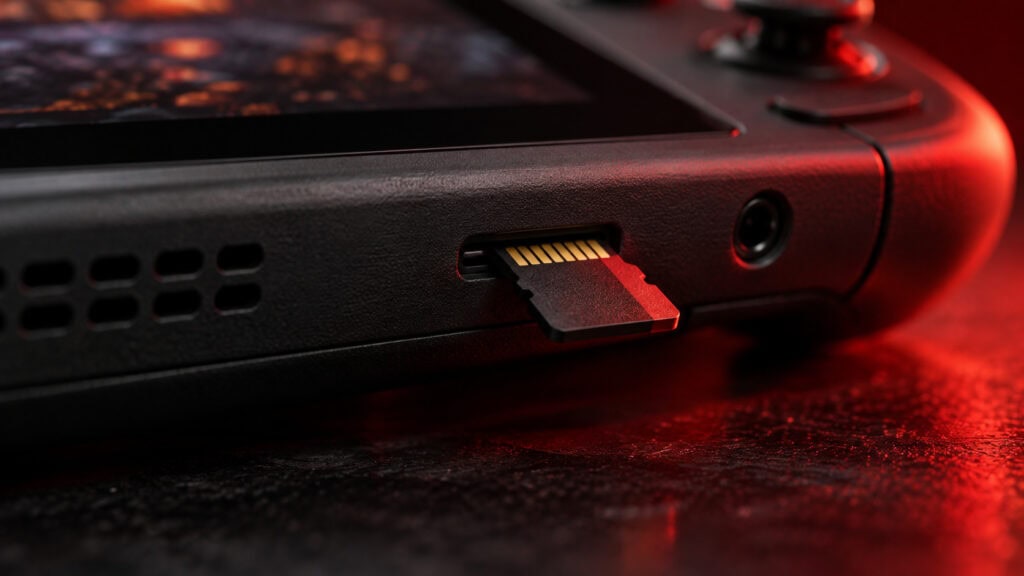
The UHS-I Ceiling
Valve’s Steam Deck tech specs list a UHS-I card slot. The SD Association’s bus speed overview puts the top UHS-I mode at 104MB/s.
Cards rated well above that figure reach their headline speeds with card readers built to use them, not in a standard UHS-I slot. In the Deck, a card rated for 245MB/s and a card rated for 100MB/s both run at the slot’s pace, which is why the PNY competes with the SanDisk inside the console.
Why A2 Matters More Than Read Speed
Games do not load in one long, tidy stream. They pull many small pieces of data from all over the card, and that random access is what the A2 rating covers. The SD Association defines A2 with minimum random read and write performance, so an A2 card handles those small requests faster than an older A1 or unrated card.
That is why every pick here is A2. A fast unrated card can post a big sequential number and still feel slower in a game than a modest A2 card.
Skip microSD Express
microSD Express cards are much faster in devices built for them, like the Nintendo Switch 2. The Steam Deck’s slot is UHS-I, so an Express card falls back to the older bus speed and performs like a normal card.
You would pay extra for speed the Deck never sees. Save Express cards for a Switch 2 and buy a UHS-I A2 card for the Deck.
Card Prices Are Up This Year
Flash memory costs more this year than it did a year ago, and microSD cards have followed SSDs up. That changes the advice a little, even if it does not change the picks.
Buy the Size You Need Now
Waiting for prices to fall is a gamble with no clear end date, and a Deck without enough storage is a Deck you play less. If your library is outgrowing the internal SSD today, buy the size you need today rather than the size you might need in two years.
For most people that means a 512GB card now, not a 1TB card on a hunch. You can always add a larger card later and move games over.
Watch the per-gigabyte math, too. Bigger cards usually cost less per gigabyte, which makes a larger card look like the smart buy, but the total bill climbs quickly. Storage you never fill is not a saving, so let your library size decide and use the per-gigabyte price only to break a tie.
When an SSD Upgrade Makes More Sense
A card is the easy upgrade, since it slides in without opening the console. Some owners replace the internal SSD instead, which is faster but means opening the Deck and reinstalling SteamOS. If you are comfortable with that work, it can make sense for a Deck that shipped with a small drive.
For everyone else, the card is the right answer. Games run well from an A2 card, and it takes seconds to fit.
Stretching a Smaller Card
A smaller card goes further if you keep only the games you are actually playing installed. Steam makes it easy to move a game between the internal drive and the card from the storage settings, so the card can hold the backlog while the SSD holds what you play most.
Uninstalled games stay in your Steam library, and redownloading one over a good connection is often quicker than people expect.
A Card vs a USB-C Drive
Some owners plug a portable SSD into the USB-C port instead. It is faster than a card, but it occupies the only port, hangs off the console in handheld play and needs its own cable.
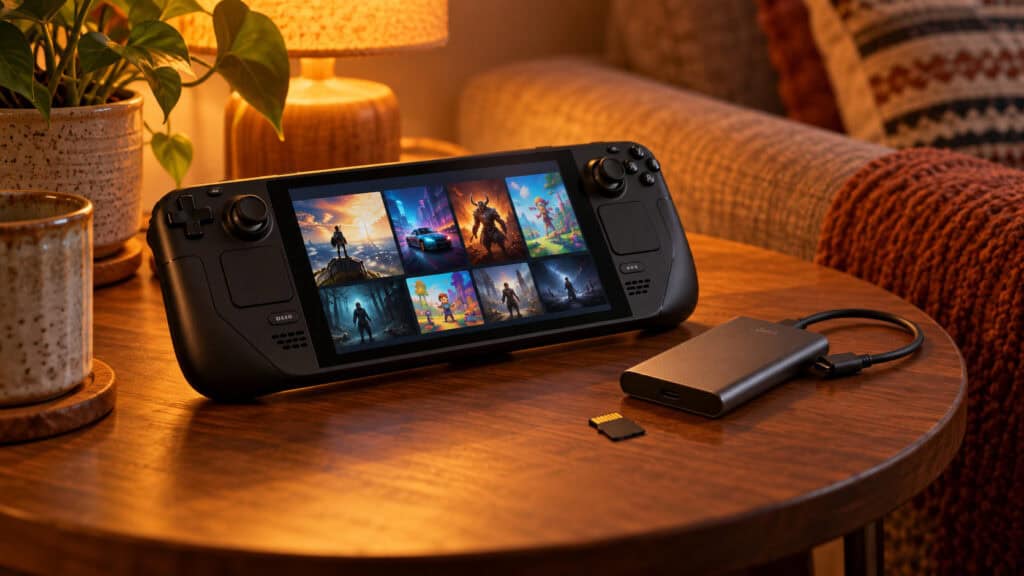
A card sits flush inside the Deck and leaves the port free for charging or a dock. For a handheld you actually hold, the card is the better everyday answer.
When the Card Is the Problem
Most microSD trouble on a Deck comes down to a few causes, and all of them are easy to rule out.
Games Load Slowly From the Card
If games on the card load noticeably slower than games on the SSD, check the label. An older A1 or unrated card struggles with the small random reads games depend on, and swapping it for an A2 card is the fix.
Some slowdown is normal for very large games, since the internal SSD is faster than any card the Deck’s slot can run. The gap should be small with an A2 card, not a wait that changes how you play.
The Deck Does Not See the Card
Power the Deck off, reseat the card until it clicks, and turn it back on. If the Deck still does not list it, the card may need formatting from the storage settings, which wipes it.
A card that keeps disappearing or throws errors after formatting is likely failing. That is where a long warranty pays off, since all three picks here are covered for years.
Too-Good-to-Be-True Capacity
Cards from unknown brands that promise a huge capacity for very little money are a known trap. Some report a size they do not have and quietly corrupt data once they fill past their real capacity.
A card that lies about its size is worse than no card at all.
Stick with established brands like the three picks here. The right SD card for Steam Deck use is one whose capacity and warranty you can trust, not the biggest number on the cheapest package.
Living With a Card in the Deck
A few habits save you from the common surprises after the card goes in.
SteamOS Formats It Its Own Way
The first time you insert a card, the Deck offers to format it, and that wipes anything already on it. SteamOS uses a Linux file system for the card, so a Windows PC will not read it without extra software.
Back up anything on a used card before you put it in the Deck, and treat the card as Deck storage from then on.
One Card Per Device
Because of that format, the same card cannot jump between a Steam Deck and a Nintendo Switch. If you own both, buy a card for each. Our Nintendo Switch accessories guide covers the right cards for both Switch generations.
Moving Games Between Drives
Steam’s storage settings list every installed game on each drive and move them between the SSD and the card. Keep the games you play every day on whichever drive you prefer, and park the rest on the card.
The card also travels with you. Swapping a card into another Steam Deck brings its games along, which is handy for households with more than one.
Rounding Out the Deck
Match your library to one row, then fill in the rest of the kit.
| Card | Library | Pick It If |
|---|---|---|
| SanDisk Extreme 512GB | A rotating backlog | You want the safe name and a lifetime warranty |
| PNY PRO Elite 512GB | A rotating backlog on a budget | You want A2 performance for less |
| PNY PRO Elite 1TB | Everything installed | You buy games faster than you finish them |
For the rest of the handheld, our Steam Deck accessories guide covers screen protectors and cases, and the Steam Deck dock picks handle TV play. Still choosing a handheld? See our Steam Deck vs ROG Ally comparison, and for audio on the go, our gaming earbuds roundup.
Frequently Asked Questions
Quick answers about microSD cards for the Steam Deck.
What size SD card for Steam Deck is best?
For most players, 512GB. It holds a rotating library of big games and indie titles without constant uninstalling. Choose 256GB if you play one or two big games at a time, and 1TB if you want your whole library installed.
Does SD card speed matter on the Steam Deck?
Only up to a point. The Deck’s slot runs at UHS-I speeds, so read ratings far above that do not improve load times. The A2 rating matters more, because games rely on the small random reads it covers.
Is a microSD Express card worth it for the Steam Deck?
No. The Steam Deck’s slot is UHS-I, so an Express card falls back to the older speed and performs like a normal card. Save Express cards for devices built for them, like the Nintendo Switch 2.
Can I use the same microSD card in a Steam Deck and a Switch?
Not at the same time. SteamOS formats the card in its own Linux format, which a Switch cannot use, and moving the card between them means reformatting and losing its contents. Buy a card for each device.
Should I upgrade the Steam Deck SSD or buy an SD card?
A card is the easier upgrade: it slides in, and games run well from an A2 card. Replacing the internal SSD is faster but means opening the console and reinstalling SteamOS, so it suits owners comfortable with that work.
Looking for more budget gaming gear? Check out Budget Loadout for the latest reviews and recommendations.
Related Articles