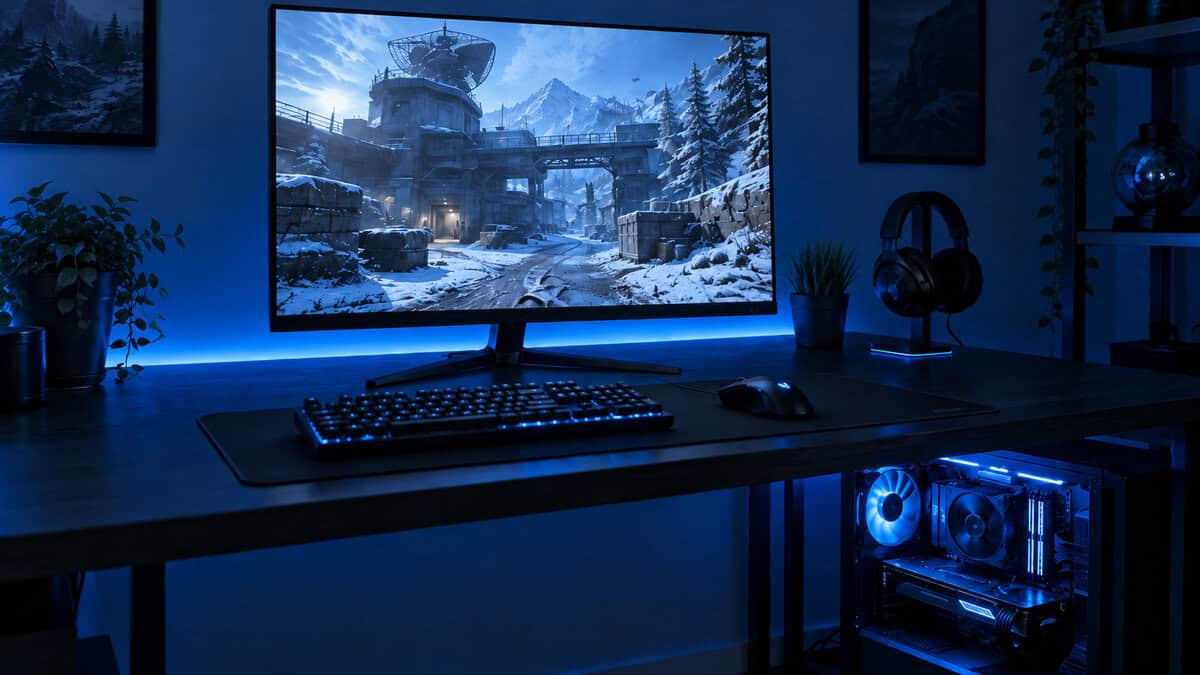
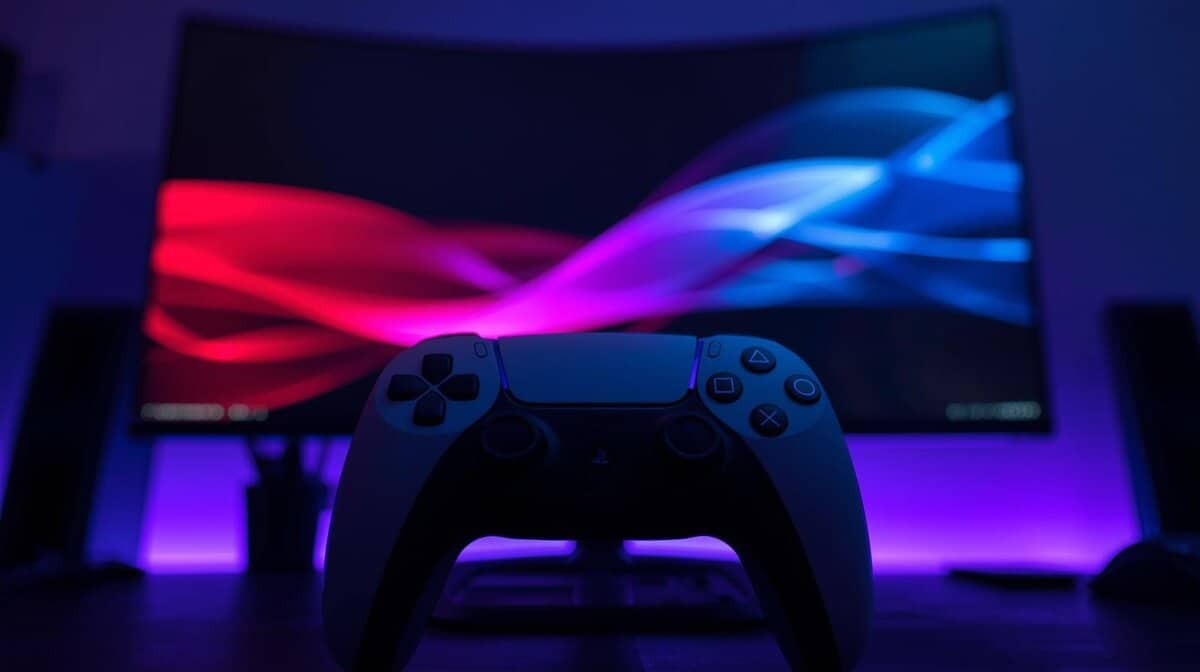
You lose a gunfight to a player you never saw, crouched in a dark doorway across the street, and the kill cam shows they were on your screen the whole time. The best monitor for Warzone helps prevent that kind of loss by showing more of what is already there, through sharper motion, clearer shadows and enough detail to pick out a head at long range.
The right screen also depends on what feeds it. A gaming PC that holds high frame rates can use a very fast panel, while a PS5 or an Xbox asks for the right HDMI port more than for extra hertz. The four monitors below cover both cases, from a quick 1080p budget screen to a QD-OLED that suits a console and a PC on the same desk.
A well-rounded 1440p screen for the money, with a high refresh rate on PC, a fully adjustable stand and HDMI rated for 1440p at up to 144Hz, enough for a console’s 120 Hz output.
- Sharp 1440p on a 27-inch panel
- Stand adjusts height, swivel and pivot
- Two HDMI and two DisplayPort inputs
- HDMI stops at 144Hz
- Reviews pooled across KTC models
- Overclock may need an extra setting
The cheapest pick and the highest refresh rate on the list, built for a PC that holds very high frame rates at 1080p in close-range Resurgence fights.
- 310Hz on DisplayPort
- Dynamic Shadow Boost for dark interiors
- Smallest screen of the four
- Stand tilts only
- 1080p looks softer at range
- Smaller review base than the KTC
For a strong PC that holds 1440p frame rates well past 240. Two HDMI 2.1 ports also make it the IPS pick for a console sharing the desk.
- 300Hz at 1440p
- HDMI 2.1 on both HDMI ports
- Shadow Boost for dark interiors
- No height adjustment
- Costs more than the KTC
- Needs a PC near 300 fps to shine
Per-pixel contrast for dark buildings and night lighting, plus MSI’s 1440p 120Hz console mode for a PS5 or an Xbox. The priciest pick, with burn-in warranty cover.
- Deep blacks in dark interiors
- Console mode lists 1440p at 120Hz
- Three-year burn-in warranty
- Dimmer than the IPS picks in SDR
- Priciest of the four
- Fixed HUD needs OLED care
- Match the refresh rate to the frame rate your PC actually holds in Warzone, since extra hertz above it go unused.
- A 27-inch 1440p screen shows distant players with more detail than a 24.5-inch 1080p screen, at a higher graphics load.
- For a PS5 or an Xbox, the HDMI port matters more than the panel’s top refresh rate.
- Dark buildings reward either a shadow-lifting setting on an IPS panel or the per-pixel contrast of an OLED.
- Use a DisplayPort cable on PC and confirm the refresh rate in Windows, or a fast monitor can sit at 60Hz.
Table of Contents
Monitors That Keep Up With a Warzone Drop
The four Warzone monitors below split by what plugs into them, from PC-first IPS screens to a QD-OLED built to take a console too.
| Monitor | Panel | Size and Resolution | Max Refresh (DisplayPort) | Max Refresh over HDMI | Ports | Dark-Scene Help | Stand | Best For |
|---|---|---|---|---|---|---|---|---|
| KTC H27E6S | Fast IPS | 27 in, 2560 x 1440 | 240Hz (275Hz overclock) | 144Hz | 2x HDMI 2.0, 2x DP 1.4 | None listed (HDR400) | Height, tilt, swivel, pivot | Big-map battle royale |
| ASUS TUF Gaming VG259QMR5A | Fast IPS | 24.5 in, 1920 x 1080 | 310Hz | 240Hz | 2x HDMI 2.0, 1x DP 1.4 | Shadow Boost | Tilt only | Resurgence on a budget |
| ASUS TUF Gaming VG27AQM5A | Fast IPS | 27 in, 2560 x 1440 | 300Hz | 300Hz | 2x HDMI 2.1, 1x DP 1.4 | Shadow Boost | Tilt, swivel | High-end PCs |
| MSI MAG 272QP QD-OLED X24 | QD-OLED | 26.5 in, 2560 x 1440 | 240Hz | 240Hz (console mode 120Hz) | 2x HDMI 2.1, 1x DP 1.4a, USB-C | 1,500,000:1 contrast | Height, tilt, swivel, pivot | Console plus PC |
KTC H27E6S
The KTC H27E6S is the all-rounder of the group. It pairs a 27-inch 2560 x 1440 Fast IPS panel with 240Hz over DisplayPort, and KTC’s support page lists an optional overclock to 275Hz on the same connection.
The KTC H27E6S stand adjusts for height, tilt, swivel and a 90-degree pivot, so the screen sits at eye level. Two HDMI 2.0 ports and two DisplayPort 1.4 inputs leave room for a PC and a console at once.
Detail at range, a stand that moves and ports for two machines.
The tradeoffs sit in the fine print. KTC rates HDMI at up to 144Hz at 1440p, so a PC belongs on DisplayPort to reach 240Hz, and the review count on the listing is shared with other KTC monitors.
ASUS TUF Gaming VG259QMR5A
The ASUS TUF Gaming VG259QMR5A is the budget pick and also the highest-refresh screen here. Its 24.5-inch 1080p Fast IPS panel runs at 310Hz over DisplayPort and up to 240Hz over HDMI 2.0, with a 0.3ms minimum response time in ASUS’s spec sheet.
ASUS adds Shadow Boost and Dynamic Shadow Boost, which lift dark areas of the image, plus ELMB Sync for motion clarity alongside variable refresh. On a 1080p panel, a midrange graphics card has an easier time feeding those frames than it does at 1440p.
The ASUS TUF Gaming VG259QMR5A gives up a height-adjustable stand, since it only tilts, and 1080p on a 24.5-inch screen looks softer at long range than the 1440p picks. If you want a second 24.5-inch option, the Acer Nitro KG251Q Z1 is another 24.5-inch 1080p screen, listed at 280Hz.
ASUS TUF Gaming VG27AQM5A
The ASUS TUF Gaming VG27AQM5A is for a PC that already clears 240 fps at 1440p and has room to spare. ASUS lists a 27-inch 2560 x 1440 Fast IPS panel at 300Hz with 95% DCI-P3 color coverage, Shadow Boost and ELMB Sync.
Three hundred hertz at 1440p only pays off when the PC can feed it.
The ASUS TUF Gaming VG27AQM5A also carries two HDMI 2.1 ports rated up to 300Hz, which makes it the IPS choice when a PS5 or an Xbox shares the desk with a PC. The stand tilts and swivels but does not adjust for height, and the ASUS costs more than the KTC for refresh headroom your PC may not reach.
MSI MAG 272QP QD-OLED X24
The MSI MAG 272QP QD-OLED X24 is the pick for players who split time between a console and a PC. Its 26.5-inch 1440p QD-OLED panel lights each pixel on its own, and MSI lists a 1,500,000:1 contrast ratio with a 0.03ms gray-to-gray response time at 240Hz.
MSI’s spec page lists a console mode at 1080p and 1440p at 60Hz and 120Hz, and the product page says the console mode is built for the PS5 and Xbox Series X|S. Two HDMI 2.1 ports, DisplayPort 1.4a and a USB-C input cover a console, a PC and a laptop.
The MSI MAG 272QP QD-OLED X24 is the priciest pick and the dimmest in everyday SDR use, at 200 nits in SDR per MSI. Warzone’s HUD stays in the same spots for long sessions, so the OLED care features covered in the setup section below are worth leaving on, and MSI backs the panel with a three-year burn-in warranty.
How the Warzone Map Changes What You Need to See
Warzone asks different things of a monitor depending on where the fight happens. A long sightline across a big map, a close-range scramble in Resurgence and a firefight inside a dark building each lean on a different part of the screen’s spec sheet.
Battle Royale on the Big Map
Battle royale on a full-size Warzone map is a long-range game. Players show up as a few pixels on a distant rooftop or ridge, and pixel density decides how clearly that head reads before it ducks out of view.
A 27-inch 1440p screen packs about 109 pixels per inch, against about 90 on a 24.5-inch 1080p screen (simple diagonal arithmetic from the resolution and size). That is why the KTC H27E6S leads for big-map play. Our 1080p vs 1440p comparison walks through the sharpness and frame-rate trade in more detail.
Resurgence and Close-Range Fights
Resurgence matches tend to be shorter and closer-range, with fights coming quicker. Motion clarity matters more here than raw detail, because targets cross the screen fast and you aim while you move.
Refresh rate is the lever. The Blur Busters Law says each millisecond a frame stays on screen adds about one pixel of motion blur for every 1,000 pixels per second of movement, so shorter frames mean a sharper picture in motion. At a full 240 fps each frame holds about 4.2 ms, and at 310 fps about 3.2 ms.
Shorter frames, sharper motion, but only when the PC delivers them.
Dark Buildings and Night Lighting
Dark interiors hide players in Warzone, from unlit stairwells to rooms at night. An IPS panel’s blacks glow a little gray in a dark room, so ASUS’s Shadow Boost on both TUF picks brightens shadow areas to help you see into a corner.
An OLED panel handles the same scene differently. The MSI QD-OLED turns off unlit pixels completely, so a figure in a doorway stands out against true black, and MSI’s AI Vision setting is pitched at revealing details in dark areas as well.
Your Frame Rate Decides How Much Refresh You Use
A Warzone monitor refreshes as often as its spec says, but it can only show new frames as fast as your PC draws them. A 300Hz panel fed by a PC that holds 160 fps shows 160 new frames a second, so the money spent on the last 140Hz buys nothing in that match.
The Best Monitor for Warzone on PC Starts With Your Graphics Card
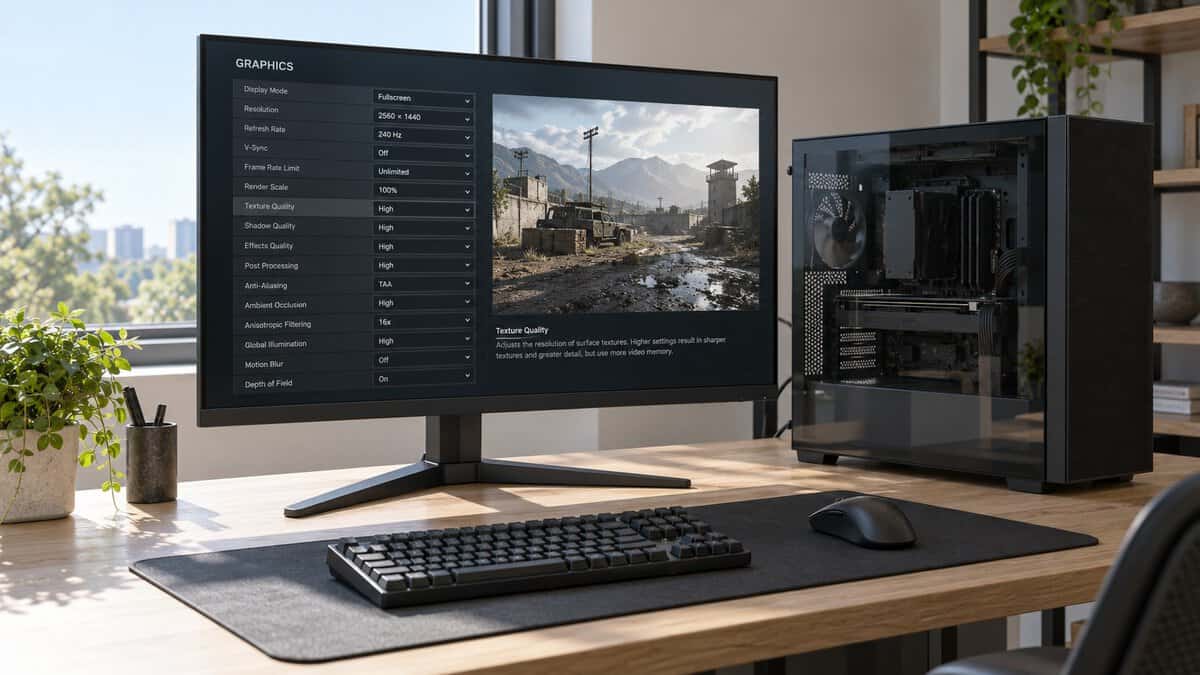
The best monitor for Warzone on PC is the one whose refresh rate sits near the frame rate your graphics card actually holds in busy real matches, not in a quiet menu. Run a frame-rate overlay through a few drops and note the low points during busy fights, not only the peaks.
If your PC holds frame rates around 144 to 240 at 1440p, the KTC H27E6S fits. If it clears 240 at 1440p with room left, the ASUS VG27AQM5A uses that headroom. Our 144Hz vs 240Hz breakdown covers where each step in refresh becomes noticeable.
1080p at 310Hz or 1440p at 240Hz
A budget graphics card can still feed a fast screen if it runs at 1080p. Drawing 1080p asks for a little over half the pixels of 1440p (about 2.1 million against 3.7 million per frame), so the same card holds a higher frame rate, and the ASUS VG259QMR5A can show it at up to 310Hz.
If you mostly play Resurgence and chase frames, 1080p at a high refresh rate is the better spend. If you mostly play the big map, 1440p at 240Hz is the better balance.
What Console Warzone Needs From the HDMI Port
A console changes the monitor math. A PS5 or an Xbox connects over HDMI, and the PS5’s video settings offer a 120 Hz output, well short of the 240Hz and 300Hz figures that PC monitors advertise. For console Warzone, the port and its supported modes matter more than the panel’s peak refresh rate.
HDMI version decides the ceiling. The two HDMI 2.1 picks, the ASUS VG27AQM5A and the MSI QD-OLED, carry the newer HDMI standard. KTC rates the HDMI 2.0 ports on the KTC H27E6S for 1440p at up to 144Hz. Our Warzone controller guide covers the pad side of a console setup.
PS5 Video Output Settings to Check First
PlayStation’s own guide to PS5 resolution settings puts the options under Settings, then Screen and Video, then Video Output. A Test 1440p Output option checks whether your display handles 1440p in SDR or HDR at 60 Hz or 120 Hz, with or without VRR.
The same PS5 menu has a 120 Hz Output toggle, which Sony describes as enabling 120 Hz video output for your display and for games that support a 120 Hz frame rate. Sony also says the PS5 supports the HDMI 2.1 specification, which the two HDMI 2.1 picks match.
Run the PS5’s 1440p test before you blame the monitor.
Sony’s menu lists a 1440p resolution setting and its own test for it, so a 1440p monitor is a real option for console Warzone.
Xbox Series X and Series S on a Monitor
Xbox Series X and Series S consoles also connect over HDMI, so the same port rule applies. MSI’s product page names the Xbox Series X|S alongside the PS5 for the console mode on the MAG 272QP QD-OLED X24, which makes it the simplest Xbox pick here.
The ASUS VG27AQM5A is the IPS alternative with HDMI 2.1 on both ports. Either one leaves a second HDMI input free for a PC or a second console.
Sizing the Screen to Your Desk Distance
Screen size for Warzone comes down to how much you can take in without moving your eyes far. At about an arm’s length, a 27-inch screen still fits in view, and 1440p keeps it sharp at that size.
Pixel density shows the difference. By simple diagonal arithmetic from resolution and size, a 27-inch 1080p screen lands near 82 pixels per inch, which looks noticeably softer up close than the 109 of a 27-inch 1440p panel. That is why every 27-inch pick here runs at 1440p.
When the Smaller Screen Wins
A 24.5-inch screen wins on a shallow desk or when you sit close. The ASUS VG259QMR5A keeps the minimap, the ammo count and the edges of the screen inside your field of view without turning your head.
Monitor Setup Before Your First Warzone Match
A new Warzone monitor can run below its rated speed out of the box. A few settings in Windows and on the monitor fix that.
Turn On the Refresh Rate You Paid For
Connect a PC with a DisplayPort cable for the top refresh rates. KTC’s support page lists 240Hz and the 275Hz overclock on DisplayPort for the KTC H27E6S, against up to 144Hz at 1440p on HDMI, and ASUS lists the VG259QMR5A at 240Hz on HDMI against 310Hz on DisplayPort.
Then open Windows Settings, go to System, Display, Advanced display, and choose the highest refresh rate listed. KTC notes that the 275Hz overclock may need an extra setting in the monitor menu.
Keep the HUD From Burning Time on an OLED
An OLED panel can hold onto static images, and Warzone’s minimap and ammo counter stay in the same spots for long sessions. MSI’s OLED Care 2.0 on the MAG 272QP QD-OLED X24 includes Pixel Shift, which moves the image slightly at regular intervals, and Static Screen Detection, which lowers brightness on static content.
MSI’s Panel Protect runs a pixel refresh automatically once the screen has been active for more than four hours, so the panel gets regular upkeep without you scheduling it. Our OLED vs IPS guide goes further on burn-in and when an IPS panel is the safer buy.
One Monitor for Each Way You Play Warzone
The Warzone mode you queue most is the fastest way to the right monitor. Find your mode and setup in the table, then follow the row.
| The Mode You Queue Most | Your Setup | The Monitor | Why |
|---|---|---|---|
| Big-map battle royale | A midrange gaming PC | KTC H27E6S | 1440p detail at range and a height and pivot stand |
| Resurgence, chasing frames | A budget gaming PC | ASUS TUF Gaming VG259QMR5A | 310Hz at 1080p, where a lighter card can keep up |
| Competitive or ranked play | A high-end gaming PC | ASUS TUF Gaming VG27AQM5A | 300Hz at 1440p for a PC with headroom past 240 fps |
| Battle royale on console | A PS5 or an Xbox, often with a PC | MSI MAG 272QP QD-OLED X24 | HDMI 2.1, a 1440p 120Hz console mode and OLED contrast |
A monitor only covers what you see. For what you hear, our Warzone headset guide picks up where this one stops.
Frequently Asked Questions
Quick answers on choosing a monitor for Warzone.
Is 1080p or 1440p better for Warzone?
1440p is better for spotting players at long range on the big map, because a 27-inch 1440p screen shows more detail than a 1080p one. 1080p is better when your graphics card struggles, since it draws fewer pixels and holds a higher frame rate. Pick 1440p if your PC holds a high frame rate there, and 1080p if it does not.
Do I need a 240Hz monitor for Warzone on PS5?
No. Sony’s PS5 video settings offer a 120 Hz output option for games that support a 120 Hz frame rate, not a 240 Hz one. For a PS5, look for an HDMI port that handles 1440p at 120 Hz with VRR. The MSI MAG 272QP QD-OLED X24 lists a 1440p 120Hz console mode on HDMI 2.1.
Should I play Warzone in 4K or 1440p?
For competitive play on PC, 1440p is usually the better choice. A 4K frame has 2.25 times the pixels of a 1440p frame, so the same graphics card holds a lower frame rate at 4K. 1440p on a 27-inch screen keeps players sharp at range while leaving room for a high refresh rate.
Is a 300Hz monitor worth it for Warzone?
Only if your PC holds frame rates near 300 in real matches. A 300Hz panel shows no more new frames than your graphics card draws, so a PC that holds around 160 fps gets little from it. The ASUS TUF Gaming VG27AQM5A suits a high-end PC, while the KTC H27E6S at 240Hz fits a wider range of systems.
Is an OLED monitor safe for Warzone’s HUD?
Yes, with sensible settings. Warzone’s minimap and HUD stay in the same spots, which is the kind of image OLED panels can hold onto over time. The MSI MAG 272QP QD-OLED X24 uses Pixel Shift, static screen detection and an automatic pixel refresh, and MSI covers the panel with a three-year burn-in warranty.
Looking for more budget gaming gear? Check out Budget Loadout for the latest reviews and recommendations.
Related Articles