The costly mistake in this choice is rarely the monitor. It is buying a sharper screen than your graphics card can feed. So here is the short answer to the 1080p vs 1440p question. On a 27-inch screen with a mid-range or stronger card, 1440p is worth it. On a 24-inch screen with an entry-level card or a pure focus on frame rate, 1080p still makes sense.
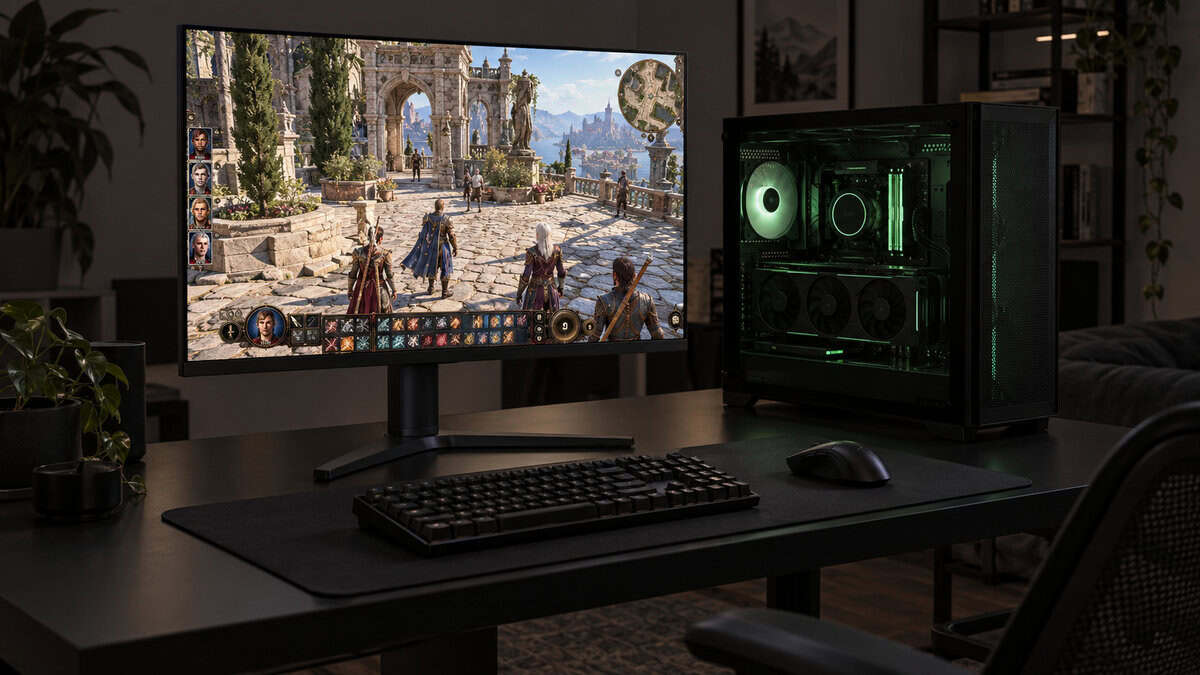
The three monitors below cover both sides of the line, one 1080p and two 1440p. After them come the parts most comparisons skip, including pixel density by screen size, how upscaling changes the math, what 1080p looks like on a 1440p panel, and where consoles fit.
This is the 1080p side done right, with a 24-inch screen where 1080p still looks sharp and a 240Hz refresh rate that a mid-range card can reach in lighter games.
- 240Hz at the easiest resolution to drive
- 24-inch size keeps 1080p crisp
- Two HDMI ports plus DisplayPort 1.4
- Stand adjusts for tilt only
- Less desktop space than 1440p
- Text looks softer than on 1440p
This is the standard step up to 1440p, with a sharp 27-inch IPS screen, a 180Hz refresh rate a mid-range card can use, and a stand that adjusts for height and pivots.
- Height, tilt and pivot adjustment
- 180Hz, or 200Hz overclocked
- HDR10 support for single-player games
- Smaller review base than rivals
- Lower top refresh than the AOC
- Asks more of your card than 1080p
It proves 1440p no longer means giving up speed, with 240Hz over DisplayPort on a 27-inch IPS panel for players with a card strong enough to feed it.
- 240Hz at 1440p over DisplayPort
- Overclocks to 260Hz
- 0.3 ms MPRT rating
- Stand adjusts for tilt only
- HDMI ports are version 2.0
- Needs the strongest card of the three
- 1440p has nearly 1.8 times the pixels of 1080p, so the same graphics card runs it at a lower frame rate.
- Screen size decides sharpness: 1080p looks crisp at 24 inches and soft at 27, while 1440p suits 27 inches.
- Upscaling such as DLSS and FSR lets a mid-range card drive a 1440p monitor by rendering fewer pixels and rebuilding the image.
- A 1080p signal on a 1440p monitor is scaled by an uneven ratio, so it looks softer than a native 1080p screen.
- The PS5 and Switch 2 both list 1440p output, so a 1440p monitor no longer locks console players out.
Table of Contents
Pixel Density Decides More Than the Resolution Label
Pixel density, the number of pixels packed into each inch of screen, decides how sharp a monitor looks more than the resolution label does. The same 1920 x 1080 image looks crisp on a small screen and soft on a large one, because each pixel has to cover more area. The figures in this section are calculated from resolution and screen size (diagonal pixels divided by diagonal inches), not taken from a spec sheet.
1080p on a 24-Inch Screen
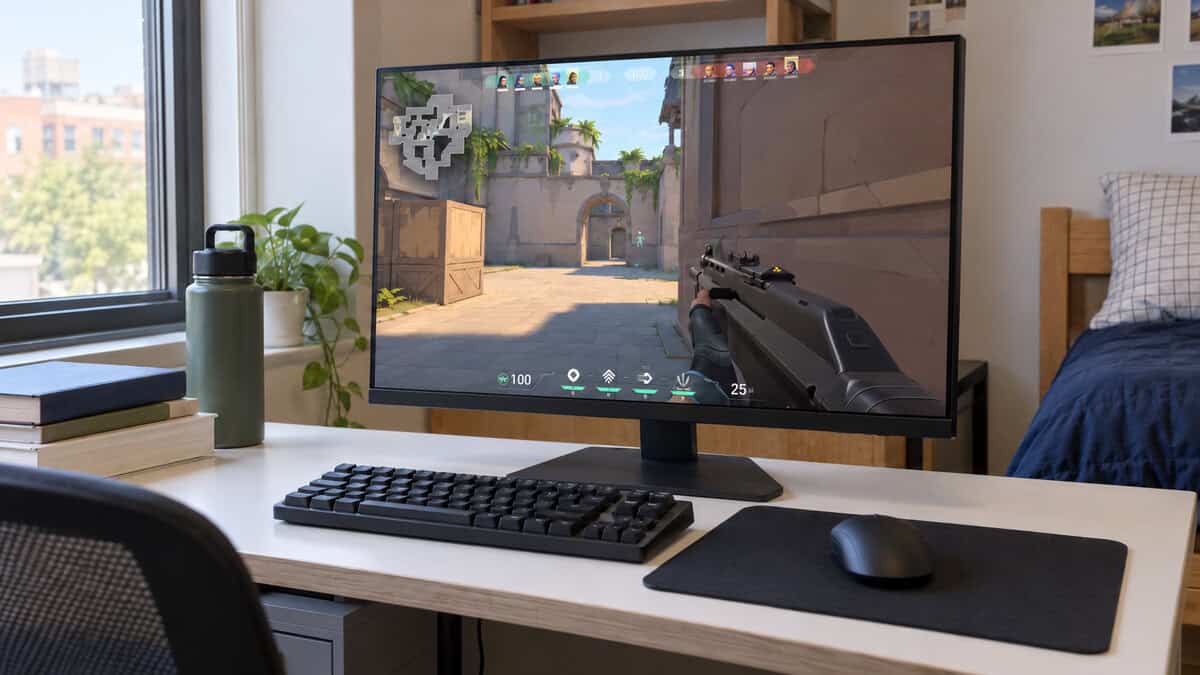
A 24-inch 1080p monitor works out to about 92 to 93 pixels per inch (calculated), the classic competitive setup. At a normal desk distance, text and in-game edges look clean enough that the pixel grid fades into the background.
A 24-inch 1080p screen is also the easiest high-refresh target for a graphics card, which is why it suits shooters. The 23.8-inch Dell pick below lands at about 93 PPI (calculated).
1080p Stretched to 27 Inches
A 27-inch 1080p monitor drops to about 82 pixels per inch (calculated), and that is where 1080p starts to look soft. Text gains fuzzy edges, and fine detail like distant foliage or a scope reticle looks grainier.
If you want a 27-inch screen, the drop in sharpness is the strongest single reason to move to 1440p rather than buy a bigger 1080p panel. Our 27-inch vs 32-inch monitor guide covers how screen size and desk distance work together.
A bigger 1080p screen is not a better 1080p screen.
1440p at 27 Inches
A 27-inch 1440p monitor lands at about 109 pixels per inch (calculated), noticeably denser than a 24-inch 1080p screen. That is why 27 inches and 1440p became the standard pairing. Text is sharper, and you gain room for a browser or a chat window beside the game launcher.
At 24 inches, 1440p climbs to about 122 PPI (calculated). That is very sharp, but small text gets tiny enough that Windows scaling is often worth turning on, which gives back some of the extra desktop space.
Four Rounds Between 1080p and 1440p
The choice between 1080p and 1440p breaks into four rounds, covering sharpness, frame rate, refresh rate for the money, and the cost of the whole setup. Each round has a winner, and the rounds that matter most to you decide the overall result.
Sharpness and Screen Space
Sharpness and screen space go to 1440p. A 2560 x 1440 screen has 3,686,400 pixels against 2,073,600 for 1920 x 1080, nearly 1.8 times as many. On the desktop that means more room for windows side by side, and in games it means cleaner edges and more visible detail at range.
1440p wins this round.
Frame Rate: Where 1080p vs 1440p Splits Hardest
Frame rate is where 1080p vs 1440p splits hardest, because your graphics card has to draw every one of those extra pixels on every frame. With nearly 1.8 times the pixels, the same card in the same game at the same settings delivers fewer frames per second at 1440p.
How many fewer depends on the game and the card. In lighter competitive games where the processor sets the limit, the gap can be small; in demanding single-player games it is usually large. Higher resolutions also fill more video memory, and our how much VRAM do I need guide covers how much each resolution calls for.
More pixels is a bill your graphics card pays on every frame.
1080p wins this round.
Refresh Rate for the Money
Refresh rate for the money still leans toward 1080p. A 240Hz 1080p monitor is the easier route to 240Hz, because a mid-range card reaches high frame rates more readily at 1080p than at 1440p.
The gap has narrowed, though. A 240Hz 1440p monitor like the AOC Q27G41ZE below shows that speed and sharpness are no longer an either-or choice for players with a strong card.
1080p wins this round, by less than it used to.
The Cost of the Whole Setup
The cost of the whole setup is the round buyers forget. A 1440p monitor is only part of the bill, because running it at high frame rates takes a stronger graphics card than 1080p asks for.
If you already own a mid-range or better card, the monitor is the only cost. If your card is entry-level, the honest price of 1440p includes a graphics card upgrade, or a willingness to lean on upscaling and lower settings.
1080p wins on a tight budget, and it’s a tie if your card is already strong enough.
Three Monitors on Either Side of the Line
The three monitors here are one 1080p screen and two 1440p screens, each from a different brand. The spec table lines up the numbers that matter for this comparison, including pixel density calculated from size and resolution.
| Monitor | Size | Resolution | Pixel Density | Panel | Max Refresh | Brightness | Ports | Stand |
|---|---|---|---|---|---|---|---|---|
| Dell SE2426HG | 23.8 in | 1920 x 1080 | About 93 PPI (calculated) | Fast IPS | 240Hz | 300 nits | 2x HDMI, 1x DisplayPort 1.4 | Tilt |
| LG UltraGear 27GS75Q-B | 27 in | 2560 x 1440 | About 109 PPI (calculated) | IPS | 180Hz (200Hz overclocked) | 300 nits | 2x HDMI, 1x DisplayPort | Height, tilt, pivot |
| AOC Q27G41ZE | 27 in | 2560 x 1440 | About 109 PPI (calculated) | IPS | 240Hz via DisplayPort (260Hz overclocked) | 300 nits | 2x HDMI 2.0, 1x DisplayPort 1.4 | Tilt (-3 to +21 degrees) |
Dell SE2426HG
The Dell SE2426HG is the 1080p pick, and it shows the right way to buy 1080p now, which is small and fast. Its 23.8-inch Fast IPS panel runs at 1920 x 1080 and 240Hz, with AMD FreeSync Premium to smooth out frame-rate dips.
At about 93 PPI (calculated), the SE2426HG sits in the size range where 1080p still looks clean. Its inputs cover a PC and a console at once, with two HDMI ports and a DisplayPort 1.4 port, and its brightness is rated at 300 nits.
At 24 inches, 1080p is a choice rather than a compromise.
The tradeoffs are the stand and the desktop. The SE2426HG tilts but does not adjust for height, and 1920 x 1080 gives you less room for windows than a 1440p screen. Our best 24-inch gaming monitor guide compares more screens at this size, and for a 200Hz alternative the AOC 24G42HE pairs a 24-inch 1080p IPS panel with a 200Hz refresh rate.
LG UltraGear 27GS75Q-B
The LG UltraGear 27GS75Q-B is the 1440p all-rounder and a typical step up from 1080p. Its 27-inch IPS panel runs 2560 x 1440 at 180Hz, or 200Hz with the overclock, with a 1 ms gray-to-gray response time and HDR10 support.
The jump to 1440p is easiest to see on a 27-inch screen.
The 27GS75Q-B’s stand sets it apart from the other two picks, since it adjusts for height, tilt and pivot. On a 27-inch screen, raising the panel to eye level matters more than on a 24-inch one. It is both G-SYNC Compatible and FreeSync capable, and it connects through two HDMI ports and one DisplayPort.
The 27GS75Q-B has fewer owner reviews than some rival 1440p screens, and 180Hz falls short of the AOC’s 240Hz. If you want a 1440p option with a much larger review base, the Acer Nitro KG271U is a 27-inch 1440p IPS monitor at 180Hz with a tilt-only stand. Our best budget 1440p monitor guide covers more of the field.
AOC Q27G41ZE
The AOC Q27G41ZE is the high-refresh 1440p pick, and the clearest sign that the old rule of 1080p for speed and 1440p for looks has weakened. Its 27-inch IPS panel runs 2560 x 1440 at 240Hz over DisplayPort, with a 260Hz overclock and a 0.3 ms MPRT rating.
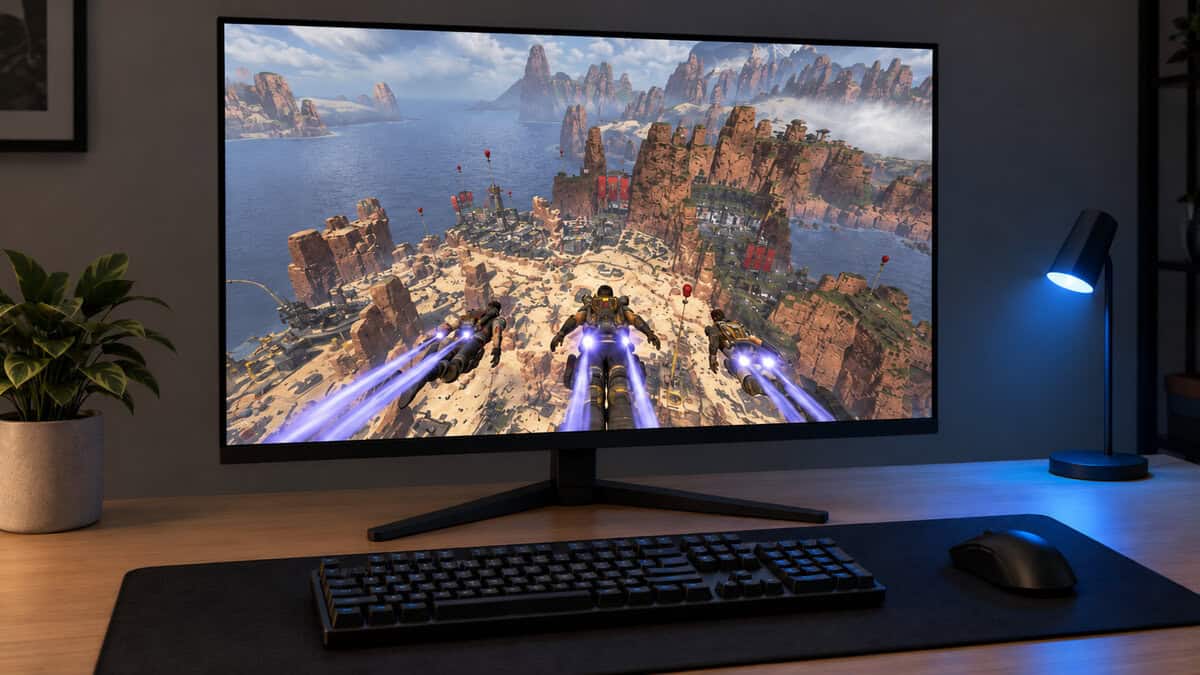
The Q27G41ZE supports Adaptive-Sync and is G-SYNC Compatible, so variable refresh works with AMD and NVIDIA cards. Its inputs are two HDMI 2.0 ports and one DisplayPort 1.4, and brightness is rated at 300 nits.
The catch is the card behind the Q27G41ZE. Reaching 240 frames a second at 1440p usually takes a strong graphics card, and the stand only tilts, from -3 to +21 degrees. Its top refresh rate runs over DisplayPort, so a PC connection matters more here than on the other two picks.
1440p and 240Hz no longer sit at opposite ends of a budget.
Upscaling Changed the 1440p Math
Upscaling changed the 1440p math by separating the resolution on your monitor from the resolution your graphics card renders. NVIDIA DLSS and AMD FSR render the game at a lower internal resolution, then rebuild the image at the monitor’s native 1440p.
Rendering Below 1440p and Showing It Sharp
AMD’s FSR Upscaling page describes the technology as one that “reconstructs crisp, high-quality visuals from low-resolution frames.” For a 1440p monitor, that means a mid-range card can render fewer pixels than native 1440p, gain frame rate, and still send a full 2560 x 1440 image to the screen.
The upscaled result can look closer to native 1440p than a 1080p monitor does, with the interface and text drawn at full resolution. That is a big part of why 1440p has become a realistic target for graphics cards that once belonged at 1080p.
When Upscaling Cannot Rescue a Weak Card
Upscaling cannot rescue a graphics card that is too weak for the game. The lower the internal resolution, the more of the image has to be reconstructed, and the more visible softness or shimmer can become.
Upscaling also needs game support, so older and smaller titles may not offer it. In a competitive game where the processor is the bottleneck, rendering fewer pixels does little for frame rate, because the graphics card was not holding things back in the first place.
Upscaling stretches a mid-range card, but it does not replace a strong one.
Running 1080p on a 1440p Monitor
Running 1080p on a 1440p monitor is the fallback many players plan on, and it works less well than they expect. 1440 is 1.33 times 1080, not a whole number, so each 1080p pixel cannot map to a neat block of screen pixels. The image has to be blended across neighboring pixels to fill the screen, and it looks softer than the same 1080p signal on a native 1080p monitor.
720p shows why the ratio matters. 1280 x 720 doubles exactly to 2560 x 1440, so with integer scaling each pixel becomes a clean two-by-two block. That picture is sharp but low in detail, and it suits older or pixel-art games more than modern shooters.
Scaling can happen in two places. The graphics card can scale the image before it leaves the PC, or the monitor can scale the signal it receives, and which looks better varies by monitor and driver.
The better fix in most games is to keep the output at 1440p and lower the internal resolution through an upscaler or a render-resolution slider. That keeps menus, the HUD and text sharp while the 3D scene takes the hit.
A 1080p signal on a 1440p monitor looks softer than either screen at its own resolution.
Consoles at 1080p and 1440p
Consoles at 1080p and 1440p used to be a simple story, with 1080p monitors for consoles and 1440p for PCs. That changed once console makers added 1440p output, so a 1440p monitor no longer shuts a console player out.
PS5 Output at 1440p
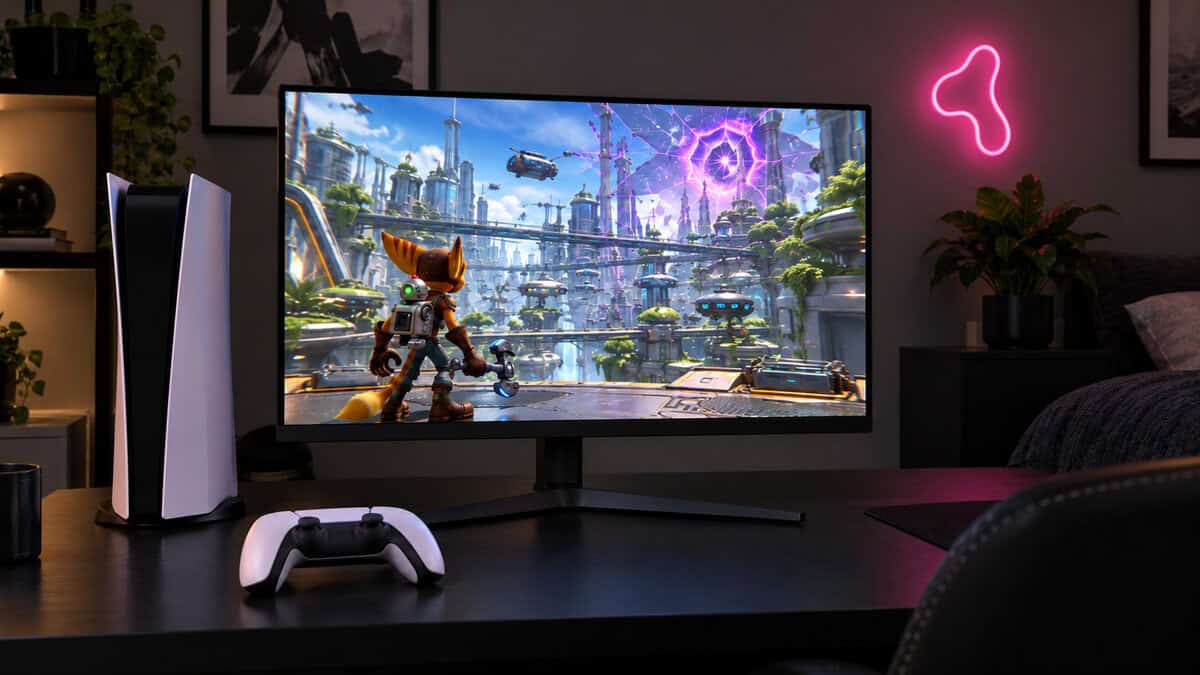
The PS5 supports 1440p output. Sony’s PS5 video output settings page says that if your display supports 1440p output, you can test SDR and HDR output at 60 Hz and 120 Hz, plus VRR. To use it, you set the Resolution option to 1440p.
That makes a 1440p monitor a workable PS5 screen at its native resolution, rather than a screen the console has to scale an image onto. Our best monitor for PS5 guide covers screens chosen around Sony’s console.
Xbox Series and Switch 2
The Xbox Series S and the Switch 2 both list 1440p support. Microsoft describes the Xbox Series S as designed for gaming at 1440p, with the ability to upscale to 4K.
Nintendo’s Switch 2 tech specs list a maximum of 4K at 60 fps in TV mode, and support for 120 fps when 1920 x 1080 or 2560 x 1440 is selected. A high-refresh 1440p monitor suits the Switch 2 as well as a 1080p one does.
For a console-only setup on a small desk, a 24-inch 1080p screen still makes sense, but the old advice that consoles cannot use 1440p no longer holds.
Where Your Graphics Card Lands Between 1080p and 1440p
The games you play and the graphics card you own decide which side of the 1080p and 1440p line suits you. Find your row in the left column.
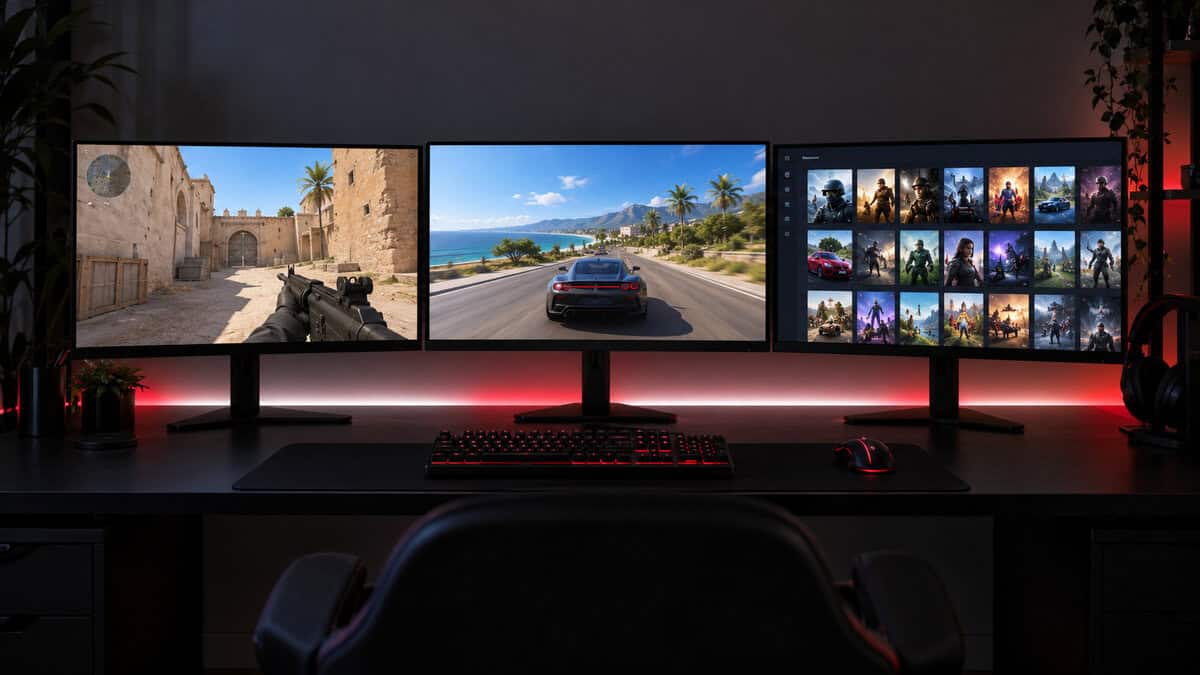
| What You Play | Graphics Card Class | The Monitor | Why It Fits |
|---|---|---|---|
| Competitive shooters, chasing frame rate | Entry-level to mid-range | Dell SE2426HG | 240Hz at the easiest resolution to drive, on a screen size where 1080p stays sharp |
| A mix of single-player and online games | Mid-range | LG UltraGear 27GS75Q-B | A sharper 27-inch picture at 180Hz, on a stand that adjusts |
| Competitive shooters on a strong card | Upper mid-range and above | AOC Q27G41ZE | Keeps 240Hz without dropping to 1080p |
If you sit between two rows, let the graphics card decide. An entry-level card points to the 1080p screen and a mid-range card to the 180Hz 1440p screen. A card that already holds high frame rates at 1440p points to the 240Hz model.
Frequently Asked Questions
Quick answers to the questions that come up most in 1080p vs 1440p threads.
Is 1440p worth it over 1080p?
On a 27-inch screen with a mid-range or stronger graphics card, yes. 1440p has nearly 1.8 times the pixels of 1080p, so text and game detail look sharper. On a 24-inch screen, or with an entry-level card in competitive shooters, 1080p at a high refresh rate is still the better value.
Is 2K the same as 1440p?
In monitor shopping, yes. Sellers and players use 2K, QHD and 1440p for the same 2560 x 1440 resolution. Strictly, 2K is a cinema term for a slightly different width, so look for 2560 x 1440 in the specs to be sure.
Can a 1080p graphics card run a 1440p monitor?
Yes, with tradeoffs. A modern graphics card can output 1440p, but a card that is comfortable at 1080p delivers lower frame rates at 1440p. Lowering settings or turning on DLSS or FSR upscaling can close much of that gap, and it usually looks better than running the monitor at 1080p.
Does 1440p hurt competitive play?
Only when it costs you frame rate. The resolution itself does not slow your reactions, but a lower frame rate does. If your card can hold a high frame rate at 1440p, you get sharper distant targets with no speed penalty; if it cannot, 1080p at 240Hz is the safer competitive choice.
Is QHD vs FHD the same comparison as 1440p vs 1080p?
Yes. QHD (Quad HD) is 2560 x 1440 and FHD (Full HD) is 1920 x 1080, so QHD vs FHD is the same decision under different names. Everything about screen size, frame rate and upscaling applies the same way.
Looking for more budget gaming gear? Check out Budget Loadout for the latest reviews and recommendations.
Related Articles