A Steam Deck is built around its own 1280 x 800 display, which means a sharp 1080p-class monitor with the right port suits it better than a big 4K panel. The best monitor for Steam Deck play depends on where the Deck sits when you plug it in, whether that’s a desk, a dock or a hotel room on a trip.
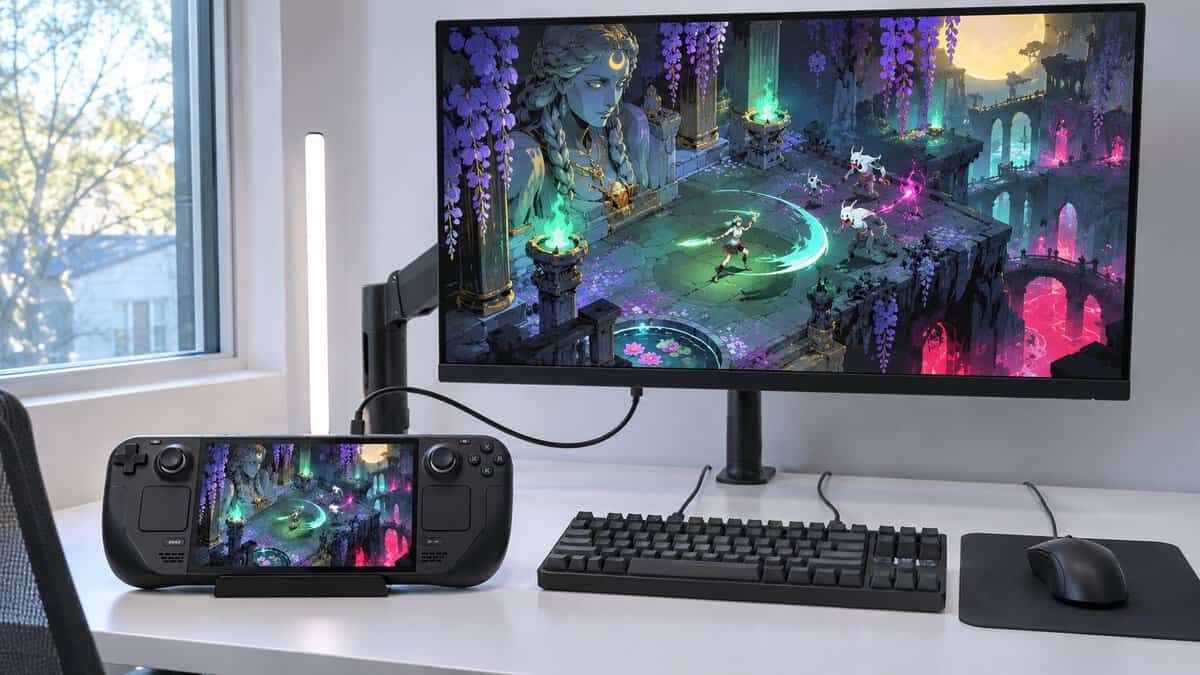
We matched one screen to each of those three setups. Each pick is compared on how it connects, whether it can charge the Deck and how its shape fits the Deck’s 16:10 picture.
A 16:10 desk monitor that sends video, charging and a USB hub to the Steam Deck over one USB-C cable. Its 1920 x 1200 panel has the same shape as the Deck’s own screen.
- 96W USB-C power covers the Deck’s 45W charger with room to spare
- 16:10 panel fills edge to edge with Deck games
- Built-in hub for a wired keyboard and mouse
- Tops out at 75Hz
- Costs the most of the three picks
- 16:9 video shows thin bars at the top and bottom
A 144Hz IPS monitor with two HDMI ports for a Steam Deck that already lives in a dock. The Dell costs the least of our three picks and ships with an HDMI cable.
- 144Hz IPS panel with AMD FreeSync
- Two HDMI ports for a dock and a console
- HDMI cable included in the box
- Needs a dock or an adapter because it has no USB-C
- Stand only tilts
- Deck games at 16:10 show thin bars at the sides
A 1.5 lb portable screen with a built-in stand and two USB-C ports that can pass power from a charger through to the Steam Deck. It packs into a bag alongside the Deck.
- Two-way USB-C power can charge the Deck through the screen
- 144Hz IPS panel in a body 0.7 inch thin
- Sleeve case plus USB-C and mini HDMI cables included
- 16:9 shape leaves thin bars beside Deck games
- No power adapter in the box
- 250-nit panel is dimmer than the desk picks
Picks and availability last verified: November 23, 2026
- Choose a Steam Deck monitor by where the Deck plugs in, whether that’s a USB-C desk screen, an HDMI screen behind a dock or a portable for travel.
- A USB-C monitor needs DisplayPort Alt Mode for video and 45W or more of power delivery to match the Deck’s own charger.
- A 1920 x 1200 screen matches the Deck’s 16:10 shape, while a 1920 x 1080 screen shows thin bars at the sides of 16:10 games.
- A 1080p-class monitor matches what the Deck can drive in demanding games better than a 4K screen does.
- Valve’s External Display Safe Mode drops to a low resolution to help a monitor that shows no picture.
Table of Contents
Three Ways to Connect a Steam Deck to a Monitor
A Steam Deck connects to a monitor over one USB-C cable, through a dock and an HDMI cable or with a portable screen that travels with it. All three start at the Deck’s single USB-C port, which Valve rates for DisplayPort 1.4 Alt Mode at up to 8K at 60Hz or 4K at 120Hz.
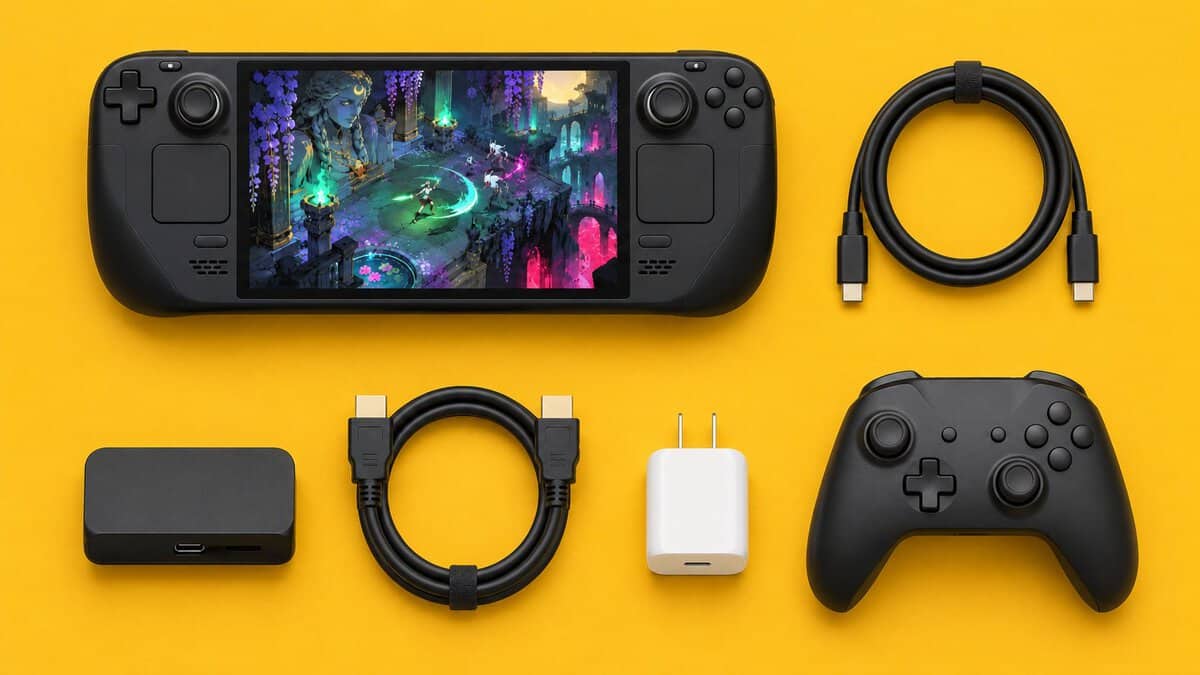
One USB-C Cable for Video and Power
One USB-C cable carries video, power and USB data between a Steam Deck and a monitor whose USB-C port supports both DisplayPort Alt Mode and power delivery. A one-cable USB-C setup keeps the desk tidy and charges the Deck while it plays. The ASUS ProArt PA248CRV is our pick for a one-cable USB-C desk setup.
A Dock and an HDMI Cable
A dock turns the Deck’s one USB-C port into HDMI, USB-A and charging ports. Any HDMI monitor works this way, including budget screens with no USB-C at all. A dock is also the fallback if a USB-C monitor ever shows no picture. The dock route suits you if you already own one or want wired controllers and a keyboard plugged in at the same time. Our best Steam Deck dock guide compares the docks themselves.
A Portable Screen That Travels With the Deck
A portable screen gives the Deck a bigger display anywhere you can find a table. Models with two USB-C ports can pass power from a charger through to the Deck over the same cable.
Three things to check on any monitor before you order
- Look for a USB-C port that lists DisplayPort Alt Mode if you want video over USB-C without a dock.
- Check that the USB-C port delivers 45W or more, which matches the charger Valve ships with the Deck.
- Decide between a 16:10 screen that matches the Deck’s shape and a 16:9 screen like a typical TV.
At a Desk With One USB-C Cable
At a desk, the ASUS ProArt PA248CRV is our pick because one USB-C cable carries the picture, charges the Steam Deck and connects a keyboard and mouse. ASUS lists DisplayPort Alt Mode and 96W of power delivery on that port. The panel is a 24.1-inch IPS screen at 1920 x 1200.
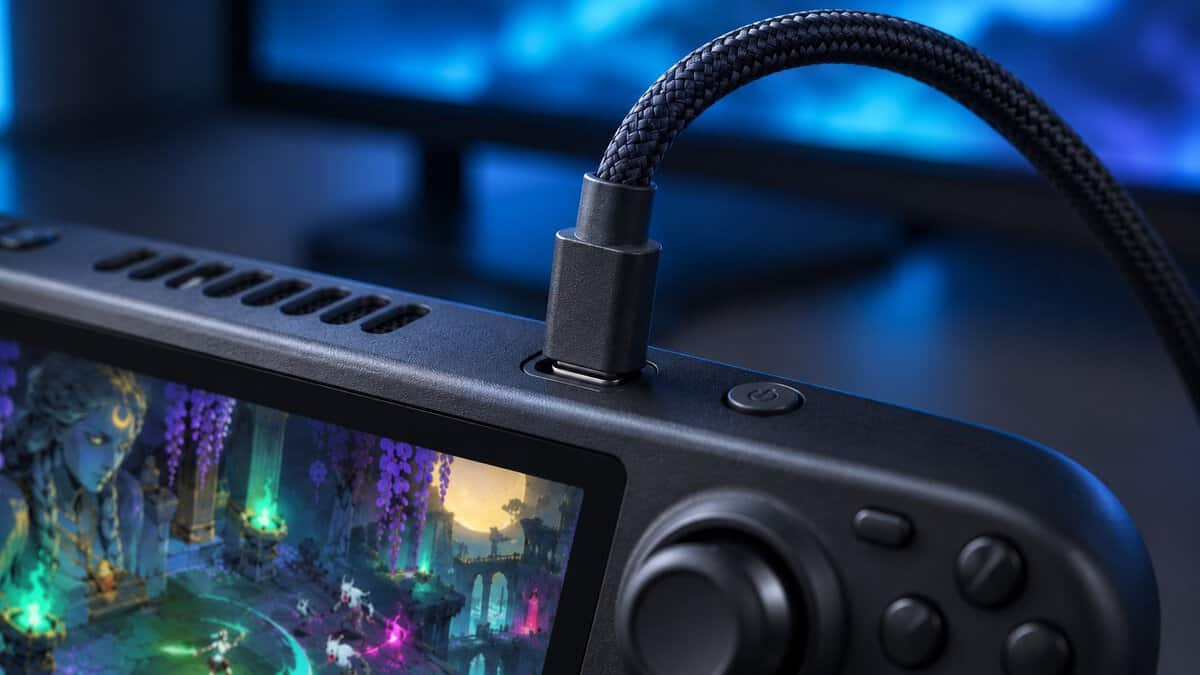
The ASUS ProArt PA248CRV is the only one of our three picks with the Steam Deck’s own 16:10 shape.
A 1920 x 1200 panel is exactly one and a half times 1280 x 800 in each direction. The Deck’s picture scales up evenly and fills the whole screen with no bars. The stand raises the screen through 130 mm of height and also tilts, swivels and pivots into portrait. ASUS adds two 2W speakers and a 3-year warranty.
The ProArt tops out at 75Hz with Adaptive-Sync. A demanding game held to 60 frames per second or less loses little to that cap. Lighter games that could run faster stop at 75Hz. The ProArt also costs the most of our three picks.
Why a 15W USB-C Port Can’t Keep a Steam Deck Charged
A 15W USB-C port may not keep a Steam Deck charged through a demanding game because it supplies a third of what Valve’s own 45W USB-C Power Delivery charger delivers. The Deck still shows a picture on such a screen, but the battery can keep dropping through a demanding game.
USB Power Delivery sends power and data over a single cable and lets each device ask for only the power it needs, as the USB Implementers Forum explains on its USB Power Delivery page. A port rated at 45W or more covers the Deck’s own charger. The ProArt’s 96W rating is more than double the Deck’s 45W charger.
The Built-In Hub for a Keyboard and Mouse
The ProArt’s built-in hub gives the Steam Deck three USB-A ports and one USB-C port through the same cable that carries the picture. ASUS rates the hub ports at USB 3.2 Gen 1. A wired keyboard and mouse or a wireless receiver plugs into the monitor and the Deck sees them like any USB device.
Unplug that one cable and the Deck goes straight back to being a handheld. If you’d rather pair a faster 1080p screen with a separate dock, our best budget gaming monitors guide has more options.
On a Budget With a Dock You Already Own
With a dock you already own, the Dell SE2426H is the budget pick. The Dell SE2426H is a 23.8-inch IPS monitor at 1920 x 1080 and 144Hz with AMD FreeSync. It costs the least of our three picks and Dell puts an HDMI cable in the box.
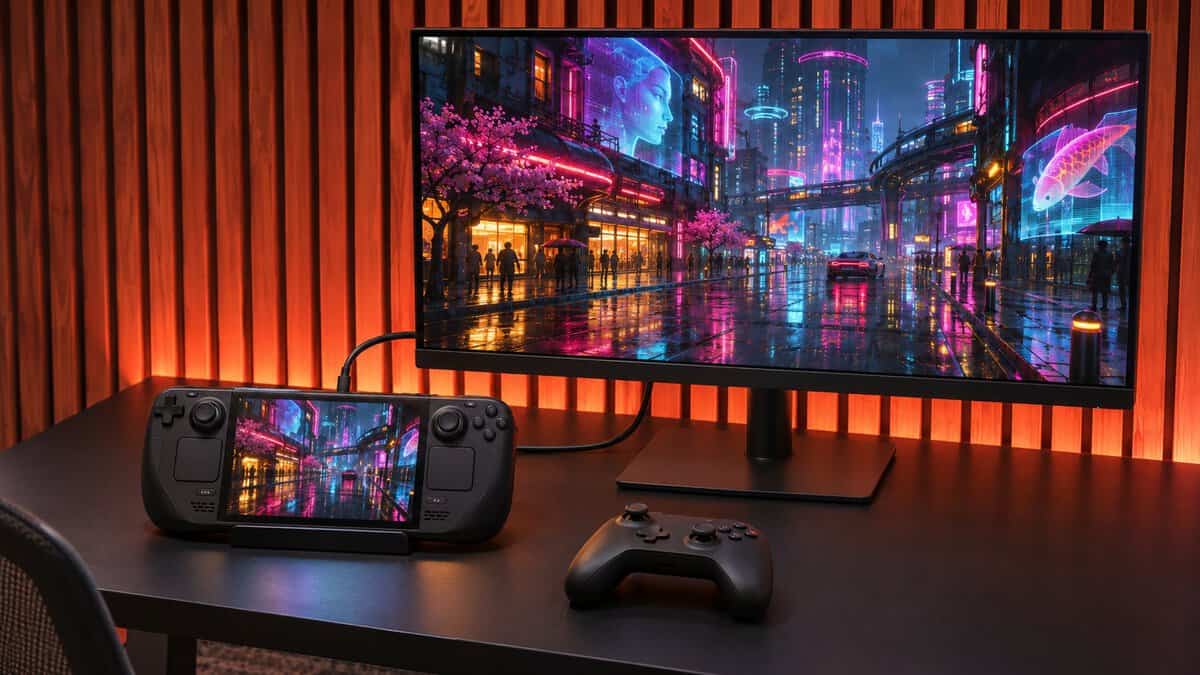
The Dell SE2426H gives a docked Steam Deck a 144Hz IPS screen for the least money of our three picks.
The Dell has two HDMI 1.4 ports and no USB-C or DisplayPort input. With the dock on one port, the second stays free for a console or a laptop. Dell lists 300 nits of brightness and a 1,000:1 contrast ratio. The stand tilts from 5 degrees forward to 21 degrees back and the screen takes a 100 x 100 VESA mount if you’d rather use an arm.
The Dell needs a dock or a USB-C to HDMI adapter between it and the Deck and can’t charge the Deck. Its stand only tilts and its 16:9 panel shows thin bars at the sides of games running at the Deck’s 16:10 shape.
HDMI From the Dock Sets the Limit
The HDMI port on your dock sets the highest refresh rate a Steam Deck can send to the Dell SE2426H. The dock’s HDMI output has to support 1080p at 144Hz for the Dell to run at 144Hz. A small USB-C hub or adapter may list only 60Hz on HDMI. Check what refresh rate the dock or adapter lists at 1080p before you count on 144Hz.
The extra refresh helps lighter indie and older games that can run at high frame rates on the Deck. Menus and desktop mode feel smoother at 144Hz too.
IPS Color on a 24-Inch 1080p Screen
An IPS panel like the one in the Dell SE2426H keeps color and brightness steady when you look at it from an angle. Steady viewing angles help when the Deck sits in a dock off to one side and you lean back with a controller. At 23.8 inches, 1920 x 1080 looks sharp from a normal desk distance and the Deck’s 800p games scale up to fill the height of the screen.
VA panels trade some viewing angle for deeper blacks. Our IPS vs VA for gaming guide explains when each panel type is the better buy.
Get our free Budget Gaming Setup Checklist
Plus one email every Thursday on what changed for budget gaming gear.
No spam. Unsubscribe any time. Privacy
Away From Home With a Portable Screen
Away from home, the ViewSonic VX1654 is our portable pick. The VX1654 is a 16-inch class IPS screen (15.6 inches viewable) at 1920 x 1080 and 144Hz with FreeSync. It weighs about 1.5 lb, stands on a built-in stand and connects over USB-C or mini HDMI.
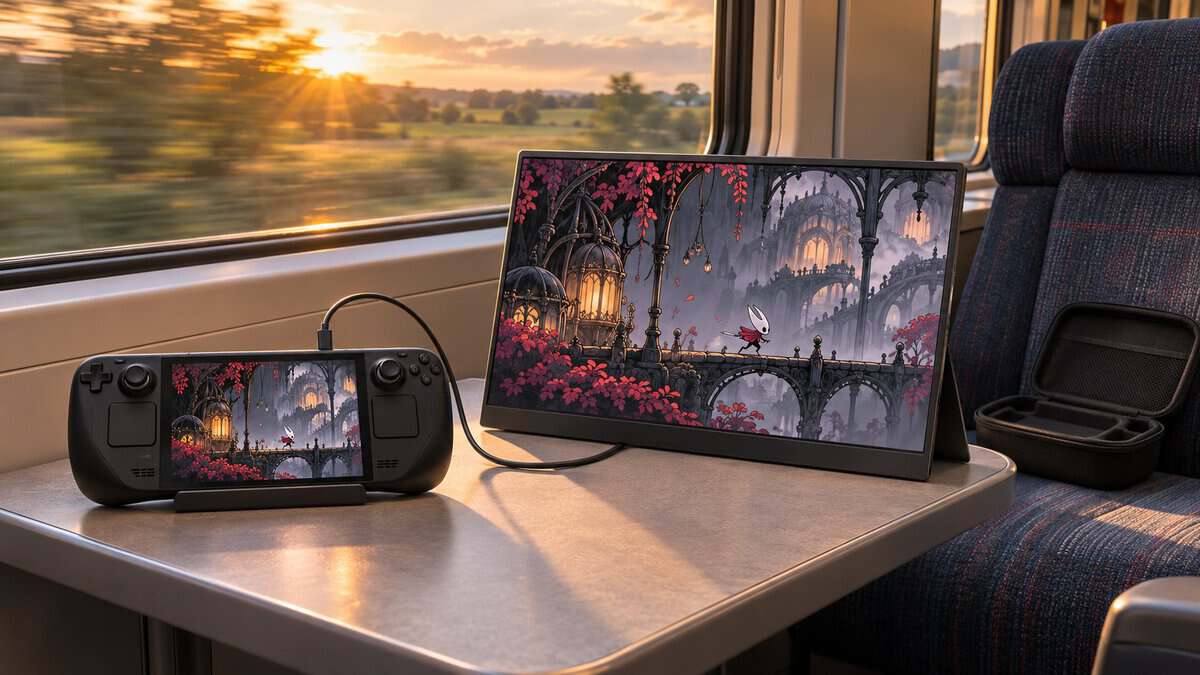
The ViewSonic VX1654 can pass a charger’s power to a Steam Deck over the same USB-C cable that carries the picture.
ViewSonic rates both USB-C ports at 60W and describes the power as two-way. Plug a USB-C charger or power bank into one port and the screen can pass power to the device on the other. On a trip, the Deck plays and charges from one wall outlet. Pack the Deck’s own charger because ViewSonic doesn’t include a power adapter.
The VX1654 is a 16:9 screen. Deck games running at the Deck’s 16:10 shape show thin black bars at the left and right edges. Games that offer a 1920 x 1080 option fill the whole panel. The VX1654’s 250-nit brightness also sits below the two desk picks, which matters more by a sunny window than in a dim room.
Powering the Screen and the Deck on the Road
Powering the screen and the Deck on the road takes one USB-C charger plugged into one of the ViewSonic VX1654’s two USB-C ports while the Deck connects to the other. ViewSonic lists the screen’s typical draw at 7.6W. With the Deck’s own 45W charger in the screen’s second port, the Deck likely gets a little less power than it would plugged in directly. A larger USB-C charger, up to the port’s 60W rating, leaves more headroom.
Desk Space and Packing a Portable Monitor
The VX1654 measures 14.1 x 8.9 inches and 0.7 inch thick, small enough for a hotel desk or a train table. ViewSonic includes a sleeve case, a USB-C cable and a mini HDMI to HDMI cable.
ViewSonic backs the VX1654 with a 3-year limited warranty. If you want a bigger or brighter travel screen, our best portable monitor guide covers more sizes.
Comparing the Three Steam Deck Monitors
The ASUS ProArt PA248CRV suits a one-cable desk setup, the Dell SE2426H suits a budget dock setup and the ViewSonic VX1654 suits travel. Here’s how each one fits and what you give up with it.
| Your Setup | The Monitor | Why It Fits | What You Give Up |
|---|---|---|---|
| A desk where the Deck sits all evening | ASUS ProArt PA248CRV | One USB-C cable for video, 96W charging and a USB hub at 16:10 | Tops out at 75Hz and costs the most |
| A dock you already own and a tight budget | Dell SE2426H | 144Hz IPS over HDMI for the least money | No USB-C and no charging for the Deck |
| Trains, hotels and a friend’s couch | ViewSonic VX1654 | 1.5 lb with a built-in stand and two-way USB-C power from a charger | 16:9 shape and a dimmer 250-nit panel |
Here are the key specs for each monitor.
| Product | Screen Size | Resolution | Aspect Ratio | Max Refresh | Panel | USB-C Video | Power to the Deck Over USB-C | Weight |
|---|---|---|---|---|---|---|---|---|
| ASUS ProArt PA248CRV | 24.1 in | 1920 x 1200 | 16:10 | 75Hz | IPS | Yes (DisplayPort Alt Mode) | 96W port (covers the Deck’s 45W) | 13 lb with stand |
| Dell SE2426H | 23.8 in | 1920 x 1080 | 16:9 | 144Hz | IPS | No (HDMI only) | None | 7.4 lb with stand |
| ViewSonic VX1654 | 15.6 in viewable | 1920 x 1080 | 16:9 | 144Hz | IPS | Yes | Two-way pass-through from a charger (ports rated 60W) | 1.5 lb |
How Much Resolution and Refresh a Steam Deck Can Use
A Steam Deck can send up to 4K at 120Hz over USB-C, but in demanding games it gets the most from a 1080p-class monitor because its graphics are sized for its own 1280 x 800 screen. That built-in screen runs at 60Hz on the LCD model and up to 90Hz on the OLED model.
Why 16:10 Suits the Best Monitor for Steam Deck Play
A 16:10 screen suits the best monitor for Steam Deck play because the Deck’s 1280 x 800 display is 16:10 too. On a 1920 x 1200 monitor the picture scales by one and a half in each direction and fills the panel edge to edge.
On a 16:9 monitor at 1920 x 1080, games that keep the Deck’s 16:10 shape show thin bars at the sides. Games that offer a 1920 x 1080 option fill a 16:9 screen at the cost of more pixels to draw.
When 1440p or 4K Still Makes Sense
A 1440p or 4K monitor still makes sense when the Deck spends time in desktop mode, plays video or runs lighter and older games. Web pages and desktop apps look sharper at a higher resolution. Video also doesn’t lean on the Deck’s graphics the way games do. In demanding games, the Deck renders below a 1440p or 4K screen’s resolution and the stretched picture on a 1440p screen can look softer than native 1080p.
Setting the Output Resolution
Setting the output resolution happens in the Steam Deck’s Display settings, where SteamOS lets you override the resolution and refresh rate it sends to a monitor. Valve’s Steam Support page on docking the Steam Deck also describes External Display Safe Mode. That setting picks a low resolution and refresh rate to help a stubborn display show a picture.
If a lower setting works when a higher one doesn’t, Valve points to the dock, the cable or the display as the likely limit. Cables, cases and other gear for the Deck itself are in our best Steam Deck accessories guide.
A TV or AR Glasses Instead of a Monitor
A TV or a pair of AR glasses can suit a Steam Deck better than a monitor when you play from the couch or on a plane. A TV with a free HDMI port works with any dock that has an HDMI output. AR glasses with a USB-C video connection plug straight into the Deck’s USB-C port and show a large virtual screen in front of your eyes. Our AR glasses for gaming guide compares three pairs that work with a Deck.
Skip a monitor if
- You only play docked from the couch and your TV already has a free HDMI port.
- Most of your Deck time happens on planes, trains or in the back seat, where a screen on a stand won’t fit.
- You already own a dock and a spare monitor with HDMI, which covers the desk setup for now.
A monitor makes the most sense once the Deck spends regular evenings at a desk or travels with you to a table. If you’re still deciding on the handheld itself, our Steam Deck alternative guide compares the other options.
Frequently Asked Questions
Quick answers on charging, docks, resolution and black bars.
Can a Steam Deck charge from a monitor’s USB-C port?
Yes, a Steam Deck can charge from a monitor’s USB-C port if the port supports USB Power Delivery at a high enough wattage. A port rated at 45W or more matches the charger Valve ships with the Deck. The ASUS ProArt PA248CRV lists 96W. A 15W port can let the battery keep dropping during demanding games.
Does a Steam Deck need a dock to use a monitor?
No, a Steam Deck doesn’t need a dock for a monitor with a USB-C port that supports DisplayPort Alt Mode. One cable carries the picture and also the charge on monitors with power delivery. An HDMI-only monitor like the Dell SE2426H needs a dock or a USB-C to HDMI adapter between it and the Deck.
Is a 4K monitor worth it for a Steam Deck?
A 4K monitor is hard to justify for Steam Deck gaming because the Deck renders demanding games well below 4K. The extra pixels help desktop mode, web browsing and video more than games. A 1080p or 1920 x 1200 monitor matches what the Deck can drive in demanding games and costs less.
Why does my Steam Deck show black bars on a monitor?
Your Steam Deck shows black bars because its 16:10 picture doesn’t match a 16:9 monitor’s shape. Games running at the Deck’s 1280 x 800 leave thin bars at the sides of a 1920 x 1080 screen. Pick 1920 x 1080 in the game’s settings if it offers that option or use a 16:10 monitor like the ASUS ProArt PA248CRV.
Which pick suits a Steam Deck OLED at 90Hz?
The Dell SE2426H and the ViewSonic VX1654 suit a Steam Deck OLED best if you want more than 75Hz because both run at up to 144Hz. The OLED’s 90Hz figure applies to its built-in screen. On a monitor, what you see depends on the screen, the dock or cable and the frame rate the game reaches.
Looking for more budget gaming gear? Check out Budget Loadout for the latest reviews and recommendations.
Related Articles