The cable was never the thing holding a gaming mouse back. Modern 2.4GHz wireless keeps up with a cord in a fast shooter, so the question worth asking about the best wireless gaming mouse is no longer whether it lags. It is whether the shape fits your hand, and what the battery does to the weight you push around the pad all night.
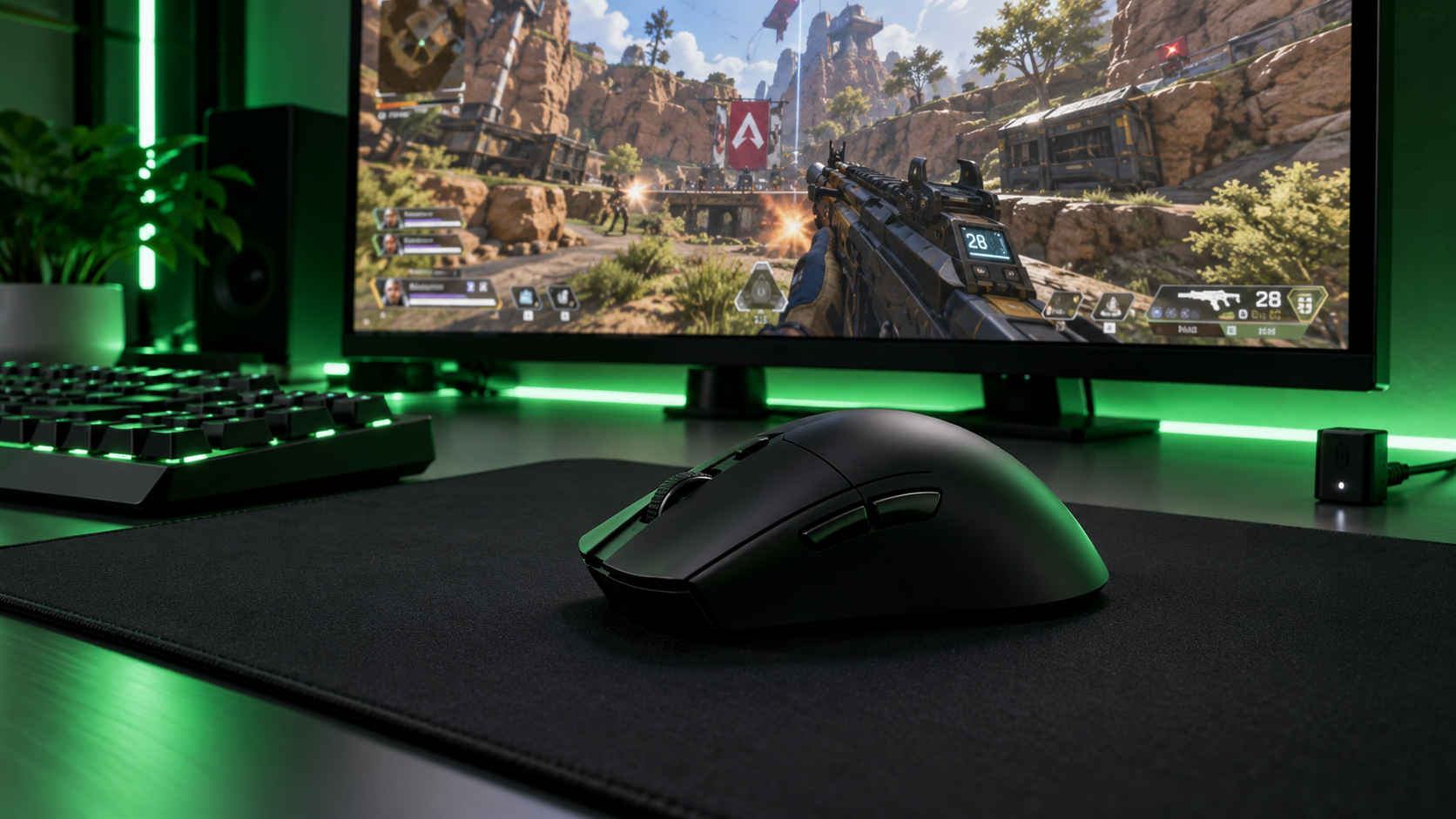
That is why this guide is organized by grip instead of by price. Palm, claw and fingertip players need different shells, and the four picks below each fit one of those hands, from a light esports shape to a button-heavy mouse for big palms and a cheap AA option that has earned its reputation.
The esports shape at a weight most ergonomic mice cannot touch. It suits palm and claw grips on a right hand and charges over USB-C.
- 63 grams in a full ergonomic shell
- Optical switches rated for 90 million clicks
- 90-hour battery charges over USB-C
- Right-handed shape only
- Five buttons suit shooters more than MMOs
- 8000 Hz needs a separate dongle
The light symmetrical pick for claw and fingertip grips. It skips the holes most featherweight mice use and adds Bluetooth for a laptop.
- 61 grams without a holey shell
- 2.4GHz and Bluetooth in one mouse
- Grip tape and spare skates included
- Left-side buttons favor right hands
- Wireless polling tops out at 1000 Hz
- Low hump leaves big palms unsupported
A long, wide palm mouse with a thumb rest and nine controls. It runs for months on one AA, which suits players who hate charging.
- Long wide shell fills a big palm
- Nine programmable controls with Hypershift
- Up to 535 hours on Bluetooth
- Heaviest pick at 110 grams
- Thumb rest shape is right-handed only
- AA battery instead of a charging cable
The cheapest mouse here that still plays like a gaming mouse. A compact shell suits small hands and fingertip grips, and one AA lasts weeks.
- Lightspeed wireless at a budget price
- 250 hours from a single AA
- Receiver stores inside the mouse
- Compact shell cramps large palms
- AA weight sits toward the back
- No Bluetooth for a second device
- Pick the shape for your grip first. Sensor numbers on every mouse here are far beyond what your hand can use.
- A 2.4GHz dongle is for gaming and Bluetooth is for the laptop bag. Never judge a mouse by how it feels over Bluetooth.
- Rechargeable mice run lighter, while AA mice run for months. Choose based on whether you would rather charge or carry weight.
- Keep the dongle close to the mouse and away from USB 3.0 ports. Most wireless stutter is a receiver problem, not a mouse problem.
- Polling rates above 1000 Hz cost battery life and need a high-refresh monitor to matter. Stay at 1000 Hz unless you have both.
Table of Contents
Four Wireless Mice at a Glance
Every pick below connects over a low-latency 2.4GHz dongle, and every sensor tracks well past the speed a human arm can move a mouse. What actually separates them is weight, shell shape and how each one is powered, so the spec sheet leads with those.
| Mouse | Weight | Shape | Sensor | Max DPI | Connection | Battery Life | Power | Buttons | Size (L x W) | Best For |
|---|---|---|---|---|---|---|---|---|---|---|
| Razer DeathAdder V3 Pro | 63 g | Right-handed ergonomic | Focus Pro 30K optical | 30,000 | HyperSpeed 2.4GHz and USB-C wired | Up to 90 hr | Rechargeable | 5 | 5.0 x 2.67 in | Palm and claw grip in shooters |
| HyperX Pulsefire Haste 2 Wireless | 61 g | Symmetrical | HyperX 26K | 26,000 | 2.4GHz, Bluetooth 5.0 and USB-C wired | Up to 100 hr | Rechargeable | 6 | 4.9 x 2.6 in | Claw and fingertip grip |
| Razer Basilisk V3 X HyperSpeed | 110 g | Right-handed ergonomic | 18K optical | 18,000 | HyperSpeed 2.4GHz and Bluetooth | Up to 285 hr (535 hr Bluetooth) | One AA | 9 controls | 5.12 x 2.96 in | Big palms and MMO binds |
| Logitech G305 Lightspeed | 99 g | Symmetrical | HERO 12K | 12,000 | Lightspeed 2.4GHz | Up to 250 hr | One AA | 6 | 4.59 x 2.45 in | Small hands and tight budgets |
Two numbers deserve a second look. The Basilisk and the G305 both carry an AA cell, which is why they sit well above the two rechargeable picks on weight. And length is the column most buyers skip, even though it decides which grip a mouse can support better than any sensor figure.
Start With Your Grip
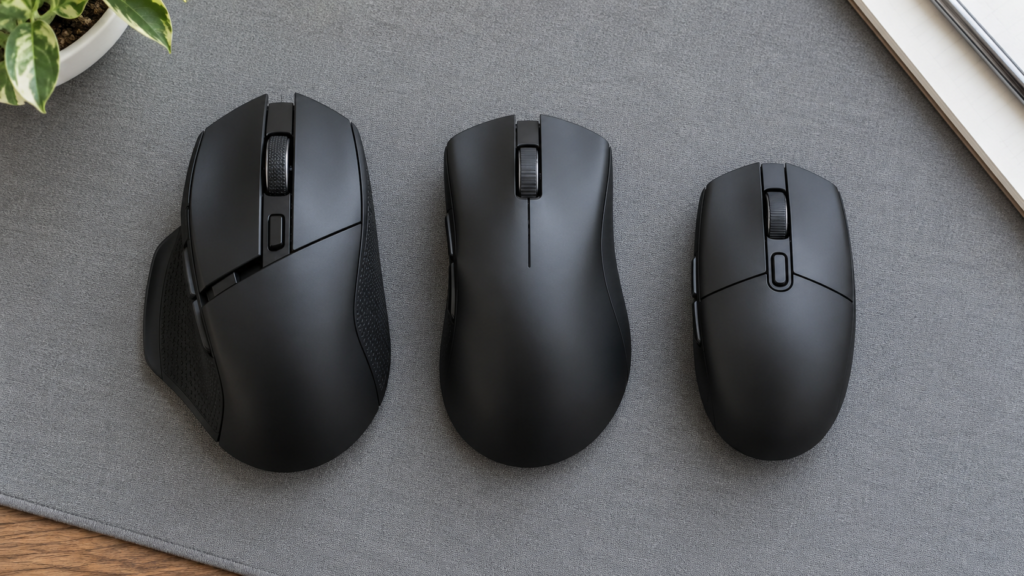
Grip is how your hand meets the mouse, and it changes which shell will feel right after an hour. Most players fall into one of three styles, or drift between two of them. Figure out yours before comparing anything else, because a great sensor inside the wrong shape still feels wrong.
Palm Grip Wants Length and a Hump
A palm grip lays your whole hand on the mouse, fingers flat on the buttons and palm resting on the back. You aim mostly with your wrist and arm, which makes it the relaxed grip for long sessions and big, sweeping sensitivity settings.
Palm players need a shell long enough to fill the hand and a rear hump high enough to support it. A short or flat mouse leaves the palm hanging off the back, and that gap turns into forearm strain over a long night. Right-handed ergonomic shapes like the Razer Basilisk V3 X HyperSpeed and the DeathAdder are built for exactly this hand.
Claw Grip Wants a Firm Back End
A claw grip arches the fingers so only the fingertips touch the buttons, while the base of the palm anchors the back of the mouse. It trades some comfort for quick, small corrections, which is why it is common among shooter players who flick between targets.
The back of the mouse is what matters here. It needs a defined rear edge for the palm to press against, and the mouse should be light enough that the fingertips can lift and reposition it without effort. Both the DeathAdder and the Haste 2 handle claw well from different directions: one ergonomic, one symmetrical.
Fingertip Grip Wants Less Mouse
A fingertip grip touches the mouse only with the fingers, with the palm floating above the desk. It gives the most precise micro-adjustments and the least support, and it works best with small, low and very light mice.
Weight matters more for this grip than any other, because your fingers are doing all the lifting. Anything heavy starts to feel like a chore by the end of a match. The 61-gram Haste 2 is the natural pick, and the compact G305 works too if you do not mind a little extra weight toward the back.
Sizing the Best Wireless Gaming Mouse to Your Hand
Measure your hand from the wrist crease to the tip of your middle finger, then compare it to the mouse length in the spec sheet. Palm grippers generally want a mouse length close to their full hand length, claw grippers can go shorter, and fingertip grippers can go shortest of all.
As a rough guide, larger hands that palm will feel at home on the Basilisk, which is the longest and widest pick here. Medium hands can go either way on the DeathAdder and the Haste 2. Smaller hands, or anyone who fingertips, will find the G305 easier to control than a big ergonomic shell.
The Four Picks by Hand
Each pick covers a different hand and grip, so read the one that matches yours first. The shapes are what separate them; every sensor here is more than accurate enough.
Razer DeathAdder V3 Pro
The Razer DeathAdder V3 Pro is the best wireless gaming mouse for most right-handed players, and the reason is simple. It takes the classic DeathAdder ergonomic shape, one of the most copied in the category, and gets it down to 63 grams. Ergonomic shells are usually the heavy ones, so a full right-hand hump at this weight is rare.
Ergonomic mice are usually the heavy ones. This one weighs less than most symmetrical mice.
Inside is Razer’s Focus Pro 30K optical sensor, rated for 750 IPS, and Gen-3 optical switches rated for 90 million clicks. Optical switches register clicks with light instead of a metal contact, which removes the double-click problem that wears out older mechanical switches. The battery is rated for up to 90 hours and charges over the included USB-C cable, so a dead mouse never ends a session.
It suits palm grip on medium and large hands, and claw grip on almost any right hand. The long, gently sloped back gives the palm something to rest on without forcing the fingers flat, which is why pros have used this shape for years.
The tradeoffs are about scope. It is right-handed only, and with five buttons it is a shooter mouse rather than an MMO tool. The included dongle runs at 1000 Hz; reaching 8000 Hz takes Razer’s HyperPolling dongle, which is sold separately. For most players on a 144Hz or 165Hz monitor, 1000 Hz is the right setting anyway.
HyperX Pulsefire Haste 2 Wireless
The HyperX Pulsefire Haste 2 Wireless is for players who want the lightest mouse they can get without a honeycomb shell. It weighs 61 grams with a solid top, so there are no holes for dust and crumbs to fall into, and the symmetrical shape works for claw and fingertip grips alike.
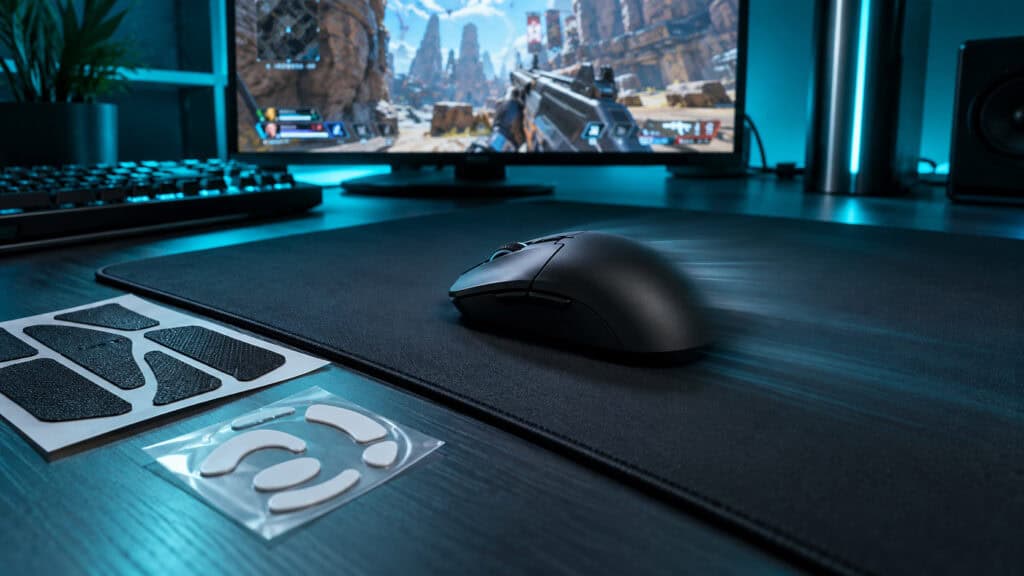
It is also the most flexible pick for connections. The 2.4GHz dongle handles gaming at up to 1000 Hz, Bluetooth 5.0 covers a laptop or tablet, and the USB-C cable turns it into a wired mouse while it charges. The battery is rated for up to 100 hours, which is a week or two of regular play between top-ups for most players.
Light mice usually get there by drilling holes in the shell. The Haste 2 gets there without them.
HyperX pairs the HyperX 26K sensor (650 IPS) with switches rated for 100 million clicks and six programmable buttons. The box includes grip tape and a spare set of PTFE skates, which is a thoughtful touch at this tier since both wear out over time.
The limits come from the shape. The side buttons sit on the left, so it favors right hands despite the symmetrical body. The hump is fairly low, so large palms may feel unsupported. If you palm with a big hand, the Basilisk is the better fit.
Razer Basilisk V3 X HyperSpeed
The Razer Basilisk V3 X HyperSpeed is the pick for big hands and players who want more buttons than a shooter mouse offers. It is the longest and widest mouse here, with a sculpted thumb rest and nine programmable controls that expand further with Razer’s Hypershift secondary layer.
That makes it a strong fit for MMOs, strategy games and anyone who binds abilities, push-to-talk or media keys to the mouse. The 18K optical sensor is more than accurate enough for shooters, too, even if the weight and shape lean more toward comfort than flick speed.
The battery is the other headline. One AA cell is rated for up to 285 hours over HyperSpeed wireless and up to 535 hours over Bluetooth, so you swap a battery every few months instead of charging every week. Chroma RGB lighting adds some flair, but switch it off if you want the longest battery life.
If you would rather change a battery twice a year than charge a mouse every week, this is your mouse.
It is the heaviest pick at 110 grams, and that matters if you play fast shooters at low sensitivity with lots of arm movement. The thumb rest also makes it right-handed only. For relaxed palm grip, though, the weight feels planted rather than sluggish.
Logitech G305 Lightspeed
The Logitech G305 Lightspeed is the cheapest way into proper gaming wireless, and it has earned its long run at the top of budget lists. It uses the same Lightspeed 2.4GHz wireless as Logitech’s pricier mice, with a 1 ms report rate and the HERO 12K sensor rated for 400 IPS.
One AA battery is rated for up to 250 hours of play, and Endurance mode in G HUB stretches that much further for lighter use. The nano receiver stores inside the mouse, which makes it easy to throw in a laptop bag without losing the dongle.
The compact, symmetrical shell suits small and medium hands in claw or fingertip grip. It weighs about 99 grams with the battery installed, most of it toward the back, so it feels heavier than the rechargeable picks. Some players offset that with a lighter lithium AA.
Large palms will find it cramped, and there is no Bluetooth for a second device. For more options at the cheap end, our budget wireless mouse guide covers three more picks.
What Wireless Still Costs You
Wireless has caught up with wired on latency, but it still brings a few tradeoffs that spec sheets gloss over. None of them is a dealbreaker. All of them are worth understanding before you buy, because they explain why two mice with similar specs can feel very different in practice.
The Battery Decides the Weight
A rechargeable lithium cell is small and built into the shell, while an AA cell is a standard size that the mouse has to be designed around. That difference is most of why the two AA picks weigh far more than the two rechargeable ones.
It is not a clear loss, though. AA mice run for weeks or months and never need a cable, and a spare battery gets you back in the game in seconds. Rechargeable mice are lighter but need a regular top-up, and their built-in cells slowly lose capacity over the years.
The Dongle Is the Weak Link
Most wireless stutter has nothing to do with the mouse. USB 3.0 ports and devices can put out radio noise in the same 2.4GHz band the dongle uses, and a receiver plugged into the back of a PC tower sits behind a metal case, well away from the mouse.
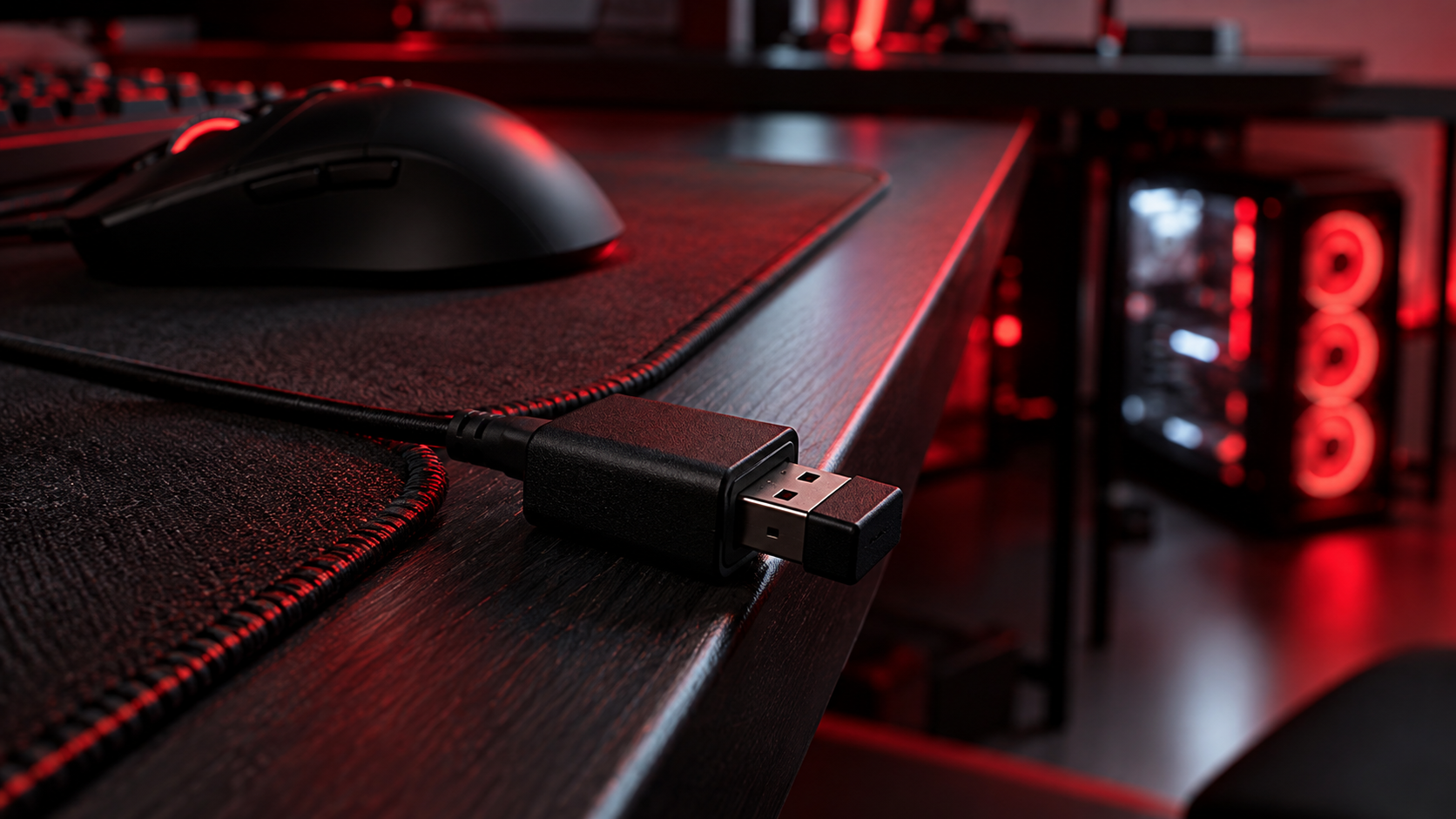
Logitech’s support page on USB 3.0 interference with wireless receivers recommends moving the receiver closer to the mouse and away from USB 3.0 connectors. In practice that means a front port, or the extension adapter many mice include, placed at the edge of the desk near your pad. The Haste 2 and the DeathAdder both ship with one.
Put the dongle where the mouse can see it. Most wireless problems end right there.
Bluetooth Is the Laptop Mode
Bluetooth is convenient for laptops and tablets, but it runs at much lower polling rates than a 2.4GHz dongle and adds noticeable delay. It is fine for browsing and slower games, not for competitive shooters.
Treat Bluetooth as a travel feature. The Haste 2 and Basilisk offer it, which makes them handy for anyone who also works on a laptop. Just switch back to the dongle when you sit down to play.
Higher Polling Rates Drain the Battery
Polling rate is how often the mouse reports its position to the PC. At 1000 Hz, that is once per millisecond, which already matches what most monitors can display. Higher rates like 4000 Hz and 8000 Hz report more often, which can smooth motion on very high-refresh monitors but costs extra battery life and CPU time.
If you want to see what your current mouse actually runs at, our free mouse polling rate test measures it in the browser in a few seconds. For most players on a 144Hz or 165Hz screen, 1000 Hz is the right choice, and every pick here supports it out of the box.
Charging Habits That Keep a Mouse Alive
A rechargeable mouse lasts years if you treat the battery well, and a few simple habits make the biggest difference. None of them need software or special chargers.
Top Up Instead of Running Flat
Lithium cells last longest when they avoid deep discharges and heat. Battery University’s guide on prolonging lithium-based batteries explains that shallow discharges and frequent top-ups are easier on a cell than running it to empty every time.
For a mouse, that means plugging it in during a break or at the end of the day instead of waiting for the low-battery warning. Keep it away from a hot window or the exhaust of a gaming laptop, too, since heat ages a battery faster than use.
When an AA Mouse Makes More Sense
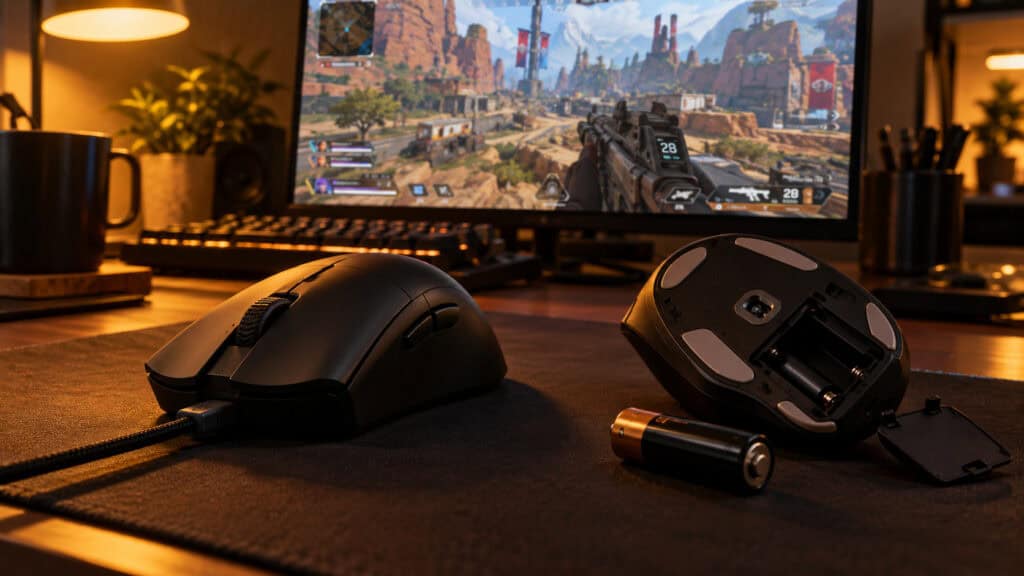
An AA mouse avoids battery aging entirely, because you simply replace the cell. That makes AA a smart choice for a second PC, a living-room setup or anyone who forgets to charge things.
Rechargeable AA cells split the difference. They cost more up front, but they cut down on waste and work in both the Basilisk and the G305. Keep a charged spare in the drawer and a dead mouse becomes a ten-second fix.
When a Wired Mouse Is Still the Better Buy
Wireless is the better experience for most players now, but wired still wins in a few cases. If your budget is tight, a wired mouse gets you the same sensor and shape for less money, with no battery to maintain.
Wired also makes sense if you never move your setup and hate charging anything. The wired vs wireless gaming mouse breakdown goes deeper on latency, cable drag and long-term cost. For wrist comfort in long work and gaming days, our best ergonomic gaming mouse guide covers shapes built for comfort first.
Whichever way you go, the surface under the mouse matters. A decent pad gives the sensor consistent tracking and the skates a smooth glide; our budget gaming mouse pad picks are a cheap upgrade. You can also run your DPI and in-game sensitivity through the eDPI calculator to see what size of pad your aim actually needs.
Which Wireless Mouse Fits Which Player
Use this table to match your hand and games to one pick. If two rows fit, go with the grip column; shape matters more than anything else on this list.
| Mouse | Grip | Hand Size | Games | Pick It If |
|---|---|---|---|---|
| Razer DeathAdder V3 Pro | Palm or claw | Medium to large | Shooters and battle royales | You want an ergonomic shape that still feels light |
| HyperX Pulsefire Haste 2 Wireless | Claw or fingertip | Small to medium | Fast shooters | You want the lightest mouse and Bluetooth too |
| Razer Basilisk V3 X HyperSpeed | Palm | Large | MMOs, strategy and mixed use | You want extra buttons and months per battery |
| Logitech G305 Lightspeed | Claw or fingertip | Small to medium | Everything on a budget | You want proven wireless at the lowest price |
Frequently Asked Questions
Quick answers to the questions that come up most when choosing a wireless gaming mouse.
Is a wireless gaming mouse fast enough for competitive FPS?
Yes. Modern 2.4GHz gaming wireless like Razer HyperSpeed, Logitech Lightspeed and the HyperX dongle keeps up with a wired connection in fast shooters. The exception is Bluetooth, which adds delay and should be kept for laptops and slower games.
Is a 4000 Hz or 8000 Hz polling rate better than 1000 Hz?
Only on very high-refresh monitors, and even then the difference is subtle. Higher polling rates drain the battery faster and use more CPU time. For 144Hz and 165Hz screens, 1000 Hz is the right setting, and you can check your current rate with our free mouse polling rate test.
Should I pick an AA battery mouse or a rechargeable one?
Pick rechargeable if weight matters most, since a built-in cell is lighter than an AA. Pick AA if you hate charging, because one battery can last weeks or months and a spare swaps in seconds.
Can I game on a wireless mouse over Bluetooth?
You can, but it is not ideal for competitive play. Bluetooth runs at lower polling rates with more delay than a 2.4GHz dongle. Use Bluetooth for a laptop or tablet and switch to the dongle when you sit down to play.
Why does my wireless mouse stutter?
Usually the receiver is the problem. USB 3.0 ports and devices create interference in the 2.4GHz band, and a dongle behind a metal PC case is far from the mouse. Move it to a front port or an extension adapter near your mouse pad.
Looking for more budget gaming gear? Check out Budget Loadout for the latest reviews and recommendations.
Related Articles