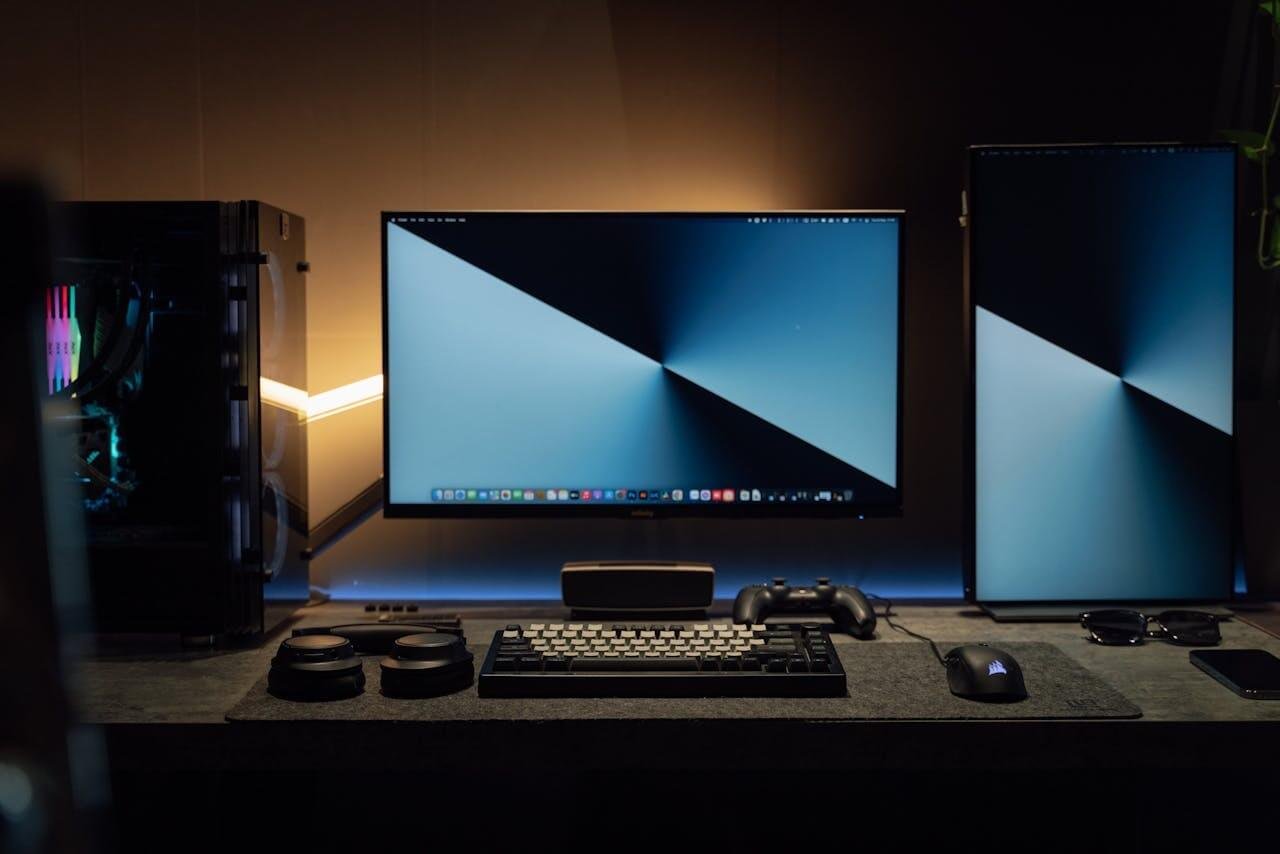
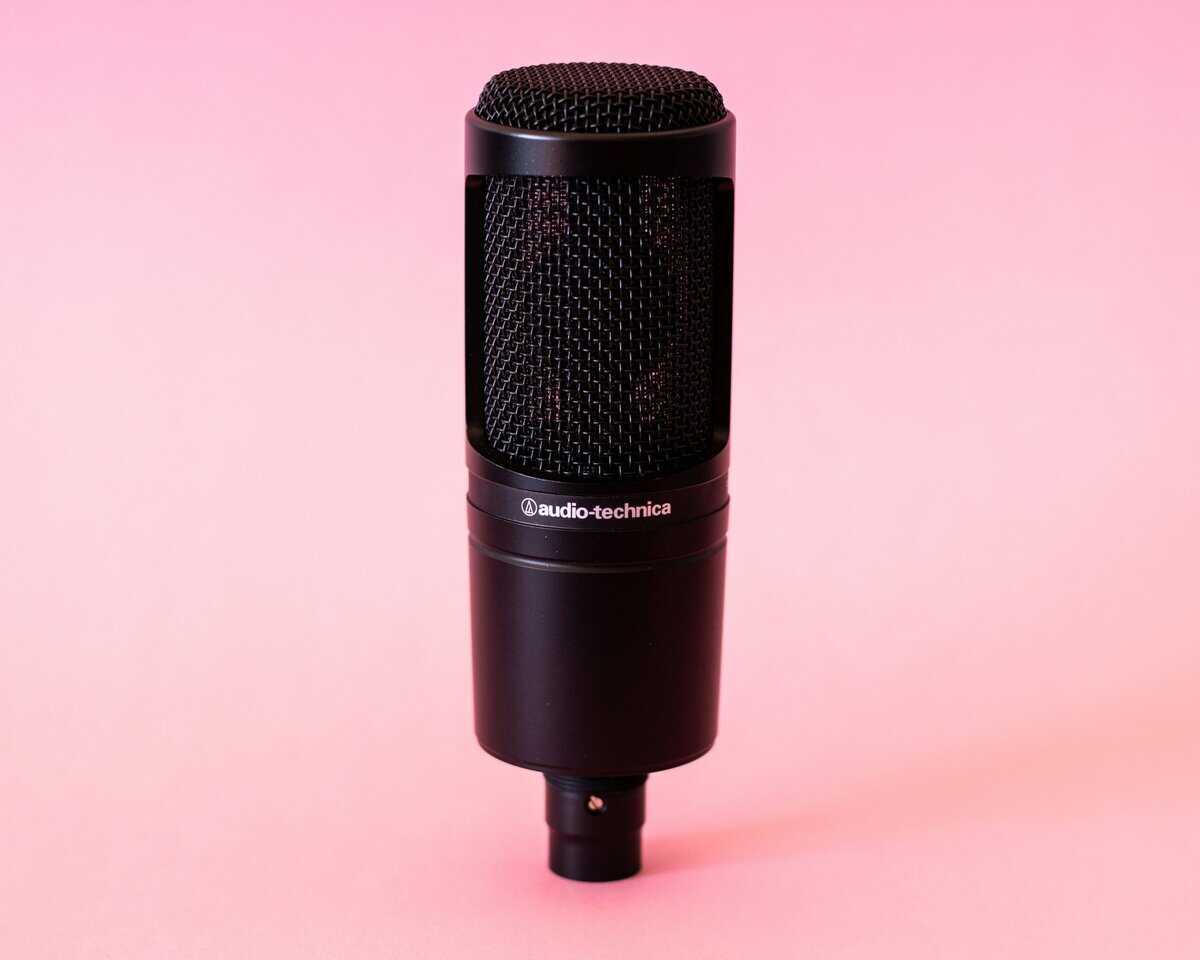
You’re probably looking at streaming setups online and thinking the same thing many first-time builders think: this is getting expensive fast. One guide shows a huge tower, a second PC, a capture card, studio mic gear, and enough RGB to light a hallway. That’s not a common starting point, nor is it a necessary one.
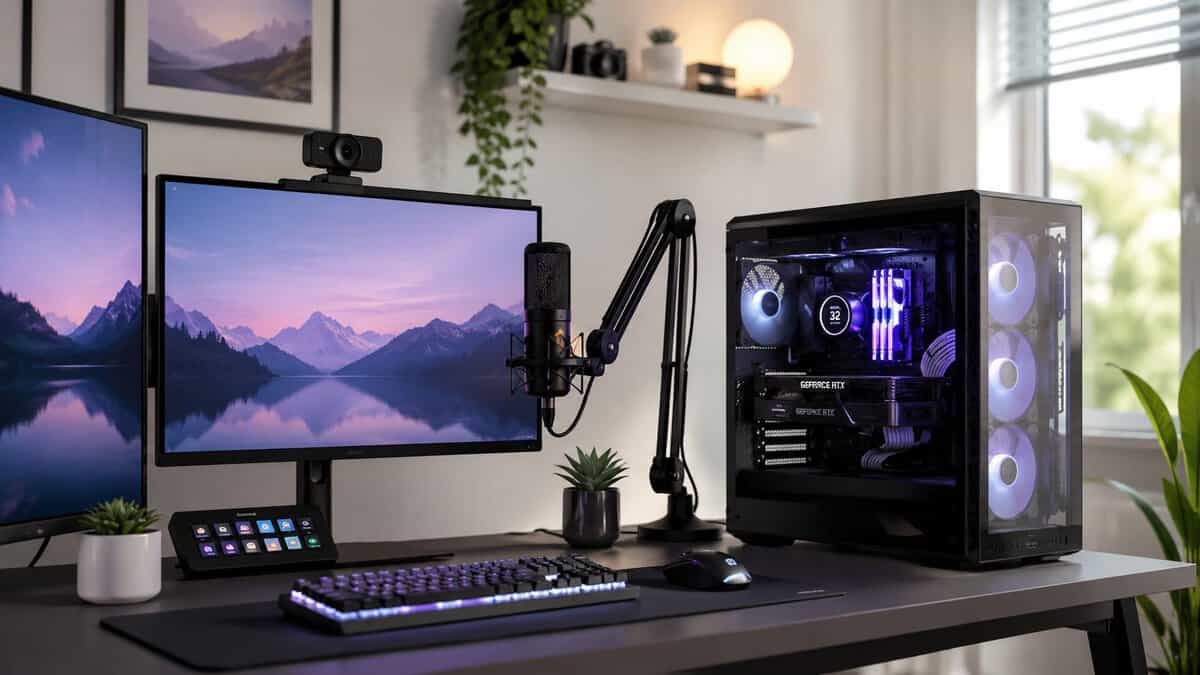
A good streaming pc build is about matching the machine to the kind of games you play, the stream quality you want, and the amount of hassle you’re willing to manage. If you mainly play competitive shooters, your priorities are different from someone streaming an MMO, a story game, or a chill co-op session with friends. Budget matters too, but so does durability. Cheap parts that create crashes, fan noise, or heat problems will cost you more in frustration than they save upfront.
- Most streamers don’t need a dual-PC rig — one modern midrange machine with a hardware encoder handles 1080p60 gaming and streaming at once.
- Lean on GPU encoding (NVENC/AV1) so you can pair a strong GPU with a solid midrange CPU instead of overspending on core count.
- Target 32GB of RAM — streaming runs the game, OBS, a browser, and overlays together, and 16GB fills up fast.
- Never cheap out on the power supply; it’s the one component whose failure can take the rest of your build with it.
- Spend on audio before video — clear sound matters more to viewers than a fancy webcam, and a single-PC build rarely needs a capture card.
Table of Contents
Do You Really Need a Dedicated Streaming PC?
Most beginners don’t need a dedicated streaming PC. That’s the first decision to make, and it can save you from overspending right away.
Independent build guidance still frames a single midrange machine as enough for competent 1080p60 streaming when it uses a modern hardware encoder like NVENC or AMF AV1, which is why the key question in 2026 is whether a second PC is necessary at all, not whether it looks more professional on a desk.
That matters because a dedicated stream box adds more than one extra purchase. It adds cabling, more desk space, another machine to maintain, audio routing headaches, and a longer troubleshooting chain when something goes wrong. If you haven’t streamed before, complexity is usually the thing that stops consistency.
What a single-PC setup does well
A well-balanced single-PC build is usually the right starting point if you:
Play one game at a time and stream directly from the same machine
Target a normal live setup with gameplay, a mic, chat, alerts, and a webcam
Want fewer failure points when you go live
Care more about value than copying a pro setup
For most new streamers, the job isn’t to build a studio on day one. The job is to build something stable enough that you can hit “Start Streaming” without wondering which device lost sync.
Practical rule: Start with the simplest setup that can handle your real use case. Add complexity only when the simpler setup is clearly holding you back.
When a second PC makes sense
A dual-PC setup can be useful if your main machine already struggles, if you stream from multiple sources, or if you already own older hardware that can be repurposed. It’s also a valid choice if you hate any gameplay performance loss and want strict separation between gaming and encoding.
But that’s a problem-solving setup, not a default setup.
If you’re still deciding what else belongs in your starter rig, this beginner-friendly guide to a streaming setup for beginners is worth reading alongside your parts list. It helps sort the essentials from the stuff that only looks essential.
Define Your Goals and Streaming Budget Tiers
Most bad builds start with parts. Better builds start with use cases.
If you say “I need a streaming PC,” that still leaves out the details that matter. Are you trying to stream a fast FPS where frame pacing matters? Do you mostly play MMOs with lots of background apps open? Are you streaming a story game where stable image quality matters more than chasing high competitive frame rates? Those choices change where your money should go.
Ask these questions first
Before you buy anything, lock down these three decisions:
What games do you play most?
Fast shooters punish weak CPU and GPU pairings much harder than slower games do. MMOs and simulation-heavy games can also expose CPU weakness because the game, chat, browser tabs, and add-ons all pile onto the same system.What stream target feels realistic?
Some people should start at 720p and focus on consistency. Others can justify 1080p if the hardware and internet support it. The key is not aiming beyond what your system can do smoothly.Will you also record, edit, or clip locally?
Streaming alone is one workload. Streaming plus local recording, browser sources, music, chat apps, and editing later adds headroom requirements quickly.
Streaming PC Build Tiers for 2026
| Build Tier | Target Performance | Ideal For | Estimated Cost |
|---|---|---|---|
| The 720p Starter | Stable starter streaming with light-to-moderate gaming workloads | New streamers, lighter esports titles, casual co-op, slower story games | Entry-level budget |
| The 1080p Workhorse | Consistent 1080p streaming with better multitasking headroom | Most gamers, mixed libraries, MMO players, regular weekly streaming | Midrange budget |
| The High-Value Hybrid | Strong gaming plus extra room for recording, editing, and heavier multitasking | Players who stream often, create clips, or want longer upgrade life | Upper-midrange budget |
That table is intentionally simple. The point isn’t to chase a fixed price target. The point is to avoid buying the wrong class of machine.
Tier one works if expectations are realistic
The 720p Starter is for someone who wants to begin without turning the build into a project that never ends. This is the setup for lighter competitive games, indie games, older titles, and players who care more about getting comfortable on stream than maxing every setting.
This tier works best when you accept trade-offs. You may need to lower in-game settings. You may need to close background apps. You probably shouldn’t expect it to handle every new release and a pile of browser tabs at the same time.
Tier two is where most people should land
The 1080p Workhorse is the sweet spot for a lot of builders. It’s not extravagant, but it gives you enough room to game and stream without every session feeling fragile. This is the machine for the player who jumps between shooters, MMOs, and story games and doesn’t want to rebuild in a few months.
If you’re shopping broadly, a solid guide to the best gaming PC under 1000 can help you compare value-focused parts thinking, even if your final streaming build lands a bit above or below that class.
Tier three buys time and flexibility
The High-Value Hybrid tier isn’t about showing off. It’s about reducing compromises. If you clip gameplay, record locally, keep a lot of apps open, or want your build to stay comfortable longer before upgrades, this is the tier that makes sense.
The best budget build isn’t the cheapest one. It’s the one that avoids the first obvious replacement.
That’s why I usually tell friends to stretch for headroom in the places that age well and avoid spending extra on cosmetic extras. A durable case, a reliable board, enough cooling, and stronger core components will outlast fancy lighting every time.
Choosing Your Core Engine: CPU, GPU, and Motherboard
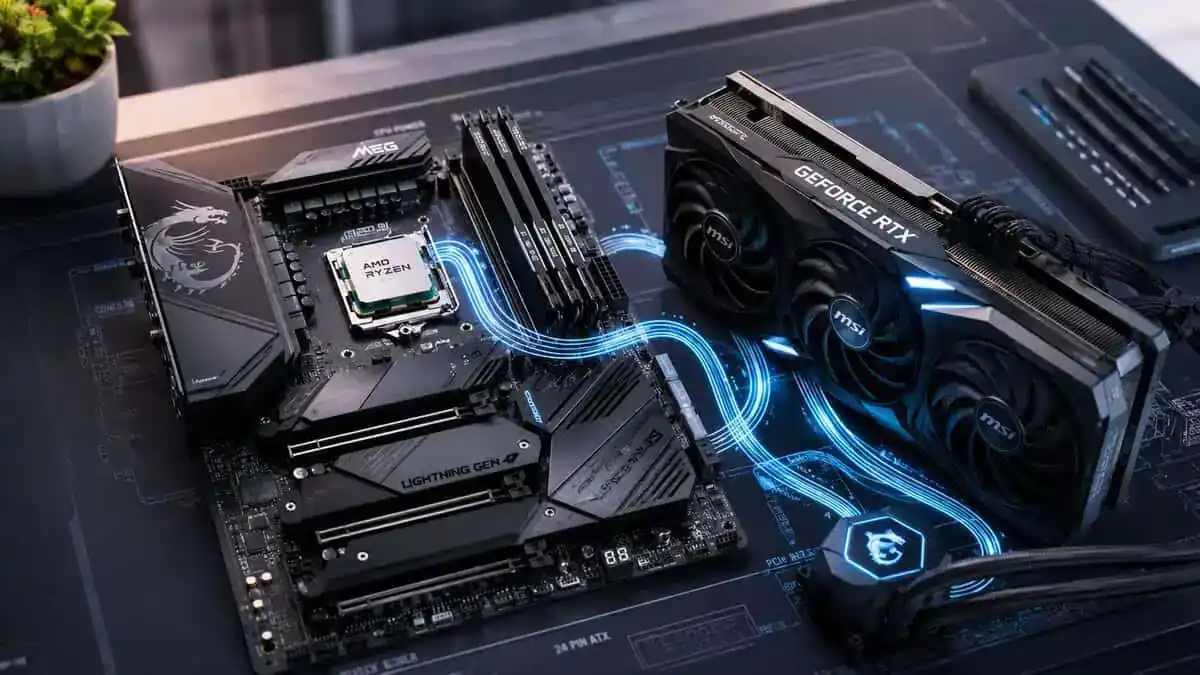
The CPU and GPU decide whether your streaming pc build feels easy or stressed. The motherboard decides whether the whole thing stays stable and upgrade-friendly.
For a single-PC setup, the CPU still matters because the game, your background tasks, voice chat, browser tabs, and stream software all compete for time. A widely used rule of thumb is to target at least as many CPU cores as a current-generation console if you want one machine to game and stream or record at the same time.
CPU choices by tier
For the 720p Starter, look for a modern CPU that gives you enough multitasking margin without paying for more chip than your GPU tier can use. This build is about balance. If the processor is too weak, gameplay and stream tasks trip over each other. If it’s too expensive, you starve the rest of the system.
For the 1080p Workhorse, a stronger multi-core CPU starts making everyday streaming feel smoother. This tier suits players who bounce between an FPS one night and an MMO the next, then leave chat, music, and browser sources open the whole time.
For the High-Value Hybrid, I’d favor a CPU with clear multitasking strength over one that only looks good in isolated gaming discussions. If you’ll record, edit, or run heavier scenes, the extra breathing room matters.
If you’re deciding between platforms, this breakdown of AMD vs Intel for gaming is useful because it frames the trade-offs in practical terms instead of brand loyalty.
Why the GPU matters beyond game frames
For streaming, the GPU isn’t just pushing graphics. It’s also valuable because modern hardware encoders take pressure off the rest of the system. That’s one of the main reasons a single-PC stream is so practical now.
My general advice is simple:
Starter tier: buy for competent gaming first, but make sure the card’s encoder isn’t an afterthought.
Workhorse tier: a better GPU enhances both image quality settings and stream smoothness.
Hybrid tier: prioritize a card with enough performance headroom that your gameplay still feels good when the rest of the system is busy.
A lot of beginners overspend on the CPU and then buy a GPU that’s just “good enough.” That usually feels worse in real use than a balanced pairing.
Motherboards should be boring in the best way
Motherboards get marketed like centerpiece parts. They aren’t. For a value-focused streaming build, the right motherboard is the one with the features you’ll use, stable power delivery, decent cooling on the board itself, and solid build quality.
Look for these things:
Platform fit: It should support the CPU you picked without weird compromises.
Expansion sanity: You want enough USB for stream gear and enough internal flexibility for storage.
Cooling and durability: Heatsinks and layout matter more than decorative extras.
Memory support that makes sense: No need to chase edge-case tuning if the board is otherwise solid.
Buy the motherboard for reliability and connectivity, not for bragging rights.
That mindset saves money and usually produces a cleaner build. Flashy boards don’t improve your stream. Stable boards do.
Selecting Essential Supporting Components
A lot of unstable systems come from neglected support parts, not the headline components. RAM, storage, power delivery, airflow, and the case itself decide whether your rig feels sharp or annoying after the first week.
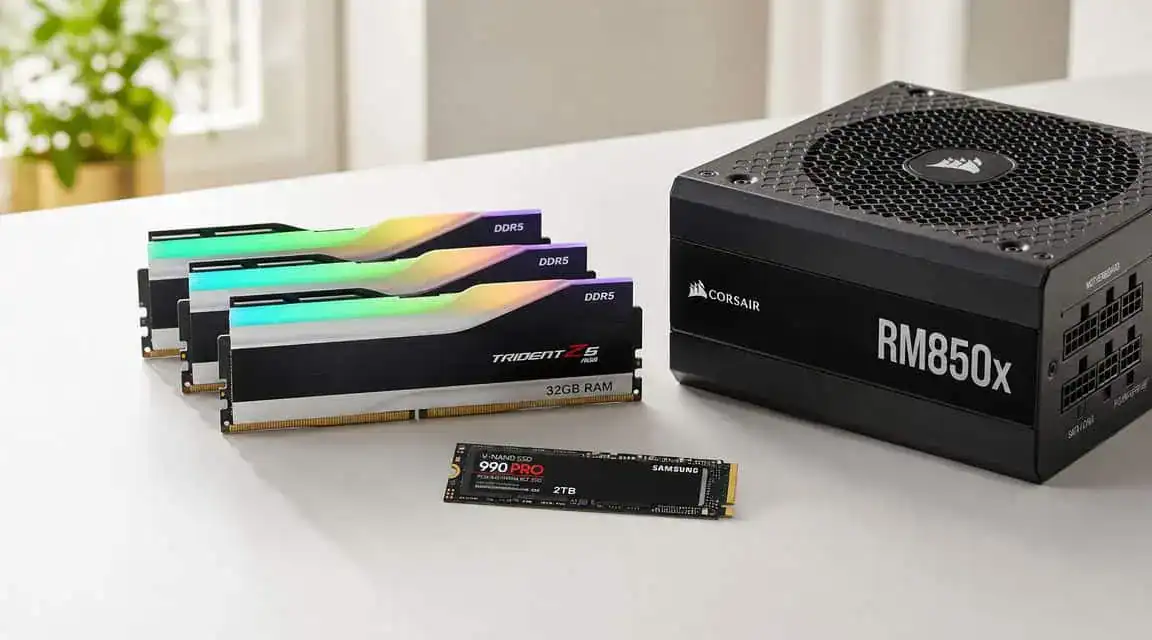
Mainstream streaming guidance has largely settled around 32 GB of RAM, 8 CPU cores, and a 1 TB SSD as a practical baseline, with multiple vendors recommending 32 GB over 16 GB for smoother multitasking when gaming and streaming together (practical streaming PC baseline from build guidance).
RAM is where beginners underestimate the workload
Streaming is a multitasking problem. Your game is one load. Stream software, chat, voice apps, browser tabs, alerts, and background tasks are the rest. That’s why 32 GB has become the comfortable target for this kind of machine.
Could you run lighter setups with less? Sometimes. Would I build a fresh streaming PC around that as the intended plan? No.
A good rule is:
Starter build: don’t treat lower memory capacity as a long-term plan
Workhorse build: 32 GB is the right call
Hybrid build: 32 GB still makes sense unless your workflow is much heavier than gaming and streaming
Storage and case choices affect daily quality of life
A 1 TB SSD is a practical floor because games are big, recordings add up, and a cramped drive gets old fast. Fast storage improves responsiveness across the whole machine. It won’t make a weak CPU fast, but it does make the system feel less clumsy.
Case choice matters more than people think too. I’d rather put money into a sturdy case with good airflow, sensible front-panel access, and clean cable routing than into a flashy shell with poor ventilation. Build quality shows up in panel fit, fan mounts, dust handling, and how easy the machine is to work on later.
If your setup also doubles as a music or content space, this Drumloop AI home studio guide is useful because it looks at room setup and gear priorities from a practical creator angle, not just a gaming one.
Never cheap out on the PSU
If there’s one place I push back hardest on “budget” thinking, it’s the power supply.
A poor PSU causes the kind of problems beginners blame on everything else. Random shutdowns. Instability under load. Weird behavior during long sessions. Upgrade limits later. None of that is worth the small savings.
Look for:
Reputable build quality: The PSU should be from a line known for consistent reliability.
Enough headroom: Don’t size it so tightly that one future upgrade becomes a problem.
Thermal and acoustic sanity: A better unit usually runs cleaner and quieter.
A reliable PSU and a well-ventilated case won’t impress anyone in a spec list. They will absolutely matter when your stream has been live for hours.
That’s the difference between buying for screenshots and buying for ownership.
Adding Your Key Streaming Peripherals
The PC gets the stream running. Peripherals decide how the stream feels to other people.
Most first-time streamers focus on the tower and forget that viewers will notice bad audio before they notice subtle graphics settings. They’ll also forgive a basic camera faster than they’ll forgive harsh, noisy, or distant microphone sound.
Audio first, camera second
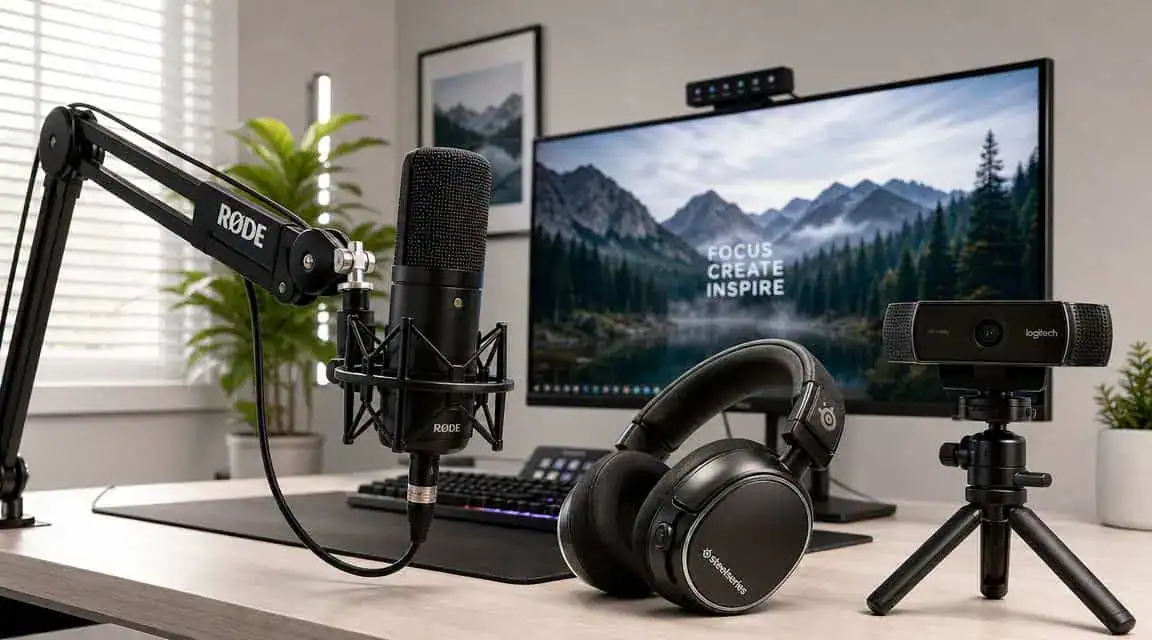
If the budget is tight, put your money into a decent USB microphone before chasing a better webcam. USB mics are simpler, cleaner on desk setups, and easier for beginners to manage than more complex audio chains.
A headset mic can work for getting started, but it’s usually the first thing I’d replace. The jump in day-to-day stream quality from a proper desktop mic is easier to notice than the jump from a basic camera to a slightly better one.
Consider your choices like this:
USB microphone: Best value for most beginners. Easier setup, fewer extra parts.
XLR route: Better if you already know you want a more expandable audio chain, but it costs more and adds complexity.
Headset mic: Fine as a temporary option, not ideal as the long-term plan.
Webcam, phone, or something more involved
A basic webcam is still the easiest route. It’s simple, reliable, and quick to mount and forget. For a lot of streamers, that’s enough.
Using a phone as a camera can look better, but it usually adds setup friction. More cables, more mounting problems, more battery or app management. If you value speed and consistency, the simpler webcam route often wins.
A more advanced camera setup can look excellent, but it only makes sense if the rest of your stream is already in good shape.
When you actually need a capture card
A capture card is useful in two main cases:
You stream from a console
You run a dual-PC setup
If you’re streaming PC gameplay from the same machine you’re gaming on, you usually don’t need one. If you aren’t sure where that line is, this guide on what is a capture card clears up when it’s necessary and when it’s just extra expense.
Intel’s dual-PC setup guidance describes a practical workflow where the gaming PC renders the game and the streaming PC handles encoding, monitoring, and overlays. It also recommends testing moving content through the capture chain first, then confirming video sync and audio capture before going live, because motion makes sync problems easier to spot.
Test motion and audio together before your first live session. Static menus hide problems that show up immediately once the game starts moving.
That one habit saves a lot of frustration.
Assembly Software Setup and Optimization
A streaming pc build can have the right parts and still feel bad if the setup is sloppy. Good assembly and good software configuration matter just as much as the shopping list.
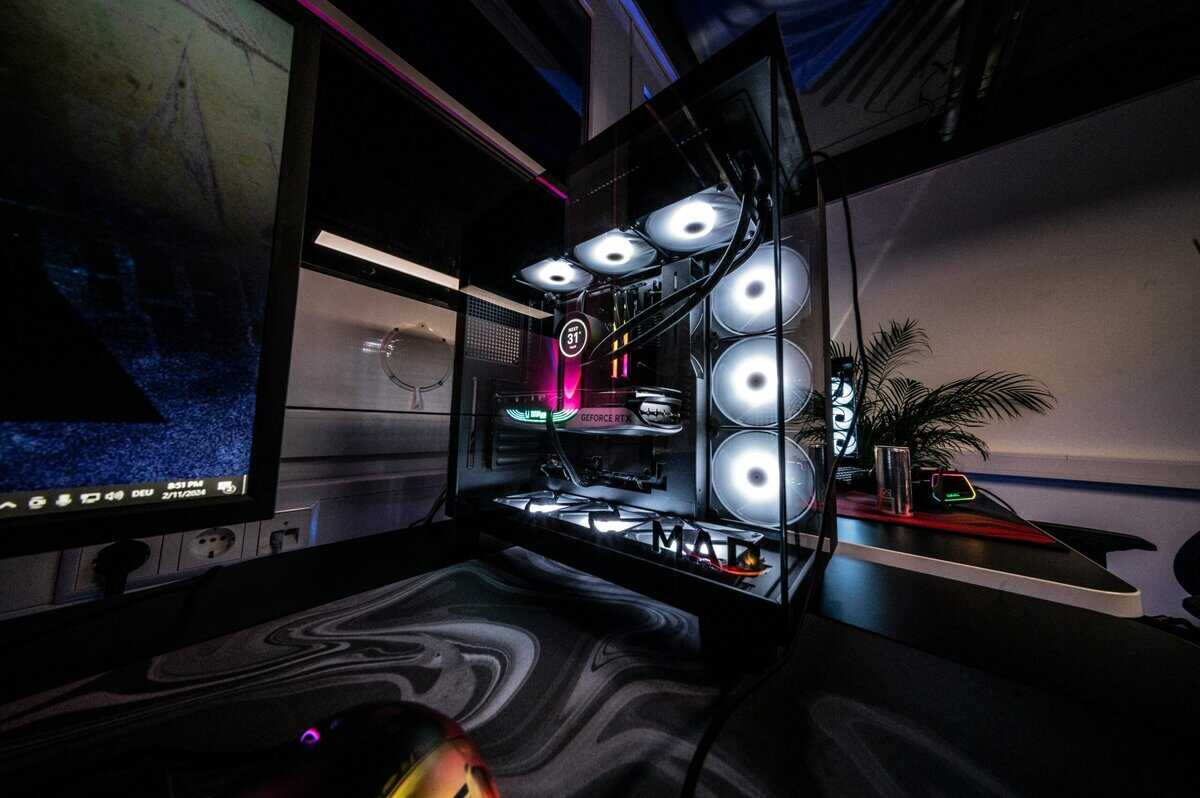
Start the physical build on a hard surface with enough room to sort screws and cables. Take your time with cooler mounting pressure, front-panel connectors, and cable routing. Clean airflow matters, and messy cable runs make future maintenance harder.
First boot checks that matter
Once the system posts, don’t rush straight into installing games. Check the basics first.
Enable your memory profile: If your board supports memory profiles, turn that on so your RAM runs at its intended speed.
Confirm storage and cooling behavior: Make sure the drive is detected and fan behavior makes sense.
Update critical firmware and drivers: Stability fixes are worth doing early, before you start troubleshooting problems that were already solved.
The easiest beginner mistake is assuming “it boots” means “it’s finished.” It isn’t. Build quality includes setup discipline.
OBS and stream settings that make sense
For stream settings, the biggest external limitation is often your upload speed. One streaming guide recommends about 6,000 Kbps for 1080p60, roughly 4,500 Kbps for 720p60, and says you should have at least 10 Mbps upload for headroom above a 6 Mbps stream rate. The same guide also advises keeping the busiest part of the stream PC at no more than about 80% utilization to avoid lag spikes.
That gives you a practical baseline:
If your upload is limited: lower your target and keep the stream stable
If your game is very demanding: leave headroom instead of pushing every setting
If you have a modern hardware encoder: use it to keep the system balanced
For a more detailed walkthrough, this guide to OBS settings for streaming is a good next stop.
Common problems and the fixes that usually work
If your stream drops frames, check your network first, then your encoder load, then game settings. If game performance tanks while live, lower the game settings that cost the most performance instead of immediately blaming the stream software.
If audio drifts out of sync, test with moving gameplay and live voice at the same time. If the whole system feels inconsistent, watch temperatures and power behavior under load before replacing random parts.
A simple pre-live checklist helps:
Run a private test stream: Verify image, audio, and scene switching.
Watch utilization: Leave room for sudden in-game spikes.
Check your recording path: Make sure clips save where you expect.
Confirm mic behavior: Listen back for fan noise, clipping, and room echo.
Stream growth depends on more than hardware too. Once your setup is stable, resources on effective social media tips can help you get more mileage out of your clips and stream announcements without turning every post into spam.
A good first stream isn’t the one with the fanciest setup. It’s the one that starts on time, sounds clear, stays stable, and leaves you with enough confidence to do it again tomorrow.
Frequently Asked Questions
Do I need one PC or two for streaming in 2026?
For most people, one PC is enough. A modern midrange machine with a hardware encoder like NVENC or AV1 can game and stream 1080p60 at the same time without a noticeable hit. A second PC mainly makes sense for high-bitrate, high-resolution streams or when you want zero performance impact on the gaming rig.
Should I prioritize the CPU or GPU for a streaming PC build?
It depends on how you encode. With modern GPU encoders (NVENC/AV1), the GPU handles most of the streaming load, so you can lean on a strong GPU and a solid midrange CPU. If you encode on the CPU (x264), core count matters much more. For most streamers, a balanced build with GPU encoding is the simpler, cheaper path.
How much RAM does a streaming PC build need?
16GB is the realistic floor, but 32GB is the better target. Streaming runs the game, OBS, a browser, chat tools, and overlays at once, and that adds up fast. 32GB gives you headroom for multitasking, recording, and light editing without constant memory pressure.
What upload speed do I need to stream?
Plan for headroom above your stream bitrate. Roughly 4,500 Kbps suits 720p60 and around 6,000 Kbps suits 1080p60, so an upload of at least 10 Mbps gives you a comfortable buffer. A wired Ethernet connection is strongly preferred over Wi-Fi for stable uploads.
Do I need a capture card for a single-PC streaming build?
No. A capture card is only necessary for dual-PC setups or capturing console gameplay. For a single-PC streaming build, OBS captures your game directly, so the money is better spent on your GPU, RAM, or audio.
If you’re building a value-focused setup and want practical buying advice without the usual hype, Budget Loadout is a solid place to compare streaming gear, peripherals, and affordable upgrades that improve your setup.
Related Articles