An HDMI splitter for dual monitors copies one picture onto two screens, so two separate desktops take an MST adapter or a DisplayLink adapter instead. You plug the splitter in and both monitors light up. Then the same desktop shows on each one, with the same cursor moving on both.

That copy is the right result for a console that feeds a monitor and a TV. For a second desktop it is the wrong box. The three picks below cover a Windows laptop, a Mac and the case where mirroring is the goal. The port on your computer decides which one you need.
Turns one video-capable USB-C port into two extended HDMI screens with no driver and no power brick. It runs on the laptop’s own graphics, so streaming apps still play.
- Two extended screens with no driver
- HDCP support for Netflix and Hulu
- Bus-powered with a built-in cable
- Needs a USB-C port that carries video
- Dual 1080p on DisplayPort 1.2 laptops
- One extended and one mirrored on a Mac
Adds two extended screens to a Mac through one port, even on base M1 and M2 models that natively drive only one. Its 2-in-1 cable also fits USB-A ports that carry no video at all.
- Two extended screens on M1 to M5 Macs
- Hybrid cable for USB-C or USB-A
- Works on ports without video output
- DisplayLink driver required
- No Netflix or Hulu playback
- Not made for gaming
Sends the same picture from one HDMI source to two screens, such as a console to a monitor and a TV. OREI states plainly that it will not extend a desktop.
- 4K 60Hz to two matching screens
- HDR10+, Dolby Vision and HLG
- Dolby TrueHD and DTS-HD audio
- Mirror only, never extends
- Needs wall power
- HDMI runs over 30 feet will not work
- An HDMI splitter copies one picture to two screens and cannot give you a second desktop.
- Extending to two monitors from one port takes an MST adapter or a DisplayLink adapter.
- An MST adapter needs a USB-C port that carries video, and DisplayLink works on data-only ports too.
- macOS has no MST support, so a Mac needs DisplayLink for two extended screens from one port.
- DisplayLink suits chat and documents better than games, and the WAVLINK will not play HDCP streaming apps.
- A graphics card with two free outputs needs only a second cable.
Table of Contents
Mirror or Extend Decides What You Buy
Mirror or extend is the first choice, because a splitter only ever mirrors. Extend gives each monitor its own part of one wide desktop.
What an HDMI Splitter Actually Does to the Signal
An HDMI splitter takes one HDMI signal and sends a copy of it out of two ports. The computer still sees one display, so it has no way to put a different window on the second screen.
Windows names the two results itself. Microsoft’s guide to using multiple monitors lists Duplicate, which shows the same thing on every display. It also lists Extend, which spreads your desktop across the screens so you can drag windows between them. A splitter can only ever give you Duplicate.
Two mismatched monitors add a second catch. If one screen is 4K and the other is 1080p, the source has to send a picture that both can show. The UHDS-102 has no downscaler, so a 4K TV and a 1080p monitor need its EDID switch set to a mode both screens accept, usually 1080p.
When an HDMI Splitter for Dual Monitors Is the Right Buy
An HDMI splitter for dual monitors is the right buy when you want the same picture in two places. A console that feeds a desk monitor and a living room TV is the classic case.
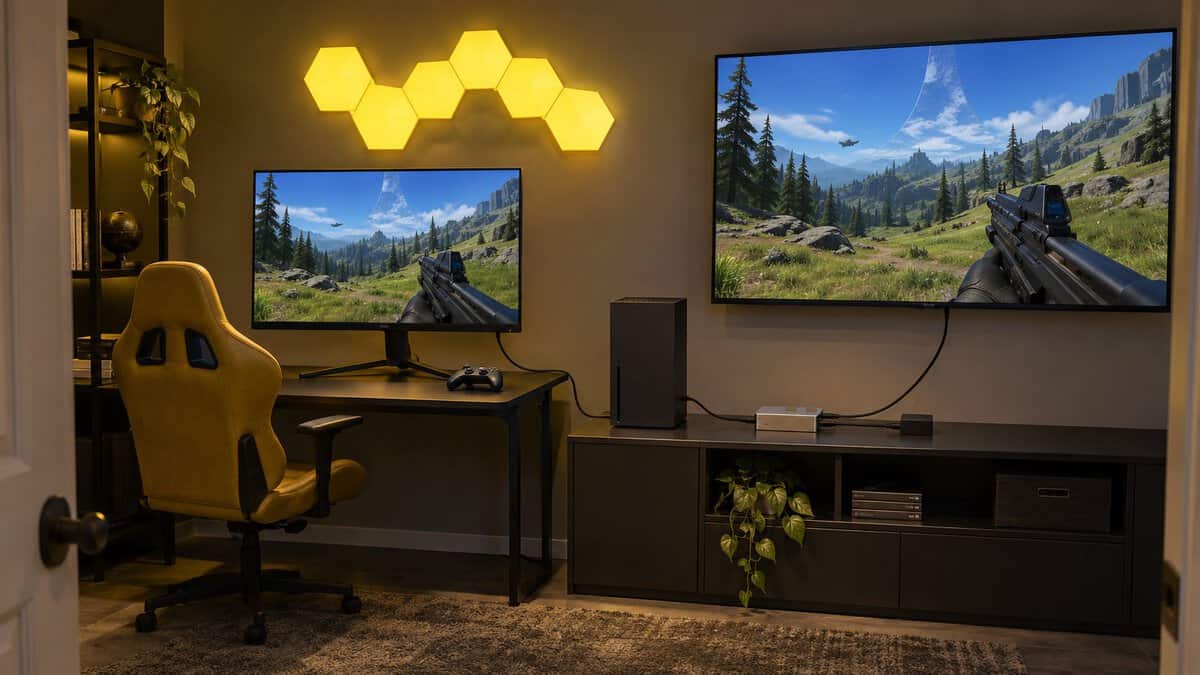
A stream preview screen, a LAN party display or a classroom TV that repeats a laptop all fit too. Each case needs one source copied to two screens and never two desktops.
Extending Needs a Second Video Stream
Extending needs the computer to send two separate video streams, and two technologies do that through one port. MST stands for Multi-Stream Transport and carries several streams down one DisplayPort link. Intel’s MST reference guide describes an MST hub that splits one DisplayPort cable into several video outputs. It also notes that MST arrived with DisplayPort 1.2.
DisplayLink takes a different route. A driver on the computer compresses the extra screens and sends them over USB, and a chip in the adapter turns them back into video. DisplayLink works on ports that carry no video signal at all, and it sidesteps the Mac’s lack of MST support.
Three Ways to Run Two Screens From One Port
The three picks are the Plugable USBC-MSTH2 for Windows laptops, the WAVLINK DisplayLink adapter for MacBooks and the OREI UHDS-102 for mirroring. The first two extend and the third one copies.
| Product | Plugs Into | Video Outputs | Two-Screen Max | Extend or Mirror | Driver | Operating Systems | Power | Built-In Cable |
|---|---|---|---|---|---|---|---|---|
| Plugable USBC-MSTH2 | USB-C, Thunderbolt or USB4 with DP Alt Mode | 2x HDMI | 4K 60Hz each (DP 1.4 with DSC), 1080p 60Hz each (DP 1.2) | Extend on Windows and ChromeOS | None | Windows 10 and 11, ChromeOS 100+ | USB bus | 6.75 in |
| WAVLINK DisplayLink Adapter | USB-C, Thunderbolt, USB4 or USB-A 3.0 | 2x HDMI | 4K 60Hz each | Extend or mirror | DisplayLink | Windows 10 and 11, macOS 11+, ChromeOS 100+ | USB bus, no power adapter in box | Hybrid USB-C and USB-A cable |
| OREI UHDS-102 | HDMI | 2x HDMI | 4K 60Hz, same image on both | Mirror only | None | Any HDMI source | Wall adapter, included | None, HDMI cables separate |
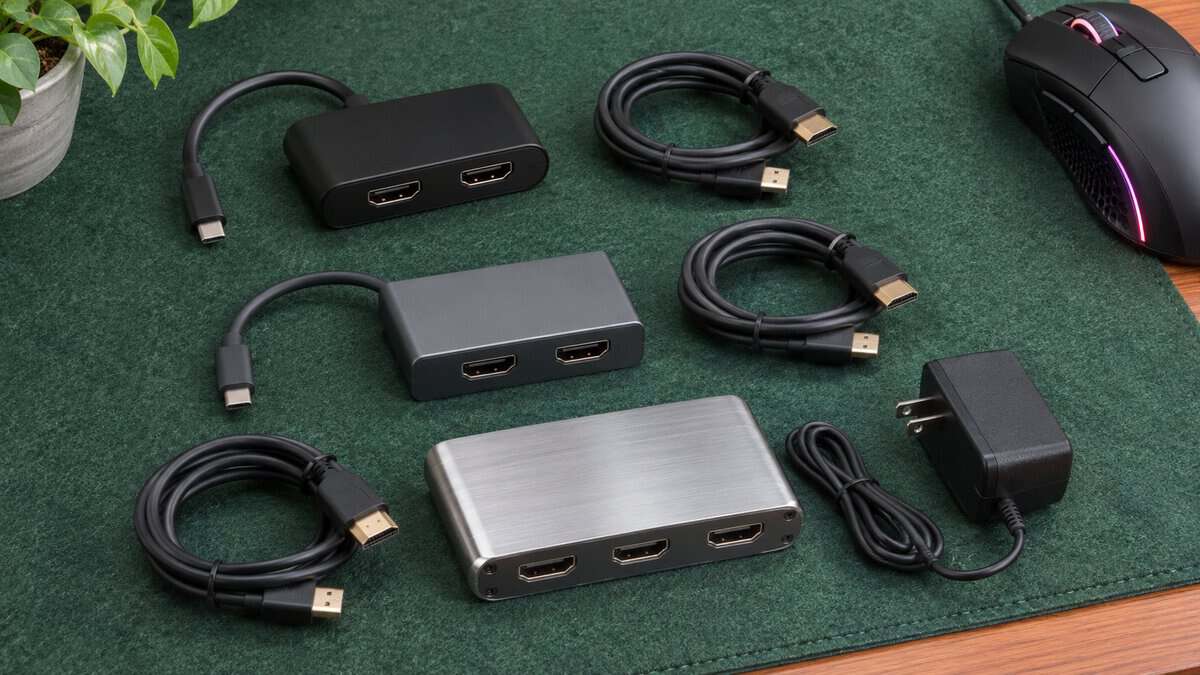
Plugable USBC-MSTH2: Best for Windows Laptops
The Plugable USBC-MSTH2 is the adapter to buy if your Windows laptop has a USB-C port that carries video. It splits that port into two HDMI outputs with MST, so each monitor gets its own extended desktop.
Two extended screens from one USB-C port, with no driver and no power brick.
The MSTH2 runs on the laptop’s own graphics. Plugable calls it driverless and bus-powered, so it needs no software and no wall adapter. A short 6.75-inch cable is built in, and the HDMI cables come separately.
Resolution depends on the laptop. Plugable rates the adapter at dual 4K 60Hz on laptops with DisplayPort 1.4 and DSC. Laptops with DisplayPort 1.2 drop to dual 1080p 60Hz. The video is native, so Plugable lists HDCP support for Netflix and Hulu.
The MSTH2 needs a USB-C, Thunderbolt or USB4 port with DisplayPort Alt Mode. A data-only USB-C port will not output video through it. On a Mac it gives one extended screen and one mirrored screen, since macOS does not support MST. If you also want charging and extra ports, our best USB-C hub guide covers docks that add both.
WAVLINK DisplayLink Adapter: Best for MacBooks
The WAVLINK USB-C to Dual HDMI DisplayLink Adapter is the pick for a MacBook that needs two extended screens. WAVLINK lists support for all M1 to M5 Macs, and those Macs cannot extend two screens through an MST adapter.
DisplayLink is the adapter type that gives a Mac two extended screens from one port.
The WAVLINK drives two HDMI screens at 4K 60Hz. Its hybrid 2-in-1 cable plugs into USB-C, Thunderbolt, USB4 or USB-A 3.0 ports. That means it also works on ports that carry no video. It supports Windows 10 and 11 as well as macOS 11 or later and ChromeOS 100 or later.
The tradeoffs come with DisplayLink itself. You install the DisplayLink driver before the screens light up. WAVLINK does not recommend the adapter for gaming, and it will not play HDCP-protected video on sites like Netflix and Hulu. It suits documents, chat and web work best.
OREI UHDS-102: Best for Mirroring
The OREI UHDS-102 is the pick when you really do want the same picture on two screens. It takes one HDMI input and copies it to two HDMI outputs at up to 4K 60Hz.
A true HDMI splitter is the right tool once mirroring is the goal.
OREI rates the UHDS-102 at 18 Gbps with HDCP 2.3. Its own page lists HDR10+ and Dolby Vision as well as HLG. Audio passes through too, including Dolby TrueHD and DTS-HD Master Audio. A power supply comes in the box.
OREI is clear that this splitter will not extend monitors into a dual screen mode. HDMI cables longer than 30 feet will not work with it, so measure the run to a far TV first. OREI lists game consoles and streaming boxes as sources it works with, along with Blu-ray players and PCs.
Start From the Port on Your Computer
The port on your computer decides the fix, and sometimes the fix costs nothing. Look at what is free on the back or side of the machine before you buy anything.
A Graphics Card With Free Outputs Needs Only a Cable
A desktop graphics card with free outputs needs only a second cable and no adapter at all. Most graphics cards carry several DisplayPort and HDMI outputs, and each one already drives its own screen.

Plug the second monitor into a free output and choose Extend in the Windows display settings. If the monitor takes both inputs, our DisplayPort vs HDMI for gaming guide explains which cable to use.
Use the outputs on the graphics card and not the ones on the motherboard. On many desktops the motherboard’s video ports do nothing while a graphics card is installed.
A Laptop With HDMI and a USB-C Video Port
A laptop with an HDMI port and a USB-C port that carries video can already run two screens. Plug one monitor into the HDMI port and the other into the USB-C port with a USB-C to HDMI cable, then choose Extend.
A USB-C Port With the Video Symbol
A USB-C port with a DisplayPort logo or a Thunderbolt bolt next to it carries video. That port suits an MST adapter such as the Plugable, which gives two extended screens on Windows and ChromeOS.
Check the laptop’s spec sheet if the port has no symbol. Look for DisplayPort Alt Mode, Thunderbolt or USB4 in the port list. If the sheet names DisplayPort 1.4 with DSC, both screens can run at 4K through the Plugable. If it lists DisplayPort 1.4 without DSC, results vary by system and may fall short of dual 4K 60Hz.
A USB-C or USB-A Port Without Video
A USB-C or USB-A port without video leaves DisplayLink as the only route. The adapter’s driver sends the screens over plain USB data, so the port never has to carry a video signal.
That makes the WAVLINK the fix for an older laptop with spare USB-A ports. It also suits a budget laptop whose only USB-C port handles data alone. The same adapter covers a Mac.
Gaming on the Second Screen Through an Adapter
Gaming through an adapter works best when the game stays on the main screen. A second screen on MST or DisplayLink suits chat, maps and guides.
MST Splits One Link’s Bandwidth
MST splits one link’s bandwidth between two screens. Both monitors share the data that a single DisplayPort connection can carry. That is why Plugable rates its adapter at dual 4K 60Hz only on DisplayPort 1.4 with DSC.
That shared link is also why the MSTH2 tops out at 60Hz on both screens, so it is not the route to high refresh. The video still comes from the laptop’s own graphics, so a game on an MST screen renders natively.
If high refresh matters to you, plug the gaming monitor straight into the laptop’s best video port and put the adapter on the second screen. Our HDMI 2.0 vs 2.1 guide covers what each HDMI version can carry.
DisplayLink Suits Chat and Guides More Than Games
DisplayLink suits chat and guides more than games. The driver compresses the picture and sends it over USB, so fast motion on a DisplayLink screen can look less smooth than on a native output.
WAVLINK itself does not recommend its adapter for gaming or graphics-heavy work. Keep the game on a screen wired to the computer’s own video output. Then use the DisplayLink screen for Discord, a stream chat or a walkthrough.
MacBooks and External Display Limits
A MacBook can reach its external screen limit before it runs out of ports. Base M1 and M2 MacBooks drive one external screen. Base M3 models drive two only with the lid closed, and M4 and M5 models drive two with the lid open. Apple lists how many external displays each model supports in its tech specs, so check that line for your Mac before you buy an adapter.

An M4 or M5 MacBook can run two screens natively with one USB-C to HDMI cable in each port, so DisplayLink matters most on base M1, M2 and M3 models.
DisplayLink gets around the one-screen and lid-closed limits because the extra screens do not use the Mac’s own video output. WAVLINK lists two extended screens on every M1 to M5 Mac. The DisplayLink Manager app has to be installed first, and macOS asks you to allow screen recording for it during setup.
Why a Cheap USB-C Dual HDMI Adapter Mirrors on a Mac
A cheap USB-C to dual HDMI adapter mirrors on a Mac because it relies on MST or on a simple split of one video signal. macOS has no MST support, so both outputs end up showing the same picture.
Look for DisplayLink in the product name before you buy one for a base M1, M2 or M3 MacBook, since a driverless MST adapter will mirror its two outputs. A Thunderbolt dock only helps if it has DisplayLink built in, because a standard dock still follows the Mac’s own display limit.
Before You Buy Any Adapter
First check the USB-C port for video support, then check the monitors’ inputs. Both picks that extend output HDMI, so each monitor needs an HDMI input and its own HDMI cable.
Last, ask whether a dock is the better buy. A dock adds charging, USB ports and often Ethernet along with the screens. If you plan three or four screens, our 4 monitor setup guide covers the bigger layouts.
The Device Sending the Picture and the Pick for It
The device sending the picture decides the adapter. Each row below matches a common setup to the fix that suits it.
| The Device Sending the Picture | The Pick | What It Does to Your Screens | What to Check First |
|---|---|---|---|
| Windows laptop with a USB-C port that carries video | Plugable USBC-MSTH2 | Two extended screens | DisplayPort Alt Mode on the port |
| MacBook, or any USB port without video | WAVLINK DisplayLink Adapter | Two extended screens through DisplayLink | Driver installed, no HDCP streaming |
| Console, streaming box or PC feeding two screens | OREI UHDS-102 | The same picture on both | HDMI runs under 30 feet |
| Desktop with free graphics card outputs | A second cable | Two extended screens | Which outputs are free |
Start from the port and then decide between mirror and extend. Once the second screen works, our best monitor arm guide covers arms that hold both screens at eye level.
Frequently Asked Questions
Short answers on running two monitors from one port.
Can an HDMI splitter extend my display to two monitors?
No, an HDMI splitter cannot extend your display. It copies one HDMI signal to two screens, so both show the same picture. To extend to two monitors from one port you need an MST adapter on a USB-C port that carries video, or a DisplayLink adapter that works over USB data. A graphics card with two free outputs only needs a second cable.
Can you run 2 monitors off one HDMI port?
You can run two monitors off one HDMI port only as a mirror. A splitter sends the same picture to both screens because HDMI carries one video stream from the computer. For two different screens, use a second port. A USB-C port with video can take an MST adapter, and any USB 3.0 or USB-C port can take a DisplayLink adapter.
Why do both monitors show the same thing?
Both monitors show the same thing because the computer sees them as one display or has Duplicate selected. A splitter always causes this. With two real outputs, press the Windows key and P together and choose Extend. If both screens still match after that, the adapter is mirroring and cannot send two separate streams.
Will a USB-C to dual HDMI adapter work on my MacBook?
A single-port USB-C to dual HDMI adapter gives a MacBook two extended screens only if it uses DisplayLink. macOS does not support MST, so a driverless MST adapter gives a Mac one extended screen and one mirrored screen at best. A DisplayLink adapter such as the WAVLINK lists two extended screens on M1 to M5 Macs once its driver is installed.
Can I game on a monitor connected through DisplayLink?
You can, but DisplayLink is a poor fit for the game itself. Input lag and dropped frames are the usual complaints. WAVLINK does not recommend its adapter for gaming. Keep the game on a screen wired to the graphics output and use the DisplayLink screen for chat.
Do I need a splitter if my graphics card has two ports?
No, you do not need a splitter if your graphics card has two free ports. Connect each monitor to its own output with its own cable, then choose Extend in the Windows display settings. Each port drives a separate screen at its full resolution and refresh rate. A splitter would only copy one picture to both screens.
Looking for more budget gaming gear? Check out Budget Loadout for the latest reviews and recommendations.
Related Articles