Your GPU doesn’t have to sound like a small vacuum cleaner every time you queue into a match, load into a crowded MMO city, or start streaming while gaming. A lot of cards ship with more voltage than they need for stable performance. That’s good for manufacturers because it covers a wide range of chips. It’s not always good for you.
That’s why learning how to undervolt your gpu is one of the best free upgrades for a value-focused build. You’re not buying a new cooler. You’re not replacing the card. You’re tuning the hardware you already paid for so it runs cooler, quieter, and with less power waste. For budget-conscious gamers, that matters. Better thermals help build quality hold up over time, especially in cases with modest airflow and cards that already run warm under load.
- Undervolting trades a small voltage drop for cooler temps, quieter fans, and often steadier sustained clocks — all for free.
- MSI Afterburner is the standard tool for NVIDIA cards; AMD Radeon Software has built-in tuning that handles most of the work.
- Always note your card’s stock voltage and clock curve before changing anything — this is your rollback point if stability fails.
- Test with real games, not just synthetic benchmarks — a card that passes 20 minutes of FurMark can still crash in your actual workload.
- Silicon lottery is real — your friend’s stable undervolt may not work on your identical card. Tune around your specific GPU, not someone else’s screenshot.
Table of Contents
Why Bother Undervolting Your GPU
Three hours into a match, the pattern gets old fast. GPU temps creep up, the fans get louder, and boost behavior starts to wobble right when you want steady performance. Long sessions in MMOs, open-world games, and shooters make wasted voltage easy to notice because the card stays under load long enough for heat and noise to build.
Undervolting trims that waste. The goal is simple: run the GPU at the lowest voltage that still holds the clock speed you want without crashing or throwing artifacts. Factory settings usually leave extra headroom because board partners need one profile that works across a wide spread of chips. That makes sense for mass production. It often means your specific card is using more power than it needs.
For a budget builder, that matters more than it does for someone who can solve every thermal problem by buying a bigger cooler or a higher-end card. A good undervolt can cut heat, reduce fan ramping, and help the card sustain its boost longer in real games. If you are using a compact build or an entry-level enclosure, a better gaming PC case for airflow and durability still helps, but lowering the heat your GPU produces is often the cheaper fix.
There is a trade-off. Not every chip undervolts the same way. The silicon lottery is real, and two identical cards can land on different stable settings. Some GPUs hold near-stock performance with noticeably less voltage. Others need a more conservative tune.
What you actually gain
Lower temperatures: Less voltage usually means less heat dumped into the GPU cooler and the rest of the case.
Less fan noise: When the card runs cooler, the fan curve has less work to do.
More consistent performance: A cooler GPU is less likely to bounce off thermal limits and shed clock speed during longer sessions.
Practical rule: Undervolting is a reliability and comfort tweak first, and a performance consistency tweak second.
That is why I recommend it so often for value-focused builds. You are not trying to turn a midrange card into a flagship. You are making the card you already own run with less waste, less noise, and less thermal stress, which is about as close as PC building gets to a free upgrade.
Prerequisites and Recommended Free Tools
Before touching clocks or voltages, get your software sorted. A clean process makes undervolting much safer and much less frustrating.
If you’re new to PC tuning, it helps to treat this the same way you’d treat any careful system change while learning how to build a gaming PC. Start with a baseline. Change one thing at a time. Test. Save a profile only after you know it’s stable.
What to have open
A tuning utility: Use the standard GPU tuning software for your card so you can adjust voltage and clock behavior.
A monitoring app: Watch temperature, clock speed, voltage, and power draw in real time.
A benchmark or stress test: You need a repeatable load to compare stock behavior against your undervolt.
What to write down first
Before changing anything, note:
Your stock temperature under load
Your normal boost clock during a benchmark
Your card’s power draw while gaming or stress testing
Whether fan noise is already bothering you
That baseline is how you decide whether the undervolt helped.
Undervolting is generally low risk because you’re reducing electrical stress, not increasing it. But any manual tuning is still your responsibility, so move slowly and keep notes.
One more practical point. Undervolting won’t fix a physically bad setup. If the card is clogged with dust, the case has poor intake, or the cooler itself is weak, software tuning can only do so much. It still helps, but don’t expect miracles from a dirty system with bad airflow.
Undervolting an NVIDIA GPU with MSI Afterburner
Your GPU hits full load, the fans ramp up, the case gets warmer, and your frame rate still dips after twenty minutes. For a budget build, that gets expensive fast if the first idea is “buy a better cooler” or “replace the card.” A careful undervolt is the cheaper fix. The free tool for the job is MSI Afterburner, which has been the standard curve editor for NVIDIA cards for years. You keep the performance you already paid for, while cutting some of the heat and noise that make long sessions annoying.
NVIDIA cards usually respond best to curve tuning, not just a simple slider drop. The goal is straightforward. Hold a realistic boost clock at a lower voltage so the card wastes less power under load.
On a value-focused system, this matters more than people expect. Cards in the RTX 3060 or RTX 4060 class often end up in cases with average airflow and stock fans. A good undervolt can lower temperature enough to calm fan noise and help the card sustain its boost longer in actual games. That is a real quality-of-life upgrade if you are trying to stretch the life of hardware instead of replacing it.
Read the curve before you change it
Open your tuning utility and run your normal repeatable load. Watch where the card settles once the initial boost spike is over. You want the clock it holds most often under load, not the brief peak it touches for a second.
Then open the voltage-frequency curve editor with Ctrl+F. Each point on that graph pairs a clock speed with a voltage level. Instead of forcing the whole card lower, you are choosing one efficient point and telling the card to stay there.
Build the undervolt around your real gaming clock
Start near the clock your card already sustains in games. Then pick a lower voltage point to the left and raise it to roughly that same frequency. After that, flatten the points to the right so the card does not jump back to higher-voltage states.
That last step matters. If you leave the right side of the curve untouched, the card can still boost into hotter, noisier behavior and wipe out most of the benefit.
A safe workflow looks like this:
Find the clock your card holds under load
Use the sustained clock, not the short burst at the start of a test.Choose a modestly lower voltage point
Small changes are easier to validate and far less likely to cause crashes later.Match that point to your target frequency
Keep your expectations realistic. The best undervolt is the one you can use every day.Flatten the curve to the right
This keeps the GPU from requesting extra voltage once load increases.Apply the profile and test it in a real game
Menus and short benchmarks miss problems that show up after a longer session.
I usually tell budget builders to avoid chasing a “perfect” result. The silicon lottery is real. One card will hold a strong clock at low voltage with no drama. Another of the same model will need a little more headroom. Stable and repeatable beats aggressive every time.
What a good result looks like
A successful undervolt usually does three things at once. Temperatures drop. Fan speed drops with them. Performance stays the same or becomes more consistent because the card is no longer bouncing off thermal or power limits as hard.
That is why undervolting makes so much sense on lower-cost systems. If your cooler is basic and your case airflow is only decent, software tuning can get you part of the benefit you would otherwise try to buy with new hardware. If you are comparing upgrade options, it helps to look at where your card fits against other picks in this budget graphics card guide.
A longer walkthrough helps if the curve editor feels unfamiliar:
Flattening the right side of the curve turns a rough tweak into a controlled undervolt. Skip that step, and the card may still jump to hotter, less efficient states.
Undervolting an AMD GPU with Radeon Software
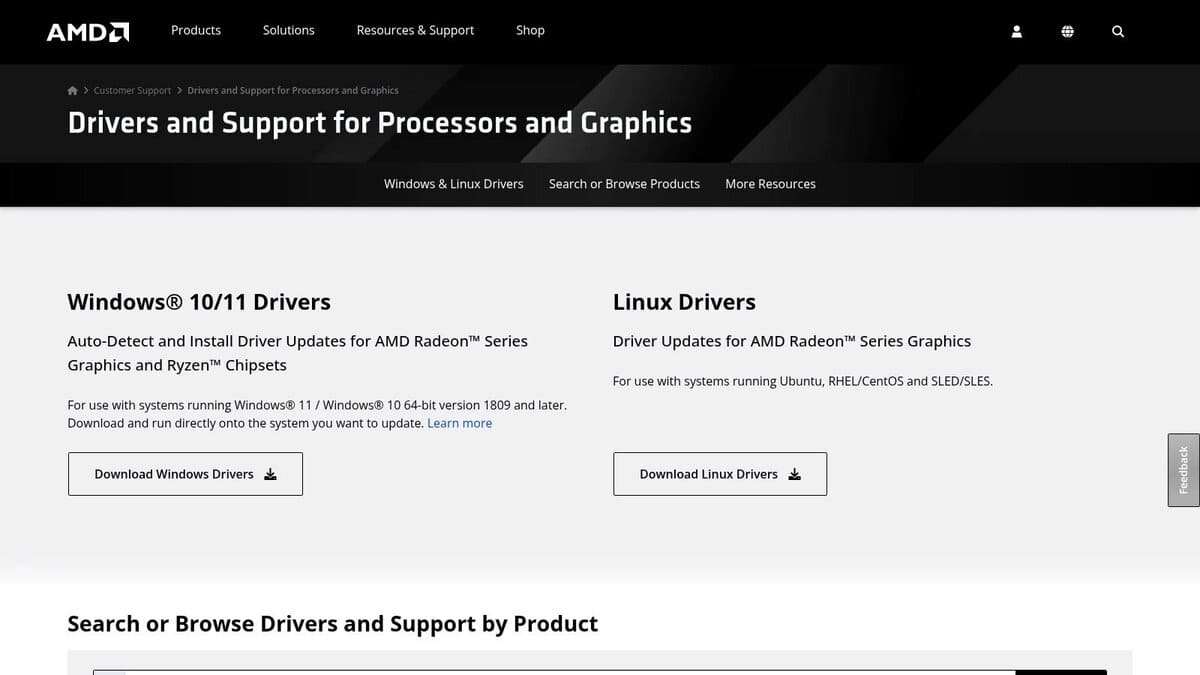
Your GPU does not need a new cooler to run better. If you are gaming on a budget build and the card gets loud after thirty minutes, AMD’s built-in Radeon Software (Adrenalin Edition) can often get temperatures and fan noise under control for free.
Start with the automatic option
Open the driver’s performance panel, go to tuning, and try the automatic undervolt preset first. It is the lowest-risk place to start on an AMD card because it applies a conservative adjustment without asking you to guess at clocks or voltage targets.
That preset is often enough for a budget system. A small drop in voltage can keep the GPU from heat-soaking as hard in longer sessions, which helps the fans stay calmer and the boost behavior stay more consistent. If you are trying to hold steadier frame rates instead of chasing a bigger average number, it helps to understand the difference between averages and consistency in this guide to average FPS for a gaming PC.
If the auto setting is stable in the games you play, keep it. There is no prize for forcing a manual tune on a card that is already doing what you need.
Manual tuning for better control
Manual tuning makes sense when you want a little more efficiency or the automatic preset leaves some room on the table. Enable manual GPU tuning, turn on the advanced controls, and lower voltage in small steps while keeping an eye on clock behavior.
The process is simple:
Lower the voltage a little at a time
Apply the change and check for obvious problems
Watch for driver resets, flickering, or sparkling artifacts
Save one known-stable profile before pushing lower
AMD cards usually make this easier than full curve editing, but the trade-off is less granularity. You may not get the same fine control you see in other workflows. That is normal. The goal is not a perfect number. The goal is a stable card that runs cooler and quieter under the same gaming load.
What to expect on an AMD card
Silicon lottery rules still apply. Two cards with the same name can need different voltage targets, especially if one has a thinner cooler or weaker case airflow.
That matters more on budget rigs. A stable undervolt can take pressure off a basic dual-fan card, reduce the heat dumped into the case, and stop the fans from ramping up and down every few minutes. In real use, that often feels like a bigger upgrade than the benchmark chart suggests.
Expect modest gains, not miracles. If your card already runs cool, the improvement may be small. If it runs hot or noisy, undervolting usually gives you more back.
Testing for Stability and Measuring the Gains
A GPU undervolt only counts if it stays stable through the games you play. A profile that looks fine on the desktop, then crashes an hour into a match, is just wasted time.
Start with a clean before-and-after check. Run the same built-in game benchmark, common graphics benchmark, or synthetic stress test at stock settings and write down temperature, fan noise, power draw, and average clock speed. Then apply your undervolt and repeat the exact same test.
Keep the first check short. Ten to fifteen minutes is enough to catch obvious instability like artifacting, flicker, a driver reset, or a sudden drop in boost behavior. If any of that shows up, add a small amount of voltage back and test again.
That first pass is only a filter.
Use real games, not just repeatable tests
Synthetic loads are useful because they remove variables. They help you spot a bad undervolt fast. Real games matter more because they stress the card in ways benchmarks often do not, especially during shader compilation, scene changes, heavy effects, and long sessions where heat builds up inside the case.
Test in this order:
First pass: Loop a repeatable graphics test and watch clocks, temperature, and visual stability.
Second pass: Play your most demanding game for at least 30 to 60 minutes.
Third pass: If you record, stream, or play with a second monitor full of background apps, test that too.
Budget builders should care about this more than anyone. If your GPU cooler is average and your case airflow is only decent, a stable undervolt can keep the card from heat-soaking later in the session. That usually means less fan ramping, less noise, and more consistent boost clocks instead of a card that starts strong and then slowly backs off.
If you want a reference point for average FPS expectations for a gaming PC, compare your tuned result against what your hardware class should deliver. The win is keeping frame pacing smooth while cutting heat and noise.
What to compare before and after
Do not focus on peak clock alone. Watch what the card holds over time.
| Metric | Stock | Undervolt |
|---|---|---|
| Peak temperature | Higher | Lower |
| Fan noise | Louder | Quieter |
| Power draw | Higher | Lower |
| Sustained clock behavior | More variable | More consistent |
| Long-session performance | More likely to taper off | More likely to stay steady |
A good undervolt often looks boring in the best way. The card runs cooler, the fans stop surging, and performance stays more stable across a full evening of gaming.
Test longer than you think you need to
Some unstable profiles fail fast. Others wait until the GPU is fully heat-soaked or a specific game engine hits a workload your quick test never touched. That is why one clean benchmark run does not prove much.
Give a promising profile a few longer sessions before you trust it. I usually treat an undervolt as proven only after it survives a couple of extended gaming sessions without a black screen, driver timeout, odd flicker, or random crash to desktop. Silicon lottery still decides how far each card can go, so the best result is not the lowest voltage number. It is the lowest stable voltage your specific card can hold every day.
Troubleshooting and Sample Starting Points
A bad undervolt usually shows up the same way for budget builders. The PC seems fine at first, then a long session turns into a black screen, a driver reset, or sudden clock drops once the case gets hot. In most cases, the card is pushed a little too far for that specific chip.
The fix is usually boring, and that is good. Add a small amount of voltage back, save the profile, and test again. Do not chase someone else’s screenshot. Two cards with the same name can need different settings because of chip quality, cooler design, case airflow, dust buildup, and room temperature. Silicon lottery decides the ceiling.
Common problems and the straightforward fix
Black screen or driver reset: Raise voltage one small step and reload the profile.
Random game crashes after 20 to 60 minutes: The profile passed a quick test but fails once the card is heat-soaked. Add a little headroom and retest in the games you play.
No real temperature drop: Check case airflow, dust, and fan curves. An undervolt helps, but it cannot fix a case with poor ventilation.
Lower performance than stock: The frequency target is likely set too low, or the card is bouncing between unstable points on the curve.
Profile keeps breaking Windows at startup: Boot into Safe Mode, stop the tuning app from launching, and reset to default.
Cooling still matters. If the whole system runs hot, the GPU gets blamed for a case problem. It helps to compare your setup against normal CPU temperatures in a gaming PC so you can tell whether the issue is the card itself or the airflow around it.
Silicon lottery is real
A conservative starting point saves time. A copied final setting usually wastes it.
As noted earlier, long-term testing matters more than one clean benchmark pass. Some unstable undervolts fail immediately. Others look fine until a heavier game, a warmer room, or a few hours of heat buildup expose the weak point. That is why I treat late-session crashes and odd flickering as voltage problems first, not mystery bugs.
For a budget gamer, the goal is not winning a screenshot contest with the lowest millivolt number. The goal is getting a card that runs cooler, stays quieter, and holds its performance through a full evening of play without drama.
Sample Undervolt Starting Points Your Mileage May Vary
Use these as cautious first passes, not guaranteed final settings.
| GPU Model | Target Frequency | Starting Voltage |
|---|---|---|
| RTX 3070 | 1830MHz | 831mV |
| RTX 3080 Ti | 1920MHz | 880mV |
| RTX 4090 | 2790 to 2820MHz | 1V |
If your card refuses one of these settings, that does not mean anything is wrong. Back off slightly and work upward until it is stable. If your card does better, take the win, but still test it like you expect it to fail.
A good undervolt feels uneventful. No crashes, no fan surges, no strange frametime spikes. Just lower heat, less noise, and steadier behavior in long sessions.
Conclusion A Cooler Quieter PC for Free
You finish a long gaming session and the result is easy to notice. The room feels less hot, the fans are not screaming, and your GPU is still holding its clocks instead of baking itself into lower performance.
That is why undervolting makes so much sense for a budget build. It costs nothing but a little setup time, and the payoff shows up every time you play. Lower temperatures help the whole system. Lower fan speeds cut noise. Better thermal behavior often means the card can sustain its performance longer instead of bouncing between boost and throttle once heat builds up.
I like undervolting because it improves the parts of PC gaming that expensive upgrades usually fix. If you cannot justify a better cooler, a case swap, or a newer graphics card, tuning the one you already own is one of the safest ways to get a better daily experience. You are not guaranteed a miracle result, because the silicon lottery is real, but even a modest stable undervolt can make a cramped or value-focused build feel much more refined.
Keep the goal practical. A good undervolt is not about chasing the lowest voltage number you can post in a screenshot. It is about getting a card that runs cooler, sounds better, wastes less power, and stays stable through a full night of gaming.
Frequently Asked Questions
Is undervolting a GPU safe?
Yes, when done correctly. Undervolting reduces voltage, not the other way around, so it cannot damage the card by overload. The worst case is an unstable system that crashes — at which point you reset the curve to stock and try again with less aggressive settings.
Will undervolting void my GPU warranty?
In most cases no, because undervolting is reversible at any time and does not modify firmware. Software-only voltage changes through MSI Afterburner or Radeon Software typically are not tracked by manufacturers. If you want to be safe, reset to stock before submitting an RMA.
Will I lose FPS by undervolting?
Usually no, often the opposite. A well-tuned undervolt keeps the GPU below its thermal limit, which means it can hold its boost clock longer in long sessions. The card runs at the same clock with less voltage, so frame rates stay the same or improve.
If that is the kind of upgrade strategy you care about, Budget Loadout is worth bookmarking. It focuses on value-first gaming and streaming gear, with practical guides for players who want solid build quality, durability, and real performance without wasting money.
Related Articles