Background noise is ruining your comms. Whether you’re trying to coordinate a raid, streaming to an audience, or your friends are complaining about your keyboard during an FPS match, poor audio quality is a major distraction. Learning how to reduce background noise on a mic is one of the fastest ways to improve your gaming experience.
The good news is that you probably don’t need a new mic. The most common noise issues can be solved for free by making a few smart adjustments. This guide will walk you through fixing your audio, from physical setup to software filters, with specific recommendations for gamers on a budget who value performance over brand hype.
- Lower your mic gain and move the mic closer to your mouth — this single fix eliminates most hiss and static
- Dynamic mics reject room noise far better than condensers, making them the smarter choice for untreated gaming spaces
- Free AI tools like NVIDIA Broadcast can remove keyboard clicks, fan noise, and room echo in real time
- Simple room fixes like a towel on your desk or a bookshelf behind you absorb sound reflections without expensive acoustic panels
- Push-to-talk is best for competitive gaming where every callout matters, while a noise gate works better for casual streams
Table of Contents
Quick Fixes for Common Microphone Noise
Before you start messing with settings, you have to diagnose the problem. A constant, low-frequency hum from your PC fans requires a different fix than the sharp clatter of your mechanical keyboard.
Stop tweaking things randomly. Instead, record a short audio clip of yourself talking and, more importantly, not talking. Listen back with headphones. What do you hear in the silence?
Is it a steady hiss? A deep rumble? Or is it sharp, sudden sounds from your keyboard and mouse? Pinpointing the specific type of noise is the most important step. Another common issue is the harsh, explosive “P” and “B” sounds, known as plosives. You can find out how to get rid of those in our guide on microphone pop filters.
Key Takeaway: Don’t assume all background noise is the same. Recording a short audio clip and listening back with headphones will immediately reveal whether you’re dealing with ambient room tone, electrical hum, or physical noises from your desk.
I’ve put together a troubleshooting checklist to help you identify the culprit and apply the right fix. Use this before diving into more advanced hardware or software settings.
Common Mic Noise Problems and Their Quick Fixes
This table breaks down the most frequent audio issues and gives you the most effective first step to solve each one.
| Noise Type | Common Cause | Top Budget-Friendly Fix |
|---|---|---|
| Hiss or Static | Microphone gain is set too high, amplifying the noise floor of the electronics. | Lower the gain on your mic or in your system settings until the hiss disappears. Move the mic closer to compensate for volume. |
| Low Hum or Buzz | Electrical interference from unshielded cables or a ground loop issue. PC fan vibration. | Plug your mic and audio interface into the same power strip. Move audio cables away from power cables. |
| Keyboard/Mouse Clicks | Mic is too sensitive or positioned poorly, picking up desk vibrations and direct sound. | Move your mic off the desk and onto a boom arm. Position it closer to your mouth (3-6 inches). |
| Echo or Reverb | Sound from your voice bouncing off hard surfaces like walls, desks, and monitors. | Place soft materials (blankets, pillows) behind and around your microphone to absorb sound reflections. |
Starting with these simple fixes will solve the vast majority of background noise issues. Once you’ve tried these, you’ll have a much clearer idea of what problem—if any—is left to tackle with more advanced techniques.
Why Your Mic Choice and Placement Matter for Noise Rejection
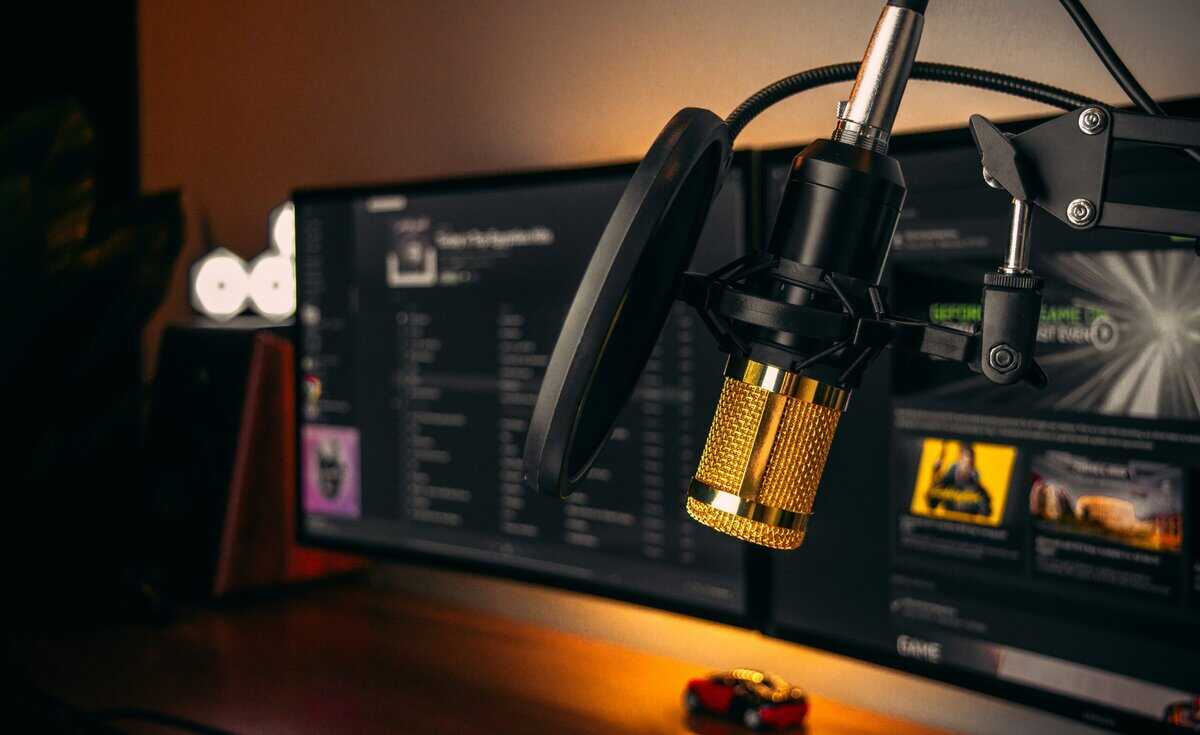
Before you touch software filters, get your hardware right. Your microphone type and how you position it are the most powerful tools you have for cutting down background noise. For most gamers in a typical, untreated room, a dynamic microphone is a better choice than a condenser microphone.
Condenser mics, like the popular Blue Yeti, are designed to be sensitive. They’re great for capturing subtle detail in a soundproof studio, but that same sensitivity becomes a liability when your PC fans are humming and your roommate is watching TV down the hall.
Dynamic mics are less sensitive by design and excel at rejecting sound that isn’t directly in front of them. This is why you see them on stage at live concerts—they pick up the singer’s voice, not the crowd. A quality dynamic mic like the Shure MV7, while an investment, offers exceptional noise rejection and a durable, all-metal build that will last for years. The tradeoff is that you must keep it close to your mouth for optimal volume.
Dynamic vs. Condenser for Gaming
For gamers on a budget, choosing a dynamic mic often means getting clearer comms without spending on expensive acoustic treatment. The market for ambient noise filtering mics hit an estimated USD 12 billion in 2024, because streamers and gamers demand this clarity. It’s not just about sounding good; studies show that significant background noise can slash a listener’s comprehension by as much as 35%. That could mean your teammates missing a critical callout.
Let’s apply this to specific gaming use cases:
FPS Gaming (Valorant, Apex Legends): The frantic clicks of a mechanical keyboard and rapid-fire callouts make a dynamic mic the clear winner. It will focus on your voice and do a much better job of ignoring the chaos on your desk.
MMO or Streaming (World of Warcraft, Twitch): A well-placed condenser mic can work here if your environment is already quiet. But a dynamic mic is still the more forgiving, consistent option if someone suddenly decides to start a vacuum cleaner in the next room. For streaming, a dynamic mic’s noise rejection simplifies your audio setup.
Pro Tip: Don’t just point the mic directly at your mouth. Try to speak across the top of the microphone capsule instead. This simple shift in angle dramatically cuts down on plosives—those harsh “P” and “B” sounds—without you having to buy extra gear.
The Rules of Mic Placement
Proper microphone placement is free and more effective than any software filter you can apply later. The goal is simple: maximize the sound of your voice while minimizing the sound of your room.
Position the mic about 3-6 inches from your mouth. This close proximity allows you to turn down the microphone’s gain, which is the single most effective way to reduce background noise on a mic.
Think of it this way: the closer you are, the less the mic has to “listen” for your voice, and the less it will pick up everything else. A boom arm is a worthwhile purchase because it gets the mic off your desk, isolates it from keyboard vibrations, and keeps it perfectly positioned in that sweet spot.
Optimizing Your Hardware and Windows Settings
With your mic in the right spot, it’s time to fine-tune its signal. This part is about tweaking the physical controls on your gear and diving into some often-ignored settings right inside Windows. These adjustments are free, take just a few minutes, and are critical for silencing background noise.
The most important setting to master is microphone gain. Many people mistake this for a volume knob, but it’s not. Gain controls the microphone’s sensitivity. Cranking it up makes you louder, but it also makes the mic hyper-sensitive to every little thing—your keyboard clicks, PC fans, and the echo in your room.
The goal is to find the sweet spot where your voice is clear, but you aren’t amplifying the entire room. For a budget-conscious gamer, getting gain right is the most effective thing you can do for your audio quality. On an audio interface, it’s a physical knob. On a USB mic, it’s usually a knob on the mic itself or a slider in its software.
Adjusting Gain and Using Hardware Filters
Start low. Set your mic’s gain to about 25% and record a quick test clip of you talking at a normal, conversational volume.
If you sound too quiet, bump the gain up in small steps of 5-10% and test again. You’re aiming for your voice to peak between -12dB and -6dB in your recording software’s audio meter. This gives you plenty of headroom and keeps your audio from clipping or distorting.
Some mics and nearly all audio interfaces come with a switch labeled high-pass filter (HPF) or “low-cut.” This is a secret weapon against low-frequency rumble.
A high-pass filter is designed specifically to eliminate constant, low-end noise like the hum from an air conditioner, PC fans, or distant traffic. Engaging it cleans up your audio without affecting the clarity of your voice.
Flipping this physical switch filters the sound at the hardware level before it ever reaches your PC. That’s always better than trying to fix it with software later. If you’re looking for more of this kind of hands-on control, our guide on choosing an audio mixer for PC is a good next step.
Leveraging Windows Audio Settings
Windows has its own audio enhancement tools that can be effective. They’re usually disabled by default, but turning them on can make a real difference.
To find them, head to your sound settings, open your microphone’s properties, and look for a tab called “Enhancements” or “Advanced.”
The two options you’re looking for are “Noise Suppression” and “Acoustic Echo Cancellation.”
Enable them. This can instantly cut down on a significant amount of ambient room noise. The combined effect is powerful—proper mic placement (3-6 inches from your mouth), a pop filter, and enabling Windows’ noise suppression can reduce ambient sound by up to 50%. You can read more about the impact of noise-canceling technology on TurtleBeach.com.
One last tip: if you hear a faint electrical hum that won’t go away, try plugging your USB mic into a different port. Use one directly on the motherboard at the back of your PC, not a front-panel port or a cheap USB hub. This simple change often solves grounding issues that introduce electrical interference.
Practical Room Treatment on a Budget
You don’t need a professional recording studio to make your audio sound better. Your microphone hears echo and reverb as another form of background noise—a thin, hollow sound that makes you seem distant and unprofessional, even if you’ve nailed your gain settings.
The cause? Hard, flat surfaces. Your voice hits the walls, ceiling, floor, and even your desk, then bounces right back into the mic. The solution is to deaden the room with soft, absorbent materials you probably already have. This is called acoustic treatment, and it doesn’t need to be expensive.
DIY Sound Absorption Strategies
Your goal is to catch sound reflections before they make it back to your mic. The easiest way is to surround your recording area with soft, dense materials.
Heavy Blankets or Comforters: Drape them over chairs or hang them on the walls behind and to the sides of your setup.
Plush Rugs: If you have hardwood or tile floors, a thick area rug is one of the simplest and most effective audio upgrades you can make.
Pillows and Couch Cushions: Don’t underestimate them. Prop them up on your desk behind your monitor or in the corners of the room.
Full Bookshelves: A bookshelf packed with books creates an uneven surface that is great at scattering and diffusing sound waves.
A common mistake is thinking you need to cover every inch of your room. You don’t. Just focus on the area immediately around your microphone, especially the wall directly behind it. This is where most distracting primary reflections come from.
Gaming Space Layout Example
Let’s say your gaming setup is in the corner of your bedroom. Those two walls create a perfect echo chamber.
To fix it, hang a heavy blanket on the wall directly behind you. If you can, hang another on the side wall. Toss a few pillows on your desk behind the monitor, and if the floor isn’t carpeted, throw down a rug. This simple layout can absorb a massive amount of reverb.
Beyond your immediate recording space, a quieter environment always helps. For more ideas, you can check out resources on the reduction of noise in your office. Even these small changes will make your voice sound richer and more present, which is a huge part of learning how to reduce background noise on a mic.
Using Software Filters to Eliminate Lingering Noise

Once you’ve optimized your physical setup, software is where you add the final polish. Think of it as a surgical tool that cleans up any lingering noise.
The best part? You probably already have these tools. Most streaming and communication apps like OBS Studio and Discord have them built right in. They’re free, powerful, and more than enough to get your mic sounding crisp and clear.
The key is to think of software filters as a chain. The order you apply them in matters. A logical sequence ensures each filter works on the cleanest possible signal. If you’re recording content, a deep dive into editing a podcast in Audacity, including noise reduction can give you a masterclass in how these concepts work in post-production.
Your Essential Filter Chain in OBS
For live streaming and gaming, OBS Studio gives you excellent control over your audio for free. You can add these filters by right-clicking your microphone in the Audio Mixer, selecting “Filters,” and adding them one by one.
This basic filter chain, applied in the correct order, will dramatically improve your mic quality. Each step cleans the audio before passing it to the next, which is why the sequence is so important.
Here are the essential filters and some solid starting points. Remember, these are starting points—you’ll need to tweak them to match your voice and environment.
Recommended OBS Filter Chain for Noise Reduction
| Filter Order | Filter Name | Purpose | Starting Settings |
|---|---|---|---|
| 1st | Noise Suppression | Removes constant background hum from fans or AC units. | Method: RNNoise (Good quality) |
| 2nd | Noise Gate | Mutes the mic when you aren’t talking to cut out typing or controller sounds. | Close Threshold: -32 dB Open Threshold: -26 dB |
| 3rd | Compressor | Evens out your volume, making quiet parts louder and loud parts quieter. | Ratio: 4:1 Threshold: -18 dB |
Getting these filters dialed in makes a massive difference. Noise suppression acts first, cleaning up constant hiss. The noise gate then works on that cleaner signal, opening only for your voice. Finally, the compressor smooths out the volume of your now-clean audio for a consistent listening experience. Our complete guide to OBS settings for streaming dives deeper into optimizing these for a flawless broadcast.
The Power of AI Noise Removal
While traditional filters are useful, AI-powered tools like NVIDIA Broadcast (for RTX card owners) and AMD Noise Suppression are on another level. These tools use machine learning to intelligently separate your voice from almost any background noise, including unpredictable sounds that a normal noise gate would miss—like a dog barking or a door slamming.
NVIDIA Broadcast is particularly effective. It acts as a virtual microphone that you select in Discord, OBS, or your game. It processes your audio before it reaches the application, cleaning up everything from aggressive keyboard clicks to other distracting sounds.
The tradeoff is that it requires a powerful GPU and can introduce a tiny bit of audio latency. For most gaming and streaming, the benefit of clear comms is well worth it.
Answering Your Lingering Mic Noise Questions
You’ve nailed the basics, but a few specific issues can still be frustrating. Let’s tackle the common questions that pop up once you start fine-tuning your audio.
Should I Use Push-to-Talk or a Noise Gate?
For competitive shooters like Valorant or Apex Legends, where a split-second callout can win the round, push-to-talk (PTT) is the right call. It gives you absolute control. A noise gate can sometimes chop off the first or last word of a frantic call, a risk you can’t afford. The tradeoff is needing to dedicate a finger to the PTT key.
A noise gate is a better fit for laid-back streams or MMO sessions. It handles the muting for you, which is a huge convenience when your hands are tied up with rotations or interacting with chat. The tradeoff is that you have to spend time dialing in the threshold just right to avoid clipping your words or letting in unwanted sounds.
My Mic Still Picks Up My Keyboard. What Now?
That incessant clacking is the number one audio complaint from other gamers. If you’ve already got your mic on a boom arm and close to your mouth, a few other tricks can finish the job.
Try O-Rings: These cheap rubber rings sit under your keycaps. They dampen the “bottom-out” sound of a mechanical key press without significantly changing the feel. It’s a good budget fix.
Use AI Noise Suppression: This is your best tool. NVIDIA Broadcast is purpose-built to surgically remove non-vocal sounds like keyboard clicks. It is far more effective than a traditional noise gate for this specific problem.
Check Your Mic’s Polar Pattern: If your microphone has switchable patterns, make sure it’s set to cardioid. This pattern is designed to hear what’s directly in front of it and ignore noise from the sides and rear—like where your keyboard is.
AI noise suppression is the definitive solution for keyboard noise. Traditional methods can only soften the sharp, sudden sound of a mechanical switch, but AI can often erase it completely.
Is an Expensive Microphone Worth It for Gaming?
No, not for gaming comms. A $400+ studio microphone is built to capture every subtle vocal detail for music production. That level of nuance is completely lost to the audio compression on Discord or in-game chat.
In fact, that extreme sensitivity often makes a high-end mic worse for a typical gaming room. It will pick up every echo, PC fan hum, and distant noise you’ve been working to eliminate.
The sweet spot for a gamer who wants clear comms is the $50-$150 range. A solid dynamic USB mic like the Samson Q2U or the Shure MV7 gives you excellent noise rejection, a durable build, and all the clarity you need without the unnecessary sensitivity. Spending more for gaming alone is a case of diminishing returns. Put that extra cash toward a good boom arm instead.
For more budget gaming gear guides, tips, and recommendations, check out BudgetLoadout.com — your go-to resource for gaming on a budget.
Related Articles