The best monitor for Xbox Xbox Series X is one that supports 4K resolution at a 120Hz refresh rate over an HDMI 2.1 connection. This is the specification the console was designed for. However, for budget-conscious gamers, a 1440p 120Hz monitor often represents better value, delivering fluid gameplay without the high cost of a premium 4K display.
 Xbox Series X console close-up for choosing the best monitor for Xbox Series X” class=”wp-image-2518″/>
- The Xbox Series X targets 4K at 120Hz over HDMI 2.1, but a 1440p 120Hz monitor often delivers better value for budget gamers
- IPS panels provide superior color accuracy and wide viewing angles, while VA panels offer deeper blacks for dark-room play
- Quality gaming monitors for Xbox Series X can be found under $350, with several strong options in the $250-300 range
- Always verify HDMI 2.1 support and VRR compatibility before buying — some budget monitors only support these features at lower resolutions
- Make sure your monitor supports HDMI 2.1 if you want 4K at 120Hz — older HDMI 2.0 ports cap out at 4K/60Hz on Xbox Series X
Table of Contents
- Sharp 1440p IPS panel at an unbeatable ~$160 price
- 180Hz refresh rate smooth enough for fast-paced games
- 1ms response time minimizes ghosting and blur
- No HDMI 2.1 — limited to 1440p/60Hz or 1080p/120Hz on Xbox
- FreeSync only — no G-Sync certification
- Stand adjustment limited to tilt only
- Mini-LED backlighting for deep blacks and bright HDR highlights
- HDMI 2.1 supports 1440p/120Hz on Xbox Series X
- 180Hz refresh rate with 1ms response time
- 1440p resolution means no native 4K on Xbox Series X
- Mini-LED can show blooming artifacts in dark scenes
- At ~$280, getting close to budget 4K territory
- True 4K at 160Hz for sharp, smooth visuals
- Fast IPS panel with 1ms response time for competitive play
- 95% DCI-P3 and HDR400 for vibrant, accurate colors
- 27" at 4K means small UI elements without scaling
- Needs a powerful GPU to drive 4K at high frame rates
- Stand is basic — height adjustable but no swivel
How to Choose the Right Monitor for Your Xbox Series X
Finding the right display unlocks your console’s actual capabilities. The Xbox Series X was engineered for high-fidelity gaming, but pairing it with an older or mismatched monitor means you’re leaving performance on the table. This guide cuts through marketing claims to focus on what matters for your Xbox.
Our recommendations are based on practical value. The Xbox Series X was built for 4K gaming at up to 120Hz, which made monitors with HDMI 2.1 ports essential for performance-focused users. With over 21 million Series X consoles sold, the demand for capable displays is high. This is why the ‘best’ monitor isn’t necessarily a thousand-dollar OLED; it’s a value-focused model that delivers critical features without unnecessary extras.
What You Will Find in This Guide
This guide is designed to help you make an informed decision based on your budget and typical use case. We’re skipping the hype and focusing on the real-world benefits and tradeoffs of each monitor we recommend.
Here’s what we’ll cover:
Essential Specs: We’ll explain why HDMI 2.1, VRR, and panel type are the most critical features for your Xbox Series X.
Four Budget Picks Under $350: Every recommended monitor costs less than the console itself. We cover 1440p and 4K options so you can match your priorities to your budget.
Use-Case Recommendations: Whether you play competitive FPS games, immersive RPGs, or stream your gameplay, we have a specific recommendation.
What More Money Gets You: We break down what the $400–$600 mid-range and OLED categories offer so you can decide whether the upgrade is worth it for your situation.
Build Quality Focus: Every monitor on our list is evaluated on its durability, stand stability, and overall construction. You’re buying hardware that needs to last.
The table below provides a quick look at our top picks. Each one offers a strong balance of features, build quality, and price for its category, ensuring your money directly improves your gaming experience. If you’re also a PlayStation gamer, many of these principles apply, but you can also check our dedicated guide on the best monitor for PS5.
Quick Picks: Top Monitors for Xbox Series X by Category
For a quick summary, here are our top recommended monitors. We’ve selected these for their performance and value in their respective categories, keeping everything under $350 so you’re never spending more on the display than you did on the console.
| Monitor Model | Best For | Key Feature | Estimated Price |
|---|---|---|---|
| Acer Nitro 27 QHD | Budget 1440p | 165Hz Curved VA Panel | ~$230 |
| AOC Q27G3XMN | Best 1440p Visuals | Mini-LED, HDR 1000, 180Hz | ~$260 |
| KOORUI G2741L 27″ 4K | Budget 4K | 32″ 4K 144Hz, Dual HDMI 2.1 | ~$300 |
| KOORUI G2741L 27″ 4K | Best Overall | 27″ 4K 160Hz, HDMI 2.1, 94% DCI-P3 | ~$350 |
Every pick on this list costs less than the Xbox Series X itself. Whether you want a competitive-ready 1440p panel or a full 4K display that unlocks everything the Series X can do, there’s a solid option here without stretching into mid-range pricing.
Finding the Best Value Monitors for Xbox Series X
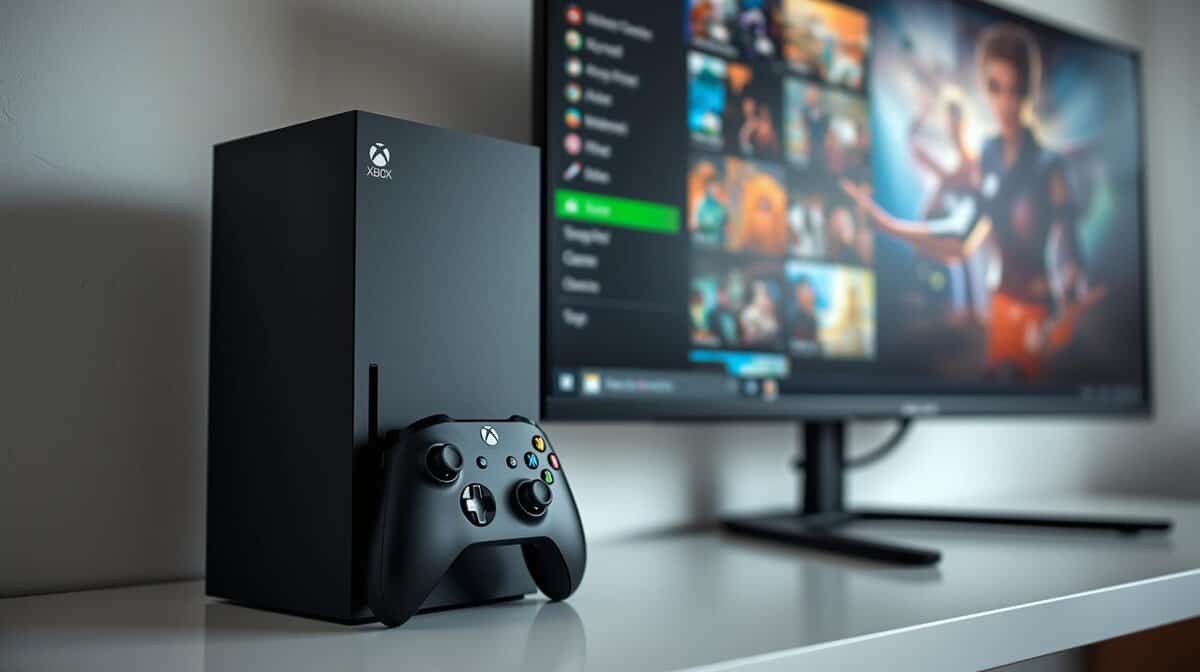
Acer Nitro 27 QHD: The Entry Point for Xbox Gaming on a Monitor
The Acer Nitro 27 QHD is the cheapest way to get a genuinely good Xbox experience on a monitor. It’s a 27-inch curved VA panel running at 1440p and 165Hz, which means you’re getting smooth, high-contrast gameplay for competitive titles without spending much.
Use Case: Built for competitive shooters (Call of Duty, Fortnite, Apex Legends) and fast-paced multiplayer where high refresh rates and quick response times matter more than pixel count.
Resolution and Panel: The 1440p (2560×1440) VA panel delivers noticeably deeper blacks and better contrast than IPS monitors at this price. The 1500R curve wraps the image slightly around your peripheral vision, which is subtle but adds to immersion during longer sessions.
Performance: At 165Hz with a 1ms MPRT response time, this monitor handles fast motion without ghosting issues. Xbox Series X supports 1440p at 120Hz, so you’re covered. FreeSync keeps frame rates smooth when games dip below the target, which happens more often than most people expect at 1440p.
Build Quality: Dell’s stand is surprisingly good for this price. Height, tilt adjustment, and a clean design that doesn’t scream “gamer.” The curved panel is well-built with minimal backlight bleed. Cable management runs through the stand.
Who should buy this? The Acer Nitro 27 QHD is for the gamer who primarily plays competitive multiplayer and wants their budget focused on performance over resolution. If you’d rather have 120 smooth frames than 60 pretty ones, this is your monitor.
AOC Q27G3XMN: Mini-LED at a Price That Shouldn’t Exist
The AOC Q27G3XMN is the most interesting monitor on this list. It’s a 27-inch 1440p VA panel, but what makes it special is the mini-LED backlight with 336 local dimming zones and VESA DisplayHDR 1000 certification. That kind of HDR performance usually costs twice as much.
Use Case: The best pick for gamers who play a mix of dark, atmospheric titles (Alan Wake 2, Resident Evil) and bright, colorful games where HDR actually makes a visible difference.
Resolution and Panel: The 1440p (2560×1440) VA panel has a 4000:1 static contrast ratio, which is already strong for a VA. Add the mini-LED local dimming on top of that and you get HDR that actually looks like HDR. Bright highlights pop against truly dark backgrounds instead of the washed-out gray you get from basic HDR monitors.
Performance: 180Hz refresh rate over DisplayPort, 144Hz over HDMI 2.0. The Xbox Series X will run this at 1440p 120Hz without issues. Response time is rated at 1ms GtG, and real-world performance holds up well in fast-paced games. Adaptive Sync handles VRR duties.
Build Quality: Height-adjustable stand with tilt. The build quality punches above the price. AOC’s 3-year zero-bright-dot warranty is a nice safety net. Two HDMI 2.0 ports and two DisplayPort 1.4 inputs give you plenty of connectivity.
Who should buy this? The AOC Q27G3XMN is for the gamer who wants the best visual experience possible at 1440p. If you care about HDR looking real instead of being a checkbox on the spec sheet, this monitor delivers that for about $260. RTINGS named it the best gaming monitor under $300 for a reason.
KOORUI G2741L 27″ 4K: 4K on a Budget That Actually Works
The KOORUI G2741L 27″ 4K is the cheapest way to get true 4K gaming with HDMI 2.1 on your Xbox Series X. At 32 inches with dual HDMI 2.1 ports and a 144Hz refresh rate, it delivers the full resolution the console was designed for at a price where that basically doesn’t exist from bigger brands.
Use Case: Perfect for gamers who want to experience 4K at 120Hz on the Xbox Series X without spending $350+. The larger 32-inch screen makes the resolution bump from 1440p more noticeable, especially in open-world games with detailed environments.
Resolution and Panel: The 4K (3840×2160) IPS panel displays sharp, detailed images with accurate colors and wide viewing angles. At 32 inches, the pixel density is lower than a 27-inch 4K display, but you’re also sitting further back from a larger screen, so individual pixels aren’t visible from a normal desk distance.
Performance: Dual HDMI 2.1 ports are the headline feature. Both support 4K at 120Hz, which means you can have your Xbox and a PS5 plugged in simultaneously at full bandwidth. The 144Hz refresh rate handles everything the console can throw at it. FreeSync and G-Sync compatibility keep things smooth.
Build Quality: The adjustable stand handles tilt, pivot, and height. It’s functional but not premium. Several reviewers recommend a monitor arm for better stability. The port selection is generous: DisplayPort 1.4, two HDMI 2.1, USB-C with 15W charging, two USB-A ports, and a USB-B for KVM-style switching between devices. No built-in speakers, so plan on headphones or external audio.
Who should buy this? The KOORUI G2741L 27″ 4K is for the Xbox gamer who wants real 4K gaming at the lowest possible price. If you want 4K at 120Hz and you don’t want to spend $350, this is the only game in town.
KOORUI G2741L 27″ 4K: The Best Xbox Monitor Under $350
The KOORUI G2741L 27″ 4K is the ceiling pick on this list, and it earns it. This is a 27-inch 4K IPS monitor with a 160Hz refresh rate, dual HDMI 2.1 ports, and 94% DCI-P3 color coverage. It’s the most well-rounded Xbox monitor you can buy without crossing into mid-range pricing.
Use Case: The all-rounder. Competitive multiplayer, cinematic single-player, streaming, and even productivity. If you want one monitor that does everything well, this is it.
Resolution and Panel: The 4K (3840×2160) IPS panel delivers excellent color accuracy and wide viewing angles. 94% DCI-P3 coverage means HDR content looks noticeably better than on monitors with narrower color gamuts. The 27-inch size at 4K resolution gives you a pixel density of 163 PPI, which makes text razor-sharp and game detail incredibly crisp.
Performance: 160Hz refresh rate with 1ms response time. HDMI 2.1 supports 4K at 120Hz for the Xbox Series X, and you get FreeSync Premium Pro for top-tier VRR support. The monitor also has a KVM switch built in, so if you use a PC alongside your Xbox, you can share a keyboard and mouse between them with one button.
Build Quality: Gigabyte’s stand offers height, tilt, and swivel adjustments. The build is solid and understated. The port selection is excellent: DisplayPort 1.4, two HDMI 2.1, USB-C, and a three-port USB 3.0 hub. The USB-C input means you can connect a laptop with a single cable for video, data, and charging.
Who should buy this? The KOORUI G2741L 27″ 4K is for the gamer who wants no compromises under $350. It unlocks everything the Xbox Series X was designed to deliver. 4K at 120Hz, wide color gamut, fast response times, and enough connectivity to serve as a hub for your entire setup. If you can stretch to $350, this is the one.
Understanding the Tradeoffs
Every monitor on this list makes compromises to stay under $350. The Acer Nitro 27 QHD trades resolution for speed and contrast. The AOC Q27G3XMN gives you stunning HDR at 1440p but caps out at HDMI 2.0, so you won’t get 4K from it. The KOORUI G2741L 27″ 4K delivers 4K with HDMI 2.1 from a less established brand. The KOORUI G2741L 27″ 4K gets closest to having it all, but its HDR is basic (DisplayHDR 400) compared to what you’d find on a $500+ display.
None of these monitors will deliver the OLED-level HDR experience you see on high-end displays. Their peak brightness ranges from 300 to 1000 nits depending on the model, with the AOC’s mini-LED getting closest to meaningful HDR impact. For most gamers, that’s a reasonable tradeoff when the savings mean keeping your total setup cost under what some people spend on the monitor alone.
All four monitors support FreeSync or Adaptive Sync to match the Xbox’s VRR, which eliminates screen tearing during frame rate fluctuations.
Ultimately, the best budget monitor for your Xbox depends on whether you prioritize resolution (4K picks), visual quality (mini-LED HDR), or competitive performance (high refresh 1440p). For more budget 4K options, see our dedicated guide to the best budget 4K gaming monitors.
What You Get When You Spend More: The $400–$600 Range
If you have a bigger budget, the monitor market opens up significantly between $400 and $600. You won’t find those models on our recommendation list because Budget Loadout focuses on the best value picks, but here’s what that extra money typically buys you.
Larger 4K screens become available from established brands. The Gigabyte M32U delivers a 32-inch 4K IPS panel with HDMI 2.1 and solid all-around performance for around $550. If HDR quality is your priority, the Sony INZONE M9 adds Full Array Local Dimming with 96 zones and DisplayHDR 600 certification at roughly the same price.
The main upgrades in this range are better HDR performance (more dimming zones, higher peak brightness), larger screen sizes at 4K, and more premium build materials. You also start seeing DisplayPort 2.1 on newer models, though that’s more relevant for PC gamers than Xbox players.
For most Xbox gamers, the jump from our $350 ceiling pick (the KOORUI G2741L 27″ 4K) to a $550 mid-range monitor is incremental. You’re paying 50% more for maybe 15% better visuals. The biggest exception is screen size: if you want 32 inches at 4K, you’ll need to step above $350 from a mainstream brand, or consider the KOORUI G2741L 27″ 4K at ~$300 if you’re comfortable with a newer manufacturer.
OLED Monitors: Worth the Hype, But Not the Price for Most Gamers
You’ve probably seen OLED monitors and TVs recommended for Xbox gaming, and the praise is deserved. OLED panels produce perfect blacks, infinite contrast, and near-instant response times that no IPS or VA monitor can match. Games with dark environments look dramatically better on OLED because each pixel controls its own light. There’s no backlight bleed, no washed-out shadows, no halo effects around bright objects.
The LG C4 OLED (42″) is the display most commonly recommended for Xbox Series X in this category. It supports 4K at 120Hz with Dolby Vision, which is a significant Xbox advantage since the Series X outputs Dolby Vision natively in supported games. PlayStation doesn’t support Dolby Vision, so this is one area where Xbox gamers get something extra from the right display.
The catch is the price. The LG C4 42-inch starts around $700, and other gaming OLEDs push well past $1,000. That’s more than the console itself costs, and for many gamers, it crosses the line from “good investment” into “diminishing returns” territory.
There’s also the burn-in question. OLED panels can develop permanent image retention from static elements like game HUDs, health bars, and mini-maps. Modern OLED displays have mitigation features (pixel shifting, logo luminance reduction, panel refresh cycles), and real-world burn-in risk is lower than it was a few years ago. But it’s still a factor if you play games with persistent on-screen elements for hundreds of hours.
If you can comfortably afford an OLED without stretching your budget, it’s the best picture quality available for Xbox gaming. But if you’re reading Budget Loadout, you’re probably looking for the best value, and the monitors on our recommended list deliver an excellent Xbox experience at a fraction of the cost.
How to Calibrate and Optimize Your New Monitor
Unboxing your new monitor is just the first step. To get the performance you paid for, you need to configure the display with your Xbox Series X. Out-of-the-box settings are rarely optimal, and it’s common to find features like 120Hz or VRR disabled by default.
This process ensures your hardware and console are synchronized, unlocking smooth, high-fidelity gameplay. It takes only a few minutes and makes a significant difference in visual quality and responsiveness.
Configuring Your Xbox Series X Display Settings
First, connect your console to the monitor using an HDMI 2.1 port on both devices (or HDMI 2.0 if you’re using a 1440p monitor like the Acer Nitro 27 QHD or AOC Q27G3XMN). Once connected, configure your Xbox settings.
Press the Xbox button and navigate to Settings > General > TV & display options.
Under the “Display” column, set your Resolution to 4K UHD. If you’re using a 1440p monitor, select 1440p QHD instead.
These initial steps are fundamental. Without them, you’re not getting the core benefits you paid for.
Don’t assume your monitor is running at its full potential. The Xbox Series X requires you to manually select 120Hz and enable VRR in the settings. Skipping this means you’re likely still gaming at 60Hz.
Basic Monitor Calibration for Better Visuals
With the Xbox settings configured, you can fine-tune the monitor’s picture. While professional calibration is complex, a few simple tweaks in the on-screen display (OSD) menu can improve the image for different game types.
For FPS and Competitive Games:
Brightness: Increase it slightly to make enemies in dark corners more visible. Avoid washing out the image.
Contrast: Keep this balanced. Too high crushes detail, while too low makes the image look flat.
Color Saturation: Some competitive players increase this to make character models and environments pop, which can make targets easier to spot.
For Cinematic and Story-Driven Games:
Brightness and Contrast: The goal is to achieve deep blacks without losing shadow detail. Use the in-game calibration screen found in most titles.
Color Temperature: A “Warm” or “Standard” setting usually provides a more natural look. “Cool” settings often have a blue tint.
HDR Settings: If your monitor supports HDR, run the calibration tool on your Xbox. You can find it under Settings > General > TV & display options > Calibrate HDR for games.
These adjustments are a matter of personal preference and depend on the game you’re playing. A few tweaks can improve your visual experience and ensure your new monitor for Xbox Series X is properly dialed in.
Common Questions About Xbox Series X Monitors
Here are answers to some of the most common questions about choosing a display for your Xbox Series X.
Do I Absolutely Need HDMI 2.1?
You only need HDMI 2.1 for one specific purpose: running games at both 4K resolution and a 120Hz refresh rate simultaneously.
For other scenarios, HDMI 2.0 is sufficient. This includes 1440p at 120Hz and 4K at 60Hz. For many gamers, the 1440p/120Hz combination offers a great balance of smooth gameplay and sharp visuals without the cost of a true 4K/120Hz monitor.
Is a Curved Monitor Better for Xbox Gaming?
A curved screen is largely a matter of personal preference, and its benefits are minimal for console gaming. The immersive effect is most noticeable on ultrawide monitors, which the Xbox Series X does not fully support—you’ll see black bars on the sides.
On standard 16:9 monitors (27 to 32 inches), a curve adds a subtle sense of depth. It is not an essential feature. Your budget is better allocated to core performance specs like a higher refresh rate, a better panel, or stronger HDR.
Can I Use a Gaming Monitor for Work or School?
Yes. Most modern gaming monitors, especially those with IPS panels, are also great for productivity. They offer good color accuracy and wide viewing angles, making them suitable for tasks from spreadsheets to photo editing. A 27-inch 1440p or 4K monitor provides ample screen space for multitasking.
If you plan on long work or study sessions, look for a model with a fully adjustable stand. The ability to change the height, tilt, and swivel makes a significant difference in comfort.
What Does VRR Do and Why Does It Matter?
VRR, or Variable Refresh Rate, is a crucial feature for console gaming. The <a href="https://budgetloadout.com/go/xbox-series-x Series X uses AMD FreeSync to sync the monitor’s refresh rate to the console’s frame rate in real-time. This completely eliminates screen tearing, making for a much smoother visual experience.
You’ll notice it most in games where the frame rate dips during intense action. A monitor that properly supports VRR will deliver a far more consistent and polished feel to your gameplay.
At Budget Loadout, we believe building a great gaming setup shouldn’t break the bank. Find more hype-free reviews and value-focused guides at https://budgetloadout.com.
Related Articles