For competitive Counter-Strike 2, where a single frame can decide a round, your monitor is a critical piece of hardware. A high-performance monitor is not a luxury; it’s a necessity for serious play. When searching for the best budget monitor for CS2, the performance sweet spot is a 24-inch, 1080p monitor with a 144Hz to 165Hz refresh rate. This combination delivers the raw speed needed for CS2 without requiring a top-tier PC or a large budget.
- A 24-inch, 1080p, 144Hz+ IPS or VA monitor is the competitive sweet spot for CS2 — it keeps your budget low while delivering the speed and clarity you need.
- The AOC 24G4 offers the best overall value with a 180Hz IPS panel, accurate colors, and a fully adjustable stand for around ~$110.
- The Acer Nitro KG241Y Sbiip is the most affordable option at roughly ~$100, with a VA panel that delivers deeper blacks and strong contrast for dark maps.
- The ASUS TUF Gaming VG249QL3A is the premium budget pick at around ~$160, pairing Fast IPS with ELMB Sync and G-SYNC compatibility for the smoothest motion clarity.
- Pair your monitor with a capable GPU and optimized in-game settings — the best panel in the world cannot compensate for low frame rates or poor visual configuration.
Table of Contents
- 180Hz IPS panel with accurate colors and wide viewing angles
- Excellent value at around ~$110 for this level of performance
- VESA mount compatible with height-adjustable stand
- Built-in speakers are basic and best supplemented with headphones
- No USB hub or extra connectivity beyond DisplayPort and HDMI
- IPS glow may be slightly noticeable in very dark scenes
- Lowest price point at around ~$100 for a 165Hz gaming monitor
- VA panel delivers deeper blacks and higher contrast than IPS alternatives
- FreeSync Premium helps eliminate screen tearing in fast-paced matches
- VA panel has slightly slower pixel response than IPS in fast transitions
- Stand only offers tilt adjustment without height or swivel options
- Viewing angles are narrower compared to IPS panels
- Fast IPS panel with ELMB Sync delivers excellent motion clarity for CS2
- G-SYNC compatible and FreeSync Premium for tear-free gameplay
- Fully adjustable stand with height, tilt, swivel, and pivot
- Higher price point at around ~$160 compared to the other two picks
- ELMB Sync can slightly reduce brightness when enabled
- Premium features may be more than casual players need
Why a High-Refresh-Rate Monitor Is a Competitive Necessity
In a game like CS2, your monitor is often the bottleneck that determines how quickly you can react. While your GPU and CPU render the frames, their work is wasted if your screen can’t display them fast enough. A standard 60Hz monitor updates the image only 60 times per second, which puts you at a direct disadvantage against players with faster displays.
Switching to a high-refresh-rate monitor provides a tangible edge in gunfights. Here are the specific benefits:
See Opponents Sooner: A 144Hz screen provides more than double the visual information of a 60Hz display. This means you see an enemy peeking a corner milliseconds earlier, giving you a critical head start to line up a shot.
Track Targets with Less Blur: Higher refresh rates significantly reduce motion blur. This makes it easier to track fast-moving targets during chaotic entries or when you need to land a quick flick shot. Your aim will feel more connected and responsive.
Gain an Immediate Advantage: Upgrading from 60Hz to 144Hz can improve effective reaction time. Since many players still use slower displays, a smart monitor upgrade gives you a performance advantage over a large portion of the player base.
This guide provides direct, practical advice to find a monitor that delivers maximum performance for the money. We will identify specific recommendations and explain the trade-offs at different price points.
Quick Guide To Budget CS2 Monitors
This table outlines what to expect from different budget tiers. “Budget” is relative; it means getting the best value and performance for the price, not necessarily the cheapest product available.
| Budget Tier | Target Refresh Rate | Key Feature | Primary Use Case |
|---|---|---|---|
| Entry-Level | 144Hz – 165Hz | High refresh rate at the lowest functional cost | Dedicated FPS gaming on a tight budget |
| Mid-Range Budget | 165Hz – 180Hz | Better build quality, stand, and color accuracy | Gamers who also stream or do creative work |
| High-End Budget | 180Hz+ | Superior panel quality and port selection | Players wanting a versatile, long-term monitor |
Most competitive players stick with 1080p resolution for good reason. It keeps on-screen targets relatively large and makes it easier for most PCs to maintain high frame rates. For a deeper analysis, see our comparison of 1080p vs 4k gaming.
What Monitor Specs Directly Impact CS2 Performance
When shopping for a budget CS2 monitor, it’s easy to get lost in marketing terms. Let’s focus on the four specifications that directly affect your ability to win gunfights: refresh rate, response time, panel type, and adaptive sync. Getting these right ensures you have a monitor that provides a real competitive edge.
A high refresh rate is a requirement for competitive FPS gaming. Measured in Hertz (Hz), it indicates how many times your screen updates per second. Playing CS2 on a 60Hz monitor is a significant handicap; upgrading to 144Hz provides a substantial improvement in motion smoothness, making it far easier to track fast-peeking enemies.
The performance difference between 144Hz and 165Hz is small for most players. If a 165Hz model costs only slightly more, it’s a reasonable choice, but don’t stretch your budget for it. The 144Hz mark represents the biggest performance leap for your money.
Core Performance Metrics
Response time is the other critical component for motion clarity. This spec measures how quickly a pixel can change from one color to another. A slow response time creates motion blur (or “ghosting”), which can make a fast-moving target look like a blurry smear, causing you to miss shots.
For CS2, a monitor with a 1ms GtG (Gray-to-Gray) response time is mandatory. This ensures your display can keep pace with the game’s speed, providing a crisp image during sharp turns and spray transfers.
The monitor’s panel type affects both its speed and visual quality. Modern IPS (In-Plane Switching) panels have become the best all-around choice for budget gamers. They can achieve fast response times while delivering good enough color accuracy for the monitor to be used for streaming, general content consumption, or even light creative work.
Older TN panels are technically faster but have poor color reproduction and bad viewing angles. VA panels offer better contrast but often have slower response times that cause noticeable smearing in dark scenes, a significant issue in CS2. To see how they compare, read our guide on IPS vs. VA panel trade-offs for gaming.
Finally, look for Adaptive Sync technology like AMD FreeSync (which is usually G-Sync Compatible). This feature synchronizes your monitor’s refresh rate with your GPU’s framerate, eliminating screen tearing without the input lag caused by V-Sync. Nearly every budget gaming monitor includes FreeSync, so just confirm it’s listed on the spec sheet.
Head-to-Head: Comparing Budget CS2 Monitors
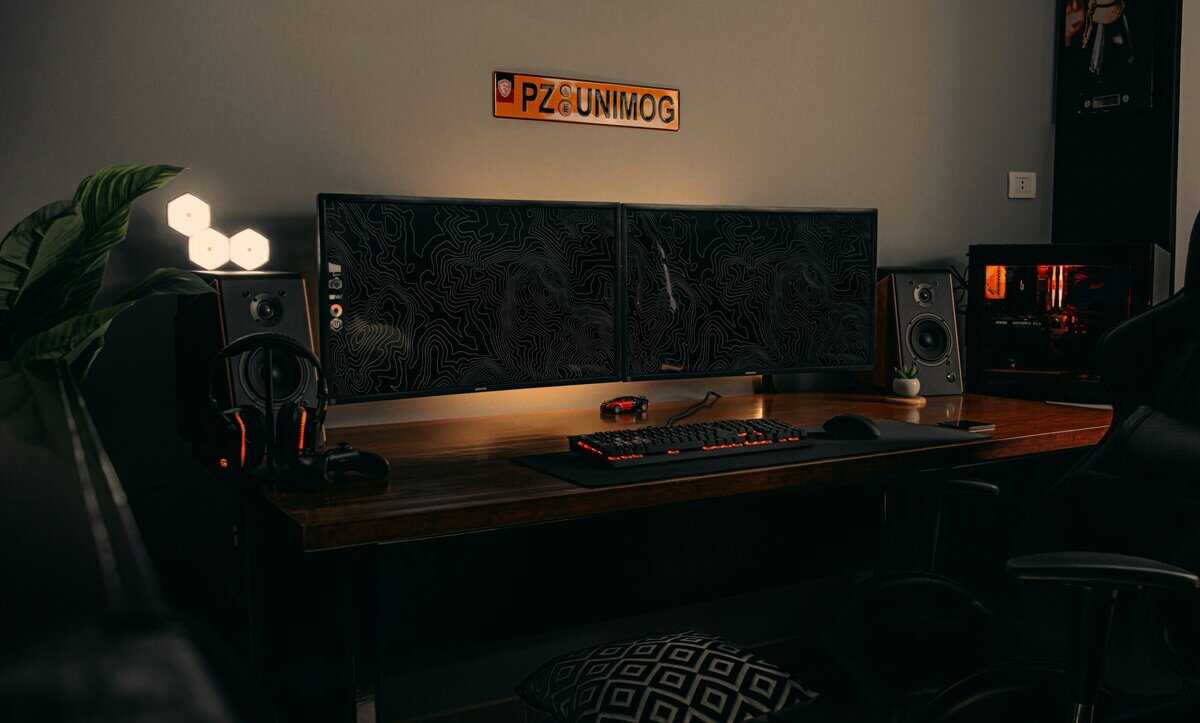
Let’s evaluate how specific models perform in practice. To find the best budget monitor for CS2, we need to analyze their trade-offs in performance, build quality, and overall value.
We’ll look at three representative options that highlight the choices you’ll face. The focus is on raw competitive performance and durability.
AOC 24G4: A popular 165Hz IPS monitor known as a solid all-around performer.
Acer Nitro KG241Y Sbiip: A 165Hz IPS alternative, often available at a lower price point and recommended for its value.
ASUS TUF Gaming VG249QL3A: A well-regarded 144Hz IPS monitor that prioritizes ergonomics and build quality.
All three models meet the core competitive requirements: 24 inches, 1080p, and a claimed 1ms response time. The key differences lie in their refresh rates, panel characteristics, and physical construction.
CS2 Budget Monitor Head-to-Head Comparison
Here’s a direct comparison of our recommended budget monitors, focusing on the specs that matter most for CS2 players.
| Model | Refresh Rate | Response Time | Panel Type | Key Trade-Off |
|---|---|---|---|---|
| AOC 24G4 | 180Hz | 1ms | IPS | Best all-around value at ~$110. Stand has basic tilt only. |
| Acer Nitro KG241Y Sbiip | 165Hz | 1ms VRB | VA | Cheapest at ~$100. VA panel has deeper blacks but narrower viewing angles. |
| ASUS TUF Gaming VG249QL3A | 180Hz | 1ms GTG | Fast IPS | Most features (ELMB, ergonomic stand, speakers) at ~$160. |
The choice comes down to whether you prioritize a small bump in refresh rate or a better stand and more robust build.
Performance and Visuals
The AOC 24G4 and the ASUS TUF Gaming VG249QL3A both offer a 180Hz refresh rate, a minor step up from the Acer Nitro KG241Y Sbiip’s 165Hz. For a dedicated CS2 player, this increase in smoothness can make tracking feel more fluid, though the difference between 165Hz and 180Hz is subtle in practice.
The models differ in their out-of-the-box color presentation and motion handling. The Acer Nitro KG241Y Sbiip uses a VA panel, which delivers deeper blacks and higher contrast—an advantage for dark CS2 maps and immersive single-player games. The AOC 24G4 uses a standard IPS panel with wider viewing angles and more accurate colors, which is a benefit if you also do content creation.
The ASUS TUF Gaming VG249QL3A, at 180Hz with its Fast IPS panel, is known for its excellent motion clarity and minimal ghosting. It delivers a clean, reliable experience that has been a standard for competitive gaming.
The key trade-off here is a slight increase in smoothness versus proven reliability. The 165Hz on the AOC and Acer is a nice-to-have, but the ASUS TUF Gaming VG249QL3A’s 180Hz Fast IPS performance with ELMB is dependable and feature-rich standard.
Build Quality and Ergonomics
Build quality is a critical differentiator for budget monitors and directly impacts daily use. This is where the ASUS TUF Gaming VG249QL3A has a clear advantage. It includes a superior stand with full height, tilt, swivel, and pivot adjustments. This durability is tangible.
This ergonomic flexibility is a significant benefit. It allows you to position the monitor perfectly for your posture and eye level, a quality-of-life improvement that reduces strain during long gaming sessions. The monitor feels sturdy and well-constructed.
The Acer and AOC models use more basic, flimsy stands. They are made of lighter plastic and offer limited adjustability—a common cost-cutting measure in this price bracket. While stable on a solid surface, they can feel wobbly. If your desk is not perfectly rigid, the flimsy stand will be a constant annoyance.
For many users, the superior ergonomics, ELMB motion blur reduction, and durable build of the ASUS justify the additional cost.
How To Configure Your PC For Maximum FPS
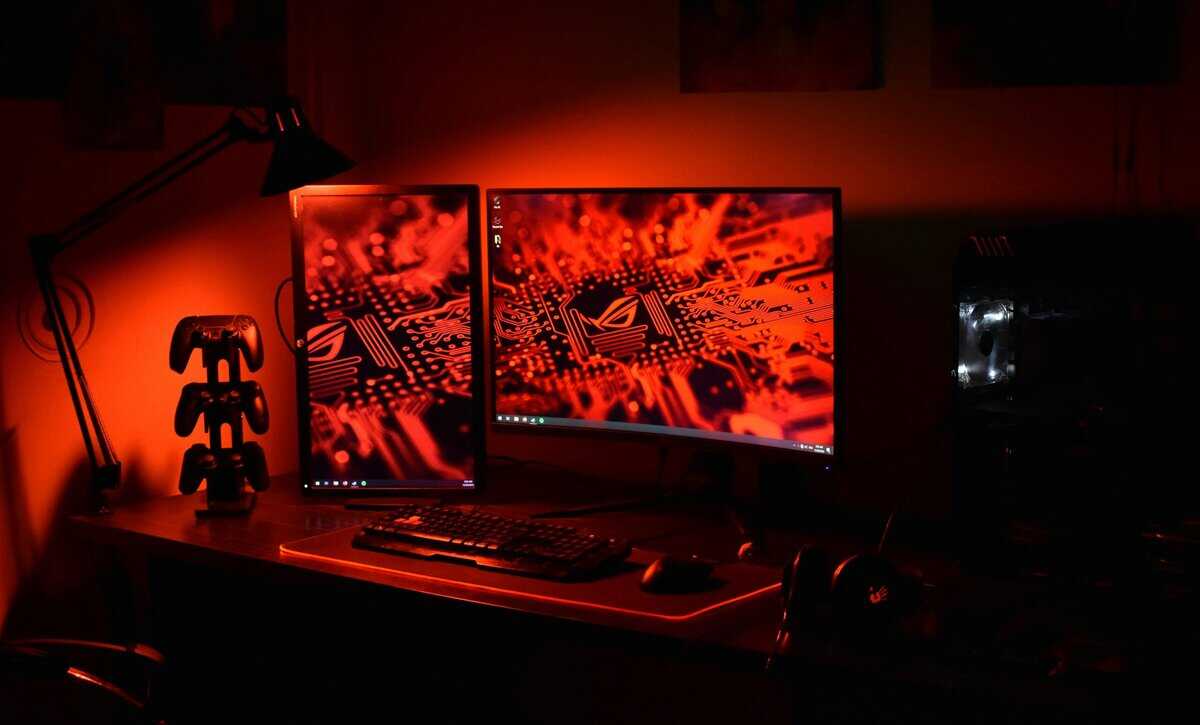
Purchasing a 144Hz monitor is only the first step. Your PC must consistently generate at least 144 frames per second (FPS) to utilize it properly. If your framerate drops below your monitor’s refresh rate, you lose the smoothness that provides a competitive advantage.
Here are the exact steps to configure your PC and in-game settings for peak CS2 performance. The goal is to get your FPS consistently at or above your monitor’s refresh rate, even on a budget system.
First, ensure your monitor is connected with a DisplayPort cable and that you have set it to its highest refresh rate in Windows Display Settings. This is a common oversight. Next, configure your GPU’s control panel.
Essential GPU and In-Game Settings
Whether you use an NVIDIA or AMD graphics card, a few specific settings will improve performance with minimal visual compromise. These are critical for maximizing your hardware’s output.
NVIDIA Control Panel: Go to “Manage 3D settings.” Set “Low Latency Mode” to On and “Power management mode” to Prefer maximum performance.
AMD Software Adrenalin Edition: In the “Gaming” tab, enable “Radeon Anti-Lag” to reduce input delay and set “Texture Filtering Quality” to Performance.
Inside CS2’s video settings, you must be strategic. Disabling V-Sync and tweaking a few key options can dramatically increase FPS. For visibility, keeping Global Shadow Quality on Medium and using 4X MSAA is important, but disabling V-Sync is non-negotiable for maximizing FPS. When paired with a FreeSync monitor, these settings provide the ideal combination: no screen tearing and no added input lag.
These optimizations can reduce input lag by 15-20ms, a difference that translates to better in-game performance. For more on the hardware side, you can find details about CS2 system requirements on Corsair.com.
The single most important CS2 setting to disable is V-Sync. It caps your FPS to your monitor’s refresh rate and adds significant input lag, which directly harms your aim and reaction time. Always turn it off for competitive play.
Finally, check your system’s power plan. In Windows, search for “Choose a power plan” and switch it to High Performance. This prevents your CPU from throttling its performance to save power during intense moments.
If your GPU still struggles to maintain high FPS after these changes, an upgrade might be necessary. Consider our guide to the best budget graphics card to find a cost-effective option.
Final Recommendations for Different Use Cases
The final choice depends on your specific needs and budget. After analyzing the specifications, build quality, and real-world performance trade-offs, we have identified three clear recommendations.
These selections are chosen to provide the most performance for your dollar in specific scenarios. Whether you are a dedicated competitor, a hybrid user, or on a strict budget, one of these monitors will be a suitable choice.
Best Overall Value: AOC 24G4
For the majority of players seeking a balance of performance, features, and price, the AOC 24G4 is the top recommendation. It delivers a fast 180Hz refresh rate on a true IPS panel at just ~$110, offering a real competitive edge without any compromise on speed or clarity. As the successor to the legendary AOC 24G2 line, it inherits proven motion handling that is ideal for CS2. The 3-year zero-bright-dot warranty is a standout at this price. This monitor hits the essential performance sweet spot without charging for unnecessary extras.
Use Case: Competitive FPS gaming, general use.
Trade-Off: The stand offers only basic tilt adjustment, and there are no built-in speakers. Purely a performance-focused panel.
Best for Tight Budgets: Acer Nitro KG241Y Sbiip
If every dollar counts but you refuse to accept a 60Hz handicap, the Acer Nitro KG241Y Sbiip is a remarkably capable option at just ~$100. Its VA panel delivers deeper blacks and better contrast than IPS alternatives at this price, which is a genuine advantage for spotting enemies in dark CS2 maps like Inferno tunnels. The 165Hz refresh rate and 1ms VRB response are more than enough for smooth, competitive gameplay. With nearly 4,000 reviews and a 4.5-star rating, this is a proven workhorse
Use Case: Dedicated FPS gaming on the tightest budget.
Trade-Off: VA panel has narrower viewing angles than IPS. Colors shift slightly off-axis, but at a desk this is rarely noticeable.
Best Premium Budget: ASUS TUF Gaming VG249QL3A
For players whose setup serves multiple purposes, the ASUS TUF Gaming VG249QL3A is the best option. It has a slightly lower 144Hz refresh rate but compensates with superior build quality and an excellent ergonomic stand offering full height, tilt, swivel, and pivot adjustments. This makes it ideal for students, aspiring streamers, or anyone who spends long hours at their desk for both work and play. The stand’s flexibility is a major quality-of-life upgrade, and its proven 144Hz performance is more than sufficient for effective competition in CS2. The durable construction ensures it will last.
If your budget can stretch to around ~$160, the ASUS TUF Gaming VG249QL3A is the clear upgrade pick. Its Fast IPS panel delivers 180Hz with 1ms GTG response, and ASUS’s ELMB (Extreme Low Motion Blur) technology works alongside VRR to virtually eliminate ghosting in fast CS2 firefights. The fully ergonomic stand (height, tilt, swivel, pivot), built-in speakers, official G-SYNC Compatible certification, and Shadow Boost for better dark-scene visibility make this the most feature-complete monitor under ~$200 for serious CS2 players.
Trade-Off: At ~$160 it costs more than the other two picks. You are paying for premium ergonomics and ELMB, which is worth it if your budget allows.
Frequently Asked Questions About CS2 Monitors
Choosing a monitor on a budget can be confusing. Here are direct answers to common questions.
Is 24 Inches or 27 Inches Better for CS2?
For competitive CS2, 24 inches is the standard size. At 1080p resolution, this size offers optimal pixel density, keeping targets sharp and clear without being too small. A 24-inch screen also keeps your crosshair, minimap, and other UI elements within your primary field of view, allowing you to process information without excessive eye movement.
A 27-inch monitor at 1080p will have a noticeably “softer” or more pixelated image. The larger screen size also forces your eyes to travel further, which can slow reaction time. Stick with 24 inches for focused, competitive play.
Should I Choose an IPS, VA, or TN Panel?
For a budget CS2 build today, a modern IPS panel is the smartest choice. They now offer fast 1ms response times while retaining the good color reproduction and viewing angles they are known for. This makes them versatile monitors for gaming, watching content, or work.
Is a 240Hz Monitor Worth It Over 144Hz?
For a budget-conscious player, no. The upgrade from 60Hz to 144Hz is the most impactful jump you can make, offering a night-and-day improvement in smoothness and a clear competitive advantage.
The jump from 144Hz to 240Hz provides diminishing returns. The difference is far less noticeable and requires a powerful PC that can consistently push over 240 FPS to be of any benefit. For a value-focused player, a 144Hz or 165Hz monitor delivers the best performance for your dollar.
Does a Curved Monitor Help in CS2?
No, a curved monitor offers no competitive advantage in CS2. Curves are designed to increase immersion in cinematic games (like MMOs or racing sims), not for tactical shooters. For a game that depends on precision and straight lines, a flat screen is superior. Many competitive players find that the subtle distortion at the edges of a curved display can interfere with their ability to line up shots. Stick with a flat panel.
Building a high-performance setup on a budget is our specialty at Budget Loadout. We cut through the hype to bring you honest reviews and practical guides on everything from mice to microphones. Find more value-focused recommendations at BudgetLoadout.com.
Related Articles