A 360Hz monitor is only as fast as the frame rate your PC sends it, and plenty of them spend their lives showing a lot less. The best 360Hz monitor for you is the one your graphics card can keep fed in the game you play most, at the resolution you want to play it.
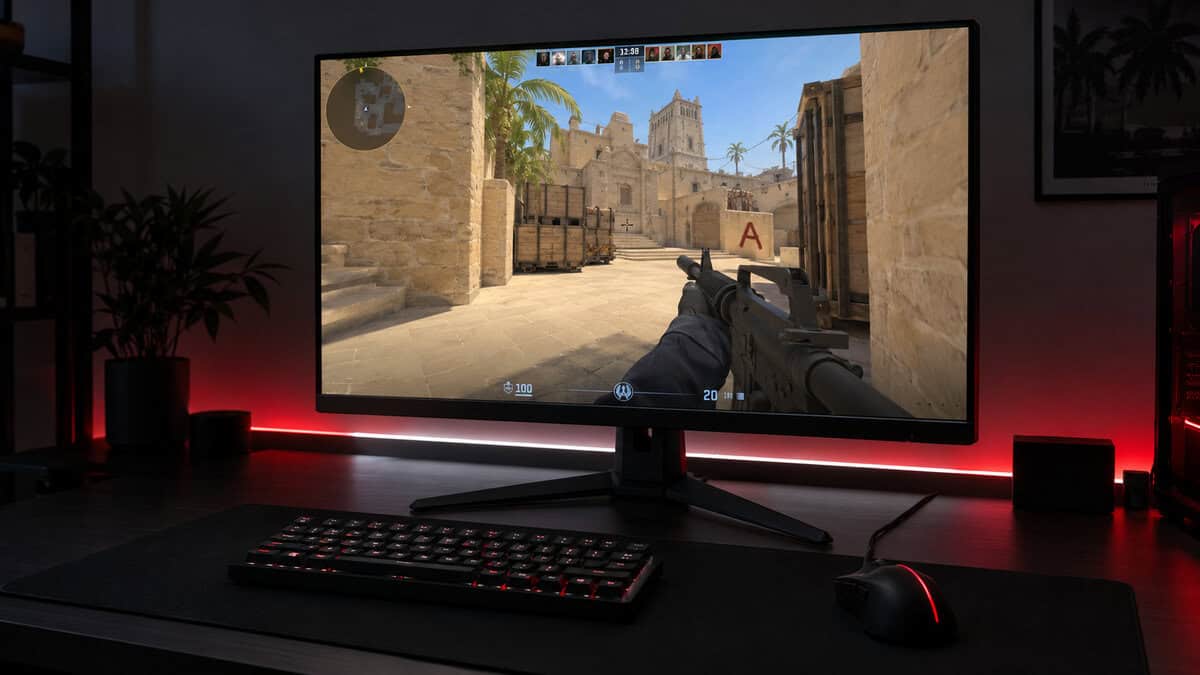
The three picks below run from a 1080p Fast IPS panel to a 1440p QD-OLED and a 4K screen with a 1080p 360Hz mode. After them come the frame-rate, port and settings checks that decide whether you ever see 360Hz on your desk.
The easiest way past 360Hz, with a 380Hz ceiling and an HDMI 2.1 input that still reaches 360Hz. ELMB Sync adds ASUS’s motion-blur reduction for fast targets.
- 380Hz maximum leaves some headroom
- HDMI 2.1 input reaches 360Hz
- ELMB Sync motion-blur reduction
- 1080p looks softer at 27 inches
- IPS contrast trails the QD-OLED pick
- USB-C charging is only 7.5 W
A 1440p QD-OLED at 360Hz with near-instant pixel response and True Black 400 HDR. Both HDMI 2.1 ports run the full 360Hz, so a PC and a console can share it.
- 0.03ms response keeps motion crisp
- Both HDMI 2.1 ports reach 360Hz
- Deep OLED blacks on dark maps
- Needs a strong GPU at 1440p
- Static HUDs call for burn-in care
- Dearest monitor of the three
A 4K screen for story games that switches to 1080p at 360Hz for shooters. Dual-Mode lets one desk monitor cover both kinds of gaming.
- Sharp 4K for single-player games
- 1080p 360Hz mode for shooters
- 95% DCI-P3 color coverage
- 360Hz only in 1080p mode
- 4K at 180Hz needs a strong GPU
- IPS contrast trails OLED
- A 360Hz monitor pays off only when your PC holds frame rates near 360 in the games you play most.
- If your frame rate sits closer to 240 than 360, a 240Hz monitor shows nearly everything a 360Hz one would.
- 1080p is the easiest resolution to feed at 360Hz; 1440p at 360Hz needs a much stronger graphics card.
- Check which input is rated for full speed: an HDMI 2.0 port cannot carry 1440p at 360Hz.
- Fast IPS and QD-OLED look different at the same refresh rate, because OLED pixels change almost instantly.
Table of Contents
The 360Hz Monitor Shortlist by Resolution
The three 360Hz monitors here split by the resolution they reach 360Hz at: 1080p on the ASUS, 1440p on the MSI, and 1080p on the LG, which also runs 4K at a lower refresh rate. The spec table lines up the numbers that decide which one your PC can feed.
| Monitor | Size | Resolution | Panel | Max Refresh | Response Time | HDMI | DisplayPort / USB-C | Weight |
|---|---|---|---|---|---|---|---|---|
| ASUS ROG Strix XG279CNS | 27 in | 1920 x 1080 | Fast IPS | 380Hz | 1ms GtG (0.3ms min) | 1x HDMI 2.1 (up to 360Hz) | 1x DP 1.4, USB-C DP Alt (7.5 W) | 6.5 kg with stand |
| MSI MAG 271QPX QD-OLED | 26.5 in | 2560 x 1440 | QD-OLED (3rd gen) | 360Hz | 0.03ms GtG | 2x HDMI 2.1 (1440p 360Hz) | 1x DP 1.4a, USB-C DP Alt (15 W) | 8 kg net |
| LG UltraGear 27G810A | 27 in | 3840 x 2160 | IPS | 180Hz at 4K / 360Hz at 1080p | 1ms GtG (Faster mode) | 2x HDMI 2.1 | 1x DP 1.4 (DSC) | 7.4 kg with stand |
Why the ASUS XG279CNS Is the Best 360Hz Monitor for Most Budgets
The ASUS ROG Strix XG279CNS is the best 360Hz monitor for most budgets because it gets past 360Hz without asking for an OLED budget or a 1440p-class graphics card. It is a 27-inch 1080p Fast IPS panel with a 380Hz maximum refresh rate and a rated 1ms GtG response time, with 0.3ms as its fastest figure.
The XG279CNS has an input setup that helps on a shared desk. Its single HDMI 2.1 port is listed with a range up to 360Hz, so a second PC on HDMI still runs at esports speed. A DisplayPort 1.4 input and USB-C with DisplayPort Alt Mode cover a desktop and a laptop, though USB-C charging is only 7.5 W, enough to top up a phone rather than run a laptop.
ELMB Sync is ASUS’s motion-blur reduction feature, aimed at keeping moving targets sharper in fast games. The panel also carries DisplayHDR 400, an entry-level HDR badge that matters far less here than the refresh rate.
Getting past 360Hz without an OLED budget is the whole case for the ASUS.
The tradeoff is pixel density. At 27 inches, 1080p pixels are larger than on a 24-inch 1080p screen, so text and distant detail look softer up close. If you would rather have a smaller 1080p screen pulled close for Counter-Strike 2, our best budget monitor for CS2 guide covers 24-inch options at lower refresh rates.
MSI MAG 271QPX QD-OLED: 360Hz at 1440p
The MSI MAG 271QPX QD-OLED is the pick for 360Hz at 1440p. Its 26.5-inch third-generation QD-OLED panel runs 2560 x 1440 at 360Hz with a rated 0.03ms GtG response time, so each pixel changes almost the instant a new frame arrives.
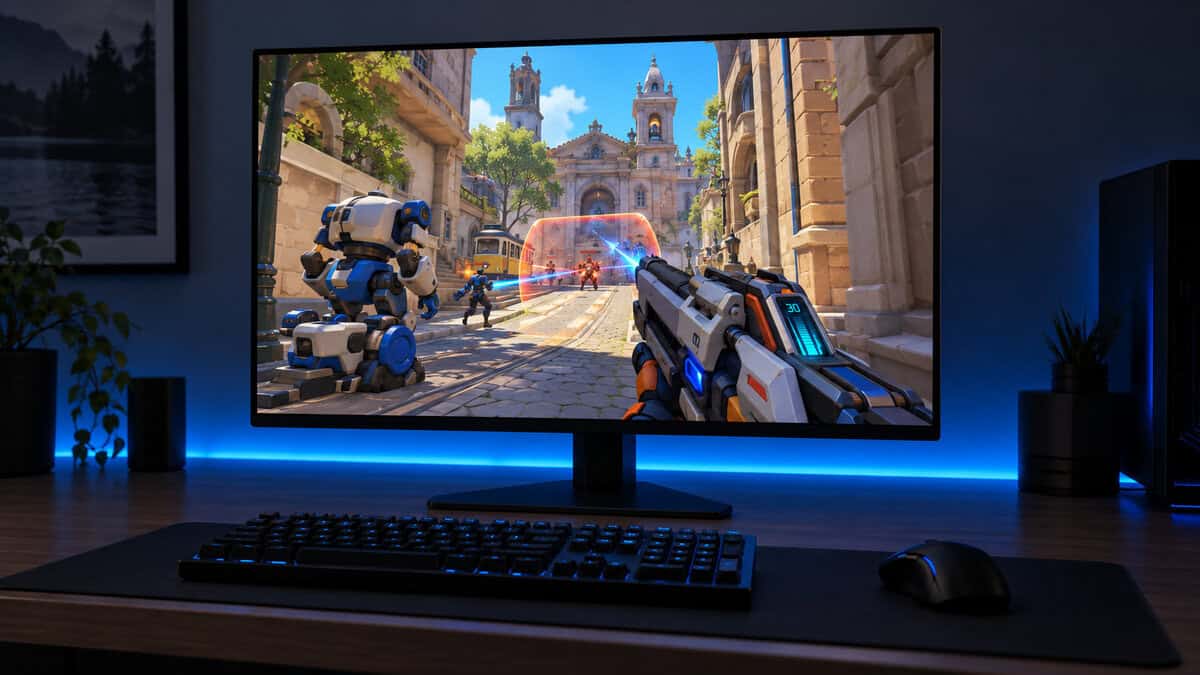
The 271QPX’s two HDMI 2.1 ports are both rated for 1440p at 360Hz, alongside a DisplayPort 1.4a input and USB-C with DisplayPort Alt Mode and 15 W of charging. Its DisplayHDR True Black 400 certification reflects what OLED does best: true black next to bright highlights, which keeps dark corners of a map readable without a gray haze.
At 1440p, 360Hz asks more of the graphics card than of the monitor.
The MSI is the dearest monitor of the three, and 1440p at 360 frames a second takes a high-end graphics card to hold, even in esports titles. OLED panels also need some care with static images, which the burn-in section further down covers.
Two close relatives are worth knowing. The AOC Q27G40SDE is another 27-inch 1440p QD-OLED at 360Hz that sits a little under the MSI, but it is newer with far fewer owner reviews, and its HDMI port is HDMI 2.0. The MSI MPG 271QRX is MSI’s MPG-series 1440p QD-OLED at 360Hz, and our best OLED gaming monitor guide covers it as a full pick.
LG UltraGear 27G810A: One Screen for Shooters and Story Games
The LG UltraGear 27G810A is the monitor for players who split their time between shooters and story games. It is a 27-inch 4K IPS screen with LG’s Dual-Mode: 3840 x 2160 at 180Hz for sharp single-player games, or 1920 x 1080 at 360Hz for competitive shooters.
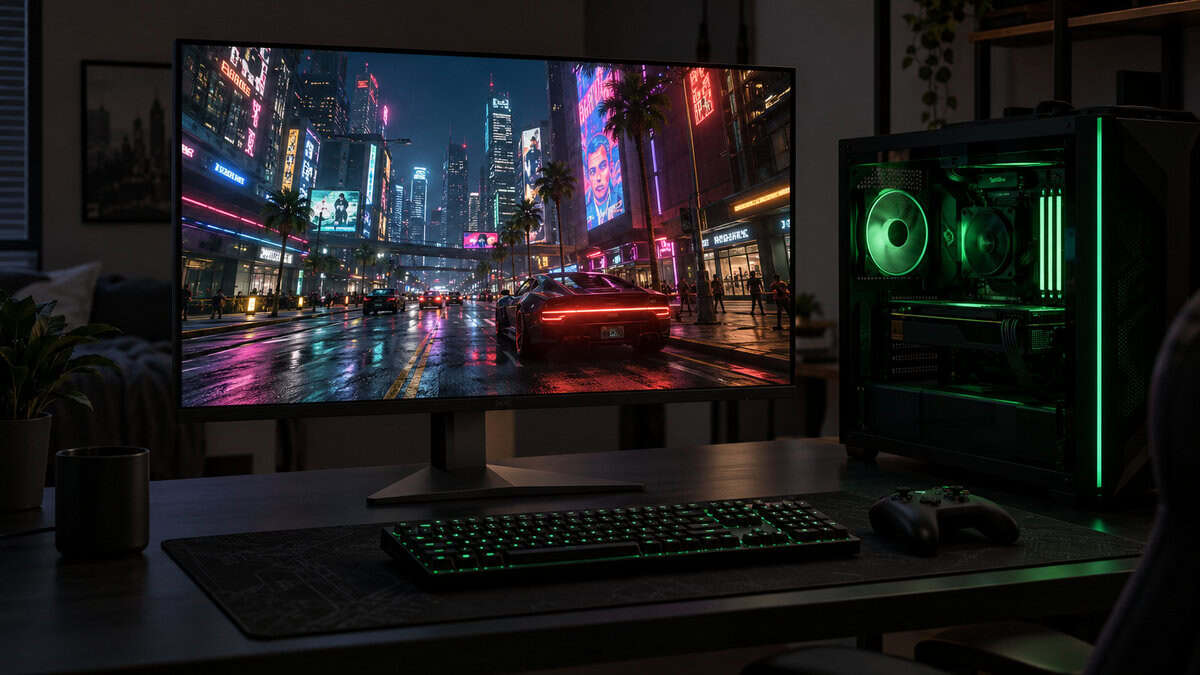
LG lists two HDMI 2.1 ports and a DisplayPort 1.4 input with DSC on the 27G810A, and rates the panel at 1ms GtG in its Faster response setting. DisplayHDR 400 and 95% DCI-P3 color coverage suit the 4K side of its life, where color and detail matter more than raw speed.
The LG is two monitors on one stand, and you pick the one you need.
The catch is that the LG reaches 360Hz only in its 1080p mode, and 4K at 180Hz takes a strong graphics card to fill. If every game you play is a shooter, the ASUS gets you the same 1080p speed, with a little extra headroom, for less.
Can Your PC Feed 360 Frames a Second?
A 360Hz monitor can only show as many new frames as your PC renders. With adaptive sync on, a 360Hz screen running a game at 250 FPS simply refreshes at 250Hz; without it, the screen keeps refreshing at 360Hz and shows torn or repeated frames. Either way, you see 250 new images a second.
That makes the frame rate you hold, not the peak you see in a menu, the number to check before you buy. Watch an FPS counter during a busy match of your main game, at the settings you actually play.
Holding 240 to 300 FPS: Stay at 240Hz
A PC that holds 240 to 300 FPS in your main game gets most of what a 360Hz screen offers from a 240Hz one. At 240Hz a new frame can land about every 4.2 milliseconds and at 360Hz about every 2.8, but you only get that gain when the frames are there to fill it.
For that tier, a good 240Hz panel is the smarter spend, and it usually costs less than a 360Hz one. Our best 240Hz gaming monitor guide covers 1080p and 1440p options at that refresh rate.
Holding 360 FPS or More in Esports Titles
Holding 360 FPS or more is realistic mainly in competitive games built for high frame rates, such as Counter-Strike 2, Valorant and Overwatch 2, at low or competitive settings. The exact figure depends on your graphics card, your processor and the map.
If your FPS counter in those games rarely drops below 360 at 1080p, a 360Hz panel turns that surplus into smoother motion. The ASUS’s 380Hz ceiling leaves a little room above 360, and the LG’s 1080p mode gets you there with 4K kept for everything else.
Buy the refresh rate your frame rate already reaches, not the one you hope it reaches.
The Graphics Card and CPU Both Have to Keep Up
The graphics card and the processor share the work of reaching 360 FPS. At 1080p with competitive settings, many esports games lean on the CPU, so a fast graphics card can sit waiting for the processor; at 1440p, the graphics card more often becomes the limit.
That is why the MSI’s 1440p panel calls for a high-end card, while the 1080p ASUS and the LG’s 1080p mode give a mid-range card a better chance of keeping up. Our best mid-range GPU guide covers the cards in that tier.
The Port Decides Whether You Get 360Hz
The port and cable you use decide whether a 360Hz monitor actually runs at 360Hz. Every connection standard has a bandwidth limit, and higher resolutions at high refresh rates use more of it.
HDMI 2.0 Inputs Stop Short of 360Hz
An HDMI 2.0 input does not have the bandwidth for 1440p at 360Hz. The AOC Q27G40SDE shows how easy that is to miss: it is a 360Hz QD-OLED, but its single HDMI port is HDMI 2.0, so its full refresh rate depends on the DisplayPort input.
The ASUS and MSI avoid that trap. The ASUS’s HDMI 2.1 input is listed up to 360Hz, the MSI’s two HDMI 2.1 ports are rated for 1440p at 360Hz, while the LG’s inputs are HDMI 2.1 and DisplayPort 1.4 with DSC. Before you buy any 360Hz screen, check which input the maker rates for the full refresh rate.
DisplayPort 1.4 and DSC at 1440p
DisplayPort 1.4 reaches 1440p at 360Hz with help from Display Stream Compression. VESA, the standards body behind DisplayPort, describes Display Stream Compression as a standard with low latency and visually lossless performance, and notes that DisplayPort 1.4a was the first DisplayPort version to use DSC 1.2b.
1440p at 360Hz over DisplayPort 1.4 needs that compression, which means the graphics card needs DSC support on its own output too. An older card or a cheap adapter can drop the monitor to a lower refresh rate, so connect the monitor directly when you can.
Consoles Top Out Well Below 360Hz
PlayStation 5 and Xbox Series X consoles output far below 360Hz, so no console uses the refresh rate a 360Hz monitor offers. HDMI 2.1 still helps on a shared desk: the MSI and LG each have two HDMI 2.1 ports, so a console can use one while the PC uses another input.
If a screen will mostly serve a console, a 360Hz monitor is the wrong buy. The extra speed only shows up on a PC that can render the frames.
Fast IPS 360Hz vs QD-OLED 360Hz
A Fast IPS 360Hz monitor and a QD-OLED 360Hz monitor share a refresh rate and still look different in motion. The difference comes from how quickly each pixel changes color and how long each frame stays on screen.
Why Two 360Hz Screens Blur Differently
Motion blur on a modern monitor has two sources. Blur Busters’ guide to display persistence explains the first, the sample-and-hold effect: each frame stays lit until the next one arrives, and your eye smears it as it tracks a moving target. Higher refresh rates at matching frame rates shorten that hold time, which is the real benefit of 360Hz.
The second source is pixel response. A liquid-crystal pixel on a Fast IPS panel takes a moment to shift between colors, which can show as faint trails behind moving objects. QD-OLED pixels switch almost instantly, which is why the MSI is rated at 0.03ms GtG against the ASUS’s 1ms. The same Blur Busters guide stresses that fast GtG does not always mean fast MPRT, so even an OLED still shows sample-and-hold blur.
Backlight strobing is how an IPS panel fights back. Strobing flashes the backlight to shorten how long each frame stays visible, and the ASUS’s ELMB Sync is its motion-blur reduction mode for that job.
Same 360Hz, different motion: the panel type decides how clean it looks.
Burn-In Care for Static Shooter HUDs
Burn-in risk is the main tradeoff of an OLED panel. Shooters keep static elements on screen for hours, with the minimap, ammo counter and health bar in the same place match after match, and OLED pixels that show the same image for long stretches can wear unevenly.
The MSI ships with OLED Care 2.0, MSI’s panel-protection feature set. A dark desktop background, a hidden taskbar and a short sleep timer help too. The Fast IPS ASUS and the IPS LG carry no burn-in concern.
Settings That Quietly Cap You Below 360Hz
Settings in Windows and in your games can hold a 360Hz monitor below 360Hz without any warning. Check them the first time you plug the screen in.
The Windows Refresh Setting and the Right Cable
Windows does not always pick a new monitor’s top refresh rate on its own. In Windows 11, open Settings, then System, Display and Advanced display, and choose the highest refresh rate in the list.
If 360Hz is missing from that list, the cable or port is the usual cause. Use a certified DisplayPort cable or an Ultra High Speed HDMI cable, plug it into the input rated for full speed, and connect it to the graphics card’s own outputs rather than the motherboard’s.
Frame Caps and Low-Latency Modes
Frame caps inside a game can hold you under 360Hz too. Some games ship with a frame limit turned on, so raise it above your refresh rate or remove it, then watch the FPS counter to confirm the change.
V-Sync ties the frame rate to the refresh rate and can add delay. With adaptive sync on, a common competitive setup is V-Sync off in the game with a low-latency mode instead, such as NVIDIA Reflex in games that support it.
The Frame Rate You Hold Points to the Screen
The frame rate you hold in your main game is the fastest way to choose between the three monitors. Find your range in the left column.
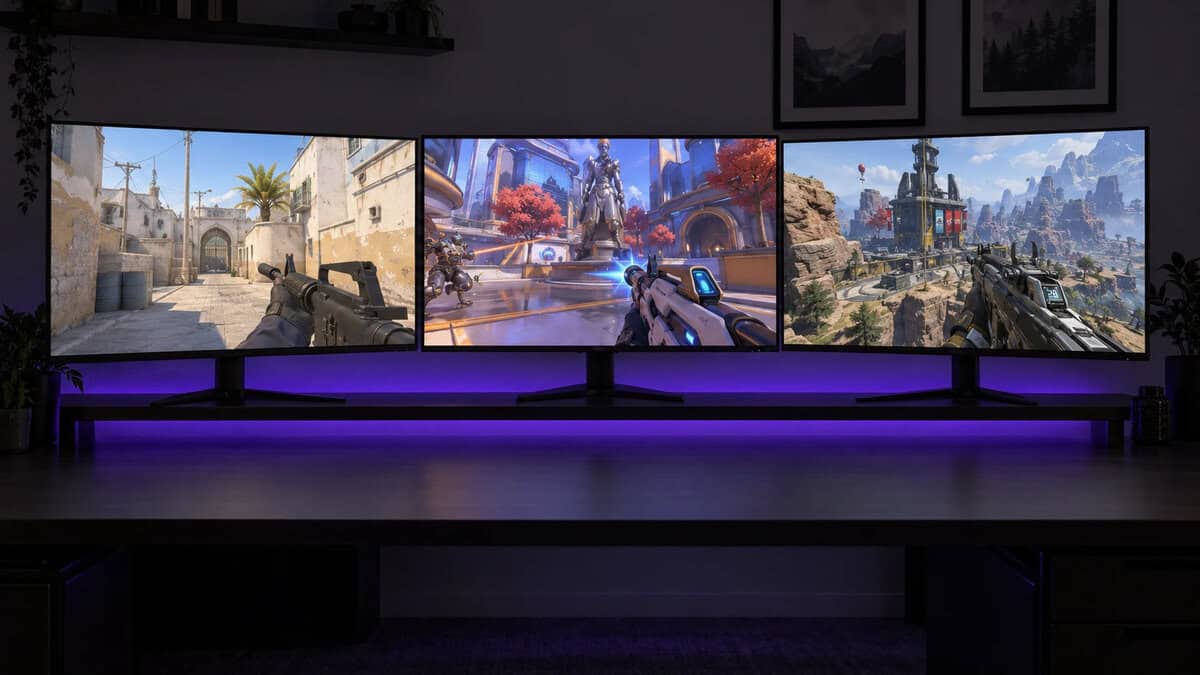
| The Frame Rate You Hold | Pick | Resolution at 360Hz | Why |
|---|---|---|---|
| Above 300 FPS across a few esports shooters | ASUS ROG Strix XG279CNS | 1080p (380Hz max) | Headroom past 360Hz and an HDMI input that still reaches 360Hz |
| 360 FPS at 1440p on a high-end graphics card | MSI MAG 271QPX QD-OLED | 1440p | OLED motion clarity at the higher resolution |
| High FPS in shooters, 4K in everything else | LG UltraGear 27G810A | 1080p (4K at 180Hz) | One screen for both kinds of game |
If you are unsure what your PC holds, note your FPS over a few matches first. If it stays at 240 FPS or below, our 144Hz vs 240Hz guide is the better next read.
Frequently Asked Questions
Quick answers about choosing a 360Hz monitor.
Is a 360Hz monitor worth it over 240Hz?
Only if your PC holds frame rates near 360 in the games you play most. Then a new frame can arrive about every 2.8 milliseconds instead of every 4.2, and fast motion looks a little clearer. If you hold closer to 240 FPS, a 240Hz monitor shows nearly the same thing for less.
Can you see the difference between 240Hz and 360Hz?
The difference shows up mostly as clearer motion when you track fast targets, and it is smaller than the jump from 144Hz to 240Hz. The panel matters too: a QD-OLED at 360Hz shows less smear than a Fast IPS screen at the same refresh rate.
What cable do I need for a 360Hz monitor?
Use a certified DisplayPort cable or an Ultra High Speed HDMI cable, plugged into the input the maker rates for full refresh. An HDMI 2.0 port, an older cable or a cheap adapter can stop the monitor short of 360Hz, especially at 1440p.
Do the PS5 and Xbox Series X support 360Hz?
No. Both consoles output far below 360Hz, so the extra refresh rate goes unused. Spare HDMI 2.1 inputs, like those on the MSI MAG 271QPX QD-OLED and LG UltraGear 27G810A, still let a console share the screen with a PC.
Is 1080p or 1440p better at 360Hz?
1080p is easier to drive at 360 FPS and suits esports players with a mid-range graphics card. 1440p looks sharper at 27 inches but needs a much stronger card to hold 360 frames a second, which is why the MSI MAG 271QPX QD-OLED pairs best with a high-end GPU.
Looking for more budget gaming gear? Check out Budget Loadout for the latest reviews and recommendations.
Related Articles