You’re probably choosing between two very different kinds of value.
One path is a gaming monitor on a desk. It gives you faster response, cleaner motion, sharper text, and better ergonomics for long sessions. The other path is a TV in a bedroom or living room. It gives you a much bigger image, better movie-night duty, and more immersion for slower games or shared use.
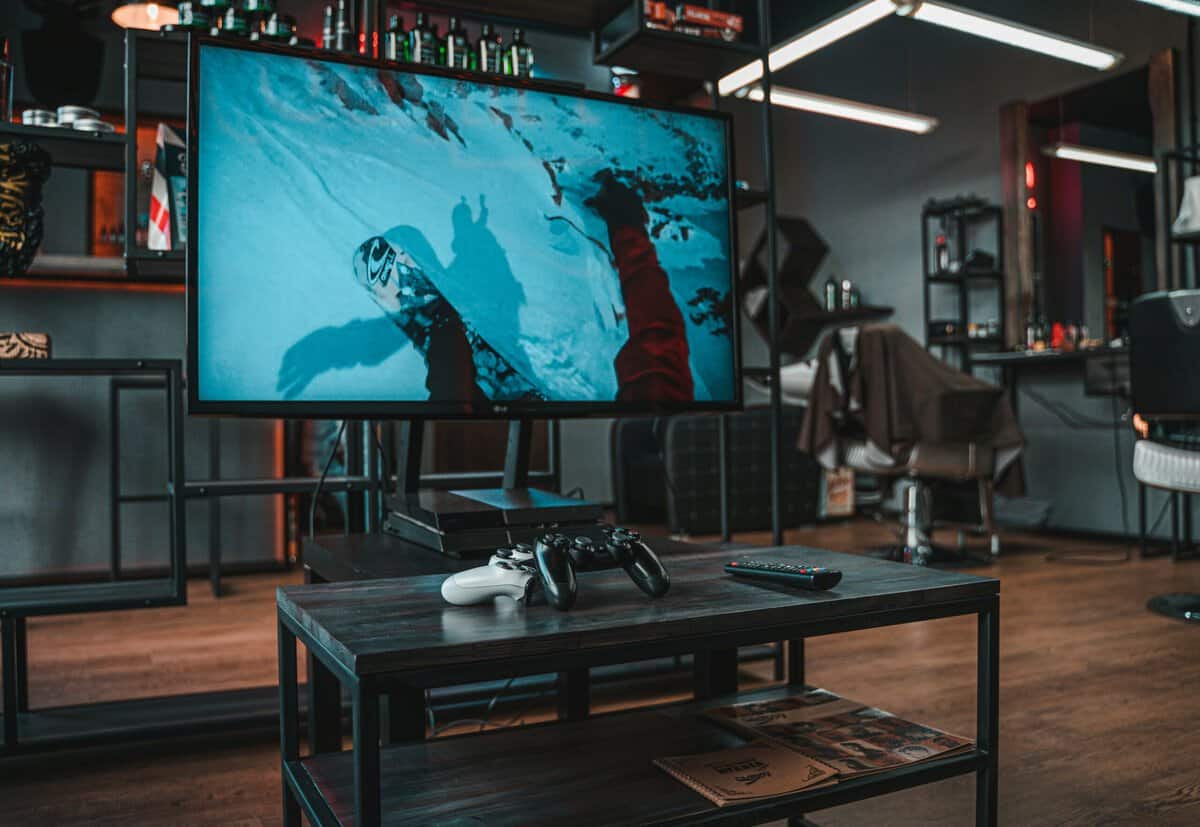
That’s why the gaming monitor vs tv debate gets muddled so often. People talk like one display type wins outright. It doesn’t. A monitor is usually the better tool for competitive play. A TV is often the smarter buy for couch gaming, streaming, and anyone who wants one screen to handle games plus everything else.
For a budget-conscious player, the main question is simple. What’s the good enough threshold for the way you play?
- 240Hz IPS at 24″ is the pro-tier sweet spot for shooters
- FreeSync Premium handles frame-rate dips cleanly
- Dual HDMI ports cover console + PC switching
- Tilt-only stand, no height or pivot adjust
- FHD at 24″ feels small if you’re upgrading from a TV
- No HDR worth mentioning
- QHD at 27″ hits the desktop clarity sweet spot
- Nano IPS color is excellent for mixed work and gaming
- Tilt, height, and pivot adjustability: ergonomics matter for long sessions
- 165Hz is plenty, but trails dedicated 240Hz competitive panels
- HDR400 is mostly marketing, not real HDR
- Stand footprint is larger than budget competitors
- Native 144Hz panel, actually competitive for couch FPS and racing
- Mini-LED + Dolby Vision for serious single-player and movies
- Gaming mode + ALLM auto-engage low-latency settings
- Fire TV interface can feel cluttered with ads
- Off-axis viewing isn’t as clean as a high-end OLED
- Stock sound is fine, not great; plan on a soundbar
- 32″ QHD curved feels close to a small TV at a desk
- 180Hz handles fast-paced games well at this size
- VA panel delivers strong contrast for single-player titles
- VA pixel response trails IPS in fast motion
- Curve makes wall-mount placement awkward
- Still a desk product; it won’t replace a TV across the room
- Monitors beat TVs on raw responsiveness (lower input lag, faster pixel response); the gap is real even if it’s smaller in 2026.
- TVs beat monitors on screen-size-per-dollar: a 55″ 4K TV often costs less than a 32″ gaming monitor.
- For competitive FPS, choose a 24-27″ monitor every time. Couch distance kills your aim regardless of TV specs.
- For couch gaming, single-player, and shared media use, a Game Mode-enabled 4K TV with HDMI 2.1 is the smarter buy.
- Don’t try to make one display do both jobs; pick based on where the screen lives, not what games you play.
Table of Contents
The Core Trade-Off: Responsiveness vs Immersion
If you mostly play shooters, fighters, or anything reaction-heavy, monitors still have the edge where it counts. According to NZXT’s monitor vs TV breakdown, gaming monitors typically deliver 1 to 5ms response times, with high-end models going below 1ms, while TVs usually sit around 6 to 8ms and can reach 20ms depending on the set. In a fast match, that gap isn’t theory. It changes how quickly motion settles on screen and how clean targets look while you’re tracking them.
Refresh rate pushes the split even further. That same NZXT comparison notes that gaming monitors commonly run at 144Hz to 240Hz or higher, while most TVs top out at 60Hz or 120Hz. If your system is producing 120 FPS on a 60Hz TV, the display still only shows 60 images per second, so part of the hardware’s output never reaches your eyes.
What speed actually feels like
On a monitor, camera movement looks tighter. Flicks feel more connected. UI elements stay easier to read during motion. That matters most in competitive games, but it also helps in everyday desktop use.
On a TV, the obvious win is scale. A bigger image from a couch is more relaxing for a lot of players. Open-world games, sports games, story-heavy titles, and local multiplayer all benefit from that larger presentation.
Practical rule: If your first complaint is “this feels slow,” buy a monitor. If your first complaint is “this feels too small,” buy a TV.
The good enough threshold
A lot of buyers don’t need the fastest display available. They need a display that fits the games they play and the distance they sit from it.
Use this quick comparison as your starting point.
| Specification | 27-inch Gaming Monitor | 55-inch 4K TV |
|---|---|---|
| Primary strength | Speed and desk usability | Size and couch immersion |
| Response time tendency | Faster | Slower |
| Refresh rate tendency | Higher | Lower |
| Text clarity up close | Better | Worse |
| Media and shared viewing | Limited | Better |
| Stand adjustability | Usually better | Usually limited |
If you’re torn between refresh-rate tiers, this guide on 144Hz vs 240Hz for gaming is worth reading before you overspend. For most value-focused players, “fast enough” matters more than chasing specs you won’t fully use.
Comparing Critical Performance Specs for Gaming
The feel of a display comes down to three things more than anything else: input lag, refresh rate, and adaptive sync. These aren’t marketing fluff. They directly affect how connected the game feels.
Input lag decides how immediate your controls feel
The broad average gap between TVs and monitors is smaller than some people expect, but monitors still hold the cleaner advantage. RTINGS’ analysis of 190 TVs and 134 monitors found average input lag at 60Hz was 11.7 ms for monitors and 12.4 ms for TVs. At 120Hz, that narrowed to 5.5 ms for monitors and 6.8 ms for TVs.
Those numbers don’t tell the whole story on their own. The more useful part is consistency. Monitors tend to have less variance, which matters in real use. A display that behaves predictably is easier to trust, especially in shooters or fighting games.
Refresh rate changes motion clarity
Higher refresh rates don’t just make games look smoother. They make moving targets easier to read and reduce the muddy feel during quick pans. RTINGS notes that monitors can support refresh rates up to 480Hz natively, while TVs often top out at 120Hz to 240Hz for 4K.
That doesn’t mean every player needs extremely high refresh. Most don’t. But it does mean monitors scale better with PC hardware and are usually the safer buy if responsiveness is the priority.
The practical difference isn’t just visual smoothness. It’s how confidently you can track movement when the screen is changing fast.
Adaptive sync matters when frame rate moves around
Frame rates don’t stay locked in every game. That’s where adaptive sync helps. On a monitor, it’s usually part of the buying decision because the display is designed around gaming first. On a TV, support can be good, but it’s often secondary to media features.
What works best:
- For competitive PC play: prioritize a monitor with solid adaptive sync support and a refresh rate your system can feed.
- For mixed gaming: adaptive sync is still useful, but not worth sacrificing basic panel quality, motion handling, or usability.
- For console use: support matters, but make sure the display also handles the console’s target output cleanly.
A common mistake is buying a fast panel and then connecting it poorly. If you’re unsure which cable standard your setup should use, this breakdown of DisplayPort vs HDMI for gaming helps sort that out without the usual confusion.
What specs deserve your money
For value buyers, the order is pretty simple:
- Low input lag first. A display that feels direct is easier to enjoy in every game.
- Refresh rate second. Especially if you play shooters, racers, or fast action games.
- Adaptive sync third. Useful, but not a reason to ignore weak motion performance or poor build quality.
If you mainly play MMO games, strategy titles, or slower single-player releases, you can relax a little here. A TV won’t suddenly ruin those genres. But for FPS players, the monitor advantage is still real.
Beyond Speed Comparing Visuals and Build Quality
Speed gets most of the attention, but visuals and physical design decide whether you’ll still like the display after the first week.
Pixel density is why monitors make more sense on a desk
A big TV can look great from across a room and still look rough from a chair. BenQ’s gaming display comparison highlights the gap clearly: a 27-inch 4K monitor reaches about 163 PPI, while a 55-inch 4K TV is around 80 PPI. At desk distance, that affects everything from text sharpness to inventory screens to small HUD details.
That’s why TVs often feel wrong as full-time desktop displays. Menus look oversized or soft. Fine text is less comfortable to read. Mouse control also feels less natural when you’re scanning a huge panel up close.
For work-and-play setups, a monitor usually wins before the game even launches.
HDR and panel character are different stories
TVs tend to make a stronger case once you care more about image punch than close-range clarity. BenQ notes that high-end OLED TVs in the LG C-series can reach 1000+ nits peak brightness with near-perfect black levels, giving HDR content a level of impact many budget and mid-range monitors don’t match.
That matters for cinematic single-player games, movies, and streaming. Dark scenes look deeper. Highlights hit harder. If your gaming setup doubles as a home media screen, that’s a valid reason to choose a TV.
If you’re trying to sort out common panel trade-offs before buying, this guide on IPS vs VA for gaming is a useful companion.
Buying shortcut: For desk use, prioritize clarity and comfort. For couch use, prioritize contrast, screen size, and HDR performance.
Build quality and durability matter more than spec sheets suggest
Monitors usually offer better ergonomics. Height adjustment, tilt, and easier placement make a real difference during long sessions. That’s especially important for anyone using the same screen for gaming, school, work, or streaming.
TVs usually feel more substantial as living-room hardware, but they often have fixed stands with limited adjustment. That’s fine on a media console. It’s not ideal on a desk.
What I’d look for in either category:
- Stable stand or mounting support: wobble gets old fast, especially on lightweight desks.
- Reasonable bezel and chassis quality: not for looks alone, but for long-term handling and cable strain.
- Ventilation and panel care: thinner designs can still run warm, so placement matters.
How to Match the Display to Your Gaming Setup
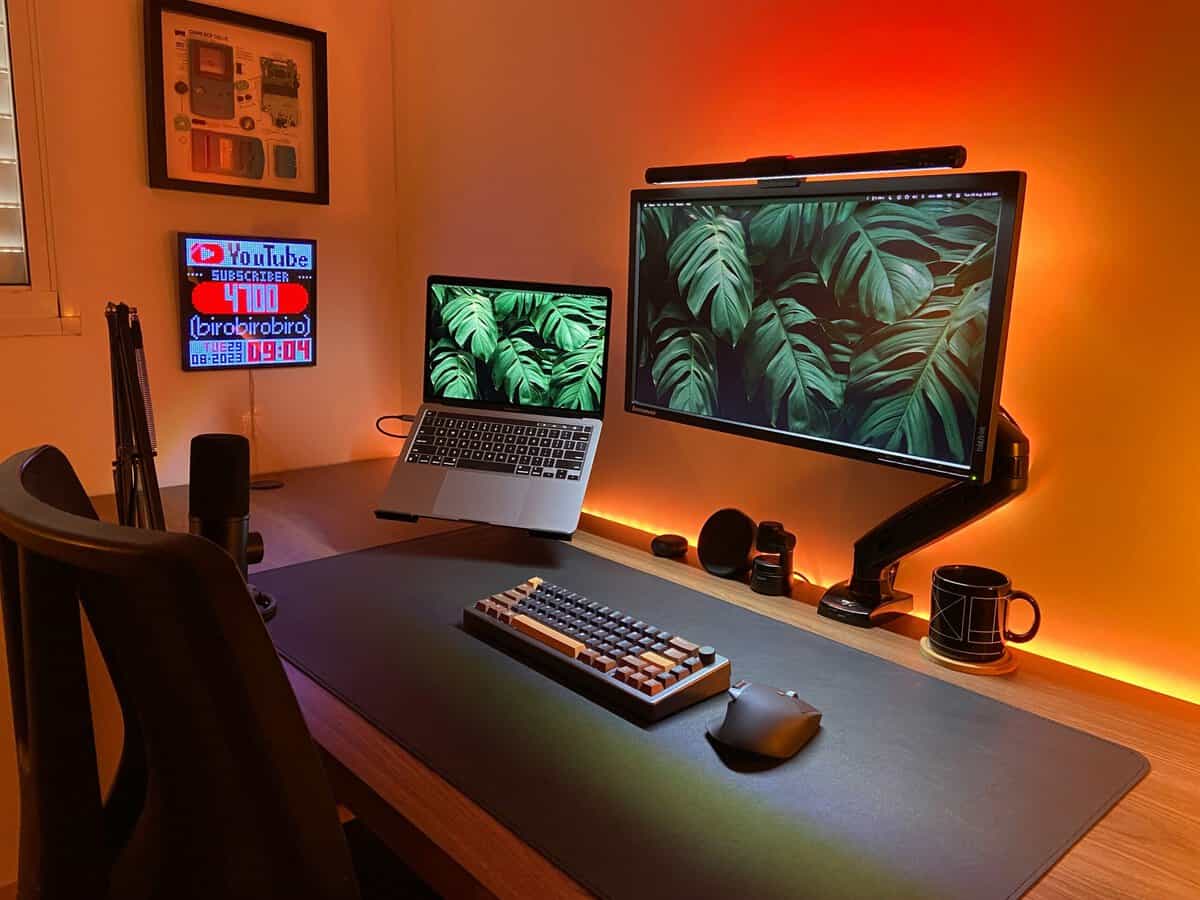
The right answer changes based on two things. What hardware you use, and where you sit.
If you play at a desk
A monitor makes more sense for most desk setups. You’re close to the screen, you’re likely using a keyboard and mouse some of the time, and you benefit from sharper UI and a more adjustable stand.
This is also the better choice if your display has to do double duty for work, classes, browsing, or streaming control panels. TVs can handle that in a pinch, but they’re rarely pleasant for it.
If you play from a couch
A TV is usually the more natural fit. You get the larger image, easier shared viewing, and better all-around media use. For slower single-player games, sports games, and casual console sessions, that’s often enough.
But there’s one place console players leave value on the table. Many still assume consoles belong on TVs by default.
A useful counterpoint comes from this console monitor discussion on YouTube, which notes that many console gamers don’t realize monitors work well with consoles. It also points out that a sub-$200 gaming monitor can be a strong value upgrade for fast-paced console games because of the lower response times and reduced input lag.
If you mostly play ranked shooters on console, a monitor isn’t a weird setup choice. It’s often the smarter one.
A simple way to choose
Pick a monitor if most of these are true:
- You sit at a desk
- You play FPS, fighters, or other reaction-heavy games
- You want one screen for gaming plus daily computer use
- You care about stand adjustment and posture
Pick a TV if most of these are true:
- You play from a couch or bed
- You share the screen with family or friends
- You care as much about shows and movies as games
- You want the largest image for the money
If you’re shopping specifically for console play, this guide to the best monitor for PS5 can help narrow down what matters without turning it into a spec-chasing exercise.
Value-Focused Recommendations and Final Verdict
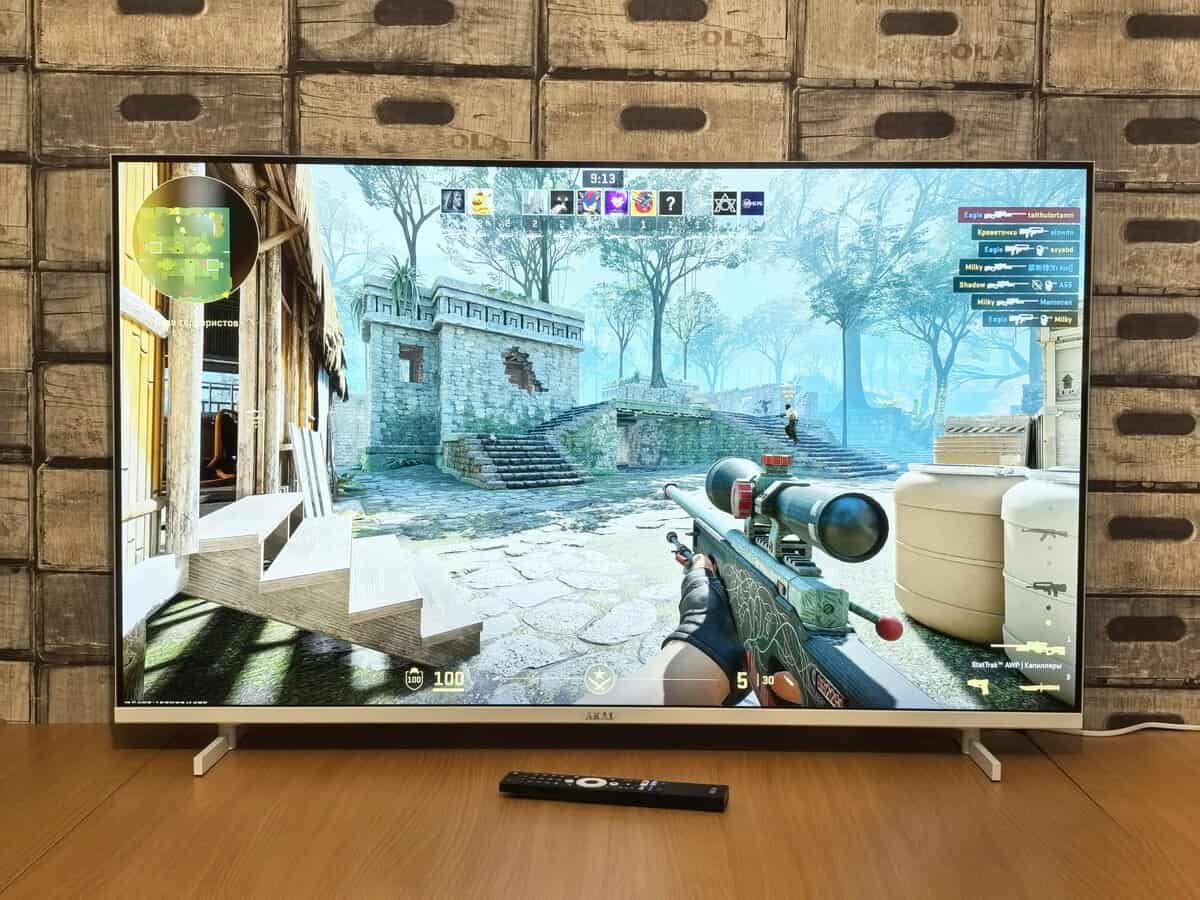
Value isn’t about buying the cheapest screen on the shelf. It’s about buying the display that solves your actual use case without paying for features you won’t use.
Corsair’s monitor vs TV comparison makes the core economics clear: the price-to-screen-size ratio heavily favors TVs. Budget buyers can often find 4K TVs larger than 55 inches for under $400, while a high-quality monitor in that range is usually much smaller, often 27 to 32 inches. That’s the strongest argument for TVs, and it’s a legitimate one.
Best fit for competitive FPS
Choose a 27-inch or 24-inch gaming monitor.
That size range is easier to manage at a desk, easier on your neck, and better suited to fast aim-heavy games. You don’t need the biggest screen. You need motion that stays readable and a build that holds up to daily use. A good stand matters here more than buyers think.
Best fit for MMO and mixed-use desk setups
Choose a 27-inch monitor with a focus on clarity and comfort.
MMO players spend a lot of time looking at text, menus, cooldown bars, maps, and browser tabs outside the game. A TV can do it, but it’s usually a compromise. Monitor ergonomics and sharper close-up presentation make the difference over long sessions.
Best fit for cinematic single-player and streaming
Choose a 55-inch 4K TV.
This is the sweet spot for people who care about immersion, controller play, and dual-purpose media use. If your display is going in a bedroom or living space, a TV often gives more overall value even if it loses on pure responsiveness.
Best hybrid choice
Choose based on where the screen lives, not just what games you play.
If it lives on a desk, get a monitor. If it lives across the room, get a TV. Trying to force one display to dominate both roles usually leads to a mediocre compromise.
Good enough is the real budget target. For competitive play, good enough starts with a monitor. For couch immersion and media value, good enough often starts with a TV.
If you’re looking at newer console or PC connections, this article on choosing an HDMI 2.1 monitor is useful for figuring out when that feature is worth paying for and when it isn’t.
Essential Setup Tips for Your New Display
Buying the right display is only half the job. Bad settings can make a good screen feel mediocre.
For TVs:
- Enable Game Mode: this cuts extra image processing and gives you the best shot at responsive gameplay.
- Turn off motion smoothing: it can make games feel odd and adds the kind of processing you don’t want.
- Check the HDMI input settings: some TVs need the gaming-friendly mode enabled per port.
For monitors:
- Set the highest refresh rate in your system settings: a lot of players forget this and end up using a fast monitor at a lower default refresh.
- Enable adaptive sync if your setup supports it: that helps smooth out frame pacing.
- Adjust overdrive carefully: too low can look blurry, too high can create visible artifacts.
For both:
- Sit at the right distance: too close to a large TV feels worse than buying a smaller screen that fits the space.
- Use a solid stand or mount: durability and stability affect everyday comfort more than people expect.
- Test with the games you play: don’t judge a display only by menus or video content.
Frequently Asked Questions
Can a gaming TV really compete with a gaming monitor for fast-paced games?
For competitive FPS, no: a 24-27 inch monitor at desk distance still wins because your eyes can track the entire frame without head movement, and motion clarity is more critical than raw refresh rate. For everything else, modern Mini-LED and OLED TVs with gaming mode and ALLM are genuinely close to monitor responsiveness.
The gap that mattered in 2018 is mostly closed in 2026, but the seating distance and field of view differences haven’t changed.
Do I need HDMI 2.1 for gaming on a TV?
If you’re playing on PS5, Xbox Series X, or a current-gen PC and you want 4K at 120Hz, yes: HDMI 2.1 is required. It also unlocks VRR (variable refresh rate) and ALLM (auto low latency mode) on supported displays.
If you’re mostly gaming at 1080p or 1440p with frame rates under 100, HDMI 2.0 still handles it. But buying a new TV without HDMI 2.1 in 2026 is short-sighted unless you’re strictly under $300.
What input lag should I look for on a gaming TV?
Aim for under 15ms in Game Mode for fast-paced titles, and under 25ms for everything else. Anything over 30ms starts to feel sluggish for fighting games and shooters. Most current Mini-LED TVs from Hisense, TCL, Samsung, and LG hit 10-15ms in Game Mode.
Always verify the spec for the actual mode you’ll use; many TVs list a fast Game Mode number while their default Standard or Cinema modes can climb past 50ms.
Is a 4K TV better than a 1440p monitor for PS5 or Xbox Series X?
It depends on your seating distance and what games you play. A 55-inch 4K TV at couch distance gives you immersion and detail that a 27-inch 1440p monitor can’t match for cinematic titles. But for competitive multiplayer at desk distance, the 1440p monitor wins on pixel density, response time, and field-of-view efficiency.
Pick the one that matches where the console actually lives in your space. Don’t buy a TV for a desk or a desktop monitor for a couch.
If you want practical gear advice without the usual hype, Budget Loadout is built for exactly that. It focuses on real-world v
Related Articles