The HDMI 2.1 logo on a monitor box is not a promise. It is a permission slip. The standard lets a manufacturer print the name on a screen that carries none of the features you are paying for, which means an HDMI 2.1 monitor has to be judged by what its ports actually do: 4K at 120Hz, variable refresh rate, and a link fast enough to carry both from a PS5 or an Xbox Series X.
Three budget monitors clear that bar. One shares a desk between a console and a PC, one is the cheapest way to get the full feature set, and one is a 32-inch screen for playing from a few feet back. The sections below follow the signal from the console to the panel, because every link in that chain can quietly drop you back to 60Hz.
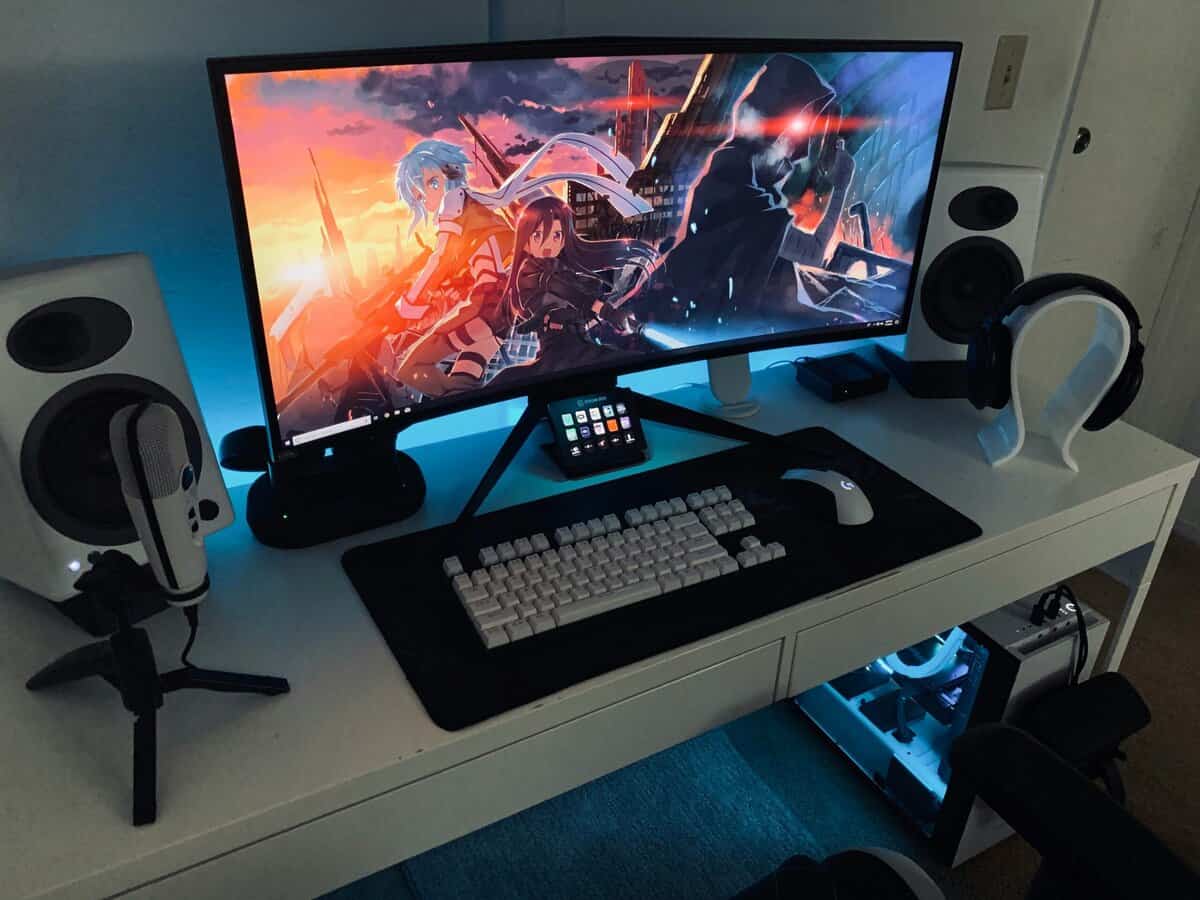
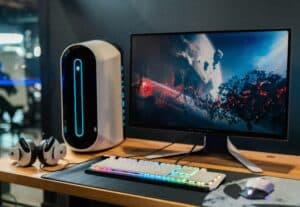
The monitor for a desk that holds a console and a PC. Two HDMI 2.1 ports, a KVM switch, and a dual-mode panel that suits both machines.
- KVM shares one keyboard and mouse
- Two HDMI 2.1 ports for two consoles
- 320Hz mode for competitive PC shooters
- USB-C charging is too weak for laptops
- Stand has no swivel or pivot
- HDR is entry level
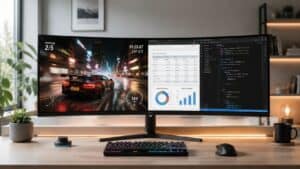
The cheapest way to run a console at 4K 120Hz without cutting a corner that matters. Four inputs and the best stand of the three.
- Lowest cost for true 4K 120Hz
- Fully adjustable stand with pivot
- Four video inputs in total
- No USB hub or KVM
- Menu system takes some learning
- Smaller brand with a shorter track record
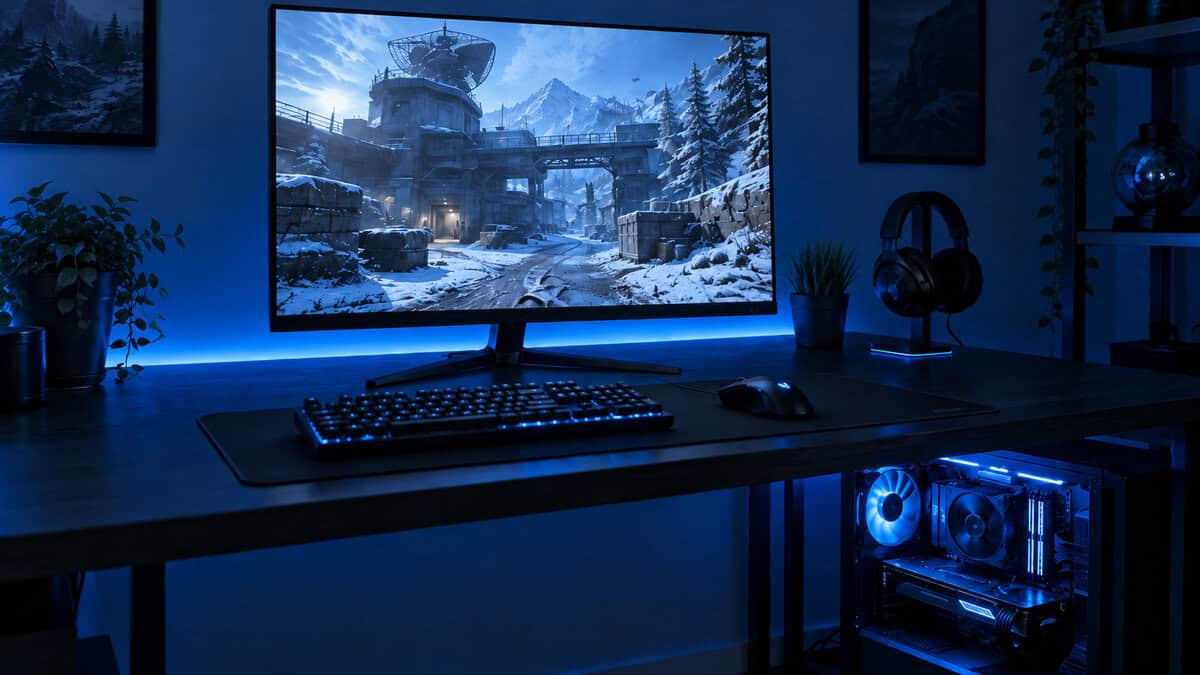
A 32-inch screen for playing a console from a few feet back. Deeper blacks than IPS and speakers good enough to skip a soundbar.
- 32 inches suits couch and bed distance
- VA panel gives deeper blacks
- Built-in speakers are usable
- Tops out at 120Hz on every input
- Slower pixel response than Fast IPS
- No USB-C or KVM
- The HDMI 2.1 name alone guarantees nothing. Look for three stated features: 4K at 120Hz over HDMI, variable refresh rate, and auto low latency mode.
- A PS5 and an Xbox Series X both top out at 4K 120Hz, so a 160Hz panel only pays off when a gaming PC shares the screen.
- The cable that shipped with your console is already the right one. Replace it only with a cable that carries the Ultra High Speed certification label.
- Two HDMI 2.1 ports matter more than extra refresh rate if you own two consoles, because swapping cables behind a monitor gets old fast.
- 120Hz output and VRR are switched off by default on both consoles. Turn them on in the console menu and again in the monitor menu.
Table of Contents
The Label Promises Less Than You Think
When the HDMI 2.1 specification arrived, it absorbed the older 2.0 standard instead of sitting beside it. Every feature that made 2.1 exciting became optional. The HDMI Forum’s own overview of the 2.1 spec lists the headline features, including higher bandwidth, variable refresh rate, and auto low latency mode, but a manufacturer can ship a port with none of them and still use the name.
That is how a 1080p office monitor ends up with HDMI 2.1 printed on its box. Nothing about it is illegal. It just has nothing to do with what a console owner is shopping for.
What an HDMI 2.1 Monitor Has to Do
Ignore the version number and read the feature list. A monitor earns a place next to a current console when its spec sheet states three things in plain words. The first is 4K at 120Hz over HDMI, not just over DisplayPort. The second is variable refresh rate, which lets the screen follow the console’s frame rate instead of tearing when a game dips. The third is auto low latency mode, which flips the monitor into its fastest mode when a game starts.
If a listing says “HDMI 2.1” and then quotes 4K at 60Hz for the HDMI ports, the port is an HDMI 2.0 port wearing a new name. Our HDMI 2.0 vs 2.1 comparison walks through the full difference between the two.
Shop for the sentence “4K 120Hz over HDMI”, not for the number 2.1.
Three Monitors That Keep the Promise
All three picks state 4K 120Hz over HDMI in their own spec sheets, carry two HDMI 2.1 ports, and support adaptive sync. They differ in what else sits on the desk. The spec sheet comes first, then each pick explains who it is for.
| Pick | Screen size | Resolution | Max refresh | HDMI 2.1 ports | Other inputs | Panel type | Adaptive sync | Stand adjustment | Best for |
|---|---|---|---|---|---|---|---|---|---|
| Gigabyte M27UP | 27 inches | 3840 x 2160 | 160Hz, or 320Hz at 1080p | 2 | DisplayPort 1.4, USB-C, 3-port USB hub with KVM | Fast IPS | FreeSync Premium, G-Sync Compatible, HDMI VRR | Height, tilt | A console and a PC on one desk |
| KTC H27P22S | 27 inches | 3840 x 2160 | 160Hz | 2 | 2x DisplayPort 1.4 | Fast IPS | FreeSync, G-Sync Compatible, HDMI VRR | Height, tilt, swivel, pivot | The lowest cost route to 4K 120Hz |
| Dell S3225QS | 31.5 inches | 3840 x 2160 | 120Hz | 2 | DisplayPort 1.4 | VA | FreeSync Premium, HDMI VRR | Height, tilt | Console play from a few feet back |
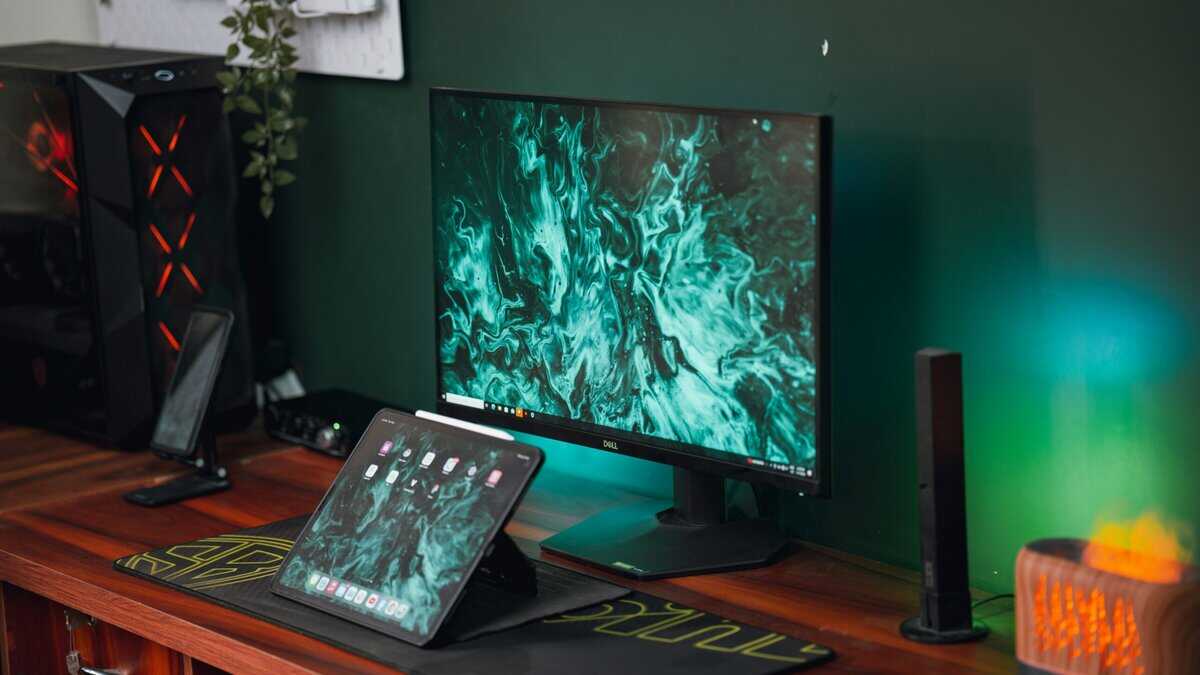
Gigabyte M27UP: One Screen for a Console and a PC
The Gigabyte M27UP wins because most people shopping for an HDMI 2.1 monitor are not replacing a TV. They are adding a console to a desk that already holds a PC. The M27UP is built for that desk. Two HDMI 2.1 ports take a PS5 and an Xbox, DisplayPort takes the PC, and the built-in KVM moves one keyboard and mouse between machines with a button press.
The panel is a 27-inch Fast IPS that runs 4K at 160Hz, and a dual-mode switch drops it to 1080p at 320Hz for competitive PC shooters. A console will never use either number, since both current consoles stop at 120Hz. The PC will, and that headroom is the reason to pay a little more than the KTC below.
Extra refresh rate is for the PC. Extra ports are for the consoles. The M27UP brings both.
The tradeoffs are small and worth knowing. The USB-C port carries video and data, but its charging output is too low to keep a gaming laptop topped up. The stand adjusts for height and tilt only, so a vertical second-screen setup needs a monitor arm. HDR is the entry-level kind, which brightens highlights a little and does not transform a game. If you want a similar dual-mode panel from a bigger brand, the ASUS TUF Gaming VG27UQ1A is the closest rival, with a 4K 160Hz panel and no KVM.
KTC H27P22S: The Cheapest Honest 4K 120Hz
The KTC H27P22S is the answer to the question most readers arrive with, which is how little a real 4K 120Hz console monitor can cost. It is a 27-inch Fast IPS at 4K and 160Hz with two HDMI 2.1 ports and two DisplayPort inputs, so two consoles and two computers can stay plugged in at once.
It also has the best stand in this guide. Height, tilt, swivel, and pivot are all there, which is rare at the bottom of the 4K price range, where tilt-only stands are the norm. If the monitor sits on a shallow desk or under a shelf, that adjustability matters more than any panel spec.
What you give up is everything around the panel. There is no USB hub, no KVM, and no USB-C, so a shared desk still needs a separate switch for the keyboard and mouse. The on-screen menu takes a few minutes to learn, and KTC is a younger name in this market than Gigabyte or Dell. The KOORUI G2741L is the other budget name you will see at this level. It adds a 1080p 320Hz dual mode to a similar 4K 160Hz panel, and it is worth a look if the KTC is out of stock.
Dell S3225QS: Thirty-Two Inches for the Couch
The Dell S3225QS is the pick for a console that lives in a bedroom or a dorm, where the screen sits on a dresser and you play from the bed or a chair a few feet back. At that distance a 27-inch screen feels small, and 31.5 inches at 4K is the better fit. Dell’s spec sheet is also the clearest of the three about what its HDMI ports do: 4K at 120Hz with VRR, stated outright.
A monitor that says exactly what its HDMI ports do is rarer than it should be.
The panel is VA rather than IPS, which means deeper blacks and a richer picture in a dark room, along with slower pixel response. Fast camera pans in dark scenes can show a little smearing that a Fast IPS panel would not. The refresh rate stops at 120Hz on every input, which costs a console nothing and costs a gaming PC some headroom. Two 5W speakers are built in, and they are good enough that a bedroom setup can skip a soundbar. If you are weighing a monitor against a small television for this job, our PS5 monitor guide covers that choice in more depth.
The Console Output
The chain starts at the back of the console. Each machine sends something slightly different down the cable, and knowing what yours sends tells you which monitor features you will use.
PlayStation 5 and PS5 Pro
The PS5 outputs up to 4K at 120Hz and supports VRR and auto low latency mode. Sony’s PS5 resolution and video output guide lays out the requirements, and the important detail is that the PS5 uses the HDMI version of VRR. It does not use FreeSync over HDMI. A monitor has to support HDMI VRR for the feature to switch on, and all three picks here do.
The PS5 also supports 1440p output with VRR, which matters if you ever move it to a lower-resolution screen. On a 4K monitor, leave resolution on automatic and let the console pick.
Xbox Series X and Series S
The Xbox Series X matches the PS5 at 4K 120Hz and is more flexible about how it gets there. It accepts both HDMI VRR and FreeSync, so almost any adaptive sync monitor works. The Series S targets 1440p at 120Hz, which every monitor in this guide handles without effort. Our Xbox Series X monitor guide goes further into Xbox-specific picks.
Switch 2 and a Gaming PC
A docked Switch 2 tops out at 4K at 60Hz, or 120Hz at lower resolutions, so it never stresses an HDMI 2.1 port. It simply benefits from having a spare one. A gaming PC is the opposite case. It can push past 120Hz, and it is usually better served by DisplayPort, which is why a monitor with both port types keeps the HDMI inputs free for consoles.
The Cable
The cable is the cheapest link in the chain and the one that causes the most confusion. A 4K 120Hz signal needs an Ultra High Speed HDMI cable, which is the certified category built for the full bandwidth of the 2.1 standard. Older High Speed cables were built for 4K at 60Hz and will either fall back to 60Hz or drop the picture entirely.
The good news is that you already own the right cable. Both the PS5 and the Xbox Series X ship with an Ultra High Speed cable in the box. Use that one. If you need a longer run or a second cable, look for the official certification label on the packaging, which carries a hologram and a QR code you can scan to confirm it is genuine.
Ignore version numbers printed on cables. “HDMI 2.1 cable” is a marketing phrase, not a certification. The words that count are Ultra High Speed. Keep the run short as well, since passive cables get less reliable at full bandwidth as they get longer, and a flickering or blacking-out picture at 120Hz is almost always the cable.
If the picture blacks out at 120Hz and holds steady at 60Hz, suspect the cable before the monitor.
The Port
Once the signal reaches the monitor, the port decides how much of it gets through. This is where budget monitors differ most and where spec sheets say the least.
Not Every HDMI 2.1 Port Runs at Full Speed
The 2.1 standard allows several link speeds, and budget monitors often use a slower one paired with Display Stream Compression to fit a 4K high-refresh picture through. A PC and an Xbox handle that compression without fuss. The PS5 does not use it, so on a reduced-speed port the console trims color detail slightly to fit 4K 120Hz through the link.
In a moving game this is very hard to see. It shows up on fine colored text, which is a desktop problem, not a console one. It is worth knowing because it explains why a PS5 can report a different video format than you expected while still running at 4K 120Hz. The picture is fine, and nothing is broken.
Count the Ports Before the Hertz
Some monitors carry one HDMI 2.1 port and one HDMI 2.0 port, and the box does not say which is which. Plug the console into the wrong one and it runs at 60Hz forever. All three picks here have two full HDMI 2.1 inputs, which removes the guesswork and leaves room for a second console. If you also run a PC, our DisplayPort vs HDMI guide explains which machine belongs on which input.
The Panel
The last link is the screen itself. A perfect signal still has to be drawn by real pixels, and at this price the panel choices are about size, type, and honesty about HDR.
Twenty-Seven or Thirty-Two Inches
At arm’s length on a desk, 27 inches at 4K is as sharp as a monitor gets, and it keeps the whole screen inside your field of view. From a bed or a couch a few feet back, the same screen looks small and the extra sharpness is wasted. That is the case for 32 inches. Pick the size by where you sit, not by which sounds more impressive.
IPS vs VA for Console Games
Fast IPS panels, like the ones in the Gigabyte M27UP and KTC H27P22S, respond quickly and hold their color from any angle, which suits shooters and sports games. Their weakness is black level. In a dark room, dark scenes look gray. A VA panel like the one in the Dell S3225QS reverses the trade, with deeper blacks and slower pixels. If you mostly play story games at night, VA is the better picture. If you mostly play competitive games, IPS is.
What Budget HDR Really Delivers
Every monitor at this level accepts an HDR signal, and none of them has the local dimming needed to show it properly. Entry-level HDR brightens the whole picture a little and can wash out dark scenes. Try it per game and do not feel bad about leaving it off. If picture quality in 4K matters more to you than console features, our budget 4K gaming monitor guide ranks panels on that axis instead.
Buy a budget monitor for 120Hz and VRR. Treat its HDR badge as a bonus that may or may not look better.
Settings to Turn On Before You Play
Both consoles ship with their best video features switched off or set conservatively, and many monitors do the same. A new HDMI 2.1 monitor often runs at 60Hz for weeks because nobody opened two menus.
On the Console
On a PS5, open Settings, then Screen and Video, then Video Output. Set 120Hz Output to Automatic, set VRR to Automatic, and leave ALLM on. Then check each game’s own menu, because many titles hide 120Hz behind a performance mode. On an Xbox, open Settings, then General, then TV and display options. Set the refresh rate to 120Hz, then open Video modes and tick the boxes for variable refresh rate and auto low latency mode.
On the Monitor
Open the monitor’s on-screen menu and look for two things. The first is the adaptive sync or FreeSync toggle, which is often off out of the box. The second, on some models, is an HDMI mode or console mode setting that switches the port between its 2.0 and 2.1 behavior. If the console refuses to offer 120Hz, that setting is the usual cause. Once both are on, the console’s video output screen should report 4K, 120Hz, and VRR together.
Which Monitor for Which Console Setup
If the spec sheet left you between two screens, this table settles it by how you play. One row per pick, read across.
| Pick | Best setup | Viewing distance | Sharing a desk with a PC | Picture character | Skip it if |
|---|---|---|---|---|---|
| Gigabyte M27UP | Console plus gaming PC on one desk | Arm’s length | Built-in KVM and USB-C | Fast and color accurate with grayer blacks | You only own a console and want to spend less |
| KTC H27P22S | One or two consoles on a budget | Arm’s length | Works, with a separate USB switch | Fast and color accurate with grayer blacks | You need a KVM or a USB hub |
| Dell S3225QS | Bedroom or dorm console screen | A few feet back | Works, capped at 120Hz | Deep blacks with softer motion | You play competitive shooters on a PC |
Playing on the couch instead? Our best TV for PS5 guide covers sets with the right ports.
Frequently Asked Questions
The questions that come up most when matching a monitor to a current console.
Do I need an HDMI 2.1 monitor for a PS5?
Only if you want 4K at 120Hz or VRR. A PS5 runs at 4K 60Hz on any HDMI 2.0 monitor, and plenty of games never go above that. The 2.1 features matter for games with a 120Hz performance mode and for smoothing out frame rate dips with VRR, which is where a current console feels noticeably better.
Can HDMI 2.0 do 4K at 120Hz?
No. HDMI 2.0 carries 4K at up to 60Hz, or 1440p and 1080p at 120Hz. Reaching 4K at 120Hz needs the higher bandwidth that arrived with HDMI 2.1. If a monitor lists HDMI 2.1 but quotes 4K 60Hz for its HDMI inputs, it is using the older port behavior under the newer name.
Do I need a new HDMI cable for 4K 120Hz?
Usually not. The PS5 and Xbox Series X both include an Ultra High Speed HDMI cable, which is the certified type for 4K 120Hz. If you buy another, look for the Ultra High Speed certification label with its hologram and QR code, and keep the cable as short as your setup allows.
Does PS5 VRR work on a monitor?
Yes, as long as the monitor supports HDMI VRR. The PS5 does not use FreeSync over HDMI, so a FreeSync badge alone is not enough. All three picks in this guide support VRR with a PS5. Turn it on under Screen and Video in the console settings, and enable adaptive sync in the monitor menu.
Is DisplayPort better than HDMI 2.1 for a gaming PC?
For most PCs, yes. DisplayPort is the native connection for graphics cards, reaches each monitor’s highest refresh rate, and has the widest G-Sync and FreeSync support. Use DisplayPort for the PC and keep the HDMI 2.1 ports free for consoles, which cannot use DisplayPort at all.
Looking for more budget gaming gear? Check out Budget Loadout for the latest reviews and recommendations.
Related Articles