You queue into a match after work, everything feels fine in the lobby, then the round starts and your shots land a fraction late. You peek a corner in an FPS, die behind cover, and the killcam makes it look like you never moved. Or you’re in an MMO raid and every mechanic feels sticky. If that sounds familiar, the problem usually isn’t “bad internet” in the vague sense. It’s a latency problem, and you can fix a lot of it without throwing money at random gear.

Most guides on how to get better ping jump straight to “buy a gaming router.” That’s backwards. The best approach is to work from free fixes, to simple network changes, to hardware upgrades only when your current setup is the bottleneck. That order matters, especially if you’re playing on a shared connection, a dorm setup, or a console tucked across the room from the router.
- Start with free fixes (close background apps, pause downloads, pick the closest server) before spending anything.
- QoS and firmware updates on your existing router often matter more than buying a new one.
- DNS changes rarely lower in-match ping; they mostly improve load and connection feel.
- If your ping pattern stays bad after these steps, the ISP line or plan is the real bottleneck, not your gear.
Table of Contents
What Is Ping and Why Does It Matter
Ping is the round-trip time between your device and the game server. It is measured in milliseconds, and in online games, those milliseconds decide how quickly the server sees your input and how quickly you see the result.
A low number feels sharp. A high number feels delayed.
If you want a broader explanation of what low latency means outside gaming, that breakdown is useful. For players, the practical test is simple. Do actions happen when you expect them to, or does everything feel half a beat late?
The ranges that actually matter
For most games, lower ping is better, but the acceptable range depends on what you play. In a competitive shooter, even moderate delay can throw off peeking, tracking, and hit registration. In an MMO or turn-based game, the same connection might feel fine until mechanics stack up or combat gets busy.
Here is the version that matters in real matches:
| Game type | What ping feels like |
|---|---|
| FPS games | Delay shows up fast. Gunfights feel off, trades look weird, and you die after reaching cover. |
| MMOs | More forgiving at baseline, but movement, skill timing, and boss mechanics start to feel sticky as latency rises. |
| Streaming while gaming | The connection gets crowded easily. Input delay and packet instability usually show up before the stream fully falls apart. |
Raw ping is only part of the story. Jitter matters too. Jitter is the variation in delay from one packet to the next, and it is often what makes a game feel inconsistent instead of slow. I have played on connections with average ping that looked acceptable on paper but still felt terrible because the latency kept jumping around.
That distinction matters because it changes what you fix first. A stable 50 ms connection is often more playable than a 25 ms connection with spikes. Console players run into this a lot on Wi-Fi. The average number may look decent in the network test, but gameplay still feels rough because wireless interference keeps changing the timing.
That is why this guide starts with impact versus cost. Free fixes come first. Then come the upgrades that usually help the most for the least money, including realistic options for setups where running Ethernet across the room is not happening.
Start with the Free Ping Fixes
Before you buy anything, clean up the network you already have. By doing so, a lot of “mystery lag” disappears.
Background apps matter more than people think. Streaming services, downloads, cloud backups, launcher updates, and other bandwidth-hungry tasks can raise ping by competing for network resources. Closing them during gaming gives immediate improvement at no cost, and it’s also important to check upload speed, not just download speed, because every in-game action is an upload according to Avast’s explanation of high ping causes.
The quick checklist
Do these in order. Don’t skip steps because they look too simple.
- Close game launchers and update tools: Steam, Epic, console patch downloads, cloud sync apps, and any app updating in the background can interfere with gaming traffic.
- Pause video streams on the network: If someone in the house is watching a stream, that can load the connection enough to hurt responsiveness.
- Stop uploads you forgot about: Cloud photo backup, file sync, and big attachments are easy to miss, and gaming depends on clean upload performance.
- Choose the nearest game server: Most multiplayer games let you pick a region. If they do, pick the one physically closest to you unless matchmaking quality becomes a bigger issue than latency.
- Restart the modem and router properly: Unplug them, wait a bit, then bring the modem up first and the router second. This won’t fix bad infrastructure, but it can clear short-term routing or device issues.
- Test when the lag happens: If your ping only gets ugly at night, that points to congestion in your home or at the ISP level, not your PC.
What works and what usually doesn’t
Some fixes are worth doing because they take seconds. Others are internet folklore.
Close bandwidth hogs first. That solves more real gaming problems than most “secret ping tweaks.”
Changing random system settings, disabling features you don’t understand, or installing “network booster” software usually wastes time. Those tools often just automate settings changes that don’t address the actual cause. If your problem is a TV streaming in the next room or your console downloading a patch in standby mode, no software tweak on your gaming PC will solve it.
For console players, check the obvious stuff in the background too. Consoles love to download updates when you’re not thinking about them. If your ping spikes right after you launch a game, make sure the system isn’t also patching something else.
Go Wired The Single Best Upgrade You Can Make
If you can make one affordable change, make it this one. Use Ethernet.
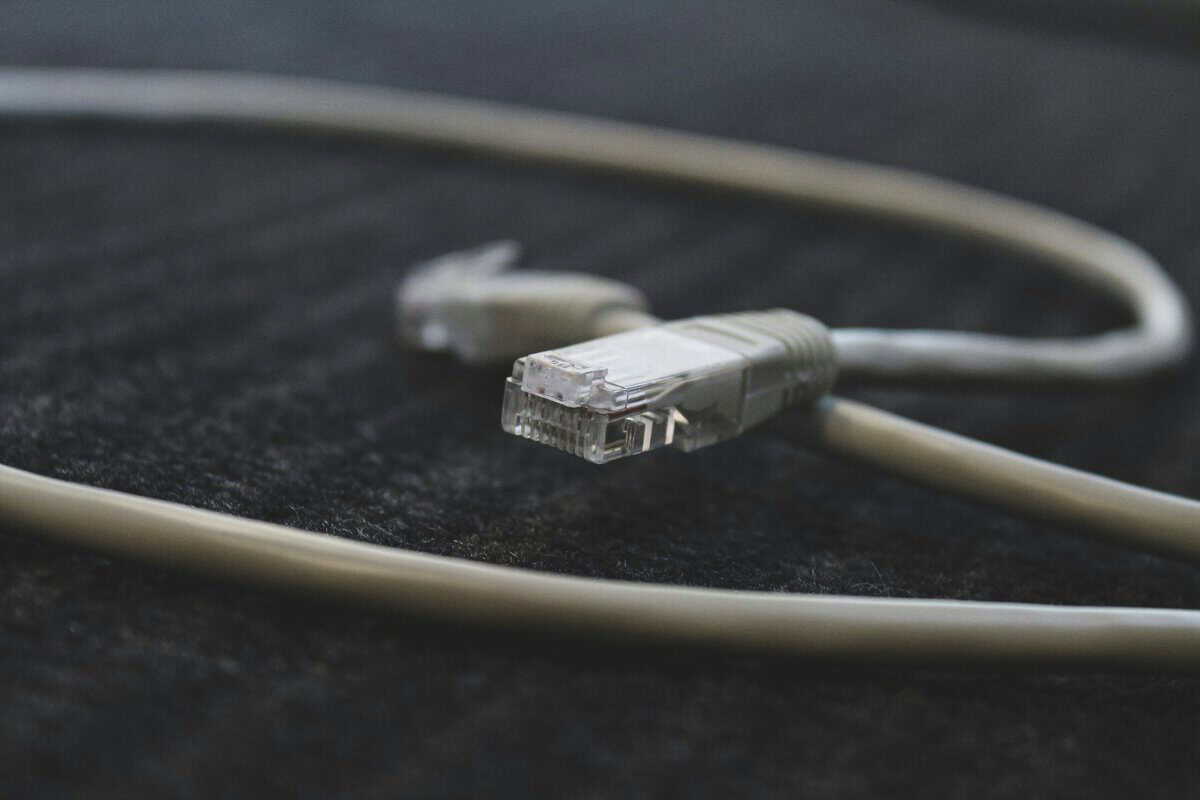
Wi-Fi is convenient. It’s also the source of a lot of random lag because radio signals deal with walls, interference, crowded channels, and signal quality changes throughout the day. Wired Ethernet cuts around most of that. Experts report 10 to 50 ms reductions when switching from Wi-Fi to Ethernet for gaming in this guide on lowering ping.
That’s why Ethernet is the first hardware recommendation in any serious answer to how to get better ping.
Why Ethernet wins
A cable doesn’t care that your neighbor added another router, your apartment walls are thick, or someone started using the microwave. The connection is more stable, and stability is what makes games feel consistent.
For value-focused setups, you don’t need fancy cabling. A decent Cat5e or Cat6 cable is enough for most home gaming setups. Build quality matters here, but not in the flashy way brands market it. You want solid strain relief, snug connectors, and a jacket that won’t split if the cable gets bent around desk legs. That’s the kind of basic durability that saves you headaches later.
If you want a plain-language primer on why physical connections still matter, this piece on reliable and high-performance cabling and wiring is a useful general reference.
How to switch cleanly
A sloppy Ethernet setup can still cause problems, so do it right:
- Connect your PC or console directly to a LAN port on the router.
- Turn off Wi-Fi on that device so it doesn’t hop back to wireless.
- Run a before-and-after ping test in the game you play.
- Check the cable path. Avoid sharp bends, crushed sections under furniture, and loose connectors.
If you’re building or refreshing a setup anyway, it helps to think about networking early, just like cable management and airflow. That same planning mindset applies when you build a gaming PC. A cleaner layout makes wired networking easier to live with.
If you can’t run a cable across the apartment
Sometimes Ethernet just isn’t practical. Maybe the router is in a shared living room, maybe you rent, maybe the console sits nowhere near a wall jack and you’re not taping a cable across the hallway.
In that case, Powerline adapters are worth trying. They use your home’s electrical wiring to carry network traffic. They’re not as predictable as Ethernet because performance depends on the quality and layout of the building’s wiring, but they can be a solid compromise.
A practical starting point is the TP-Link AV600. It’s widely available, simple to set up, and usually a better bet than relying on weak Wi-Fi in a distant room. The trade-off is consistency. In one apartment it may be solid. In another, it may be only a small step up from wireless. Build quality on TP-Link’s networking gear is usually decent for the category, and that matters with adapters that stay plugged in for years.
Optimize Your Router Settings for Gaming
Once the physical connection is sorted, the next gains usually come from the router settings people never open.
Most stock router setups treat every device like it deserves equal priority. That sounds fair until someone starts streaming video, a phone begins backing up photos, and your match gets the leftovers.
Use QoS if your router has it
Quality of Service, usually shortened to QoS, tells the router which traffic matters most. For gaming, that means prioritizing your PC or console so it gets cleaner delivery during busy hours.
Configuring QoS can smooth out ping spikes when your network is busy, according to Panda Security’s QoS guidance.
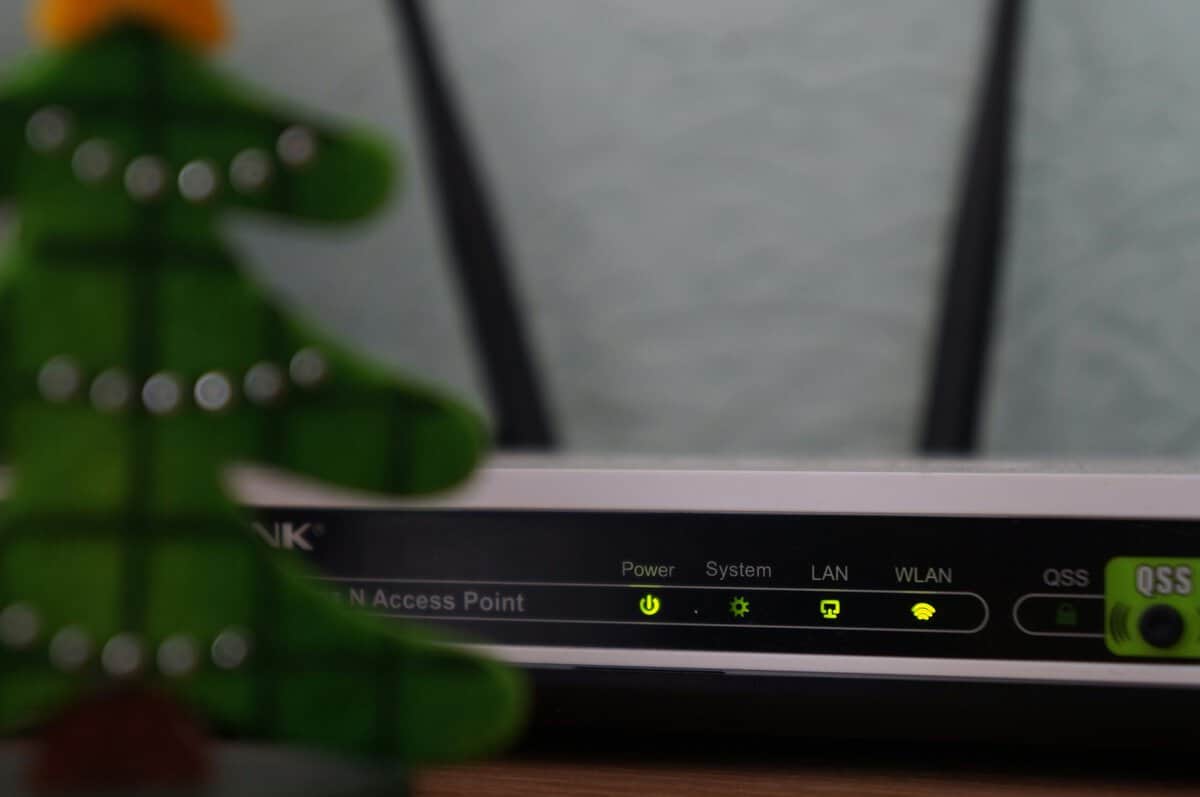
What that means in practice is simple. If your household has multiple active devices, QoS can stop your game from getting shoved behind everyone else’s traffic.
Router settings worth touching
Use this shortlist. It covers the settings that matter for most gamers.
- Enable QoS or traffic prioritization: Set your gaming device as high priority if your router allows device-based rules.
- Update firmware: Router firmware bugs can cause unstable behavior. A firmware update won’t magically create bandwidth, but it can improve reliability.
- Check which Wi-Fi band you’re using: If you must use Wi-Fi, 5 GHz usually gives better gaming performance than 2.4 GHz when you’re reasonably close to the router.
- Change channels if wireless is crowded: In apartments and dorms, channel congestion causes ugly spikes. A less crowded channel can smooth things out.
- Disable junk features you don’t use: Parental controls, old USB sharing features, and half-configured extras can burden weak ISP routers.
If your ping is fine when nobody else is home and bad when everyone’s online, QoS is the first setting to try.
For console gamers stuck on Wi-Fi
Console players often get ignored here, but router tuning matters most in this context. A PS5 or Xbox in a media center across the room may not have realistic Ethernet access. In that case, placement becomes part of the fix.
Put the console where it has a cleaner path to the router. Don’t bury it behind a cabinet full of electronics. Don’t leave the router stuffed behind a TV stand or next to other devices throwing off interference. If the router supports separate bands, connect the console to the faster one and test both if signal strength is borderline.
A good router also helps, but don’t assume “gaming router” branding means better real-world value. What you want is stable firmware, sensible QoS options, and hardware that holds up under daily use. If you’re comparing options, this guide to the best gaming router is a practical place to sort value-focused models from overpriced ones.
Advanced Tweaks and ISP Considerations
After the easy fixes are done, the next question is simple. Is the problem inside your home, or is your internet service setting the ceiling?
That distinction saves money. Plenty of players buy a new router when the actual problem is an overloaded cable node at 8 p.m., a weak upload path, or a connection type that was never going to handle fast online games well.
DNS can help with connection feel, but it rarely fixes match ping
DNS translates names into IP addresses so your device can find game services, launchers, and login servers. If your ISP’s DNS is slow or flaky, switching to a public option can make store pages, sign-ins, and matchmaking requests feel more responsive.
Actual in-game latency usually does not change much. Once the match starts, your ping is mostly about route quality, distance to the server, and how stable your line stays under load. DNS is still worth testing because it is free and easy to undo. Just treat it like cleanup, not a miracle fix.
Upload capacity matters more than many players realize
Gaming traffic is light compared with streaming 4K video, but it still has to go both directions. Your inputs, voice chat, party traffic, and game state updates all need a clean path out of your house. If that upstream path is saturated by cloud backups, security cameras, Twitch streaming, or somebody dumping videos to Google Drive, ping spikes fast.
This is why a connection that looks fine on a download speed test can still feel bad in matches.
Fiber often feels better for gaming because upload is usually much stronger and more consistent than older cable or DSL plans. Ezee Fiber’s explanation of upload speed and latency gets the basic point right. Low upload headroom can hurt responsiveness even when download speeds look great on paper.
Use a simple pattern check before buying anything
Watch when the lag happens, not just how bad it feels.
| Symptom | Likely cause |
|---|---|
| Lag only when your household is busy | Local congestion, upload saturation, or a router that cannot manage traffic well |
| Lag at the same time every evening even after local fixes | ISP congestion during peak hours |
| Consistently poor responsiveness on satellite | The connection type is the limiting factor |
| Stable game on one server region, bad on another | Distance, routing path, or server-side issues |
That table is the shortcut I use before recommending hardware.
If the problem only shows up across your Wi-Fi dead zone, a better signal may help more than advanced router settings. Console players run into this constantly. If Ethernet is not realistic, a properly placed extender or mesh node can be a practical workaround. This guide to the best Wi-Fi extenders for gaming is a good place to compare options that are built for low-latency use instead of just boosting bars on the screen.
When the ISP is the wall
Some limits are hard limits. Satellite internet has much higher latency than cable, fiber, or good fixed wireless because the signal has to travel far more distance before it ever reaches the game server. If you are on satellite, router tweaks can improve stability inside the house, but they will not make competitive shooters feel snappy.
Cable and DSL can still be perfectly playable, but they vary a lot by neighborhood, peak-hour congestion, and upload capacity. If your connection is clean at 10 a.m. and rough every night, that points to the service itself more than your setup. At that stage, the practical options are changing plans, asking the ISP about congestion, or switching providers if your area gives you a choice.
Your Ping Reduction Checklist and When to Upgrade
If you want the shortest path to better results, use this order and stop when the problem is solved.
The value-first order
- Start free: Shut down background apps, pause downloads, stop uploads, and test the closest server.
- Use wired if you can: For most setups, this gives the clearest improvement per dollar.
- Tune the router: Enable QoS, update firmware, and fix Wi-Fi basics if wireless is unavoidable.
- Test the line: If the connection still falls apart at peak times, look at your plan and upload limitations.
- Upgrade hardware last: Buy gear only when the current device is clearly holding you back.
Don’t replace hardware just because your ping is bad once. Replace it when the pattern shows your current gear can’t stay stable under normal use.
When a router upgrade is worth it
Upgrade the router when your current one lacks usable QoS, drops devices under load, has poor wireless range for the space, or behaves inconsistently even after a clean reset and firmware update. That’s common with older ISP-issued units.
For a value-focused replacement, a TP-Link Archer AX21 is often the right kind of buy. Not because it has “gaming” in the name, but because TP-Link usually offers a strong balance of features, straightforward setup, and solid build quality for the category. The plastic housings aren’t luxurious, but they’re generally durable enough for long-term home use, and the software is usually easier to live with than bargain-bin routers.
If your issue is coverage in a dead zone rather than router quality, an extender or mesh node may make more sense than replacing the whole router. This guide to the best WiFi extender for gaming can help you sort that out without wasting money on the wrong fix.
The main thing is to stay honest about the trade-off. A budget setup should give you value, not just the lowest upfront cost. One decent cable, a well-placed router, or a router with usable QoS can do more for actual gameplay than a pile of cheap accessories.
Frequently Asked Questions
What ping is good for online gaming?
Under 50 ms is great, 50 to 80 ms is fine for most games, 80 to 120 ms is playable for casual MMOs and RPGs but rough in ranked FPS, and above 120 ms consistently is a problem worth fixing.
Will changing DNS servers lower my ping?
Rarely. DNS affects how fast names resolve when you launch a game, not match-time latency. If your in-game ping is bad, DNS is not the fix you need.
Is a gaming VPN worth it for better ping?
Usually no. Adding a VPN hop almost always increases latency. The niche exception is when your ISP takes a bad route to a specific game server and the VPN happens to take a shorter one, which is rare.
If you’re building a setup one smart upgrade at a time, Budget Loadout is worth bookmarking. It focuses on real-world gaming and streaming gear picks with honest trade-offs, solid value, and practical advice for people who want a better setup without overspending.
Related Articles