If you want to know how to test a microphone on PC, the problem usually starts the same way. You join a Discord call, queue into Valorant, give a clean callout, and someone says they can’t hear you. Or worse, they hear you and immediately tell you your mic sounds like a fan taped to a soup can. That’s usually the moment people assume the headset is dead and start shopping.
Most of the time, that’s premature.
A bad mic on PC is usually one of three things: Windows is listening to the wrong device, the app doesn’t have permission to use it, or the mic technically works but sounds rough because the level, connection, or format is off. The smart move is to test in a fixed order, from the quickest Windows check to app-level monitoring in OBS. That saves money, avoids pointless driver rabbit holes, and tells you whether you need a setting change or an actual hardware replacement.
- Run Windows Settings → Sound → Test first; it catches most “mic not working” cases in 60 seconds.
- Two Windows settings break mics most often: app permissions and the wrong default input device.
- For a proper quality check, record a short sample and play it back; browser tests miss issues Discord and games expose.
- When drivers or routing are not the culprit, a cheap USB sound card fixes most 3.5mm jack problems before you buy a new mic.
- If the mic itself is the problem, a USB mic like the Fifine K669B or HyperX SoloCast 2 is a better upgrade than another headset boom mic.
Table of Contents
Your Mic Isn’t Working Right Let’s Fix It
The most common mic failure doesn’t look dramatic. Your headset powers on, the cable is plugged in, Discord shows a microphone icon, and yet your squad hears nothing. Other times they hear you, but only as a muffled, distant mess with keyboard noise all over it.
For gaming, that matters more than people admit. In an FPS, delayed or distorted comms cost rounds. In an MMO raid, a weak mic turns every callout into repetition. On stream, viewers will forgive average video long before they forgive harsh or clipped audio.
Start simple. Don’t reinstall half your system before you confirm the PC can see the microphone. A durable headset with a decent boom mic can still fail if Windows switches to a webcam mic, a controller input, or some leftover audio device from an old USB dongle.
If you test in the wrong order, you waste time and usually buy the wrong fix.
The path that works is boring, which is exactly why it works. Check Windows first. Then listen to your own recording. Then deal with privacy settings, drivers, ports, and app conflicts. If you’re streaming or playing competitive games, finish with OBS and latency checks. By the end, you’ll know if your current mic is worth keeping or if it’s time to move on to something with better build quality and cleaner voice pickup.
The Foundational 60-Second Check in Windows
You join voice chat, call out an enemy push, and your team answers with silence. Before you touch Discord settings, reinstall drivers, or blame OBS, check whether Windows is receiving your voice at all. That single check tells you if the problem is the mic, the connection, or the app stack sitting on top of it.
Run the built-in test first
The fastest way to learn how to test a microphone on PC is to use the built-in Windows check. Use Windows before any game launcher, chat app, or streaming software. If the mic fails here, every later test is wasted time.
- Open Sound settings. Right-click the speaker icon in the taskbar and choose Sound settings.
- Go to Input. Find the list of available microphones.
- Pick the exact mic you mean to use. Select your USB mic, headset boom, or audio interface input manually. Windows often defaults to a webcam mic, controller headset jack, or an old USB dongle.
- Speak at real volume. Use the same voice level you use in ranked matches or on stream.
- Watch the input meter. If the blue bar reacts, Windows is getting signal.
- Open the device properties and run
Start test. Talk for a few seconds, stop the test, and read the result.
That result is not a studio-grade measurement, but it is good enough for diagnosis. It answers the first question that matters. Is your voice reaching the PC cleanly enough to build on?
What the results usually mean
Use this table as a fast read before you change anything else:
| Result | What it usually means | What to do |
|---|---|---|
| Meter moves normally | Windows sees usable input | Leave hardware alone and check recording quality or app settings later |
| Meter barely moves | Gain is low, mic is too far away, or the wrong device is selected | Raise input level, move the mic closer, and retest |
| Meter stays high or clips easily | Gain is set too hot, or the mic is picking up room noise | Lower input volume and fix mic placement |
| No movement at all | Wrong input device, mute switch, privacy block, bad port, or loose cable | Check device selection, mute state, permissions, and physical connection |
For gaming and streaming, the target is simple. You want clear level without clipping when you get loud during a fight, not a weak signal that forces Discord or OBS to boost noise later.
Practical rule: Test with your real mic position and your real speaking voice. A fake quiet test tells you nothing about how the mic behaves during a callout, clutch moment, or stream reaction.
Check the two Windows settings that break mics most often
If the meter does not move, go straight to these checks:
- Confirm the correct input is selected. This is the first failure point on multi-device setups.
- Check the physical mute switch. Many gaming headsets and USB mics have a hardware mute button or tap-to-mute control.
- Verify microphone access in Privacy settings. In Windows, open Settings > Privacy & security > Microphone and make sure mic access is enabled for the system and for desktop apps. Microsoft documents those permission controls in its Windows microphone privacy settings guide.
- Reseat the connection. Unplug and reconnect the mic, preferably to a different USB port if you are using USB audio.
I see one mistake constantly on gaming PCs. The mic is fine, but Windows switched inputs after a controller, webcam, capture card, or VR headset was connected. Manual device selection fixes that in seconds.
What helps at this stage, and what does not
Good mic placement helps immediately. A headset boom should sit near the corner of your mouth, a couple of finger widths away. A desk mic should be close enough that you do not need aggressive gain.
Driver suites, EQ presets, noise suppression plugins, and voice effects do not belong in the first minute of testing. Confirm the base signal first. If Windows cannot detect clean input, software tweaks only hide the underlying problem.
Using Online Tools and Self-Recording for a Quality Check
You join a ranked match, your mic meter moves, and Windows says everything is fine. Then your squad says you sound distant, harsh, or full of static. That is the point where a signal test stops being useful. Now you need a quality test.
Use a browser test to catch problems Windows can miss
A browser mic test is a quick second opinion. It helps confirm that your mic works outside the Windows settings page and can expose problems like clipping, weak input, or a noisy room.
Keep the test simple. Speak at your normal in-game volume first, then say one louder line the way you would during a fight, raid callout, or stream reaction. If the meter barely moves, your level is too low. If it slams into the top and sounds rough, your gain is too high.
This matters for gaming and streaming because a mic can be technically active and still be unusable. Teammates need clean callouts. Viewers need consistent volume that does not spike every time you get loud.
Record a short sample in Windows and listen to the playback
Open Voice Recorder and capture 15 to 20 seconds of real use, not just “test, test.” Read lines the way you naturally speak:
- FPS test: “Two pushing A long, one mid, rotate now.”
- MMO test: “Stack on marker, interrupt next cast.”
- Streaming test: Your intro, normal commentary, then one louder reaction.
Play it back through closed-back headphones if you have them. Speakers can hide low-end rumble and room echo.
Listen for specific faults:
- Muffled audio. The mic is too far away, blocked, off-axis, or limited by the headset capsule.
- Static or crackle. Start suspecting the cable, USB port, hub, or interface stability.
- Thin, sharp voice. Noise suppression, bad onboard audio, or a cheap boom mic is stripping out body.
- Pops on words like “p” and “b”. Air is hitting the capsule directly. A better mic angle or a microphone pop filter for desk setups fixes this cheaply.
- Room echo. The mic is hearing your space more than your voice, which is common with far-away USB mics on bare desks.
One recording tells you more than five teammate complaints because you can hear the exact failure instead of guessing.
Compare one controlled test against one real-world test
Do two recordings if you want a cleaner diagnosis.
First, record in a quiet room with the mic close to your mouth. Second, record with your normal setup: keyboard in front of you, game audio running in headphones, and your usual speaking distance. If the first sample sounds good and the second falls apart, the mic itself is probably fine. Placement, gain, room noise, or background suppression is the issue.
That distinction saves time. It tells you whether to keep troubleshooting software later, or fix the physical setup now.
A short walkthrough can help if you want a visual reference before testing:
Your own recording is the fastest way to judge whether your mic is ready for Discord, in-game voice, or a live stream.
Solving Common Mic Problems and Driver Conflicts
Once the mic works in a simple test, but fails in Discord, games, or voice chat, you’re usually dealing with a conflict. These aren’t glamorous fixes, but they’re the ones that solve real problems.
The checklist that catches most failures
Go through these in order:
- Check the physical mute switch. A lot of headset mics fail for a dumb reason. Inline mute toggles and boom-arm mute switches are easy to bump.
- Reseat the connection. Push the 3.5mm plug all the way in. USB mics should be unplugged and reconnected firmly.
- Try a different USB port. Front case ports are convenient, but they can be flaky on older builds.
- Make sure the app is using the same mic Windows is using. Discord and many games love to hang onto an old input device.
- Restart the app after changing inputs. Some games won’t switch live.
Fix privacy blocks before touching drivers
Windows privacy settings break more mics than people expect. If the system sees the microphone but apps don’t, go to Settings > Privacy & Security > Microphone and make sure microphone access is enabled for the apps you use.
This is one of the most common real-world failures because the hardware looks fine. The mic is connected, the device appears, but the app never gets permission to access it.
Driver problems are real, but not always the first problem
Open Device Manager and check your audio inputs and outputs. If the mic shows a warning icon, you have a stronger case for a driver issue. If it looks normal, don’t assume reinstalling drivers will magically clean up bad audio.
Good driver troubleshooting looks like this:
- Update the device through Device Manager
- Reboot after the update
- Retest in Windows
- If needed, uninstall the device and let Windows detect it again
For headset users on 3.5mm jacks, one more issue shows up often: bad analog input on the case or motherboard. If you’ve already ruled out settings and still get hiss, weak volume, or intermittent signal, the jack itself may be the weak point.
Small hardware fixes that improve results
Build quality matters here. A cheap headset can still be usable if the boom stays in place and the cable doesn’t loosen. A flimsy mic arm, thin cable, or weak inline controls tend to age badly.
If plosives are part of the problem, a simple microphone pop filter guide is worth a look. It won’t fix a dead mic, but it can clean up harsh bursts of air on desk mics and make voice chat less rough.
If reconnecting the mic, changing ports, and fixing permissions solves the problem, don’t keep “troubleshooting” just because a forum told you to. Stable and clear is the goal.
Advanced Diagnostics for Streamers and Competitive Gamers
Your squad hears static during callouts, Discord says your mic is fine, but your stream VOD sounds thin, delayed, or distorted. That usually means the mic is technically working, but part of the audio chain is breaking under real use.
Use OBS like a live mic monitor
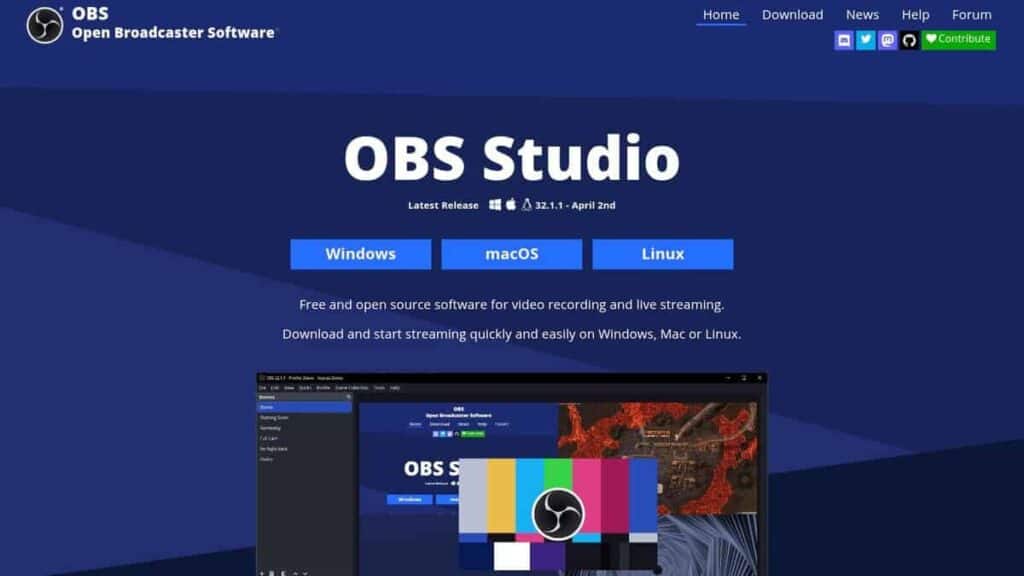
OBS is one of the best ways to test a mic under actual streaming conditions because it shows level movement, filtering, and monitoring behavior in one place. Set your mic as an input source, speak at normal volume, then do a few loud callouts like you would in a ranked match. A quiet “test, test” does not tell you much.
Start with the basics that affect stability. Use 44.1 kHz or 48 kHz and keep that format consistent across Windows, OBS, Discord, and any interface software. Watch your peaks in OBS and keep them below about -6 dBFS so a sudden shout does not clip.
What to check inside OBS
The meter tells you a lot before you even record a sample.
| OBS behavior | What it suggests | Better move |
|---|---|---|
| Peaks stay below the top with room to spare | Healthy headroom | Safe for streams, voice chat, and loud reactions |
| Meter slams into the top | Clipping | Lower input gain or back off the mic |
| Meter barely moves | Weak signal | Raise gain carefully or bring the mic closer |
| Meter responds late in monitoring | Latency | Check sample rate, monitoring path, and connection type |
If you hear yourself late in your headset, test with monitoring on for one minute, then turn it back off. Live monitoring is useful for diagnosis, but many gamers play worse with delayed sidetone in their ears.
Bluetooth is a common source of delay. It can be fine for casual chat, but for competitive games and live streaming, wired USB or a low-latency wireless gaming headset is usually the safer choice.
Record a short clip, then listen for specific failures
A 30-second OBS recording gives more useful information than staring at meters for five minutes. Listen back for four things. First, clipping when you get loud. Second, background hiss when you stop talking. Third, tone changes that make your voice sound hollow or harsh. Fourth, sync issues between your voice and your webcam.
If the mic sounds clean in Discord but bad in OBS, the issue is often inside your OBS chain. Check filters, input gain, noise suppression strength, and whether you duplicated the same mic source in multiple scenes. If you want a clean baseline, disable all filters, record again, then add them back one at a time. After the mic is stable, dial in the rest of your OBS settings for streaming so voice and gameplay sit in the mix without fighting each other.
Match format and routing across your whole setup
Streamers run into problems that regular voice chat users never notice. One app grabs exclusive control, another resamples the input, and your interface software adds its own processing on top. The result is inconsistent volume, weird pumping, or random drops during long sessions.
Set one mic as your main input device across OBS, Discord, Steam, and game chat where possible. If your interface or headset software has AGC, noise reduction, or voice effects, test with those off first. Add processing only after you confirm the raw signal is clean.
Mic placement still matters as much as software. The best streaming setup is not just about gear choice. It also comes down to where the mic sits relative to your mouth, keyboard, fans, and speakers. A decent mic in the right position will beat a better mic placed badly.
Inexpensive Fixes and When to Upgrade Your Mic
If all the testing points to the PC’s analog input being the problem, a cheap USB sound card is often the smartest fix. It bypasses a noisy or worn 3.5mm jack and gets you back in voice chat without rebuilding the whole setup.
If the problem is the microphone itself, don’t keep polishing a bad headset boom. A dedicated USB mic is a better value than replacing one weak headset with another weak headset. The Fifine K669B is a common first upgrade, and the HyperX SoloCast 2 is another solid step up if you want cleaner voice and better build quality without going overboard.
Durability matters here. A mic that keeps a stable connection, has a sturdier stand, and doesn’t sound brittle after a few months is worth more than the absolute cheapest option. If you’re unsure which style fits your setup, this explanation of the difference between dynamic and condenser mic helps you decide what works better for your room and background noise.
If your main issue is room noise rather than total mic failure, work through a few ways to reduce background noise on a mic before replacing hardware.
Frequently Asked Questions
Why does my mic sound fine in Windows but bad in Discord or Call of Duty?
Because Windows and the app are not always using the same input, level, or processing. Check the app’s voice settings directly. In Discord, confirm the selected input device, disable automatic changes if they keep hurting your volume, and retest. In games, look for voice chat input settings instead of assuming the game follows Windows correctly.
How do I reduce keyboard and fan noise?
Start with placement. Keep the mic closer to your mouth and farther from the keyboard. Angle headset booms slightly off-axis so they catch your voice, not your breath. On desk mics, lower gain and move the mic closer instead of cranking sensitivity from across the desk. Free software tools like OBS filters and NVIDIA Broadcast help too if your system supports them.
USB mic or 3.5mm headset mic?
A good USB mic usually gives you cleaner voice and more consistent input because it avoids weak motherboard or case audio. A headset mic is still better for players who want one cable and less desk clutter. For durability, look at cable strain relief, mute switch quality, and whether the boom arm holds position over time.
My mic works, but people say it is too quiet?
That is usually level, distance, or placement. Retest with your normal speaking voice, not a louder fake test voice. If you still need too much gain to be heard clearly, the mic capsule itself may just be weak and a USB upgrade will do more than another software tweak.
If you’re sorting out a headset, USB mic, OBS setup, or your next value-focused upgrade, Budget Loadout is built for exactly that. The site focuses on practical gaming and streaming gear advice, honest trade-offs, and durable picks that make sense for real budgets instead of marketing hype.
Related Articles