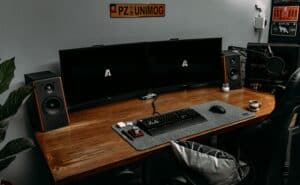
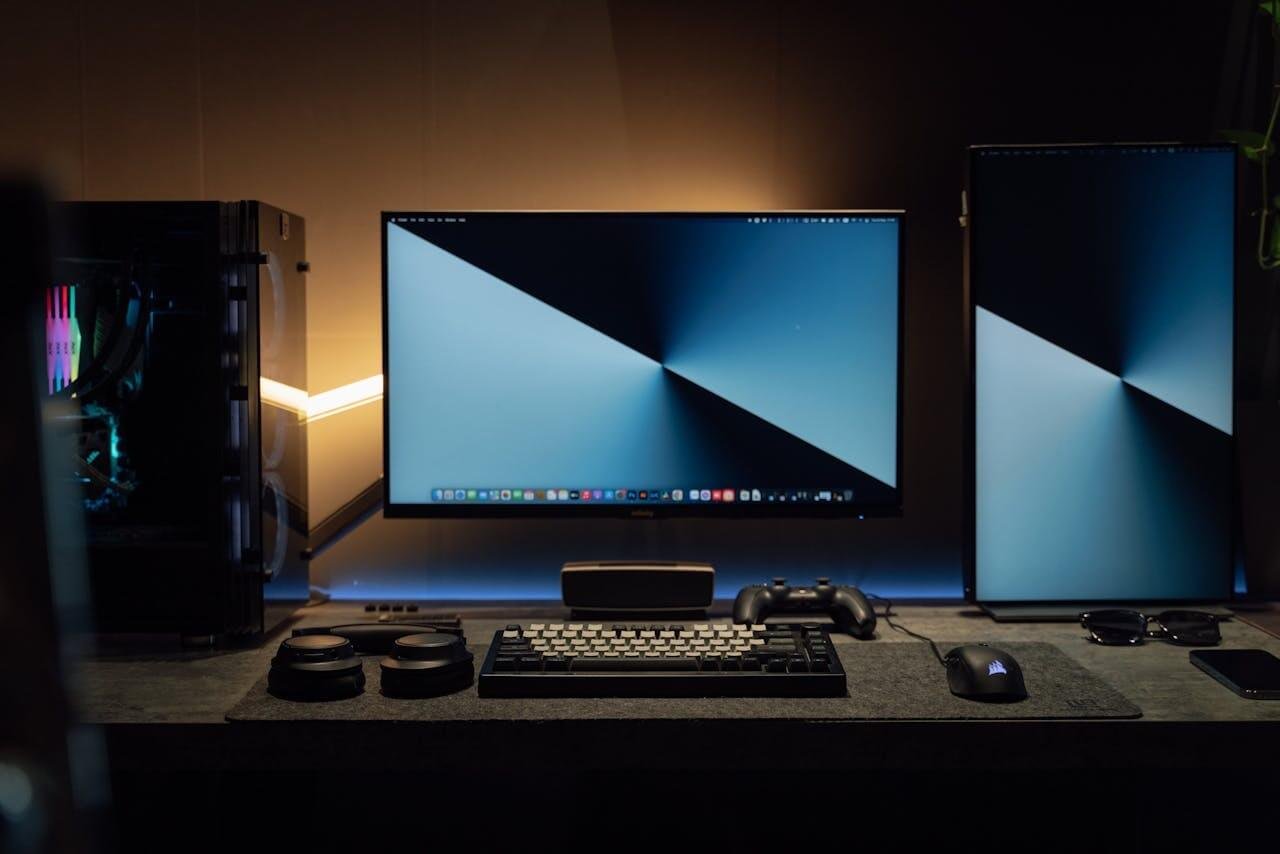
Jumping into streaming can feel overwhelming. You see pros with multi-camera setups, complex lighting, and audio mixers that look like spaceship controls. But here’s the reality: you don’t need any of that to start. Building a streaming setup for beginners doesn’t have to be complicated.
Your initial goal is much simpler and far more important: consistency.
- You can start streaming with just a PC and free software like OBS — a webcam, decent mic, and stable internet are the only essential upgrades
- Audio quality matters more than video quality for viewer retention — invest in a USB mic before upgrading your webcam
- A stable internet upload speed of at least 6 Mbps is needed for 720p streaming, with 10+ Mbps recommended for 1080p
- Start with simple scenes and overlays in OBS rather than overcomplicating your setup — consistency and personality keep viewers, not fancy graphics
- Use NVENC hardware encoding if you have an NVIDIA GPU to stream without tanking your game performance — it offloads encoding from your CPU entirely
Table of Contents
Building a Reliable Foundation for Your First Stream
A stable stream that doesn’t drop frames will always beat a high-res, stuttering mess. Viewers are forgiving about basic graphics, but they will not tolerate a broadcast that constantly buffers. This is the first hurdle where most new streamers trip. They’ll spend heavily on a 4K webcam but overlook the one thing that actually delivers their content to the audience: their internet connection.
The Non-Negotiable Starting Point
Before you add a microphone or camera to your shopping cart, sort out your internet. A wired ethernet connection isn’t a suggestion; it’s the bedrock of a stable stream. Wi-Fi is fine for watching Netflix, but for live broadcasting, its susceptibility to interference and signal drops will kill your stream.
Run a speed test, but ignore your download speed. The only number that matters is your upload speed. This dictates how much data you can reliably send to platforms like Twitch or YouTube.
- For a clean 720p stream, you need a steady 3-5 Mbps upload.
- For a crisp 1080p stream, aim for 6-9 Mbps.
Plugging in an ethernet cable ensures you’re getting all of that speed without interruption.
Essential Gear Checklist for New Streamers
Once your connection is locked in, you can think about gear. This checklist covers the essentials, focusing on value, not just the cheapest price.
| Component | Minimum Spec/Requirement | Why It Matters | Target Budget (Value-Focused) |
|---|---|---|---|
| Microphone | USB Dynamic Mic | Isolates your voice, reduces background noise. | $40 – $80 |
| Camera | 1080p Webcam | Clear video is engaging, builds trust. | $50 – $90 |
| Lighting | Single LED Key Light or Ring Light | Drastically improves camera quality without a new camera. | $20 – $50 |
| Internet | Wired Ethernet Connection | Provides a stable, uninterrupted broadcast. | $10 (for a cable) |
This loadout is more than enough to create a professional-looking and sounding stream. It’s about investing in areas that have the biggest impact on the viewer’s experience.
Your First Gear Investments: Audio Over Video
Prioritize your audio. People might stick around for a grainy camera if your content is good, but they will click away in seconds if your audio is buzzing, echoing, or muffled.
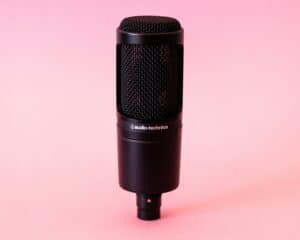
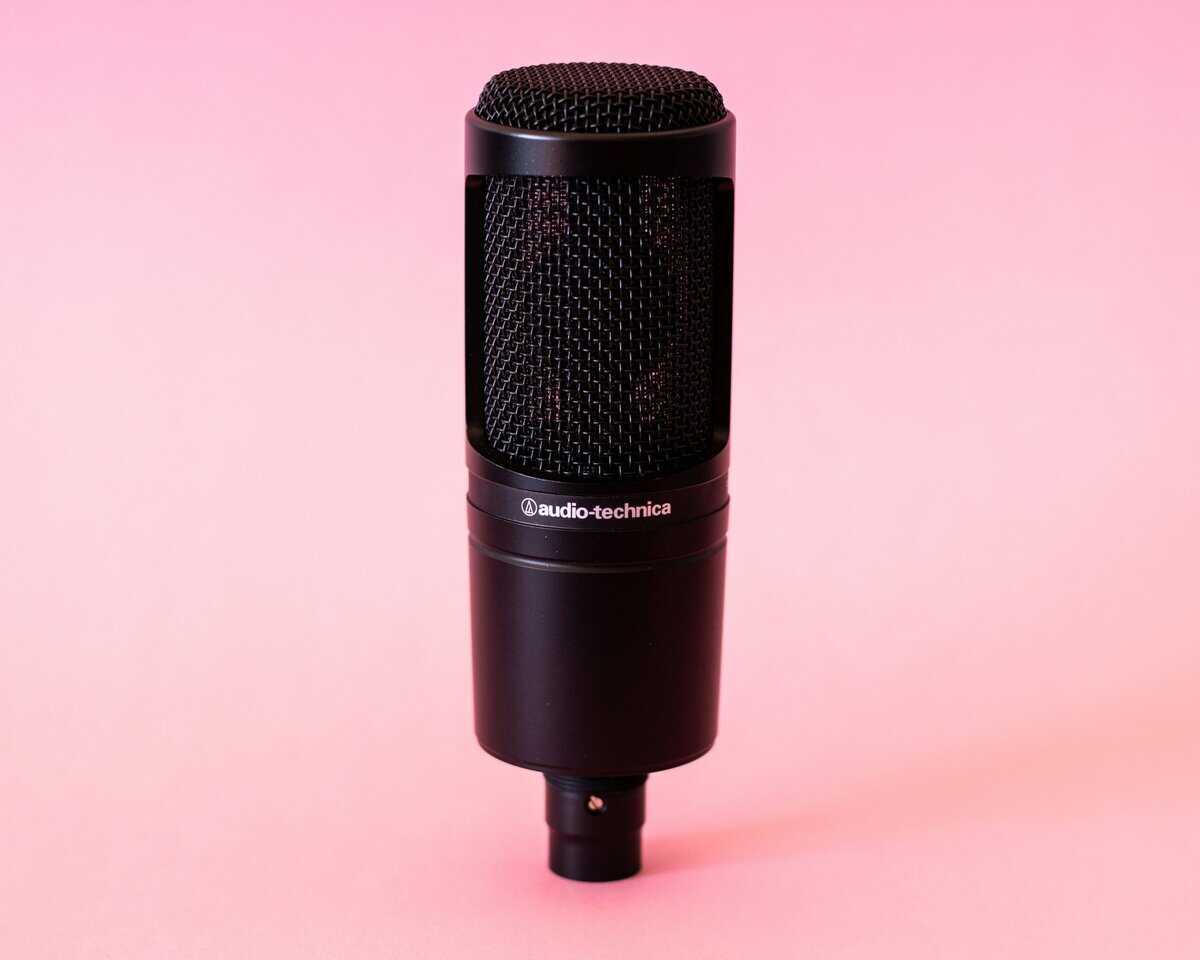
Start with a solid USB microphone. A dynamic mic is recommended for beginners. Unlike condenser mics that pick up every keyboard clack and distant noise, dynamic mics do a much better job of just capturing your voice. They’re effective for rooms that aren’t acoustically treated.
Next, get a capable 1080p webcam. You don’t need a DSLR starting out. Modern webcams from brands like Logitech or Razer offer good video quality and plug-and-play simplicity. Pay attention to the build quality of the mount—a flimsy one will be a constant frustration.
Finally, lighting is critical. A simple ring light or a small LED panel pointed at your face will make your webcam perform like a more expensive model. Good lighting gives the camera’s sensor more information to work with, resulting in a cleaner, sharper image.
I see so many new streamers try to hit 1080p/60fps on day one with a shaky setup. A rock-solid 720p/30fps stream is infinitely more professional and will retain more viewers than a high-resolution feed that’s constantly dropping frames.
Technical problems kill streaming careers. Getting this foundation right from the start means you spend more time creating and less time troubleshooting.
That’s our entire philosophy at Budget Loadout. We help you make smart, value-focused choices that let you focus on what really matters—your content. To get a better sense of our approach, you can read our story and see why we believe in reliable gear over expensive hype.
Getting Your Camera and Mic Right
Let’s discuss the two pieces of gear that matter more than anything else when you’re starting: your camera and your microphone. If your audio is a crackly mess, people will leave. If your video is a blurry smudge, it’s hard for anyone to connect with you.
Nailing these two things is the fastest way to look and sound more professional. We’re looking for gear that delivers value and reliability, not just the cheapest option. A solid 1080p webcam and a clear USB microphone are the bedrock of any good stream.
Why a Good Webcam Is Your Best Friend (Not a DSLR)
It’s easy to look at top streamers with their cinema-style cameras and think you need one. For a beginner, that’s a mistake. A quality webcam is simpler, cheaper, and more practical. A good webcam is built for one job—getting your face onto the internet—and it does it with almost zero hassle.
DSLRs and mirrorless cameras introduce complexity you don’t need right now: dummy batteries, expensive capture cards, and lens selection. They also weren’t designed to be on for hours and can overheat. A webcam from a trusted brand like Logitech or Razer is built to run all day. Its durability and plug-and-play nature mean less time troubleshooting and more time streaming.
When you’re shopping, aim for a webcam that delivers 1080p resolution at 30fps. While 60fps is a nice-to-have, a crisp 30fps is fine for a facecam and is less demanding on your computer. The real secret is finding one with good low-light performance. Your streaming room probably isn’t a professional photo studio, so you need a camera that won’t turn into a grainy mess in normal lighting.
Don’t fall for the 4K hype on your first camera. Streaming platforms compress your video feed heavily anyway. A well-lit, sharp 1080p image from a quality webcam will look much better to your audience than a poorly lit 4K feed.
Choosing a Mic That Puts Your Voice Front and Center
If you have a limited budget and can only upgrade one thing, make it your microphone. Viewers are forgiving of a slightly soft camera, but they have zero tolerance for bad audio. Headset mics are a common starting point, but they often sound tinny and pick up excessive room noise. A dedicated USB microphone is the single biggest leap in quality you can make.
For a typical desk setup, you’ll want a microphone with a cardioid pickup pattern. This pattern is shaped to pick up sound directly in front of it while rejecting noise from the sides and back. It isolates your voice and helps mute the clicking of your keyboard or the hum of your PC fans.
The build quality of the mic matters. A solid metal body and a heavy, stable stand aren’t just for feel; they’re less likely to pick up vibrations and bumps from your desk.
- For FPS Gamers: A cardioid mic is essential. It keeps the focus on your callouts and reactions, not the sound of your WASD keys. This is crucial for games like Valorant or Apex Legends.
- For MMO or Strategy Players: The pace is slower, but your voice is the main event. A good mic ensures your strategic breakdowns in games like Final Fantasy XIV or Starcraft II sound clear.
- For Any Streamer: Your voice is a huge part of your content. A rich, clear sound helps build a stronger connection with your viewers.
A prime example of a workhorse mic is the Samson Q2U. It’s a dynamic cardioid mic, which is effective for untreated rooms because it naturally rejects background noise. It’s built like a tank and has both USB and XLR connections. That means you can plug it straight into your PC now and have an upgrade path to a professional audio interface later without buying a whole new microphone. If you want a deeper dive, check out our best budget USB microphones to find the perfect option for your setup.
Getting Your Broadcast Software Dialed In
All the hardware in the world won’t help if your software isn’t set up correctly. This doesn’t have to cost you anything. We’re going to focus on OBS Studio, the free, open-source workhorse that powers a huge chunk of the streams you watch.
You’ll hear about options like Streamlabs, and while they can feel more user-friendly at first, they often come at a cost. They tend to use more of your computer’s resources and often hide features behind a subscription. Start with OBS. It’s the industry standard for a reason—it’s powerful, stable, and gives you a rock-solid foundation.
First Steps with OBS Studio
First, head to the official website and get OBS installed. When you launch it, an Auto-Configuration Wizard will pop up. Don’t skip this. It’s good at analyzing your hardware and internet specs to give you a decent starting point. We’ll tweak these settings manually later, but for now, accept its suggestions.
The OBS interface might look intimidating, but it’s built around a few core concepts:
- Scenes: Think of these as different layouts for your stream. You’ll probably have a main gameplay scene, a “Be Right Back” screen, and one for chatting.
- Sources: These are the building blocks inside each scene. Your game feed, your webcam, your microphone, alerts—each is a separate source.
- Audio Mixer: Your command center for sound. You’ll see sliders here for every audio source.
- Scene Transitions: Controls the animation (like a fade) when you switch between scenes.
- Controls: The important buttons live here—Start Streaming, Start Recording, and Settings.
Before your gear even gets to OBS, you need the basics in place.
Tuning the Settings That Actually Matter
Jumping into the settings menu can feel like stepping into an airplane cockpit. Let’s focus on the handful of settings that will make or break your stream’s stability.
Navigate to Settings > Output. Change the “Output Mode” dropdown from “Simple” to “Advanced.” This unlocks the necessary controls.
Now, under the “Streaming” tab, let’s get these right:
- Encoder: This is critical. If you have an NVIDIA graphics card, choose NVIDIA NVENC H.264 (new). If you’re on an AMD card, pick their equivalent. This lets your graphics card do the heavy lifting of encoding your video, leaving your CPU free to focus on your game. Only use the x264 (CPU) encoder as a last resort.
- Bitrate: This setting dictates visual quality and depends on your upload speed. Set your bitrate to about 75% of your stable upload speed. For a smooth 720p stream at 60fps, a bitrate of 4500 Kbps is a solid starting point. For 1080p60, aim for 6000 Kbps. Pushing this too high will cause your stream to buffer and drop frames.
- Keyframe Interval: Set this to 2. Twitch and YouTube require it for a stable ingest.
- Preset: With the NVENC encoder, start on the “Quality” preset. The visual jump to “Max Quality” is minor but uses more GPU power, so it’s usually not worth the tradeoff. Avoid “Performance” settings unless you’re having serious issues.
Next, click on the Video tab.
- Base (Canvas) Resolution: Set this to your monitor’s native resolution, likely 1920×1080.
- Output (Scaled) Resolution: This is what your viewers see. I strongly recommend starting with 1280×720 (720p). It looks good, is far less demanding on your PC and internet, and ensures a smoother experience for viewers.
- Common FPS Values: For gaming, lock this in at 60. It makes fast-paced action look smooth.
I can’t stress this enough: don’t obsess over streaming at 1080p right out of the gate. A rock-solid, crisp 720p60 stream is infinitely better than a choppy, pixelated 1080p feed. Smoothness always wins.
Assembling Your First Scene
With our settings locked in, it’s time to build your primary scene.
In the “Scenes” box (bottom left), click the “+” button and name your scene “Gameplay.” With that scene selected, move to the “Sources” box. We’re going to add your core elements:
- Game Capture: Click “+” and choose “Game Capture.” In the properties window, set the mode to “Capture specific window” and then pick your game from the list. This is more efficient than capturing your whole display.
- Video Capture Device: Click “+” again and add your webcam. You’ll see a red box around it in the preview window—click and drag the corners to resize and position it.
- Audio Input Capture: One last time, click “+” and add your USB microphone.
That’s it. You now have a simple, stable, and performance-friendly setup ready to go live. Hold off on adding flashy animated overlays or browser sources for now. Each one uses resources, and right now, our focus is on reliability.
Optimizing Your PC and Network for a Lag-Free Stream
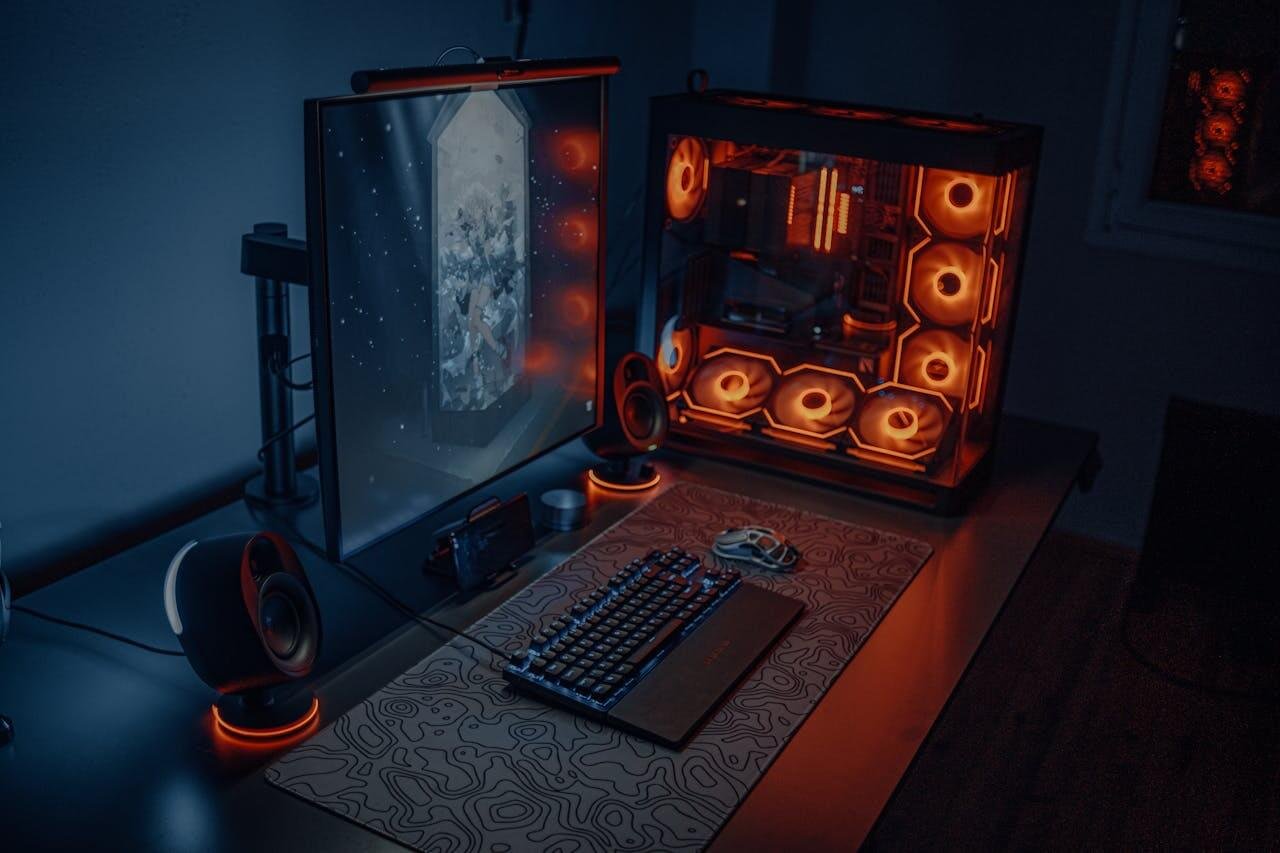
You’ve got your gear and your software is dialed in. Now we need to tackle the two silent killers of any stream: PC slowdowns and network hiccups. Nothing makes a viewer click away faster than a stream that stutters and drops frames.
This isn’t about having a monster gaming rig. It’s about being smart with the resources you have, ensuring your PC is focused on running your game and your stream—not fighting a dozen background apps.
Taming Your PC for Peak Performance
Your computer is juggling the game, encoding video, and running the OS all at once. Our goal is to lighten that load. Before you go live, run through this pre-flight checklist.
First, make sure your graphics drivers are up to date. Both NVIDIA and AMD release constant updates with optimizations for new games and streaming software. If you’re using the NVENC encoder, the latest drivers are non-negotiable for a stable broadcast. If you need help deciding which budget GPU will work with your setup, we have you covered.
Next, be ruthless with background apps. Close everything that isn’t essential for your stream:
- Web browser tabs: Chrome is a notorious memory hog. Close them.
- Game launchers: Once your game is running, you don’t need Steam, Epic Games, or Battle.net open.
- File-syncing services: Pause Dropbox, OneDrive, or Google Drive. You don’t want them hogging bandwidth or CPU cycles.
Each of these seems small, but together they can be the source of mysterious frame drops.
Finally, enable Windows Game Mode. It’s not a magic bullet, but it helps. Game Mode tells your PC to prioritize resources for your game and prevents things like Windows Update from interrupting your session.
Your Network is Your Lifeline
I’ve said it before, and I’ll say it again: a wired Ethernet connection is mandatory. Wi-Fi is not built for the constant, high-bitrate upload that streaming requires. A slight signal fluctuation can make your entire stream buffer. A $10 Ethernet cable is the best reliability insurance you can buy.
Once you’re plugged in, run a speed test and find your real upload speed.
A classic rookie mistake is setting your stream’s bitrate right at your maximum upload speed. Internet connections fluctuate. To give yourself a safety net, set your bitrate in OBS to no more than 75% of your tested upload speed.
For instance, if your speed test shows 8 Mbps upload, you should cap your bitrate at 6000 Kbps (6 Mbps). That leaves a 2 Mbps cushion to handle network dips without your viewers noticing.
Matching Bitrate to Your Goals
Getting the relationship between resolution, framerate, and bitrate right is what separates a crisp stream from a pixelated mess. The bitrate is the amount of data you’re packing into each second of video.
Here’s a practical guide for setting up a stable stream:
| Target Quality | Minimum Upload Speed | Recommended Bitrate | Use Case |
|---|---|---|---|
| 720p at 60fps | 6 Mbps | 4500 Kbps | The gold standard for new streamers. Looks sharp and smooth for fast games like FPS or racing titles and is forgiving on most internet connections. |
| 1080p at 60fps | 8 Mbps | 6000 Kbps | Looks great, but only attempt this if you have rock-solid internet. It’s ideal for high-fidelity games where visual detail matters. |
| 720p at 30fps | 4 Mbps | 3000 Kbps | A good fallback if your PC or internet can’t handle 60fps. It’s fine for slower games like MMOs, strategy titles, or creative streams. |
Always start conservatively. It’s better to have a flawless 720p60 stream than a 1080p stream that’s a buffering nightmare. You can always bump the quality up later once you’ve proven your setup is stable.
Making Smart Upgrades with AI Tools and Next-Level Gear
So, you’ve got your basic setup running smoothly. Now the urge to buy more gear starts. Before you start eyeing a new mixer or a second camera, pump the brakes.
The smartest and most impactful upgrades are often software tools and small additions that make your existing gear perform better.
Your first real investment shouldn’t be a new microphone. It should be a decent light. A simple LED key light or a ring light will make your current webcam look twice as good. Good lighting gives the camera’s sensor more to work with, which translates directly into a sharper, cleaner image without breaking the bank.
This process is about being strategic. It’s about adding production value where it counts, which often means looking at powerful software solutions first.
AI is Your New Secret Weapon
Modern AI-driven tools are game-changers for beginners. They can solve common streaming frustrations without you having to buy new equipment.
Here are a few ways AI can improve your stream:
AI Noise Removal: Tools like NVIDIA Broadcast use your graphics card to create a virtual studio. It’s shockingly effective at eliminating distracting background noise—from mechanical keyboard clatter and PC fan hum to even a dog barking. It’s often more effective at killing specific noises than slapping foam panels on your walls.
Virtual Green Screen: Don’t have space or budget for a physical green screen? AI can create a clean background replacement or add a subtle blur, isolating you from a messy room. The tradeoff is a slight performance hit on your GPU and you might see some artifacts if you move around too quickly, but for a standard talking-head scene, it’s a solid solution.
Automated Highlight Clips: Manually scrubbing through hours of recordings is a grind. New AI tools can automatically identify exciting moments in your gameplay—like multi-kills or clutch plays—and package them into ready-to-share clips for social media.
For anyone just starting, using AI is a massive practical advantage. In fact, streams that embrace AI enhancements are seeing a 30% surge in viewer growth, with average viewer retention hitting an impressive 80%. A recent survey even found that 75% of streamers saw better interactions after adopting AI, while their production quality issues dropped to a mere 5%. You can dig deeper into these AI streaming tools and their impact to see how they let you focus on your content instead of your tech problems.
Your Next Hardware Upgrades, Ranked
When you are ready to spend cash on physical gear, do it logically. Don’t just buy something because your favorite streamer uses it. Think about what will solve your single biggest problem right now.
Your upgrade path should be a direct response to a real limitation in your current setup. Is your audio still picking up room echo? A better mic on a boom arm is the answer. Is your webcam struggling in low light? A key light is your next buy.
Here’s a sensible upgrade path that gives you the most bang for your buck:
A Boom Arm: Before buying a new mic, get your current one on a boom arm. Getting the microphone off your desk and closer to your mouth is a huge audio quality win. It cuts down on keyboard vibrations and lets you find the sweet spot for your voice. It’s a cheap upgrade with a massive impact.
A Stream Deck: A physical control panel like the Elgato Stream Deck might feel like a luxury, but it quickly becomes essential to your workflow. It lets you switch scenes, trigger sound effects, or mute your mic with a button press. No more fumbling with OBS in the middle of a game.
A Capture Card: This is a big one, but it’s only necessary if you’re streaming from a console or building a dedicated two-PC streaming setup. For everyone else, it’s an expensive piece of gear you don’t need yet.
Making smart, targeted upgrades is the key to growing your stream without going broke. For more guidance on finding value-focused peripherals that offer real performance benefits, check out our comprehensive guides on Budget Loadout.
Got Questions About Your First Streaming Setup? We’ve Got Answers
Stepping into streaming is exciting, but it’s normal to hit a few snags. Let’s tackle some of the most common questions that pop up when you’re just getting started.
How Can I Stop My Mic From Picking Up My Keyboard?
That incessant clack-clack-clack is probably the number one audio complaint from new streamers. You likely don’t need a new microphone to fix it. The trick is to improve your signal-to-noise ratio—make your voice way louder than everything else.
Get That Mic Closer: The single biggest fix is moving the microphone off your desk and closer to your mouth. Using a boom arm to position it 4-6 inches away is a game-changer. When it’s that close, you can turn the gain down, and it will naturally stop picking up sounds from farther away, like your keyboard.
Set Up a Noise Gate: Your streaming software has powerful tools. In OBS Studio, find your mic in the Audio Mixer, right-click it, and add a “Noise Gate” filter. This acts as an automatic mute button. It cuts the mic off completely when you aren’t talking, silencing background noise between sentences. Tweak the “Close Threshold” so it’s sensitive enough to ignore your typing but opens instantly when you speak.
Check Your Mic’s Pickup Pattern: Most streaming mics are cardioid, meaning they’re designed to hear what’s directly in front of them and reject noise from the sides and back. Make sure yours is pointed right at your mouth, not at your keyboard.
Why Is My Stream Lagging or Dropping Frames?
This is a classic problem with two different causes. You need to figure out if the stream itself is stuttering or if your game is lagging.
If you’re seeing “dropped frames” in your software, that’s almost always a network problem. Your internet can’t push your video data out to Twitch or YouTube fast enough. First rule: ditch Wi-Fi. Plug in an Ethernet cable for a stable connection. Next, run an internet speed test and look for your upload speed.
A good rule of thumb is to set your stream’s bitrate to no more than 75% of your total upload speed. If your upload is 6 Mbps, your bitrate shouldn’t go any higher than 4500 Kbps. This leaves a comfortable buffer to keep things smooth.
If you’re still dropping frames, your bitrate is too high. Lower it in 250 Kbps increments until the stream is stable.
If your game is lagging while you stream, that’s a PC performance issue. Your computer is struggling to do both jobs at once. The quickest fix is to ensure your streaming software is using your graphics card for the heavy lifting. In your output settings, look for the NVENC encoder if you have an NVIDIA card or AMD VCN if you have an AMD card. This takes a massive load off your CPU.
Is It Possible to Stream With Just One Monitor?
Absolutely. You don’t need a multi-monitor command center to get started, but you’ll have to be clever about it.
With a single screen, you’ll find yourself constantly using Alt+Tab to switch between your game and your streaming dashboard to check chat or alerts. It’s doable, but it can feel clunky, especially in an intense moment.
A popular workaround is to use your phone or a tablet to keep your stream’s chat open. That way, you can glance at it whenever you have a moment without interrupting your gameplay. Down the road, adding a second monitor is one of the best quality-of-life upgrades you can make, but it’s not a requirement on day one.
If you have more specific questions or need personalized advice on your gear, feel free to reach out to our team through our contact page.
At Budget Loadout, we believe building a quality streaming setup shouldn’t be complicated or expensive. We provide clear, value-focused guides to help you choose the right gear without the hype. Visit us at https://budgetloadout.com to find honest reviews and build your perfect loadout.
Related Articles