A budget Hall effect keyboard has to bring rapid trigger and per-key actuation down to a price most gamers are willing to pay. The SOLAKAKA AX68 SE does that for very little money, which makes it a solid value pick in a crowded field of compact magnetic boards. When I played Warzone on it, the keyboard did what it was supposed to do with no issues.
The AX68 SE stands out at this price for letters that glow through the keycaps and a smooth key feel with much less click than the tactile mechanical board I compared it with. Its web driver has plenty of gaming settings too, although it still shows Chinese text in places. The build feels solid for the price, though it isn’t top-tier.
A compact wired magnetic keyboard with the core gaming features and glowing keycap letters. The build is solid for the price but not top-tier and the driver needs some polish.
- Letters glow through the keycaps with full RGB
- Smoother and quieter than the tactile board I compared it with
- Rapid trigger, SOCD and per-key actuation in a web driver
- Solid for the price, but not top-tier build quality
- Wired only, with no wireless or Bluetooth
- Driver still shows Chinese text in places
- SOLAKAKA doesn’t list hot-swap support
- The SOLAKAKA AX68 SE is a 68-key wired keyboard with magnetic Hall effect switches and SOLAKAKA lists per-key actuation from 0.02 to 3.44 mm.
- The AX68 SE has much less click than the tactile mechanical board I compared it with and feels smoother and easier to press.
- Rapid trigger on the AX68 SE felt a bit quicker in Warzone, though the difference was tiny.
- The letters glow through the keycaps and the web driver offers 20 lighting effects and per-key color.
- The AX68 SE’s trade-offs are a build that’s solid for the price but not top-tier, a wired-only connection and a driver with leftover Chinese text.
Table of Contents
SOLAKAKA AX68 SE Specs at a Glance
Every figure below comes from SOLAKAKA’s AX68 SE product page, the printed manual or the driver itself, with the source listed in each row.
| Spec | SOLAKAKA AX68 SE | Source |
|---|---|---|
| Layout | 68 keys with arrow keys, no number pad or F-key row | SOLAKAKA, manual |
| Switches | Magnetic Hall effect | SOLAKAKA |
| Actuation | 0.02 to 3.44 mm, set per key (2 mm out of the box) | SOLAKAKA, driver |
| Polling rate | 8000Hz setting | Driver |
| Connection | Wired, detachable USB-C cable | SOLAKAKA, manual |
| Size and weight | 313.93 x 120.37 x 39.01 mm, about 650 g | Manual |
| Systems | Windows and macOS | Manual |
Design and Build Quality
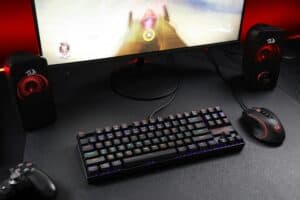
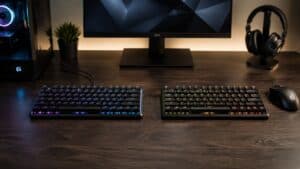
The SOLAKAKA AX68 SE feels solid in the hand and nothing on it is loose. I have the AX68 SE in black and in white. Both use the same compact 68-key layout, which keeps the arrow keys but drops the number pad and the F-key row.


It doesn’t feel cheap either, although it’s on the light side, possibly because it has fewer keys. The build isn’t top-tier, but it’s solid for the price.
Look closely and you’ll spot small case screws between a few of the keycaps on both colors. On the underside, two flip-out feet raise the back.
The detachable USB-C cable plugs into the back edge. The AX68 SE is wired only with no wireless or Bluetooth option, which SOLAKAKA presents as a strength. According to its product page, the wired link keeps signal transmission steady and avoids wireless interference.
Lighting and the Glowing Keycaps
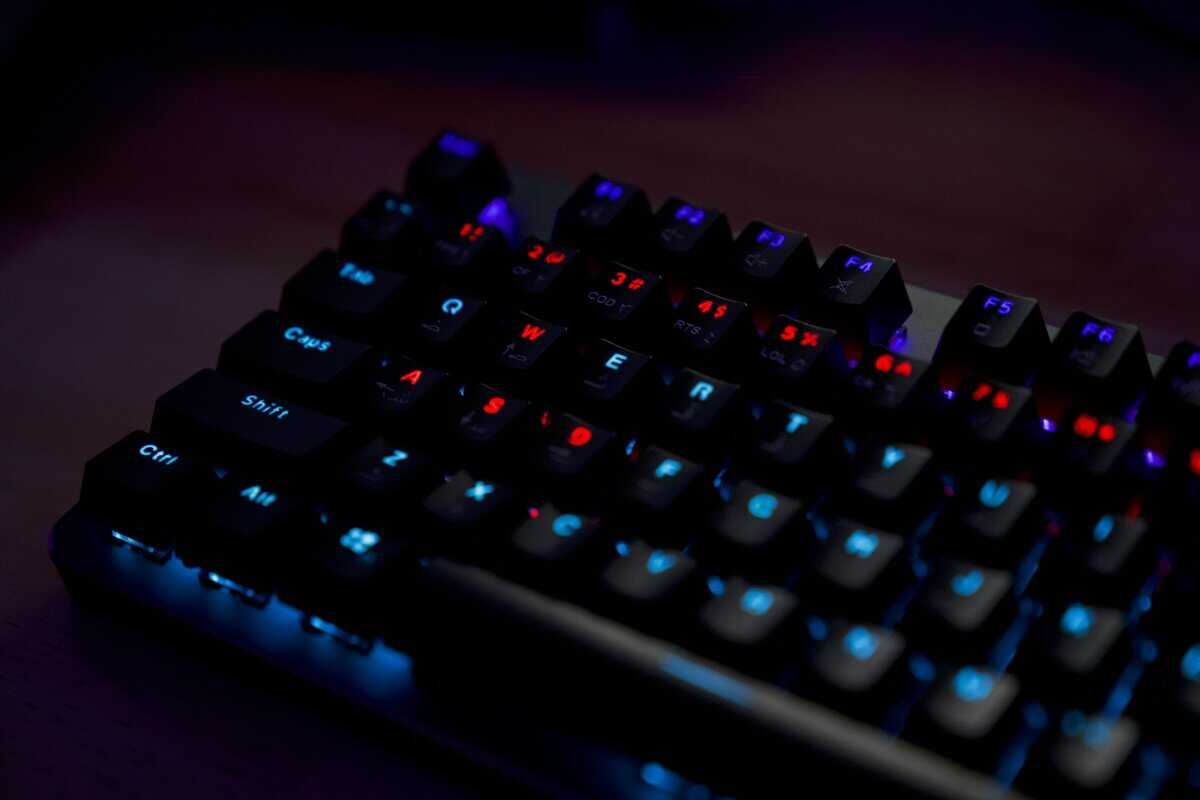
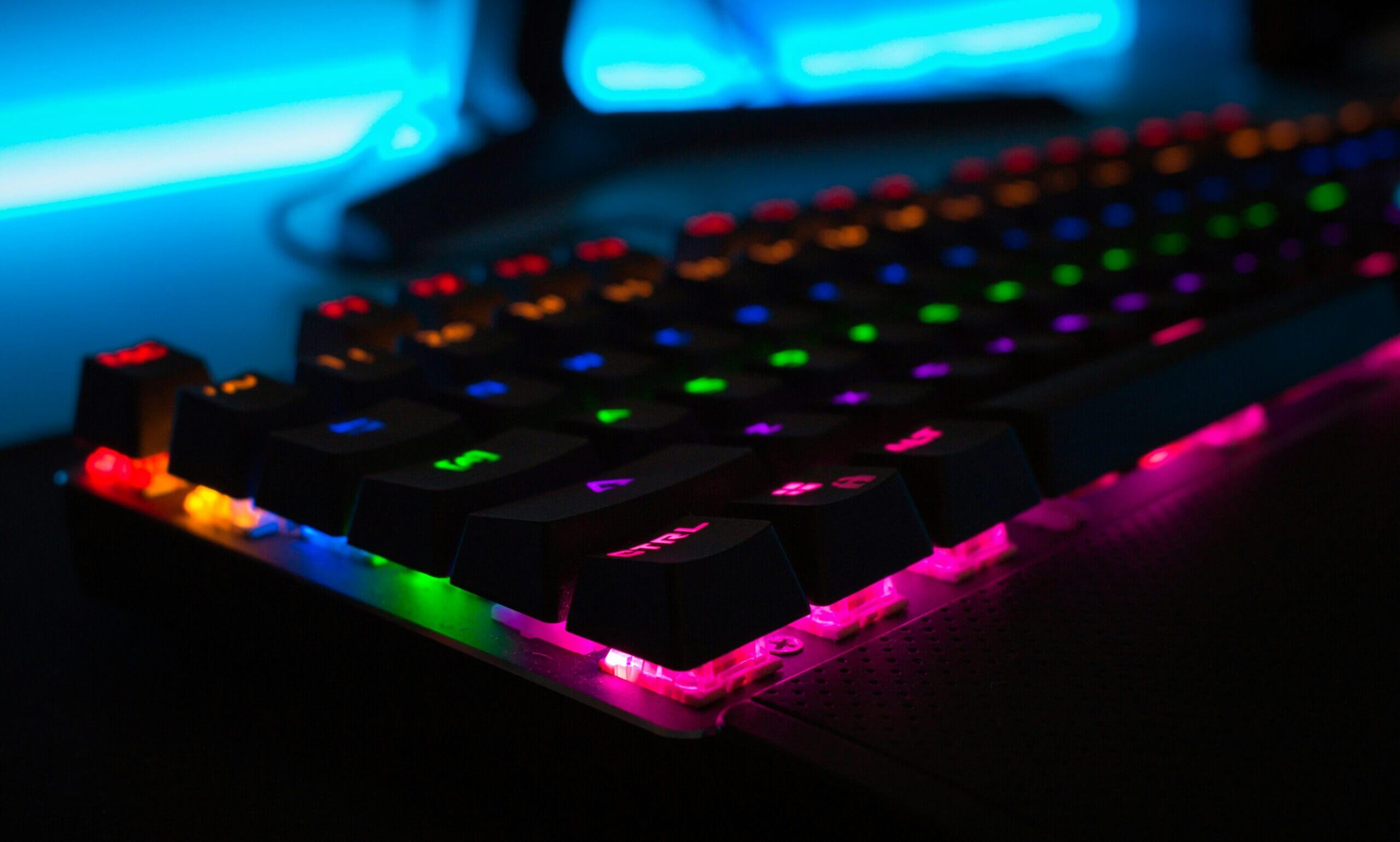
The AX68 SE’s lighting comes with all the bells and whistles. The RGB looks clean and the letters glow through the keycaps, thanks to what SOLAKAKA describes as front-printed translucent PBT keycaps that let the legends carry the light.


Switching between the lighting effects was very simple. The driver gives you 20 of them plus per-key custom colors and 8 preset colors, with sliders for brightness and speed. Adjusting the transition speed was just as easy.
You don’t need the driver for the basics either. The manual lists Fn shortcuts that switch effects, colors, brightness and speed right from the keyboard. Fn plus X turns the lighting off.
Typing and Gaming Feel
The SOLAKAKA AX68 SE types with much less click than the tactile mechanical board I compared it with. Its keys are smoother and easier to press down, which gives it a cleaner feel overall.
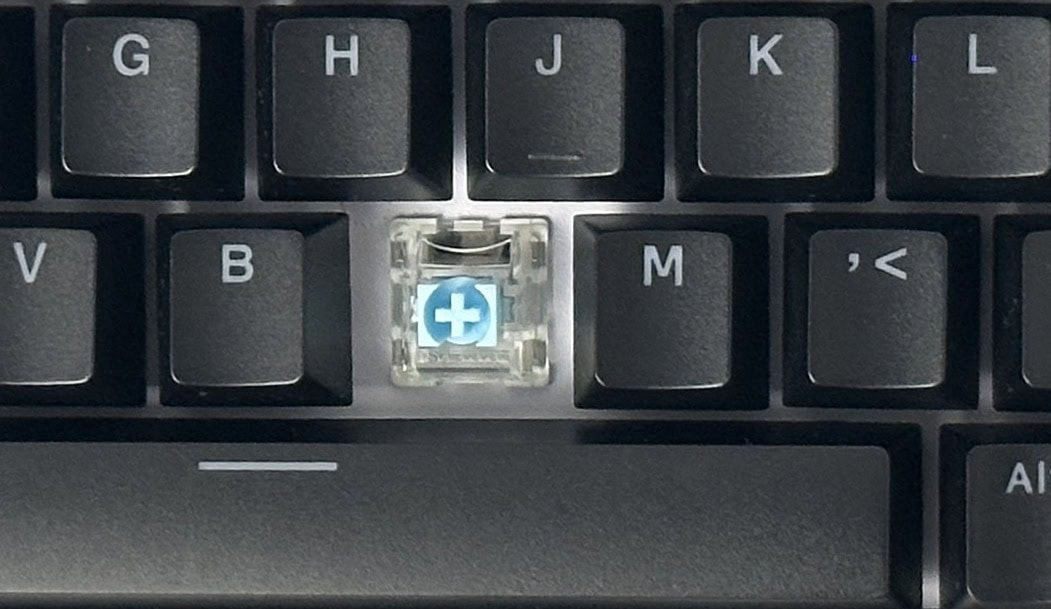
Because the AX68 SE is built for gaming first, typing long text on it feels cramped, especially if you’re used to a full-size keyboard. SOLAKAKA’s page mentions coders and office setups and the board can handle typing, but SOLAKAKA sells it as a gaming keyboard and that’s where it fits best.
I played Warzone on it with rapid trigger both off and on. Turning it on made the keyboard feel a bit quicker, but the difference was tiny and barely noticeable. Either way, it ran without a hitch.
I also liked the compact layout in game. With no F-key row there was less in the way, which made losing it a plus for me. If you’re coming from a full-size or tenkeyless board, the layout takes some getting used to because the F1 to F12 keys sit behind the Fn key. We cover that trade-off in our 65% keyboard guide.
Get our free Budget Gaming Setup Checklist
Plus one email every Thursday on what changed for budget gaming gear.
No spam. Unsubscribe any time. Privacy
The SOLAKAKA Web Driver
The AX68 SE’s gaming features live in a web driver, although the board works normally without any software. Nothing installs when you plug it in. Instead, you open SOLAKAKA’s driver site in Chrome or Edge, pick the AX68 SE, click Web driver and connect the keyboard. According to SOLAKAKA, settings save to the keyboard’s onboard memory so they stay with it on another computer.
Performance Settings
Setup starts with a calibration, where every key shows red on screen and turns green once you press it fully. After that, the Performance page has Trigger, Dead Zone, Magnetic Switch, Calibration and Travel Test tabs.
The Trigger tab is where you set the actuation point for each key across a range SOLAKAKA lists as 0.02 to 3.44 mm, with every key at 2 mm out of the box. A shallow actuation point registers a press with less travel. A deeper point leaves more room before a key fires, which helps avoid accidental presses. We explain why magnetic switches can do this in our Hall effect vs mechanical keyboard guide.
Rapid trigger is on the same page as a toggle with its own travel slider, which goes down to 0.01 in the driver. SOLAKAKA says both press and reset sensitivity are adjustable. With rapid trigger on, a key resets once it rises by the distance you set instead of waiting to pass a fixed point. That lets you tap or strafe again sooner.
Dead Zone has a top and a bottom dead zone, both at 0 out of the box. On the Magnetic Switch tab you choose the switch profile the driver reads, with GATERON selected by default. On the Travel Test tab, a live bar tracks how far each key is pressed, from 0 to 4 mm.
Advanced Key Modes
Beyond actuation, the competitive extras sit on the Advanced Key page. With SOCD, which SOLAKAKA spells out as Simultaneous Opposite Cardinal Direction, you choose what happens when you hold two opposite keys such as A and D. Last Override lets the newer press win. In standard SOCD terms, A Priority and B Priority make one chosen key always win and Neutralize cancels both keys.
The manual explains three of the other modes. DKS, which SOLAKAKA calls Dynamic Keystroke, binds up to four actions to one key by how far you press it. MT gives a key different actions for a hold and a tap, while TGL works as a toggle that keeps a key firing after one click. The menu also lists END, MPT and Rapid Snap, which neither the manual nor SOLAKAKA’s product page explains.
Profiles and Settings
My Config has four onboard profiles plus a cloud config option that needs a login. The Update and Restore page has the firmware and driver versions, a factory reset, the sleep timer and the report rate, set to 8KHz.
Rough Edges
The driver still has rough edges. Profile names, switch labels and one warning show in Chinese in the English version. That warning appears if you open the driver in a second tab because only one driver window can be open at a time. The printed manual also points to a Windows download, while SOLAKAKA’s site now links to this web driver.
What’s in the Box
Each SOLAKAKA AX68 SE box holds the keyboard, a USB-A to USB-C cable, the manual and a two-in-one keycap and switch puller. You also get a branded AX68 SE strap with four metal snaps and a faux-leather piece. The puller is a basic free tool and it worked fine for pulling keycaps. It has a switch side too, but SOLAKAKA doesn’t list the AX68 SE as hot-swappable and the manual doesn’t mention it.


The strap snaps onto the slot at the Esc corner of the case, which is how SOLAKAKA shows it in its product photos. Its side tag is a little fiddly to put on.
How the AX68 SE Compares at Its Price
Against other budget magnetic keyboards, the SOLAKAKA AX68 SE matches the core feature set while sitting toward the low end of the price range. Its glowing keycap letters and long list of advanced key modes help it stand out.
Some rivals go further on the build and the switches. AULA lists hot-swappable magnetic sockets for its AULA WIN68 HE, which sells for close to the same price. Gamakay lists hot-swappable switches and a gasket mount for its Gamakay NS75, although it costs more. For other options, see our best Hall effect keyboard picks.
Who Should Buy the SOLAKAKA AX68 SE
My overall rating is 4.2 out of 5.
Buy the SOLAKAKA AX68 SE if you want rapid trigger and per-key actuation in a compact board without spending much. It’s an even better fit if you like glowing keycap letters, want more mouse room or don’t need an F-key row. The white AX68 SE has the same features.
Skip it if you want a heavy, premium-feeling board, need confirmed hot-swap switches or want wireless. It’s also the wrong pick if you rely on a number pad and dedicated F-keys. Its gaming-first design makes it a poor match if you mostly type long documents too.
Frequently Asked Questions
Quick answers about the SOLAKAKA AX68 SE.
Is the SOLAKAKA AX68 SE hot-swappable?
SOLAKAKA doesn’t list the SOLAKAKA AX68 SE as hot-swappable and the printed manual doesn’t mention hot-swap either. The box does include a two-in-one puller with a switch side. Since hot-swap isn’t confirmed, check with SOLAKAKA before you plan to pull or replace any switches.
Do you need software for the SOLAKAKA AX68 SE?
No, the SOLAKAKA AX68 SE works as a normal keyboard without any software. For rapid trigger, per-key actuation, SOCD and lighting settings, you open SOLAKAKA’s web driver in Chrome or Edge. The settings then save to the keyboard’s four onboard profiles.
Does the SOLAKAKA AX68 SE work on a Mac?
Yes, the manual lists Windows and macOS support for the SOLAKAKA AX68 SE. Holding Fn plus S for three seconds switches it to Mac mode and all the indicators flash white three times. Holding Fn plus A for three seconds switches it back to Windows. The driver page itself lists Mac, Windows and Linux support.
Is rapid trigger on the SOLAKAKA AX68 SE noticeable?
Rapid trigger on the SOLAKAKA AX68 SE made a small difference for me in Warzone. With it on, the keyboard felt a bit quicker, but the change was barely noticeable. You switch it on or off on the driver’s Performance page, which also has a travel slider down to 0.01.
Related Articles