You’ve got a Switch 2, the bundled controllers are fine for now, and then the questions start. Do you buy the official pad and be done with it. Do you gamble on a cheaper third-party option. Do you need one controller for the couch and another for PC, or can one pad handle both without turning every shooter into a latency test.
That’s where most controller guides stop being useful. They either default to the most expensive official option or they treat every budget pick like a bargain just because it costs less. That’s not how this works in real use. A cheaper controller with mushy buttons, flaky firmware, and bad wireless behavior is expensive the moment it annoys you every night.
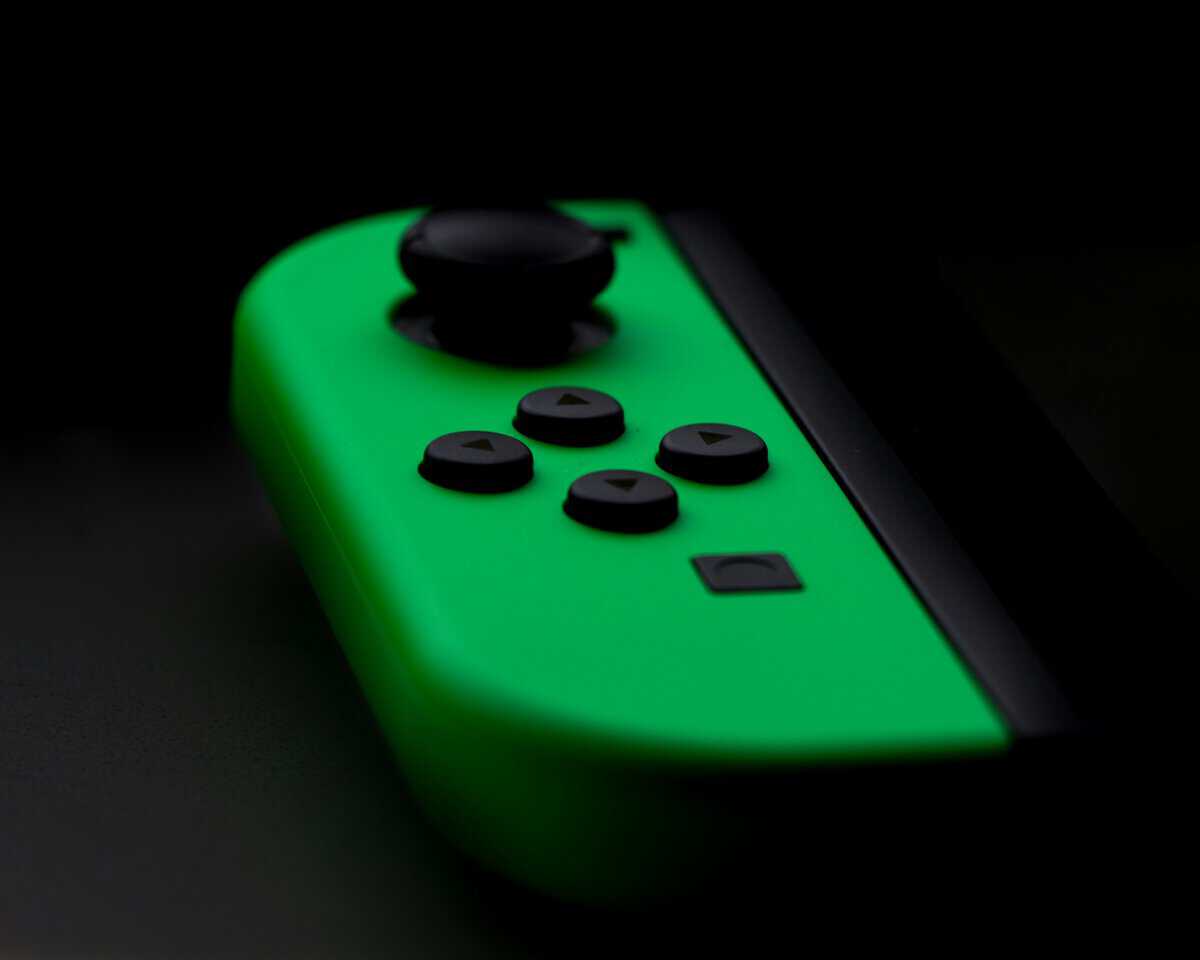
The best Switch 2 controller isn’t the cheapest one. It’s the one that fits how you play, holds up over time, and doesn’t create new problems when you connect it to a PC. If you’re setting up a gaming corner around your Switch 2, even small extras like POPvault Nintendo wall art can help tie the space together without much effort, but the controller is still the purchase that changes how the system feels every day.
A smart loadout starts with the stuff you touch most. If you’re also sorting out the rest of your setup, this roundup of Nintendo Switch accessories worth adding first is a solid companion.
- Joy-Con 2 is the default for handheld and motion games; a Pro-style controller is the better long-session pick for docked play
- Hall Effect joysticks (now common in budget picks) avoid stick drift and are worth prioritizing over RGB or back-button gimmicks
- For cross-platform Switch 2 + PC use, dual-compatible controllers like the 8BitDo Ultimate 2 beat juggling two separate pads
- Officially licensed Switch 2 controllers gain new C-button + wake-from-sleep features that older Switch Pro pads miss
- Skip controllers with non-replaceable batteries, sealed designs end up in the trash the day the battery fails
Table of Contents
- Hall Effect sticks resist long-term drift issues
- Officially supports Switch 2 over Bluetooth
- Refined D-pad and bumpers compared to budget knockoffs
- Smaller form factor takes adjustment for Pro Controller users
- Limited button customization vs higher-tier 8BitDo models
- No charging dock in the box
- Adds real grip depth to thin stock Joy-Cons
- Lightweight TPU doesn't add bulk to the carry bag
- Pops off in seconds when you dock the console
- Only addresses comfort, doesn't change buttons or sticks
- Black-only shell may not match colored Joy-Con sets
- Edges can hide debris until wiped down
- TMR joystick tech for stick precision and longevity
- Switchable Hall Effect to Tactile triggers for shooters vs racing
- Native Switch 2 + Windows support without driver gymnastics
- Higher price than dedicated single-platform pads
- Larger grip footprint than the Ultimate 2C
- Switchable trigger setup takes a minute to learn
- Officially licensed for Switch 2 with C-button support
- Hall Effect sticks at the lowest price tier on the list
- No battery to wear out, wired means it never dies mid-session
- Wired-only, no flexibility for couch sessions far from the dock
- Plastic shell feels lighter than premium picks
- Cable adds clutter behind the dock without cable management
Finding the Right Switch 2 Controller in 2026
A lot of buyers start in the same place. They use the Joy-Con 2 for a few days, realize it works well for quick sessions, then hit a wall during longer play. Maybe it’s hand cramp in action games. Maybe it’s wanting a fuller grip for platformers, shooters, or long evening sessions. Maybe it’s needing one controller that can pull double duty when the Switch is docked and the PC is already sitting on the same desk.
That last part matters more than many guides admit. A controller can feel good on Switch 2 and still be a headache on PC because of Bluetooth lag, weird firmware tools, or features that don’t carry over cleanly. If you stream, play shooters, or bounce between docked Switch play and desktop gaming, cross-platform behavior matters almost as much as buttons and sticks.
What actually matters
The short version is this:
- Stick quality matters first: Cheap stick modules ruin a controller faster than almost anything else.
- Wireless mode matters second: Bluetooth can be fine on console and still feel sloppy on PC.
- Build quality matters every session: Shell creak, loose triggers, and soft face buttons show up fast.
- Feature support matters by game: Gyro, rumble, and NFC are useful, but not everyone needs all three.
Practical rule: Buy for your main use case, not the spec sheet. A family couch controller, a handheld option, and a PC crossover controller are not the same product.
The value filter
For budget-conscious buyers, “value” means avoiding false savings. Spending less upfront only works if the controller lasts, updates cleanly, and doesn’t need replacing after a frustrating month. Durability, comfort, and stable wireless performance beat flashy extras every time.
That’s the lens to use through the rest of this guide.
Switch 2 Controller Specs: What Actually Matters
Most controller listings bury the useful information under filler. What you need to know comes down to sticks, wireless behavior, core features, and whether the shell feels built for real hands instead of a product photo.
Stick technology
If you’ve dealt with stick drift before, you already know why this matters. Older stick designs rely on physical contact that wears down over time. That’s why better sensor designs have become the first thing I check on any modern controller.
Hall-effect sticks are the safer baseline now. They use magnetic sensing, which cuts down the wear problem that made older controllers so frustrating. For most players, that’s enough.
TMR sticks go a step further. According to benchmark data on TMR joystick performance, TMR joysticks provide 0.1° resolution and sub-1ms response latency, outperform traditional Hall-effect sensors by 40% in drift resistance over 5 million cycles. The same testing reports less than 0.5% deviation after 200 hours of use. In plain English, that means finer control, less deadzone creep, and better long-term consistency.
That matters most in games where small aim corrections matter. Shooters benefit first, but so do camera-heavy action games and any title where small stick movement needs to feel clean instead of vague.
Wireless modes
A lot of people treat “wireless” as one category. It isn’t.
Bluetooth is convenient. It pairs easily, works cleanly on Switch 2 when the controller supports it properly, and keeps setup simple. The problem shows up when you expect the same feel on PC. Bluetooth can be fine for platformers and slower games, then start feeling a little delayed in shooters or streaming setups where you notice every input.
A 2.4GHz dongle usually fixes that. It’s less elegant, but it tends to feel tighter and more consistent on PC.
For a deeper breakdown of the problem, this guide on how to fix input lag is worth keeping nearby when you test a new controller across multiple devices.
Features that matter and features you can skip
Not every feature deserves equal weight. Here’s how I’d rank them for general use:
| Priority | Feature | Why it matters |
|---|---|---|
| High | Sticks and buttons | They shape every minute of play and determine long-term reliability |
| High | Gyro support | Important for aiming and motion-heavy games |
| Medium | Rumble quality | Nice to have, but weak rumble is less damaging than weak sticks |
| Medium | Battery life | Important if you hate charging, less important if you mostly play wired |
| Situational | NFC support | Useful if you use those features often, irrelevant if you don’t |
Build quality tells you a lot
A controller’s shell says plenty before you even start a game. If the grips flex, the triggers wobble, or the face buttons sound hollow, that usually points to corners cut elsewhere too. Good durability feels boring in the best way. No creaking. No scraping stick rings. No mystery rattle when you shake it lightly.
A controller should disappear in your hands. If you notice the shell, the button noise, or the loose triggers every few minutes, something’s off.
How to Test a New Controller Yourself
The best time to judge a controller is the first day you get it, not after the return window is gone. You don’t need special tools. You just need a routine that catches the common failures early.
Start with the physical checks
Before you pair anything, hold the controller firmly and twist it gently. Don’t abuse it. Just apply the kind of pressure normal use would create.
Look for these signs:
- Shell creak: If the body flexes and creaks out of the box, it won’t get better.
- Button wobble: A little movement is normal. Excessive side-to-side play usually means a cheap button assembly.
- Trigger consistency: Pull both triggers slowly. They should feel matched, not scratchy or uneven.
- Stick ring friction: Rotate each stick around the edge. Grinding or scraping is a bad sign.
Use the console’s own tools
The built-in calibration menu is your first real test. Slow circles reveal a lot. If the cursor jumps, sticks unevenly, or refuses to center cleanly, that’s a warning sign even if gameplay hasn’t made it obvious yet.
This is also where you’ll catch deadzones that feel too large. A controller can technically work and still feel sluggish because the first part of the stick movement does almost nothing.
If you’re building a full docked setup, it also helps to test your controller behavior in the same environment where you’ll play. This guide to choosing a Switch 2 dock setup that works cleanly on desk and TV pairs well with controller testing because wireless quirks often show up differently depending on placement.
Do a simple latency check
A smartphone camera is enough for a rough comparison. Point it at the screen and the controller at the same time. Press a face button repeatedly in a menu where the response is obvious. If one controller consistently shows a slower on-screen reaction than another under the same conditions, you’ll notice it in footage.
This won’t replace formal testing, but it’s enough to catch obvious lag or wireless instability.
Check the controller in the exact mode you plan to use. Bluetooth on PC, wired on PC, and wireless on Switch can feel like three different products.
Update firmware before you decide
A surprising number of third-party controllers improve after a firmware update. Pairing bugs, weird button mapping, and unstable wireless behavior sometimes come down to old software, not bad hardware.
Don’t skip this step. Look for the manufacturer’s update tool, install the latest firmware, then retest the controller. If the process is clumsy or only works on one operating system, that’s useful information too. A controller that’s hard to maintain is harder to recommend, even if the hardware itself feels decent.
The Official Nintendo Switch 2 Controller Lineup
A lot of buyers hit the same wall after the first week. The packed-in controllers work, but the question changes fast once you start bouncing between Switch 2 and PC. Official Nintendo pads still matter here because they set the baseline for feature support, pairing behavior, and general reliability on the console itself.
Joy Con 2 as the default option
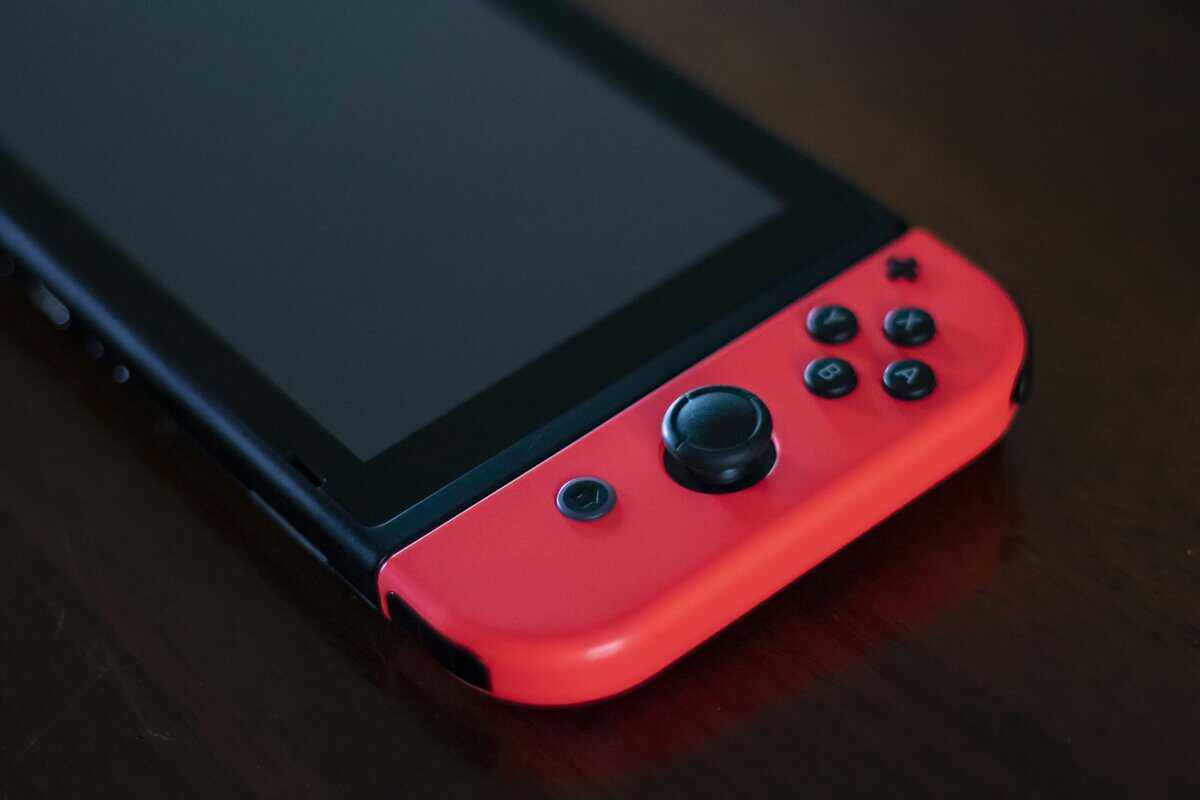
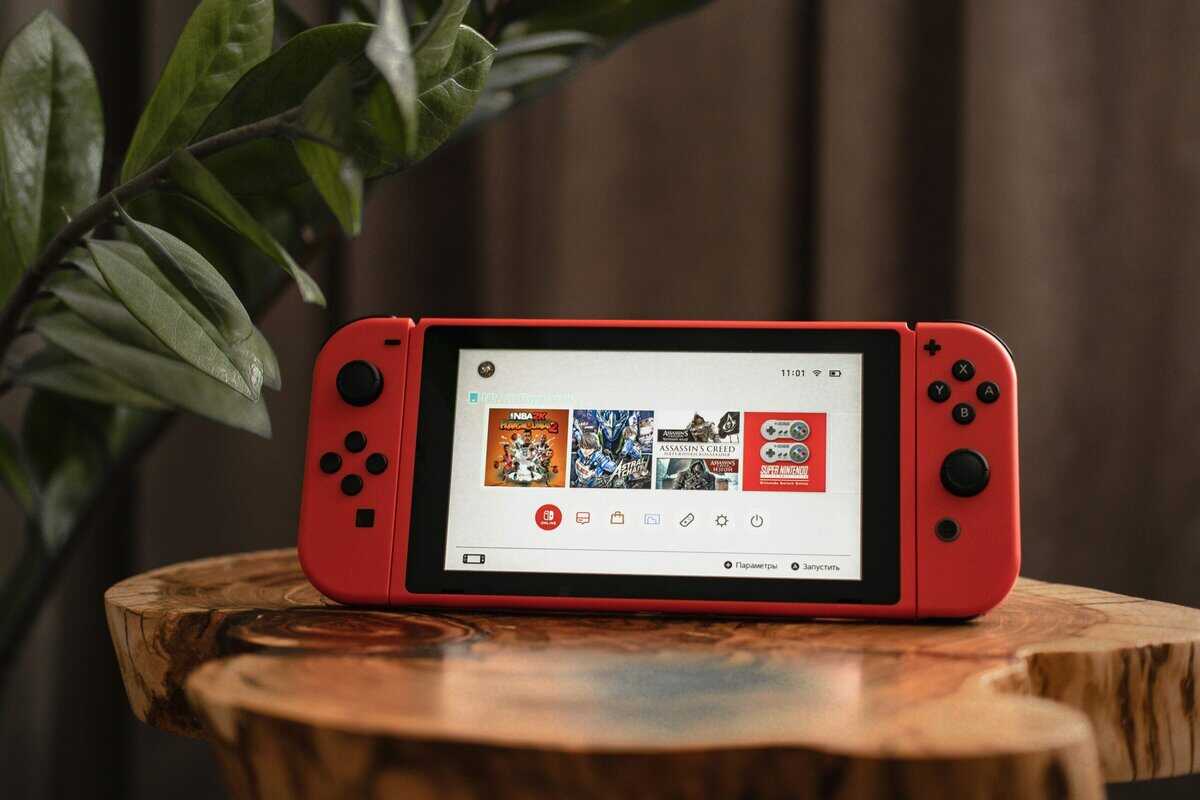
Joy-Con 2 are still the starting point for most players because they ship with the system and cover more situations than any single full-size pad. Handheld play, quick local multiplayer, tabletop mode, and basic docked sessions are all handled without buying anything else.
That flexibility is the primary selling point.
For short sessions, they do the job well. They also keep you inside Nintendo’s own feature set, which usually means fewer annoyances with pairing, sleep wake, and system updates. For anyone who mainly plays on the Switch 2 itself, that convenience has real value.
The problem shows up in longer docked sessions and in PC use. Detached Joy-Con 2 are fine in a pinch, but they are still small controllers split into two pieces. Adult hands notice that quickly. Cross-platform players also tend to run into more setup friction on PC than they would with a standard full-size controller, which matters if one pad is supposed to cover both systems.
The Switch 2 Pro Controller as the Benchmark
The official Pro Controller is the safest first-party pick for docked play. It is the one I point to when someone wants the least hassle on Switch 2 and is willing to pay more for it.
The strengths are familiar. Good ergonomics, reliable wireless behavior on the console, strong battery life, and full native feature support. The button feel is usually more consistent than cheaper pads, and the shell tends to hold up better over time than budget options that feel good for a month and then start developing loose triggers or squeaky sticks.
The trade-off for budget gamers is simple. The Pro Controller is excellent on Switch 2, but its value gets less clear if you also spend a lot of time on PC. It works there, but official first-party pads are not always the best deal for cross-platform use because firmware tools, remapping options, and connection modes can be more limited than what some third-party PC-friendly controllers offer. If low-latency PC play matters as much as native Switch support, the price premium starts to need a stronger justification.
Here’s the practical breakdown:
| Official controller | Best use | Strength | Main drawback |
|---|---|---|---|
| Joy-Con 2 | Handheld, tabletop, family multiplayer | Flexible form factor and native Switch 2 support | Cramped for long docked sessions, less appealing for regular PC play |
| Pro Controller | Docked solo play, longer sessions, players who want fewer setup issues | Comfort, battery life, dependable first-party support | Costs more than many budget cross-platform alternatives |
Who should buy official first
Official Nintendo controllers make the most sense for players who want the fewest compatibility headaches on Switch 2. That includes families sharing one console, players who use handheld mode often, and anyone who would rather avoid firmware tools, remapping apps, and platform-specific quirks.
They also make sense for buyers who keep one controller mostly dedicated to the console. That is an important distinction. If you want one pad for both Switch 2 and PC on a tighter budget, official hardware is dependable but not always the sharpest value. Third-party pads often give you more flexibility per dollar, even if they give up some first-party polish.
If your current controller needs repair instead of replacement, finding a reliable Nintendo Switch 2 service can save you from replacing hardware that still has plenty of life left.
For a wider look at controller buying guides and recommendations for different setups, that category page is worth keeping open while you compare options.
Best Budget-Friendly Switch 2 Controllers
The buying decision gets more specific depending on where and how you play. Docked on the couch. Handheld in bed. Cross-platform between Switch 2 and PC. Streaming at a desk. The best switch 2 controller for one person can be the wrong buy for another.
Best overall value
For most docked players, the best value play is usually a good mid-range third-party pad with modern sticks, solid gyro support, and a shell that doesn’t feel disposable. Our budget pick: the 8BitDo Ultimate 2C, Hall Effect joysticks, official Switch 2 support, and a feel that punches above its price. This category works best when the controller gets the fundamentals right and doesn’t try to win on gimmicks.
What I want here is simple. Comfortable grips, dependable buttons, stable wireless on Switch 2, and stick modules that won’t start feeling loose too soon. Back buttons are useful. Fancy faceplates are optional. If the shell feels cheap or the D-pad feels vague, I move on fast.
The reason this category matters is that a lot of players don’t need every first-party extra. They just need a controller that feels good every night and doesn’t introduce friction.
Buy the controller that does the basics well for a long time. Most regret comes from chasing extras before fundamentals.
Best for handheld play
Handheld-focused options are a different animal. Comfort matters more than battery. Grip shape matters more than premium rumble. A good handheld controller turns the Switch 2 from something you tolerate into something you can use for a full evening. A budget upgrade: the MystiForge Split Grips for Joy-Con 2, ergonomic TPU shells that snap on the stock Joy-Cons and instantly fix the cramped-hands problem.
The catch is that some handheld-focused products make real compromises. You might lose wireless flexibility. You might get fewer native features. That’s fine if your main goal is better ergonomics when the console is in your hands.
Buyers should be uncompromising. If you mostly play handheld RPGs, platformers, or long single-player sessions, comfort beats versatility. A modular controller that works in every mode but cramps your hands is not the better value for you.
Best for cross-platform gamers
This is the category most generic guides handle badly. A controller can behave perfectly well on Switch 2 and still be annoying on PC. That matters for streamers, desk setups, and anyone who swaps between console and desktop during the week. The pick that handles both cleanly: the 8BitDo Ultimate 2, TMR joysticks, switchable Hall Effect triggers, and native support for Switch 2 plus Windows PC.
According to wireless latency testing and cross-platform polling, 60% of users in Discord polls reported 5-10ms of input lag using popular third-party controllers on PC via Bluetooth. The same reporting notes that using a 2.4GHz dongle can cut lag by 80%. That’s the trade-off. Bluetooth convenience versus tighter PC responsiveness.
If you play shooters, this isn’t a minor detail. If you stream, it matters even more because delayed input feels worse when you’re already monitoring audio, chat, and capture software. For MMO-style games or slower single-player titles, you may never care. For aim-heavy games, you probably will.
Here’s the cleaner way to choose:
- Mostly Switch 2: Prioritize native feature support and overall comfort.
- Split between Switch 2 and PC: Prioritize firmware support and a strong wired or dongle mode.
- Mostly desk gaming: Treat Switch compatibility as the bonus, not the main buying criterion.
If that PC crossover use matters to you, this roundup of budget gaming controllers for PC that still make sense for mixed setups helps narrow the field.
Best ultra-budget pick
There’s a place for low-cost controllers, but only when expectations stay realistic. At the bottom end, I’m looking for one thing first: no glaring flaw. Our ultra-budget pick: the PowerA Advantage Wired Controller for Switch 2, officially licensed, Hall Effect sticks, and a price that makes a second pad an easy “yes.” If the shell is decent, the sticks don’t feel sloppy, and the buttons are predictable, that may be enough for a backup pad, kid-friendly setup, or occasional couch multiplayer use.
The problem with many ultra-budget controllers isn’t one big failure. It’s a pile of small annoyances. Weak plastics. Mushy buttons. Bad wake behavior. Charging ports that feel fragile. Firmware that never improves. Those things add up.
A budget pick is worth buying when it has a clear role. Spare controller for guests. Secondary pad for party games. Entry point for someone who doesn’t yet know how much they’ll play. It’s not worth buying when you expect premium durability for a discount price.
A Quick Comparison by Player Type
| Use case | What to prioritize | What you can compromise on |
|---|---|---|
| FPS gaming | Low-latency connection, precise sticks, strong build | Fancy rumble, decorative extras |
| MMO or slower PC games | Comfort, button layout, stable connection | Absolute lowest wireless latency |
| Streaming setup | Reliable cross-platform behavior, easy charging, consistent firmware support | Some native console-only features |
| Family living room | Durability, easy pairing, simple controls | Advanced remapping options |
| Handheld-heavy play | Ergonomics, grip shape, portable comfort | Full-size docked controller feel |
What works and what doesn’t
What works is straightforward. Good sticks. Tight buttons. Stable wireless. Firmware that improves the product. A shell that feels like it can survive being picked up, dropped onto a couch, and used for months without loosening up.
What doesn’t work is buying by feature count. Back paddles don’t save a bad D-pad. RGB doesn’t fix sloppy triggers. A low price doesn’t help if you avoid using the controller because it feels off in your hands.
The best value buyer isn’t chasing the cheapest pad. They’re paying attention to friction. Every little annoyance is a tax on the purchase. Remove enough of those, and the controller starts to feel worth it.
Final Verdict Which Controller Should You Buy
You finish a Switch 2 session, jump onto PC, and the controller that felt fine on the couch suddenly shows its flaws. Pairing gets messy. Wireless delay feels softer on one platform than the other. A firmware update fixes one issue and creates another. That is the part cheap controller roundups usually skip.
Whichever controller you land on, it ends up in a bag eventually. Our Switch 2 case roundup covers what protects the console and the gear that travels with it.
If you want the least hassle, buy official. The stock options still make the most sense for buyers who want fast pairing, full native feature support, and no time spent troubleshooting. For shared living room use, that convenience matters more than a longer feature list.
If you mostly play docked, the Pro-style official pad is still the easy recommendation. It costs more, but the extra money usually buys better comfort, fewer small annoyances, and more predictable behavior across long sessions. That matters more than flashy extras once the novelty wears off.
Budget buyers who also play on PC should be more selective. The best value is rarely the absolute cheapest controller. It is the one that stays stable over Bluetooth, works cleanly over USB, and gets firmware support that does not break cross-platform input modes. A budget pad can be a smart buy if you mostly play slower games, use wired mode at a desk, or can tolerate giving up a few console-specific features. It is a bad buy if you expect flawless wireless performance on both Switch 2 and PC for bargain-bin money.
My short version is simple.
Buy official if you want the safest experience. Buy a mid-range third-party pad if you split time between Switch 2 and PC and care more about price-to-performance than native extras. Skip ultra-cheap controllers unless you are comfortable trading away latency, consistency, or long-term durability.
The best switch 2 controller is the one that fits your real setup, not the one with the longest spec sheet. If a controller connects fast, feels right after two hours, and does not turn firmware into homework, it has done its job.
Playing on a phone as well? Our best phone controller guide covers clip-on and telescopic pads.
Frequently Asked Questions
The most common Switch 2 controller questions tend to come down to compatibility, value, and whether to add a second pad. Here are quick answers worth knowing before you spend.
Do third-party controllers work with Switch 2?
Most current third-party controllers support Switch 2 over Bluetooth, but feature parity varies. Hall Effect joysticks, motion controls, and rumble are common on quality picks like the 8BitDo Ultimate 2 and PowerA Advantage. Older controllers built only for the original Switch may lose features like the new C-button or wake-from-sleep on Switch 2.
Should I get Joy-Con 2 or a Pro Controller for Switch 2?
Joy-Con 2 is the default for handheld and motion-heavy games. The Pro Controller is the better pick for long docked sessions, shooters, and platformers where a single-piece grip matters. Most players end up wanting both, Joy-Con 2 for portable play and a Pro-style controller for the couch.
Are Hall Effect joysticks worth the extra money?
For long-term reliability, yes. Hall Effect sticks use magnets instead of physical contact, so they avoid the stick drift that kills cheaper controllers after a year of heavy use. The 8BitDo Ultimate 2C and PowerA Advantage both ship with Hall Effect sticks at budget pricing, so the premium has shrunk dramatically.
Can I use my old Switch Pro Controller on Switch 2?
Original Switch Pro Controllers pair with Switch 2 and work for basic gameplay, but they miss out on Switch 2-specific features like the new C-button and updated motion APIs. If you already own one, keep using it for older games; for new Switch 2 titles that lean on the new features, a Switch 2-licensed controller is the better fit.
What’s the most budget-friendly Switch 2 controller worth buying?
For wired play, the PowerA Advantage Wired Controller is the cheapest officially licensed option with Hall Effect sticks. For wireless, the 8BitDo Ultimate 2C delivers Hall Effect joysticks, motion, and rumble at a fraction of the price of the official Pro Controller, it’s usually the sharpest value-per-dollar pick on the list.
If you’re building a setup one smart upgrade at a time, Budget Loadout is worth bookmarking. It’s built for gamers and streamers who care about value, durability, and gear that works in real use, not just on a spec sheet.
Related Articles