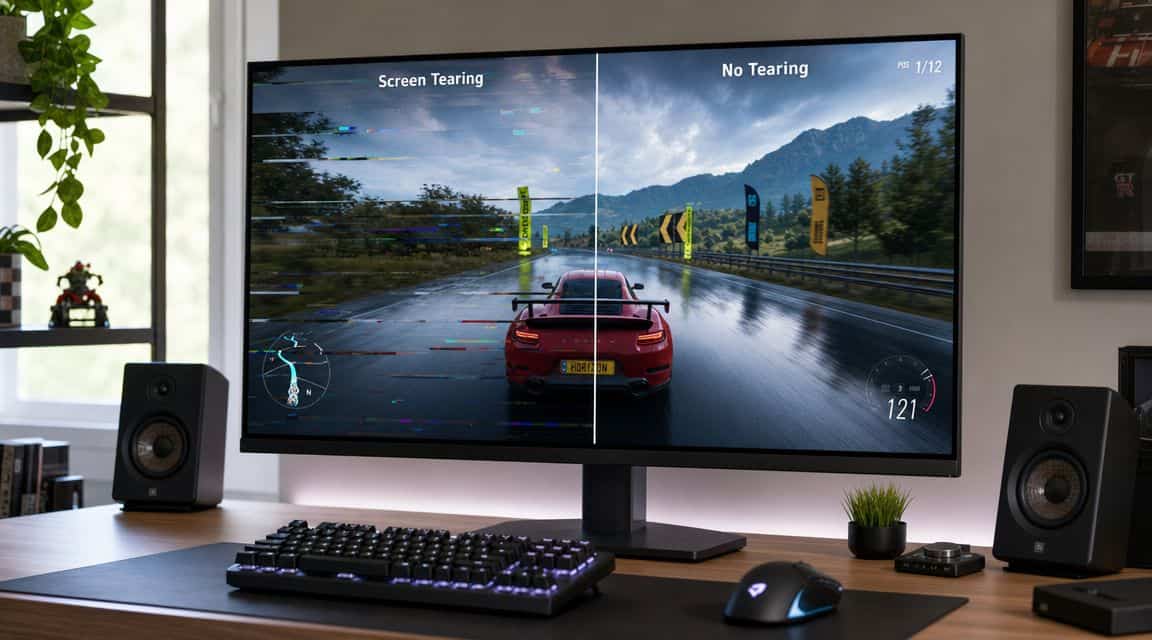
You notice it fast in a shooter. You swing the camera, the image looks split across the screen, and the top half seems a fraction ahead of the bottom. That ugly break is screen tearing, and VSync exists to stop it.
The problem is that VSync has never been a free fix. It can clean up the image, but it can also make games feel less responsive or oddly choppy. That’s why one player swears by it and another turns it off on every system they touch.
For budget gamers, the confusion is worse now than it used to be. A lot of setups are mixed. Maybe you’ve got a modest GPU, a monitor that sits somewhere in the 60 to 144 Hz range, a console on the same display, or a TV over HDMI. In that kind of setup, the right answer usually isn’t “always on” or “always off.” It depends on the hardware and the kind of games you play.
- VSync stops screen tearing by capping your frame rate to the monitor’s refresh rate, but that cap can add input lag.
- If your FPS drops below the refresh rate, plain VSync can cause harsh stutter (frame-rate halving).
- Adaptive VSync and fast/triple-buffered modes soften the downsides, but they are not a complete fix.
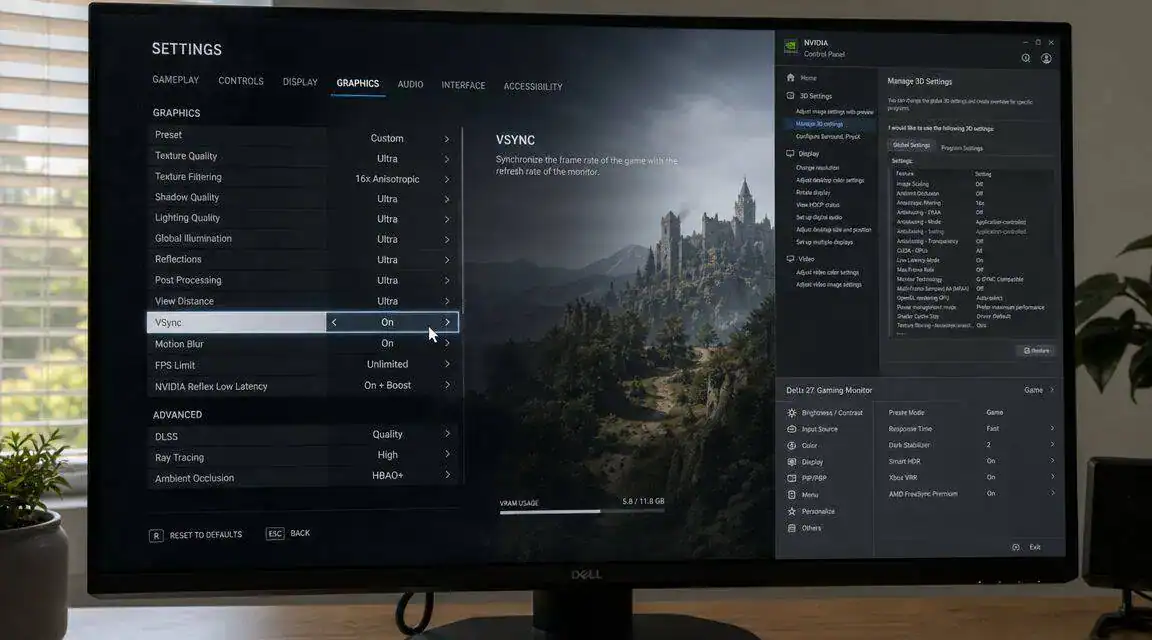
- G-Sync and FreeSync (variable refresh rate) are the modern tear-free, low-lag solution. VSync is the fallback when you don’t have VRR.
- For budget gamers: use VSync mainly on fixed-refresh displays where tearing is obvious and a little extra delay is acceptable.
Table of Contents
What Is VSync and Why Do Gamers Argue About It
VSync means vertical synchronization. Its job is simple. It makes the GPU wait for the display’s refresh cycle before showing the next frame, so the monitor doesn’t show parts of two different frames at once.
That sounds like an easy win, and sometimes it is. If tearing bothers you, VSync can make motion look cleaner right away. If you’ve never seen tearing clearly, this guide on how to stop screen tearing helps put a name to what you’re seeing.
The argument starts because VSync fixes one problem by creating others. In a slower RPG or MMO, that trade can be fine. In a competitive FPS, the extra delay between your input and what you see can feel worse than the tearing itself. A game can look smoother but feel slower.
Practical rule: VSync is a visual fix first, not a performance upgrade.
That’s the part many basic explanations skip. VSync is not about making your PC faster. It’s about controlling when frames get displayed. Whether that feels better depends on your monitor, your frame rate consistency, and how sensitive you are to input lag.
Understanding Screen Tearing and Frame Synchronization
Think of your GPU and monitor like two workers on different schedules. The GPU builds frames as quickly as it can. The monitor shows images at its own refresh rhythm. If those two aren’t lined up, the monitor can grab a new frame in the middle of drawing the old one.
That’s tearing.
What your monitor is actually doing
A display refreshes the image in cycles. On a 60 Hz screen, VSync lines the GPU up with 60 frames per second instead of allowing frames to be sent in the middle of the scan, which prevents the display from showing two different frames at once, as explained in this vertical synchronization breakdown.
Without synchronization, your GPU might finish a frame while the monitor is still partway through drawing the last one. The display then ends up showing one frame on one part of the screen and a newer frame on another part. In a still image you may barely notice it. In motion, especially while panning a camera, it stands out.
Why tearing is more obvious in some setups
Tearing usually jumps out more in fast camera movement. That makes it common in:
- Competitive shooters: Quick flicks and side-to-side tracking make split frames easy to spot.
- Racing games: Long horizontal motion makes tears visible across the screen.
- Open-world games: Fast camera pans over detailed scenery can expose the mismatch.
In slower games, some players barely care. In MMOs, inventory-heavy games, or turn-based games, tearing may show up less often or just feel less important.
A lot of readers also game on displays that pull double duty. One screen might handle a PC, a console, and streaming video. That’s where display choice matters. If you’re comparing panel behavior and connection habits, this guide on gaming monitor vs TV differences is useful context.
What VSync changes
VSync acts like a traffic light between the GPU and the monitor. Instead of letting the GPU throw completed frames at the display whenever they’re ready, it makes the GPU wait for the proper refresh moment.
That solves the split-frame problem, but it also means your GPU can’t always present frames the instant they’re done. If your system is comfortably keeping up, VSync can look clean and stable. If your system is hovering around the limit, things get messy fast.
The cleaner image comes from timing control, not from rendering more frames.
That distinction matters. If your PC is struggling already, VSync won’t fix the underlying performance issue. It only changes how finished frames get delivered to the panel.
The Hidden Costs of VSync Stutter and Input Lag
VSync gets praised for removing tearing, but the majority of frustration arises from its implementation. When the GPU can’t keep pace cleanly, standard VSync can make motion feel uneven and controls feel late.
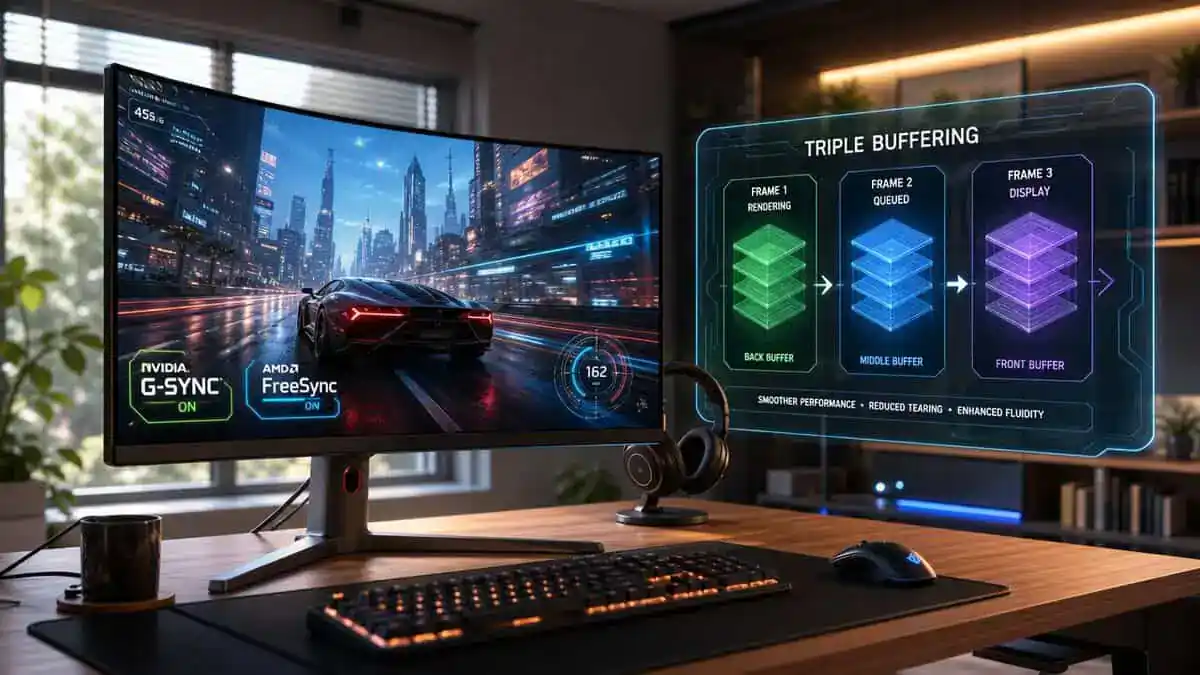
Why VSync can stutter
Traditional double-buffered VSync doesn’t just smooth things out. It quantizes frame output to refresh-rate divisions. On a 60 Hz display, the practical frame rates can fall from 60 to 30, 20, 15, 12, or 10 FPS when the GPU misses the refresh window, which is why standard VSync can create visible stutter on weaker or inconsistent systems, as outlined in this explanation of how VSync works.
That’s the classic frame-rate cliff. Your game doesn’t just feel a little slower. It can suddenly feel much worse because it gets forced into lower steps.
Here’s the plain-English version:
| Situation | What it feels like |
|---|---|
| GPU stays comfortably ahead | Motion looks clean |
| GPU hovers near the limit | Gameplay feels inconsistent |
| GPU dips below the target | You notice stutter fast |
This is one reason budget hardware can have a rough time with VSync. If your graphics card is already working hard, the sync behavior can make borderline performance feel harsher than it would with VSync off.
Why input lag goes up
The second cost is input lag. Because the GPU may hold a finished frame until the next refresh moment, your click, key press, or mouse movement can take longer to show on screen.
That extra delay matters most in games where reaction time shapes the whole experience:
- FPS games: Aim feels less direct.
- Fighting games: Timing windows feel less natural.
- Fast racing games: Steering corrections can feel delayed.
- Action games with parries or dodges: Responsiveness matters more than image purity.
If your main problem is sluggish controls, don’t assume tearing is the issue. This guide on how to fix input lag covers the rest of the chain too, from display settings to connection choices.
When the tradeoff is worth it
Not every game punishes VSync equally. In an MMO, city hubs, questing, and group content usually don’t demand instant mouse response in the same way a shooter does. If tearing bothers you and your frame rate is stable, enabling VSync can be perfectly reasonable.
For streaming, the answer depends on whether you’re the player or the viewer. Viewers care about a stable-looking image. You care about control feel. If your game already feels heavy while encoding or multitasking, adding standard VSync can push it the wrong way.
If VSync makes your game feel mushy, it’s doing exactly what it’s designed to do. It’s prioritizing frame delivery order over immediate response.
VSync Variants and Modern Alternatives
A lot of budget gaming setups now sit in the middle. The PC might be older, the monitor might be newer, and the game might offer its own frame cap, VSync toggle, and low-latency options all at once. That mix is why VSync is no longer a simple on-or-off recommendation.
The newer takes on classic VSync
Games and GPU drivers still offer several sync modes, and each one solves a slightly different problem.
- Adaptive sync modes: These try to keep tearing under control without hanging onto VSync behavior when performance drops.
- Triple buffering: This gives the GPU more room to queue frames, which can help smooth out some of the ugly hitching tied to older VSync behavior.
- Fast sync style modes: These aim to clean up tearing at high frame rates, but they tend to make more sense when the GPU is already pushing well above your monitor’s refresh rate.
Those settings can help, but they do not erase trade-offs. One mode may look cleaner but feel less responsive. Another may feel better on a powerful system and fall apart on a cheaper card that cannot hold stable performance.
Why VRR changed the decision
Variable refresh rate changed the practical advice for a lot of gamers. If your monitor supports VRR and your connection is set up correctly, the display can adjust to the GPU instead of forcing the GPU into a fixed refresh pattern. That usually gives you a smoother result than classic VSync with less frustration.
For budget gamers, this matters because frame rate often moves around instead of staying pinned to one target. VRR handles that uneven behavior better than old-school VSync. It is often the most useful display upgrade you can make if you play a mix of single-player games, esports titles, and newer releases that push modest hardware hard.
Connection support matters too. If you’re sorting out ports, cable limits, or refresh-rate support, this guide on DisplayPort vs HDMI for gaming can save you from chasing the wrong setting.
The cheap fix that still makes sense
A frame cap is still one of the best value tools in this whole discussion.
On a budget build, I would usually try a sensible cap before forcing standard VSync. A cap can keep frame delivery more consistent, cut wasted GPU load, and reduce fan noise without adding the same level of baggage people complain about with traditional VSync. It will not remove tearing the way sync can, but it often makes the system feel steadier in actual play.
That is why mixed-tech setups need a simple decision order instead of a blanket rule:
- Use VRR first if your monitor and connection support it
- Use a frame cap if performance swings around but tearing is minor
- Use a VSync variant if the game still tears badly and feels acceptable to control
- Use standard VSync last, mainly for slower-paced games or fixed-refresh displays
This is the part many players miss. VSync still has a place. It is just no longer the first answer for every PC. On a fixed-refresh budget monitor, it can still clean up a distracting image. On a high-refresh VRR display, it is often the backup plan, not the main one.
How to Configure VSync Settings Correctly
A lot of bad VSync experiences come from messy configuration. Players turn it on in one place, off in another, then stack a frame cap on top and wonder why the game feels odd. Keep it simple.
Start in the game menu
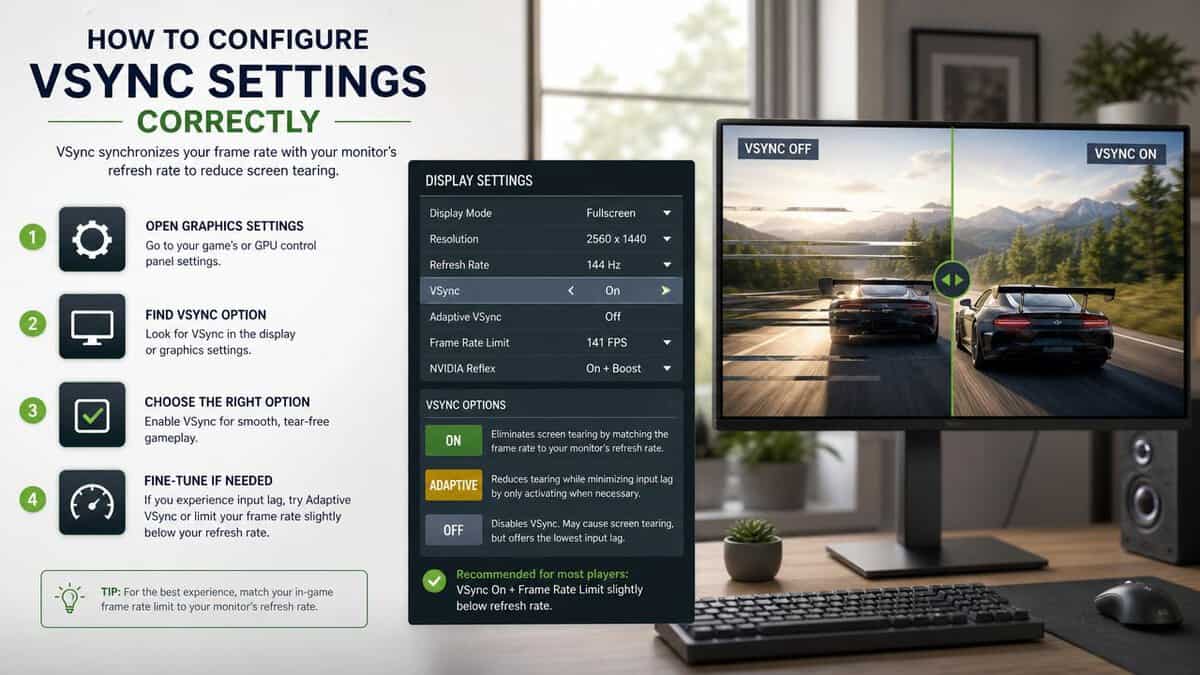
Most games put VSync in the graphics or display settings. Common options include Off, On, and sometimes extra sync modes or a separate frame limiter.
Use this order:
- Test Off first: Check whether tearing is bothering you.
- Enable your frame cap next: If the game includes one, try that before forcing driver-level sync.
- Use VSync only if needed: Turn it on if tearing is obvious and the game still feels responsive enough.
If the game offers both VSync and a frame cap, don’t assume you need both. You might, but test one change at a time.
Driver settings matter
Driver-level controls can override in-game behavior, which is useful but easy to misuse. One older analysis of VSync behavior on a 60 Hz monitor showed standard sync producing frame intervals of about 16 ms, 33 ms, or 50 ms, while a half-refresh adaptive mode could hold a solid 30 FPS, showing that driver settings can create meaningfully different sync behavior in practice, as shown in this analysis of VSync visual effects.
That’s why driver menus deserve attention. They don’t just duplicate the in-game switch.
A practical setup checklist:
- Global setting first: Leave the driver on application-controlled unless you have a specific reason not to.
- Per-game profile second: If one game tears badly or behaves oddly, change only that title.
- Retest after each change: Don’t change multiple sync settings at once.
Don’t troubleshoot VSync by guessing. Change one setting, play for a few minutes, then decide.
Keep your setup clean
Mixed settings cause most headaches. If you’re testing responsiveness, disable extras you don’t need. If you’re chasing image stability for a slower game, that’s when more aggressive sync can make sense.
As a general rule:
| Use case | Starting point |
|---|---|
| Competitive FPS | VSync off, test frame cap |
| MMO or RPG | Try VSync or VRR first |
| Streaming while gaming | Keep settings simple, avoid stacking sync methods |
| TV gaming from PC | Test carefully, TVs often feel different from monitors |
Final VSync Recommendations for Budget Gamers
You load into a match on a cheap 144Hz monitor, your frame rate floats between 70 and 100 FPS, and the screen still tears. That is the point where a lot of budget builds get messy. VSync is not the automatic fix anymore, because the right answer depends on the monitor, the game, and whether your system can hold a steady frame rate.
For mixed-budget setups, use a simple order of operations. Start with VRR if your display supports it. If you do not have VRR, try a frame cap. Use standard VSync only when tearing bothers you more than the extra input delay or occasional hitching.
A practical decision framework
| Your setup | Best first move | Why |
|---|---|---|
| 60Hz monitor or TV, game runs well above 60 FPS | Try VSync or cap at 60 FPS | Both reduce tearing. A cap often feels lighter if the game supports it well. |
| 60Hz monitor, game often drops below 60 FPS | Use a frame cap you can actually hold | Standard VSync can feel rough when performance keeps falling under refresh. |
| 120Hz or 144Hz monitor, GPU usually stays below refresh | Use VRR if available. If not, cap near your real average FPS | Chasing refresh rate you cannot maintain usually feels worse than running a stable cap. |
| High-refresh monitor, esports or competitive shooters | Leave VSync off. Test a cap if needed | Lower latency matters more than a perfectly clean image. |
| Slower games like RPGs, strategy, sim, or MMO | Try VRR first, then VSync if tearing still stands out | These games usually tolerate a little extra delay better. |
| Single-PC streaming setup | Use a conservative frame cap | Streaming can make frame delivery uneven, and VSync often makes that unevenness more noticeable. |
| TV over HDMI from a PC | Test game mode first, then cap or VSync | TVs vary a lot in processing and can add enough delay to change the answer. |
That table is the short version I would give a friend building on a budget.
Where to spend money first
If you are deciding between tweaking VSync for hours or improving the display path, put the money into the display path.
In most budget builds, the better long-term upgrade order looks like this:
- A monitor with decent VRR support
- The right cable and port combination for your refresh rate
- A stable in-game or driver-level frame cap
- VSync as a cleanup tool when tearing is still visible
Monitors usually stay in a setup longer than a GPU. A screen with reliable VRR and decent overall build quality gives you more flexibility across upgrades than obsessing over one sync setting. If you are comparing screens, this guide to the best budget gaming monitor is a useful place to sort options by budget and use case.
The recommendation I would actually give
Use VRR if your monitor has it.
Use a frame cap if it does not.
Turn on VSync for slower-paced games, older 60Hz displays, or any setup where tearing is obvious and you can live with a little more delay.
For budget gamers, that is the practical answer. VSync still has a job. It just works best as the fallback option in a mixed-tech setup, not the first switch you flip.
VSync FAQ
Quick answers to the questions people ask most about what is VSync and how to use it.
Does VSync cause input lag?
Yes, a little. By holding frames to match your monitor’s refresh rate, VSync adds a small amount of delay. It is usually minor on a 60Hz display and less noticeable at higher refresh rates, but competitive players often turn it off or use a low-lag alternative.
Should I turn VSync on or off?
Turn it on if screen tearing bothers you and you do not have G-Sync or FreeSync. Turn it off (or use a frame-rate cap) if you want the lowest possible input lag, or if you have a variable refresh rate display that already prevents tearing.
Is VSync still needed if I have G-Sync or FreeSync?
Mostly no. Variable refresh rate (G-Sync/FreeSync) removes tearing without VSync’s lag penalty. Many players cap their frame rate a few FPS below the refresh rate and leave VSync off, or enable it only as a backstop above the VRR range.
What is the difference between VSync, Adaptive VSync, and Fast Sync?
Standard VSync caps frames to the refresh rate and can stutter when FPS drops. Adaptive VSync turns the cap off below the refresh rate to avoid that stutter. Fast Sync (and triple buffering) let the GPU render freely and show the newest complete frame, cutting lag at the cost of higher GPU load.
Want plain-English breakdowns of the settings and gear that actually change how your games feel? Budget Loadout covers budget-friendly upgrades and tweaks, without the markup.
Related Articles