You don’t need to spend money on recording software to capture high-quality gameplay, audio, or streams. The market is full of capable, free tools, but choosing the right one depends on your goals. Some are lightweight and built into your graphics drivers, while others are full-fledged broadcast studios.
This guide analyzes the best free recording software for specific needs, whether you’re capturing fast-paced FPS gameplay, recording a podcast, or streaming MMOs. We’ll be direct about the tradeoffs, performance impact, and ideal use cases for each tool. The goal is to help you pick a solution that delivers reliable results without complicating your setup.
Inside, you’ll find breakdowns of each option, including pros, cons, and setup notes. When exploring the landscape of options, consulting a comprehensive video production software comparison can help narrow down the choices to find the best tool for your specific needs. Let’s find the right free software for your PC.
- OBS Studio is the gold standard for free game recording and streaming, offering full customization with zero watermarks or time limits
- NVIDIA ShadowPlay and AMD Adrenalin record gameplay with minimal performance impact since they use your GPU’s built-in encoder
- For audio-only recording, Audacity handles podcast and voiceover work with professional-grade editing tools at no cost
- Xbox Game Bar is already built into Windows and captures gameplay with a simple keyboard shortcut — no installation needed
- Check system requirements before choosing — some recorders need a strong GPU, while others like OBS run well on budget hardware
Table of Contents
1. OBS Studio
OBS Studio is the standard for free recording and streaming software, offering broadcast-grade features without a price tag. It’s an open-source, cross-platform application that gives you complete control over your content, from complex scene arrangements with multiple sources (game capture, webcam, overlays) to multitrack audio mixing. This level of control is why it’s widely considered the best free recording software for creators who want professional results. If you’re building your first streaming rig, our streaming setup for beginners guide covers how OBS fits into a complete workflow.
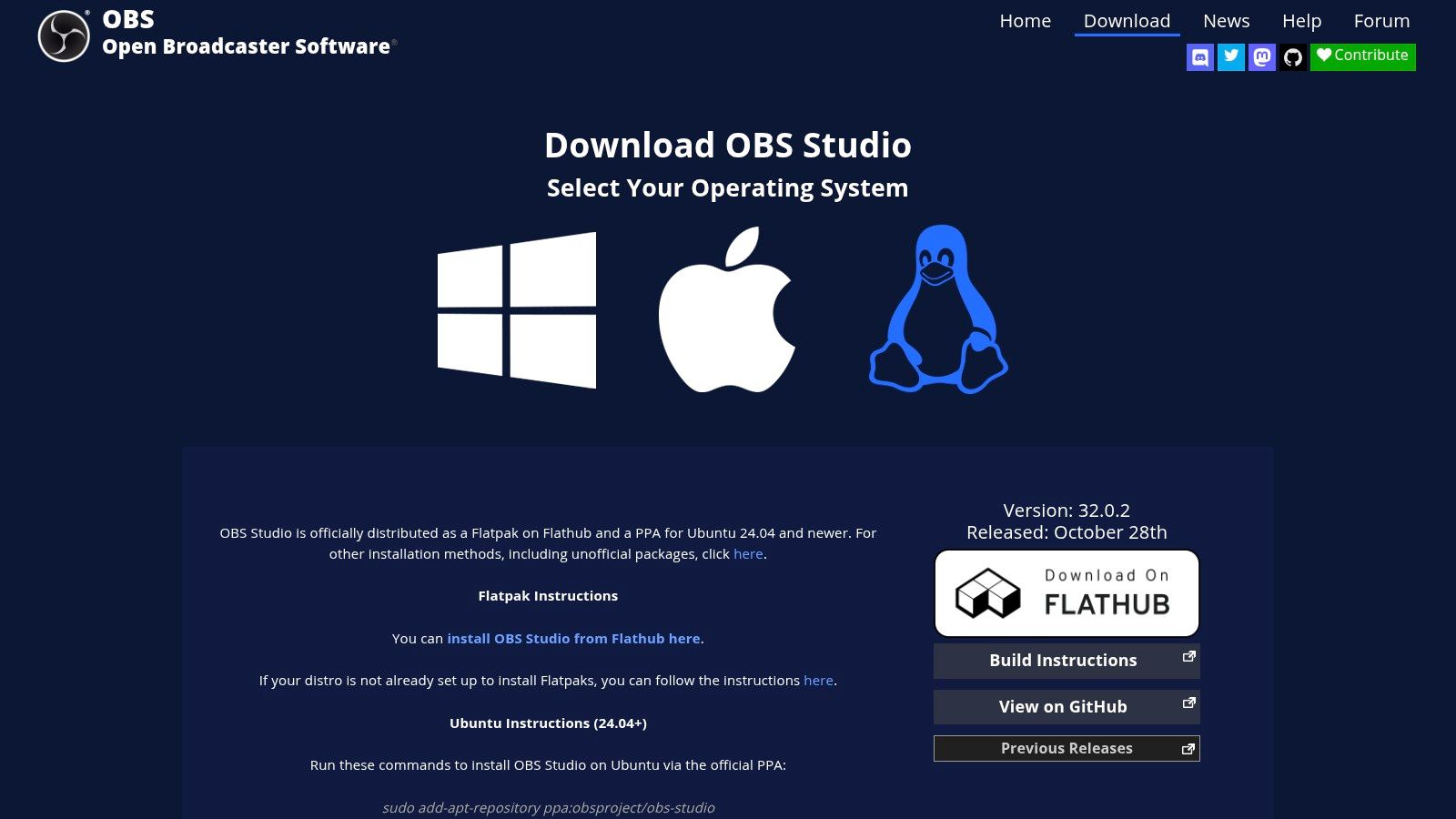
It performs well for both high-action game capture (like in FPS titles) and detailed screen recording due to its support for hardware encoders like NVIDIA’s NVENC and AMD’s AMF. These encoders reduce the performance impact on your CPU, which is critical for maintaining high frame rates while gaming. Its extensive plugin ecosystem further expands its capabilities. The software is stable and well-maintained, backed by years of active community development.
Who It’s For
Best Use Case: Aspiring and professional streamers (MMO, FPS, etc.), YouTubers, and anyone needing powerful, customizable video recording.
Not Ideal For: Users who want a simple, one-click recording solution.
Key Features & Assessment
Pros:
Completely free and open-source with no watermarks or feature limitations.
Large community and plugin support for extensive customization.
Studio-level control over scenes, sources, and audio mixing.
Cons:
The interface can be intimidating for new users.
Requires manual configuration of settings like bitrate and encoder for optimal performance on low-end PCs.
Access the software: OBS Studio
2. Audacity
Audacity is a cornerstone of the audio world and a long-standing piece of free recording software. It’s a dedicated, open-source audio editor and recorder that works well for capturing voiceovers, podcasts, and music. Unlike all-in-one screen recorders, Audacity focuses purely on audio, offering multitrack recording and a comprehensive suite of editing tools. This focus makes it a primary choice for creators who need high-quality audio separate from their video capture. Pair it with a budget USB microphone and you have a complete recording chain for under $50.
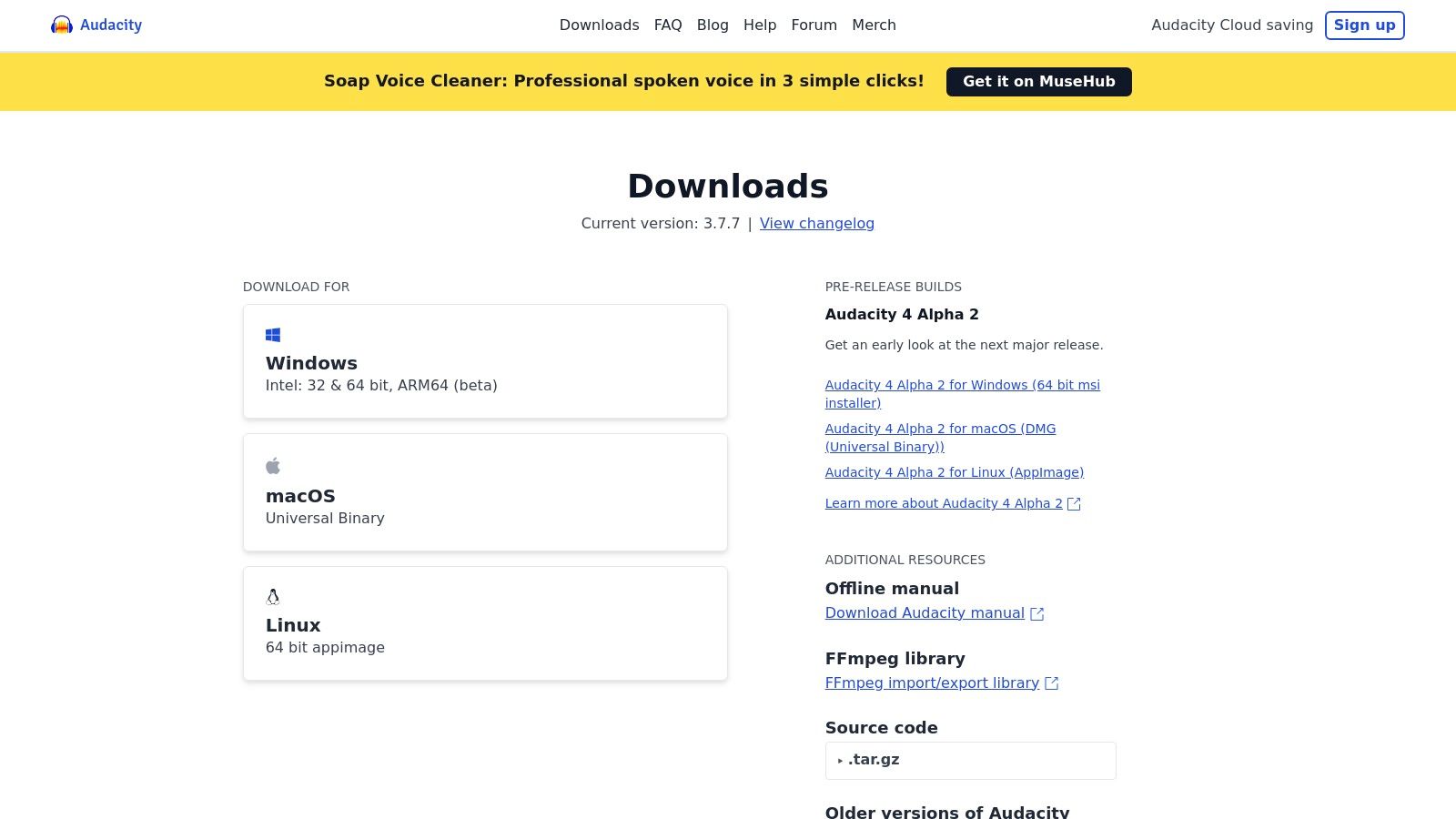
Its lightweight nature means it can run smoothly on virtually any PC, even while gaming. The platform has a massive user community, resulting in extensive tutorials. The software has been actively maintained for over two decades, proving its reliability. For a direct installation, the official site offers a clear “Download without MuseHub” option, avoiding extra bundled software.
Who It’s For
Best Use Case: Podcasters, YouTubers recording voiceovers, and musicians needing a simple, effective multitrack audio recorder.
Not Ideal For: Anyone needing an all-in-one video and audio screen recorder.
Key Features & Assessment
Pros:
Completely free with no limitations on features or track counts.
Extremely lightweight and compatible with older or low-end PCs.
Large community provides extensive documentation and support.
Cons:
The interface is functional but dated compared to modern DAWs.
Users must be cautious to download only from the official site to avoid scam versions.
Access the software: Audacity
3. Streamlabs Desktop
Streamlabs Desktop is a popular recording and streaming application built on the same core technology as OBS Studio but with a focus on user-friendliness. It simplifies the setup process with a guided onboarding experience, making it a good choice for new streamers who want a professional-looking broadcast running quickly. It’s often recommended as some of the best free recording software for those who find OBS too technical. Add a budget webcam and you’re streaming with a professional-looking setup in minutes.
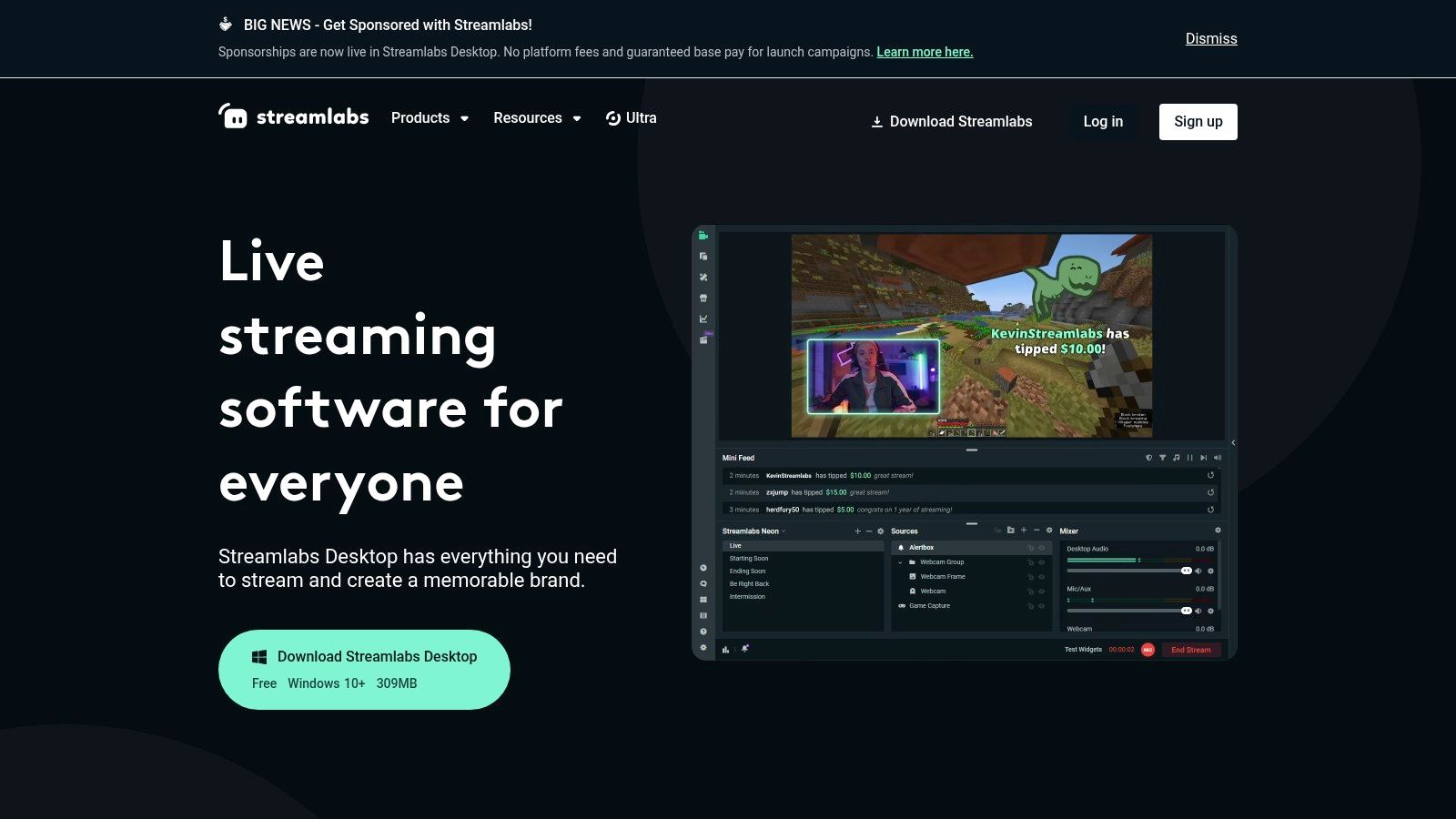
The platform’s main advantage is its integration with services like Twitch and YouTube, offering built-in alert boxes, chat overlays, and monetization tools. While the core software is free, Streamlabs offers an optional “Ultra” subscription for premium themes. The trade-off for this convenience is higher system resource usage compared to a lean OBS installation, a key consideration for gamers playing resource-intensive titles. It works well, but its reliance on web elements can make it feel less responsive than OBS.
Who It’s For
Best Use Case: New streamers (especially for MMO or slower-paced games) who want a guided setup with integrated overlays and alerts.
Not Ideal For: Users with low-end PCs or those who prefer a lightweight, minimal software installation for FPS gaming.
Key Features & Assessment
Pros:
Beginner-friendly with a fast, guided setup process.
Integrated themes, widgets, and alerts for a professional look with minimal effort.
Cloud backup for scenes and settings.
Cons:
Heavier on system resources (CPU/RAM) than OBS Studio.
Pushes an optional paid subscription (“Ultra”) for the best themes and features.
Access the software: Stremlabs Desktop
4. NVIDIA App (ShadowPlay capture)
For gamers with NVIDIA GPUs, the NVIDIA App offers one of the most efficient recording solutions. Its ShadowPlay capture technology uses the dedicated NVENC hardware encoder on the graphics card, resulting in minimal performance impact while gaming. This makes it a top free recording software choice for capturing high-fidelity gameplay without sacrificing frame rates, which is critical in fast-paced FPS games.
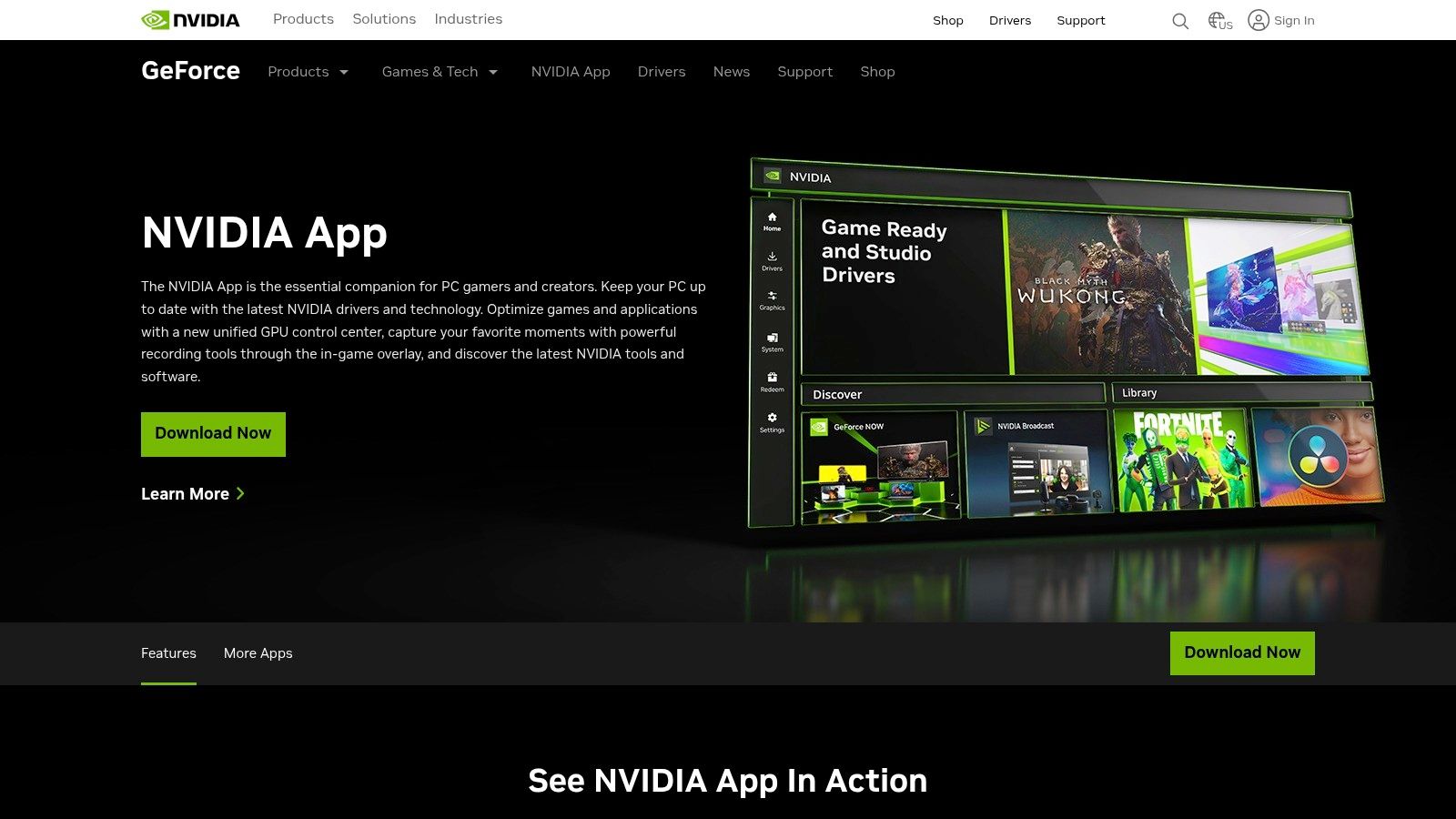
The app is a unified hub for driver updates, performance tuning, and game filters. Its standout feature, Instant Replay, constantly records gameplay on a buffer, allowing you to save the last few minutes of action with a hotkey. The software is built directly into the driver stack, ensuring consistent performance. With support for high-resolution, high-bitrate recording, it delivers pristine video quality with almost no setup required.
Who It’s For
Best Use Case: NVIDIA GPU owners who want a simple, high-performance tool for capturing gameplay clips, especially for FPS or high-action games.
Not Ideal For: Users without an NVIDIA graphics card or those needing advanced multi-source scene composition for streaming.
Key Features & Assessment
Pros:
Extremely low performance overhead thanks to dedicated hardware encoding.
Instant Replay feature is ideal for capturing unexpected moments.
Bundles recording, driver updates, and GPU tuning into a single application.
Cons:
Exclusive to NVIDIA hardware.
Lacks advanced editing features; exported clips require a separate video editor.
Not an option for non-NVIDIA users — check our capture card guide for a hardware-agnostic alternative.
Access the software: NVIDIA App
5. AMD Software: Adrenalin Edition – Record
For PC gamers with an AMD Radeon graphics card, one of the best free recording software options is already installed. AMD’s Adrenalin Edition software includes a hardware-accelerated recording feature built into the driver suite. This integration allows for low-overhead capture, meaning it has minimal impact on your in-game frame rates, a critical advantage for maintaining smooth gameplay during streaming or intense FPS matches.
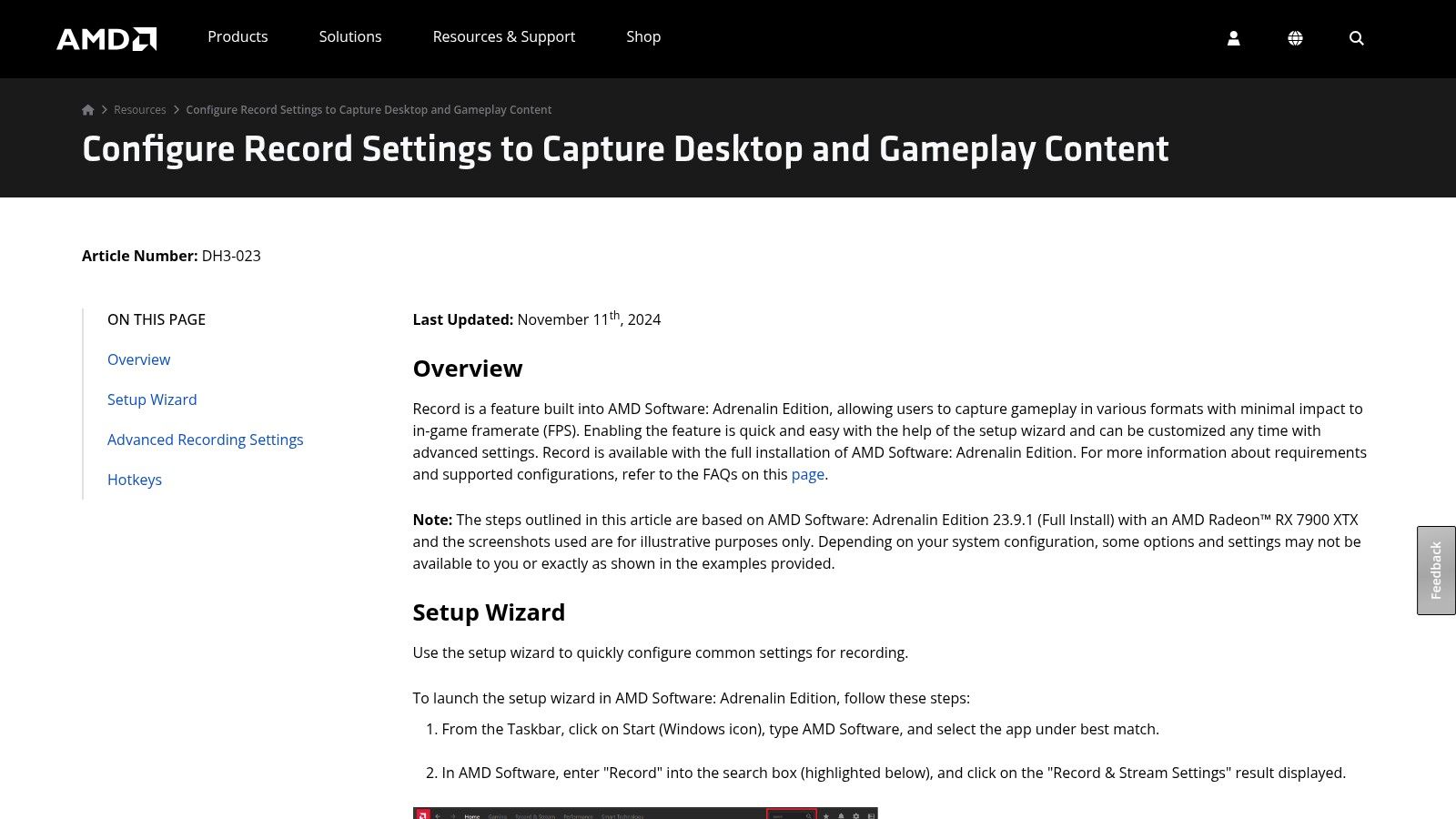
The software provides essential features like manual recording, live streaming, and an “Instant Replay” function that works like a DVR to save the last few minutes of gameplay. While it lacks the complex scene-building of OBS, its streamlined design is suited for gamers who just want to reliably capture high-quality gameplay without installing a separate application. As part of the official driver package, its reliability improves with AMD’s regular software updates.
Who It’s For
Best Use Case: Radeon GPU users wanting a simple, high-performance solution for capturing gameplay highlights, especially for competitive FPS games.
Not Ideal For: Users with NVIDIA or Intel GPUs, or streamers who need advanced scene composition and overlay management for MMOs.
Key Features & Assessment
Pros:
Zero additional cost as it is included with AMD graphics drivers.
Good performance with very low impact on game FPS due to hardware-level integration.
Simple to use with an in-game overlay and hotkey support.
Cons:
Exclusively for AMD Radeon GPU owners.
Lacks the advanced features and customization of dedicated broadcast software.
Access the software: AMD
6. Xbox Game Bar (Windows 10/11)
For Windows users, Xbox Game Bar is the most convenient option. Built into Windows 10 and 11, this overlay is activated with a hotkey (Win+G), offering instant access to screen capture without any installation. Its primary strength is its seamless integration, allowing you to record the last 30 seconds of gameplay or start a new recording without leaving your game.
While it lacks the advanced scene management of programs like OBS, it delivers reliable performance for capturing spontaneous moments. It also includes performance widgets to monitor CPU, GPU, and RAM usage. As a native Windows feature, it’s stable and reliable, though it offers limited functionality. For quick clips and hassle-free recording, it’s a capable piece of free recording software that’s already on your PC.
Who It’s For
Best Use Case: Gamers who want a zero-setup, one-click solution to capture gameplay clips without installing third-party software.
Not Ideal For: Content creators who need multi-source recording, custom overlays, or detailed audio mixing for streaming.
Key Features & Assessment
Pros:
Preinstalled on all modern Windows systems, requiring zero setup.
Extremely low friction; start recording with a single hotkey (Win+Alt+R).
Minimal performance impact, making it suitable for low-end PCs.
Cons:
Lacks professional features like scene switching and advanced audio controls.
Recording is often limited to the active application window, not the full desktop.
Access the software: Preinstalled on Windows 10/11 (Press Win+G)
7. ShareX
ShareX is an open-source utility that packs a lot of power into a lightweight package. While many know it for screenshots, it’s also a competent video and GIF recorder. Its strength lies in automation; you can configure “after capture” workflows that automatically record a region, save it, upload it to a host, and copy the link to your clipboard. This is valuable for creating quick tutorials or sharing short game clips.
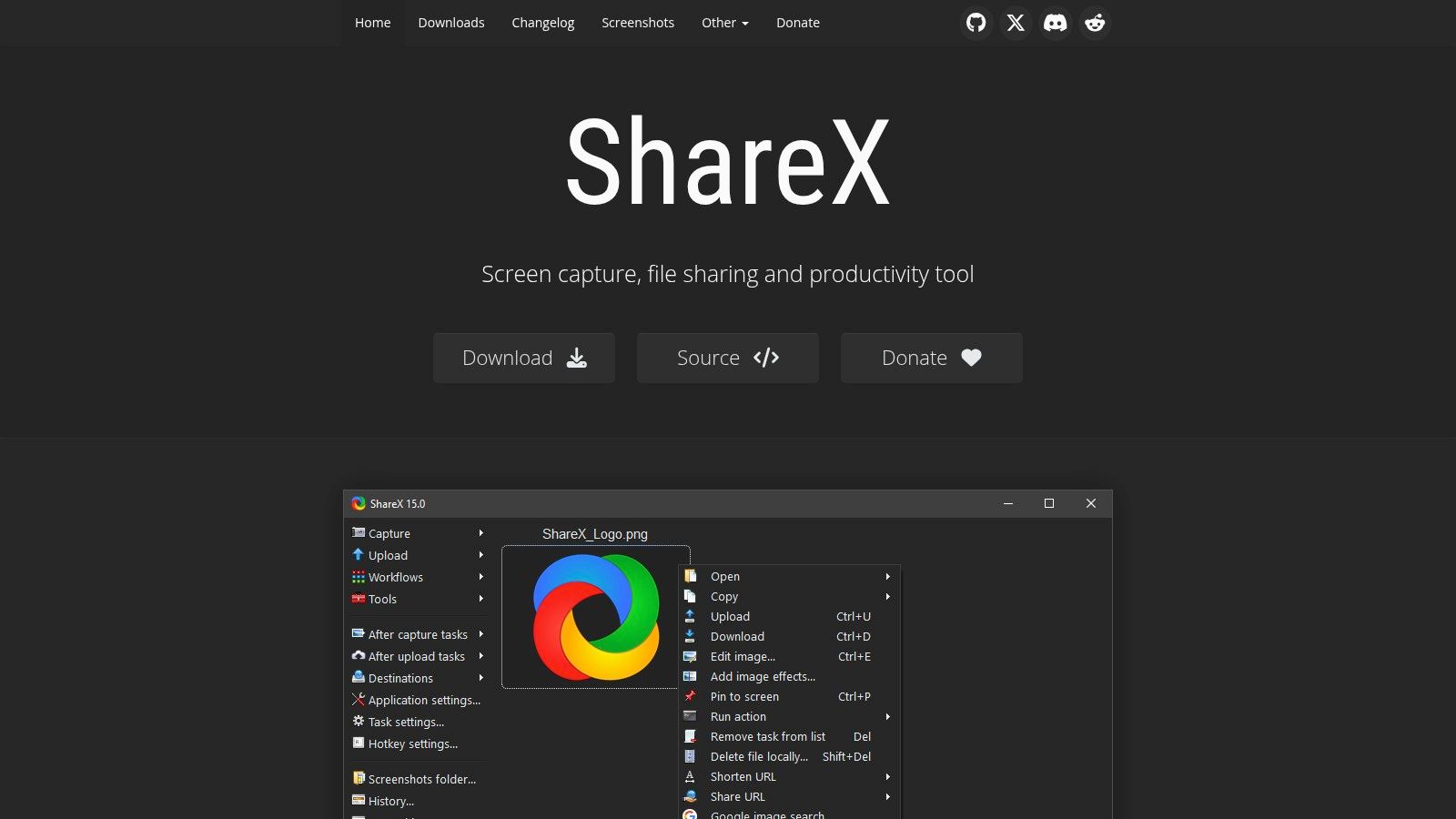
ShareX excels at short, focused captures. It’s not designed for streaming or hour-long gameplay sessions but is arguably the best free recording software for productivity and rapid content sharing. Its integration with dozens of file hosts, combined with its workflow editor, makes it a useful tool. The software has a long history of development, ensuring long-term stability.
Who It’s For
Best Use Case: Creating quick GIFs, short video clips, tutorials, and annotated screen captures for instant sharing.
Not Ideal For: Recording long gameplay sessions, streaming, or projects requiring complex video editing.
Key Features & Assessment
Pros:
Powerful and configurable automation workflows.
Completely free, open-source, and ad-free with a long history of development.
Suited for quick, shareable clips and high-quality GIF creation.
Cons:
Windows-only.
The sheer number of options can be overwhelming for first-time users.
Access the software: ShareX
8. ocenaudio
While many tools focus on video, ocenaudio is a lightweight free recording software dedicated to audio. It provides a fast environment for recording and editing audio files without the complexity of a full Digital Audio Workstation (DAW). Its main strength is its responsiveness, allowing you to apply effects and see real-time previews before committing, which streamlines editing.
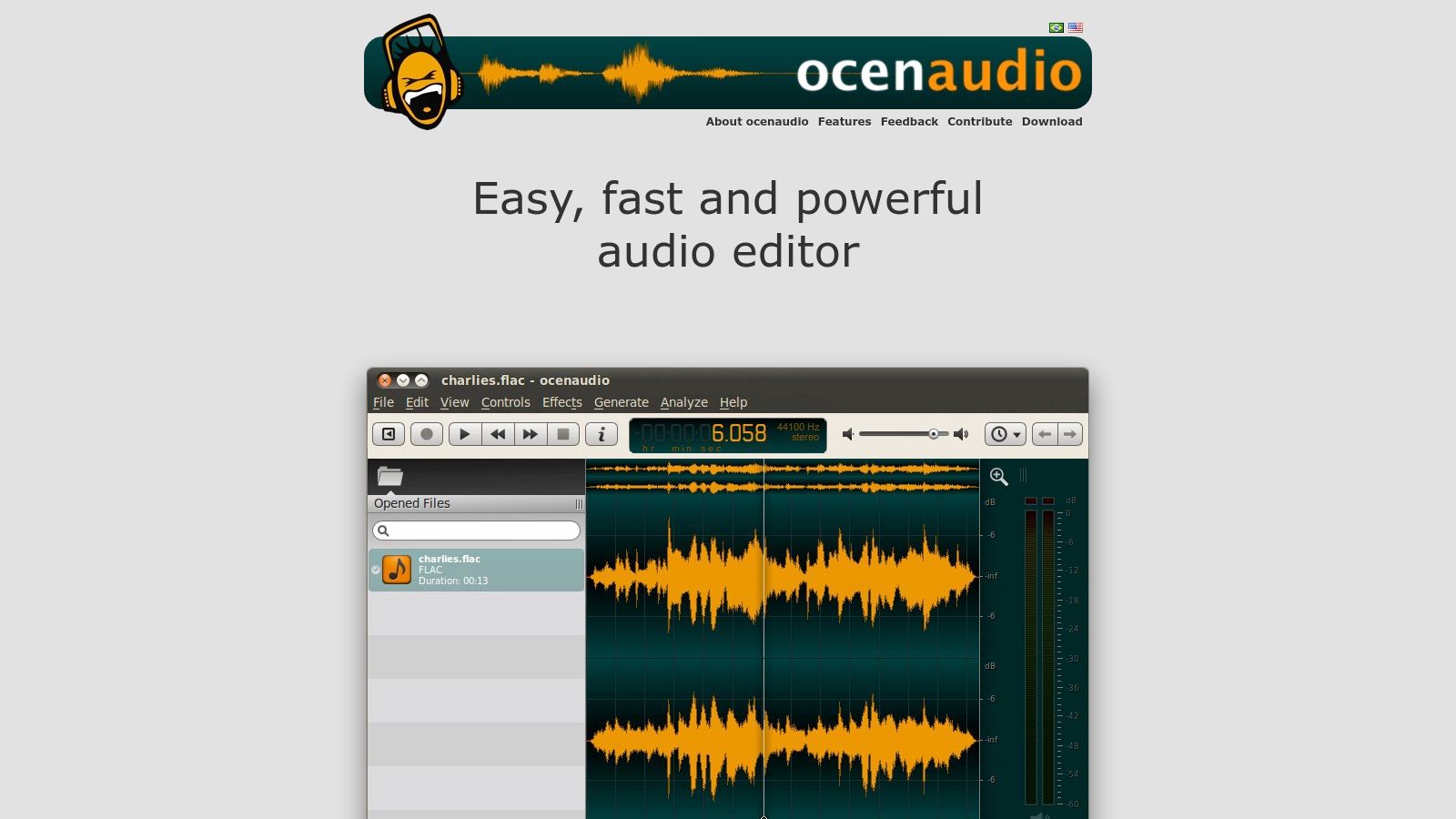
This makes it a good choice for creators who need to quickly clean up voiceovers or edit podcast segments. The application is cross-platform and supports VST plugins, giving you access to third-party effects. It provides a stable platform for essential audio tasks. For straightforward audio work where Audacity feels clunky and a DAW is overkill, ocenaudio is a good middle ground.
Who It’s For
Best Use Case: Podcasters, voiceover artists, and YouTubers needing a simple tool for single-track audio recording and editing.
Not Ideal For: Music production or complex multitrack audio mixing that requires a full DAW.
Key Features & Assessment
Pros:
Lightweight, fast, and stable on most systems.
Intuitive user interface with a gentle learning curve.
Real-time effect previews and VST plugin support.
Cons:
Lacks advanced multitrack editing and mixing capabilities.
Not designed for complex audio production or music creation.
Access the software: Ocenaudio
9. DaVinci Resolve (Free) by Blackmagic Design
While not a direct recording tool, DaVinci Resolve is an essential piece of software for turning raw footage into polished content. It’s a professional, non-linear video editor that provides an entire post-production studio for free. For gamers and streamers, this means you can take recordings, cut them down, add effects, master the audio with its integrated Fairlight suite, and export high-quality videos for YouTube without spending money on editing software.
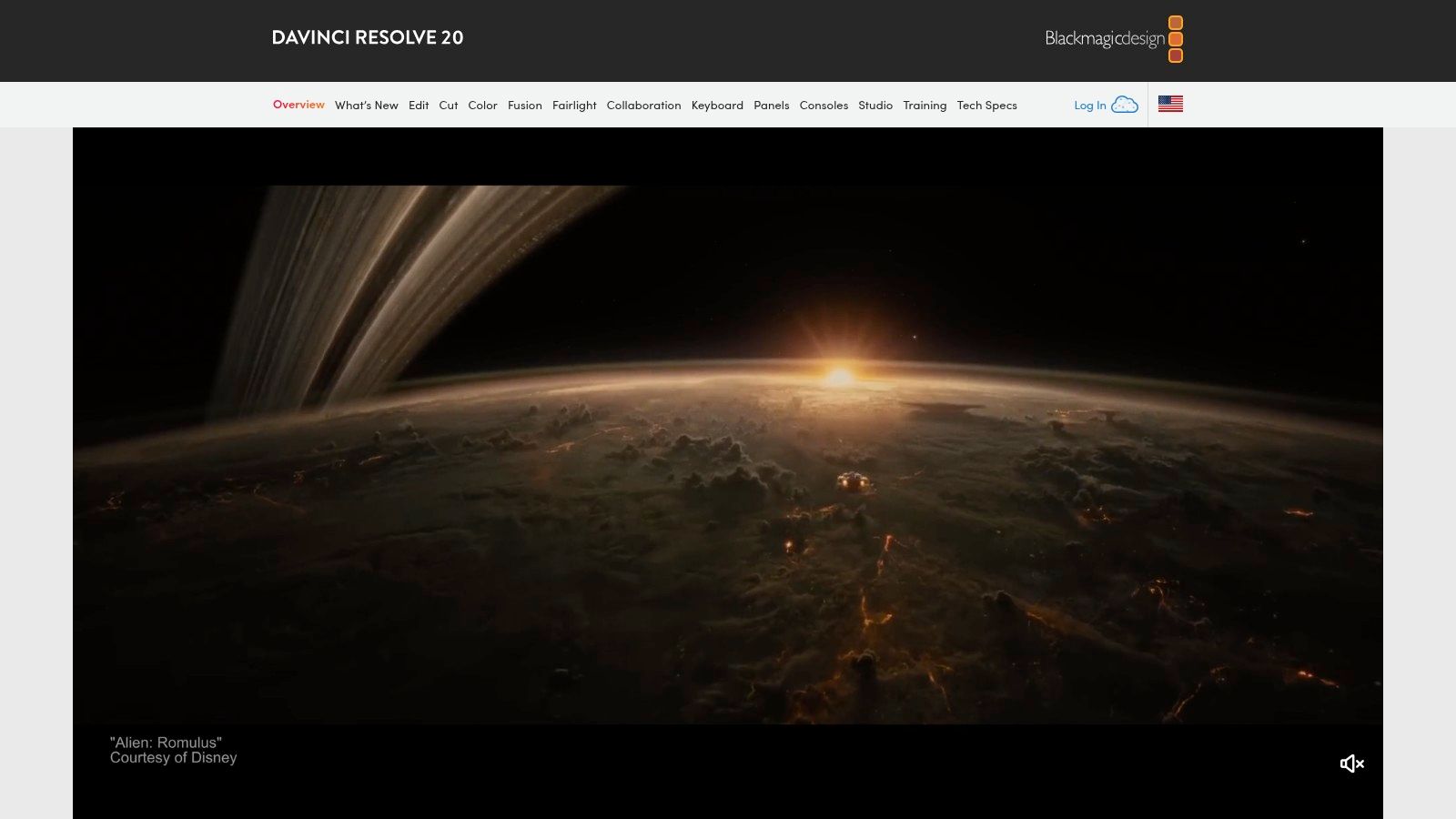
Its power lies in combining editing, color correction, visual effects, and professional audio tools into one application. The free version of Resolve is robust and rivals many paid competitors. The software is developed by a professional hardware company, Blackmagic Design, it’s well-supported with frequent updates, though it demands significant system resources.
Who It’s For
Best Use Case: Content creators who need to edit gameplay, tutorials, or stream highlights into professional-looking videos.
Not Ideal For: Users who only need to trim the beginning and end of a clip.
Key Features & Assessment
Pros:
Professional-grade editing, color grading, and audio post-production tools at no cost.
All-in-one workflow prevents the need for multiple applications.
Active development from Blackmagic Design ensures frequent updates.
Cons:
Has a steep learning curve for those new to non-linear editing.
Requires a powerful computer compared to simpler video editors.
Access the software: DaVinci Resolve
10. GarageBand
For Apple users, GarageBand is the standard entry point into audio recording, offering a surprisingly capable digital audio workstation (DAW) at no cost. It provides multitrack recording for both live audio and MIDI instruments, making it a versatile tool for podcasters and musicians. Its integration with the Apple ecosystem makes it one of the best free recording software options for anyone using a Mac, iPhone, or iPad.
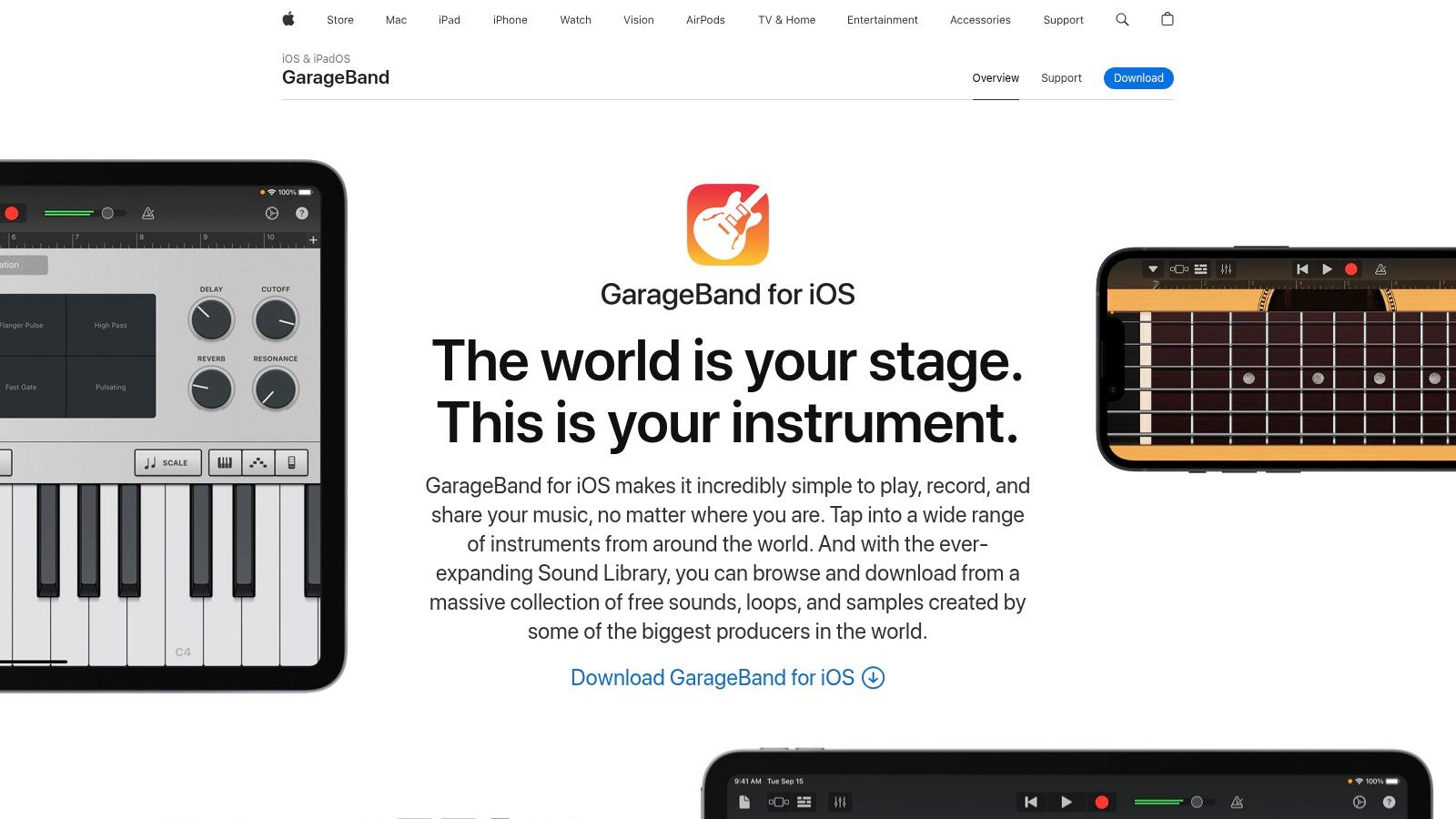
The platform is known for its clean interface that simplifies recording tasks. Features like the built-in “Drummer” provide customizable drum tracks, while the library of free Apple Loops allows for production without external gear. As a first-party Apple product, it provides a stable and reliable experience. It offers enough power to produce high-quality demos and podcasts.
Who It’s For
Best Use Case: Beginner musicians, podcasters, and content creators on macOS or iOS looking for an easy-to-learn recording solution.
Not Ideal For: Windows users or audio engineers who require advanced mixing and plugin support.
Key Features & Assessment
Pros:
Completely free and pre-installed on most Apple devices.
Good library of high-quality stock instruments, effects, and loops.
Simple, user-friendly interface that is good for beginners.
Cons:
Exclusive to the Apple ecosystem.
Lacks the advanced mixing and mastering features of professional DAWs.
Access the software: GarageBand
11. VoiceMeeter
VoiceMeeter isn’t traditional recording software but a virtual audio mixer that acts as the central hub for your sound. This donationware tool for Windows allows you to route audio from microphones, games, and Discord into separate, controllable channels. It solves the common problem of all audio being mashed into one track, giving you independent control over what your audience hears and what you record. This is a significant step up for streamers.
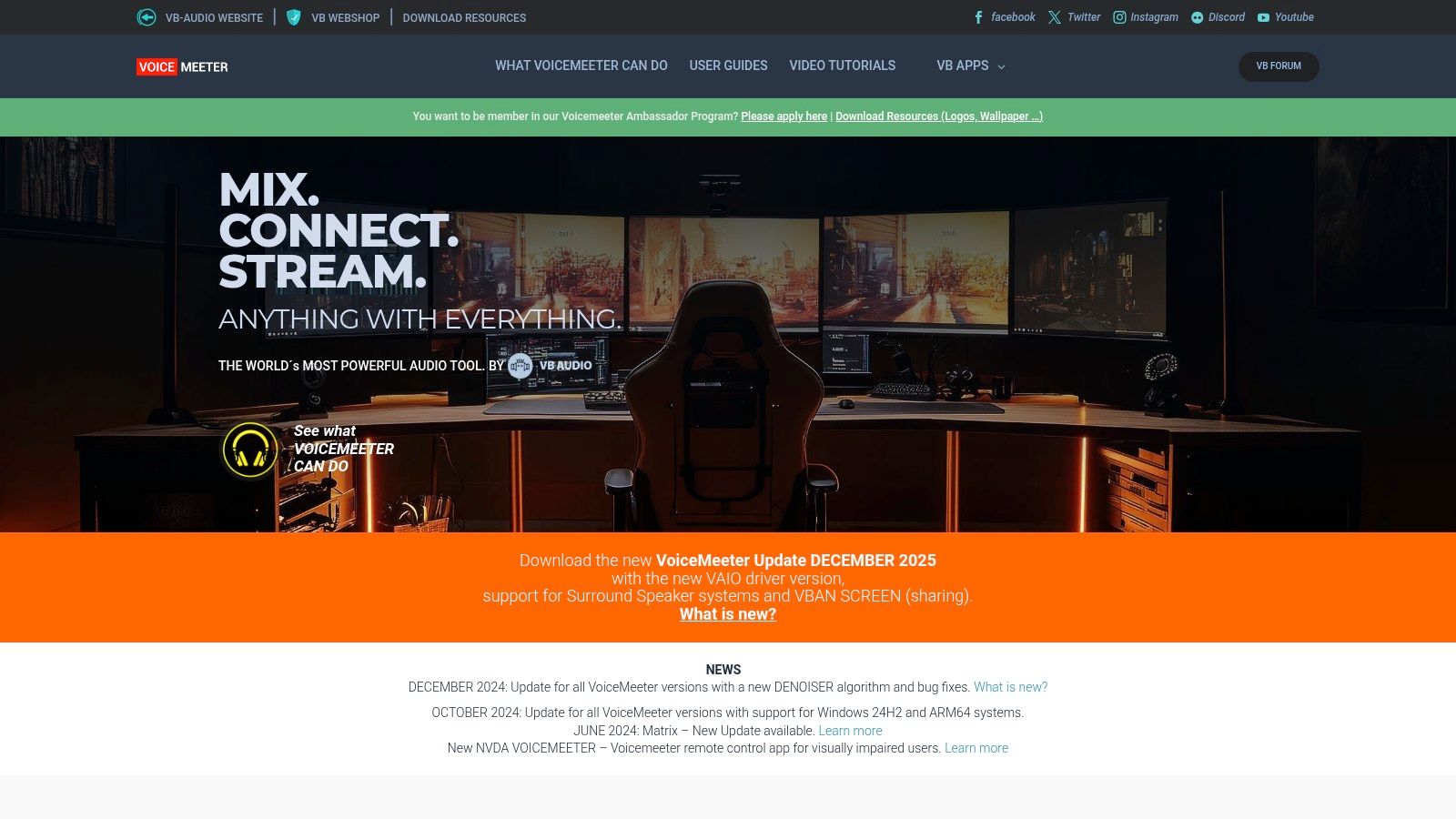
It integrates with OBS or other recording programs, allowing you to feed it clean, pre-mixed audio sources. While complex at first, learning VoiceMeeter is a critical step for creators serious about audio quality. It’s been a staple of the streaming community for years, but the interface is utilitarian and can be prone to user error during setup.
Who It’s For
Best Use Case: Streamers and YouTubers who need to manage multiple audio sources (mic, game, music, chat) independently.
Not Ideal For: Users looking for an all-in-one audio and video recording solution or those on macOS/Linux.
Key Features & Assessment
Pros:
Donationware, offering pro-level audio routing for free.
Powerful control over separate audio tracks for cleaner recordings and streams.
Pairs effectively with OBS and other screen capture software.
Cons:
The initial setup and routing logic can be very confusing for beginners.
Exclusively available for Windows.
Access the software: VoiceMeeter
12. Pro Tools Intro (Avid)
Pro Tools Intro is Avid’s free entry point into professional audio production, offering a limited version of the industry-standard digital audio workstation (DAW). It’s an essential tool for creators who need to record, edit, and mix high-quality audio for podcasts or voiceovers. This software provides the core editing and mixing features that make Pro Tools a studio staple, giving you a platform to learn professional techniques.
While it lacks video capture, its strength is its professional-grade audio toolset. You get access to dozens of stock plugins and the Xpand!2 virtual instrument, making it one of the best free recording software options for anyone prioritizing audio fidelity. It’s an ideal companion for a video editor. The software is reliable, but the required Avid Link/iLok account setup is a notable tradeoff.
Who It’s For
Best Use Case: Podcasters, musicians, and video creators needing powerful, dedicated audio editing and mixing capabilities.
Not Ideal For: Anyone looking for an all-in-one screen or game capture solution.
Key Features & Assessment
Pros:
Provides the real Pro Tools workflow experience at no cost.
Useful for learning industry-standard audio production techniques.
Comes with a solid bundle of stock plugins and a virtual instrument.
Cons:
Requires Avid Link/iLok account setup, which can be a hurdle for new users.
Strictly for audio; no video or screen recording features are included.
Access the software: Avid Pro Tools Intro
Top 12 Free Recording Software — Feature Comparison
| Tool | Primary use / strength | Platforms | Ease of use | Unique selling point | Price |
|---|---|---|---|---|---|
| OBS Studio | Broadcast-grade streaming & recording | Windows / macOS / Linux | Moderate — steeper learning curve | Unlimited scenes/sources, plugin ecosystem, fine encoder control | Free / Open-source |
| Audacity | Multitrack audio editing & recording | Windows / macOS / Linux | Easy — classic editor | Lightweight editor with FFmpeg support | Free / Open-source |
| Streamlabs Desktop | Beginner-friendly streaming with overlays | Windows / macOS | Very easy — fast onboarding | Integrated overlays/alerts, cloud scene sync | Free (optional paid themes) |
| NVIDIA App (ShadowPlay) | Instant replay & high-bitrate capture (NVIDIA GPUs) | Windows (NVIDIA GPUs) | Very easy | NVENC efficiency, Highlights, AV1 on 40-series | Free (NVIDIA GPU required) |
| AMD Adrenalin — Record | Built-in Radeon gameplay recorder | Windows (Radeon GPUs) | Very easy | Low-overhead capture included in drivers | Free (Radeon GPU required) |
| Xbox Game Bar | Quick game/screen capture & performance widgets | Windows 10/11 | Very easy — preinstalled | Low-friction capture + system performance widgets | Free (built into Windows) |
| ShareX | Fast screen/video/GIF capture & automation | Windows | Moderate — deep configurability | Powerful after-capture automation & uploaders | Free / Open-source |
| ocenaudio | Quick audio edits & voiceover cleanup | Windows / macOS / Linux | Easy — beginner-friendly | Real-time effect previews, simple UI | Free |
| DaVinci Resolve (Free) | Pro-level NLE + Fairlight audio suite | Windows / macOS / Linux | Hard — steep learning curve | Hollywood-grade editing/color/FX in free edition | Free (Studio paid upgrade) |
| GarageBand | Entry-level DAW for music & podcasts (Apple) | macOS / iOS | Very easy | Built-in instruments, Apple sound library | Free on Apple devices |
| VoiceMeeter | Virtual audio mixer & routing for streamers | Windows | Moderate — can be complex to configure | Multiple virtual buses + VBAN network audio | Donationware / Free |
| Pro Tools Intro | Intro to industry-standard DAW workflow | Windows / macOS | Moderate — requires account/authorization | True Pro Tools workflow & stock plugins | Free tier (Avid account / iLok required) |
Choosing Your Tool: Final Recommendations
There is no single “best free recording software” for everyone. The ideal tool is the one that serves your goals, integrates with your hardware, and doesn’t demand more resources than your PC can provide. Your choice should be based on your primary use case, whether that’s capturing gameplay, streaming to an audience, or producing high-quality audio.
These tools prove that a zero-dollar budget doesn’t mean you have to compromise on functionality. From powerful, all-in-one solutions to lightweight, specialized applications, the freeware ecosystem is robust and capable of delivering professional results.
Final Guidance for Your Setup
To simplify your decision, here are final recommendations based on common needs:
For Instant, Low-Impact Gameplay Capture: Your first stop should be the software integrated with your graphics card. NVIDIA App’s ShadowPlay and AMD Software: Adrenalin Edition are engineered for minimal performance impact, making them perfect for capturing highlight-reel moments in fast-paced FPS games without stuttering.
For Serious Streaming and Advanced Recording: If you plan to stream or want granular control over your scenes and quality, OBS Studio is the standard. It requires time to learn, but its power and customization are unmatched in the free space. It is the definitive choice for anyone serious about content creation, from MMOs to competitive shooters.
For Straightforward Audio Recording and Cleanup: When your focus is on capturing clean voiceovers or podcast audio, Audacity remains a reliable workhorse. Its interface is functional, and its built-in effects are sufficient for cleaning up background noise and normalizing volume levels.
For Professional Video Post-Production: Capturing footage is the first step. To assemble clips into a polished product, DaVinci Resolve is a powerful tool. Its primary function is editing, but its color grading and audio tools can elevate your content. The learning curve is steep, but the results are worth the effort.
Every tool on this list delivers real results at zero cost. Pick the one that fits your hardware and goals, and start creating.
FAQ
Is free recording software good enough for YouTube or Twitch?
Yes. OBS Studio powers the majority of Twitch streams and YouTube gaming channels. Free tools like NVIDIA ShadowPlay and AMD Adrenalin capture footage at bitrates that rival paid alternatives. The limiting factor is usually your hardware, not the software.
Will recording software hurt my FPS while gaming?
It depends on the encoder. Hardware encoders (NVENC on NVIDIA, AMF on AMD) have minimal impact because they use dedicated GPU components. Software encoding through your CPU will drop frames on weaker systems. For competitive FPS games, use your GPU’s built-in recording tool.
What’s the easiest free recording software for beginners?
Xbox Game Bar if you just want quick clips with zero setup. Streamlabs Desktop if you want to stream with overlays but find OBS intimidating. Both work out of the box without configuration.
What free software works on Mac for game recording?
OBS Studio is your best option for macOS game capture. GarageBand handles audio recording. DaVinci Resolve works for editing. Mac users don’t have access to ShadowPlay, AMD Adrenalin, or Xbox Game Bar.
Looking for more no-nonsense guides on building a high-value gaming or streaming setup? At Budget Loadout, we focus on practical, performance-driven gear that delivers without the premium price tag. Visit Budget Loadout for in-depth reviews and recommendations on everything from microphones to monitors.
Related Articles