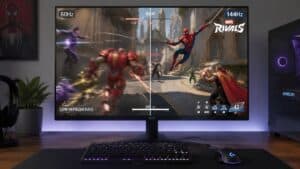
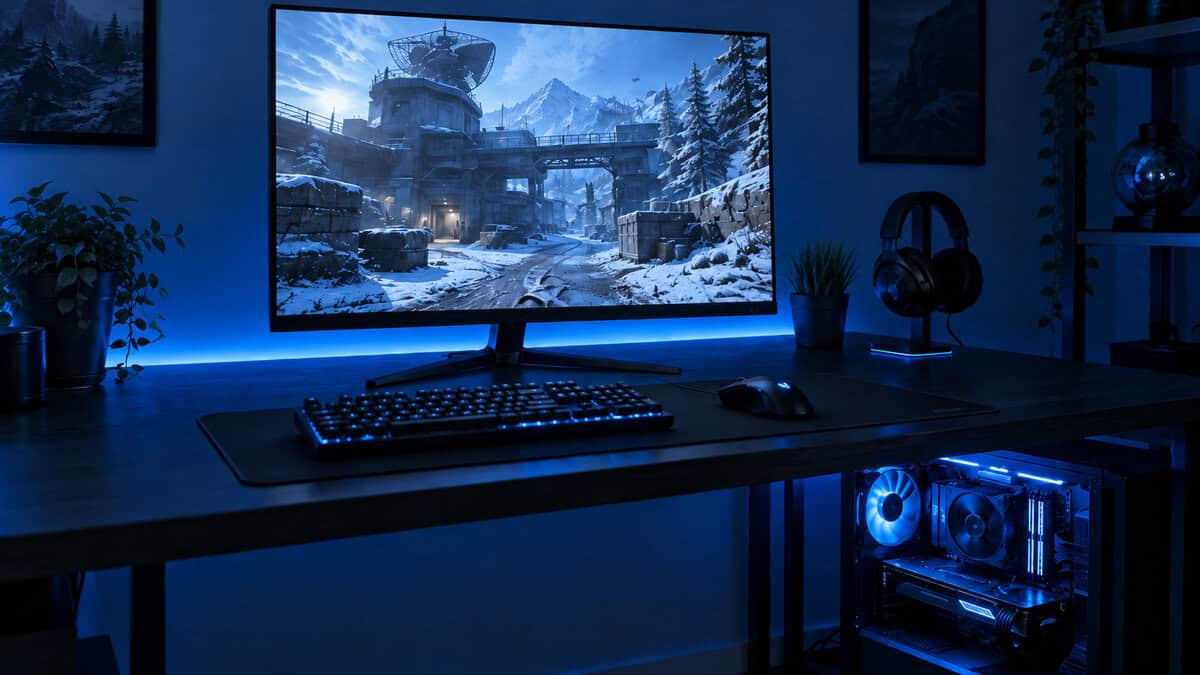
If you feel like your in-game reactions are a step behind, the problem might be your monitor, not your skill. For years, the standard screen refreshed its image 60 times per second (60Hz). A 144Hz monitor more than doubles that, updating the picture 144 times every second.
This isn’t just a number on a spec sheet. It’s a fundamental change in how you perceive on-screen motion, making everything from aiming in a first-person shooter to dragging your cursor feel more responsive. For a budget-conscious gamer, a quality 144Hz monitor is one of the most practical upgrades you can make.
- 180Hz IPS panel with accurate, vibrant colors
- FreeSync Premium works with both AMD and NVIDIA GPUs
- Tilt-only stand lacks height adjustment
- No built-in speakers
- 24-inch size may feel small for some users
- 0.5ms response time and ELMB for ultra-smooth motion
- Height-adjustable, tilt, swivel, and pivot stand included
- G-Sync compatible for tear-free gameplay
- TN panel has narrower viewing angles than IPS
- Colors appear more washed out compared to IPS alternatives
- 144Hz monitors provide a massive smoothness upgrade over 60Hz that’s immediately noticeable in every game you play
- IPS panels at this price now offer both fast response times and accurate colors — you no longer need to choose between speed and visual quality
- A 24-inch 1080p 144Hz monitor is the competitive sweet spot, giving you sharp pixel density and high frame rates without needing an expensive GPU
- FreeSync support is standard on budget 144Hz panels and eliminates screen tearing when paired with an AMD or recent Nvidia GPU
Table of Contents
What a 144Hz Monitor Actually Does
Think of your screen as a digital flipbook. A standard 60Hz monitor shows you 60 frames every second. It’s fast enough to create the illusion of movement, but in chaotic moments, you can notice the gaps. Fast turns can look blurry, and tracking a moving target often feels choppy.
A 144Hz monitor displays 144 frames in that same one-second window. By providing your eyes with more than double the visual information, it fills in those gaps and makes on-screen motion appear much more fluid. It’s a tangible improvement in display technology.
The Impact on Gaming Performance
So, what does that extra smoothness deliver in a real game? The benefits are practical and can provide a measurable competitive edge.
Reduced Motion Blur: When you quickly move your mouse in a fast-paced shooter, a 144Hz monitor keeps the image sharp. On a 60Hz screen, that same movement would be a smeared mess, making it difficult to track opponents.
Lower Input Lag: Because the screen updates more frequently, the delay between your mouse click and the on-screen action is significantly reduced. Your inputs feel more direct.
Smoother Visuals: It’s not just about firefights. Panning the camera across an open world or navigating menus feels smoother, which makes the entire experience more cohesive.
In short, a 144Hz monitor makes games feel more responsive and look clearer during fast action. For any gamer seeking a real performance boost without buying top-tier hardware, it has become the essential baseline for a modern gaming setup.
How 144Hz Feels in Specific Game Genres
Enough technical talk. Let’s discuss what happens when you launch a game. The jump from a standard 60Hz monitor to 144Hz is a tangible upgrade you can feel, and it provides a clear advantage in certain situations.
For fast-paced FPS games like Valorant or Apex Legends, the difference is immediate. On a 144Hz monitor, motion blur is significantly reduced when you turn quickly to track an opponent. Targets remain clearer instead of becoming pixelated streaks, which makes aiming more consistent. Your aim feels more directly connected to your hand, removing a subtle input lag you may not have noticed on a 60Hz screen.
It’s Not Just for Competitive Shooters
This upgrade isn’t exclusive to FPS players. The added smoothness translates to a better experience in other genres.
MMOs and RPGs: In games like World of Warcraft or The Witcher 3, panning your camera across large landscapes feels fluid and natural. The jarring stutter seen on slower displays is gone, making the game world feel more solid.
Streaming: For streamers, a 144Hz monitor provides a smoother gameplay experience that can be captured and broadcast. However, the true benefit is for the streamer themselves; the audience’s viewing experience is limited by the stream’s frame rate (usually 60 FPS).
In fast-paced games, jumping from 60Hz to 144Hz can cut motion blur by over 50%, letting you track enemies more effectively. Research confirms that 144Hz has become the “basic choice” for competitive gamers because it’s affordable and nearly eliminates screen tearing, making it a standard feature in modern gaming setups.
A 144Hz monitor improves gameplay by making everything look smoother and feel more responsive. It’s a functional advantage in competitive games and a significant quality-of-life boost for most other genres.
Let’s be direct about the tradeoffs. If you primarily play turn-based strategy titles like Civilization VI or slower-paced puzzle games, you won’t see a major benefit. While menus and scrolling will feel smoother, the core gameplay doesn’t require the split-second reaction time a 144Hz monitor is built for.
Choosing a Budget 144Hz Monitor That Lasts
Searching for a budget 144Hz monitor involves navigating a lot of technical specifications. The goal isn’t just to find the cheapest screen, but to identify the features that improve your gaming experience. You need to know where it’s safe to cut costs.
The rock-bottom cheapest option is rarely the best value. An unusually low price is often a red flag for poor build quality, such as a wobbly stand, a panel that develops dead pixels after a few months, or inaccurate colors out of the box. Spending a bit more on a model from a reputable brand is a sensible investment in durability.
Core Specs That Matter on a Budget
When you’re trying to maximize value, you have to be strategic. Focus on the specifications that provide a performance benefit you can actually see and feel.
Here’s what to prioritize:
Resolution: Stick with 1080p (1920×1080). It’s the sweet spot for budget gaming. This resolution allows mid-range graphics cards to consistently achieve the high frame rates needed to make a 144Hz monitor worthwhile.
Panel Type: This choice directly impacts how your games look. There’s a clear trade-off between speed and visual quality, and you need to decide what is more important to you.
Adaptive Sync: AMD FreeSync is a must-have on a budget 144Hz monitor. This technology syncs your monitor’s refresh rate to your GPU’s frame output, which eliminates screen tearing when your FPS drops below 144. Since modern NVIDIA cards also support it, it’s a universal feature to look for.
Panel Type Tradeoffs for 144Hz Monitors
Choosing between an IPS, VA, or TN panel is one of the most important decisions. Each technology has its own pros and cons, particularly in the budget category. This table outlines what you get—and what you give up—with each one.
| Panel Type | Best For | Key Advantage | Common Tradeoff |
|---|---|---|---|
| IPS | Strong visuals and immersive single-player games | Best color accuracy and viewing angles | Slower response times; higher cost |
| VA | Cinematic games and watching movies | Deepest blacks and high contrast | Potential for motion blur (“ghosting”) |
| TN | Competitive FPS and esports players | Fastest response times, lowest input lag | Poor colors and very narrow viewing angles |
For most gamers, an IPS panel offers the best all-around experience. The vibrant colors make games look good, and modern budget IPS monitors are fast enough that only elite competitive players would notice a difference in response time. A VA panel is a good middle ground if you want deep blacks for cinematic games, while a TN panel should only be considered if you are a serious competitive player who values speed above all else.
Making an Informed Decision
Finding a good value is about understanding these trade-offs. A budget IPS monitor might have a slightly slower response time than a TN panel, but the substantial improvement in visual quality is a compromise most players are willing to make.
Likewise, you might save money by getting a monitor with a basic, non-adjustable stand. That’s a practical place to save money if it means you can afford a model with better panel quality, solid build construction, and reliable Adaptive Sync.
A smart purchase balances immediate performance needs with long-term reliability. Focus on panel quality and essential features like FreeSync over secondary features that don’t add practical value to your gaming.
By weighing these factors, you can find a monitor that delivers a high-refresh-rate experience without overspending. To see how these principles apply to specific models, check out our guide on the best budget gaming monitor for our top value-focused recommendations. This approach ensures you get a durable, high-performing display that will serve you well for years.
Our Budget Picks
If you want a specific recommendation, the Dell SE2426HG (~$150) is the go-to budget 144Hz monitor. It’s an IPS panel with accurate colors and wide viewing angles, a 180Hz refresh rate, and FreeSync Premium support that also works with NVIDIA cards. The only real compromise is a tilt-only stand, but for this price, you’re getting panel quality that used to cost twice as much. It’s the monitor most budget build guides recommend for a reason.
For competitive FPS players who prioritize raw speed over color accuracy, consider the ASUS VG248QG (~$180). Its TN panel has noticeably worse colors and viewing angles, but it delivers a native 165Hz refresh rate, a 0.5ms response time, and ELMB (Extreme Low Motion Blur) technology—features rarely found at this price. It also includes a height-adjustable stand. If your only goal is tracking targets in Valorant, this is the pick.
Can Your PC Actually Handle 144Hz?
So, you’re ready to get a 144Hz monitor. Before you buy, you need to consider what’s powering your games. Buying a high-refresh-rate monitor without adequate hardware is like putting performance tires on an underpowered car—you have the capability, but you can’t use it.
A 144Hz screen is only as effective as the PC driving it.
Here’s the reality: your graphics card must consistently produce 144 frames per second (FPS) to match the monitor’s refresh rate. If your GPU is running at 70 FPS in your favorite shooter, your new screen is simply waiting for the next frame. You won’t experience the signature smoothness you paid for.
Getting Real About Performance
For a 1080p 144Hz monitor, you don’t need a top-of-the-line graphics card, but you need something competent. Modern budget-friendly GPUs like the NVIDIA RTX 3060 or AMD RX 6600 are a good match here. These cards are capable of delivering high frame rates in most popular titles at a reasonable cost.
If you’re looking for a GPU, our guide to the best budget graphics card can help you find a suitable option.
Be ready for a crucial trade-off. To maintain a stable 144 FPS in demanding games, you will likely need to lower some in-game settings. That might mean dropping from ‘Ultra’ to ‘High.’ This isn’t a failure; it’s a smart compromise that prioritizes fluid, responsive gameplay over visual effects you might not notice in the middle of a game.
The goal is a stable frame rate that matches your monitor’s refresh rate. Sacrificing some graphical settings to achieve a smooth 144 FPS is the right move for a value-focused gamer.
The popularity of 144Hz monitors increased because GPUs like the RTX 3060 made it possible to hit that 144 FPS target in most games at 1080p. For anyone building their first PC, the difference in aiming precision is significant. Less motion blur means clearer targets, and that’s an advantage you can feel immediately.
Getting Your Monitor Actually Running at 144Hz
Unboxing your new 144Hz monitor is a good feeling, but just plugging it in is only half the job. A common mistake new owners make is assuming it runs at 144Hz automatically. It doesn’t.
By default, Windows will almost always set it to 60Hz, leaving the performance you paid for untapped. You have to manually enable the high refresh rate. It’s a quick, one-time setup that makes all the difference.
The Right Cable Is Non-Negotiable
Before you change any software settings, check your cable. For any 1080p or 1440p monitor running at 144Hz, you must use a DisplayPort cable. A newer HDMI cable (version 2.0 or higher) can also work, but older HDMI and DVI cables do not have enough bandwidth to carry the signal.
Use the DisplayPort cable that came in the box. This is the simplest and most reliable way to ensure you can reach the full 144Hz without issues.
Enabling 144Hz in Windows
Once you’re connected with the correct cable, the next step is to tell Windows to use the higher refresh rate. The process is straightforward.
Open Display Settings: Right-click anywhere on your desktop and select “Display settings.”
Go to Advanced Display: Scroll down and click on “Advanced display settings.”
Choose Your Refresh Rate: In the new window, find the drop-down menu labeled “Choose a refresh rate” and select 144Hz. Your screen will flicker for a second as it applies the change.
That’s it for the Windows side. As a final check, open your GPU’s control panel (NVIDIA Control Panel or AMD Software: Adrenalin Edition) and confirm the setting is active there as well. This ensures your games will run at the correct refresh rate.
Is 144Hz the New Standard?
For years, a 144Hz monitor was a luxury item for enthusiasts. Not anymore. Due to competition and improved manufacturing, these high-refresh-rate displays have become much more affordable. They have moved from being a high-end upgrade to the baseline for a serious gaming setup.
The conversation is no longer about if you should upgrade from 60Hz. It’s about which 144Hz monitor provides the best value. This is a substantial, tangible upgrade. You will feel the difference in smoothness and responsiveness in everything from fast-paced shooters to just moving windows on your desktop. For the price, it is a more practical investment than a much more expensive 240Hz screen for most users.
The Market Has Spoken
All major brands have adapted to this new reality. While top esports professionals may use 240Hz screens, market data shows that 144Hz models from brands like Samsung, ASUS, and Dell account for a massive 45% of the high-refresh-rate market. This widespread adoption has established 144Hz as the definitive starting point for modern gaming. You can read more about how Samsung has consistently led the pack in the gaming monitor market.
Investing in a quality 144Hz monitor is one of the most practical, future-proof upgrades you can make. It delivers an improved experience that will last for years and represents a significant, worthwhile improvement for your entire setup.
And if you’re considering a display for a dual-purpose or on-the-go rig, check out our guide on the best portable monitor to see how high refresh rates are appearing in smaller form factors.
Common Questions About 144Hz Monitors
Upgrading to a high-refresh-rate monitor is a good step, but it’s common to have questions. Let’s address some of the most frequent ones.
Can I Use a 144Hz Monitor for Console Gaming?
Yes, but there is a limitation. Current consoles like the PlayStation 5 and Xbox Series X/S support up to 120Hz, not 144Hz.
Your monitor will work, but it will cap its refresh rate at 120 FPS to match the console’s output. To achieve 120 FPS, you need to connect using an HDMI 2.0 or 2.1 port and play a game that specifically offers a 120 FPS “performance mode.”
Do I Really Need G-Sync or FreeSync?
For a gaming setup, Adaptive Sync technology like G-Sync and FreeSync is highly recommended. It prevents screen tearing.
It works by synchronizing your monitor’s refresh rate with your GPU’s frame rate. This is particularly useful when your FPS drops below 144, which is common in demanding games. Instead of a stutter or tear, the gameplay remains smooth. Fortunately, almost every budget 144Hz monitor now includes FreeSync, which also works with modern NVIDIA cards.
Is the Difference Between 144Hz and 165Hz Noticeable?
For most people, the difference between 144Hz and 165Hz is very subtle. It is difficult to spot the difference in a blind test. The most significant improvement is the jump from a standard 60Hz monitor to 144Hz.
If you find a 165Hz monitor with similar specifications and build quality for the same price as a 144Hz model, consider it a minor bonus. It is not a feature worth stretching your budget for.
At Budget Loadout, we believe in getting the best performance for your dollar. For more guides on building a smart, value-focused gaming setup, visit us at Budget Loadout.
Related Articles