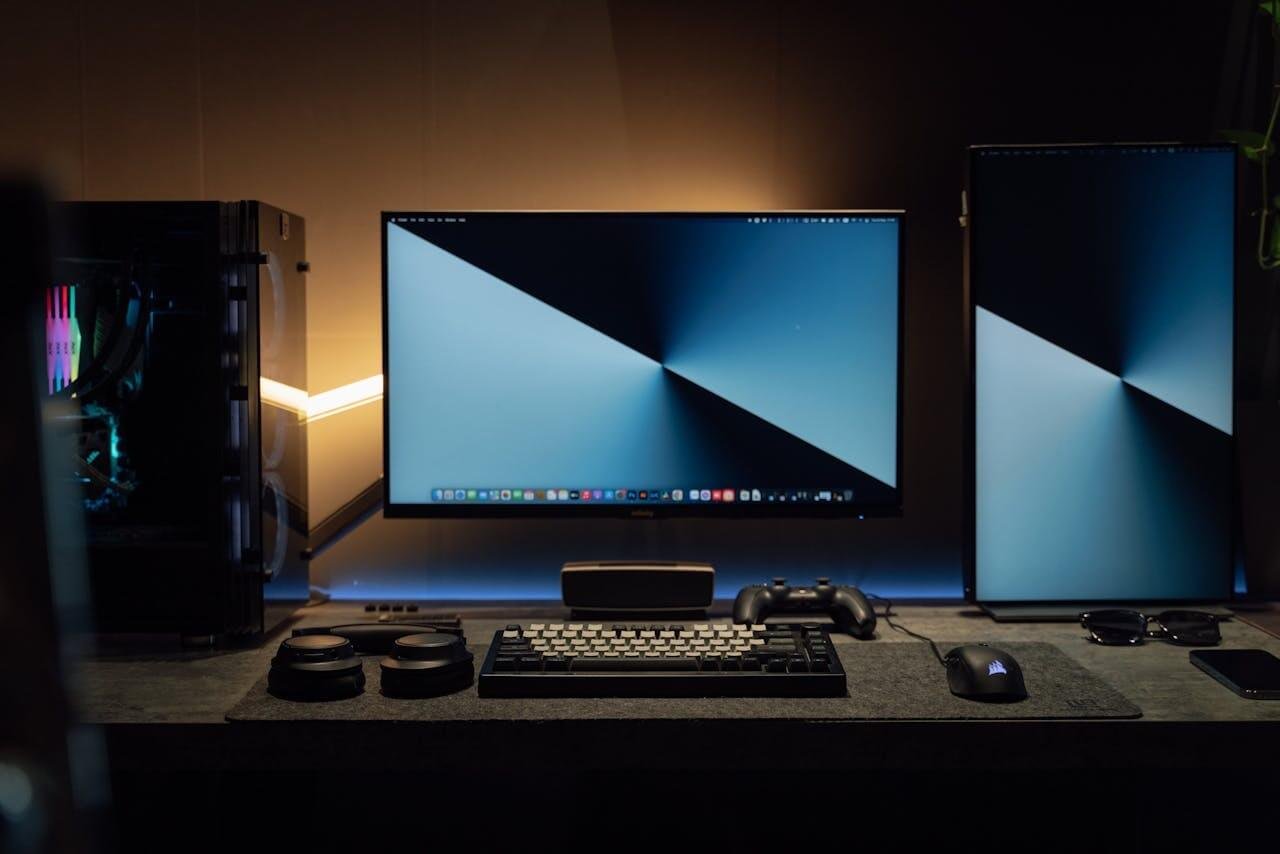
A 4K ultra HD camera captures a much higher resolution than a standard 1080p camera—four times the pixel density. This translates to a sharper, more detailed image. For streamers, the primary benefit isn’t broadcasting in 4K. It’s the flexibility to crop, zoom, and reframe a high-quality 1080p video feed from the larger 4K source without losing quality.
- True 4K resolution means 3840 x 2160 pixels — four times the detail of standard 1080p HD video
- Sensor size matters more than megapixel count when shopping for sharp, low-noise 4K footage
- Budget-friendly 4K cameras from brands like Sony, Canon, and DJI now start under $500 without sacrificing core features
- Good lighting and a sturdy tripod often improve 4K video quality more than upgrading the camera body itself
- For streaming, a 1080p 60fps camera is more important than 4K — most platforms cap stream quality at 1080p anyway, so you’re paying for resolution nobody sees live
Table of Contents
- Large 1/2" sensor for excellent low-light and 4K clarity
- AI-powered auto framing keeps you centered automatically
- Phase detection autofocus is fast and accurate
- At ~$120 it costs more than basic 1080p webcams
- Software required for advanced features like gesture control
- Fixed mount design limits positioning flexibility
- 26MP APS-C sensor with excellent low-light capability
- Professional background bokeh with interchangeable lenses
- USB-C direct streaming without needing a capture card
- Total cost $1,000+ with accessories
- Requires extra gear for streaming
- Steeper learning curve than webcams
- Ultra-compact at only 86g for maximum portability
- Wide 165° field of view for dynamic IRL streams
- Rugged waterproof build for outdoor streaming
- ~1 hour battery at max settings
- No streaming output without accessories
- Small sensor struggles in low light
Do You Really Need a 4K Camera for Streaming?
To be direct: no, most streamers do not need a 4K camera. A high-quality 1080p camera paired with good lighting is the practical standard for platforms like Twitch and YouTube. However, a 4K camera opens up production possibilities that go beyond raw resolution.
The main advantage is post-capture flexibility. Imagine you’re playing an FPS and want to create a smaller “hand-cam” scene in OBS without adding a second camera. With a 4K source, you can digitally crop into a specific part of your video feed to create this new shot, and it will still be a crisp, native 1080p resolution. No quality is lost.
Understanding the Trade-Offs
This creative freedom comes at a cost. Processing a 4K video feed, even if you’re outputting at 1080p, puts a heavier load on your CPU. It also demands a higher-bandwidth connection to your PC, usually USB 3.0 or better. Your computer works harder to encode the video while it’s also running a game.
For a more direct comparison of how these resolutions perform, check our full guide on 1080p vs. 4K for gaming and streaming.
This table breaks down the practical differences for a typical streaming setup.
4K vs. 1080p for Streaming: A Quick Comparison
| Consideration | 4K Ultra HD Camera | High-Quality 1080p Camera |
|---|---|---|
| Creative Flexibility | High (Allows cropping and digital zoom without quality loss) | Low (Cropping results in a lower-resolution image) |
| PC Performance Load | Medium to High (Requires more CPU/GPU resources to process) | Low (Standard workload for modern gaming PCs) |
| Internet Requirement | Higher (Demands more upload speed for >1080p streams) | Standard (Works well with typical broadband upload speeds) |
| Best Use Case | Content creators wanting multi-angle effects from one source. | Straightforward face-cam for most MMO, FPS, and variety streams. |
The choice isn’t just about image quality. It’s a strategic decision based on your creative goals, your PC’s power, and your internet’s reliability.
Key Camera Specs That Impact Stream Quality
The “4K” label is marketing. To find a genuinely good 4k ultra hd camera for your stream, you must look past resolution and understand the specs that control how your video looks, especially in a typical gaming room. These details separate a grainy, amateur-looking feed from a crisp, professional one.
The most important component is the camera’s sensor size. A larger sensor physically captures more light, which is a major benefit for streamers often playing in dimly lit rooms. Better light intake means a cleaner image with less digital noise (the grainy texture) and richer colors, even without a perfect lighting setup.
Sensor and Lens Quality
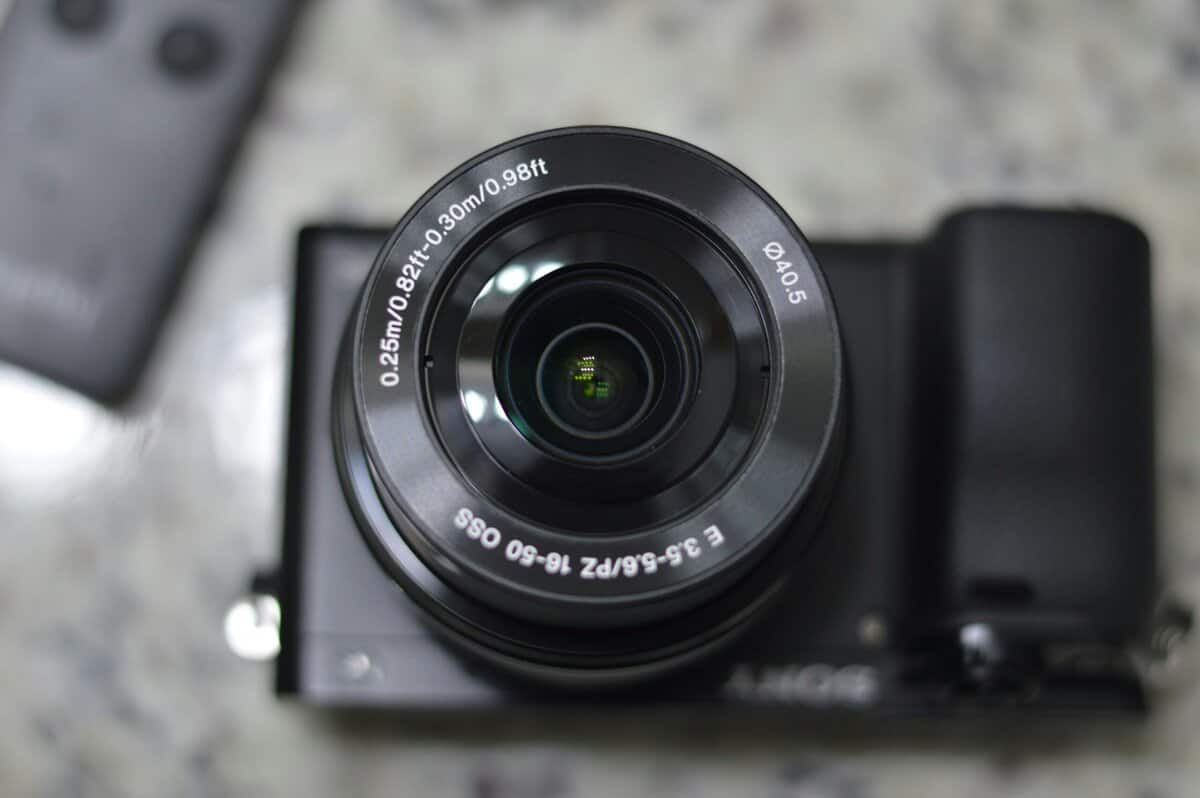
A webcam sensor is tiny. An entry-level mirrorless camera, on the other hand, might have an APS-C sensor that is drastically larger. This physical size difference is the main reason a dedicated camera will always outperform a webcam in challenging light. Build quality is a factor too; a camera with a metal body will withstand far more use than a flimsy plastic webcam.
The lens is equally critical. Look for a low aperture number, like f/1.8 or f/2.8. A lower number means the lens opening is wider, letting in more light and creating that background blur (bokeh) that makes you pop from your environment. This adds a professional, cinematic touch to your face-cam.
Framerate and Bitrate: The Keys to Smoothness
For gaming content, framerate is non-negotiable. Your camera needs to reliably output 60 frames per second (fps). This matches the smooth motion of most games, ensuring your reactions and movements look fluid, not choppy. It’s especially critical for fast-paced FPS or action games.
Bitrate determines how much data your camera uses to create the image. A higher bitrate results in a clearer picture with fewer blocky compression artifacts. While your streaming platform ultimately limits the final bitrate, starting with a camera that outputs a high-bitrate signal gives your encoding software more data to work with. The result is a much cleaner final product for your viewers.
A higher framerate and bitrate demand more from your PC. Capturing 4K at 60fps requires a powerful CPU and a fast connection, typically USB 3.0 or a dedicated capture card, to handle the data transfer without bottlenecking.
Codecs and Connectivity
Finally, consider the video codec. Most cameras use H.264, a reliable, well-supported standard. Some newer models offer H.265 (HEVC), a more efficient codec that can deliver similar quality at a lower file size. The tradeoff is that H.265 requires more processing power from your PC to decode in real-time.
This combination of sensor size, lens quality, framerate, and bitrate defines a camera’s streaming performance. Focusing on these specs will help you pick a 4k ultra hd camera that delivers genuine value and elevates your stream’s production quality.
The Hidden Costs and System Requirements for 4K Streaming
Upgrading to a 4K camera is more than just the initial purchase. You’re not just buying a camera; you’re buying into a more demanding ecosystem. That crisp image requires your entire setup—from your PC to your internet—to keep up.
The first performance hit is on your PC. Encoding a 4K video feed in real-time while running a demanding game is a heavy lift. Your CPU and GPU will be working overtime, and if your rig isn’t powerful enough, they’ll steal resources from your game. The result? A lower in-game framerate.
The Ecosystem You Need to Build
Beyond raw processing power, other components become critical. Your internet connection, specifically your upload speed, is non-negotiable. Streaming at 1080p is manageable for most modern internet plans, but broadcasting a stable 4K signal requires a sustained upload speed of at least 25-40 Mbps. Anything less results in a pixelated, buffering stream for your audience.
Then there’s the question of connecting the camera to your computer.
Capture Cards: If you’re using a mirrorless or DSLR camera for its superior sensor, a dedicated capture card is a must. Some newer models like the Sony ZV-E10 II can stream directly over USB-C, but a capture card still delivers the best quality output. This device takes the video signal from your camera and converts it for your PC, taking a significant load off your CPU. Our guide on what a capture card is and why you might need one breaks this down in more detail.
Lighting: A 4K sensor’s potential is wasted without good lighting. In a dim room, even an expensive camera will produce a noisy, grainy image. You must invest in decent lighting, like budget-friendly LED panels, to ensure your 4K camera delivers a clean look.
Storage: Planning to record your streams for YouTube clips or VODs? Prepare for large file sizes. High-bitrate 4K recordings consume storage at a high rate, often demanding dedicated high-capacity SSDs or hard drives.
A common mistake is buying a 4K camera and plugging it into an under-prepared system. Without good lighting, a strong CPU, and enough upload speed, that camera will look no better than a high-quality 1080p webcam, defeating the purpose of the upgrade.
Comparing Value-Focused 4K Camera Options
Picking the right 4K Ultra HD camera is about trade-offs. It comes down to your streaming needs, your budget, and how much of a project you’re willing to take on. There is no single “best” camera; instead, you’re weighing convenience against raw image quality and cost.
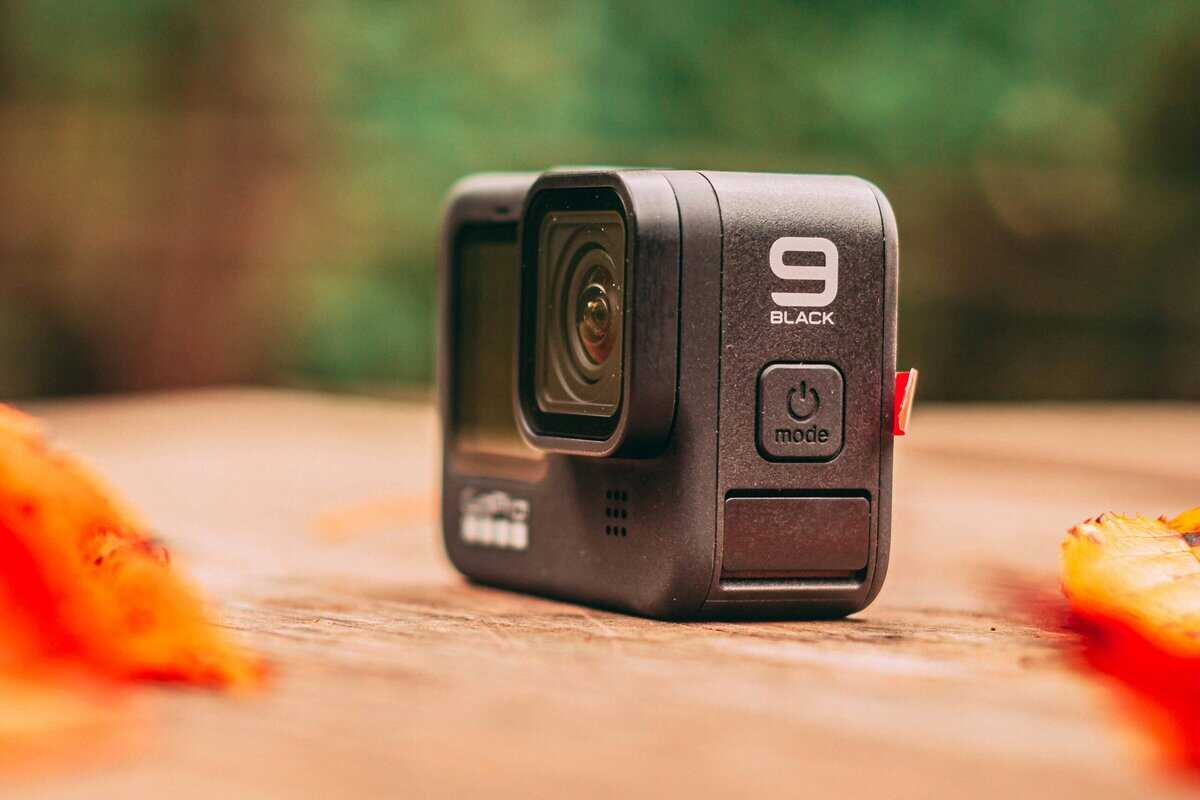
Let’s break down three different types of cameras that deliver 4K value. We’ll compare a high-end webcam like the Insta360 Link 2C, a content-creator mirrorless camera like the Sony ZV-E10 II, and a compact 4K action camera like the GoPro HERO. Each is a solid fit for a different kind of streamer.
High-End 4K Webcam: The Convenience Option
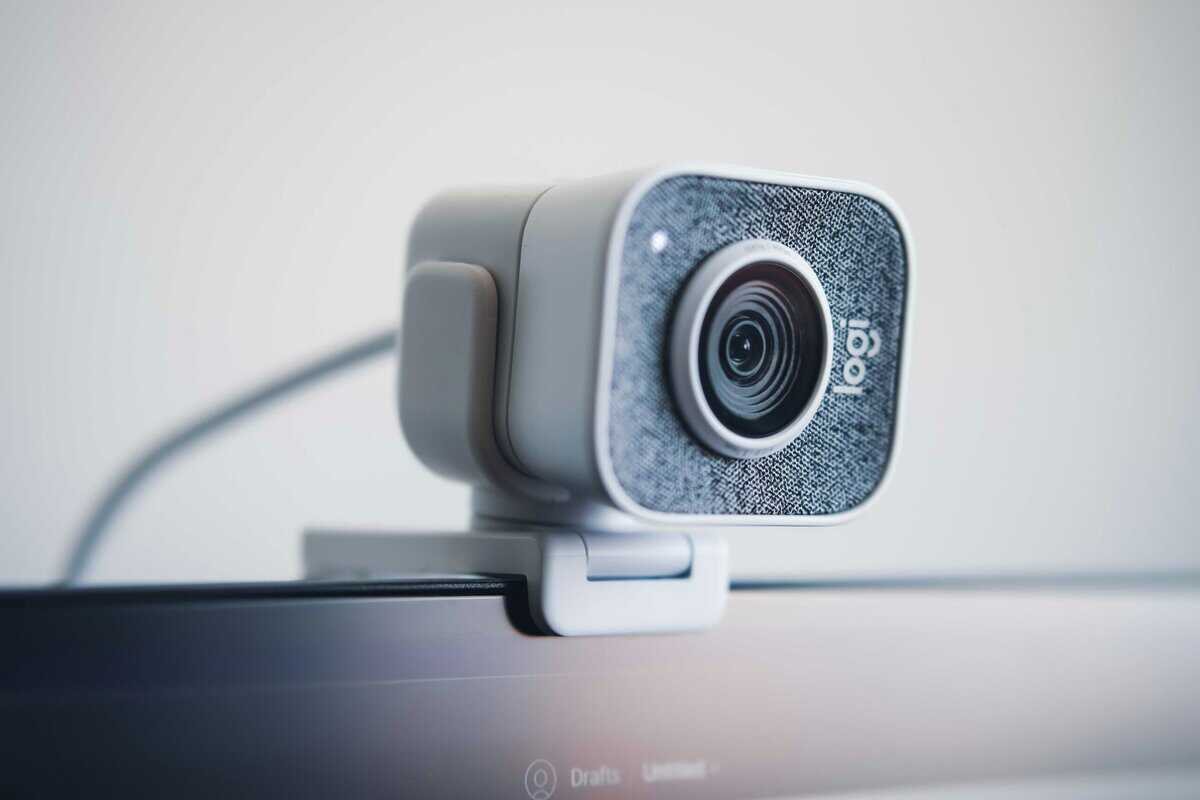
For most streamers, a top-tier 4K webcam like the Insta360 Link 2C is the path of least resistance. Its biggest advantage is a large 1/2″ sensor that captures true 4K quality with excellent low-light performance. You connect it via USB-C, your streaming software like OBS finds it instantly, and you’re ready to stream.
The Insta360 Link 2C is Insta360’s affordable 4K option, featuring a large 1/2″ sensor with phase detection autofocus, HDR, and AI noise-canceling for excellent streaming quality. AI-powered face enhancement keeps you looking sharp even in challenging lighting, and the aluminum chassis feels built to last on your monitor. At around $120, it hits the sweet spot between quality and simplicity.
Best for FPS and MMO Gaming: The simple setup lets you focus on the game, not the tech. It’s effective for a standard “face cam” shot where you just need a clear picture without worrying about cinematic background blur.
The Trade-Off: You give up the blurred backgrounds (bokeh) and the manual controls that only a much larger sensor and interchangeable lens can provide. Its built-in microphone is functional for calls but not suited for streaming audio.
Entry-Level Mirrorless Camera: The Quality Leader
Moving up to a mirrorless camera like the Sony ZV-E10 II is a significant leap in image quality. Its 26MP APS-C sensor excels in low light, producing a clean, noise-free image even when your lighting isn’t perfect. This is how you get that professional, out-of-focus background that makes your stream look polished.
The ZV-E10 II is purpose-built for content creators. It includes a flip-out screen, a directional 3-capsule microphone, and creative tools like Background Defocus and Product Showcase mode. A major advantage over older mirrorless options: it can stream directly to your PC over USB-C, meaning you may not need a capture card for basic streaming setups. For full-quality output, a capture card still provides the best results, but the built-in streaming support lowers the barrier to entry.
Best for Creative Streaming: This is the move for streamers who do “Just Chatting,” product reviews, or art streams—any content where looking your best is a top priority.
The Trade-Off: The total cost is higher. The body alone is $999, and you’ll want the 16-50mm kit lens ($1,099 bundled) at minimum. A dummy battery for constant power and the right lens to unlock its full potential add to the investment. It also demands more technical know-how to get it all working correctly.
4K Action Camera: The Versatile Contender
The GoPro HERO brings a unique mix of quality and flexibility at just $199. Weighing only 86 grams, it is GoPro’s smallest and most affordable 4K camera. Its signature feature is an extremely wide field of view, which is both a benefit and a drawback.
The ultra-wide 165° lens is useful for capturing a whole room, a workshop, or a dynamic IRL stream. But for a standard face-cam shot, it creates a distorted perspective unless you use the camera’s settings to digitally crop in for a tighter view. Its rugged, waterproof build means it can handle anything you throw at it, and HyperSmooth stabilization keeps footage steady even when mounted in unconventional spots.
Best for IRL and Hand-Cam Setups: Its tiny size and wide perspective make it a good choice for a secondary “hand-cam” showing off your keyboard and mouse, or for streamers who broadcast from a kitchen or garage.
The Trade-Off: The wide lens is not ideal for a classic head-and-shoulders framing. Its small sensor cannot compete with a mirrorless camera or even the Insta360 Link 2C in dim lighting. Battery life is limited to about an hour at the highest settings, and it lacks a dedicated streaming output—you’ll need the GoPro Quik app or a capture device to get the signal to your PC.
Making the right choice means understanding what you’re giving up to get what you need. This table breaks down the core differences from a streamer’s perspective.
| Feature | High-End 4K Webcam | Entry-Level Mirrorless | 4K Action Camera |
|---|---|---|---|
| Model | Insta360 Link 2C | Sony ZV-E10 II | GoPro HERO |
| Setup Complexity | Plug-and-play (USB) | Moderate to High (USB-C streaming or capture card, dummy battery, lens) | Moderate (Requires app/capture device) |
| Best Use Case | Hassle-free face cam | Cinematic main camera | Hand-cam or wide-angle room shots |
| Low-Light Quality | Fair (Needs good lighting) | Excellent | Good (AI-enhanced sensor) |
| Background Blur (Bokeh) | None (Deep focus) | Excellent (Shallow depth-of-field) | None (Deep focus) |
| Total Cost | $150 – $200 | $1,000 – $1,200+ (with accessories) | $200 – $400 |
| Durability | Standard (Desktop use) | Good (but not rugged) | Excellent (Waterproof, shockproof) |
Ultimately, the decision comes down to your primary goal. For simplicity, the Insta360 Link 2C is the clear choice. For the absolute best image quality, the ZV-E10 II is unmatched. And for versatility and unique angles, the GoPro HERO stands alone.
How to Maximize Your Camera Quality Without Overspending
Owning a great camera is only half the battle. The secret to a professional-looking stream has less to do with the hardware you buy and more with how you use it. You can get a massive jump in perceived quality just by nailing two things: your lighting and your software settings.
The single most impactful upgrade you can make to your stream’s video quality is lighting. A camera sensor, no matter how good, is starved for light. In a dim room, even a premium 4k ultra hd camera will produce a noisy, grainy picture because it’s forced to digitally increase the signal to see you.
A simple, budget-friendly setup with one or two LED panels can completely transform your image. When you properly light your face, you let the camera’s sensor do its job, resulting in a sharper picture, richer colors, and a clean look.
Dialing in Your Settings in OBS
Once your lighting is solid, the next step is to take control from the “auto” settings in your streaming software. Relying on auto can cause exposure shifts and focus hunting every time you move.
Inside software like OBS, you can go into your camera’s properties and lock in the key values.
Exposure: Set this manually. This stops your camera from dimming or brightening every time your monitor’s brightness changes.
White Balance: Lock this down. This ensures your skin tone will look natural and consistent, instead of shifting between orange and blue as your game’s colors change.
Focus: Manually set the focus on your face. This keeps you sharp, even when you lean forward.
Taking a few minutes to configure these settings creates a stable, consistent image that looks more professional. For a deeper dive, our complete guide on the best OBS settings for streaming will get you fully optimized.
A well-lit 1080p camera with manually configured settings will almost always look better than a poorly lit 4K camera running on auto. Master the fundamentals before you spend more money on gear.
The 4K Advantage in a 1080p Stream
If you do invest in a 4K camera, its primary advantage for streaming is creating a higher-quality 1080p output. By feeding that large 4K signal into OBS and then broadcasting at 1080p, you can use digital cropping and zooming to create dynamic scenes from a single camera.
This means you can set up a wide shot, a tight close-up on your face, and even a hand-cam view—all from one physical camera. It adds production value with minimal effort.
Beyond visual fidelity, making sure everything is aligned is a crucial step. Learning how to synchronize audio with video flawlessly will add that final layer of polish to your production.
Got Questions About 4K Streaming Cameras?
Stepping up to a 4K camera isn’t just about plugging it in. It brings up real-world questions about your platform, your workflow, and whether your PC can keep up. Let’s get straight to the answers for the most common concerns streamers have.
Do Twitch and YouTube Even Support 4K Streaming?
Yes, but it’s a tale of two platforms. YouTube offers robust support for creators who want to stream and upload in full 2160p. If your content leans toward high-fidelity showcases like cinematic game playthroughs or detailed tech reviews, a 4K camera is an asset for your YouTube channel.
Twitch, however, is different. The platform is built around 1080p at 60fps, and native 4K streaming isn’t a feature for the vast majority of users. Even partners with higher bitrate options are still working within a 1080p ecosystem.
For a Twitch streamer, the power of a 4K camera isn’t about broadcasting in 4K. It’s about feeding your stream an oversampled image that results in a sharper, cleaner 1080p feed and gives you the freedom to zoom in for creative shots.
Is a 4K Camera Better for Recording Videos?
Absolutely. This is where a 4K camera earns its keep. When you’re recording content for YouTube, TikToks, or any other edited video, that 4K resolution gives you flexibility after you stop recording.
You can crop, reframe, and pan across your shot in post-production without losing detail. It’s like having multiple camera angles from a single take.
This “digital zoom” is a benefit for solo creators. You can record a single wide shot and then punch in for a tight close-up during the edit, making your videos feel more dynamic and professionally produced.
Think of it this way: for live streaming, a 4K camera is a tool for a better 1080p picture. For recorded content, it’s a tool for better editing and a much higher-quality final product.
How Do I Know if My PC Can Handle It?
Figuring out if your PC is ready for a 4K camera comes down to a few key pressure points. The biggest strain is on your CPU and GPU, which have to process that 4K video signal and encode it in real time.
Here’s a quick stress test. Fire up a typical gaming and streaming session with your current setup. Open Task Manager and watch your CPU and GPU load. If your CPU is already at 80-90% usage just streaming at 1080p, it will struggle with the added demand of a 4K camera.
For a smooth experience, you’ll want a modern processor with at least 6-8 cores, like an AMD Ryzen 5/7 or an Intel Core i5/i7 from the last few generations. You also need to make sure you have a free USB 3.0 port (or faster)—the high data rate from a 4K camera requires it. Without enough horsepower and the right connection, your in-game performance will suffer.
Ready to find the right gear that delivers maximum performance without breaking the bank? Visit Budget Loadout for clear, hype-free recommendations and buying guides to help you build a high-quality gaming and streaming setup confidently. Start making smart, affordable upgrades today at https://budgetloadout.com.
Related Articles