A normal CPU temp isn’t a fixed number—it’s a range that changes based on what you’re doing. For general use, an idle CPU should be around 30-50°C. When you’re gaming, a temperature in the 70-85°C range is standard for modern processors. Anything consistently above that isn’t an immediate crisis, but it’s a clear signal that your cooling might be holding back performance.
- Safe CPU temps for gaming typically range from 65-85°C under load — anything above 90°C signals a problem that needs attention
- Thermal throttling kicks in around 95-100°C and actively reduces your CPU performance, causing stuttering and frame drops
- Improving airflow with proper case fan placement and cleaning dust filters regularly is the easiest way to lower CPU temps
- Aftermarket CPU coolers between $25-50 dramatically outperform stock coolers and are one of the best budget upgrades for thermal management
- Monitoring your CPU temps regularly helps catch cooling issues early before they cause throttling or hardware damage
Table of Contents
Understanding CPU Temperature Ranges
There’s an outdated idea that any CPU temperature over 70°C means something is wrong. That no longer applies to current processors. Modern CPUs are designed to automatically increase clock speeds for better performance, which naturally generates more heat. The key is to distinguish between normal operating temperatures and heat levels that cause performance loss.
Your processor generates heat proportional to its workload. When you’re browsing the web, it’s barely working, so temperatures stay low. But when you launch a demanding game or start streaming, the workload spikes and so does the heat.
CPU Temperature Reference Guide
This table provides a practical breakdown of temperatures you can expect from a typical gaming PC. These aren’t absolute rules but reliable guidelines to help you identify potential cooling issues.
| CPU Activity | Typical Safe Temperature Range (°C) | What This Means for Your PC |
|---|---|---|
| Idle (Desktop/Web Browsing) | 30°C to 50°C | Your PC should be quiet and cool. Idle temps in the 60s suggest a problem with your cooler, case airflow, or old thermal paste. |
| Gaming (FPS, MMO, Streaming) | 70°C to 85°C | This is a perfectly acceptable range for most modern CPUs under load. Seeing temps in the low 80s during an intense Warzone match is normal and indicates the chip is boosting correctly. |
| Approaching Throttling | 90°C to 95°C | While not immediately damaging, consistently hitting these temps means your CPU is likely reducing its speed to protect itself. This is where you’ll experience stuttering and lower frame rates. |
The goal isn’t to achieve the lowest possible temperature. It’s to ensure your CPU can maintain its full performance without being forced to slow down due to excessive heat.
A processor running at 85°C during a demanding task is not a problem. It’s a sign that it’s delivering the performance you paid for. The issue arises when temperatures climb higher and performance starts to degrade.
Your objective is simple: give your CPU enough cooling headroom to run at its advertised speeds without throttling. That is how you achieve stable, smooth performance for gaming and streaming.
Why CPU Temperatures Matter for Your PC
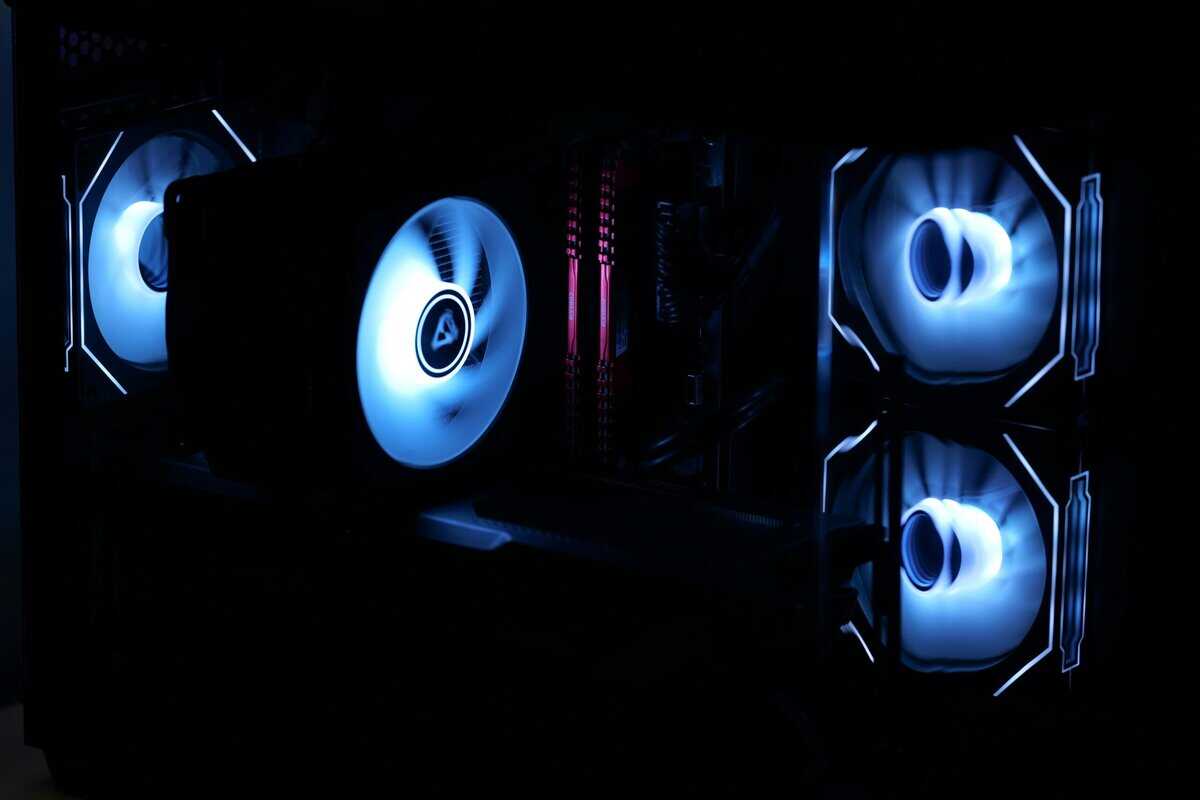
Managing your CPU temperature isn’t just for overclocking enthusiasts. For a budget-conscious gamer, it’s about protecting your investment and getting the performance you paid for.
Think of your CPU like a car engine. It’s built to run warm, but constantly redlining it leads to poor performance and long-term wear. Excessive heat primarily causes two problems, both of which are bad for gamers who care about value.
The most immediate issue is thermal throttling. This is your PC’s self-defense mechanism. When a CPU gets too hot, it deliberately slows down to cool off and prevent damage. It’s an important safety feature, but it’s detrimental to a smooth gaming experience.
The Impact of Throttling on Gaming
When your CPU throttles, you notice it. The performance drop isn’t subtle; it’s a significant problem that can ruin a gaming session.
It manifests as:
Sudden stuttering during a chaotic MMO raid boss fight.
Dropped frames that make your stream unwatchable.
Inconsistent FPS in competitive shooters like Valorant, making your aim feel unresponsive.
The real goal isn’t to have the coldest CPU. It’s to keep temperatures low enough to prevent throttling so your processor can consistently hit its maximum boost speeds. That’s what delivers the smooth, stable frame rates you need.
The second issue is long-term component degradation. While a modern CPU is durable and won’t fail from a single hot gaming session, consistently running it at 95°C+ for extended periods can shorten its lifespan. Heat is a natural enemy of electronics.
If you want to dive deeper into how all your PC parts work together, our guide on how to build a gaming PC is a great place to start.
So, how do you know if your CPU is running too hot? You can’t fix a problem you can’t measure. Fortunately, you don’t need specialized equipment.
A couple of free, straightforward tools will give you all the data you need. For most gamers, I recommend starting with a lightweight utility like HWMonitor or Core Temp. These programs have been trusted for years because they are reliable and accurate without adding unnecessary bloat to your system. Just download one from the official site and install it.
Finding the Right Numbers
Once you launch the application, you’ll see a detailed list of sensors in your PC. Don’t get overwhelmed. Scroll down until you find the section for your processor.
You’re looking for the CPU Package temperature. This provides the best overall reading of your chip’s heat. You’ll also see temperatures for each individual core, which can be useful for diagnosing specific issues, but the Package temp is your primary focus.
Here’s what a typical readout from HWMonitor looks like, with the important numbers highlighted.
This view gives you everything you need: the current temp, plus the minimum and maximum values recorded since the program was opened. The “Max” column is essential for seeing how high temperatures spiked during a heavy gaming session.
To understand what’s normal for your specific setup, you need to test under different conditions. First, let your PC sit idle on the desktop for 10 minutes and note the temperature. This is your baseline. Then, play a demanding game for at least 15 minutes. This real-world load test will show you exactly how your cooling performs when it matters.
What Actually Affects Your CPU Temperature
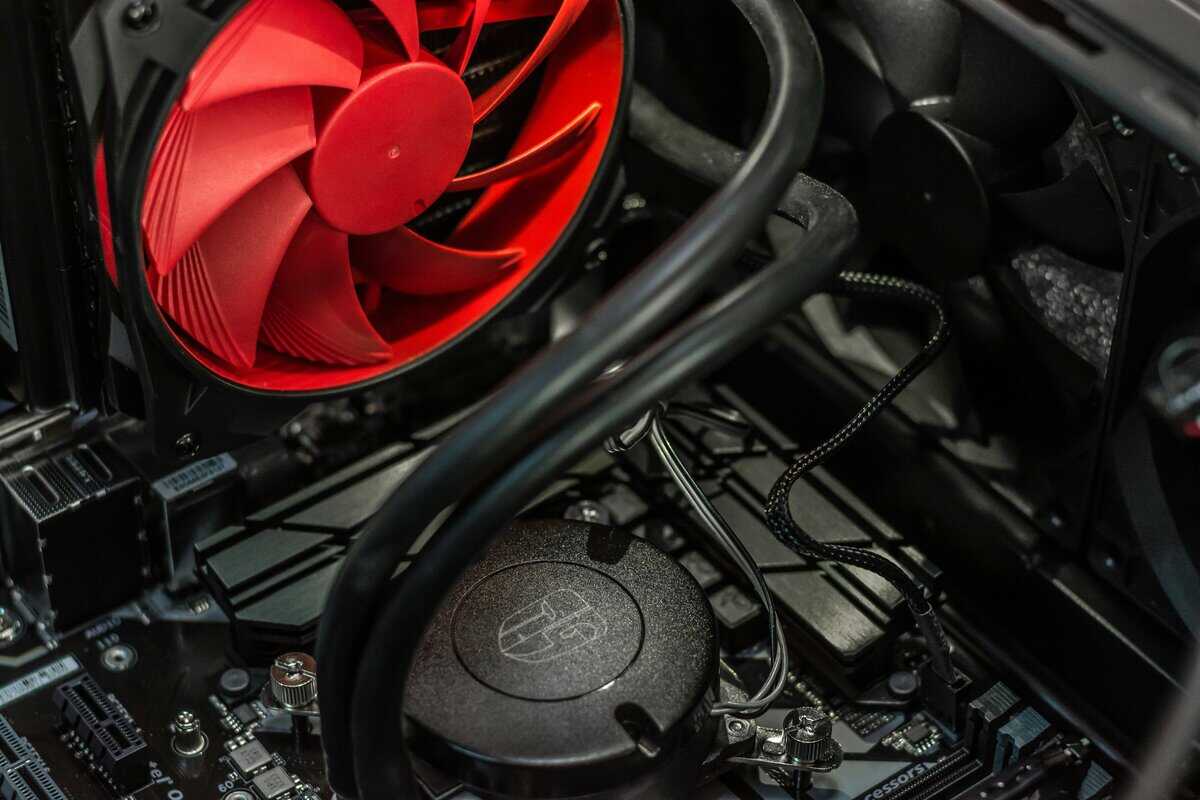
When your CPU runs hot, it’s easy to blame the processor. However, the CPU is often just indicating a problem elsewhere in your cooling system. High temps are a symptom, not the root cause.
Understanding the factors that control your CPU temperature is the first step to improving them without wasting money.
It starts with your CPU cooler. Stock coolers included with many processors are designed for basic operation. They prevent the CPU from overheating at stock speeds but offer almost no extra capacity for the sustained heat from a long gaming session. A solid aftermarket air cooler is often the single best upgrade for your PC’s longevity and performance. They use better materials and larger heatsinks, giving your processor the headroom it needs to boost higher for longer without throttling. The build quality of these coolers is generally high, offering years of reliable service.
Your Case and Its Airflow
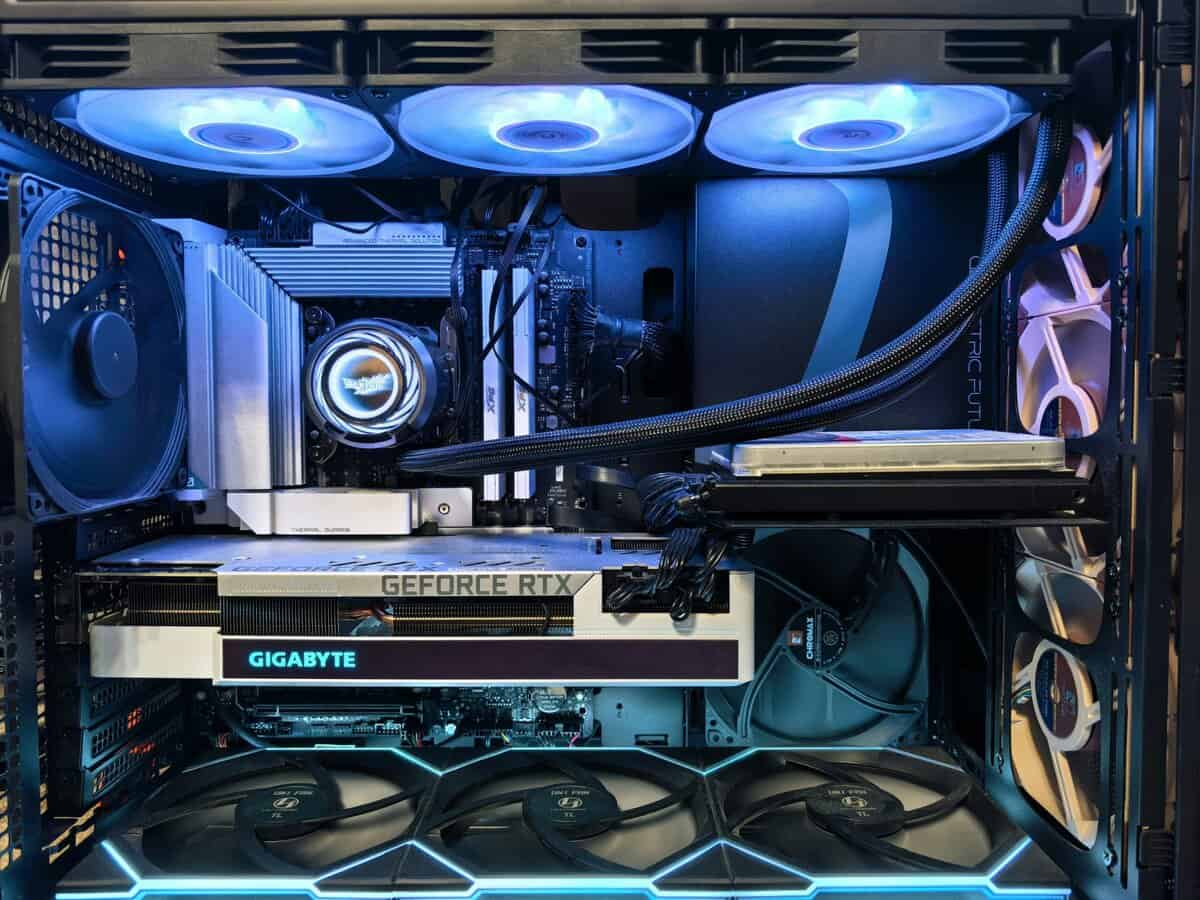
Your PC case isn’t just a box; it’s an airflow system. Good case airflow is about moving cool air in and hot air out efficiently. If hot air from your CPU and GPU gets trapped, it creates a feedback loop that heats up every component. Our guide on choosing the best gaming PC case explores these airflow principles further.
Effective airflow relies on a simple system:
Intake Fans: Usually at the front or bottom, these pull cool air into the case.
Exhaust Fans: Placed at the back or top, these push hot air out.
Even a basic setup with one or two fans in the correct positions can significantly improve temperatures. It ensures a constant supply of cool air flows over your CPU cooler, making its job much easier.
The goal is to create a clear path for air to travel through your case. Poor cable management or clogged vents can create turbulence and hot spots, restricting airflow and causing temperatures to rise.
Another factor often overlooked is your ambient room temperature. Your PC cannot cool components to a temperature below that of the surrounding air. If your room is 30°C, your parts will never cool down to 25°C.
Finally, there’s thermal paste—the material between your CPU and its cooler. This substance fills microscopic air gaps to ensure efficient heat transfer. Over several years, this paste can dry out and lose its effectiveness, causing temperatures to spike. If your PC is a few years old and running hotter than it used to, replacing the thermal paste is a cheap and effective fix.
Practical Ways to Lower Your CPU Temperature
If your CPU is running hotter than you’d like, don’t worry. Many of the most effective solutions are inexpensive or free. You don’t need to immediately buy a liquid cooler.
Start with these simple, high-impact steps.
First, clean your PC. Dust is the enemy of cool components, acting as an insulator on heatsinks and obstructing fan blades. Shut down your PC, unplug it, and grab a can of compressed air (a Dust-Off 4-pack will last you a long time) and blow dust out of your case fans, CPU cooler, and GPU.
Next, check your case placement and cable management. A PC stuck in a cramped cabinet or against a wall can’t breathe. Moving it to a more open space can improve airflow instantly. Tucking away loose cables also helps clear pathways for air.
Smart and Affordable Upgrades
If those free fixes aren’t enough, it’s time for a couple of small, strategic investments.
The single most effective budget upgrade is a fresh application of thermal paste. The compound between your CPU and cooler can dry out after 2-3 years, reducing its ability to transfer heat. A quality tube like the Noctua NT-H1 costs under $10 and can lower load temperatures by 5-10°C (9-18°F). If you want the absolute best thermal compound on the market, the Thermal Grizzly Kryonaut runs about the same price and is a favorite among overclockers.
Don’t let high temperatures push you into overspending. Modern CPUs are durable. Seeing temperatures of 70-80°C under a heavy gaming load is the new normal for reliable performance. You just need to keep things from getting out of hand.
To do this correctly, a guide on how to remove thermal paste from your CPU safely is essential. Following a step-by-step process helps avoid costly mistakes.
Finally, the best value upgrade is a proper tower air cooler. For around $30-$40, a tower cooler like the Thermalright Peerless Assassin 120 SE will blow away any stock cooler. If you want to spend even less, the ID-COOLING SE-214-XT is a solid performer at around $20.
Got Questions About CPU Temps? We’ve Got Answers.
To wrap things up, let’s address some of the most common questions about processor heat. These are direct answers to help you determine if your PC’s temperatures are normal or a sign of a problem.
Is 90°C a Safe CPU Temp for Gaming?
No, you do not want to see 90°C during a gaming session. While a modern CPU can technically survive temperatures up to 95-100°C without immediate damage, running that hot results in a significant performance loss. At that point, your processor is almost certainly thermal throttling.
Throttling is the CPU slowing itself down to generate less heat. For a gamer, that means stuttering, lower frame rates, and an inconsistent experience. It’s most noticeable in CPU-intensive games like MMOs or complex strategy titles. If you’re consistently hitting 90°C, your cooling is insufficient.
How Often Should I Replace Thermal Paste?
For a typical gaming PC, a good guideline is to replace your thermal paste every 2-3 years. The compound between your CPU and cooler degrades over time. It dries out, cracks, and becomes less effective at transferring heat.
You don’t need to schedule it. The best indicator is your temperature data. If you’ve noticed your idle or load temperatures have slowly increased by 5-10°C over the past year without any other changes, old thermal paste is the likely culprit. It’s an inexpensive fix that can restore your cooling performance.
Think of thermal paste like oil in a car. It’s a consumable that needs periodic replacement to keep the engine—or your CPU—running optimally. Neglecting it is a common cause of gradually worsening temperatures. When it’s time, the Noctua NT-H1 is our go-to recommendation. It’s easy to apply and consistently delivers excellent results.
Do Intel and AMD CPUs Have Different Normal Temps?
Yes, but the performance goal is the same. Modern AMD Ryzen CPUs, in particular, are designed to boost clock speeds as high as thermal limits allow, often pushing toward their maximum temperature (around 95°C) to deliver more performance.
Because of this design, it’s not unusual to see an AMD chip running in the 80-90°C range under a heavy gaming load. This can be normal. Recent high-performance Intel chips also run hot. For either brand, the objective is the same: keep the temperature low enough to prevent throttling. A good target for any gaming build is to keep sustained load temperatures under 85°C. This ensures you’re getting stable performance without putting unnecessary long-term stress on your hardware.
At Budget Loadout, we believe that understanding your hardware is the first step to getting the most value from it. For more practical guides and honest reviews to help you build a high-performance gaming setup without overspending, visit us at https://budgetloadout.com.
Related Articles