Let’s get one thing straight: the Nintendo Switch can’t stream or record gameplay to your PC on its own. That 30-second clip feature is useful for a quick share, but for creating a YouTube video or going live on Twitch, you need a dedicated capture card for Nintendo Switch.
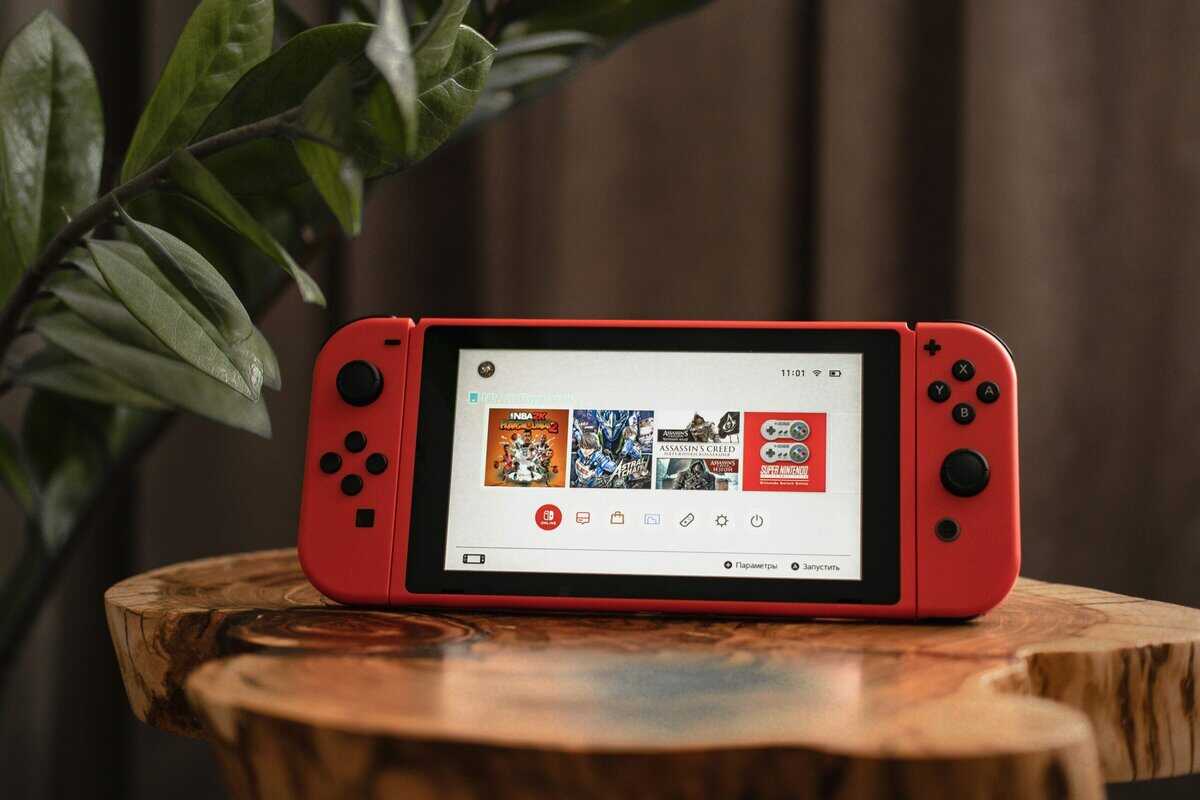
- The Nintendo Switch cannot stream or record gameplay natively — a capture card is required for YouTube or Twitch content
- Budget capture cards like the Elgato HD60 X handle the Switch’s 1080p60 output perfectly and cost under $130
- Since the Switch outputs via HDMI, any USB 3.0 capture card with HDMI passthrough will work — no special Switch-specific card needed
- Look for a card that supports 4K passthrough to future-proof your setup for the next Switch console generation
- USB capture cards are more portable and budget-friendly, while PCIe cards offer lower latency for serious streamers
Table of Contents
- 1080p60 capture matches the Switch's max output perfectly
- 4K60 HDR passthrough future-proofs for other consoles
- Seamless plug-and-play setup with OBS and major software
- Pricier at ~$130 vs ~$70 AVerMedia
- No built-in hardware encoder
- Requires USB 3.0 port
- 4K60 HDR passthrough lets you play at full quality while capturing at 1080p60
- Plug-and-play USB 3.0 setup with no drivers needed
- Beginner-friendly AVerMedia Streaming Center software included
- Capture resolution tops out at 1080p60 for those wanting higher quality recordings
- At ~$80, sits close to the Elgato Game Capture Neo's price range
- Compact size means no built-in activity indicators or status lights
- 4K capture future-proofs for other console platforms
- VRR and HDR passthrough for premium display support
- Compact USB-C design with strong Elgato software ecosystem
- 4K is overkill for Switch's 1080p
- Pricier than needed for Switch-only
- Premium features may go unused
What a Capture Card Does for Your Switch
A capture card is a device that sits between your Nintendo Switch and your computer. It takes the HDMI video signal from your Switch dock and converts it into a format your PC or Mac can process, typically over a USB connection.
Without it, your computer cannot receive the video feed from your Switch. With a capture card, you can:
Stream on Twitch or YouTube: Broadcast gameplay using software like OBS Studio.
Record High-Quality Video: Capture gameplay footage without the Switch’s 30-second recording limitation, ideal for creating content for YouTube.
Produce a More Professional Stream: Add overlays, a webcam feed, alerts, and other graphics for a customized broadcast.
For anyone serious about content creation with a Switch, a capture card is a necessary investment. The console has a large existing audience, with 153 million lifetime console sales and over 128 million annual players. This represents a substantial potential viewer base. You can read the full Nintendo Switch sales statistics on icon-era.com for a detailed breakdown of the community size.
Key Specifications for a Nintendo Switch Capture Card
Product pages are filled with technical terms. When choosing a capture card for Nintendo Switch, only a few specifications are critical. Focusing on the right features allows you to achieve good quality without paying for capabilities the Switch cannot use.
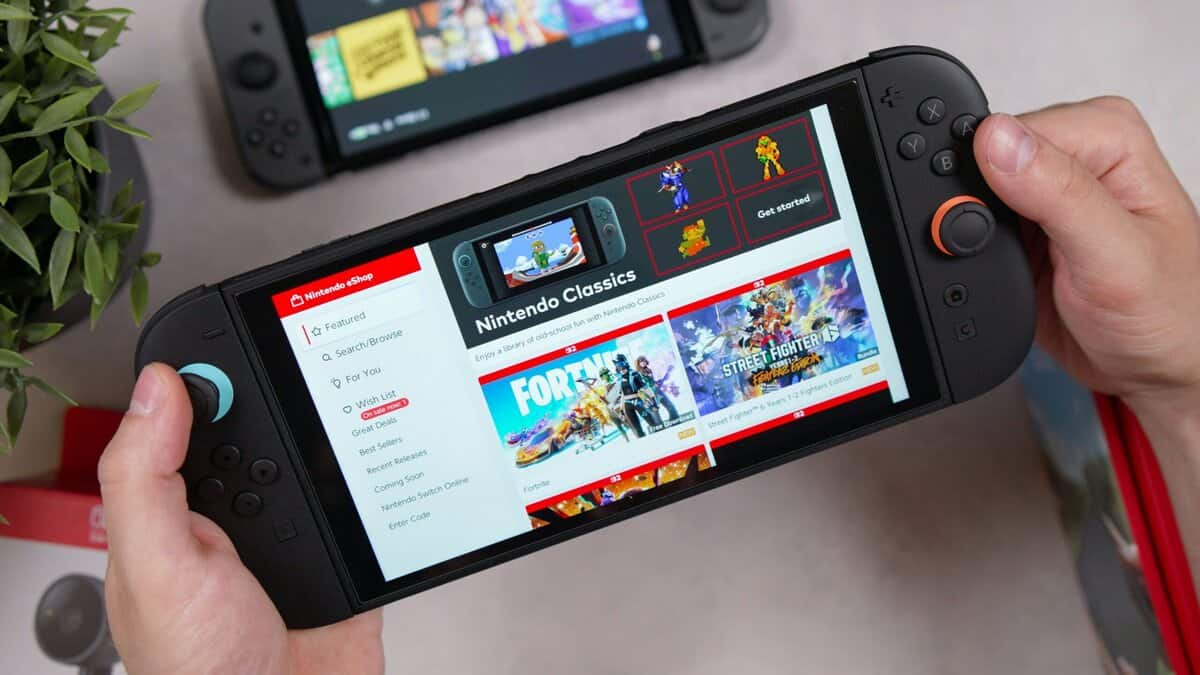
Let’s clarify what to look for.
Technical Specifications for Switch Users
This table breaks down the key terms, their relevance to the Switch, and a practical recommendation for budget-conscious gamers seeking value.
| Specification | What It Means for Switch | Value-Oriented Recommendation |
|---|---|---|
| Capture Resolution | The quality of the video sent to your PC. The Switch has a maximum output of 1080p. | 1080p. Paying extra for 4K capture provides no benefit for the current Switch. |
| Capture Framerate | The smoothness of the recorded video. 60fps is necessary for fluid motion in fast-paced games. | 60fps. A 30fps capture rate will result in visibly choppy video, especially in fighting games or racers. |
| HDMI Passthrough | Allows the video signal to pass through the card to a TV or monitor with no added delay. | Essential. This feature lets you play without input lag while streaming or recording. |
| Connection Type | How the capture card connects to your computer. | External USB. This option is simple, portable, and sufficient for the Switch’s output. |
These four specifications are the most important. Getting them right will address the primary technical requirements for a quality Switch stream.
For most Switch streamers, the Elgato Game Capture Neo hits the sweet spot. It captures at 1080p60, has 4K60 HDR passthrough for future-proofing, and runs around $130. If you’re on a tighter budget, the AVerMedia StreamLine MINI+ delivers reliable 1080p60 capture with a built-in H.264 hardware encoder for around $50.
Why 1080p at 60fps Is the Correct Choice
The most important specifications to check are the capture resolution and framerate. For the Nintendo Switch, the target is 1080p at 60fps.
This combination ensures your stream appears as smooth and clear as your gameplay. For fast-paced games common on the platform, like Super Smash Bros. Ultimate or Mario Kart 8 Deluxe, capturing at less than 60fps produces noticeably jerky video that is unpleasant to watch. For a detailed comparison, our guide on 1080p vs 4k gaming explains the real-world differences.
The Difference Between Passthrough and Latency
Next is HDMI passthrough, which is a non-negotiable feature. It allows you to play on your TV or monitor without input lag. The capture card sends the video signal directly to your screen before processing it for your computer, ensuring responsive gameplay.
Do not confuse passthrough latency with capture latency. Passthrough affects the gameplay experience on your TV. Capture latency is the slight delay between your gameplay and its appearance in your streaming software like OBS.
A card like the Elgato Game Capture Neo makes this distinction easy — its HDMI passthrough delivers zero-latency gameplay to your TV while your PC processes the stream separately.
For the Switch, an external USB capture card is the most practical option. They are portable, easy to set up, and provide all the necessary performance. A model with a solid metal casing is generally preferable, as it indicates better build quality and helps with heat dissipation, contributing to the device’s durability.
Internal PCIe cards, which are installed directly into a desktop PC motherboard, are unnecessary for the Switch’s 1080p output.
A Straightforward Guide to Setting Up Your Capture Card
Connecting your new capture card is a simple process. This section will guide you through connecting the cables and configuring the software to get your gameplay live.
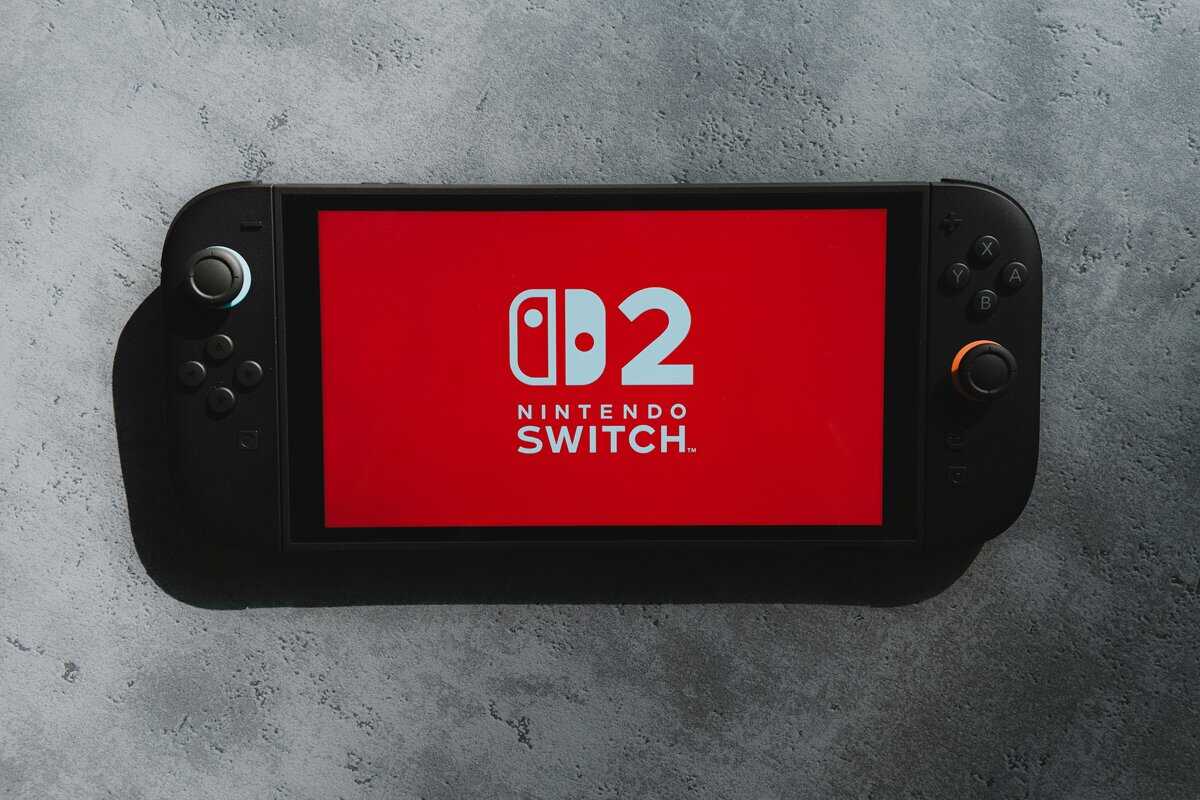
Most value-focused external cards are plug-and-play devices with clearly labeled ports.
Physical Connections
Follow this four-step process, which follows the signal from the Switch to your monitor and PC.
Dock Your Switch: Ensure your Nintendo Switch is seated correctly in its official dock.
Connect Switch to Capture Card: Plug one end of an HDMI cable into the dock’s HDMI OUT port. Plug the other end into your capture card’s HDMI IN port.
Connect Card to Monitor: Use a second HDMI cable to connect the capture card’s HDMI OUT (Passthrough) port to your TV or gaming monitor.
Connect Card to PC: Use the included USB cable to connect the card to a USB 3.0 port on your computer. Using a USB 3.0 port is important for optimal performance.
Quick tip: You’ll need two HDMI cables for this setup — one from the dock to the capture card, and one from the card to your monitor. If you need extras, a budget 2-pack of 4K HDMI cables will cover both connections.
After these connections are made, your Switch’s display should appear on your monitor as usual. The next step is to configure your computer to see the footage.
Software Configuration in OBS Studio
With the hardware connected, we can move to the software. We recommend OBS Studio because it is free, capable, and widely used.
Open OBS. In the Sources panel at the bottom, click the ‘+’ icon and select Video Capture Device. Name it something clear, like “Nintendo Switch,” and click OK.
A properties window will appear. In the Device dropdown menu, select your capture card. Your Switch gameplay should now be visible in the OBS preview window.
To ensure your stream includes game audio, scroll down in the same properties window. Find Audio Output Mode and change it to Capture audio only. This directs OBS to use the audio from the HDMI signal.
For a more detailed walkthrough of configuring all your settings for a broadcast, see our complete streaming setup for beginners guide.
Buying a Card That Lasts Beyond the Current Switch
When choosing a capture card for Nintendo Switch, you face a decision: buy a card optimized for the current console or one that is ready for future hardware. The Nintendo Switch 2 launched in June 2025 and sold 5.82 million units in its first month alone. If you’re planning to upgrade, a 4K60 capture card is no longer optional — it’s the baseline for serious content creation on the new hardware.”
A common marketing tactic is to advertise “4K passthrough” while the device only captures at 4K 30fps. Passthrough only means you can play games in 4K on your TV. The recorded video file will be choppy and unsuitable for fast-paced content.
The Importance of 4K60 Capture
For smooth, usable gameplay footage on future consoles, the critical feature is 4K60 capture. This ensures your recordings match the fluidity of your gameplay, which is essential for fast-moving games.
The development of a new Nintendo console is influencing the market.
This creates a tradeoff for budget-focused users. You can save money now with a 1080p60 card that is sufficient for the current Switch. Alternatively, you can invest more in a 4K60 model that will remain relevant with new hardware. The goal is to balance current needs with future wants. For a closer look at options that achieve this, see our guide on the best capture cards for streaming.
If you want to future-proof, the Elgato 4K S captures at full 4K60 with HDR10 and VRR support for around $160. It’s the most practical upgrade path for streamers who plan to move to the Switch 2. The Elgato HD60 X is another solid option at ~$130, though it caps at 4K30 capture.
Solving Common Capture Card Problems
Even with a correct setup, issues can arise. Here are solutions for the most common problems encountered with a capture card for Nintendo Switch.
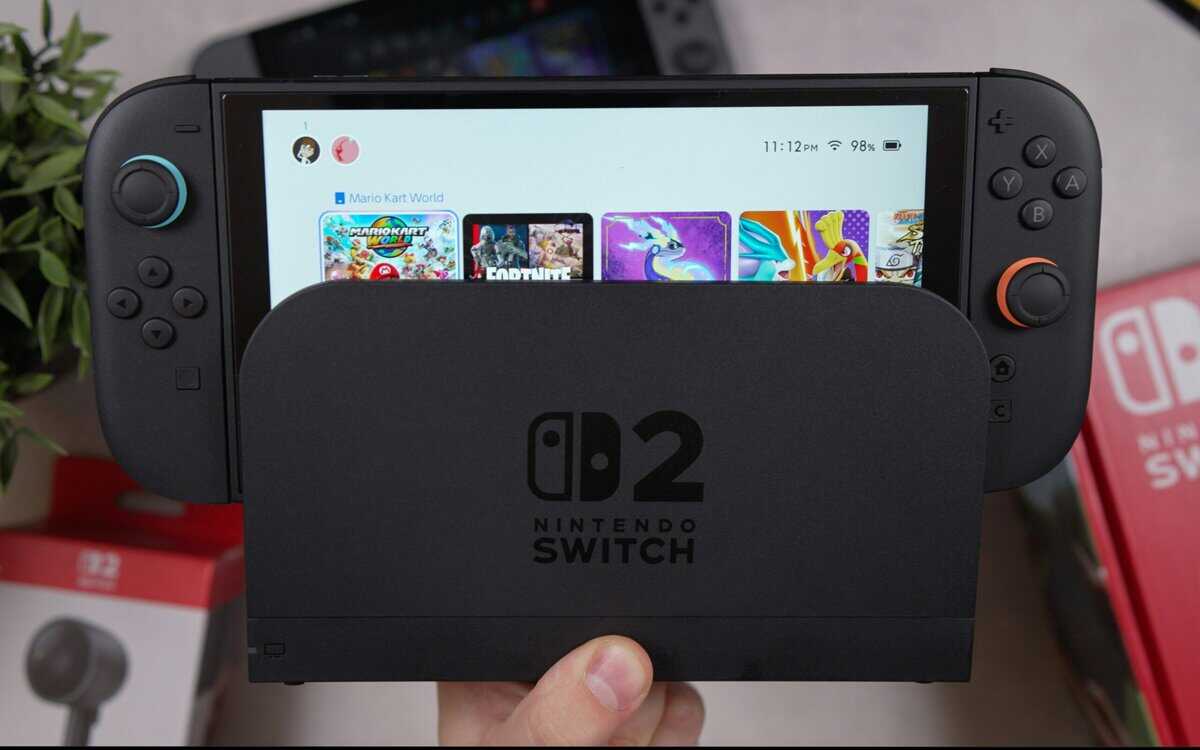
Most of these problems are due to simple cable or software setting errors, not faulty hardware.
Quick Fixes for Your Stream
This is how to troubleshoot the four most frequent errors.
“No Signal” on TV or OBS: This is typically a cable issue. Double-check that your HDMI cables are connected to the correct IN and OUT ports on the capture card. If the connections are correct, try using a different HDMI cable that you know is functional.
Black Screen in OBS: This indicates the computer detects the card but isn’t receiving the video feed. First, open the “Video Capture Device” source properties in OBS and ensure your capture card is selected. If it is, you may need to disable HDCP (High-bandwidth Digital Content Protection), a copy-protection feature that can cause conflicts.
Choppy or Laggy Video: This suggests a data bottleneck. Confirm the capture card is connected to a USB 3.0 port (usually identifiable by its blue color), not an older 2.0 port. If the connection is correct, check your OBS output settings. A bitrate that is too high for your PC’s processing power can cause performance issues.
No Game Audio: This is a common setup error. In the OBS source properties for your capture card, find Audio Output Mode and set it to “Capture audio only” or “Output desktop audio (WaveOut).” This tells OBS to process the audio coming through the HDMI cable. If you’re still missing voice chat audio from party conversations, the Elgato Chat Link Pro adapter captures both gameplay sound and voice chat through a single cable for about $13.
Getting the Most Out of Your Stream on a Budget PC
When you’re working with a budget system, you have to be realistic about making some trade-offs. While your capture card for Nintendo Switch can easily send a 1080p signal to your PC, that doesn’t mean your computer can handle streaming it at that resolution.
Dropping your stream output from 1080p to a crisp 720p60 is almost always the best move. A stable, smooth 720p stream is far better for your viewers than a choppy, buffering 1080p one. Your audience will appreciate the smoothness, especially in fast-paced titles like FPS games.
You’ll also want to set a stable bitrate based on your internet upload speed—somewhere around 3,500 to 4,500 kbps is a solid target for a 720p60 stream. And don’t forget your audio! Use OBS filters like Noise Suppression to clean up your microphone audio, making sure it’s balanced with the in-game sound for a high-quality experience.
If your machine is still struggling after these tweaks, it might be time to think about an upgrade. You can check out our guide on the best gaming PC under $1000 for some value-focused ideas.
Quick Answers to Your Switch Capture Card Questions
While game capture can seem technical, for the Nintendo Switch, the process is straightforward. Here are answers to essential questions.
| Question | Direct Answer |
|---|---|
| Can I use any capture card for the Switch? | Yes, almost any modern HDMI capture card is compatible. The Switch outputs a standard 1080p signal, so no console-specific model is needed. |
| Do I need a powerful PC? | Not particularly. Most modern laptops with an Intel i5 processor (or equivalent) and 8GB of RAM can handle 1080p60 capture. |
| Do I need a 4K capture card? | No. The Nintendo Switch’s maximum output is 1080p. A 4K card is unnecessary and not a good value for this specific use case. |
| Is an external or internal card better? | For the Switch, an external USB card is the practical choice. It offers simpler setup and sufficient performance. |
The main takeaway is that overspending is not necessary to achieve a quality stream from your Switch.
FAQ
Let’s address the most common questions about using a capture card with the Nintendo Switch.
Can I Use Any Capture Card for the Switch?
Yes, for the most part. The Switch uses a standard 1080p HDMI signal, making it compatible with nearly any modern capture card. You do not need a special “Switch-certified” model.
Focus on finding a card that reliably handles 1080p at 60fps and has good build quality. A metal casing is often an indicator of better durability compared to a plastic one.
Do I Need a Powerful PC to Use a Capture Card?
No. Capturing gameplay is significantly less demanding on a computer than running a modern PC game. Most laptops or desktops from the past several years with a quad-core processor (like an Intel i5 or better) and at least 8GB of RAM can record or stream 1080p60 footage without issues.
PC power becomes more relevant when you use complex streaming scenes with animated overlays, multiple camera sources, or other CPU-intensive elements. For a clean gameplay stream, a modest computer is sufficient.
For Switch streamers, the key is value. You don’t need premium internal PCIe cards. The Elgato Game Capture Neo at ~$75 or the AVerMedia StreamLine MINI+ at ~$50 both deliver reliable 1080p60 capture — which is all the Switch needs.
Consider it a one-time investment that enables high-quality streaming and recording for the lifespan of your console.
At Budget Loadout, we provide clear, hype-free recommendations to help you build a great gaming setup without overspending. Find your next upgrade with confidence at https://budgetloadout.com.
Related Articles