For many PC gamers, the jump to 4K feels like a luxury reserved for top-tier graphics cards and ample budgets. However, finding the best budget 4k gaming monitor is no longer a fantasy. It’s a practical upgrade made accessible by upscaling tech like DLSS and FSR.
These monitors offer sharp 4K visuals without demanding a flagship GPU, but choosing the right one requires understanding the necessary compromises.
- Budget 4K gaming monitors have dropped below $300, making true 4K gaming accessible without a premium investment
- You need at least an RTX 4060 or RX 7600 class GPU to game at 4K with reasonable frame rates — weaker GPUs will struggle
- HDMI 2.1 is essential for 4K at 120Hz, so check port specs before buying if you plan to use a console or future GPU
- 27-inch 4K monitors offer the sharpest pixel density, but 32-inch models provide a more immersive experience if you have the desk space
Table of Contents
- Sharp image quality at native resolution
- Fast response time with minimal ghosting
- Solid build quality and adjustable stand
- Limited HDR brightness
- No USB-C input
- Excellent color accuracy out of the box
- High refresh rate for smooth gameplay
- Wide viewing angles
- Stand lacks height adjustment
- Slightly higher input lag in HDR mode
- Very competitive price for the panel quality
- Low input lag
- Good for console and PC use
- Smaller screen size
- Fewer connectivity options
Is a Budget 4K Gaming Monitor a Smart Upgrade?
The primary concern for any budget-conscious gamer is whether their hardware can handle games at 4K. A few years ago, the answer was likely “no” without a significant investment. Today, the situation has changed. Even a mid-range GPU like an RTX 5060 can achieve a stable 60+ FPS in many demanding titles by using performance-boosting features.
This guide defines “budget” in this context. We are not searching for the absolute cheapest panel that sacrifices core gaming features. Instead, we are targeting the value sweet spot—monitors that deliver a true 4K resolution while executing the essentials correctly.
What to Expect From a Value-Focused 4K Monitor
A smart budget purchase involves understanding tradeoffs. You will not get every premium feature, but you can secure the ones that most impact your gaming experience.
Here’s what a functional budget 4K monitor should provide:
- Essential Gaming Performance: A refresh rate of at least 60Hz (preferably 144Hz) and a low response time are mandatory. These specifications ensure gameplay feels smooth and responsive.
- Reliable Build Quality: A sturdy stand, durable housing materials, and solid construction ensure the monitor lasts. Flimsy builds are a common failure point in cheap displays.
- Good Visuals: Expect a sharp, clear picture with acceptable color accuracy. It will not compete with a high-end OLED, but it must be a clear step up from 1080p or 1440p.
A common error is prioritizing the 4K pixel count while ignoring panel quality and refresh rate. A blurry 4K/60Hz monitor with a wobbly stand is a worse experience than a crisp 1440p/144Hz alternative. The goal is to find options that balance these factors correctly.
For those on a stricter budget, exploring options like the best gaming monitor under $200 can provide a solid 1080p or 1440p experience. This guide, however, is for gamers ready to advance their visual clarity.
Quick Look at Our Top Budget 4K Monitor Picks
To provide an overview, here is a summary of the monitors we will analyze. Each has been chosen for a specific type of gamer, from fast-paced shooter players to those who prefer immersive open-world titles.
| Monitor Model | Best For | Key Feature | Price Point |
|---|---|---|---|
| Gigabyte M28U | Competitive FPS & Console | 144Hz & HDMI 2.1 | Mid-Range |
| Dell G3223Q | Immersive RPGs & Streaming | Good Colors & Contrast | Mid-Range |
| Acer Nitro XV282K | All-Around Value | Balanced Specs & Build | Entry-Level |
| ASUS TUF Gaming VG289Q | Strict Budgets | Sharp IPS Panel | Entry-Level |
This table illustrates the tradeoffs each monitor makes to meet its price point. The key is to match the right features to your setup and the games you play.
This guide will help you determine if the investment is suitable for your hardware and gaming style. By managing expectations and focusing on core performance, you can make a practical, future-proof upgrade.
Decoding the Specs That Actually Matter
Shopping for a budget 4K gaming monitor involves navigating technical jargon and marketing claims. Only a few of these specifications significantly alter how your games look and feel. Understanding these core elements is the first step toward a smart purchase.
This section cuts through the marketing fluff to focus on the numbers that deliver real performance improvements, explain the necessary tradeoffs in the budget category, and show why a monitor’s stand is as important as its screen.
The Refresh Rate and Response Time Trade-Off
The two most critical performance specs for any gaming monitor are refresh rate (Hz) and response time (ms). Refresh rate indicates how many times the screen updates per second; a higher number results in smoother motion. Response time measures how quickly a pixel can change color, which prevents motion blur or “ghosting.”
For a budget 4K monitor, 144Hz is the practical sweet spot. While faster monitors exist, pushing over 144 frames per second at 4K resolution requires a powerful and expensive GPU, defeating the purpose of a value-focused setup. A 144Hz refresh rate provides a fluid experience for both fast-paced shooters and single-player games.
Response time is equally important. Look for a monitor with a 1ms GtG (Gray-to-Gray) response time. Anything higher risks introducing noticeable motion blur, which undermines the sharp image a 4K resolution is meant to deliver.
Panel Types: IPS vs. VA
The panel is the monitor’s core, determining its color, contrast, and viewing angles. In the budget space, the choice is typically between IPS (In-Plane Switching) and VA (Vertical Alignment).
- IPS Panels: These excel in color accuracy and viewing angles, making them suitable for vibrant RPGs like Cyberpunk 2077 or strategy games. The tradeoff is weaker contrast, which can make blacks appear as dark gray.
- VA Panels: VA panels have superior contrast, producing deep blacks that give the image a cinematic feel. This is beneficial for atmospheric horror or story-driven titles. The downside is potentially slower response times, which can lead to smearing, especially in dark scenes.
For most gamers, an IPS panel is the safer all-around choice. The superior color performance generally outweighs the weaker contrast, especially if the monitor is used for more than just gaming, such as content creation or web browsing.
Build Quality and Connectivity Matter More Than You Think
A high-quality panel is useless if it’s housed in a cheap, wobbly plastic shell. Build quality is a common area for budget manufacturers to cut costs, but it is critical for long-term use. Pay close attention to stand stability. A monitor that shakes with every desk movement feels cheap and is a significant distraction.
Look for a stand that offers height, tilt, and swivel adjustments. Good ergonomics are not a luxury; they prevent neck strain during long gaming sessions.
Connectivity is the final piece. For PC gamers, DisplayPort 1.4 provides sufficient bandwidth for 4K at 144Hz. For console gamers, HDMI 2.1 is non-negotiable. It is the only connection that allows the PlayStation 5 and Xbox Series X to achieve 4K at 120Hz. If you stream or record gameplay, understanding video codecs can help optimize your 4K setup.
Comparing the Top Value 4K Gaming Monitors
A spec sheet provides only partial information. The key to finding the best budget 4K gaming monitor is to understand the tradeoffs each manufacturer made to reach a specific price. No product in the value category is perfect—every one is a compromise.
One monitor may have a higher refresh rate at the cost of color vibrancy, a trade a competitive FPS player would accept. Another might invest in a solid, adjustable stand at the expense of a slightly slower panel, which is a better deal for someone who also uses their desk for work. Let’s analyze these differences directly.
The All-Rounder vs. The Speed Demon
Let’s begin with two common profiles in the budget 4K market: the versatile all-rounder and the refresh rate specialist. A model like the ASUS TUF Gaming VG289Q is a classic all-rounder. It uses a 60Hz IPS panel, which is basic but delivers good color accuracy and sharpness for its price.
Its build quality is functional. The plastic housing is adequately sturdy, and the stand offers essential tilt and height adjustments, preventing it from feeling cheap. This monitor is designed for players of immersive, single-player RPGs or strategy games where achieving 144 FPS is not the primary objective. The tradeoff is clear: you sacrifice smooth motion for a solid 4K picture on a tight budget.
Conversely, a monitor like the Gigabyte M28U is focused on speed. It pushes 144Hz with a fast IPS panel, making it ideal for fluid gameplay in titles like Valorant or Apex Legends. To achieve this without a premium price, compromises were made elsewhere. While its colors are good, they are not as vibrant as more expensive displays, and its HDR performance is minimal.
The build quality is a strength for Gigabyte. Its wide, stable stand minimizes desk wobble, and the materials feel durable. This monitor prioritizes the raw performance metrics that directly impact competitive play.
The core decision is refresh rate. A 60Hz monitor is adequate for cinematic gaming, but a 144Hz panel provides a tangible advantage in fast-paced shooters and a smoother desktop experience. Be honest about the games you play most.
Immersive Visuals vs. Console-Ready Features
Another key distinction is between monitors built for immersive PC gaming and those designed for console compatibility. The Dell G3223Q, for instance, often emphasizes visual fidelity with an IPS panel that delivers strong colors and contrast. This makes it a strong contender for atmospheric games like Alan Wake 2 or other cinematic titles.
The build is typical of Dell—understated, robust, and functional. The stand is well-engineered, providing good stability and ergonomic adjustment. The primary tradeoff is that its response time, while good, may not be as fast as dedicated competitive monitors.
Then there are monitors designed with the PlayStation 5 and Xbox Series X in mind. These must have HDMI 2.1 ports to enable 4K gaming at 120Hz. The Acer Nitro XV282K is a prime example of a monitor that meets this requirement, making it a versatile hub for both PC and console gamers. Our guide on finding the best monitor for PS5 details why this feature is critical for modern console owners.
The build quality of Acer’s Nitro series is generally solid. The stands are functional with decent adjustability, and the construction feels durable, though it relies heavily on plastics. Here, the compromise is often in peak brightness and color gamut, which may not match pricier displays but are sufficient for most gaming.
Feature and Trade-Off Comparison
To clarify these distinctions, here is a side-by-side comparison of these archetypes. This table focuses on the practical differences that will influence your purchase, from panel performance to physical durability.
| Monitor Model | Panel Type & Size | Refresh Rate / Response Time | Build Quality & Stand | Ideal Use Case |
|---|---|---|---|---|
| ASUS TUF Gaming VG289Q | IPS, 28″ | 60Hz / 5ms | Decent plastic, basic ergonomics | Strict budget, cinematic RPGs |
| Gigabyte M28U | SS IPS, 28″ | 144Hz / 1ms | Sturdy base, good materials | Competitive FPS, PC-centric gaming |
| Dell G3223Q | Fast IPS, 32″ | 144Hz / 1ms | Robust, professional build | Immersive games, streaming |
| Acer Nitro XV282K | IPS, 28″ | 144Hz / 1ms | Functional, plastic build | PC & Console (PS5/Xbox) gaming |
This breakdown shows there is no single “best” budget 4K gaming monitor. The right choice depends on your primary activity—whether it’s achieving high frame rates on PC, enjoying rich visuals in an RPG, or connecting your console for a high-fidelity experience. Each option presents a calculated set of compromises to deliver a crisp 4K resolution at an accessible price.
Matching Your Monitor to Your Gaming Style
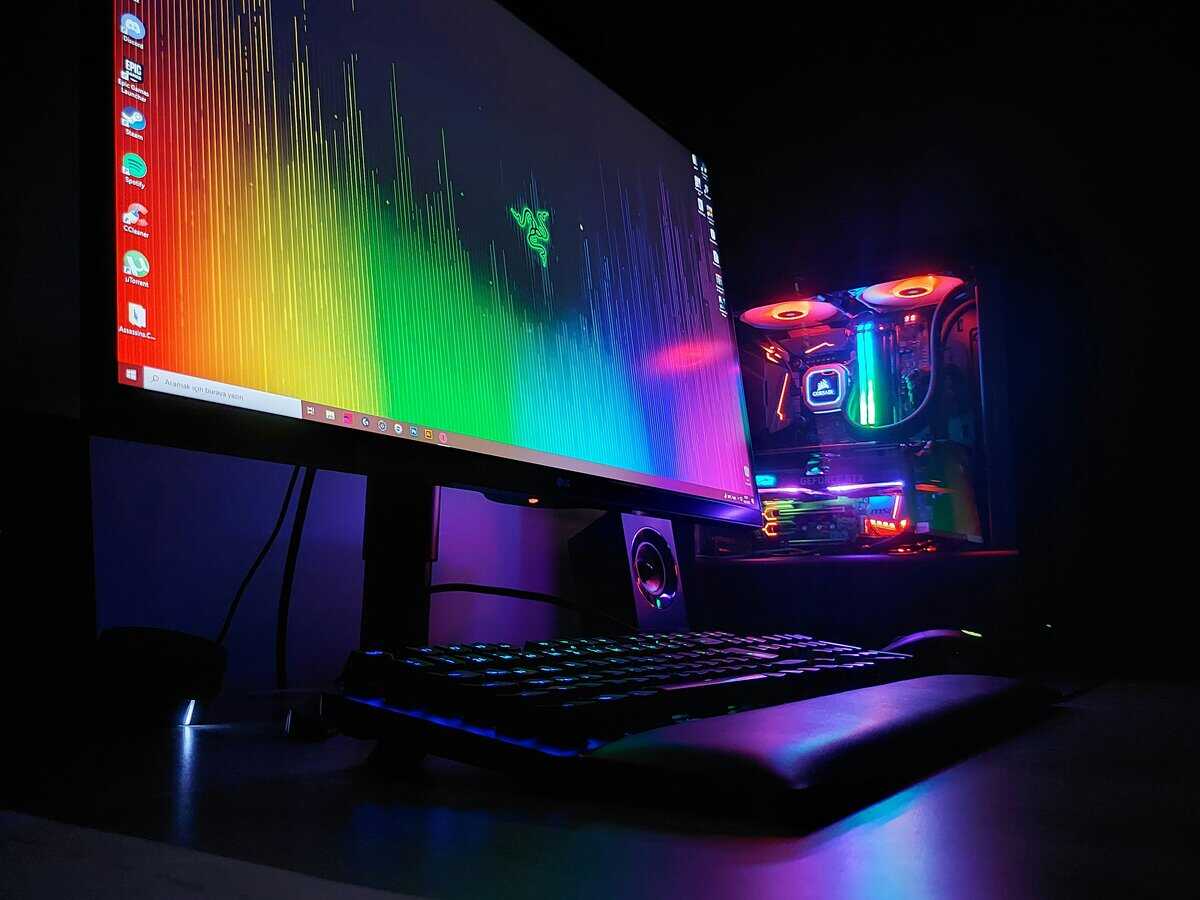
There is no single “best overall” monitor, as every gamer has different needs. The right choice is the one whose strengths align with the games you play most and whose weaknesses are compromises you can accept. A monitor built for competitive shooters makes different tradeoffs than one designed for immersive RPGs.
This section provides specific, justified recommendations for different types of players. We examine the real-world tradeoffs each monitor makes—from panel speed to build quality—to show why it is the right choice for a particular use case. This ensures you invest in a display that enhances your games.
For the Competitive FPS Player
If your library includes titles like Valorant, Counter-Strike 2, or Apex Legends, your priorities are clear: minimal input lag, the highest possible refresh rate, and excellent motion clarity. Visual extras like perfect color accuracy or deep contrast are secondary to raw speed.
A monitor like the Gigabyte M28U is engineered for this purpose. Its 144Hz refresh rate paired with a 1ms response time on its SS IPS panel minimizes motion blur and ghosting, providing an advantage when tracking fast-moving targets.
The build quality is another important factor. The M28U has a wide, sturdy stand that does not wobble during intense gameplay—a small but critical detail. Its construction feels durable and designed to handle regular use. The tradeoff? Its HDR performance is basic, and its colors are not as vibrant as some others. For an FPS player, these are acceptable sacrifices for superior responsiveness.
For the MMO and RPG Enthusiast
Players who spend hundreds of hours in worlds like Final Fantasy XIV, Baldur’s Gate 3, or Cyberpunk 2077 have a different set of requirements. For them, immersion is the priority. This means prioritizing vibrant colors, strong contrast for deep blacks, and a large, sharp screen. A high refresh rate is beneficial but less critical than visual impact.
The Dell G3223Q is a suitable choice for this role. It is built around a high-quality IPS panel focused on delivering a colorful image. Its 32-inch size provides an immersive field of view that makes large landscapes feel grand, while the 4K resolution keeps environmental details and character models sharp.
Dell is known for solid build quality, and this monitor is no exception. It has an understated but tough design with a highly adjustable stand, offering tilt, swivel, and height adjustments for comfort during long gaming sessions. The tradeoff is that its response time, while adequate, will not feel as instantaneous as a dedicated FPS monitor. For the slower pace of most RPGs and MMOs, this is a minor compromise for a more visually impressive experience.
Be honest about where you spend your time. If you play one competitive shooter for every five immersive RPGs, a monitor that excels in color and contrast will serve you better than one built solely for speed.
For the Versatile Streamer and Hybrid Worker
Many gamers also stream, create content, or use their setup for work. This hybrid use case requires a versatile monitor. Key features here are excellent text clarity, versatile connectivity, and a durable, ergonomic build that can handle daily use.
For this user, a monitor like the Acer Nitro XV282K offers a balanced feature set. It provides a 144Hz refresh rate for smooth gaming but also uses a high-quality IPS panel that ensures text is crisp and easy to read during work hours. This sharpness is a direct result of the 4K resolution on a 28-inch screen.
Crucially, it includes HDMI 2.1 ports, making it a good choice for streamers who game on both PC and console. The build quality is functional and reliable, with a stand that offers enough ergonomic adjustment for comfort. The compromise with a monitor like this is that it doesn’t lead in any single category—its colors are not the absolute best, and its HDR is entry-level—but its all-around competence makes it a suitable choice for someone who needs their monitor to do everything well. If you’re gaming on PS5 specifically, check out our best monitor for PS5 guide for console-optimized picks.
To find a PC that can handle both gaming and streaming workloads, learn more about building the best gaming PC under $1000, which pairs well with a versatile 4K display.
How to Set Up and Optimize Your New Monitor
Unboxing your new monitor is just the beginning. To get the performance you paid for, you must adjust a few key settings on the monitor and within your operating system. Many gamers plug in a new display and unknowingly leave its best features disabled.
This process is not complicated, but it is essential. Skipping these steps is like buying a high-performance car and never shifting out of first gear. Let’s review the critical adjustments to ensure your monitor operates at its full potential.
First Things First: Physical Setup and Initial Checks
Before adjusting software, get the physical placement right. Position the monitor so the top of the screen is at or just below eye level to prevent neck strain. Ensure it is on a solid, stable surface—a wobbly monitor is a constant distraction.
Once powered on, check for dead pixels using an online tool. While rare, manufacturing defects should be identified immediately within the return window. A quick inspection of the build quality, from the stand to the housing, is also a good habit.
Now, let’s configure the settings that unlock its gaming performance.
Enabling Core Gaming Features
Your monitor’s most important gaming features are likely disabled by default. You must enable them manually.
- Set the Correct Refresh Rate: Windows often defaults new displays to 60Hz, even on a 144Hz panel. To fix this, right-click your desktop, go to Display settings > Advanced display, and select the highest available refresh rate. This is the single most important change.
- Enable G-Sync or FreeSync: This technology, known as Variable Refresh Rate (VRR), synchronizes your monitor’s refresh rate with your GPU’s frame output to eliminate screen tearing. Enable it in your monitor’s on-screen display (OSD), then open your NVIDIA Control Panel or AMD Software to activate it.
- Basic Color Calibration: Most budget monitors ship with overly cool or saturated colors. In the monitor’s OSD, switch the picture mode to “Standard” or “sRGB.” This provides a more neutral starting point than the “Gaming” presets.
Avoid the “Game Mode” picture preset. It often crushes black levels and oversaturates colors, which can make it harder to spot enemies in dark areas. A calibrated “Standard” mode is almost always better.
Optimizing In-Game Settings for 4K Performance
Achieving a stable 60+ FPS at 4K on a budget GPU requires smart settings management. To maximize your hardware’s performance, focus on these in-game settings:
- Upscaling is Your Best Friend: Use NVIDIA DLSS or AMD FSR set to “Quality” or “Balanced.” These tools render the game at a lower internal resolution and use AI to upscale it to 4K, providing a significant performance boost with minimal visual compromise.
- Lower Demanding Settings: Features like volumetric clouds, complex shadows, and ambient occlusion are performance-intensive. Dropping them from “Ultra” to “High” can reclaim frames without a noticeable difference in gameplay.
- Texture Quality: Keep texture quality at “High” or “Ultra.” You bought a 4K monitor for sharp details, and this setting has a relatively low performance cost if your GPU has enough VRAM (8GB or more is recommended).
Got Questions About Budget 4K Monitors? We’ve Got Answers.
Moving to 4K can be a significant step, and questions often arise even after reviewing specs. Making the final decision on a monitor is important, so let’s address the most common concerns.
Is My GPU Powerful Enough for a 4K Monitor?
This is a major concern. Modern mid-range GPUs—such as an NVIDIA RTX 4060 or an AMD RX 7600 XT—are capable of delivering a solid 4K gaming experience. A top-tier card is no longer required to achieve a stable 60 FPS in many games.
The key is using upscaling technologies like DLSS or FSR. These tools allow your GPU to render at a lower resolution and then intelligently upscale the image to 4K, making smart in-game settings essential.
Should I Choose a 27-Inch or 32-Inch 4K Monitor?
This depends on your desk setup and gaming habits. A 27-inch 4K monitor has a high pixel density (163 PPI), resulting in a very sharp image. It is suitable for smaller desks and often preferred for competitive gaming where detail clarity is critical.
A 32-inch monitor, however, offers greater immersion. Cinematic, open-world games feel more expansive. The tradeoff is a lower pixel density (138 PPI), which can seem less crisp if you sit too close. It also requires more desk space.
Your viewing distance is the deciding factor. For a typical desk setup, a 27-inch monitor often provides a better balance of immersion and sharpness. With a 32-inch model, you will want to sit slightly further back to avoid noticing individual pixels.
Is HDMI 2.1 Necessary for Budget 4K Gaming?
For PC gamers, not always. A DisplayPort 1.4 connection is sufficient for 4K at high refresh rates.
However, HDMI 2.1 is essential for PS5 and Xbox Series X users who want to achieve 4K at 120Hz. If you plan to use your monitor for both PC and a modern console, a model with HDMI 2.1 is a future-proof choice that ensures optimal performance from all your devices.
Do I Need HDR on a Budget 4K Monitor?
It’s important to be realistic about HDR in this price range. Most budget monitors advertise HDR400, which offers a minimal, often unnoticeable improvement over a good SDR image. True, impactful HDR is a premium feature that is rare on affordable displays.
My advice is to not make HDR a primary factor in your decision. Instead, focus on the core specs that will have a more consistent impact on your gaming experience:
Refresh Rate: Target 144Hz for smooth gameplay.
Response Time: Look for a low 1ms GtG to eliminate motion blur.
Panel Quality: IPS panels offer the best all-around color accuracy and viewing angles.
Build Quality: A sturdy, adjustable stand is more important for comfort and long-term use than you might think.
At Budget Loadout, we believe building a great gaming setup shouldn’t break the bank. Our guides focus on value and performance to help you make smart, confident purchases. Find more expert recommendations for your entire gaming rig at https://budgetloadout.com.
Related Articles