You’ve probably got the same desk problem a lot of gamers do. One monitor setup you like. One keyboard and mouse you don’t want to replace. A gaming PC on one side, a work laptop on the other, and a pile of cables that turns every switch between work and play into a small reset ritual.
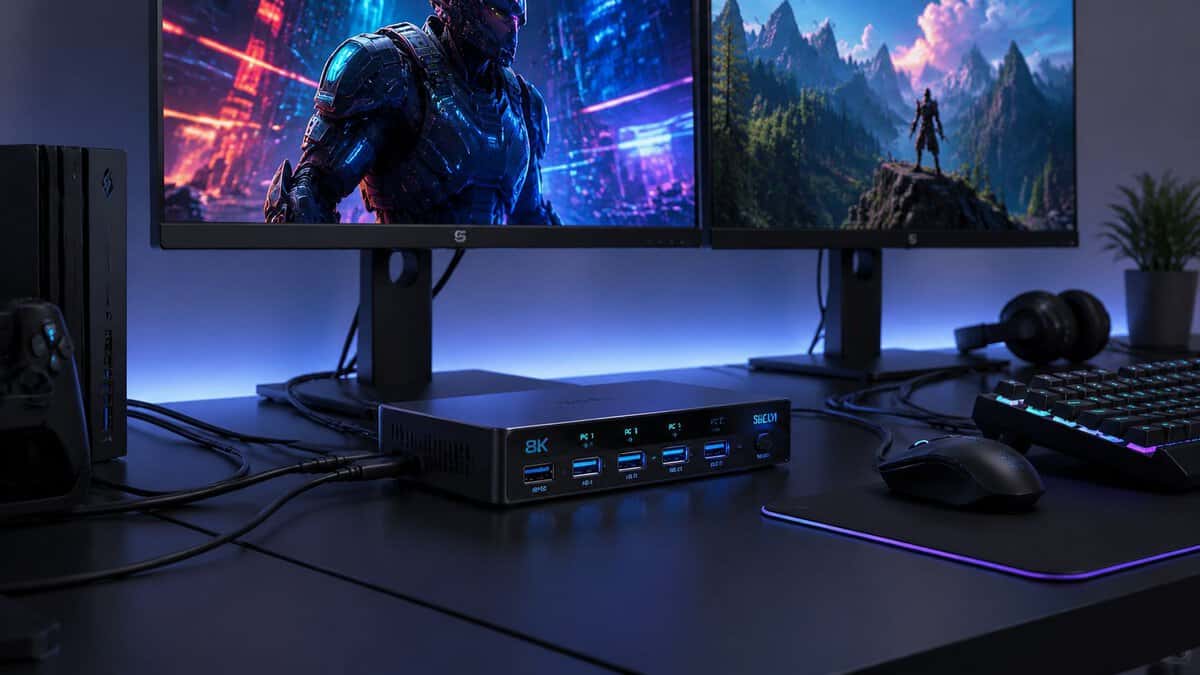
That’s where a KVM switch should help. In the best case, you hit one button and your monitor, keyboard, mouse, and sometimes audio move cleanly from one machine to the other. In the worst case, you buy the wrong box, lose refresh rate, break your mouse software, and add enough delay that shooters feel off.
Most KVM guides stop at port counts and resolution labels. That’s not enough if you care about FPS games, MMO keybinds, streaming, or dual monitor reliability. The best KVM switch for gaming is the one that preserves how your setup already feels. If it changes your aim, drops adaptive sync, or turns your premium peripherals into generic USB devices, it’s not a good fit no matter how convenient it looks.
- 4K at 240Hz keeps fast monitors at full speed
- Triple-monitor and four USB 3.0 ports
- Aluminum build with cables included
- Both PCs must support triple output for all three screens
- A loaded setup means many cables
- More ports than a single-monitor gamer needs
- Two DisplayPort 1.4 screens at 4K 144Hz
- VRR and EDID keep sync and displays stable
- Hotkey switching scales to four PCs
- The most expensive way to switch
- Overkill for single-monitor gamers
- Four-PC wiring takes planning
- Dock and KVM in one, charges a USB-C laptop
- Built for work-laptop-plus-gaming-PC desks
- Gigabit ethernet and five USB-A ports
- Aimed at productivity plus gaming, not max frame rate
- USB-C focus is wasted with two towers
- Dock features add cost over a plain KVM
- Refresh rate support is the spec that matters most: match the KVM to your monitor so 144Hz or 240Hz survives the switch.
- DisplayPort 1.4 handles high-refresh 4K better than most HDMI KVMs, so prefer DisplayPort for fast gaming monitors.
- Look for VRR or adaptive-sync passthrough if you rely on FreeSync or G-SYNC, since cheaper switches often drop it.
- USB 3.0 passthrough keeps high-polling gaming mice and keyboards feeling native instead of laggy.
- Buy for your real setup: single-monitor gamers can spend far less than dual-monitor or hybrid work-and-play desks need.
Table of Contents
Why You Need a KVM Switch and Why Most Are Wrong for You
A KVM switch makes sense when one desk has to do two jobs. During the day, it’s a work station. At night, it’s your gaming setup. If you stream, it might also need to feed chat, OBS, music controls, and a second screen without turning cable management into a mess.
The basic appeal is obvious. One set of peripherals. One button. Less clutter. Fewer cable swaps. KVM switches have lived in offices and server rooms for years, and more gamers now use one to run a gaming PC and a work machine from a single desk.
The catch is that not every KVM is good for a gaming desk. Most are built for offices, server rooms, or general device management, designed to be functional first. Gamers need something narrower and stricter.
What gaming users actually need
For a mixed work and play setup, the right KVM has to do more than switch a display.
- Preserve display performance: If your monitor runs at high refresh and you bought it for smooth motion, the KVM can’t be the bottleneck.
- Handle real peripherals: Gaming mice, custom keyboards, USB headsets, and macro pads often behave badly on basic USB emulation.
- Stay stable during daily use: A work laptop and gaming PC setup means constant switching. Cheap housings and weak ports wear out fast.
- Support your actual desk layout: Single monitor, dual monitor, streaming side screen, or one ultrawide plus one utility display all change what counts as the best KVM switch.
Practical rule: Buy a KVM for the setup you already own, not the one printed on the marketing box.
Why most buyers get burned
A lot of people shop by the wrong filters. They look at “supports 4K,” “has two USB ports,” or “works with two computers,” then assume they’re covered. That’s how you end up with a switch that works perfectly for spreadsheets and feels awful in a match.
For gaming, convenience matters. Performance matters more. If the KVM costs you responsiveness, adaptive sync, wake reliability, or peripheral support, you’ll end up bypassing it and going back to manual cable swaps.
The Core KVM Compromise Gamers Must Avoid
The biggest mistake is treating a gaming KVM like an office accessory. That’s the wrong category. If you play shooters, raid in MMOs, or stream from a desk that changes roles all day, the KVM sits directly in the path between your hands and your system.
One warning matters more than any feature list. Affordable or entry-level KVM switches are not recommended for gaming because they significantly increase input delay, making critical actions like aiming and clicking in FPS games difficult, as the latency can exceed the tight thresholds required for competitive play, as noted in Corsair’s explanation of gaming KVM tradeoffs.
If you’re already chasing down stutter, polling issues, or display response problems, a bad KVM can muddy the picture further. That’s why it helps to understand the rest of your chain too, including how to fix input lag.
USB emulation versus real passthrough
At this point, a lot of frustration starts.
Basic KVMs often use USB emulation. That means the switch tries to present a simple, always-available keyboard and mouse connection to each computer. It’s useful in office setups because machines stay happy during switching. It’s bad for gaming because your devices may stop acting like themselves.
A gaming mouse with onboard profiles, side buttons, firmware features, or high polling behavior may get reduced to generic input. Keyboards with lighting control, custom layers, and macro software can act strange or fail to initialize correctly.
A better option is USB passthrough, sometimes labeled with terms like DDM or dynamic mapping. In plain terms, the KVM behaves more like a transparent bridge instead of pretending to be your peripherals.
Do KVM Switches Add Latency?
The wrong KVM switch can add latency to every click and keypress. The symptoms aren’t always dramatic. That’s why people keep second-guessing themselves.
- In FPS games: aim feels slightly late, flicks feel mushy, or click timing feels inconsistent.
- In MMOs: modifier keys, mouse side buttons, or software-driven macros don’t behave reliably.
- In streaming setups: cameras, microphones, audio devices, and control peripherals may reconnect badly or disappear after switching.
If your setup feels fine when directly connected and worse through the KVM, trust that result. Don’t argue with your hands.
The Trade-Off Worth Paying For in a Low-Latency KVM
Budget-conscious doesn’t mean buying the cheapest switch. It means avoiding false savings. A bargain KVM that forces lower refresh, breaks peripherals, or adds delay usually gets replaced. Then you buy twice.
For gaming, the essential requirements start with clean USB passthrough behavior, stable video signaling, and solid build quality. Everything else is secondary.
Key KVM Specs That Actually Impact Gaming Performance
Spec sheets for KVMs are full of fluff. Gaming buyers need a much shorter list. Focus on video bandwidth, adaptive sync behavior, USB handling, power stability, and build quality. Ignore anything that only sounds good in an office brochure.
Refresh rate support is not optional
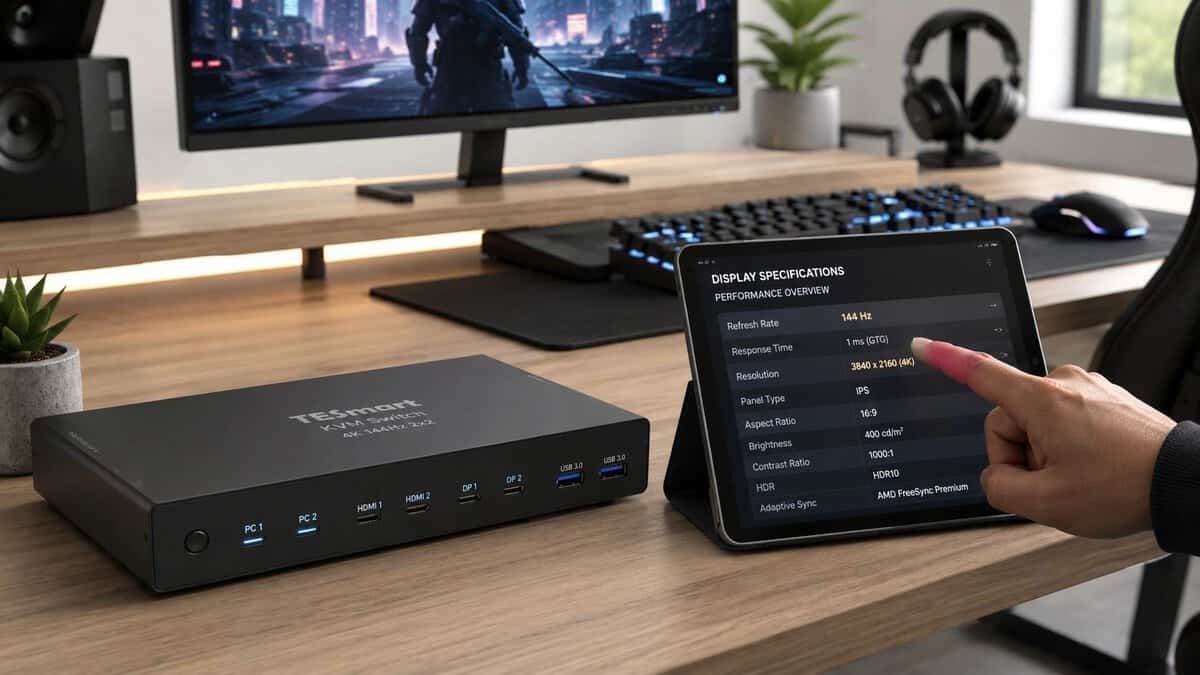
If you game on a high refresh panel, the KVM has to match your monitor’s purpose. High-performance KVM switches for gaming must support refresh rates of at least 165Hz and 240Hz to maintain visual fidelity in fast-paced games, as lower refresh rates cause motion blur and reduce the ability to track targets in MMO and FPS scenarios, according to AV Access on gaming-focused KVM refresh requirements.
That’s the first filter. If a switch tops out below what your display can do, move on.
For cable runs, signal integrity matters too. If you’re chasing flicker or intermittent dropouts, it helps to think about the whole path, including optimizing ethernet cable length in networked setups so you’re not troubleshooting multiple weak links at once.
DisplayPort versus HDMI for gaming KVMs
A lot of gaming setups are better served by DisplayPort-based KVMs, especially if you care about high refresh and PC-centric monitor features. HDMI can still be fine, but it depends heavily on your monitors and target mode.
Use this rule of thumb:
| Connection type | Best fit | Watch out for |
|---|---|---|
| DisplayPort KVM | PC gaming monitors, higher refresh priorities, adaptive sync concerns | Cable quality and monitor compatibility still matter |
| HDMI KVM | Mixed PC and console desks, TVs, simpler work setups | Some switches handle gaming monitor features less cleanly |
If you’re weighing both video standards for a desk rebuild, this breakdown of DisplayPort vs HDMI for gaming helps frame the decision.
Adaptive sync support is where marketing gets slippery
Many product pages say a KVM supports a resolution and refresh target. That doesn’t automatically mean it preserves G-Sync or FreeSync correctly. The monitor may still light up, but adaptive sync can fail, flicker, or disable itself after a switch.
That matters most in games where uneven frame pacing is noticeable. In competitive shooters, it affects tracking feel. In single-player RPGs, it affects smoothness when frame rate fluctuates. In streaming, it can complicate your main display while your second screen runs utility apps.
Buying shortcut: If a listing is very clear about resolution but vague about adaptive sync, assume you need to verify that yourself.
USB ports matter more than buyers expect
Not all USB ports on a KVM should be treated the same.
Use dedicated passthrough for demanding peripherals
Your keyboard and mouse might work in the labeled keyboard and mouse ports, but “works” isn’t the same as “works properly.” Competitive mice, wireless receivers, DACs, stream decks, and some keyboards behave better on passthrough-style ports.
Use the most direct port path for:
- Gaming mice: especially if you rely on side buttons, profile switching, or finicky software
- Mechanical keyboards: especially boards with custom firmware or advanced lighting control
- USB audio gear: headsets, DACs, or microphones that don’t like reconnect cycles
- Streaming accessories: control pads and capture-adjacent accessories that need stable recognition
Avoid overloading weak hub implementations
A lot of weird KVM behavior is really USB instability. One device disconnects, then another acts strange, then you blame the display path. Powered models with cleaner USB handling usually save time.
Power supply and build quality decide long-term stability
This part gets ignored because it isn’t flashy. It should not be ignored.
A lightweight plastic switch with loose ports might survive light office use. It often doesn’t hold up to daily gaming and work transitions, where cables get moved, buttons get pressed constantly, and heat builds over long sessions. A solid enclosure, firm ports, and proper external power matter.
For streamers and dual-purpose desks, durability is part of value. You’re not paying for appearance. You’re paying for a switch you won’t have to troubleshoot every week.
Solving the Dual Monitor and High Refresh Rate Puzzle
Single-monitor KVM shopping is manageable. Dual-monitor KVM shopping gets messy fast. That’s where a lot of gamers overspend on the wrong thing or underspend and end up with one screen behaving correctly while the other becomes the problem child.
The common request is simple enough. One button should switch both screens, your keyboard, your mouse, and maybe audio between a gaming PC and a laptop. The hidden issue is bandwidth, feature support, and monitor behavior after switching.
Users frequently seek KVMs for dual-monitor setups with single-button switching but find existing guides fail to address compatibility with variable refresh rates (G-Sync/FreeSync) or the bandwidth limits of DisplayPort 1.4/2.0, leading to confusion and purchasing mistakes, as discussed in this dual-monitor KVM discussion from r/AskBattlestations.
Where dual monitor setups usually break
The first failure is refresh rate compromise. A switch may support both screens, but only if one or both run below what you expected. The second is adaptive sync. The third is wake behavior after sleep or source switching.
These setups need careful matching between the KVM, both monitors, both source devices, and the cables connecting all of them. If one screen is your main gaming panel and the other is just for chat, browser tabs, or OBS, it’s often smarter to prioritize the main display and accept less from the utility display.
The practical buying rule
If your setup is dual monitor and gaming-first, shop for the KVM around the hardest display mode you need to preserve, not the easiest one. Don’t start with “I only need two monitors.” Start with “My primary display must still feel right in game.”
That usually means:
- Match the switch to the main panel first: your fastest display should set the baseline
- Treat the second display as secondary: Discord and OBS don’t need the same standard as ranked shooters
- Expect fewer true value options: dual-monitor high-refresh KVMs cost more because the job is harder
If your screens rely on newer HDMI features, it also helps to understand HDMI 2.0 vs 2.1 before you assume a switch will pass everything through cleanly.
Two monitors don’t just double convenience. They multiply compatibility points.
When spending more is justified
This is the category where “budget” means disciplined, not cheap. If you only need office productivity on both displays, lower-tier options may be fine. If one screen is for competitive gaming and the other supports your stream or chat, the KVM has to behave like part of a gaming signal chain. That’s where paying for stronger bandwidth handling and better switching logic stops being optional.
Best KVM Switch Recommendations for Gamers in 2026
Here’s the short list first. These picks are grouped by use case, not hype. The goal is value for the category, solid daily usability, and fewer surprises with gaming gear.
KVM Switch Recommendations at a Glance
| Model | Best For | Ports | Max Res/Refresh | Key Feature |
|---|---|---|---|---|
| UGREEN 8K DisplayPort KVM | Best overall gaming value | 2x DisplayPort 1.4 + 1x HDMI 2.1, 4x USB 3.0 | 4K@240Hz / 8K@60Hz | Triple-monitor, two-PC switching |
| TESmart Dual-Monitor KVM | High-refresh dual-monitor setups | 2x DisplayPort 1.4, USB 3.0, gigabit LAN | 4K@144Hz / 8K@60Hz | VRR and EDID for tear-free dual screens |
| AV Access iDock P10 | Hybrid gaming PC and work laptop | 2 monitors, gigabit LAN, USB-C PD, 5x USB-A | 4K dual-monitor | USB-C dock plus KVM in one |
UGREEN 8K KVM Switch: Best Overall for Gaming
If you want the strongest all-around gaming pick, the UGREEN 8K DisplayPort KVM Switch is the one to beat. It runs two DisplayPort 1.4 inputs plus one HDMI 2.1 port and pushes 4K at 240Hz or 8K at 60Hz, so a high-refresh gaming monitor keeps every frame when you switch between two PCs.
It also drives up to three monitors and includes four USB 3.0 ports for a keyboard, mouse, and fast peripherals. The aluminum shell and bundled cables make it feel well above its budget, which is why it clears the bar most enthusiast switches set at several times the price.
Pros
- True high-refresh gaming: 4K at 240Hz over DisplayPort 1.4 keeps fast monitors at full speed
- Triple-monitor and USB 3.0: drives up to three displays and four fast USB ports for real peripherals
- Punches above its price: aluminum build and included cables undercut pricier enthusiast boxes
Cons
- Both PCs need matching outputs: using all three monitors requires each computer to support triple output
- Cabling takes a minute: a loaded three-screen, two-PC setup means plenty of connectors
- Overkill for one display: single-monitor users may not need the extra ports
TESmart Dual-Monitor KVM: Best for High-Refresh Dual Screens
For a true dual-monitor battlestation, the TESmart 4K@144Hz DisplayPort KVM switches two DisplayPort 1.4 monitors across as many as four computers. It supports 4K at 144Hz, 8K at 60Hz, and, crucially, includes VRR, so adaptive sync keeps working after the signal passes through the switch.
Extras like EDID emulation, gigabit network passthrough, and hotkey switching make it the pick for people who live in a two-screen layout and refuse to give up refresh rate or tear-free frames. It costs more than a single-monitor box, but that is the price of clean dual-screen switching.
Pros
- Real dual-monitor high refresh: two DisplayPort 1.4 screens at 4K 144Hz stay sharp and fast
- VRR and EDID support: adaptive sync survives the switch and displays stay recognized
- Scales to four PCs: hotkey switching and gigabit passthrough suit heavy multi-system desks
Cons
- Premium tier: dual-monitor high-refresh switching is the most expensive route
- More than solo gamers need: overkill if you only run one display
- Cabling is involved: four-PC, two-monitor wiring takes planning
AV Access iDock P10: Best for Hybrid Work and Gaming
If your desk is part gaming rig and part work laptop, the AV Access iDock P10 USB-C Docking KVM is the clean answer. It switches two monitors between two computers while also working as a full USB-C dock, with gigabit ethernet, power delivery to charge a laptop, and five USB-A ports for shared peripherals.
This is built for the exact problem a lot of readers have: a gaming tower and a work laptop sharing the same screens, keyboard, and mouse. One press moves everything over, and the laptop charges while it is docked.
Pros
- Dock plus KVM in one: charges a USB-C laptop while sharing two monitors and peripherals
- Built for hybrid desks: designed for a work laptop and gaming PC on one setup
- Wired networking and USB: gigabit ethernet and five USB-A ports keep everything connected
Cons
- Not a pure high-refresh box: aimed at productivity plus gaming rather than max frame rate
- Laptop-centric: the USB-C docking focus is wasted if both machines are towers
- Step up from basic switches: the dock features add cost over a plain KVM
Setup Tips and Troubleshooting Common Issues
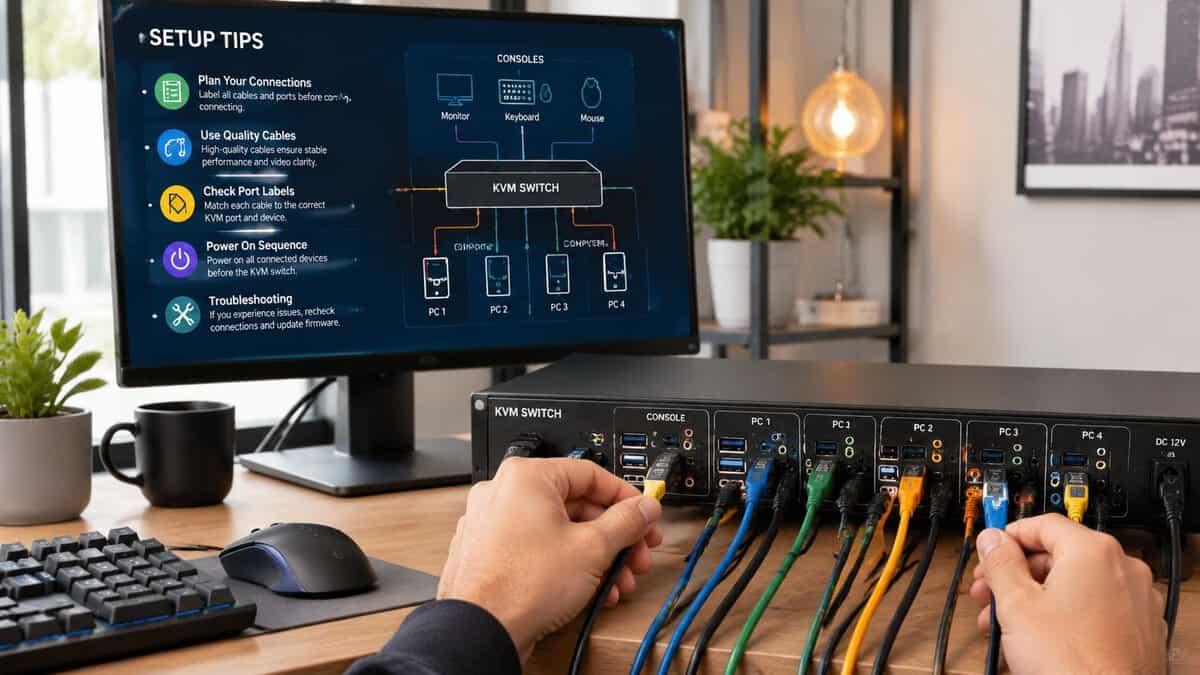
A good KVM can still feel bad if the setup is sloppy. Most complaints come from cables, wrong port choices, inconsistent power, or a bad startup order.
Use this checklist first
- Plug gaming peripherals into passthrough-style USB ports: if your mouse buttons or keyboard features act strange, move them off the emulated ports.
- Use short, high-quality display cables: many flicker issues are really cable issues.
- Power the KVM properly: if the unit has a dedicated power adapter, use it.
- Set your displays manually after first boot: confirm refresh rate and sync settings on both machines.
- Test one monitor at a time: isolate whether the issue is the KVM, a cable, or a specific display mode.
If your desk is already getting reorganized, this guide on how to set up dual monitors pairs well with KVM installation.
Common symptoms and likely causes
| Symptom | Likely cause |
|---|---|
| Mouse software features missing | Device connected through emulated USB path |
| Screen flicker or blanking | Weak cable, unstable signal, or too-ambitious display mode |
| Monitor wakes on one system but not the other | Handshake issue between KVM, monitor, and source |
| Audio device disappears after switching | USB re-enumeration problem or wrong port choice |
Start troubleshooting by simplifying the chain. One monitor, one mouse, one keyboard. Add complexity back only after the core path is stable.
Is a KVM Switch Actually Worth It for Your Setup
For the right desk, yes. For the wrong desk, no.
A gaming KVM is worth it when you switch between machines constantly and care enough about your setup that manual cable swapping feels like punishment. It’s especially useful if you work from the same desk where you game, or if you stream and need a cleaner way to move your core peripherals between roles.
The alternatives are all compromises. Manual swapping is cheap, but it gets old fast and wears ports. A USB switch plus manual monitor input changes can work if you’re trying to save money, but it’s clunkier and less smooth. Software-based options are fine for productivity, but they aren’t a serious answer for gaming where direct responsiveness matters.
There’s also a real information problem in this category. Most KVM listings promise a “fast response time” without publishing any latency figures, which leaves competitive gamers guessing. That’s why so many buyers end up relying on trial and error instead of clean, measurable comparisons.
So the honest answer is simple. If your desk is casual, your games are slower paced, and you don’t mind a few extra steps, you may not need a dedicated gaming KVM. If you want one-button switching without sacrificing the feel of your setup, the best KVM switch is a worthwhile upgrade. Not because it’s flashy. Because it removes friction every single day.
Running a wall of screens as well? Our 4-monitor setup guide covers the mounts, ports and layout.
Frequently Asked Questions
Quick answers to the questions gamers ask most before buying a KVM switch.
Does a KVM switch add input lag for gaming?
A quality KVM adds no perceptible lag because it passes video and USB signals straight through. Lag problems come from cheap switches that emulate USB or cap refresh rate, so pick one that supports your monitor’s full refresh and offers real USB passthrough.
Should I get a DisplayPort or HDMI KVM for gaming?
DisplayPort 1.4 is the safer choice for high-refresh gaming because it handles 4K at 144Hz or 240Hz more reliably than most HDMI KVMs. Use an HDMI KVM mainly for mixed PC and console desks or simpler setups where top refresh rates are not the priority.
Will a KVM switch keep FreeSync or G-SYNC working?
Only if it explicitly supports VRR or adaptive-sync passthrough. Many budget switches drop it, so if tear-free frames matter to you, confirm the spec sheet lists VRR before buying.
Can one KVM run dual monitors at high refresh?
Yes, but you need a dual-monitor model built for it, such as a two-DisplayPort switch rated for 4K 144Hz. Single-output switches cannot drive a second high-refresh screen, so match the port count to your display setup.
Do I need USB 3.0 on a KVM for gaming?
It helps. USB 3.0 passthrough keeps high-polling gaming mice and mechanical keyboards responsive. USB 2.0 ports handle basic peripherals but can feel less snappy with fast gaming gear.
If you’re building a gaming and work setup without wasting money on the wrong accessories, Budget Loadout is worth bookmarking. It focuses on value, durability, and the specs that affect how your desk feels in real use.
Related Articles