You want a Stream Deck. You look at the price, then look back at your keyboard, old phone, and half-finished setup, and start wondering if there’s a smarter way to get the same control without paying flagship money.
There usually is.
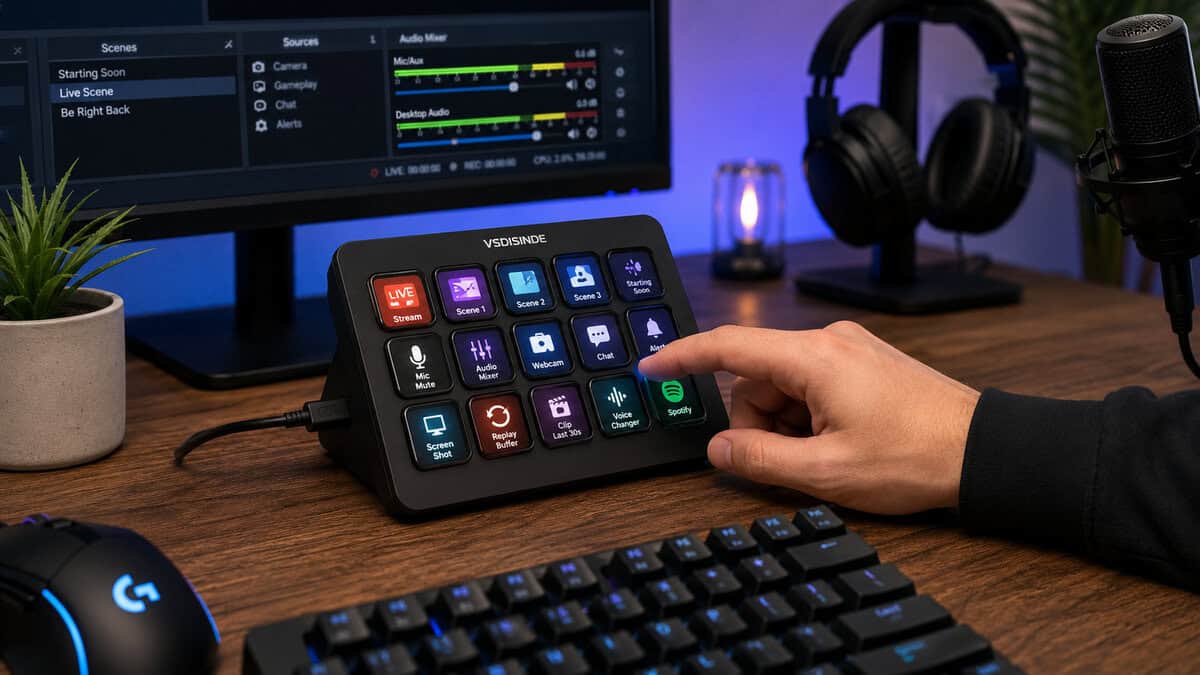
The best stream deck alternative isn’t always another little box with keys. Sometimes it’s a lower-cost hardware macro pad. Sometimes it’s an app on the phone you already own. Sometimes it’s a DIY setup that takes more effort but gives you exactly what you need. For budget-minded gamers and new streamers, that distinction matters more than brand recognition.
- 15 LCD keys is enough for a real stream profile without constant page-juggling
- Drag-and-drop software keeps setup fast, with no scripting required
- OBS, YouTube, Twitch, and Discord integrations work out of the box
- Case feels lighter than premium alternatives, so set it on a stable surface
- Plugin ecosystem is smaller than the Elgato Stream Deck’s mature library
- USB-only, with no wireless or Bluetooth option for clean cable runs
Takes the opposite approach to a big key grid. Six keys and three dials fit where a fifteen-key deck will not, and the dials handle the continuous adjustments that buttons genuinely cannot.
- Dials suit volume, opacity and brightness better than keys do
- Small enough for a desk that is already full
- Two-year warranty is unusual at this price
- Six keys means paging for anything beyond a core profile
- Far smaller review base than the VSDinside
- No LCD screens on the keys
The closest thing here to full Stream Deck parity, and the only pick with both LCD keys and encoders. The built-in dock means it can retire a separate hub from the desk.
- Only pick with both LCD keys and encoder knobs
- Built-in dock adds HDMI, audio and USB passthrough
- Profiles for CapCut and DaVinci Resolve, not just OBS
- Most expensive option on this list
- Very new, with only a handful of reviews so far
- Larger footprint than a plain macro pad
- The Elgato Stream Deck’s main moat is software polish, not hardware. Third-party macro pads catch up at 30-50% of the price.
- Software-only setups (Touch Portal on a phone) cover 100% of Stream Deck functions for under $15. Try this first if you have a spare phone.
- Hardware macro pads still beat phone apps for pure speed and muscle memory during live broadcasts.
- DIY macro pads only make sense if you actually enjoy tinkering. Buying VSDinside-tier hardware is faster and cheaper for most people.
- Match the layout to your role: 8-12 keys for casual streaming, 15+ for full scene-switching workflows, 24+ for editors and power users.
Table of Contents
Don’t Need an Elgato Stream Deck? Here’s What to Get Instead
If you’ve been pricing out a control pad for scene switches, mute toggles, clips, push-to-talk, shortcuts, or MMO hotkeys, you’ve probably hit a familiar obstacle. The market leader is well known for a reason, but it also costs enough to feel hard to justify when your mic, keyboard, headset, and capture gear already need part of the budget.
That’s why it helps to stop thinking in terms of knockoffs and start thinking in terms of workflow per dollar.
A good alternative usually falls into one of three buckets:
| Option | Best for | Main strength | Main trade-off |
|---|---|---|---|
| Dedicated hardware macro pad | Streamers and gamers who want physical buttons | Fast muscle memory and desk permanence | Costs more than software |
| Phone or tablet control app | Beginners and casual streamers | Very low cost and flexible layouts | Needs a spare device and setup time |
| DIY macro pad or scripting setup | Tinkerers and power users | Maximum customization | Takes patience and troubleshooting |
For a first setup, I’d rather see someone buy carefully than buy cheaply. A bad macro pad with flaky software ends up in a drawer. A smart budget pick becomes part of your daily routine for streaming, editing, or even general desktop control.
If you’re still piecing together the rest of your gear, a practical streaming setup for beginners matters more than chasing premium accessories one by one.
Key Features That Define a Good Stream Deck Alternative
A lot of buyers focus on key count first. That’s understandable, but it’s rarely the thing that determines whether you’ll keep using the device after the first week.
Practical rule: Software stability matters more than having a few extra buttons.
If the app crashes, loses profiles, forgets assignments, or lags when switching pages, the hardware doesn’t matter. A macro pad is supposed to remove friction. If it adds friction, it fails.
Software comes first
A good control pad needs clean setup, reliable profile switching, and solid support for the apps you use. Streaming scenes, audio controls, chat commands, clip triggers, editing shortcuts, and launcher actions all depend on software behaving properly.
Key feel changes how you use it
The second thing I check is key feel. For live streaming, tactile confidence matters. You want to know you hit mute, scene change, replay, or marker without looking down too long.
There isn’t one perfect switch type for everyone. Some people like softer presses for quick taps, while others want firmer feedback to avoid accidental triggers. If you’re not sure why that matters, this breakdown of mechanical keyboard switches explained helps frame the trade-off. The same logic carries over to macro pads.
Build quality decides whether it survives daily use
Budget buyers shouldn’t chase the lowest price. They should chase the lowest price that still gives them:
- Consistent buttons: No wobble, sticking, or missed inputs.
- Usable screens or labels: If keys are hard to read, the pad slows you down.
- Decent housing: Cheap plastic is fine if it feels solid. Thin, creaky plastic usually doesn’t age well.
- Reliable cable connection: A loose port ruins live use fast.
Integration matters by game and task
An FPS player usually needs fewer, faster actions. An MMO player often needs layered shortcuts and folders. A streamer needs immediate access to scene changes, audio routing, and chat functions. An editor may care more about macros than live controls.
Buy for the actions you repeat every session, not for the actions you might use once a month.
That mindset keeps you from overspending on features that look good on a product page but don’t help on your desk.
The Best Hardware Macro Pads for Streaming and Gaming
Hardware still makes the most sense for people who stream often, game at a fixed desk, or want muscle memory instead of touching a screen. You hit a physical key faster than you hunt for a phone app page, especially when you’re mid-match or handling a live scene switch.
VSDinside Stream Dock M18: best overall
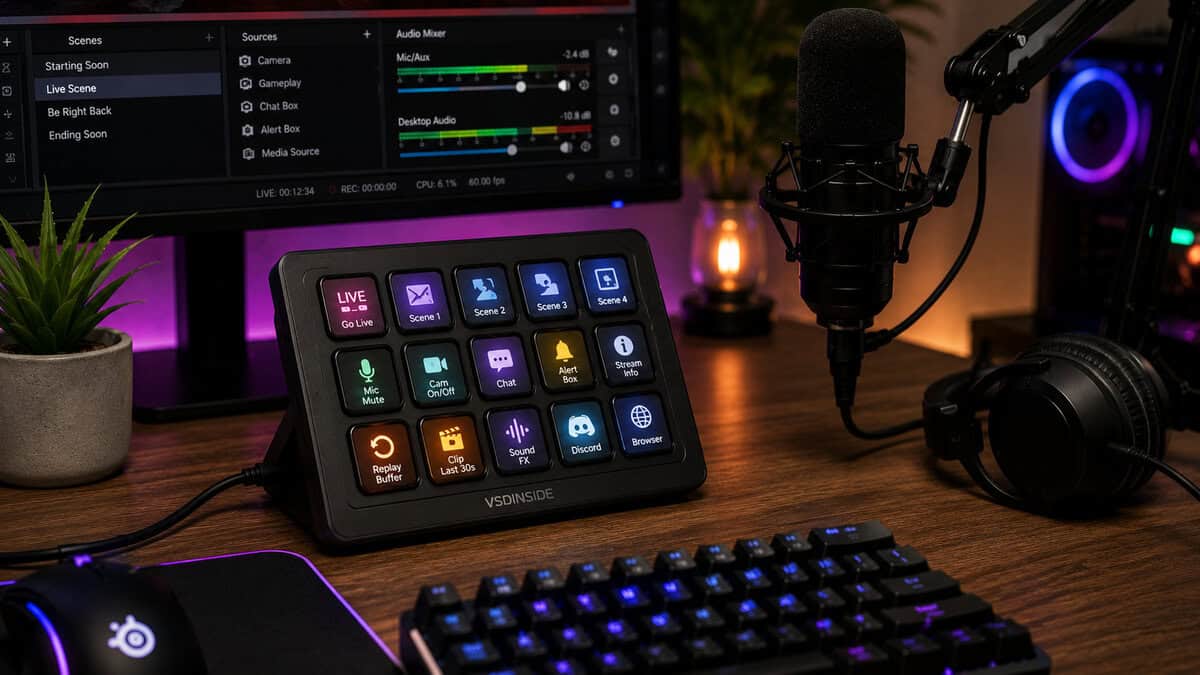
The strongest value hardware option right now is the VSDinside Stream Dock M18. It carries 18 keys in total, 15 of them LCD screens plus three physical buttons, drag-and-drop profile software, and an RGB light ring around the edge. It works on Windows 11 and newer and macOS 11 and newer.
That matters, as many budget products usually cut corners here. They either remove the screens, reduce key count, or ship with weak software. This one stands out because it tries to keep the parts people use.
What works well in practice:
- Physical layout: Fifteen keys is enough for a real stream profile without immediate page juggling.
- Usable customization: Individual key visuals help during live use.
- Lower entry cost: It lands in the range where beginners can justify it.
What you still need to think about:
- Long-term durability: Value hardware can be excellent, but budget devices need a closer look at fit, finish, key wobble, and cable strain relief.
- Software maturity over time: Fast load times are good. Long-term reliability is what keeps a device on your desk.
| Controller | Keys | Dials or knobs | Standout | Best for |
|---|---|---|---|---|
| VSDinside Stream Dock M18 | 18 total, 15 LCD | None | RGB light ring, drag-and-drop profiles | The most keys for a full stream profile |
| ActionRing N3 | 6 | 3 dials | Compact body with a plugin library | Tight desks and dial-driven control |
| ULANZI D200X | 14 LCD | 3 encoders | Built-in 8-in-1 dock with HDMI and audio | Replacing a dock and a deck at once |
ActionRing N3: Best Budget Stream Deck Alternative
The ActionRing N3 takes the opposite approach to a big key grid. You get six customizable keys and three dials, which sounds thin until you remember that dials do things buttons cannot: volume, scene opacity, and brightness all want a range rather than an on and off. It runs on Windows and macOS and taps the same kind of plugin library the bigger decks use.
- Small footprint: six keys and three dials fit where a fifteen-key grid will not.
- Dial control: continuous adjustments are genuinely better on a knob than a key.
- Two-year warranty: unusual at this end of the market.
What you still need to think about: six keys means paging for anything beyond a core set, so it suits a tight, well-chosen profile rather than a sprawling one. It also carries a far smaller review base than the VSDinside, so there is less collective evidence about how it holds up over a year.
ULANZI D200X: best if it replaces your dock too
The ULANZI D200X is the closest thing here to full Stream Deck parity, with 14 LCD keys and three encoder knobs. What separates it is the built-in 8-in-1 dock: HDMI out at 4K60, a 3.5mm audio jack, and USB passthrough, so it can retire a separate hub from your desk. It is built around editing workflows and handles CapCut and DaVinci Resolve alongside the usual streaming apps.
- Real LCD keys plus encoders: the only pick here with both.
- Doubles as a dock: HDMI, audio and USB in the same box.
- Editor-focused: profiles for CapCut and Resolve, not just OBS.
What you still need to think about: this is the most expensive option on the list and it is very new, with only a handful of reviews so far. If you want a proven track record over the newest feature set, the VSDinside has the far larger body of buyer feedback. Buy this one for the dock and the encoders, not because the rating looks perfect on a tiny sample.
When a hardware pad makes more sense than software
Some players absolutely should choose physical controls first.
For FPS gaming, a hardware pad is best when you need blind access to push-to-talk, instant replay, mute, or quick utility actions. Touch controls work, but physical keys are easier to trust without looking away for long.
For MMO play, hardware gets even more useful. Folder systems, page switching, and repeated utility macros make more sense when your hand can build memory around a fixed layout. If you already prefer compact peripherals, a smaller desk setup can pair well with something like a 60 percent keyboard layout, leaving room for a macro pad without crowding your mouse space.
Who should skip hardware
Not everyone needs another device on the desk.
Skip dedicated hardware if you’re still testing whether you’ll use macros every session. Skip it if your main need is simple scene switching, audio toggles, or launching a few apps. In those cases, software alternatives often deliver more value because they let you prove the workflow before you buy more gear.
The best hardware macro pad is the one you can hit without thinking and trust without troubleshooting.
That’s the standard. Not the logo, not the price tag, and not how many promo photos it has.
Powerful Software Alternatives That Use Your Phone or Tablet
A lot of people searching for the best stream deck alternative don’t need hardware at all. They need function. If you already own a phone or tablet that can stay on your desk during streams, software is often the smartest starting point.
Why phone-based control works
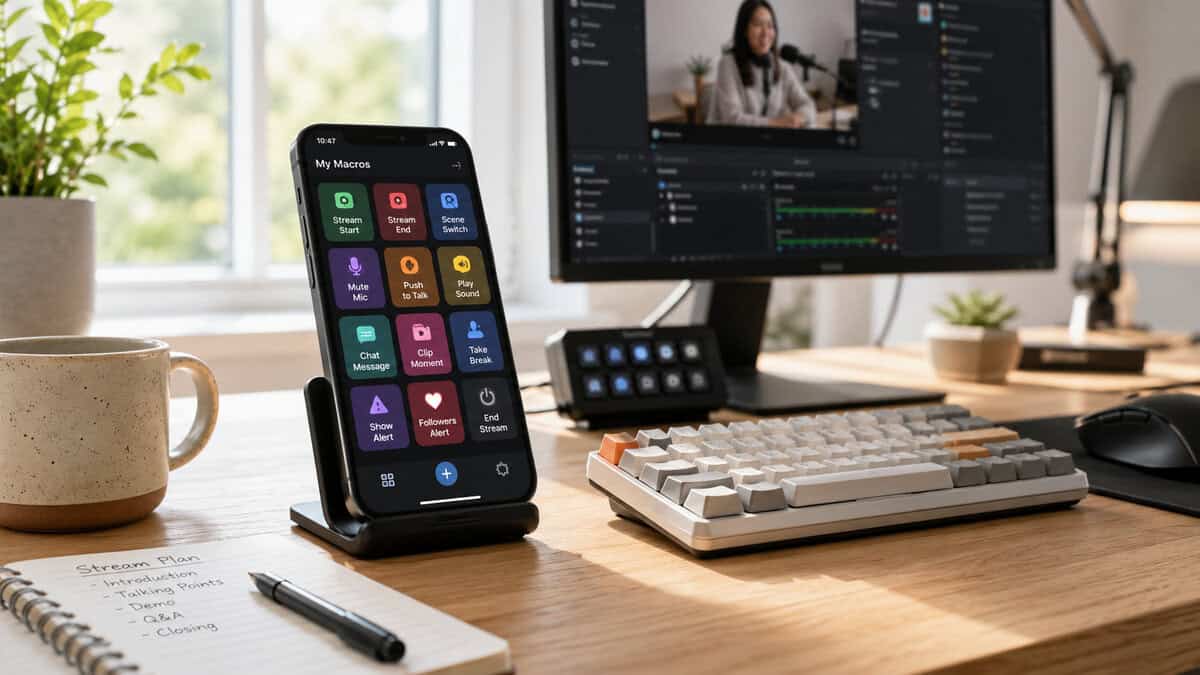
Touch Portal is the clearest example of why software-only setups deserve more attention. According to Techpoint’s tested guide to stream deck alternatives, it can save users up to 95% compared to hardware decks, the Pro version is a one-time $12.99 purchase, it mirrors 100% of a physical deck’s functions, and it had over 1 million downloads by 2025.
That’s not a side-grade. For many people, it’s the right first choice.
If your needs are scene changes, microphone mute, soundboard actions, Discord controls, launch buttons, or simple automation, a phone app handles it well, especially with OBS Studio’s built-in WebSocket support for remote control. You also get something physical hardware often struggles with at the same price point: extremely flexible layouts. You can create pages for streaming, editing, work, and gaming without needing a bigger device.
The real trade-offs
Software control has downsides, and they’re worth stating clearly.
- You need a spare device: Using your main phone can get annoying if messages, calls, or battery worries interrupt your setup.
- Touchscreens lack tactile feedback: For blind use, physical buttons still win.
- Setup takes intention: The value is great, but only if you spend the time building pages you’ll use.
That said, for beginner streamers, students, or anyone testing a workflow, this is usually the best place to start. It’s also useful for hybrid setups. Many streamers use hardware for their most critical live actions and keep a phone page for secondary controls.
Where software control works best
A phone or tablet macro setup makes the most sense when you want:
- A low-risk starting point: Great for first-time streamers.
- Portable control: Easy to move between desk setups.
- Secondary pages: Good for editing macros, launcher controls, or utility tasks.
- A cheap expansion path: Pair it with the rest of your setup instead of replacing everything.
If you’re still sorting capture and content basics, it also pairs well with free recording software options because both choices keep startup costs under control without gutting functionality.
Building Your Own Macro Pad: The DIY Option
DIY sits in a different category. It’s not the simplest route, and it’s not the best fit for everyone, but it can be the most satisfying one if you like tinkering.
The easy DIY path
The easiest version of DIY doesn’t involve soldering. It’s repurposing what you already have.
An old numpad, spare keyboard, unused phone, or old tablet can all become a macro surface. Add scripting, hotkeys, or lightweight macro software, and you can handle stream actions, clips, mute toggles, game utilities, or editing shortcuts without buying a dedicated controller. This route works best for people who don’t mind a little setup and troubleshooting.
DIY makes sense when your patience is worth more than your money.
The full custom route
The more advanced route is building a custom macro pad around hobby electronics. That gives you maximum control over layout, switches, firmware behavior, and enclosure design. It also asks more from you. You need time, problem-solving tolerance, and a realistic view of your own skill level.
People often stumble on this point. They assume DIY is always cheaper. Sometimes it is. Sometimes it turns into a project that costs more in effort than buying a finished device would have. If you enjoy the process, that’s fine. If you just want working controls for tonight’s stream, it’s probably the wrong choice.
Who should actually do this
DIY is a good fit for:
- Tinkerers: You enjoy building and adjusting things.
- Power users: You want very specific macros or layouts.
- People with spare gear: Old devices become useful again.
It’s a poor fit for someone who wants plug-and-play simplicity, polished software, and zero downtime.
Which One Fits Your Setup
The right choice depends less on hype and more on what kind of player or streamer you are.
For the beginner streamer on a tight budget
Start with phone-based software control. It gives you real macro functionality without committing hardware money too early. If you only need scene changes, mute, clips, and app launches, this is enough for a lot of setups.
For the gamer who wants tactile control
Choose the dedicated hardware route. A physical pad is easier to trust during live use, especially if you want quick access without looking away from the game. That’s better for stream control, utility shortcuts, and repeat actions that need muscle memory.
For the MMO player managing lots of actions
Go with hardware first, especially if you want layered profiles and repeatable layouts. MMO players benefit more from fixed positions than touchscreen pages because there’s less hesitation once the layout becomes familiar.
For the FPS player who needs speed without clutter
Keep it simple. A smaller hardware macro pad or a lean phone layout is usually enough. You don’t need a wall of commands. You need a few reliable ones that don’t cause accidental presses or desk crowding. Pairing it with one of the best budget mechanical keyboards usually makes more sense than overspending on control accessories alone.
For the tinkerer and repurposer
DIY wins if you enjoy setup and want complete freedom. If you’ve got an old tablet sitting around, that path can be especially practical. Community benchmarks cited earlier note that repurposed tablet control through Deckboard can achieve under 50ms latency, which is responsive enough for most streaming and gaming needs outside professional competitive play.
If you want the safest recommendation, start with software. If you know you’ll use macros every day, buy hardware. If you enjoy building things, go DIY.
Frequently Asked Questions
Is a macro pad really cheaper than buying a Stream Deck?
Yes, and the gap is meaningful. The Elgato Stream Deck MK.2 runs around $150 and the XL is closer to $250. The VSDinside Stream Dock M18 covers the same ground with similar drag-and-drop software at a fraction of that. For pure value-per-feature, third-party macro pads beat Elgato by 50-70%. The premium you’re paying for an Elgato is plugin ecosystem maturity and case build quality, not core functionality.
Can I use my phone as a Stream Deck without paying for an app?
Yes, several free options exist. Touch Portal has a free tier that covers basic OBS scene switching and audio toggles. Stream Deck Mobile (Elgato’s own app) is also free with limited features. The paid upgrades unlock more buttons, plugins, and customization, but you can absolutely test the workflow without paying first. Don’t buy hardware until you’ve confirmed you actually want a dedicated macro surface.
What’s the difference between a Stream Deck and a regular macro keyboard?
A Stream Deck has small LCD screens under each key showing icons that change based on the active profile. A macro keyboard usually has fixed legends or just blank keys. The dynamic icons are the Stream Deck’s killer feature, because they let you switch between dozens of profiles (gaming, streaming, video editing) and the buttons re-label themselves. A blank macro pad makes you remember what each key does, which gets unwieldy past 8-10 keys.
Do these alternatives work with OBS, Streamlabs, and Twitch out of the box?
The good ones do. VSDinside, Mirabox, and most modern third-party macro pads ship with software that natively integrates with OBS (via WebSocket), Streamlabs, Twitch chat, and Discord. The integrations aren’t as polished as Elgato’s plugin store, but they cover the core actions: scene switching, audio mixing, mic mute, alert toggles, soundboard playback, and clip controls. If you need niche third-party plugins (e.g., Philips Hue control, Spotify Connect), Elgato’s ecosystem still wins on breadth.
What is the best cheap Stream Deck alternative?
For most streamers the VSDinside macro keypad is the best cheap Stream Deck alternative, with 15 LCD keys and drag-and-drop software at roughly a third of the price. If you want a budget Stream Deck style controller with dials, the ActionRing N3 pairs six customizable keys with three dials. A phone or tablet app is a cheaper alternative still, because it runs on hardware you already own.
If you’re building a setup that needs to perform well without wasting money, Budget Loadout is worth bookmarking. It’s built for gamers and streamers who care about value, durability, and honest trade-offs, not flashy upsells.
Related Articles