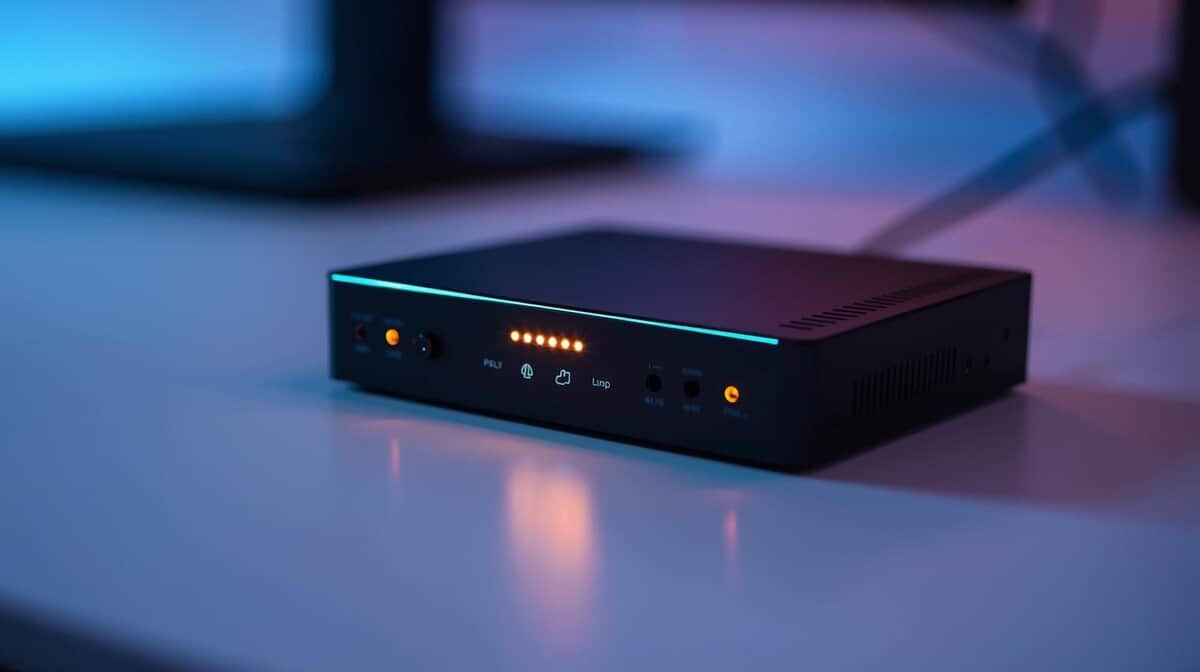
So what is a capture card, and why do so many streamers swear by them? A capture card is a piece of hardware that solves a common streaming problem: performance loss. It connects a primary gaming device—like a PS5, Xbox, or a dedicated gaming PC—to a second computer that handles the recording or streaming.
It takes the raw video and audio output from your gaming machine and converts it into a format that broadcasting software, such as OBS Studio, can process. The main benefit is that it does this without consuming your gaming PC’s resources, preventing in-game performance drops.
- A capture card offloads recording and streaming to a second PC, preventing performance drops on your gaming machine
- External capture cards connect via USB and work with any setup including consoles, while internal PCIe cards offer slightly lower latency
- For budget streamers, the Elgato HD60 X and AVerMedia Live Gamer Mini are strong picks under $150 with 1080p60 passthrough
- You only need a capture card if you stream from a console or run a dual-PC setup — single-PC streamers can use software encoding instead
- External USB capture cards work with any setup and are easier to install, while internal PCIe cards offer slightly lower latency for competitive streamers
Table of Contents
- 4K60 passthrough with HDR10 and VRR
- Plug-and-play USB — works with PC and Mac
- Zero-latency passthrough for unaffected gaming
- Capture tops out at 1080p60
- No built-in audio mixing
- Slight USB latency vs PCIe
- True 4K60 capture — not just passthrough
- PCIe connection for lowest possible latency
- Supports 1080p240 for competitive FPS streaming
- Requires PCIe slot; no laptop use
- More involved install than USB
- Pricier than external cards
What Does a Capture Card Actually Do?
When you stream and play from a single PC, your graphics card (GPU) is forced to perform two resource-intensive jobs simultaneously. It has to render your game at a high frame rate while also compressing and encoding a high-quality video of that gameplay for your stream.
This dual workload often leads to performance issues, such as stuttering gameplay for you or a laggy, pixelated stream for your audience. A capture card is designed to eliminate this conflict.
By offloading the video encoding task, the capture card lets your gaming hardware focus entirely on running the game. Your GPU can dedicate all of its resources to maintaining high frame rates, which is critical for a smooth gaming experience. The capture card and the second PC handle the broadcast.
Why This Matters for Different Game Genres
This separation of tasks is what elevates a stream’s quality and is particularly important for gamers who need consistent performance from their hardware.
Here’s how a capture card helps in specific scenarios:
Competitive FPS Gaming: In titles like Valorant or Call of Duty, every frame is critical. A capture card prevents the stream from consuming resources, which helps eliminate input lag and frame drops during intense firefights.
MMO and RPG Streaming: For visually demanding games like Final Fantasy XIV or Elden Ring, a capture card preserves graphical fidelity for your viewers without requiring you to lower your in-game settings.
Console Streaming: While the PS5 and Xbox include basic streaming functions, they lack customization. A capture card lets you send your console gameplay to a PC, enabling the use of professional overlays, alerts, and custom scenes.
A capture card is used to create a high-quality stream without compromising gameplay performance. It isolates the demands of gaming from the demands of broadcasting, allowing both to function optimally.
How a Capture Card Works in a Dual-PC Setup
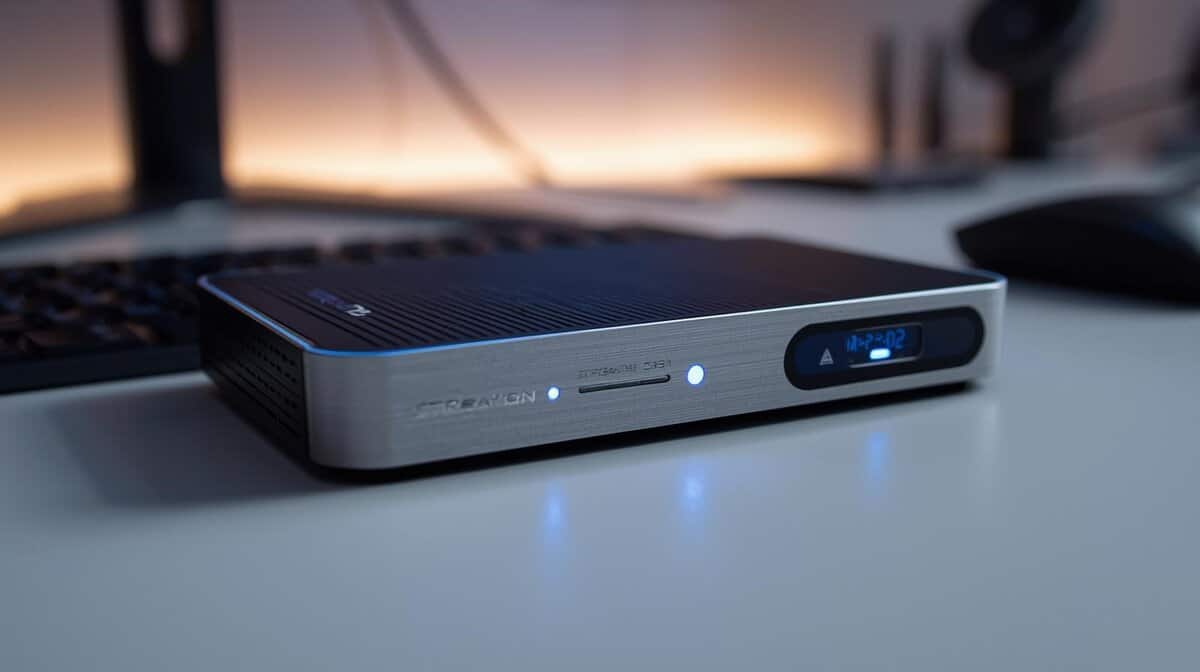
A capture card functions as a video splitter that sits between your gaming device and your monitor. It intercepts the HDMI signal from your console or gaming PC and duplicates it into two identical streams.
These two video streams are sent down separate paths without any loss in original quality.
The Passthrough Path for Unaffected Gaming
One of these paths is a clean, unaltered signal sent directly to your gaming monitor or TV. This is called passthrough, and it is a critical feature. Quality cards deliver this signal with zero latency, meaning you see the gameplay exactly as your console or PC outputs it.
This is essential for any fast-paced game. Any delay between your controller input and the on-screen action is a significant disadvantage in competitive FPS matches or complex MMO raids. A good capture card ensures your gaming experience remains unaffected.
From Your Device: An HDMI cable runs from your PS5, Xbox, or gaming PC’s graphics card to the capture card’s “HDMI In” port.
To Your Monitor: A second HDMI cable runs from the card’s “HDMI Out” port directly to your monitor.
The Result: You play your game in real-time with no added input lag or visual degradation.
The Capture Path for High-Quality Streaming
Simultaneously, the capture card processes the second video signal. It sends this copy to your dedicated streaming PC, typically via a USB cable for external cards or a PCIe slot for internal ones.
Your streaming computer, running software like OBS, receives this video feed.
A capture card’s function is to separate the workload of gaming from the workload of streaming. It lets your gaming hardware focus on the game while your streaming PC handles the broadcast.
The streaming PC then performs all encoding, adds your webcam, overlays, and alerts, and pushes the final video to platforms like Twitch or YouTube. Configuring your OBS settings for streaming is the final step in creating a polished broadcast.
By dividing these tasks, both your gameplay and your stream can operate at their best.
Internal vs. External: Choosing the Right Capture Card
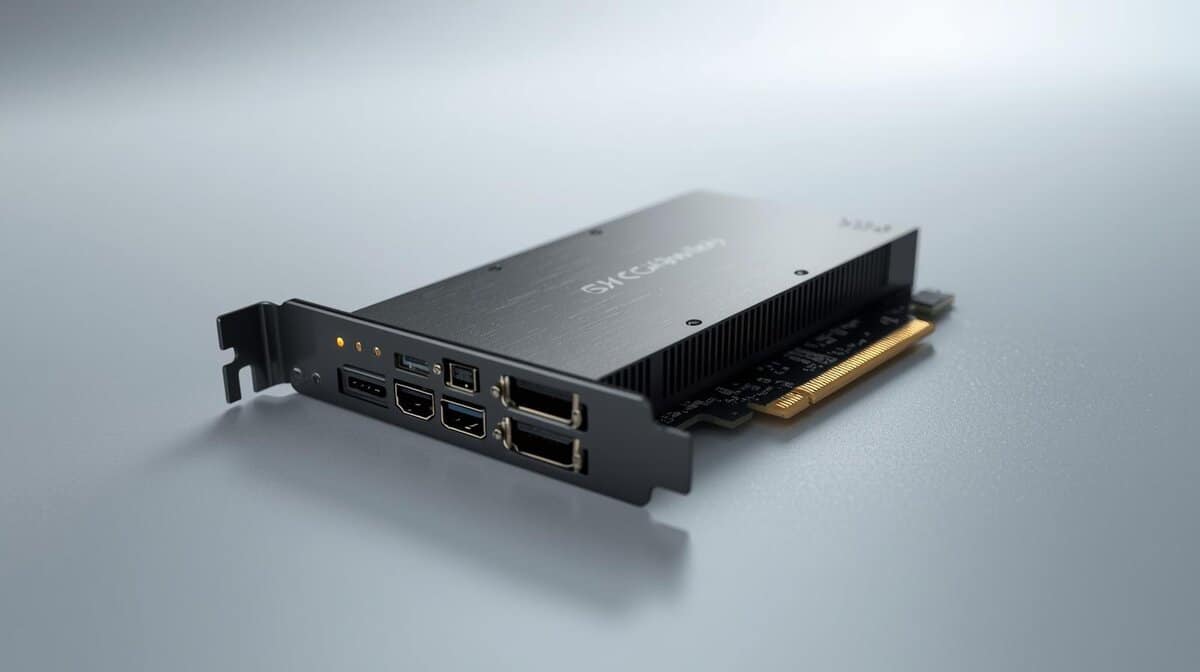
The choice between an internal and an external capture card is the first major decision you’ll make. This isn’t about which is “better” overall, but which is the right tool for your specific setup.
The Flexibility of External Cards
An external capture card is a small, portable box that connects to your streaming PC or laptop via USB. Its primary advantage is convenience and ease of use.
This portability makes it the logical choice if you stream from a laptop, move your setup frequently, or switch between capturing a PS5 and a Nintendo Switch. The main tradeoff is that they often cost more for similar performance compared to internal cards and must share USB bandwidth with other peripherals, which can sometimes cause issues. Build quality on reputable external cards like the Elgato HD60 X is solid, with durable casings designed for transport. At around $145, it sits at the higher end of the external card market but justifies the cost with 4K60 HDR10 passthrough, VRR support, and plug-and-play setup on both PC and Mac.
The Stability of Internal Cards
An internal capture card is a circuit board that installs directly into a PCIe slot on your desktop PC’s motherboard. This direct connection provides a highly stable, low-latency signal, making it the preferred option for dedicated streamers who need reliability. A recommended option is the AVerMedia Live Gamer 4K. At roughly $160, it captures and passes through 4K60 HDR10 and supports refresh rates up to 240 Hz at 1080p, making it a strong choice for competitive and visually demanding games alike.
Because they don’t require an external enclosure, internal cards can offer better performance for the price. The clear disadvantage is that they require a desktop PC with an available PCIe slot and are fixed in place once installed. Their build is functional but not rugged, as they are meant to be protected inside a PC case.
For a dedicated streaming rig built around a desktop PC, an internal card usually offers the best performance-to-price ratio. You get a stable, low-latency connection that doesn’t compete for USB ports, providing a solid foundation for your broadcast.
To help clarify the decision, this table compares the key differences between the two types of cards.
Internal vs. External Capture Card Comparison
| Feature | Internal (PCIe) Card | External (USB) Card |
|---|---|---|
| Best For | Desktop PCs, dedicated streaming rigs | Laptops, multi-console setups, portable use |
| Connection | PCIe slot on motherboard | USB 3.0 or higher port |
| Latency | Lowest possible, direct connection | Very low, but subject to USB bandwidth |
| Portability | None; installed inside a PC case | Excellent; easy to move and reconnect |
| Setup | Requires opening PC case and installation | Simple plug-and-play via USB cable |
| Price/Performance | Generally offers more performance for the price | Slightly higher cost for similar specs due to casing |
| PC Resources | Does not compete for USB ports or bandwidth | Shares bandwidth with other USB devices |
Ultimately, both are viable options from reputable brands. The choice depends on your hardware.
Making the Right Choice
Your primary use case and hardware determine the best option. Both types from established brands generally have good build quality, but they are designed for different environments.
For competitive FPS gamers and dedicated streamers with a desktop PC: An internal card’s stability is a significant benefit.
For laptop users and creators capturing multiple consoles: The flexibility of an external card is necessary.
If you want to see specific product recommendations for different needs and budgets, check out our guide on the best capture cards for streaming for a complete breakdown.
Key Specs to Understand Before Buying
Understanding the technical specifications of a capture card is simpler than it looks. You only need to focus on a few key metrics that directly affect your gameplay and stream quality to make an informed decision.
The most important specifications are passthrough resolution/refresh rate and capture resolution/refresh rate. These are not the same thing, and understanding the distinction is crucial for getting the right value for your money.
Passthrough vs. Capture: What’s the Difference?
Simply put, passthrough is what you see on your monitor, while capture is what your audience sees on the stream.
Passthrough is the unprocessed, zero-lag video signal that goes from your gaming device (e.g., a PS5) through the capture card and to your gaming monitor. A card with 4K60 passthrough lets you play your game in 4K resolution at 60 frames per second, preserving the intended visual experience.
Capture resolution is the quality of the video the card sends to your streaming PC. A common and effective combination for modern console streaming is a card with 4K60 passthrough that captures at 1080p60. This provides an ideal balance: a high-quality, lag-free gaming experience for you and a smooth, clear broadcast for your viewers.
For PS5 and Xbox Series X owners, 4K passthrough is a key feature. A good capture card allows you to stream without downgrading your own gaming experience.
Advanced Features That Can Be Worth the Cost
Once the basics are covered, a few other features might justify a higher price, particularly for competitive gamers.
Variable Refresh Rate (VRR) Passthrough: If your console and monitor support VRR, a capture card that also supports it is highly recommended. VRR syncs your monitor’s refresh rate to the game’s frame rate, eliminating screen tearing and ensuring smoother gameplay.
Onboard Encoding: Some higher-end cards have built-in hardware encoders. This offloads the video compression workload from your streaming PC’s CPU, freeing it up for other tasks like running complex overlays. For most budget-conscious setups, this is a luxury, not a necessity.
Uses Beyond Streaming
Capture cards are often associated with gaming, but their utility extends to other video applications. This versatility is where the investment provides additional value.
One powerful application is upgrading your video quality for video calls or YouTube content. By connecting a DSLR or mirrorless camera to a capture card, you can use it as a high-quality webcam. The resulting clarity and depth of field are far superior to what a standard webcam can produce.
High-Fidelity Local Recording
Another key use is recording high-quality gameplay for later editing. Recording gameplay on the same PC you are gaming on can significantly reduce performance. A capture card offloads this entire workload.
This allows you to record footage at a higher bitrate and quality than streaming platforms support, without impacting your in-game frame rates. It is ideal for creating polished video essays, tutorials, or highlight reels.
After capturing clean footage, the next step is editing. For some useful actionable video editing tips, this guide offers a good starting point.
For console players, a capture card is necessary for high-quality recording. To record gameplay from a Nintendo Switch, for example, a capture card is the only method to get a direct video feed. To learn more, see our guide on finding the right capture card for Nintendo Switch.
Frequently Asked Questions About Capture Cards
Here are answers to a few common questions about capture cards to help you make an informed decision for your setup.
Do I Need a Capture Card to Stream from a PS5 or Xbox?
No, but it is recommended for quality. Modern consoles have built-in streaming capabilities, but they are very basic. Using them results in a bare-bones broadcast without custom overlays, alerts, or scene switching.
A capture card connects your console’s video feed to your PC, where software like OBS Studio or Streamlabs provides full creative control. It is the key difference between simply showing gameplay and producing a customized stream.
Will a Capture Card Improve My Gaming Performance?
A capture card does not increase your in-game FPS, but it prevents performance loss. It offloads the workload of video encoding from your gaming PC. Without it, your computer must both run the game and compress video for the stream simultaneously.
This dual task often degrades performance, causing stuttering and frame drops. By delegating video processing to a capture card and a second PC, your gaming computer can use 100% of its power to run the game, resulting in a smoother, more stable frame rate during your broadcast.
What Is the Difference Between a Capture Card and a GPU?
They perform opposite functions. Your Graphics Card (GPU) creates and renders the game world displayed on your monitor. Its primary job is to output a video signal.
A capture card is an input device. It takes a completed video signal from another source—like a console or a different gaming PC—and makes that signal usable for recording or streaming on a second computer. One creates the visuals; the other captures them for broadcast.
Are Cheap, Unbranded Capture Cards a Good Value?
It is a significant risk. Generic capture dongles are available for under $20 and can capture a 1080p signal, but the tradeoffs are substantial. These low-cost devices are known for unreliable drivers, poor color accuracy, noticeable latency, and low-quality construction that can fail during use.
For budget-conscious users who need reliability, investing $70-$100 in an entry-level card from a reputable brand like Elgato, AVerMedia, or EVGA is a much better choice. At this price point, you get functional hardware, software support, and the confidence that the device will perform consistently. This range represents the sweet spot for value.
Related Articles