It’s the notification every PlayStation 5 owner dreads: ‘Not enough free space.’ You stare at the screen, faced with the same choice—which game gets deleted to make room for the new one? With the PS5’s fast but limited internal drive, this digital juggling act is a constant issue.
Fortunately, PS5 storage expansion is the direct solution to this problem. This guide details the tradeoffs between internal and external storage, recommends specific products that balance price and performance, and shows you how to install them.
- A 2TB internal M.2 SSD like the Crucial P5 Plus is the best overall ps5 storage expansion for most gamers
- Any PCIe Gen 4 NVMe SSD with at least 5,500MB/s read speed works — paying more for faster drives adds zero benefit on PS5
- External USB drives cannot play PS5 games directly but work as affordable archives to avoid re-downloading
- Always use a heatsink on your internal M.2 SSD to prevent thermal throttling and protect your investment
- The Seagate Expansion 8TB is the cheapest cost-per-gigabyte option for storing large PS5 game libraries
Table of Contents
- Exceeds PS5 speed requirements without the premium price tag
- Heatsink included so no separate purchase needed
- Five-year warranty with strong endurance rating
- 2TB may fill up for gamers with very large libraries
- Not the absolute fastest Gen 4 drive available
- No RGB or flashy design for aesthetic builds
- Enormous 8TB capacity stores dozens of games
- Lowest cost per gigabyte of any storage option
- Simple plug-and-play setup with no formatting required
- Desktop form factor requires a power outlet nearby
- Cannot play PS5 games directly — transfer required
- Slower transfer speeds compared to an external SSD
- Fast USB 3.2 transfers cut game move times significantly
- Compact aluminum body is durable and pocket-sized
- Works across PS5, PC, and Mac for versatile use
- Pricier per gigabyte than a traditional hard drive
- Still cannot play PS5 games directly from the drive
- Prices may fluctuate due to current memory market conditions
Why Your PS5 Storage Fills Up So Fast
The PS5 launched with a custom 825GB SSD that nearly eliminated load times. The tradeoff is that after the operating system takes its share, you’re left with only about 667GB of usable space. A single AAA title like Call of Duty can consume over 150GB.
As a result, your console can only hold a handful of modern games before it is full.
It wasn’t until September 2021 that Sony unlocked the PS5’s internal M.2 SSD support. This update created two distinct solutions for expanding your game library.
Your Two Paths to More Space
Your choice is between two types of drives, each with clear tradeoffs in performance, cost, and function. This isn’t just about adding more gigabytes; it’s about choosing the right kind of storage for your gaming habits and budget.
Think of an internal M.2 SSD as building a new, high-speed wing onto your house. Every game stored there is instantly accessible. An external USB drive is a secure, off-site storage unit. It’s useful for holding things you don’t need right now, but you have to bring them back home before you can use them.
One path provides seamless performance, while the other delivers maximum capacity for your money.
PS5 Storage Options: A Direct Comparison
| Feature | Internal M.2 NVMe SSD | External USB Drive |
|---|---|---|
| Play PS5 Games? | Yes | No (Store Only) |
| Play PS4 Games? | Yes | Yes |
| Installation | Inside the console (requires opening) | Plug-and-play via USB port |
| Performance | Matches or exceeds built-in SSD speeds | Slower; requires transferring PS5 games to play |
| Cost Per GB | Higher | Lower |
| Best For | Seamlessly playing more PS5 games | Mass-archiving PS5 games and playing PS4 games |
Ultimately, your choice depends on whether you prioritize convenience or capacity.
Internal M.2 NVMe SSD: This is the high-performance route. You install it directly inside the console, where it functions exactly like the built-in storage. You can download, store, and play both PS5 and PS4 games directly from it. This is the most convenient option, but it comes at a higher cost.
External USB Drive (SSD or HDD): This is the value-oriented path to mass storage. It’s effective for offloading your entire PS4 library, and you can play those games directly from the drive. For PS5 games, however, it can only act as cold storage. To play a PS5 title, you must transfer it back to your internal drive first—a process that is still much faster than re-downloading it.
Understanding this core difference is the first step toward finding the right drive. This guide focuses on identifying the best value—not just the cheapest option—so you can make a durable investment.
For more tips on getting the most out of your console, check out our other PlayStation guides.
Choosing an Internal M.2 SSD for Performance
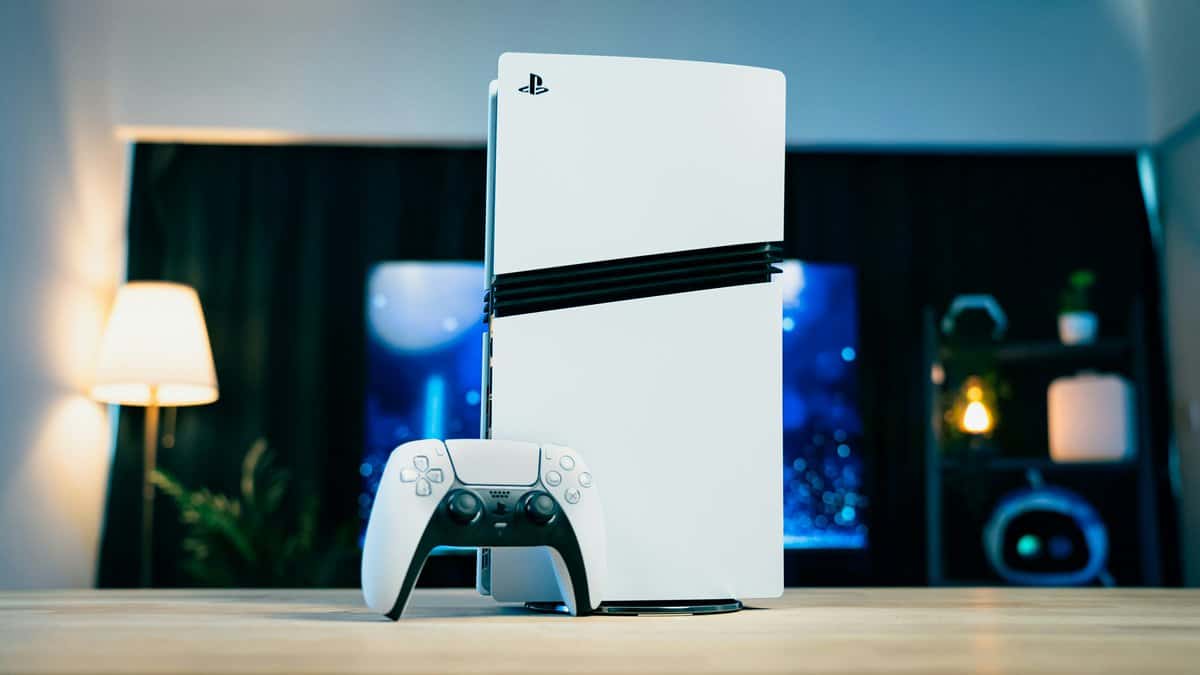
When the goal is uncompromised performance, an internal M.2 SSD is the only option. It slots directly into the PS5’s dedicated expansion bay, becoming a true extension of the console’s internal storage.
Once installed, you can download, store, and play PS5 games from it with speeds that match or exceed the stock drive. It’s a larger investment, but it delivers the definitive PS5 storage experience. Here is what you need to look for to avoid overspending.
Understanding Sony’s Technical Specs
Sony has a specific checklist for compatible M.2 drives. The technical jargon boils down to two critical requirements: PCIe 4.0 and a minimum read speed of 5,500MB/s.
PCIe 4.0: This is the data interface. A PCIe 4.0 drive is mandatory because it’s the only interface fast enough to keep up with the PS5’s architecture. Using an older, slower drive would create a performance bottleneck.
5,500MB/s Read Speed: This number indicates how quickly the drive can pull game data. Meeting this minimum ensures there is no perceptible difference between playing off the new SSD and the console’s built-in storage. For gamers playing competitive FPS titles like Call of Duty or large open-world games like Final Fantasy VII Rebirth, this speed prevents stuttering and maintains fast load times.
You do not need to buy the fastest, most expensive drive on the market. As long as it meets these two requirements, it is sufficient for the PS5.
The Non-Negotiable Heatsink
One absolutely essential requirement is a heatsink. M.2 drives generate significant heat during operation. Without a heatsink to dissipate that heat, the drive’s performance will decrease—a process called thermal throttling—and its lifespan will shorten.
A heatsink acts like a car’s radiator. It draws heat away from the drive’s critical components, allowing it to maintain peak performance without overheating. Installing a bare drive in your PS5 will lead to poor performance and eventual hardware failure.
The most straightforward path is to buy an M.2 drive with a heatsink pre-installed. These are built to fit inside the PS5’s narrow expansion slot. When comparing drives, look for build quality and a solid warranty (a five-year warranty indicates a durable product) to protect your investment.
Using an External Drive as a Digital Game Locker
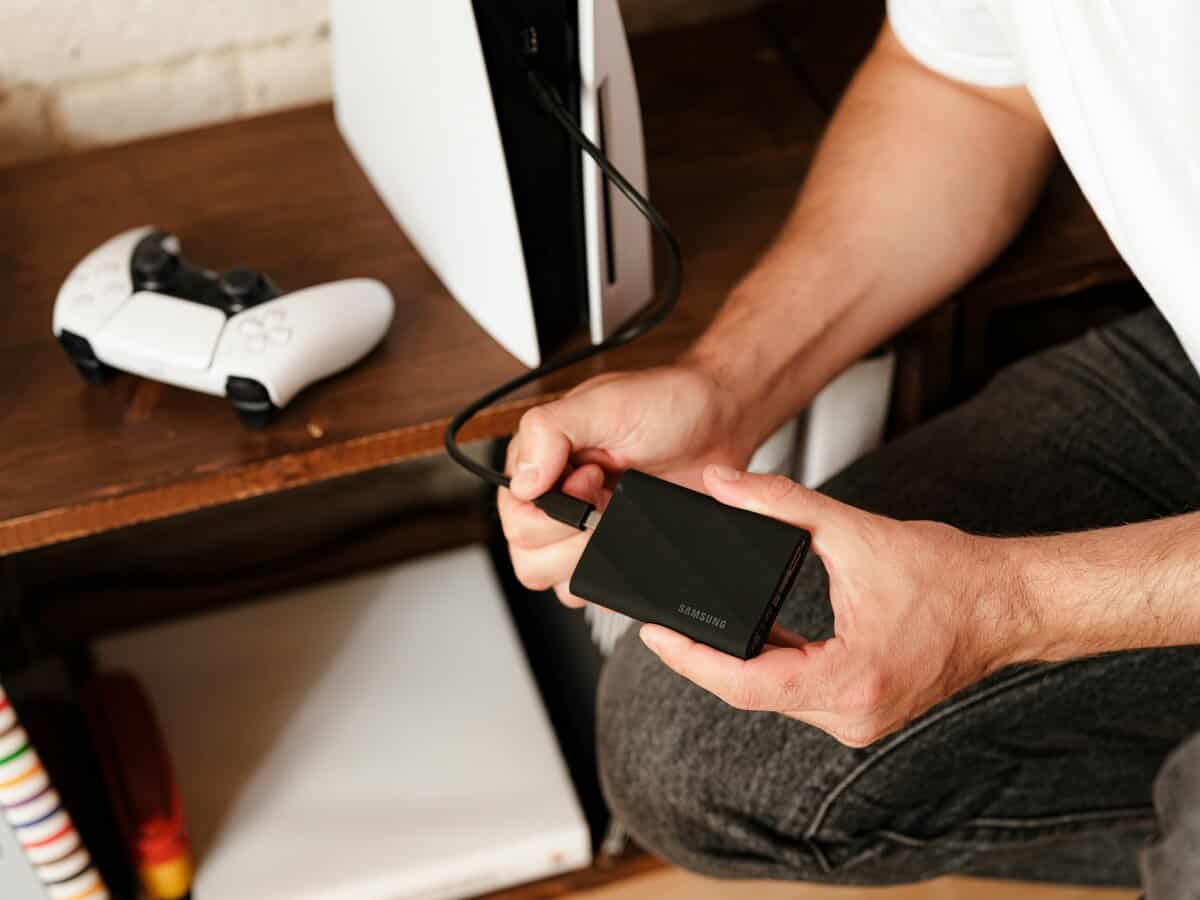
If you’re looking for the most storage for your money, an external USB drive is the solution. However, there is a major tradeoff: you cannot play PS5 games directly from it. It functions as a digital game locker.
This is where you can offload your PS5 library, clearing out precious internal SSD space. When you’re ready to play a game from the locker, you transfer it back to the console. This process is significantly faster than redownloading a 100GB+ game, especially with an average internet connection.
A key benefit of an external drive is how it handles your PS4 library. You can play all of your PS4 games directly from it, which allows you to dedicate your entire internal drive to the PS5 games you’re actively playing.
What to Look For in an External Drive
Sony’s requirements are simple. Your external drive needs to support SuperSpeed USB 5Gbps (also called USB 3.2 Gen 1) and have a capacity between 250GB and 8TB.
This allows for two main types of drives, each suited for different budgets and patience levels.
External Hard Disk Drive (HDD): This is the most budget-friendly option for mass storage. You can get multiple terabytes for a relatively low price. An HDD is a practical choice for archiving a large library of PS5 games and storing your entire PS4 collection. The primary tradeoff is slower transfer speeds.
External Solid-State Drive (SSD): An external SSD will transfer games much faster than an HDD. This is for the gamer who frequently swaps PS5 titles between their console and external storage and wants to minimize wait times. They cost more per gigabyte, but the time saved is a tangible quality-of-life improvement.
For most budget-conscious gamers, a large HDD offers unbeatable value as a game locker. If your budget allows, a mid-range external SSD provides a good balance between speed and cost. To see how this strategy compares to the competition, check out our guide on Xbox Series X storage expansion.
The Best PS5 Storage Expansion: Value-Focused Picks
The market for PS5 storage is saturated, and it’s easy to overspend on specifications that provide no real-world benefit in a console. We’ve selected drives that deliver the most performance for your dollar.
These are not the cheapest options available. They are smart buys that balance speed, build quality, and capacity for a durable, frustration-free upgrade.
Best Value Internal SSD: Crucial P5 Plus 2TB
For most gamers, a 2TB M.2 SSD is the practical choice. It more than triples your usable space and provides a permanent solution for your most-played games. Our top pick for value is the Crucial P5 Plus 2TB with Heatsink.
This drive is a smart buy because it comfortably exceeds Sony’s 5,500MB/s read speed requirement without the premium price of faster drives. The truth is, once you meet that specification, even faster drives do not decrease game load times on a PS5.
The P5 Plus has a durable build quality, backed by a five-year warranty. The pre-installed heatsink is low-profile and guaranteed to fit in the PS5’s tight expansion slot, eliminating guesswork. For any use case, from a competitive FPS player needing fast map loads to an MMO player with large game files, it delivers performance identical to more expensive models, making it the most sensible upgrade.
Best High-Capacity External HDD: Seagate Expansion 8TB
If your main goal is to store a massive game library without a large financial outlay, an external HDD is the correct tool. For the ultimate game archivist, we recommend the Seagate Expansion 8TB.
This drive offers an unbeatable cost-per-terabyte. It is the ideal “digital game locker” for your entire PS4 collection and a holding bay for PS5 games you aren’t actively playing. Its build quality is simple and functional, designed to sit on a desk and operate reliably.
The tradeoff is transfer speed. Moving a large PS5 title from this drive to your console will take several minutes. But for players who plan ahead and don’t mind a short wait, the sheer volume of storage it provides is transformative. It’s particularly useful for streamers or anyone who needs dozens of games ready to go.
Key Takeaway: An external HDD excels at bulk storage. It allows you to archive hundreds of PS4 and PS5 games, freeing up your internal drive for the few you’re actively playing. The value it offers is unmatched for pure capacity.
Best Speedy External SSD: Samsung T7 2TB
For gamers who frequently switch between a handful of PS5 titles and want to minimize transfer times, an external SSD is the ideal middle ground. Our recommendation is the Samsung T7 2TB.
This drive provides an effective balance of speed, price, and build quality. While you cannot play PS5 games directly from it, moving a 100GB game back to your console’s internal storage takes just a few minutes, not the longer wait an HDD requires. This is ideal for MMO players who rotate games or anyone in a household sharing a single console.
The T7 is known for its durable, compact aluminum body, making it both portable and resilient. It provides a significant speed increase over any hard drive, saving you time that you would rather spend gaming. A fast drive is one part of a great setup; ensuring your display can keep up is also important. Our guide on the best monitor for PS5 can help you complete your loadout.
How to Install Your New PS5 Storage Drive
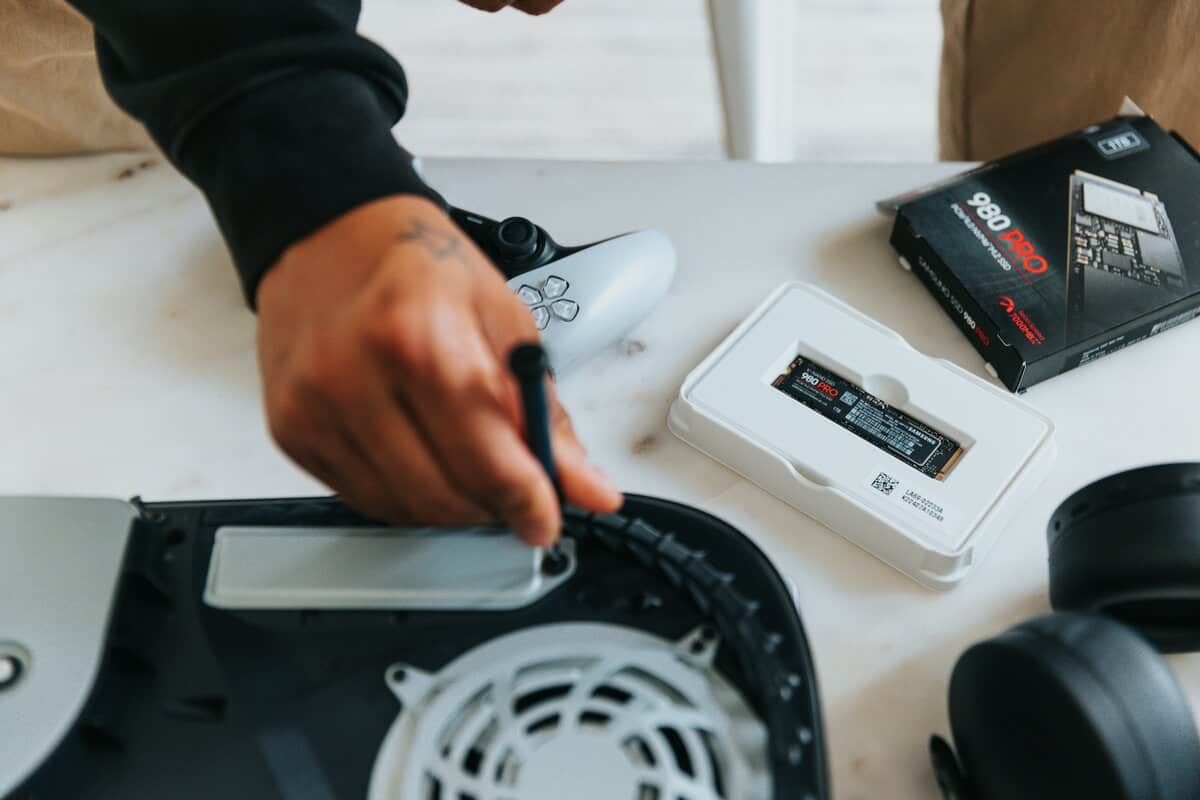
Sony designed the PS5 storage expansion to be a straightforward process. The entire installation takes less than 15 minutes and the only tool required is a single Phillips #1 screwdriver.
We’ll walk through both the internal M.2 SSD installation and the plug-and-play setup for an external drive. This guide is direct and simple.
Before you begin, ensure your PS5’s system software is fully updated. Then, completely power down the console—do not use Rest Mode—and unplug all cables. Place the console on a clean, well-lit surface.
Installing Your Internal M.2 SSD
This is the more involved process, but it is not difficult. Lay your PS5 on a soft cloth with the PlayStation logo facing down. If you have the disc drive version, the drive should be facing up.
Remove the Faceplate: Gently lift the top-left corner of the faceplate while sliding it to the right. It will click and pop off.
Access the Expansion Slot: You will see a long, rectangular metal cover held by one screw. This is the M.2 expansion slot. Unscrew it and set the screw and cover aside.
Position the Spacer: Inside, you will find a mounting screw and a small cylindrical spacer. Unscrew them. Move the spacer to the hole that matches your M.2 drive’s length (e.g., 30, 42, 60, 80, 110). For most drives, this will be 80.
Insert and Secure the Drive: Align the notch on your M.2 drive’s connector and insert it firmly at a slight upward angle. Press it down until the end lines up with the spacer, then use the mounting screw to secure it. Do not overtighten.
Finish the Job: Replace the metal expansion slot cover and secure it with its screw. Slide the PS5 faceplate back into position until it clicks firmly into place.
Once you reconnect the power and turn on your console, a prompt to format the new drive will appear. Follow the on-screen instructions, and your new storage will be ready.
Setting Up Your External USB Drive
Connecting an external drive is a simple plug-and-play process that requires no tools.
It is critical to use the correct port. For sufficient speed, you must connect your external drive to one of the SuperSpeed USB ports on the back of the PS5. The USB-A port on the front is too slow for extended storage.
After plugging the drive in, turn on your PS5 and navigate to Settings > Storage > USB Extended Storage. Select your drive and choose the “Format as USB Extended Storage” option.
The console will handle the rest. Once formatted, you can start moving your PS4 games over and archiving PS5 games to free up internal space.
Frequently Asked Questions About PS5 Storage
Here are direct answers to common questions about PS5 storage expansion.
Will Installing an M.2 SSD Void My PS5 Warranty?
No. Installing a compatible M.2 SSD that meets all of Sony’s requirements will not void your console’s warranty.
Sony designed the expansion slot for user access. As long as you follow the instructions and do not cause physical damage, your warranty is safe. However, any damage you cause during installation will not be covered.
Can I Use an M.2 SSD Without a Heatsink?
No. Sony’s requirement for a heatsink is mandatory. Do not attempt to install a drive without one.
Running a drive without a heatsink will cause it to overheat, which triggers thermal throttling. This is a safety feature where the drive reduces its performance to cool down, leading to slower load times and stuttering.
Overheating not only slows down your game; it can shorten the lifespan of your SSD. The small cost of a heatsink is necessary to protect your investment and guarantee performance.
What Is the Difference Between Storing and Playing PS5 Games?
This is the most critical distinction to understand when considering an external USB drive.
Do I Need the Most Expensive M.2 SSD for the Best Performance?
No. As long as an M.2 SSD meets Sony’s minimum requirement of 5,500MB/s sequential read speed, it is sufficient. In real-world gaming scenarios, any speed above that number provides no noticeable improvement in load times.
Many value-focused brands sell drives that meet this specification and perform identically to more expensive models. Focus on meeting the requirement, finding a drive with good build quality, and a solid warranty. Do not waste money chasing the highest numbers on a spec sheet.
At Budget Loadout, we believe in making smart, informed decisions to get the most out of your gear. Explore our guides and build a high-performance gaming setup without breaking the bank. Find your next upgrade at https://budgetloadout.com.
Related Articles