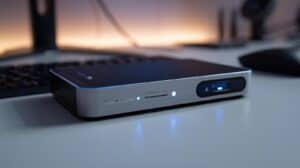
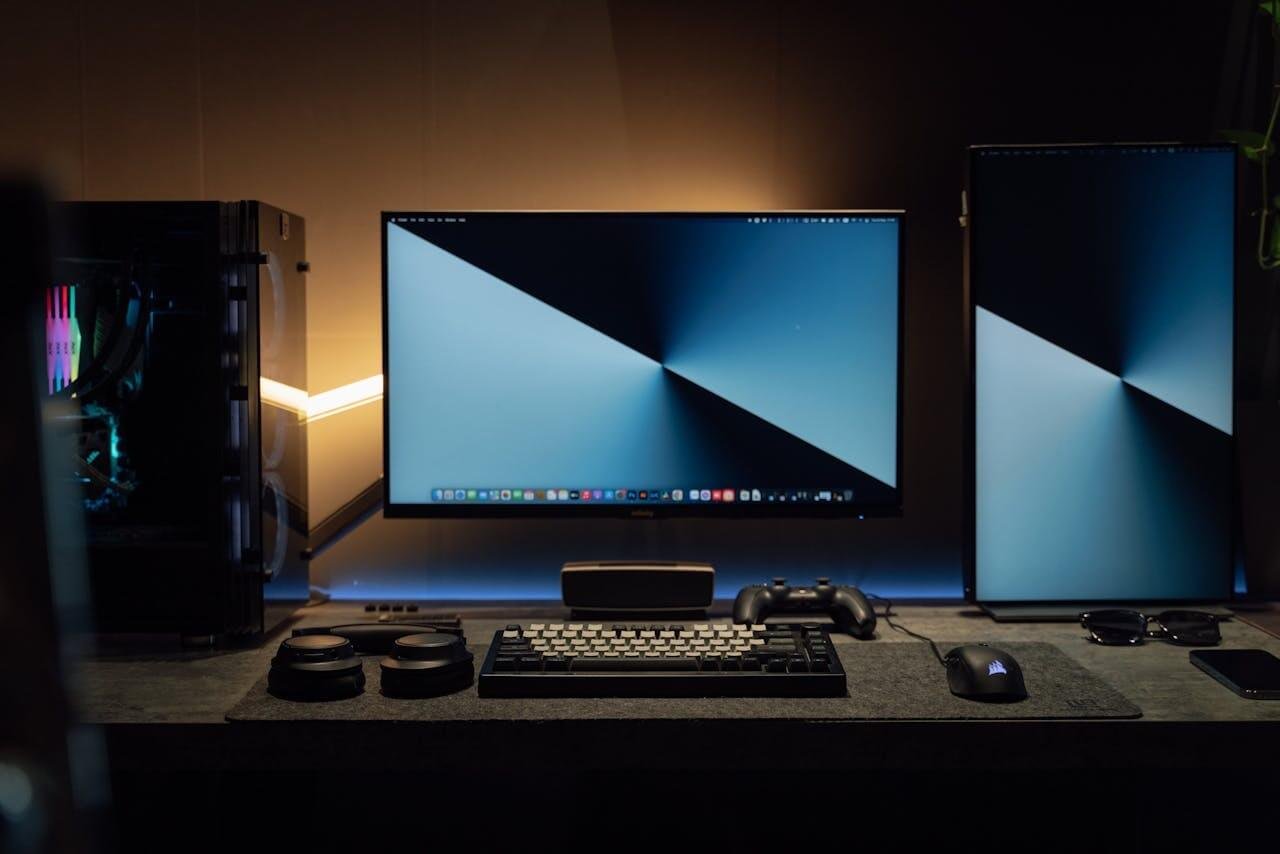
An audio mixer for PC acts as a central command hub for your sound. It allows you to connect multiple audio sources—your game, Discord, music, and microphone—and control each one with a physical knob or fader. This provides real-time, tactile control, eliminating the need to fumble with software sliders mid-game.
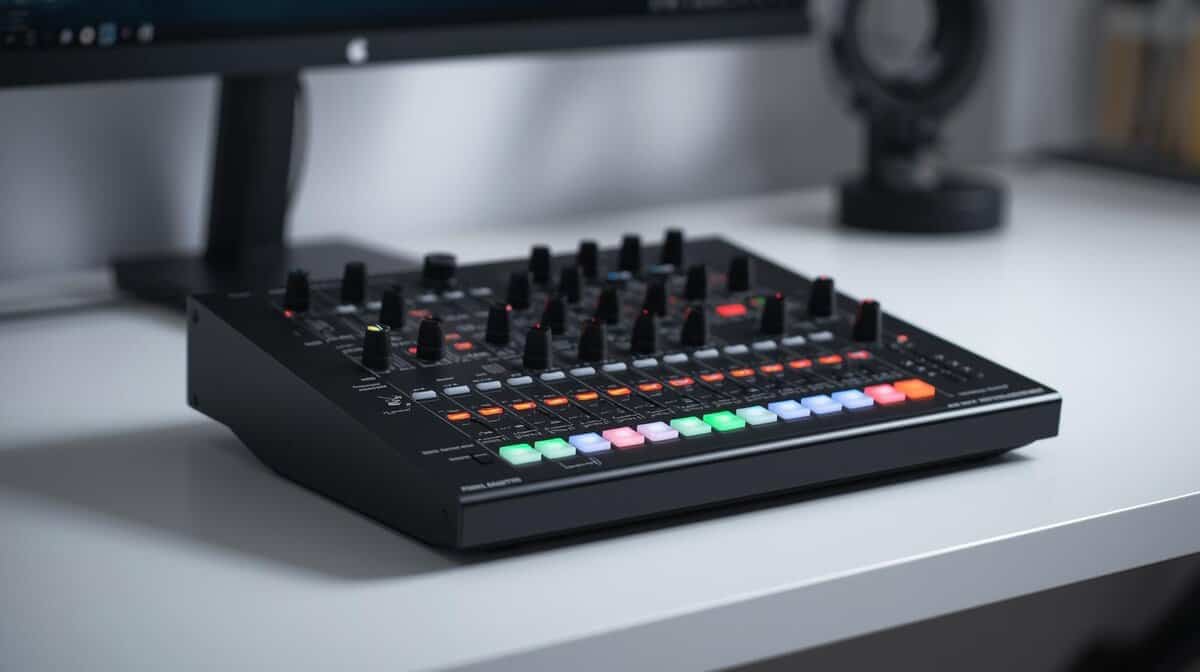
- An audio mixer gives streamers independent control over game audio, microphone, music, and Discord channels that software alone can’t match
- USB audio mixers between $50-150 eliminate the need for a separate audio interface and connect directly to your PC
- Physical faders and knobs let you adjust audio levels instantly during a live stream without alt-tabbing or fumbling with software
- Most beginner streamers don’t need a mixer — start with a quality USB mic and upgrade to a mixer only when your audio routing needs grow
- Most streamers don’t need a mixer at all — a USB microphone with software mixing handles the basics perfectly fine for starting out
Table of Contents
What an Audio Mixer Actually Does for Your PC Setup
Think of a mixer as an audio traffic controller for your PC. It takes all incoming sound signals, lets you blend them, and routes them to a final destination. Crucially, it provides separate control over what you hear in your headphones versus what your stream audience hears.
For example, during a tense FPS match, you can use a fader to instantly lower your music volume to pinpoint enemy footsteps, without altering the music level for your viewers. That kind of on-the-fly adjustment is difficult to achieve without a physical interface.
Practical Benefits and Tradeoffs
The primary benefit is granular, tactile control. For a streamer juggling multiple audio sources, this is a significant advantage. You can tweak game volume, Discord chat, and microphone levels instantly without alt-tabbing.
However, there are tradeoffs. A functional mixer costs more than software-only solutions and occupies desk space. Most are built with a durable metal or hard plastic chassis, but they represent a larger investment than virtual alternatives.
The real value of an audio mixer is creating two distinct audio experiences: one tuned for your competitive focus, and another balanced for your audience’s enjoyment.
The global market for audio mixers is expanding, driven largely by home content creation. Digital mixers are leading this growth, offering features well-suited for gamers and streamers. For a deeper look at the technology, this guide on digital mixer audio systems is a useful resource. Market growth data can be found from sources like cognitivemarketresearch.com.
Hardware Mixer vs Software Mixer vs Audio Interface
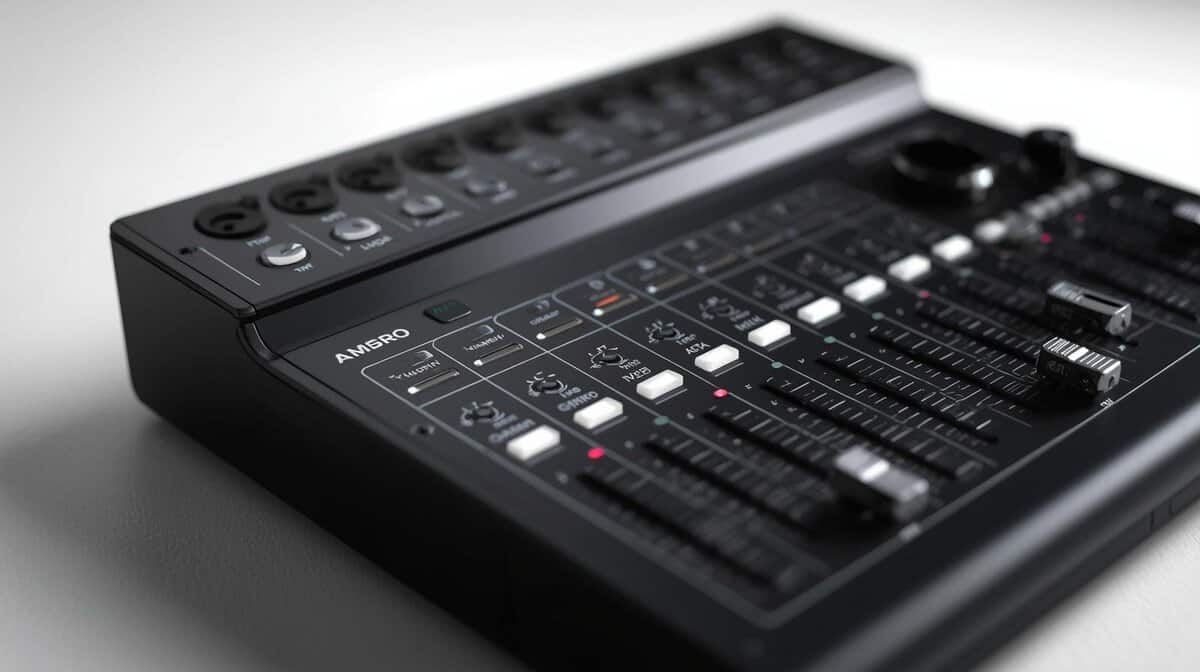
When improving PC audio, you have three main options: a hardware mixer, a software mixer, or an audio interface. Each solves a different problem, and the right choice depends on your needs, desk space, and budget.
There is no single “best” choice—only the right tool for your specific setup.
The Case for Hardware: Physical Control
A hardware audio mixer for PC provides tactile, immediate control. It’s a physical device with faders and knobs for adjusting audio sources on the fly. For a streamer balancing a mic, game audio, and Discord chat without alt-tabbing, the muscle memory of using a real fader is efficient.
Consider this use case: you’re in an FPS firefight and need to instantly lower game volume to hear footsteps. Fumbling with on-screen sliders is slow. A physical knob gets it done in a split second. This convenience is the main selling point, but it comes at a higher cost and requires desk space.
The Digital Alternatives: Software and Interfaces
A software mixer is an application on your PC that provides powerful routing options. For gamers on a tight budget, this is a common solution.
The market for audio software continues to grow. The main tradeoff is the lack of physical controls; you are reliant on a mouse for adjustments. Understanding software mixers like Digital Audio Workstations (DAWs) can show the capabilities of these tools.
An audio interface is a specialized device designed to get clean audio into and out of your PC. If your only goal is to make a single high-quality XLR microphone sound as good as possible, an interface is the most direct solution. It provides better sound quality than motherboard audio inputs but lacks the multi-channel mixing capabilities of a true mixer.
Key Takeaway: Choose a hardware mixer for tactile control over multiple sources, a software mixer for powerful routing on a budget, and an audio interface for the best single-mic audio quality.
Comparing Audio Control Options for Gamers
This table breaks down the pros and cons to help you identify the best fit for your gaming or streaming style.
| Solution | Pros | Cons | Best Use Case |
|---|---|---|---|
| Hardware Mixer | Instant, tactile control. Reliable, low-latency performance. Offloads audio processing from the CPU. | More expensive. Takes up desk space. Can be complex for beginners. | Streamers needing to balance multiple audio sources (mic, game, chat, music) in real-time. |
| Software Mixer | Very affordable or free. Powerful and flexible routing options. Uses no physical space. | Mouse-based control is slow mid-game. Can consume CPU resources. | Budget-conscious gamers who want sophisticated audio control and don’t mind managing it via software. |
| Audio Interface | Superior audio quality for a single microphone. Simple, focused functionality. Compact. | Lacks multi-channel mixing. Limited to one or two inputs. Offers no game/chat/music mixing. | Gamers or creators whose only goal is to upgrade a single XLR mic for improved vocal quality. |
Your decision depends on the problem you’re trying to solve. If you constantly juggle audio levels while live, a hardware mixer is a practical tool. If you just want your mic to sound better, an interface is the cleaner, simpler solution—especially when paired with one of the best budget USB microphones that also have an XLR option for future upgrades. If you have a tight budget, a software mixer provides significant power for its cost.
Key Features That Matter for Gaming and Streaming
Choosing a mixer for your PC isn’t about finding the one with the most controls. It’s about focusing on specifications that solve your specific audio problems. Understanding these core features helps you acquire a tool that addresses real-world issues without paying for unnecessary extras.
The most basic feature is the number of channels. A channel is a single audio input you can control. A gamer playing MMOs might only need two: one for their mic and another for game audio from the PC. A streamer might need four or more to manage a mic, game audio, a music source, and console audio.
Build quality is a critical factor. Look for a mixer with a sturdy metal chassis and knobs that feel solid. A durable build means the mixer can handle years of daily use, making it a better long-term investment than a cheap plastic unit.
Inputs, Power, and PC Integration
Once you determine the number of channels you need, examine the input types and how the mixer connects to your computer.
Inputs (XLR vs. USB): The standard for microphones is an XLR input. This balanced, three-pin connection delivers cleaner audio than a standard USB mic. If you plan to upgrade to a quality dynamic or condenser microphone, an XLR input is essential.
Phantom Power: Many high-quality condenser mics used by streamers require a small electrical charge, called +48V phantom power. If a mixer lacks a button to supply this, a large category of microphones is unusable. Always check for a dedicated phantom power button.
USB Routing: This is a key feature for streamers. A good PC-focused mixer lets you create different audio mixes and send them to your computer over a single USB cable. For example, you can send one mix with just your mic and game audio to your stream, while your headphones get a separate mix that also includes Discord chat. This provides professional-level control over audience versus personal audio.
Low latency is a non-negotiable feature for serious gaming. It’s the delay between an action and its corresponding sound. High latency can negatively impact performance in an FPS, as audio cues will be out of sync with on-screen action.
Monitoring Your Audio
You need a way to hear your audio output. This is called monitoring, and it allows you to listen to your audio in real-time without noticeable delay.
Nearly all mixers have a headphone output that lets you hear exactly what your stream hears. This is your first line of defense against common problems like a muted mic or mismatched volume levels, letting you catch issues before your audience does.
For those wanting to explore the broader world of PC sound, check out our guides on all things PC audio. Picking a mixer with these key features in mind ensures you get a functional, durable hub for your sound that can grow with your setup.
How to Pick the Right Audio Mixer for PC at Any Budget
The world of audio mixers can seem complex. A practical approach is to think in terms of value tiers rather than specific brands. This method helps match features to your actual needs, ensuring you invest in a solid piece of equipment that will last.
Be honest about your use case. Are you a beginner just trying to separate your mic from game audio? Or are you a streamer juggling multiple sound sources? Your answer will point you to the right category.
Compact and Capable Mixers ($75 – $150)
This is the ideal starting point for most gamers and new streamers. Mixers in this category typically offer two to four channels, basic EQ knobs, and at least one XLR input with phantom power. They handle the essentials: your microphone, PC audio, and perhaps one other source like a phone.
Build quality in this tier varies, so look for models with a metal chassis and firm knobs, which indicate better durability for daily use. For FPS or MMO gaming where the goal is simply balancing mic and game sound, this tier offers the best value.
The All-Rounder ($150 – $300)
If you’re a streamer managing multiple audio sources—like game sound, a high-quality mic, Discord, and alerts—this is your sweet spot. All-rounder mixers provide more flexibility, typically 4-6 channels, better preamps for clearer mic audio, and often include simple built-in effects or compression.
Their construction is usually more robust, making them a reliable centerpiece for a growing setup. The extra inputs and features provide headroom for expansion without requiring an immediate upgrade.
The Hybrid Hub ($250+)
For those who prefer physical faders but also want deep PC integration, the hybrid mixer is the solution. These devices blend an analog workflow with powerful digital routing over USB.
Hybrid audio mixing consoles are popular because they provide intuitive, hands-on control for users juggling multiple PC audio sources. Affordable models under $300 offer tactile faders that simplify mixing without a steep learning curve. This category is suitable if you want a durable, future-proof hub.
Setting Up Your First Audio Mixer for PC
Unboxing your first audio mixer can seem intimidating, but the setup is straightforward. The process involves a few logical connections before touching any software.
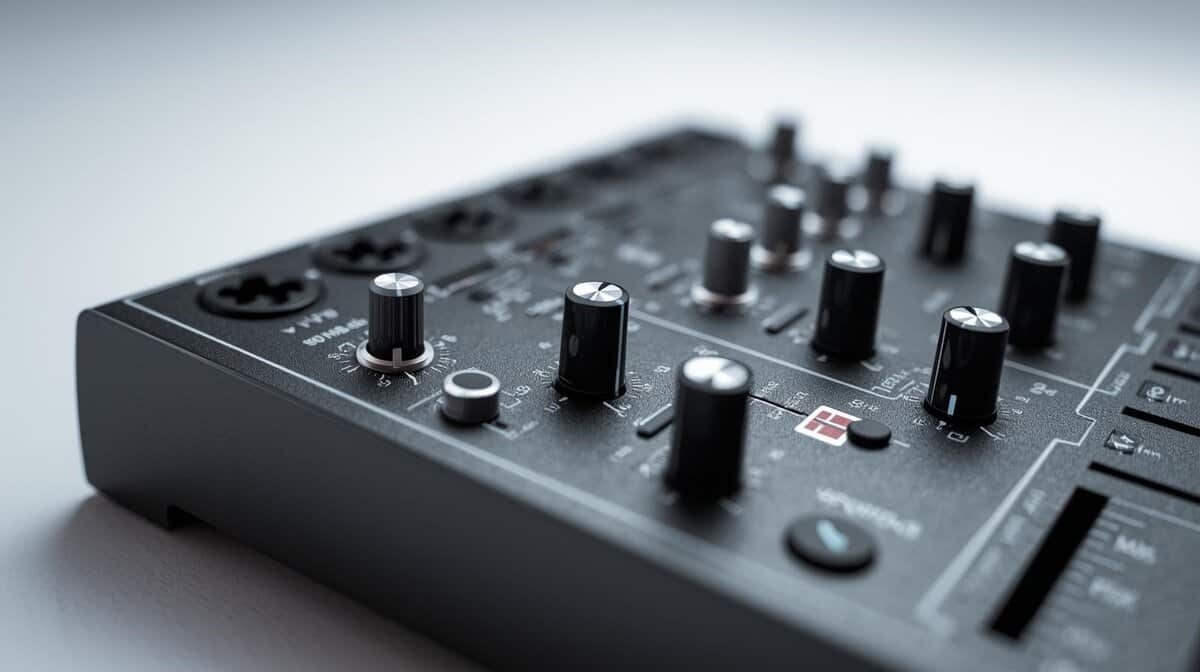
First, handle the physical connections. Use an XLR cable to connect your microphone to one of the mixer’s input channels. Plug your headphones directly into the mixer’s headphone jack to monitor audio in real-time. Finally, use the included USB cable to connect the mixer to your PC.
Finalizing the Software Setup
With the hardware connected, you need to configure your PC.
Set Your Default Devices: Go to your Sound settings. Select the mixer as your default Playback device (to hear all audio) and your default Recording device (so your mic works in all applications).
Install the Drivers: While many mixers are plug-and-play, always check the manufacturer’s website for specific drivers or control software. These often unlock additional features, improve stability, and provide more control.
A proper hardware and software foundation is key to a clean, reliable audio setup. For a complete look at how this fits into a larger setup, see our guide on building a solid streaming setup for beginners.
Got Questions About PC Audio Mixers? We’ve Got Answers
Improving your audio can seem complicated. Here are answers to common questions from gamers and streamers about adding a mixer to their PC setup.
Do I Need a Mixer for a Single USB Mic?
No. The primary purpose of a mixer is to manage multiple audio sources, typically from XLR microphones. If you only use a single USB microphone, a mixer is an unnecessary expense and adds complexity without improving your sound quality.
You are better off investing that money in an audio interface if you plan to upgrade to an XLR mic later. Otherwise, stick with your current USB mic. A mixer is for managing multiple inputs, not for a single source.
What’s the Real Difference Between a Mixer and an Interface?
Think of it this way: an audio interface is a specialist, while a mixer is a general manager.
An interface is focused on one job: getting high-quality sound from one or two microphones into your PC with maximum clarity. It’s a direct, high-fidelity pipeline
A mixer is built to manage multiple sources at once. It gives you hands-on, physical control to balance your mic, game audio, Discord chat, and music in real-time.
For a streamer blending multiple audio streams on the fly, a mixer is the practical choice. For someone who just wants their voice to sound as clean as possible for recording, an interface is the more direct tool.
To decide, ask yourself: “Do I need to control multiple audio sources with physical faders right now?” If yes, you want a mixer. If no, an interface will likely meet your needs.
How Do I Fix Buzzing or Humming Noises?
That buzzing is usually caused by a ground loop. This occurs when different pieces of equipment are plugged into separate electrical outlets, creating a small difference in electrical potential. The simplest fix is to plug all components—PC, monitor, and mixer—into the same power strip.
Also, check your cable management. If your USB or XLR cables are running alongside power cords, they can pick up electrical interference. Reroute them to keep them separate.
Finally, inspect your cables. A cheap, poorly shielded XLR cable is a common source of noise. Investing in a quality cable is a small price for clean audio and is a durable upgrade.
At Budget Loadout, we focus on finding gear that offers real value for your gaming and streaming setup. For more guides and reviews, visit us at https://budgetloadout.com.
Related Articles