If you’re building a stream on a budget, the best capture cards for streaming are ones that reliably deliver 1080p60 quality without expensive features you won’t use. A solid value option like the AVerMedia StreamLine MINI+ hits the sweet spot between performance and price, making it a logical starting point for anyone serious about stream quality.
- True 4K60 capture at a budget-tier price
- Zero-lag HDMI passthrough for your main display
- USB-C plug-and-play with OBS and major apps
- Newer release with a shorter track record than Elgato
- No HDMI 2.1 for 4K120 passthrough
- Companion software is more basic than bigger brands
- Reliable 1080p60 capture with ultra-low latency
- Hardware encoder eases the load on modest PCs
- 4K60 HDR passthrough keeps your own screen sharp
- 1080p capture ceiling
- Light plastic build compared to metal rivals
- No high-refresh passthrough modes
- 4K60 HDR capture with headroom for every current console
- HDMI 2.1 passthrough up to 4K144 with VRR
- Mature Elgato software with deep OBS integration
- Costs more than single-console setups need
- Overkill if you publish at 1080p
- Needs a USB 3.2 port for full throughput
- A capture card lets you stream or record console gameplay through your PC, offloading the encoding work so your gaming performance stays smooth
- Internal PCIe capture cards offer the lowest latency, while external USB models are portable and work with laptops
- You only need a capture card for console streaming or dual-PC setups: if you game and stream on the same PC, OBS can capture your screen directly
- The GENKI ShadowCast 3 Pro is the 4K60 value pick, the AVerMedia StreamLine MINI+ the budget entry, and the Elgato 4K X the premium workhorse
- Match the card to your console output, not your stream output: 1080p60 streaming needs less than you think
Table of Contents
Finding the Best Value Capture Card for Your Setup
Choosing a capture card can feel like understanding a foreign language filled with technical specs and marketing jargon. This guide cuts through that noise. We’re focusing on what actually matters (performance, build quality, and value) to help you make a smart decision without overspending.
Think of a capture card as a translator for your gear. Your gaming console (like a PS5, Xbox, or Switch) or a dedicated gaming PC sends out a high-quality video signal. The capture card’s job is to grab that signal, process it, and turn it into a format your streaming PC and software like OBS Studio can understand and broadcast. It handles the heavy lifting so your game runs smoothly and your stream looks crisp.
It’s a straightforward job: the card captures the raw video, converts it for your computer, and lets you send it out to your audience.
Why This Matters for You
Understanding this role is critical, especially when you’re watching your wallet. A good capture card offloads the video processing work from your gaming machine, preventing performance drops and stuttering. This is an essential piece of equipment for anyone who wants to:
- Stream from a console: It’s the only practical way to get your PlayStation, Xbox, or Switch gameplay onto a PC for a professional, customized broadcast.
- Use a dual-PC setup: It lets your gaming PC focus on one thing: running your game at the highest frame rates possible, while a second PC handles all the stream encoding.
Ultimately, investing in the right card means you don’t have to choose between your in-game performance and your stream’s quality. This guide will help you find a durable, well-built option that delivers exactly what you need.
What a Capture Card Actually Does for Your Stream
So, what is this box everyone says you need? Let’s clear up the biggest misconception right away. New streamers often ask, “Can’t I just plug an HDMI cable from my PS5 into my laptop?” The answer is no. The HDMI port on your laptop is almost always an output: it’s designed to send your screen out to a monitor, not take a video signal in.
A capture card provides the essential video input that your streaming PC is missing.
Think of it this way: a capture card is a dedicated translator. Your gaming machine is speaking one language, sending out a raw, high-quality video signal. Your streaming software, like OBS Studio, speaks a completely different language. It needs that signal converted into a digital format it can understand and broadcast.
The capture card sits in the middle and handles this translation in real-time. It grabs the gameplay from your console or gaming PC and converts it into a clean feed your streaming rig can use to create your broadcast on Twitch or YouTube.
The Real-World Benefit for Your Stream
This translation work is the key to a smooth, professional-looking stream. By handing this job off to a capture card, you take a significant processing load off your gaming machine. This is a non-negotiable step in two key setups:
- Console Streamers: If you’re playing on a PS5, Xbox, or Nintendo Switch, a capture card is the only bridge that gets your gameplay onto a PC. This allows you to add overlays, alerts, and your webcam: all the elements of a polished broadcast.
- Dual-PC Streamers: This is the standard for high-end streaming for a reason. It lets your gaming PC dedicate 100% of its resources to running your game at the highest possible FPS. Meanwhile, your second PC handles all the encoding and streaming, so neither machine has to compromise on performance.
The result is simple: your game stays smooth and responsive, even in a chaotic firefight in an FPS, while your viewers get a high-quality broadcast that doesn’t stutter or lag. Investing in a solid capture card is an investment in consistency for both you and your audience.
Understanding the Specs That Truly Matter
A capture card’s spec sheet can be confusing, but you only need to understand a few key numbers to know if it’s right for you. Let’s cut through the jargon and focus on what impacts your stream’s quality and your in-game performance.
This is about connecting the specs to real-world scenarios so you can spot a good value card and avoid a frustrating piece of hardware.
Capture Resolution and Framerate
This is the quality your viewers see. For almost every streamer on a budget, 1080p resolution at 60 frames per second (FPS) is the target. It’s the sweet spot: a smooth, clear picture that looks great on Twitch and YouTube without requiring a massive internet connection to maintain.
You’ll see cards boasting about 4K capture, but it’s overkill for most live streaming. Streaming in 4K demands a high upload speed and significant processing power, and the vast majority of your audience is still watching in 1080p. Unless your entire content strategy is built around producing ultra-high-fidelity VODs for YouTube, stick with a card that reliably delivers 1080p60.
The Critical Role of Passthrough
This is the single most important spec for gamers. Passthrough is the feature that sends the video signal from your console or gaming PC through the capture card and straight to your monitor, with zero added lag.
It ensures the experience you have while playing is identical to how it would be without a capture card.
Key Takeaway: Bad passthrough forces you to play on a laggy, downgraded signal. A good capture card must have zero-latency passthrough that can match your monitor’s native specs to protect your competitive edge.
If you play fast-paced shooters like Valorant or Apex Legends on a 144Hz monitor, you need a card with 144Hz passthrough. If you buy a card that only supports 60Hz passthrough, it will bottleneck your entire setup, forcing your high-end monitor down to 60Hz. Your hardware advantage becomes useless.
Interface and Latency
The interface is how the card connects to your streaming PC, and it directly impacts latency: the slight delay between what happens in-game and what you see in your OBS Studio preview window.
- USB (External): This is the most common and versatile option. These cards are plug-and-play, making them a practical choice for console streamers or anyone using a laptop. Look for USB 3.0 or higher, as you need that bandwidth for a clean signal. Build quality is a significant factor here; a sturdy metal case dissipates heat better than cheap plastic, which is critical for reliability during a long stream.
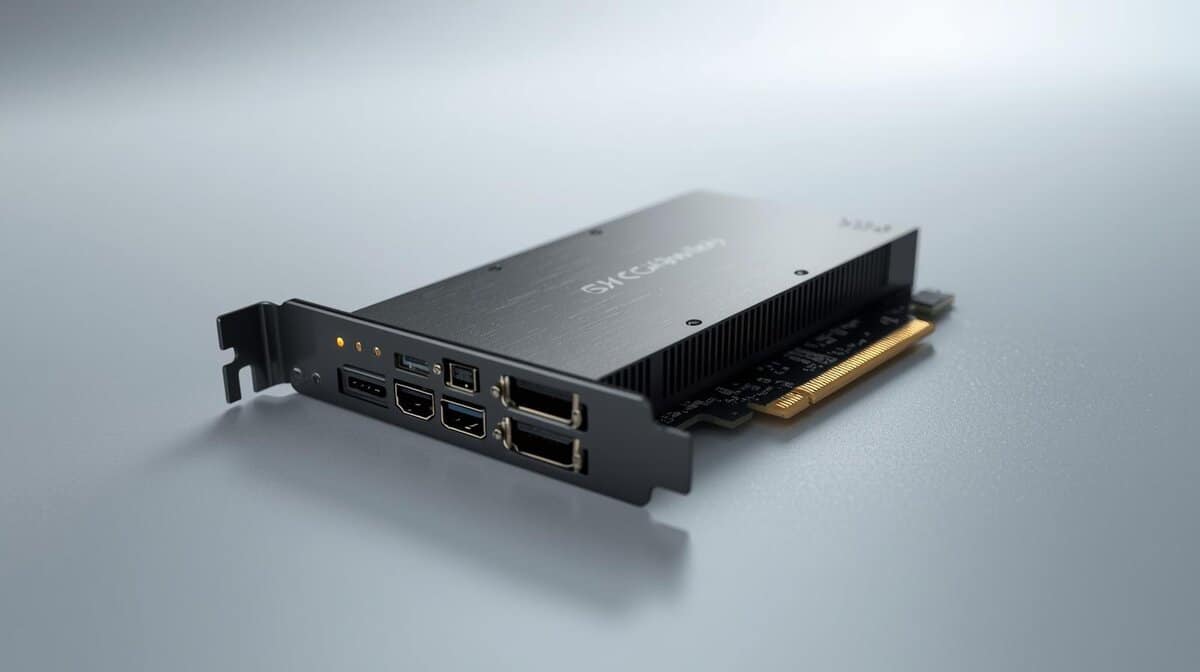
- PCIe (Internal): These cards plug directly into your desktop’s motherboard. They offer the lowest possible latency and a cleaner desk setup, making them the preferred option for dedicated dual-PC streaming rigs.
For your stream preview in OBS, a card with “ultra-low latency” (usually under 100ms) makes managing your stream feel more responsive. While you should never try to play your game off the preview window, low latency makes syncing your audio and video much easier. Modern USB cards have gotten so good that the latency difference from a PCIe card is almost unnoticeable for most streamers.
Choosing Your Fit: External vs. Internal Cards
When picking a capture card, the first decision is whether to get an external box that sits on your desk or an internal card that slots into your PC. Neither is inherently better; it’s about what’s right for your setup, technical comfort level, and how you plan to stream.
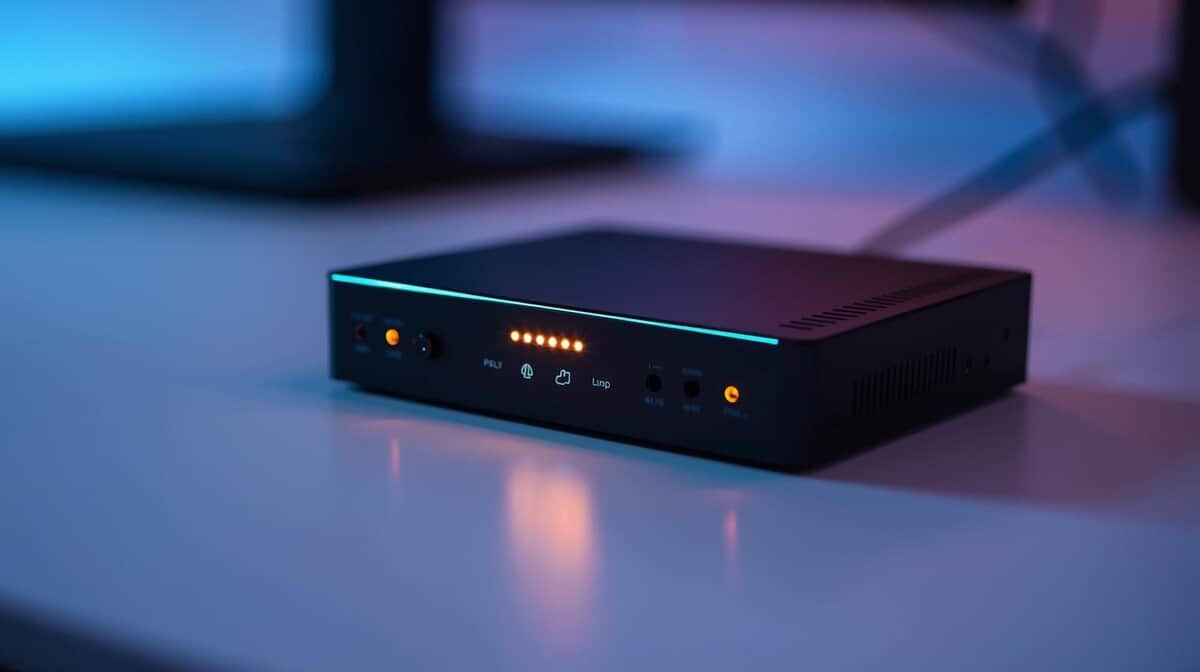
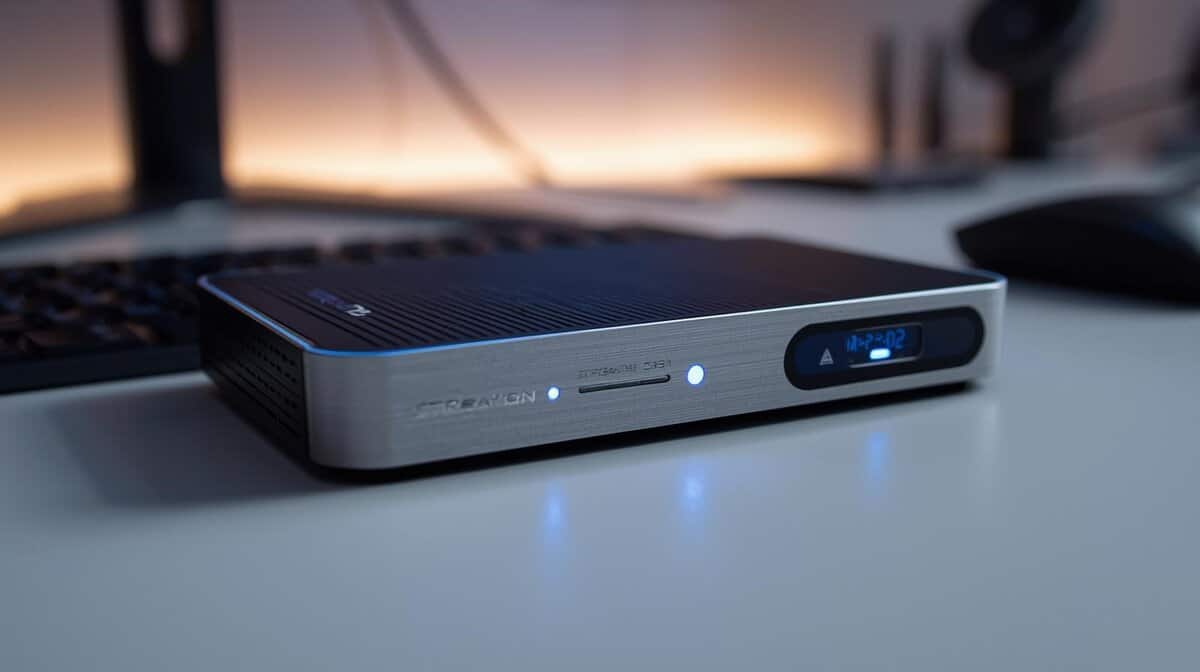
External cards are the most convenient option. They connect via USB, making them the default choice if you’re streaming from a console like a PS5, Xbox, or Switch. Their plug-and-play nature is also well-suited for laptop users or anyone who wants the freedom to move their streaming gear between different computers. Pay attention to the build quality: a solid metal housing does a much better job of shedding heat and withstanding wear and tear than a flimsy plastic one.
The main requirement is a high-speed USB 3.0 (or faster) port. If you plug one into an older, slower USB 3.0 port, you’re going to get a laggy, compressed signal, if it works at all.
The Case for Internal Cards
Internal cards, which plug directly into a PCIe slot on your desktop’s motherboard, are a set-it-and-forget-it solution for dedicated streaming PCs. Once installed, you get the lowest possible latency and a direct connection between your gaming rig and your streaming software. It also keeps your desk cleaner with fewer cables.
But they have two clear tradeoffs. First, you have to open up your PC case to install one, which can be intimidating if you’ve never done it before. Second, they’re completely useless for laptop gamers or anyone with an all-in-one computer.
For gamers on a budget, an external card almost always delivers the most value and versatility. An internal card is best viewed as a performance upgrade for streamers who already have a dedicated desktop PC and are comfortable doing minor hardware installations.
Top Budget-Friendly Capture Cards Reviewed
Let’s get into the hardware. This isn’t about finding the cheapest dongle on Amazon; it’s about pinpointing cards that deliver reliable performance and solid build quality without a high price tag. We’re focusing on the models that offer the best value for budget-conscious gamers who demand a quality stream.
Each mini-review is direct about the tradeoffs. We’ll cover build quality, ease of setup, software, and who each card is for: whether you’re streaming fast-paced FPS games from a console or slower-paced MMOs from a dual-PC setup.
The 4K60 Value Pick: GENKI ShadowCast 3 Pro
For anyone streaming from a modern console, the GENKI ShadowCast 3 Pro rewrites the value math. It captures true 4K60, adds 1440p120 and 1080p240 modes for high-refresh sources, and its zero-lag HDMI passthrough keeps your main display feeling untouched. It lands at a price that undercuts every brand-name 4K rival.
Setup is plug-and-play over USB-C with OBS and the major streaming apps, and the compact housing travels easily between setups. Genki has built console accessories since the original Switch, and this is the most affordable legitimate 4K60 capture path in the category.
The No-Frills Value Pick: AVerMedia StreamLine MINI+
If your budget is tighter but you won’t risk a no-name card, the AVerMedia StreamLine MINI+ (GC311G2) is a strong contender. It is compact, with a simple, durable plastic shell designed to do one job well: high-quality 1080p60 capture with zero-latency passthrough.
Our Takeaway: This card is the definition of “no frills, all function.” It forgoes 4K and HDR support to deliver a rock-solid 1080p60 stream, making it a suitable match for Nintendo Switch streamers or anyone just starting out.
Its biggest strength is its simplicity. It just works, supported by AVerMedia’s solid drivers and RECentral software, which is a stable alternative if you don’t want to use OBS right away. The build is purely functional, designed to be tucked away behind your setup.
Of course, video is only half the battle. You need a good camera to go with it, so check out our guide on the best budget webcams for streaming to complete your setup.
The tradeoff here is clear: you get no advanced features. There’s no 4K passthrough, no HDR, and no high-refresh-rate support. That makes it a poor choice for competitive PC gamers with high-refresh-rate monitors or PS5 owners with 120Hz TVs. For everyone else, particularly those streaming less demanding games like MMOs or RPGs, it’s a dependable and affordable entry into quality streaming.
The Premium Workhorse: Elgato 4K X
When one card has to cover everything, the Elgato 4K X is the answer. It captures 4K60 HDR and passes through up to 4K144 over HDMI 2.1 with VRR support, so a PS5, Xbox Series X, Switch 2, and a high-refresh PC monitor can all run through a single box.
It costs more than most single-console streamers need, and that is the honest tradeoff. You are paying for headroom: if your setup will grow, this is the last capture card you will need to buy for years.
Avoiding Common Setup Pitfalls
Picking the right capture card is only half the battle. Getting it configured with your software is where many new streamers get stuck. We’ll walk through the most common traps so you can get your new gear running smoothly.
The number one mistake is plugging the cables into the wrong ports. The HDMI cable from your console or gaming PC must go into the HDMI IN port on the capture card. A second HDMI cable then runs from the card’s HDMI OUT port to your gaming monitor.
If you get these backward, you will see a black screen. Double-check this first.
Getting Your Software Dialed In
With the hardware connected, it’s time to tell your streaming software what to look for. Inside a program like OBS Studio, the process is simple:
- In the “Sources” box, click the ‘+’ icon.
- Choose “Video Capture Device” and give it a memorable name (e.g., “PS5 Capture”).
- In the properties window, select your new capture card from the “Device” dropdown menu.
The most common reason for a “No Signal” error in OBS is a resolution mismatch. By default, OBS might guess the settings. Instead, change the “Resolution/FPS Type” from “Device Default” to “Custom.” Then, manually set the resolution to 1920×1080 and the FPS to 60. This forces OBS to look for the exact signal your console is sending.
Troubleshooting the Usual Headaches
Even with a correct setup, consoles have quirks that can cause issues. Here’s a quick-fix guide.
- Where Did My Audio Go? Consoles are designed to stop sending audio through HDMI the second you plug a headset into the controller. Go into your console’s audio output settings and ensure it’s set to output to the HDMI Device.
- Black Screen on PS5/PS4: You must disable HDCP (High-bandwidth Digital Content Protection). This is a copy-protection feature that will block your capture card’s signal by design. You’ll find the toggle in your console’s system settings.
- Screen Tearing on Your Monitor: This can happen if your game’s frame rate isn’t synced with your capture rate. The easiest fix is to enable V-Sync in your game’s settings or cap your in-game FPS to a multiple of 60 (like 120 FPS).
For a more detailed walkthrough of getting all your gear working together, our complete streaming setup for beginners guide covers every component you’ll need.
Running through these simple checks will solve over 90% of initial setup problems.
Thinking about a camera upgrade too? Our guide to the 4K Ultra HD camera covers whether 4K is worth it for streaming.
Got Questions About Capture Cards? We’ve Got Answers.
Let’s wrap up by tackling common questions about capture cards. Getting these details straight will help you finalize your decision and understand where this gear fits into your streaming setup.
Do I Really Need a Capture Card for Single-PC Streaming?
For most people streaming from a single PC, the answer is no. Modern graphics cards have dedicated encoders like NVIDIA’s NVENC that are very effective at juggling both gaming and streaming at the same time.
A capture card’s primary job is to bring in video from an external source, like a PlayStation 5, a Nintendo Switch, or a second PC. If you only stream games from the same machine you play on, that money is better spent on a more powerful GPU, a faster CPU, or a quality microphone. Speaking of audio, you can find solid value in our guide to the best budget USB microphones.
Are Those Super-Cheap No-Name Capture Cards Worth the Risk?
That sub-$20 price tag is tempting, but it’s a gamble. These unbranded cards often use misleading marketing, claiming 4K support but only outputting a blurry, compressed 1080p30 signal.
They almost always come with higher latency, unreliable drivers that cause crashes, and poor build quality with no heat dissipation. For a stable, professional-looking stream, investing in an entry-level model from a trusted brand like Elgato or AVerMedia is a much safer choice. You get what you pay for in performance and reliability.
The core tradeoff with no-name cards isn’t just quality; it’s reliability. A cheap card failing mid-stream is a frustrating experience that a reputable, budget-friendly option helps you avoid.
Will a Capture Card Reduce My In-Game Lag?
A capture card helps with processing load, not network lag. In a dual-PC setup, it takes the encoding work off your gaming PC. This can lead to smoother gameplay and more stable frame rates because it frees up your CPU and GPU.
However, it will not improve your internet connection or lower your ping in an online game. The “zero-lag passthrough” feature is about ensuring the card itself doesn’t add any input delay between your controller and what you see on your main gaming monitor.
Do I Need 4K Capture if I Stream at 1080p?
No. Twitch and most YouTube live streams top out at 1080p60, and a card like the StreamLine MINI+ covers that completely. True 4K60 capture earns its keep when you record footage for edited YouTube videos, where the extra resolution survives cropping and re-encoding.
If you only go live, spend the savings on a better microphone instead.
What Capture Card Works with the Switch 2?
Any HDMI capture card works through the Switch 2 dock, and the console negotiates its output to match what the card supports. A 1080p60 card streams it just fine.
To record the full 4K60 docked output, you need a card with true 4K60 capture, not just 4K passthrough. Both 4K picks in this guide qualify.
At Budget Loadout, we believe in building a high-performance setup without overspending. To find more gear that hits the perfect balance of quality and price, visit our homepage at Budget Loadout.
Related Articles