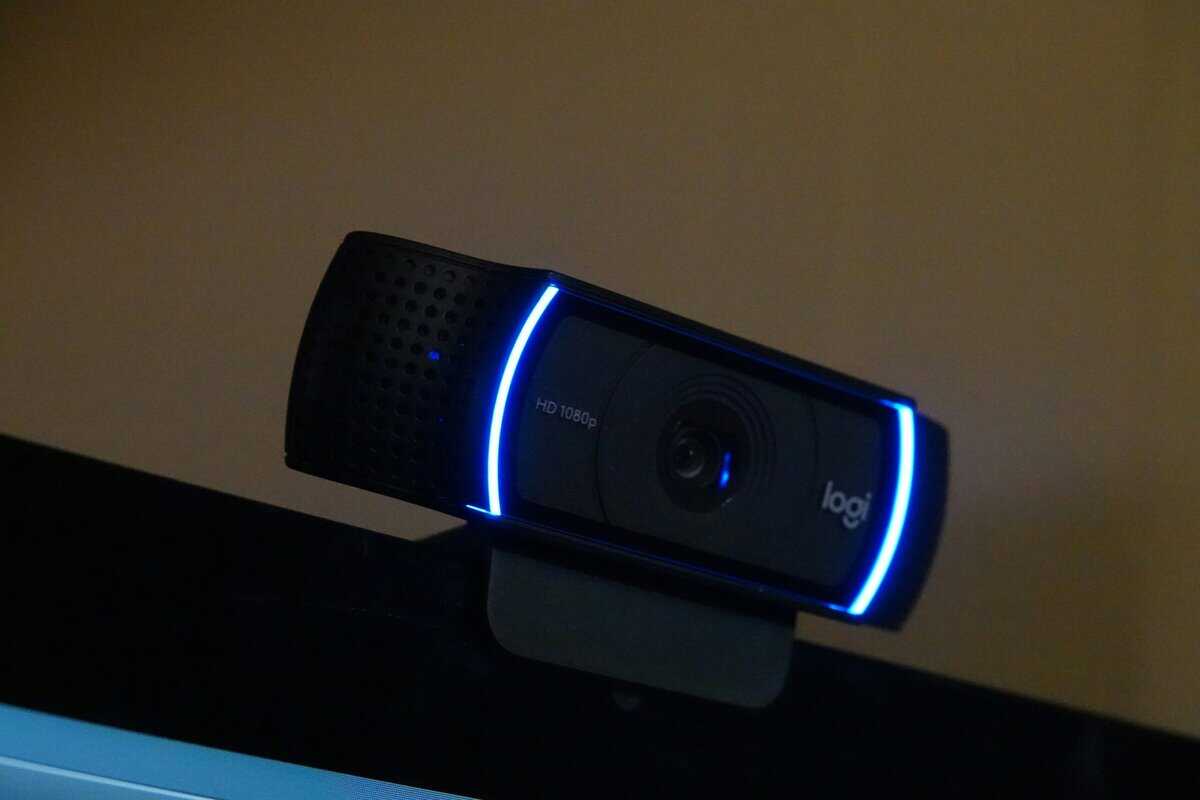
If you are a gamer looking for the best budget webcams for streaming, the Logitech C920x is a reliable option that consistently performs. It strikes a good balance of proven reliability, sharp image quality, and solid software support. For a new streamer who needs quality without a high price tag, this is a sensible starting point.

- Sharp 1080p image quality with reliable autofocus
- Built-in dual stereo microphones for decent audio
- Universal clip mount fits most monitors easily
- Average low-light performance
- No built-in ring light
- Capped at 30fps; no 60fps
- Good color reproduction for the price
- 110-degree wide field of view captures more of the scene
- Privacy shutter included for quick security
- Autofocus hunts during quick moves
- Built-in mic is basic for streaming
- Image drops in low light
- 2K resolution delivers sharper detail than 1080p rivals
- AI noise cancellation improves microphone clarity
- Adjustable field of view for flexible framing
- Less community track record
- Some features need the Anker app
- USB-C may need adapter for older PCs
- Low-light performance separates good budget webcams from bad ones, larger sensors handle dim rooms without excessive grain
- Auto-focus and auto-exposure features save time during streams so you’re not manually adjusting your camera between scenes
- Most budget webcams include a built-in microphone, but a dedicated USB mic will always sound significantly better for streaming
- USB plug-and-play webcams require zero driver setup, just connect and start streaming on any platform
Table of Contents
Finding a Webcam That Balances Price and Performance
Choosing a budget webcam for your stream is about finding the right balance between cost and performance. This guide is designed to cut through marketing language and focus on what matters to gamers: a clear picture, reliable performance in low light, and features that won’t interfere with your gameplay. The goal is to get a professional-looking video feed without overspending.
We’re targeting value-conscious gamers, which means looking past the absolute cheapest options on the market. Every webcam recommended here is chosen for its long-term usability and durability. A camera that requires constant adjustment or fails after a few months is a poor investment, regardless of its initial cost.
What to Expect From a Budget Webcam
A good budget webcam should deliver on a few key areas without complications. It is a tool that should plug into your system and function correctly, letting you focus on creating content.
Here is what you should look for:
- Solid 1080p Video: This is the baseline standard for streaming. A quality 1080p feed looks crisp and professional in the small face-cam window most streamers use.
- Decent Low-Light Performance: Gamers often play in dimly lit rooms. A capable webcam sensor will provide a clean image without excessive grain or digital noise.
- Reliable Build Quality: The device should feel sturdy. It needs a versatile mount that grips your monitor securely and does not wobble during gameplay.
A common trade-off with budget webcams is the built-in microphone. While it may suffice for a quick Discord call, it is not suitable for streaming. Prioritize video quality in your budget and plan to acquire a separate USB microphone later for better audio.
Key Budget Webcam Contenders
This guide focuses on three models that consistently offer good value. Each has distinct strengths and weaknesses, making them suitable for different types of streamers.
| Feature | Logitech C920x | Nexigo N60 | Anker PowerConf C200 |
|---|---|---|---|
| Resolution | 1080p at 30fps | 1080p at 30fps | 2K (1440p) at 30fps |
| Best For | Overall value and reliability | Aggressive pricing and simplicity | Sharper video with flexible framing |
| Build | Sturdy plastic, proven design | Lightweight plastic, flexible | Sturdy plastic, compact design |
| Key Tradeoff | Older model, 30fps cap | Less mature software | Microphone quality is average |
One more name worth a look before you decide: the EMEET C960. It sits between the N60 and C920x on price, and its dual built-in mics are a step up over most budget webcams, a real perk if you stream casually and don’t own a separate microphone yet.
Next, we’ll break down how these specifications translate to real-world performance, whether you’re streaming MMOs, fast-paced FPS titles, or other genres. This will help you select the equipment that fits your content.
Understanding Webcam Specs That Matter for Gaming
Shopping for a webcam can involve a lot of technical jargon. To find the right budget webcam for your stream, you don’t need to be an expert on every specification. You just need to focus on what makes you look good to your audience.
For now, disregard 4K and other premium features. The goal for a value-focused streamer is to achieve a clean, smooth image that doesn’t strain your PC or internet connection. This section clarifies the specs that are genuinely important for gaming.
Resolution and Frame Rate: The Streamer’s Sweet Spot
Resolution measures your video’s clarity, while frame rate (measured in fps) determines how smooth that video appears. While brands often promote the highest numbers, the practical reality for streamers is different.
For most gamers, 1080p (1920×1080 pixels) at 30fps is the standard. This combination delivers a sharp, professional-looking image in your face-cam window without demanding too much from your system. While 60fps offers smoother motion, many budget webcams compromise on image quality or require significant light to reach that target, making 30fps a more reliable goal.
The trade-off is clear: pushing for 60fps on an inexpensive webcam often results in a darker, grainier image as the sensor struggles to capture enough light for each frame. Stick with a model that excels at a stable 1080p at 30fps for consistent quality.
Low-Light Performance: Sensor Size and HDR
Most gamers stream in dimly lit rooms, illuminated primarily by their monitors and RGB accessories. This is where a webcam’s low-light performance becomes critical. A camera that cannot handle these conditions will produce a grainy, washed-out video that looks unprofessional.
The key to good low-light performance is the image sensor. Bigger sensors capture more light, which results in a cleaner image with less digital “noise” or grain. Some budget models also include High Dynamic Range (HDR), a feature that balances the bright and dark areas of your video. This is useful for preventing your monitor’s glow from overexposing your face while keeping the rest of your room visible.
- Larger Sensor: Captures more light, which is crucial for reducing grain in typical gaming setups.
- HDR Support: Prevents bright spots (like your monitor) from overexposing your face and brings out detail in the shadows.
- Glass vs. Plastic Lens: A glass lens generally provides a sharper and clearer image than a plastic one, especially over time.
A webcam with a solid sensor is the foundation of good stream quality. Even an expensive model will look poor without enough light, but a capable sensor provides a much better starting point.
Autofocus and Field of View: Staying Sharp and Centered
Beyond pure image quality, two other features define the user experience of a webcam while streaming: autofocus and field of view (FOV).
Autofocus is what keeps you sharp when you move. Slow or unreliable autofocus will constantly “hunt” for focus, making your video blurry and distracting your viewers. A responsive autofocus is necessary for any dynamic streamer. Manual focus is an alternative that offers more control, but it requires initial setup.
Field of View (FOV) determines how much of your background the camera captures, and it’s measured in degrees.
- A narrow FOV (60-75 degrees) is suitable for a tight face-cam shot that focuses only on you.
- A wider FOV (78-90 degrees) is better if you want to show more of your gaming setup or background.
This is why the Logitech C920x is still a benchmark for budget streaming in 2025, even though it was released in 2019. It often sells well below MSRP and consistently tops value charts. It achieves a reliable 1080p at 30fps standard and has a versatile 78-degree field of view, making it a staple for gamers who want a professional-looking stream without spending a fortune. You can check out expert reviews that confirm its lasting value on TechRadar’s 2025 guide.
Comparing the Top Budget Streaming Webcams
Let’s compare the top contenders directly. This is not just a list of features; we’re breaking down the real-world trade-offs between three of the most popular budget webcams for streaming: the Logitech C920x, the Nexigo N60, and the Anker PowerConf C200.
Each of these cameras is better suited for different situations. We’ll examine which one provides the most consistent performance for its cost, focusing on what is important for a new streamer.
Logitech C920x: The Reliable Workhorse
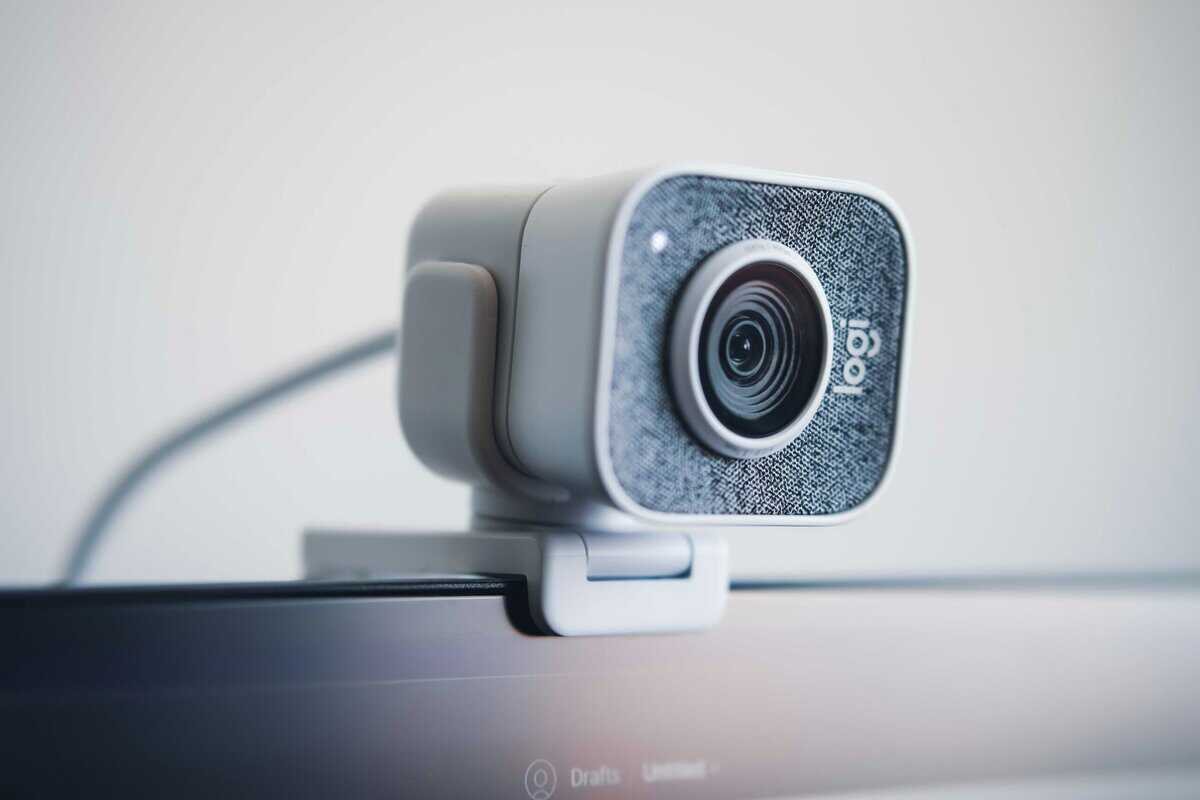
The Logitech C920x has been a leading budget webcam for years. Its image processing is mature and predictable, delivering a sharp, color-accurate picture out of the box with minimal adjustment.
For streamers who do not want to spend time adjusting settings in OBS, this is a significant advantage. The autofocus is dependable, keeping you in focus without the “hunting” common in cheaper models.
The build quality is also a strong point. It is made from a dense, durable plastic that feels built to last, which is not true for many newer competitors. Its monitor mount is robust, gripping securely onto various screen sizes from thin laptops to thicker gaming monitors.
The C920x’s key advantage is its software. Logitech’s G Hub or Logi Tune apps provide fine-grained control over settings like white balance, exposure, and focus, allowing you to lock in a professional look. This software support is a major advantage over brands that rely on generic Windows drivers.
The main trade-off is its age. This is a 1080p/30fps camera, with no 60fps option available. For most streamers, this is adequate, but if smoother motion is a requirement, you will need to consider other options.
Nexigo N60: The Aggressive Value Option
The Nexigo N60 is focused on providing value. It is often priced lower than the C920x while still delivering a respectable 1080p/30fps image. For anyone on a very tight budget, this is a compelling option.
The image quality is decent for the price. It produces a clear picture, though colors can sometimes appear less natural compared to Logitech’s output. It performs adequately in low light but will show more digital grain than its pricier competition.
The build quality reflects its lower cost. The N60 is made from a lighter, less-premium plastic. It does not feel fragile, but it lacks the solid feel of the C920x. The mount is functional but less stable and offers fewer adjustment angles.
- Pro: Very affordable, making it a good entry point for a first-time streamer.
- Con: The built-in microphone is poor, even for a webcam. A separate mic is necessary.
- Use Case: Suitable for a beginner’s first facecam in an MMO or strategy game stream, where fast motion is not a priority.
Ultimately, the N60 is a compromise. You get a functional 1080p camera at a low price, but you sacrifice build quality, software features, and the polished image processing of more established models.
Anker PowerConf C200: The 2K Value King
The Anker PowerConf C200 is designed for users who want sharper-than-average video without paying premium prices. Its standout feature is 2K resolution (2560×1440), which is a meaningful upgrade over the 1080p standard found in most budget webcams.
This matters for video calls and recordings where fine details show. Text on whiteboards stays readable, facial expressions come through clearly, and the overall image looks noticeably crisper. Most webcams in this price range top out at 1080p, making the C200 an outlier.
The adjustable field of view is another highlight. Through the free AnkerWork software, you can switch between 65° for tight headshots, 78° for standard framing, or 95° for wider shots that include your workspace. Most competing webcams lock you into a single FOV with no flexibility.
Its main trade-off is the microphone. The dual mics with AI noise cancellation are adequate for casual calls, but they lack the clarity of dedicated USB microphones. Serious streamers will want to pair this with a standalone mic. The 30fps cap also means this is better suited for video calls than high-motion gaming content.
The Anker PowerConf C200 has earned a reputation as one of the best budget webcams available, packing these features in at a price around $60. It delivers that sharp 2K video at 30fps with low-light correction and a built-in sliding privacy cover. It competes well with pricier options like the $130 Logitech Brio 501 while costing less than half the price. You can learn more about its performance in these 2025 webcam comparisons.
Head-to-Head Budget Webcam Specifications
This table outlines the core specs and real-world performance differences, providing an at-a-glance view of where each webcam excels and where it has weaknesses.
| Feature | Logitech C920x | Nexigo N60 | Anker PowerConf C200 |
|---|---|---|---|
| Max Resolution/FPS | 1080p at 30fps | 1080p at 30fps | 2K (1440p) at 30fps |
| Key Feature | Reliable software & autofocus | Aggressive price point | Adjustable FOV (65°/78°/95°) |
| Build Quality | Excellent (durable plastic) | Average (light plastic) | Excellent (sturdy plastic) |
| Monitor Mount | Very versatile & stable | Functional but less stable | Versatile with tripod thread |
| Ideal Use Case | Set-it-and-forget-it quality | The absolute tightest budgets | Sharper video on a budget |
Each webcam represents a different trade-off. The Logitech offers proven reliability, the Nexigo provides a low price point, and the Anker delivers higher resolution with flexible framing options.
Final Verdict
The choice between these three depends on your budget and specific needs.
For most gamers on a budget who want a webcam that works well out of the box and is durable, the Logitech C920x remains the most balanced choice. It is a reliable workhorse.
However, if you want sharper video quality than standard 1080p, the Anker PowerConf C200’s 2K resolution and adjustable field of view make it a compelling alternative at a similar price point. If your budget is the top priority, the Nexigo N60 gets you on camera for less, but be aware of the trade-offs in build and software.
To complete your setup, check out our other guides on affordable gear in our streaming category.
Which Webcam Is Right for Your Streaming Style
The “best” webcam is not a single product; it is the one that fits your streaming style. The hardware you need depends on the content you create. A camera that looks good for a strategy game might not perform well during a fast-paced shooter.
Making the right choice means matching the camera’s strengths to your content’s demands. This ensures your investment improves the viewer experience for your audience. Let’s break down the best options for different types of streamers.
For Fast-Paced FPS and Action Gamers
If your stream focuses on high-motion titles like Valorant, Call of Duty, or Apex Legends, motion blur is a key technical challenge. During intense moments, a weak webcam can make your face blurry. For this use case, you need a camera that prioritizes motion clarity and fast autofocus.
A webcam with reliable autofocus is non-negotiable. Look for models praised for their ability to keep a subject sharp without “hunting” for focus when you move. While most budget webcams are capped at 30fps, some handle rapid movement better than others due to superior image processing.
Your goal is to remain crisp and clear, even when the action is chaotic. A webcam that struggles with quick movements makes your stream look choppy and unprofessional, which can detract from the viewing experience.
For MMO, RPG, and Strategy Gamers
Streamers playing MMOs like World of Warcraft, RPGs such as Baldur’s Gate 3, or complex strategy games typically have longer, more static sessions. In these scenarios, rapid motion is less of a concern. The focus shifts to creating an immersive and atmospheric presentation.
Here, low-light performance and color accuracy are what truly matter. Your webcam needs to produce a clean, vibrant image that does not look grainy in a dimly lit room. A camera with a good sensor and effective HDR processing can capture rich colors and fine detail, making your facecam a seamless part of your stream’s aesthetic.
Build quality is also a factor during long sessions. A webcam with a sturdy, dependable mount will not require constant readjustment.
The Best All-Arounder for Variety Streamers
If you are a variety streamer who plays different genres, you need a versatile webcam that performs well across the board. You are looking for a device that offers a solid balance of autofocus speed, overall image quality, and reliable software. It must be good enough for fast action but still produce a pleasing image during slower moments.
This is where a model with mature software and predictable performance is beneficial. The ability to create and save different image profiles for various lighting conditions or game types is a significant advantage. It ensures you have a consistent, professional look no matter what you decide to stream.
For streamers who need a dependable, no-fuss option, the Logitech C920x remains a top recommendation due to its consistent performance and robust software.
However, an aggressive competitor has emerged for those on a tighter budget. The Nexigo N60 has become a popular choice among budget-conscious streamers, typically priced between $30-40. In comparisons against other sub-$50 webcams, the N60 holds its own with solid 1080p output and a wide 110-degree field of view, making it a reasonable choice for those just starting out. You can explore a full breakdown of the N60’s performance against its rivals to see how it handles different scenarios.
How to Squeeze Every Ounce of Quality Out of Your Webcam
Acquiring a decent budget webcam is just the first step. The key to a professional-looking stream is often not the camera itself, but how you use it. A few adjustments can make an inexpensive webcam perform above its price point, often outperforming more expensive gear that is not set up correctly.
The single biggest factor affecting your video quality is lighting. A dark, grainy image is almost always the result of the camera’s sensor not receiving enough light. You do not need to purchase expensive studio equipment; a couple of household lamps can make a significant difference.
The Power of Three-Point Lighting
Three-point lighting is a standard method for lighting a subject, and it is easy to replicate on a budget. The goal is not just to illuminate your face, but to control the light.
Here is a simple breakdown:
- Key Light: This is your main, brightest light. Place it slightly off to one side of your monitor, angled down toward your face.
- Fill Light: This is a softer, secondary light. Position it on the opposite side to soften the harsh shadows created by the key light. This gives your face a more even, balanced look.
- Back Light (or Hair Light): This light goes behind you, out of the camera’s view. It creates a subtle outline around your head and shoulders, separating you from the background and adding depth.
You do not need to spend a lot of money on this. A couple of inexpensive desk lamps with soft, diffused bulbs are sufficient to dramatically improve your webcam’s performance. The main benefit is controlling where the light goes to create a balanced, clean image. For a deeper dive, check out this excellent resource on how to look good on video, which covers lighting, camera angles, and more.
Dialing in Your Settings in OBS or Streamlabs
Once your lighting is set up, it is time to take manual control of your webcam’s settings within your streaming software. Leaving everything on “auto” can be problematic. The camera will constantly try to adjust to minor changes in light or movement, causing flickering or pulsing focus.
Open OBS Studio or Streamlabs, find your webcam source, right-click it, and go to “Properties” or “Configure Video.” The objective is to disable any “auto” settings.
- Disable Auto-Exposure: Manually set the exposure so your face is bright but not overexposed. This locks in your brightness and stops the image from flickering.
- Disable Auto-White Balance: Adjust this setting until the colors on screen look natural. Your skin should not appear too orange or too blue.
- Disable Auto-Focus: This is critical. Manually adjust the focus until your face is perfectly sharp, then lock it. This prevents the camera from “hunting” for focus when you lean forward or back.
Locking in these settings gives your stream a consistent, professional look. Once you have this foundation, you can start thinking about the rest of your gear with our complete guide to building a streaming setup for beginners.
A webcam looks far better against a clean background, and our best green screen for streaming guide covers two picks.
Got Questions About Your Streaming Webcam? We Have Answers.
Entering the world of streaming gear can be confusing. Even after you’ve selected a webcam, practical questions often arise. This section provides direct, straightforward answers to common concerns of new streamers.
We will focus on real-world problems that can cause issues. The goal is to help you start streaming with confidence.
Do I Really Need a 4K Webcam to Start Streaming?
No. For a new streamer, buying a 4K webcam is usually unnecessary, and that money is better spent elsewhere.
Platforms like Twitch and YouTube compress your video feed. In the small facecam window on your stream, the visible difference between a sharp 1080p image and a 4K one is negligible to viewers.
Furthermore, streaming in 4K consumes a significant amount of your PC’s processing power and internet bandwidth. That power is better allocated to running your game smoothly and maintaining a stable stream. Focus on achieving a clean, well-lit 1080p picture first.
Should I Use the Webcam’s Built-In Microphone?
Only as a temporary solution while you wait for a dedicated microphone. Webcam mics are convenient, but their audio quality is typically poor. They pick up ambient noise like keyboard clicks, mouse movements, and PC fan hum, creating a distracting audio experience.
Clear audio is arguably more important than perfect video for viewer retention. A stream with minor video issues but good audio is watchable. A stream with perfect video but poor audio is often a reason for viewers to leave.
Investing in a separate microphone is one of the most significant upgrades you can make to your stream’s quality. If you are just starting, consider our guide to the best budget USB microphones. You can achieve a substantial audio improvement without a large investment.
How Do I Fix Blurry or Inconsistent Autofocus?
Inconsistent autofocus is a common issue with budget webcams, especially in low-light environments. The camera’s sensor struggles to lock onto a subject, causing a pulsing effect where the image drifts in and out of focus.
The most reliable fix is to disable this feature and take manual control. You can do this within your streaming software or the webcam’s application.
In OBS or Streamlabs: Right-click your webcam source and select “Properties” or “Configure Video.”
Find the Setting: Look for a checkbox labeled “Auto-Focus” and uncheck it.
Adjust Manually: A focus slider will appear. Sit in your normal streaming position and use the slider to achieve a sharp, clear image of yourself.
Once set, your focus will be locked. It will not change when you move during gameplay. This simple adjustment makes your camera feed look more stable and professional.
At Budget Loadout, our goal is to help you build a high-performance gaming and streaming setup that respects your wallet. Find more hype-free guides and honest reviews at Budget Loadout.
Related Articles